
Catalog in pdf

The Catalog in PDF Addon for CS-Cart helps create a professional product catalog in PDF format with complete details such as product images, names, descriptions, prices, vendors, stock status, features, ratings, reviews, and more. It also includes store contact information and the CS-Cart logo, giving the catalog a branded and professional look.
This addon provides multiple admin settings to control how and where the PDF download option appears on the storefront. The admin can enable PDF downloads on search pages, category pages, and vendor pages, choose how the PDF option is displayed (icon, button, or both), and customize the button text. It also includes a floating PDF icon that stays visible on the storefront, with options to set its position and show optional text.
The admin can manage which product details appear in the PDF, ensuring that only relevant information is shown. Product names in the PDF are clickable, allowing customers to directly visit the product page on the storefront.
Features:
- Category Page PDF: Download the product catalog of any category with a single click from the category page.
- Search Page PDF: Instantly get a catalog of all products displayed in the search results.
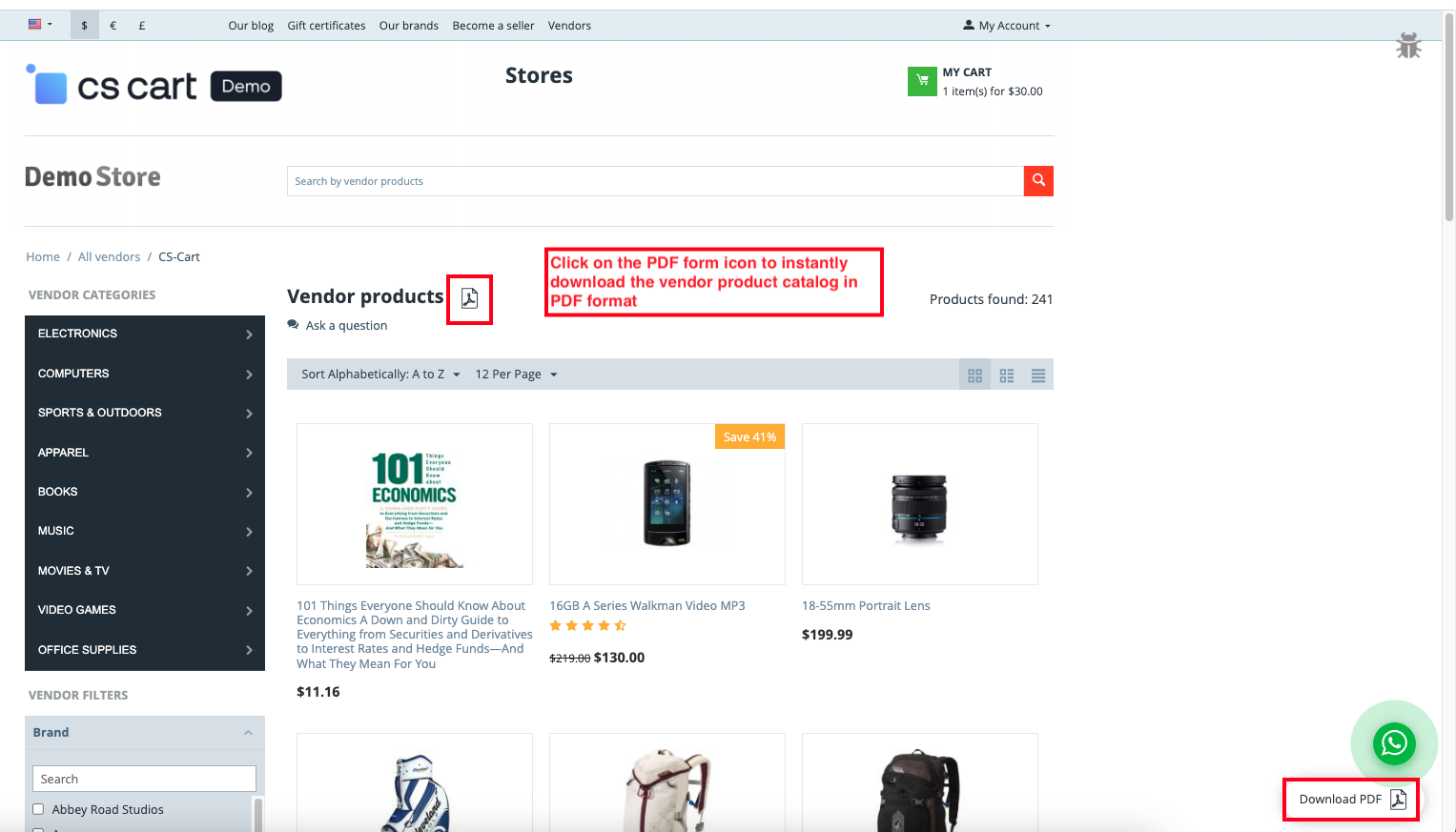
- Vendor Page PDF: Instantly download a catalog of all products listed by the vendor in PDF format.
- On/Off Control: Admin can enable or disable the PDF catalog option for search pages, categories, or vendors from the addon settings.
- Complete Product Information: PDF includes product images, names, descriptions, features, stock status, price, rating, reviews, and more.
- Clickable Product Names: Directly open the product page on the storefront by clicking the product name in the PDF.
- Floating PDF Icon: Show a floating PDF icon on the storefront for quick access, with position and text options.
- Display Options: Admin can choose how the PDF option appears—icon only, button only, or icon with button.
- Promo Text and Short Description: Include or hide promo text and short description in the PDF catalog.
- CS-Cart Support Information: Fully compatible with CS-Cart Multi-Vendor Standard, Plus, and Ultimate versions.
- Branded PDF: Include store contact information and the CS-Cart logo for a professional look.
- Installation:
How to install Addon
https://store.ecarter.co/blogs/how-to-install-addon/
Workflow of Addon
Note: Before installing this addon, you must activate the CS-Cart PDF Documents addon; otherwise, it will not function work.
Admin Settings Configure
Users can manage the addon settings to control which product details are displayed in the catalog PDF. Simply adjust the options below to include or exclude information.
- Switch on the settings tab.
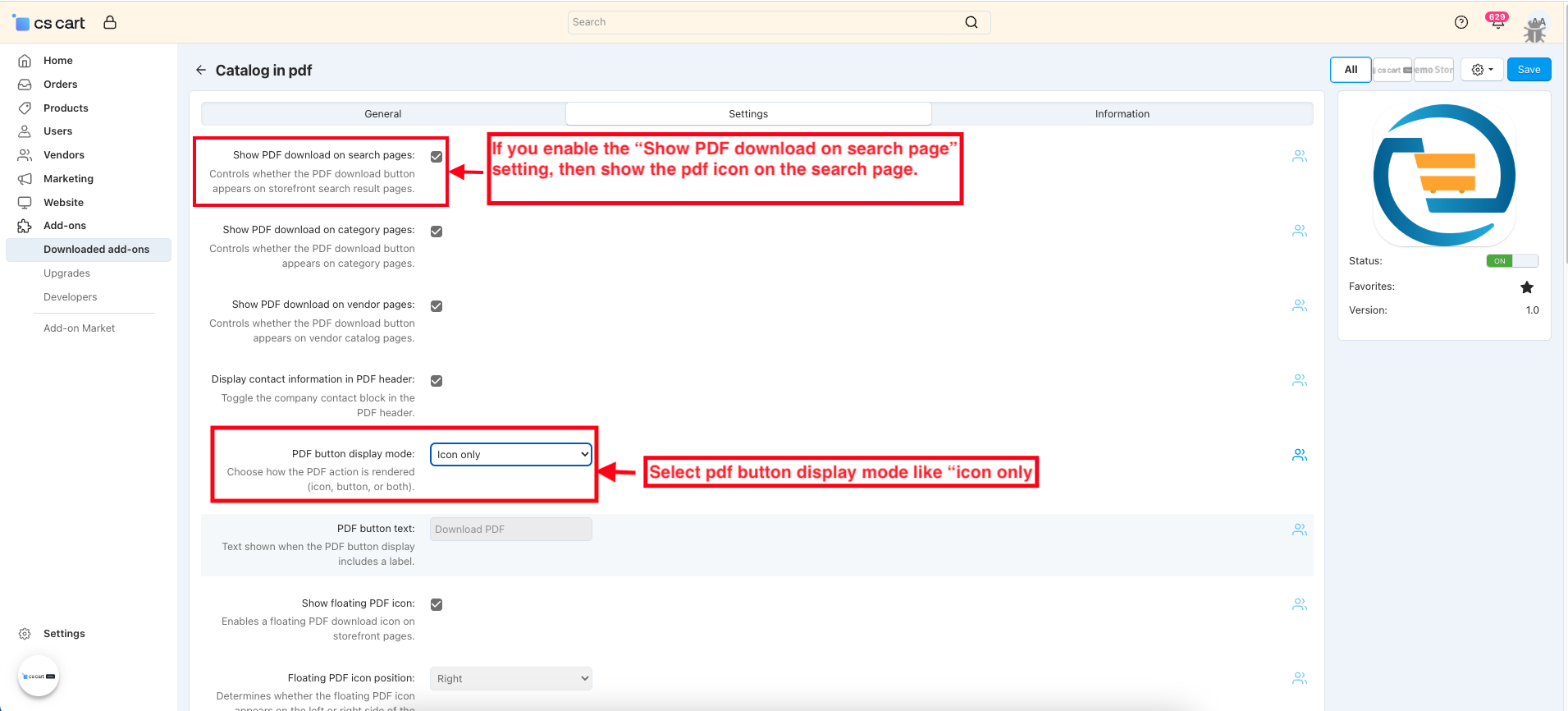
- Show PDF download on search pages: Enable this setting to show the PDF download option on the store search result page.
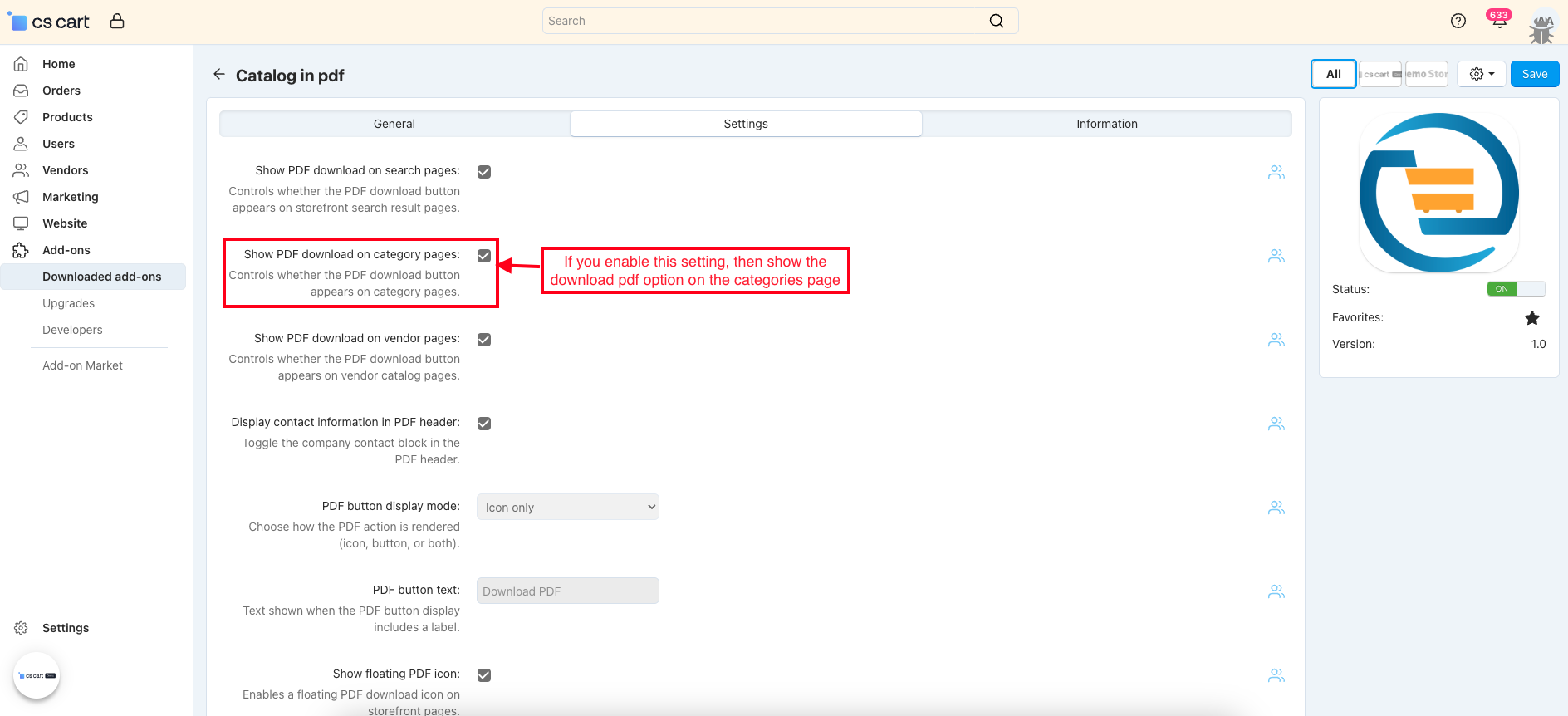
- Show PDF download on category pages: Turn on this setting to display a catalog PDF download option on category pages for customers.
- Show PDF download on vendor pages: Turn on this setting to show the PDF download option on the vendor page.
- Display contact information in PDF header: Enable this setting to add the contact information at the top of the generated PDF.
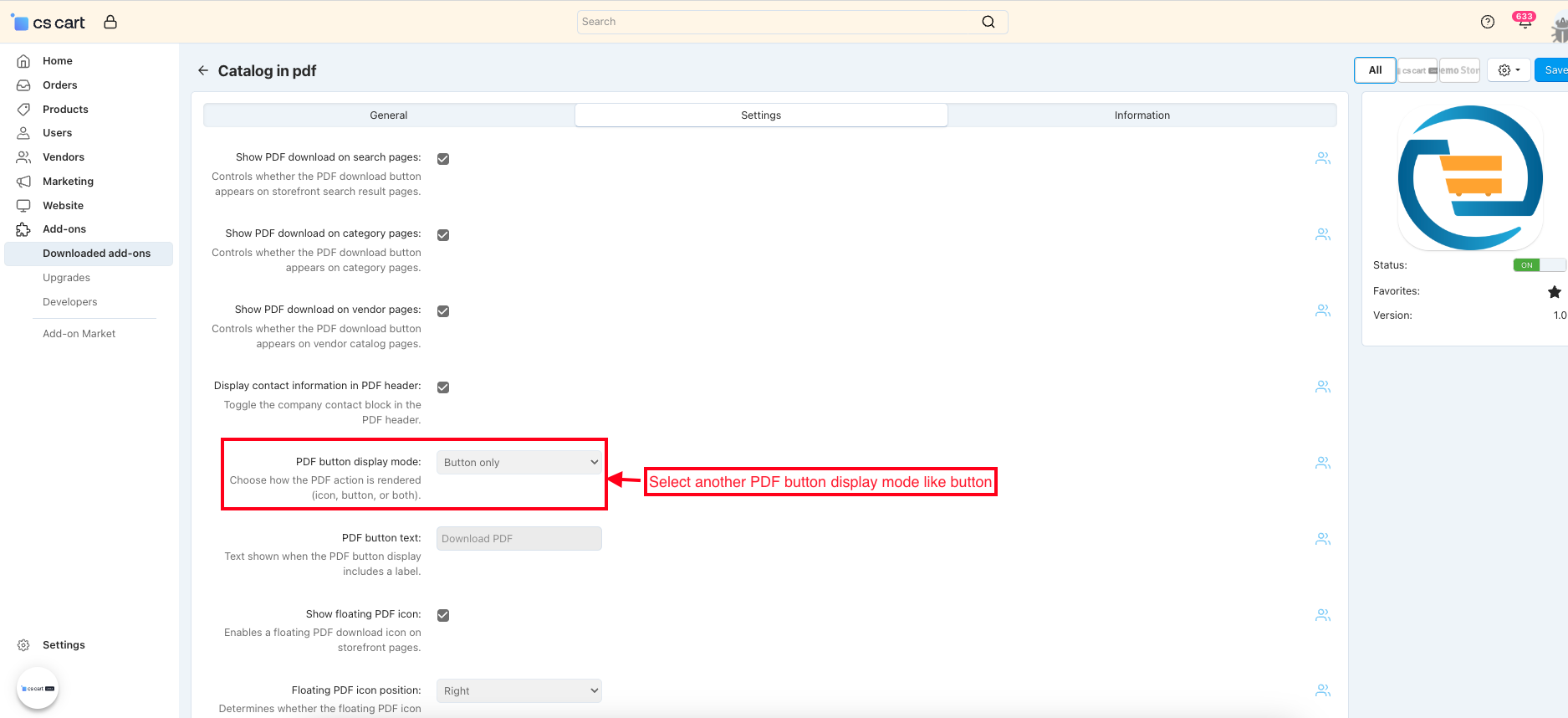
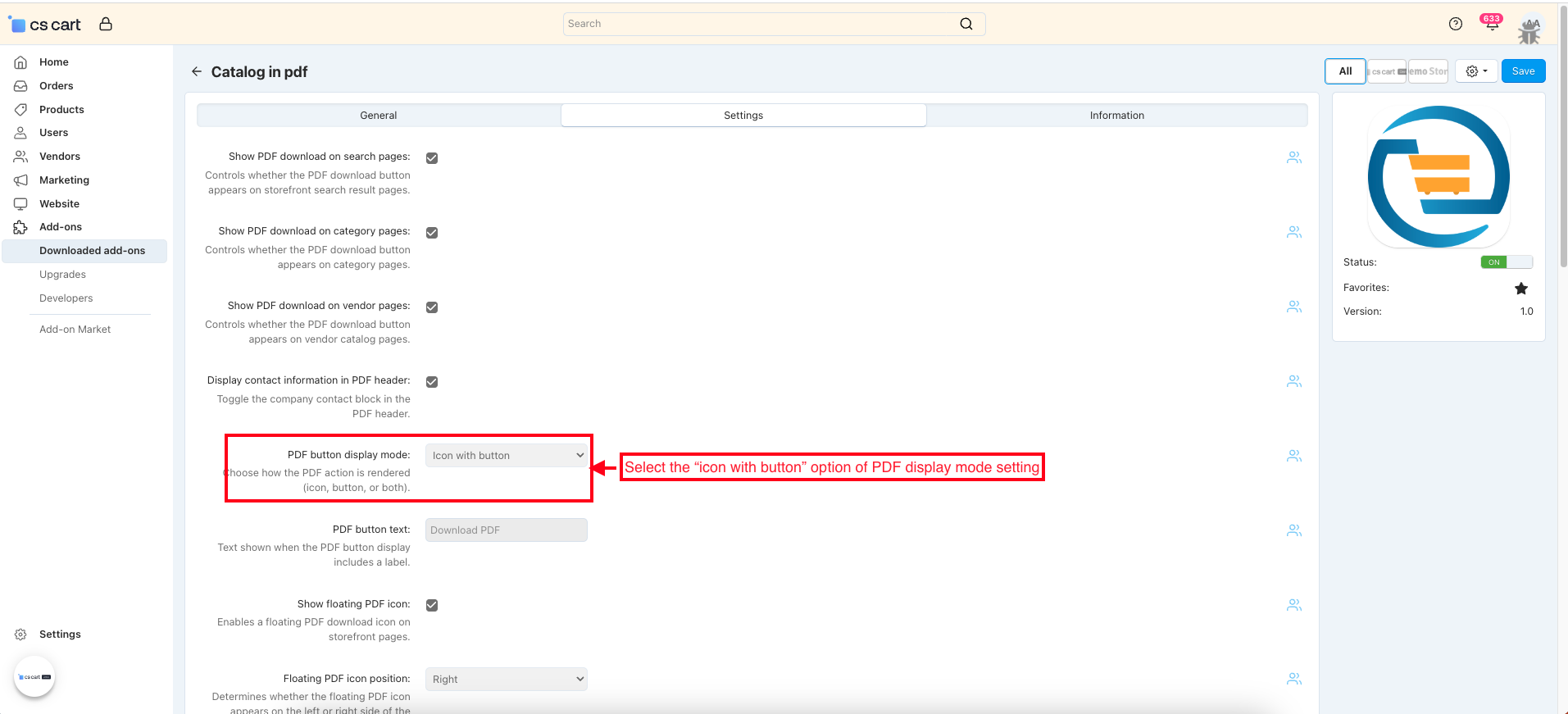
- PDF button display mode: Choose the PDF action that appears, such as icon, button, or both.
- PDF button text: Set the text to be shown on the PDF button.
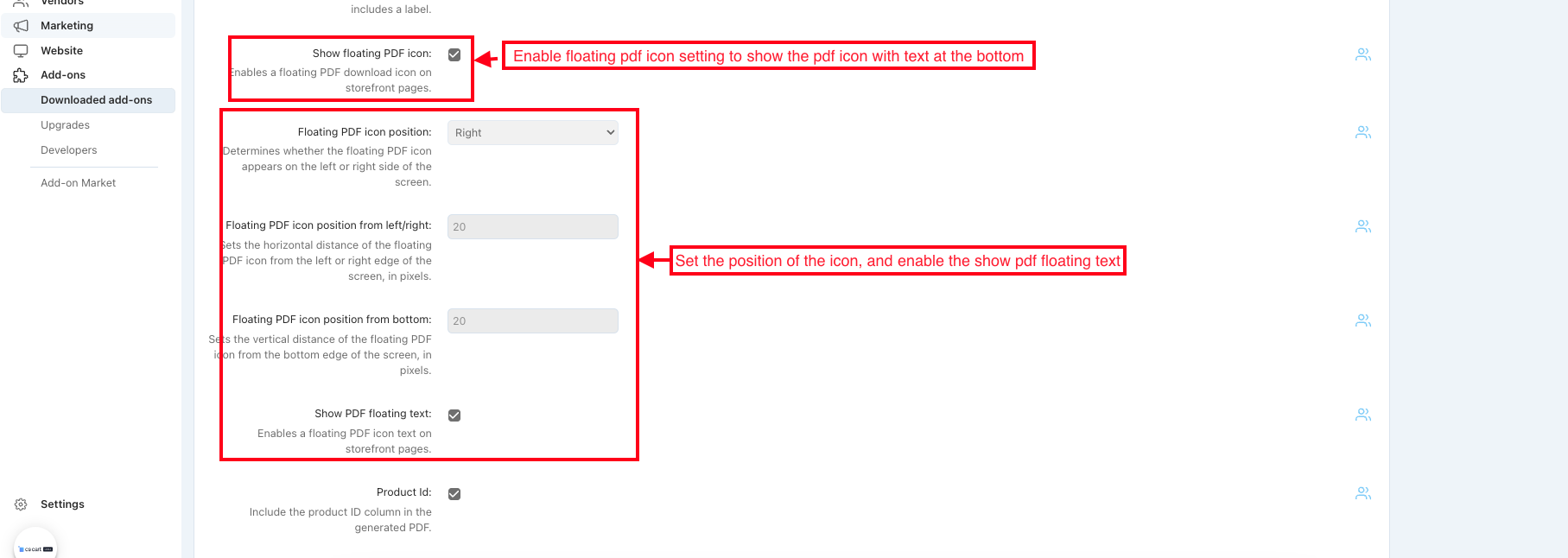
- Show floating PDF icon: Enable this setting that stays visible on the storefront at the bottom.

- Floating PDF icon position: Set the position of the floating PDF icon to Left or Right.
- Floating PDF icon position from left/Right: Set the horizontal distance in pixels from the left or right edge of the store.
- Floating PDF icon position from bottom: Set the vertical distance in pixels from the bottom of the store.
- Enables a floating PDF icon text on storefront pages: Enable this setting to display text along with a floating PDF icon on storefront pages.

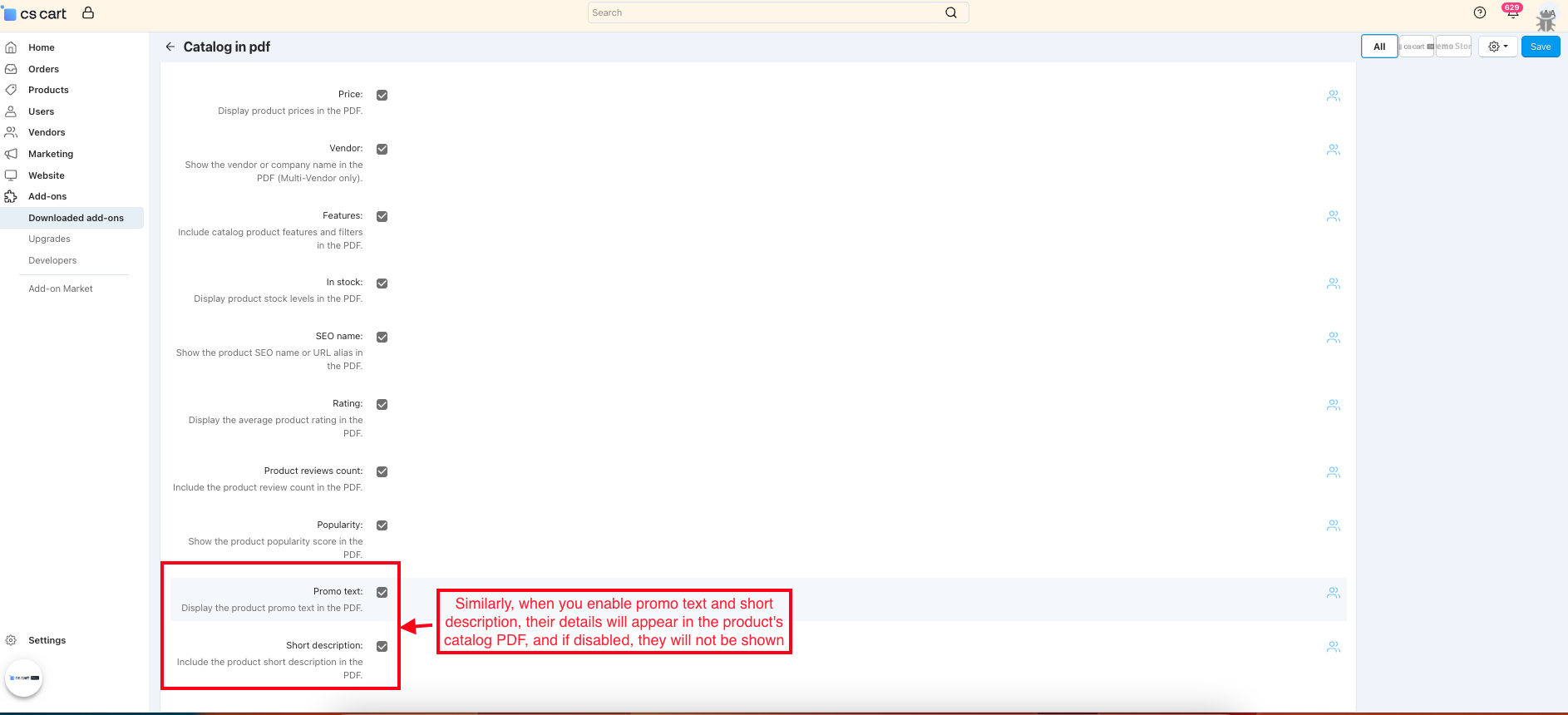
- When enabled, Product ID, code, category, price, vendor, features, in stock, seo name rating, product reviews count, and popularity are all included in the generated product catalog PDF; disabling them removes their corresponding details. Also, if no features are added in the product backend, then the features addon won’t appear on the product detail page. This ensures that only relevant and available information is shown in the PDF on the storefront.

- Similarly, when you enable promo text and short description, their details will appear in the product's catalog PDF, and if disabled, they will not be shown.
Product Catalog in PDF Download on the Search Page
This feature helps in keeping a complete catalog of all search result products, making it convenient for reference, sharing, or offline use.
- If you enable the “Show PDF download on search page” setting, then show the pdf icon on the search page.
- Select pdf button display mode like “icon only.ˀ
- Enable the floating pdf icon setting to show the pdf icon with text at the bottom, and set the position of the icon.
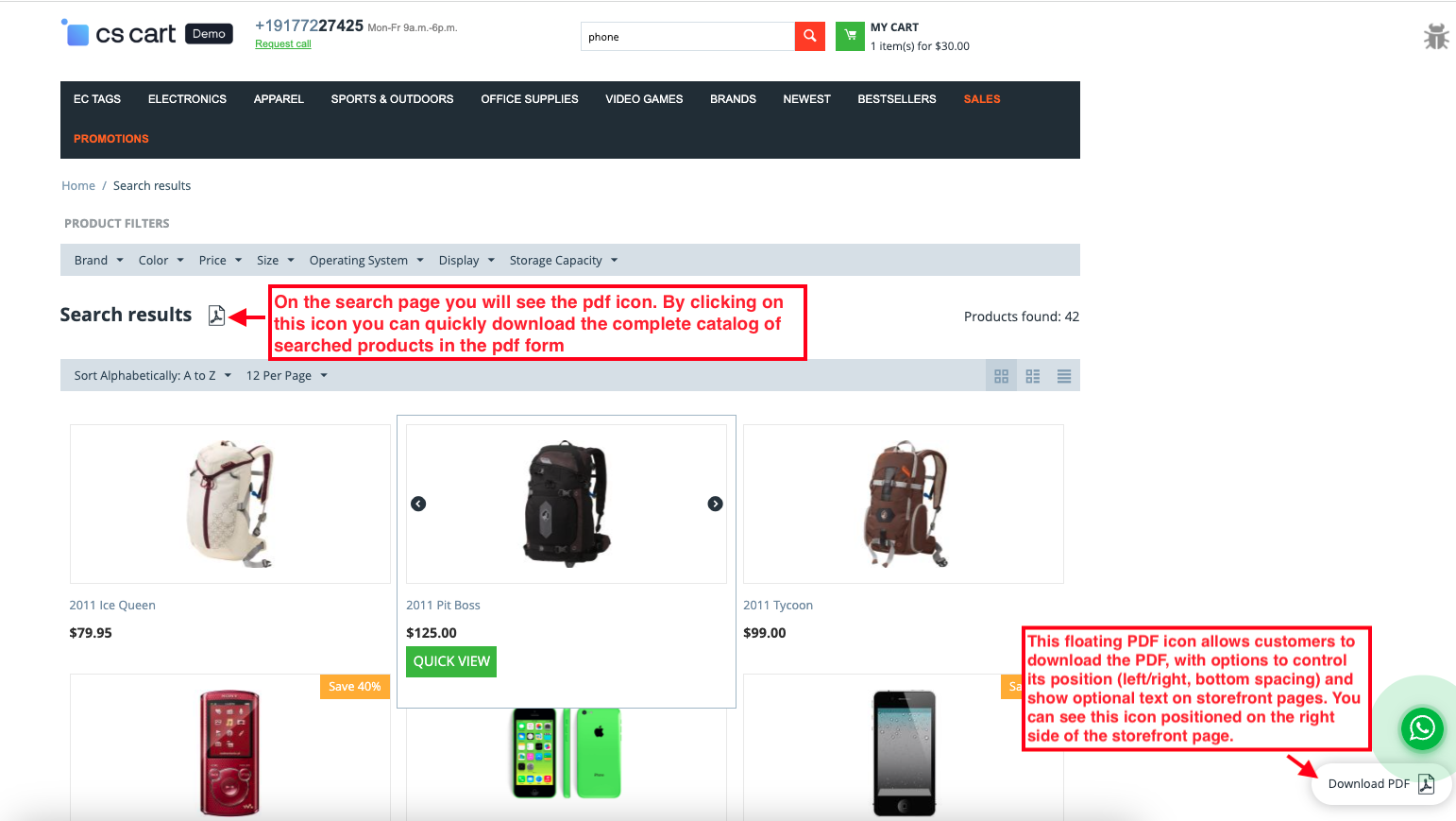
- On the search page, you will see the pdf icon. By clicking on this icon, you can quickly download the complete catalog of searched products in the pdf form.
- This floating PDF icon allows customers to download the PDF, with options to control its position (left/right, bottom spacing) and show optional text on storefront pages. You can see this icon positioned on the right side of the storefront page at the bottom.
- Select another PDF button display mode in settings, such as button.
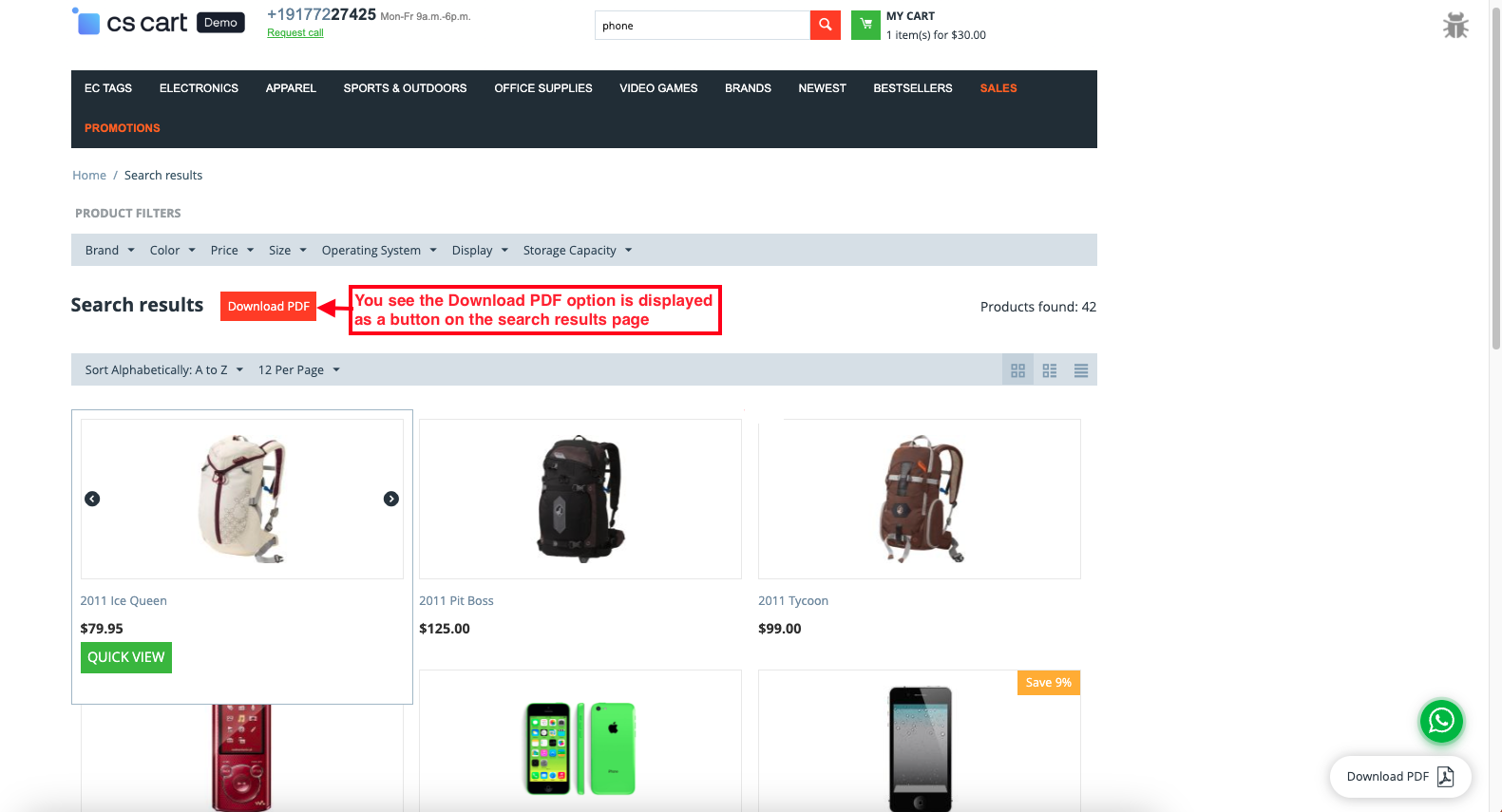
- You see, the Download PDF option is displayed as a button on the search results page.
- Similarly, select the “icon with button” option of the PDF display mode setting.
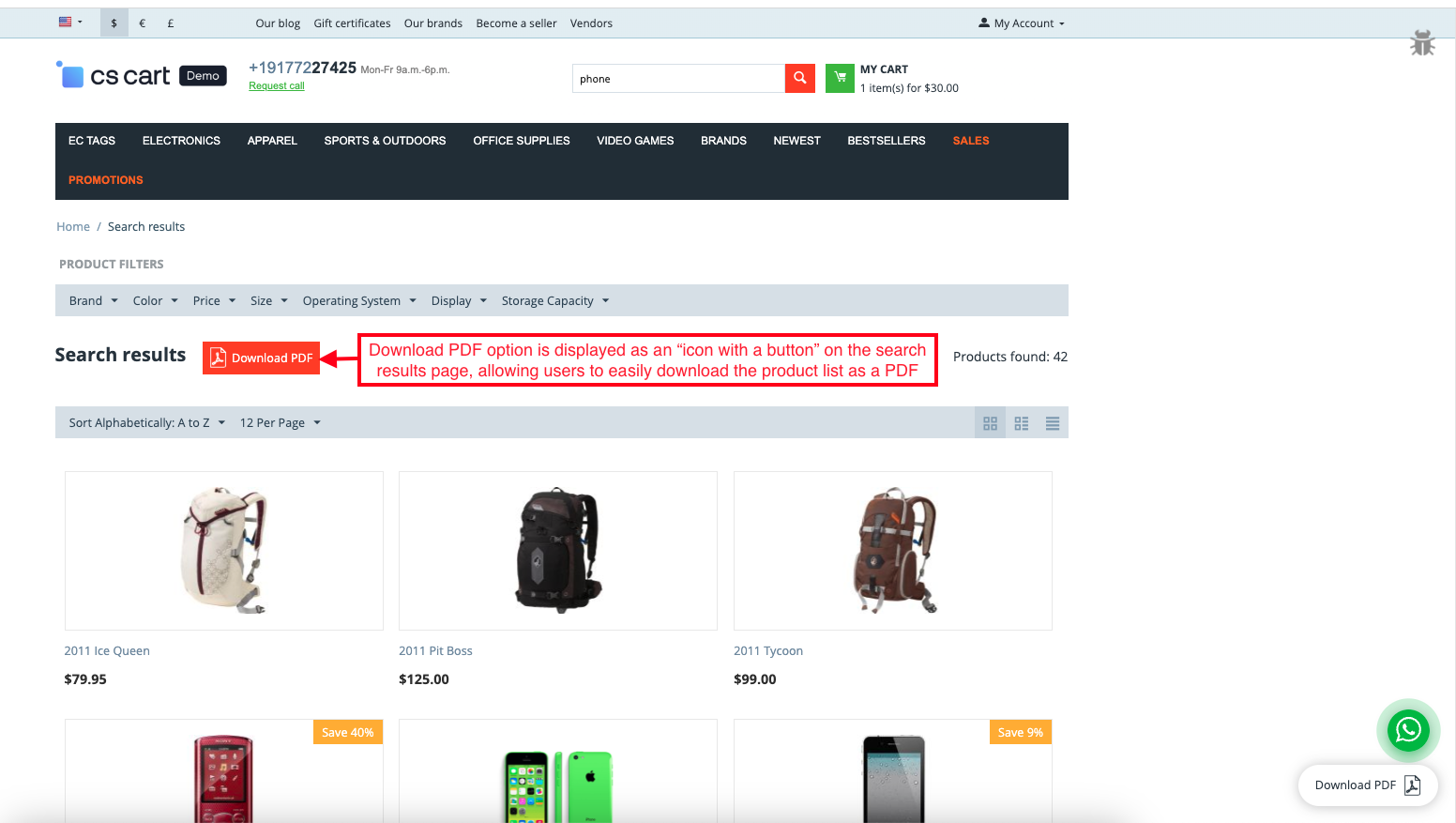
- The Download PDF option is displayed as an “icon with a button” on the search results page, allowing users to download the product list as a PDF easily.
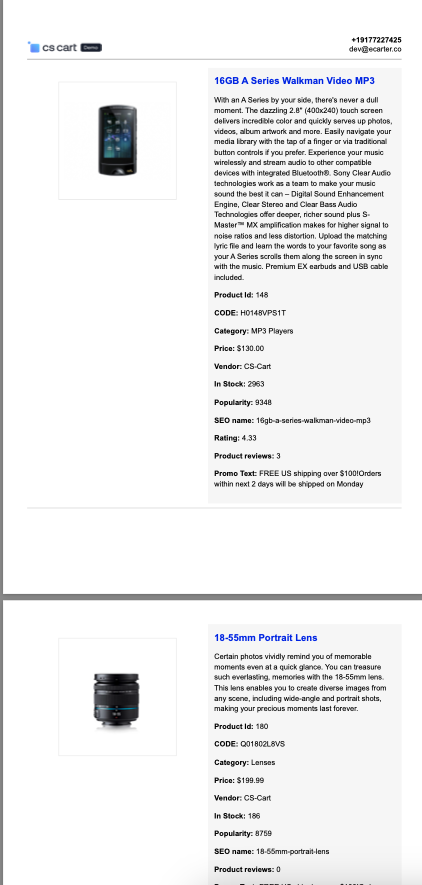
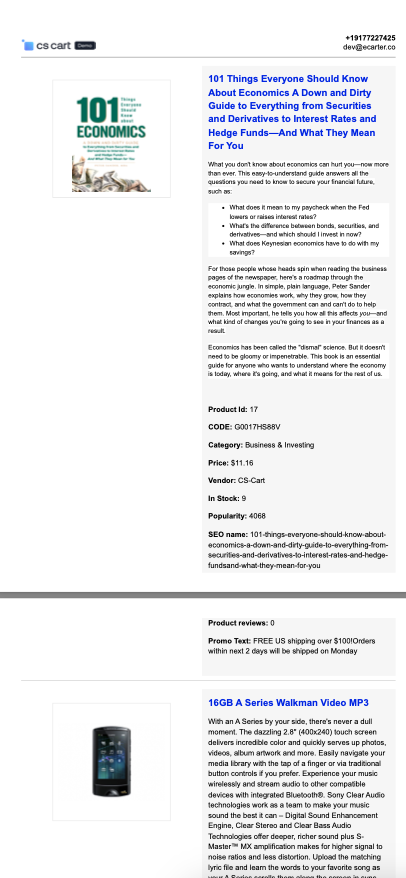
- This PDF catalog displays products with complete details, including image, name, description, product ID, code, category, price, vendor, brand, stock status, feature SEO name, rating, reviews, promo text, and popularity. Additionally, this PDF displays the contact information and the CS-Cart logo. Users can easily view, download, or share this PDF to get complete product information in one document.
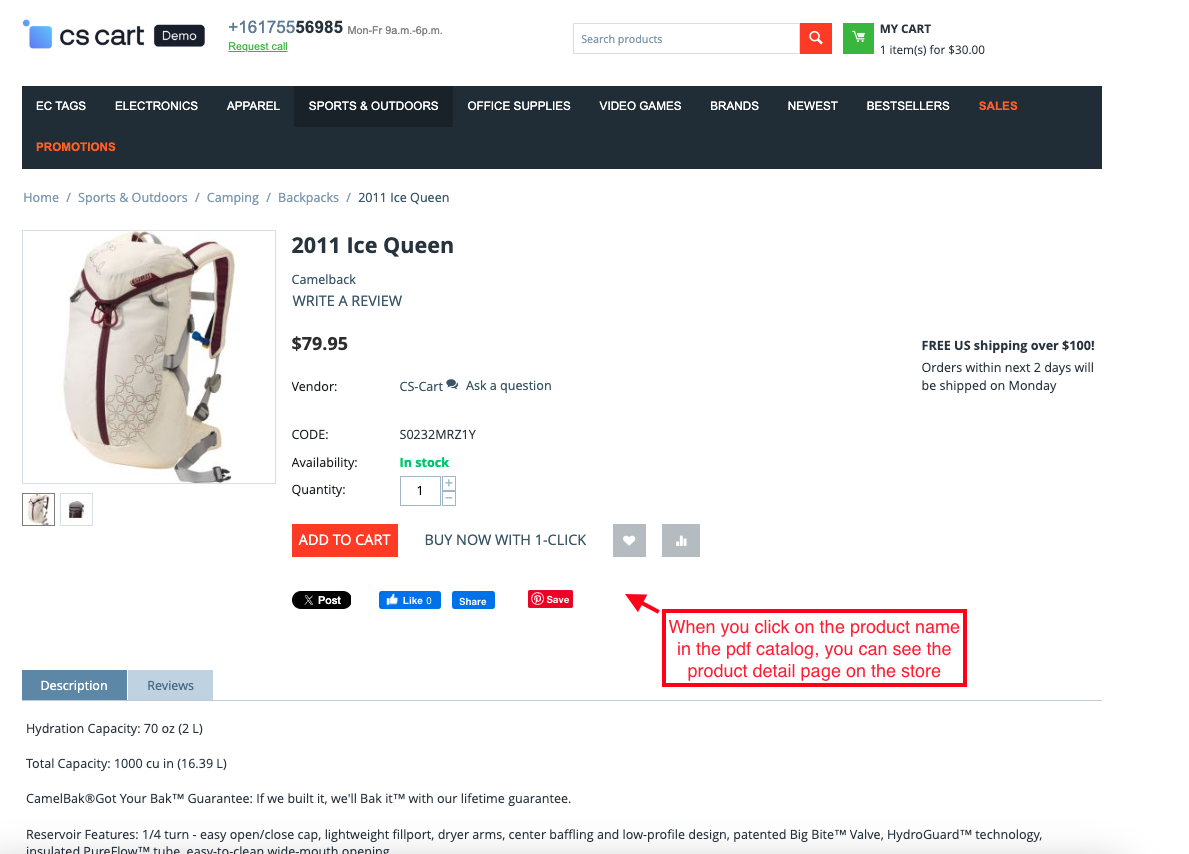
- The product name is clickable. So when you click on it, you are redirected directly to the product page on the store.
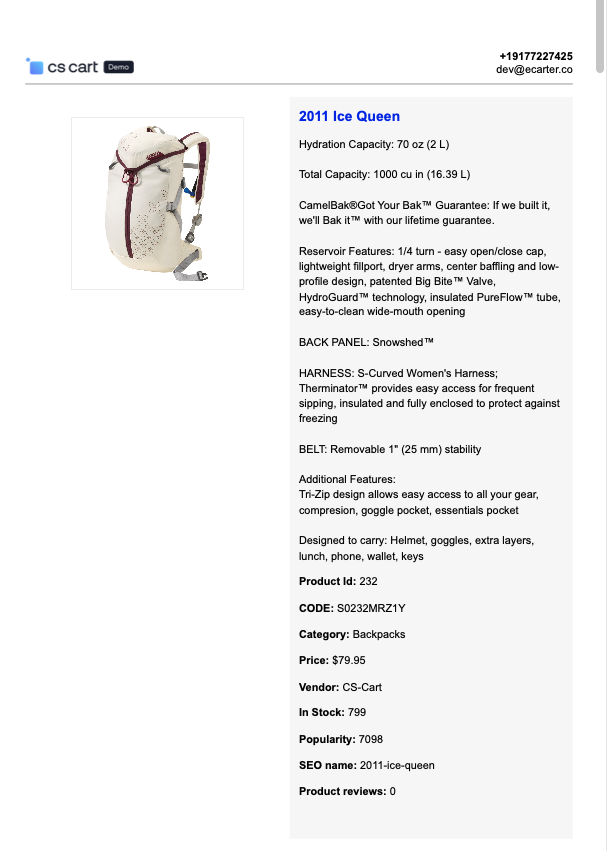

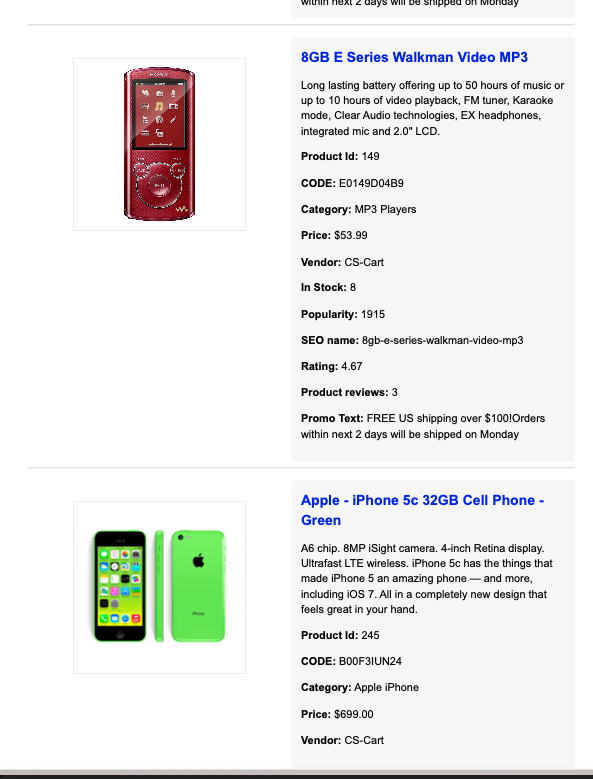
- When you click on the product name in the pdf catalog, you can see the product detail page on the store.
Category Product Catalog PDF
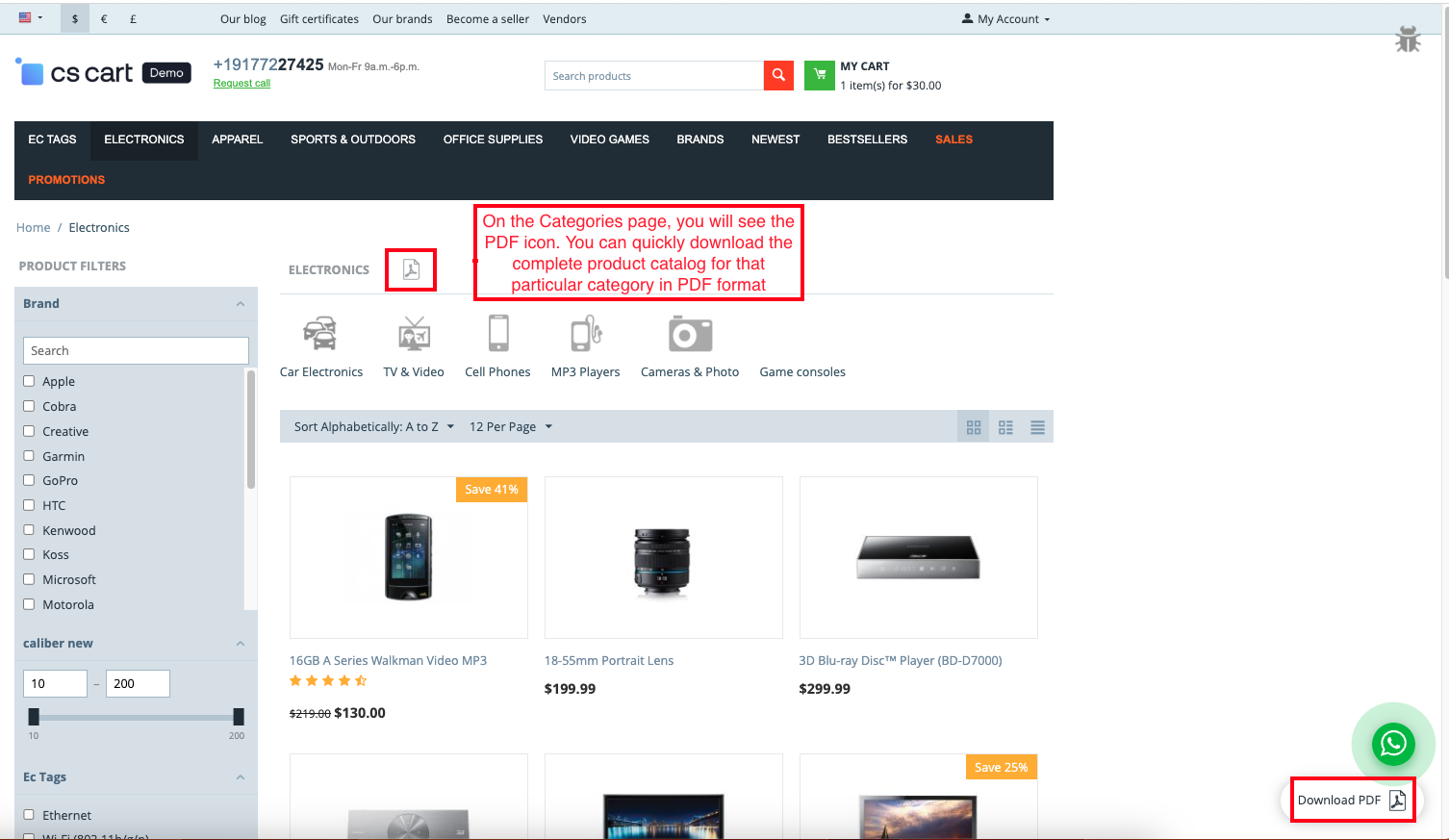
- If you enable the “Show pdf download on category page” setting, then show the download pdf option on the categories page.
- On the Categories page, you will see the PDF icon. You can quickly download the complete product catalog for that particular category in PDF format.
- After clicking on the PDF icon on the searched page, you see the PDF catalog.
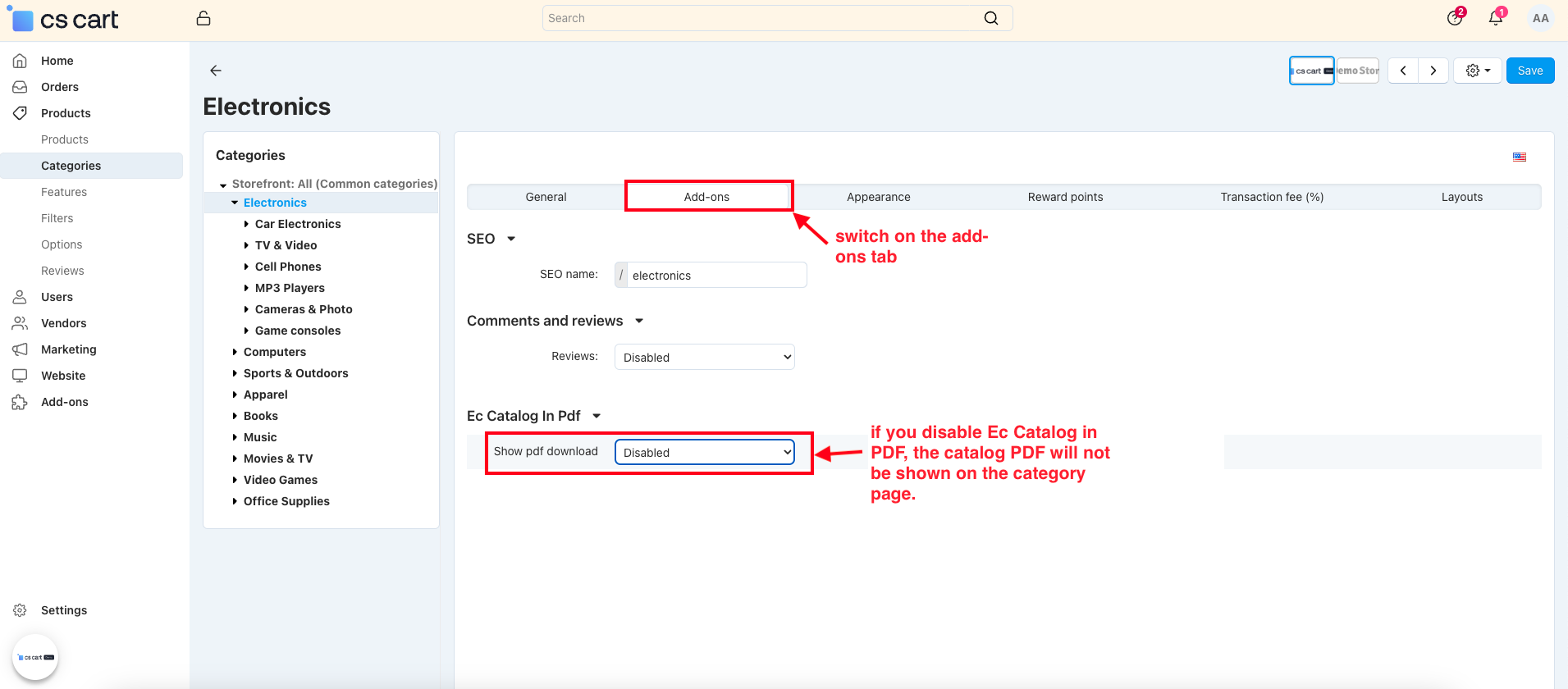
- Go to the Products>>Categories.
- Open any category.
- Switch on the Add-ons tab.
- Show PDF download: if you disable the catalog in PDF, the catalog PDF will not be shown on the category page
- After disabling the Ec catalog in PDF in the category settings at the admin panel, you can see that the PDF icon is not displayed on this category page.

Vendor Product Catalog PDF
The vendor page offers a convenient option to download the complete product catalog in PDF format. It provides an organized document with all vendor products, making it easier to view and manage product information.
- Go to the Vendor page.
- Open any vendor.
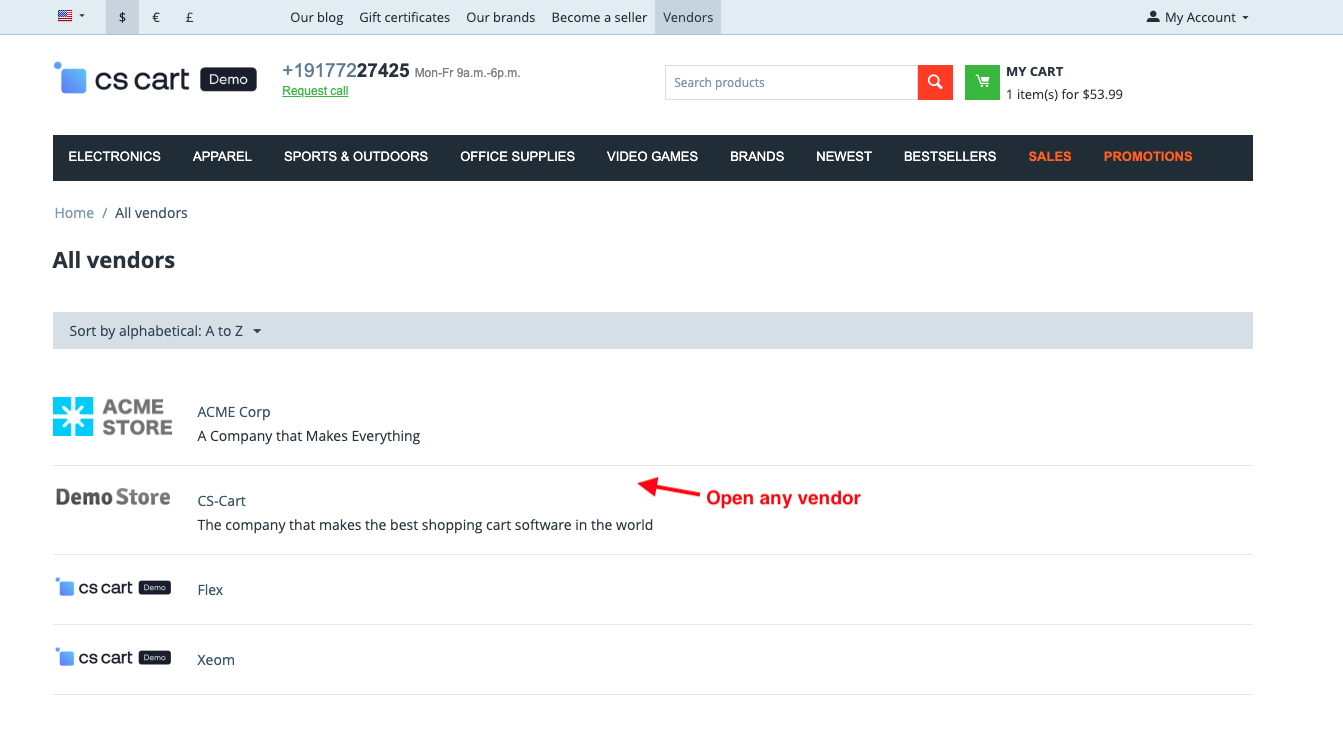
- Click on the PDF form icon to instantly download the vendor product catalog in PDF format.
- Here, you can view the vendor's product catalog PDF.
Final Thoughts:
This addon is a smart way to present your products in a well-organized, branded, and shareable format.. It makes product information easily accessible for both the store owner and customers. This addon not only enhances the shopping experience but also gives your catalog a professional touch for offline use and sharing.
Supported Versions:
CS-Cart, CS-Cart Multivendor 4.8.x, 4.9.x,4.10x,4.11x,4.12,4.13x, 4.14x, 4.15x, 4.16x, 4.17x 4.18x
Support:
This app is developed and published by Ecarter Technologies Pvt. Ltd., a CS-Cart developer. You are guaranteed quality add-ons.




Ecarter Support
Typically replies within a minute

© 2020 - 2026 Ecarter Technologies Pvt Ltd.