
Event Management
Event Management: This addon provide the functionality of creating the event for the customer. The addon allow Admin can set Max participant for the event.
The Event Management add-on for CS-Cart adds a ticketing system to your store, letting you sell tickets to promotional, business, and social events. The admin creates events, sets multiple event dates, and caps the number of participants per event, while customers receive a downloadable ticket once they place an order. Registered storefront users can download their event tickets at any time, and all tickets stay available inside the customer account. The add-on is built for store owners who want to run and sell tickets for events directly through their CS-Cart storefront, including Multi-Vendor setups.
Event Management Add-on for CS-Cart provides the functionality to create events for customers. Event management adds a ticketing system to the store. Customers download event tickets after placing an order. This add-on enables registered users on the storefront to download event tickets from the storefront. All tickets are available in the customer account on the storefront. Admin creates multiple event dates.
Event management plan and organise promotional, business and social events. They're responsible for running a range of events, ensuring the target audience is engaged and the message of the event is marketed properly. Events play a huge part in the success of a brand or an organisation.
Features:
- Well integrated with CS-Cart Multivendor.
- Admin can set Max participant for the event.
- Provide the Event ticket.
- Admin can set multipal Events.
- It provides a better view for promotions at any CS-Cart store which can attract users of the store easily.
Installation
How to install Addon
https://store.ecarter.co/blogs...
How To Create Event :
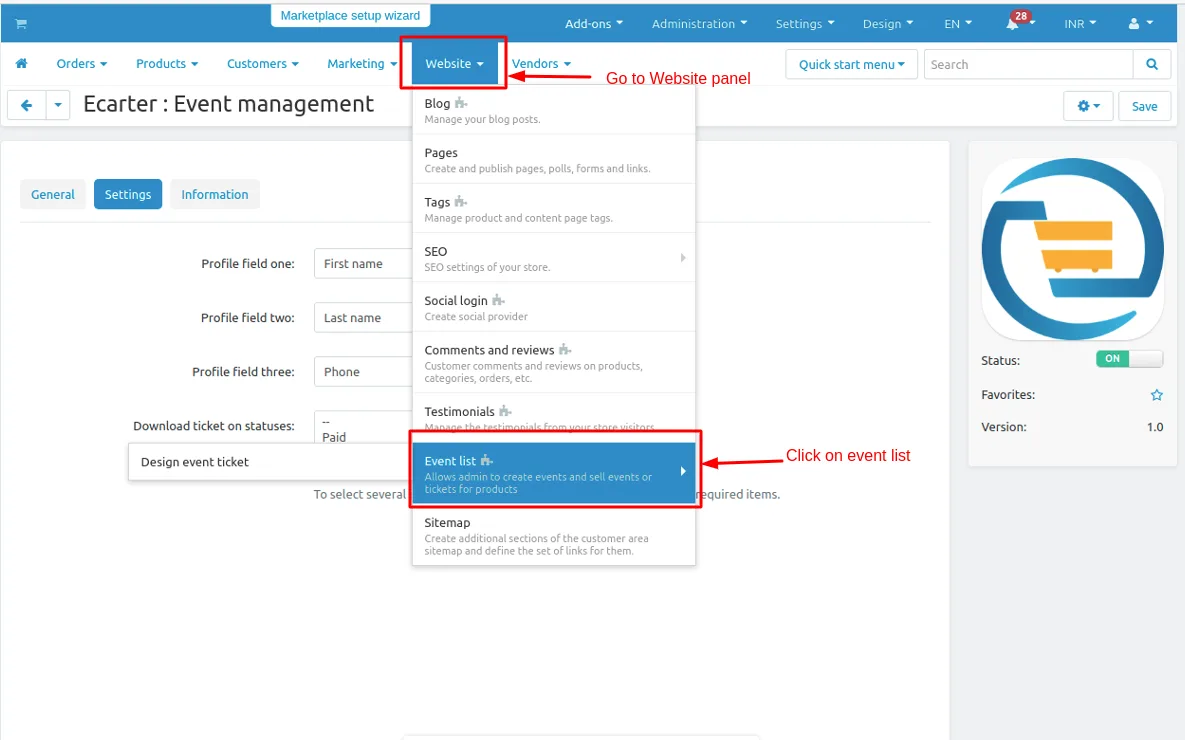
1. Go to Website panel >> click on >> Event list.
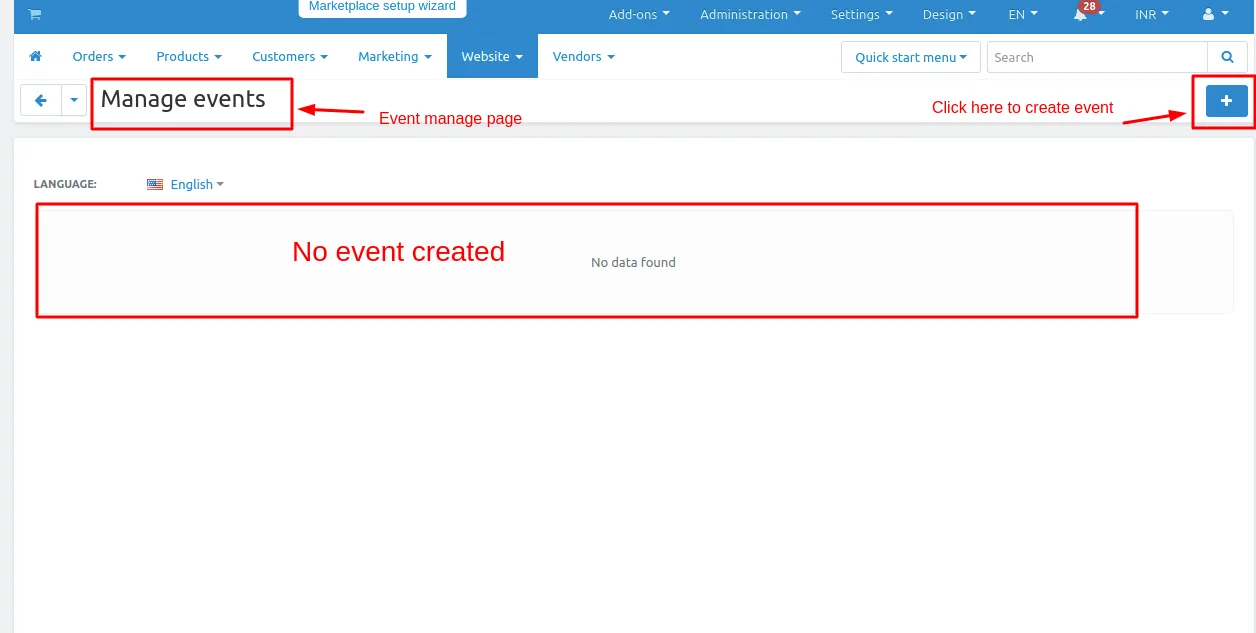
2. Manage event page will be open
3. Click on >>(+) button on upper right corner in the panel.
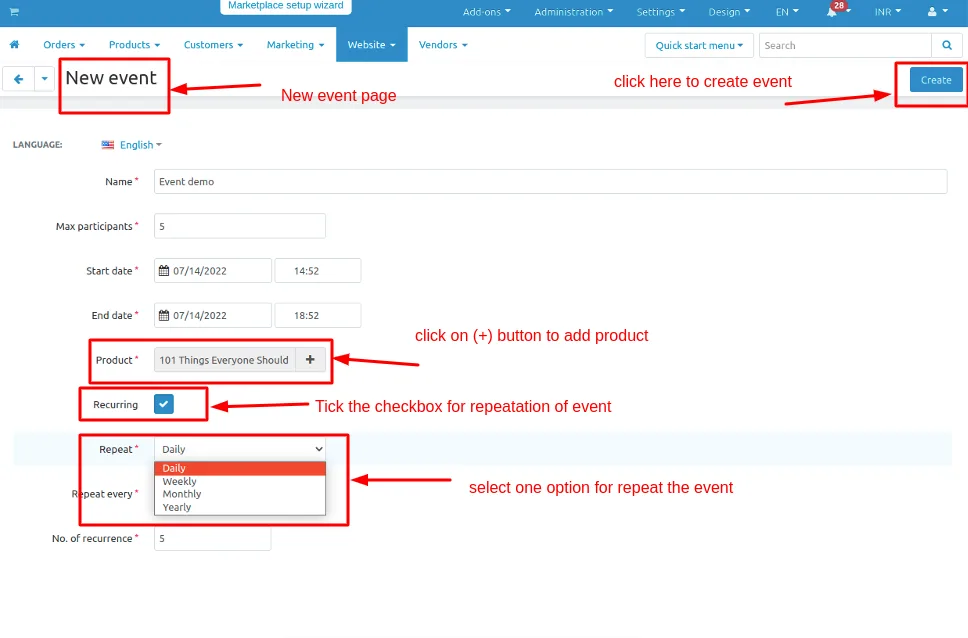
4. New event page will be open
- Enter the credentials.
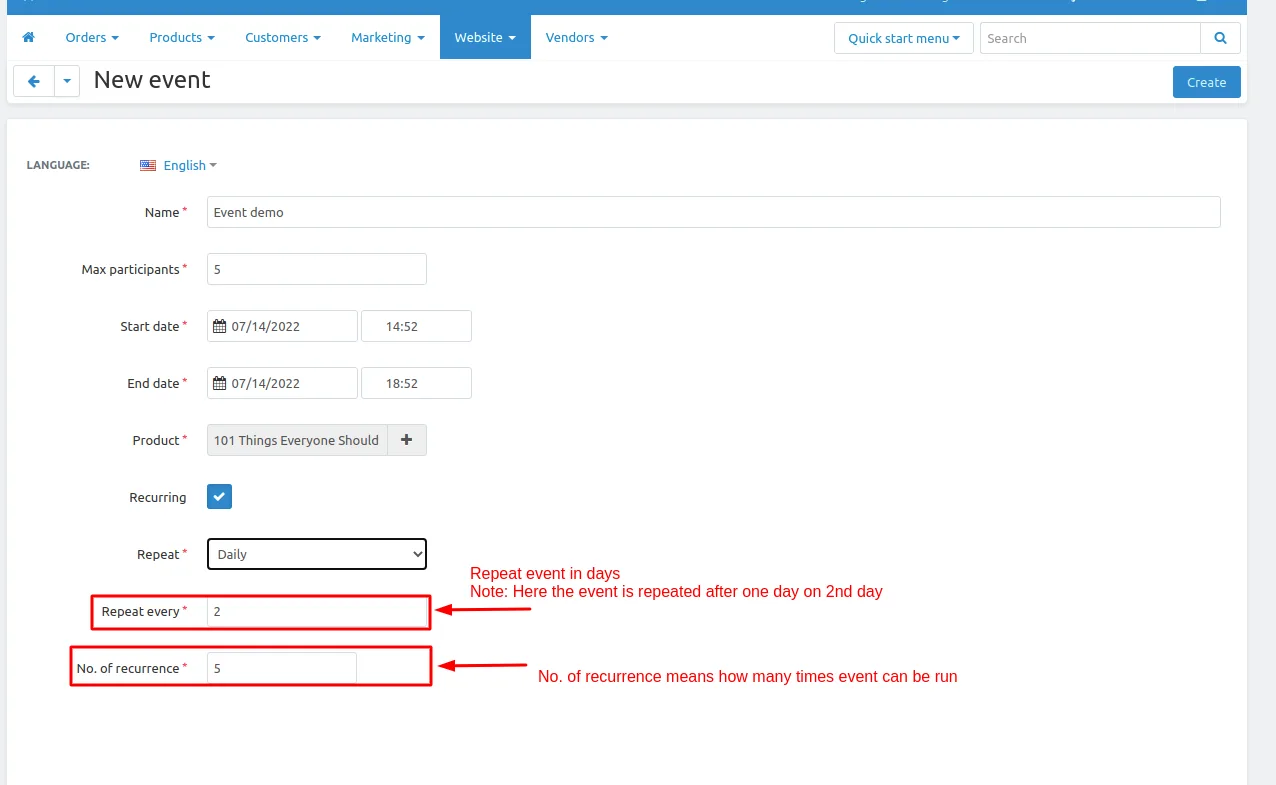
- Name: give the name of the event.
- Max Participant: here we can set the max participant ,how many customer or user can take participate in the event.
- Start Date: When the event get started.
- End Date: When the event get ended.
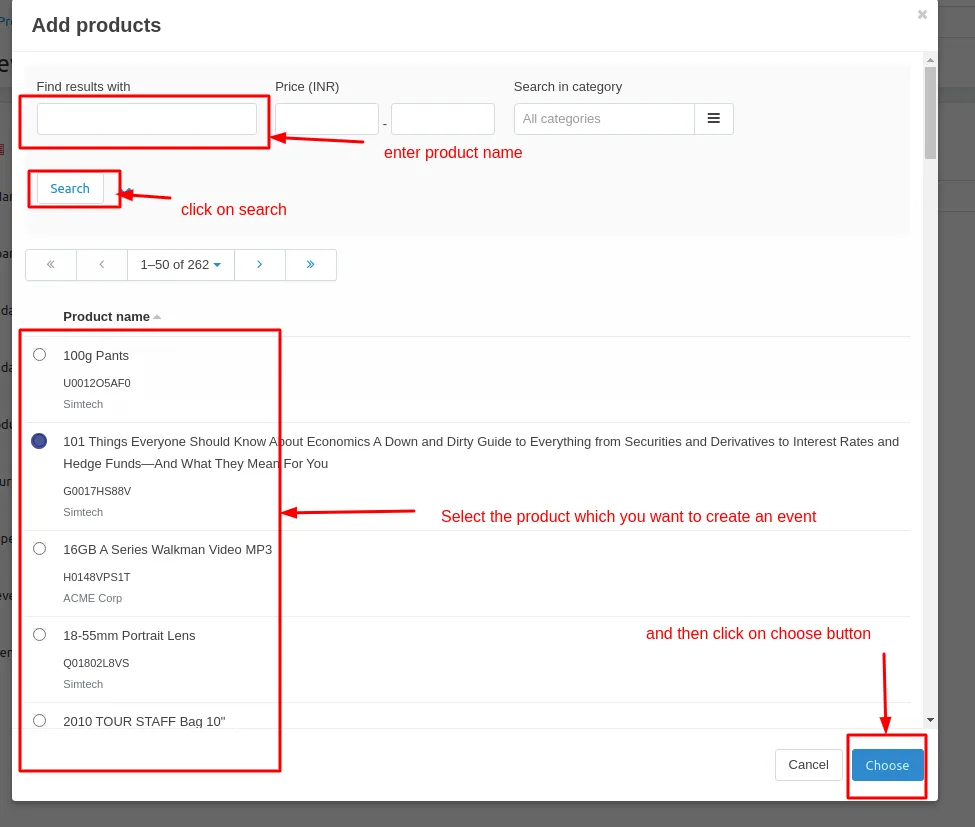
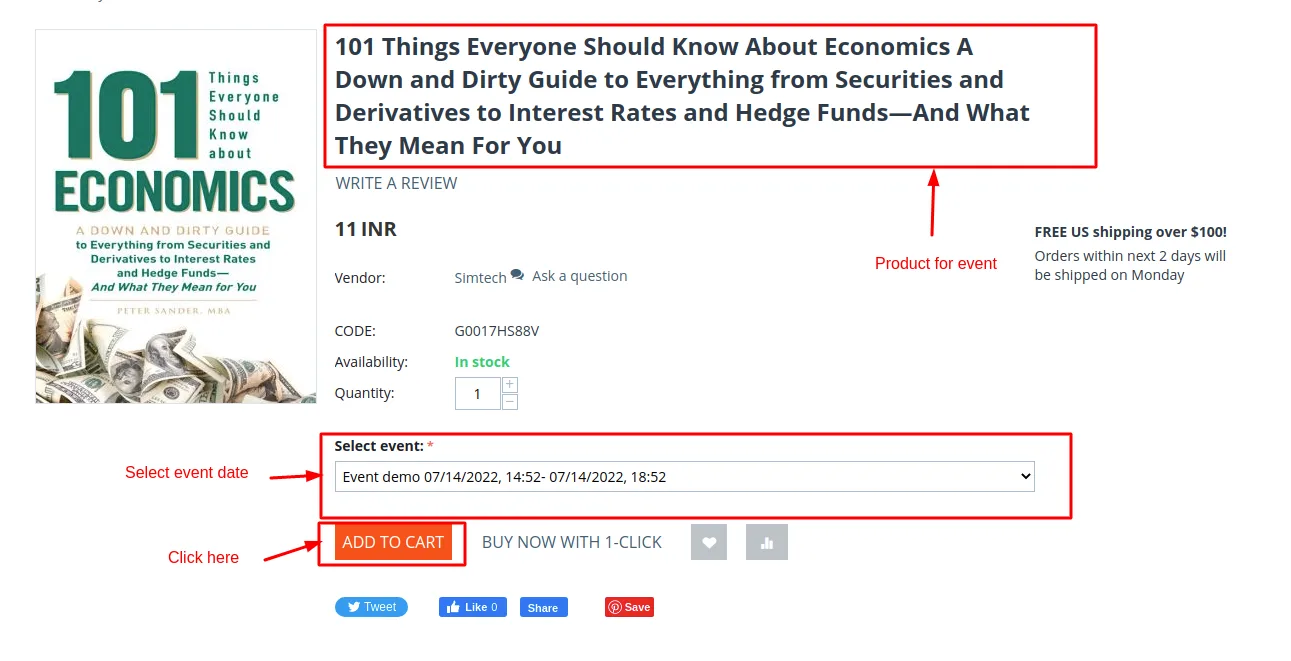
- Product: Select the product on which event can occur.
- Recurring: Recurring is how many times or when the event get repeated.
- Repeat: Here admin can set when the event repeated.
- Repeat Every: Admin can set when event repeat
- No. Of Recurrence: Total no of event .
5. After enter the details click on >> Create Button.
When click on the Product add products page will be open here you can choose the product on which event created.
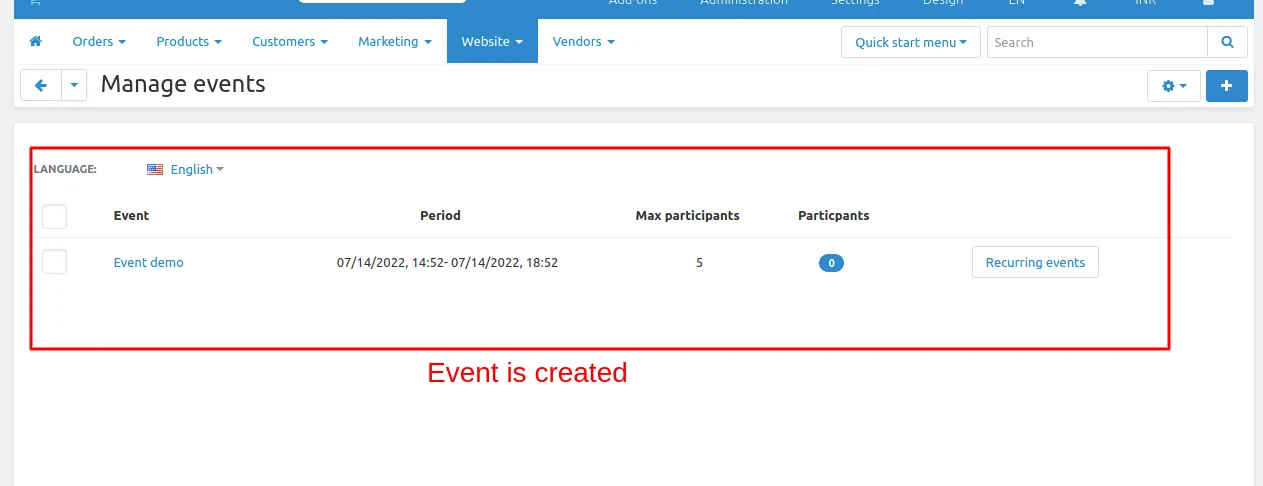
6. Event is created.
How to show event in storefront.
First we want to create calendar to show the event
How to create event Calendar.
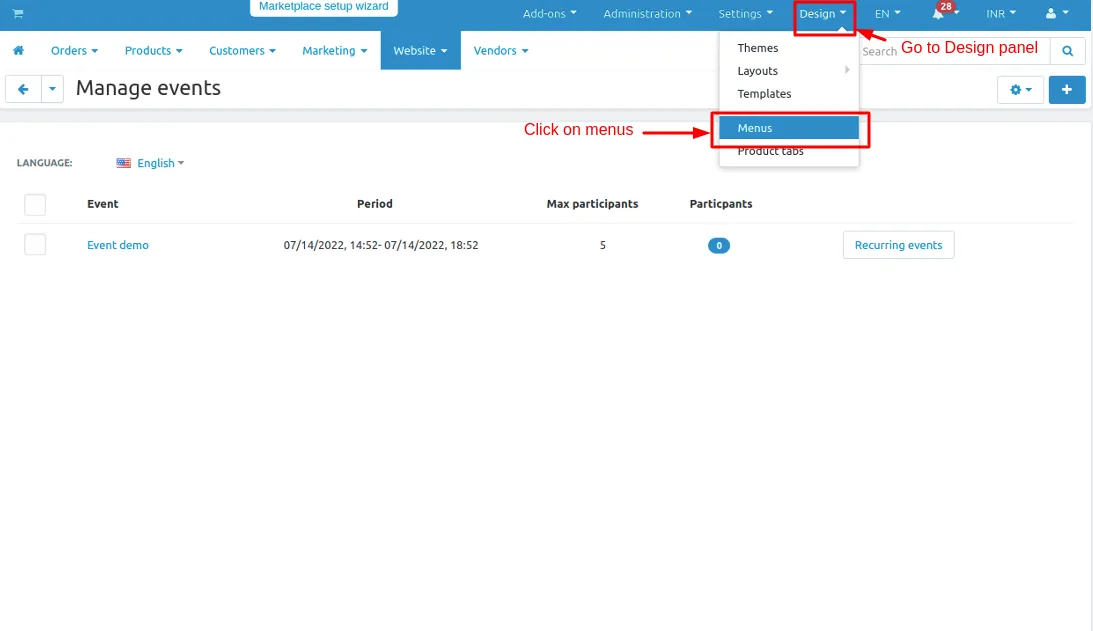
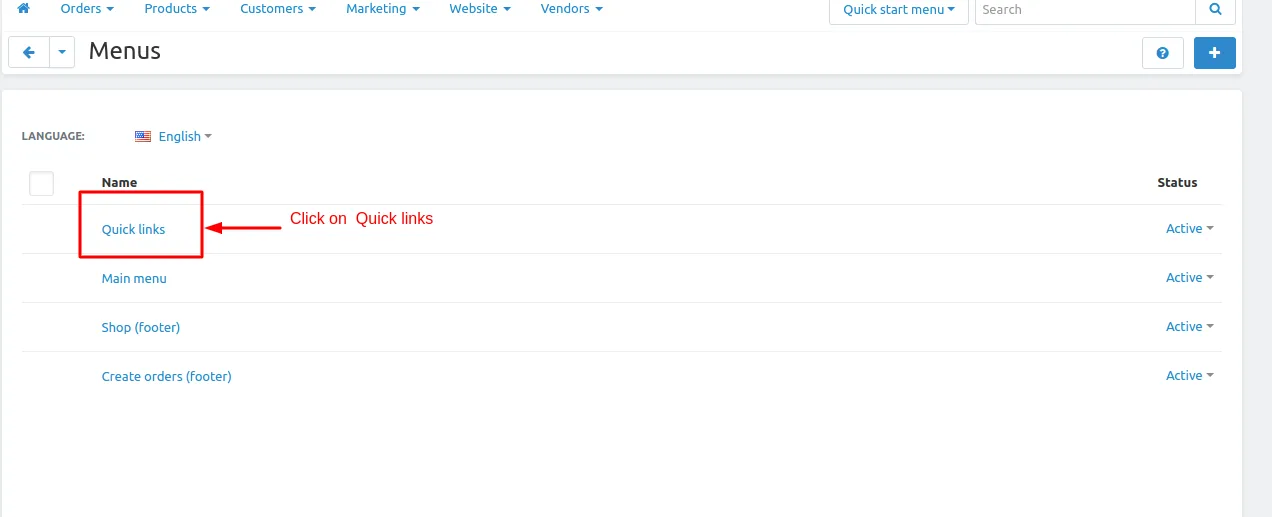
1. Go to >> Design panel click on >> Menus.
2. Menus page will be open.
3. Click on >> Quick links open the page.
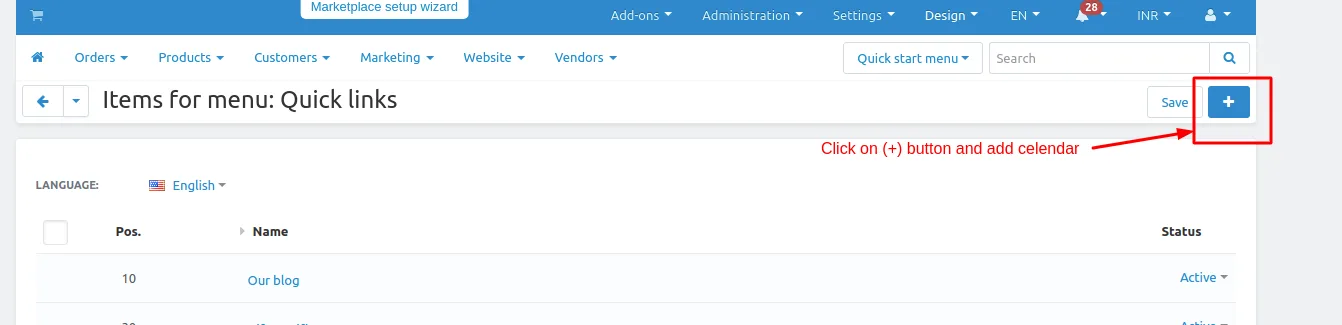
4. Quick link page will be open and click on >> (+) button to create the calendar.
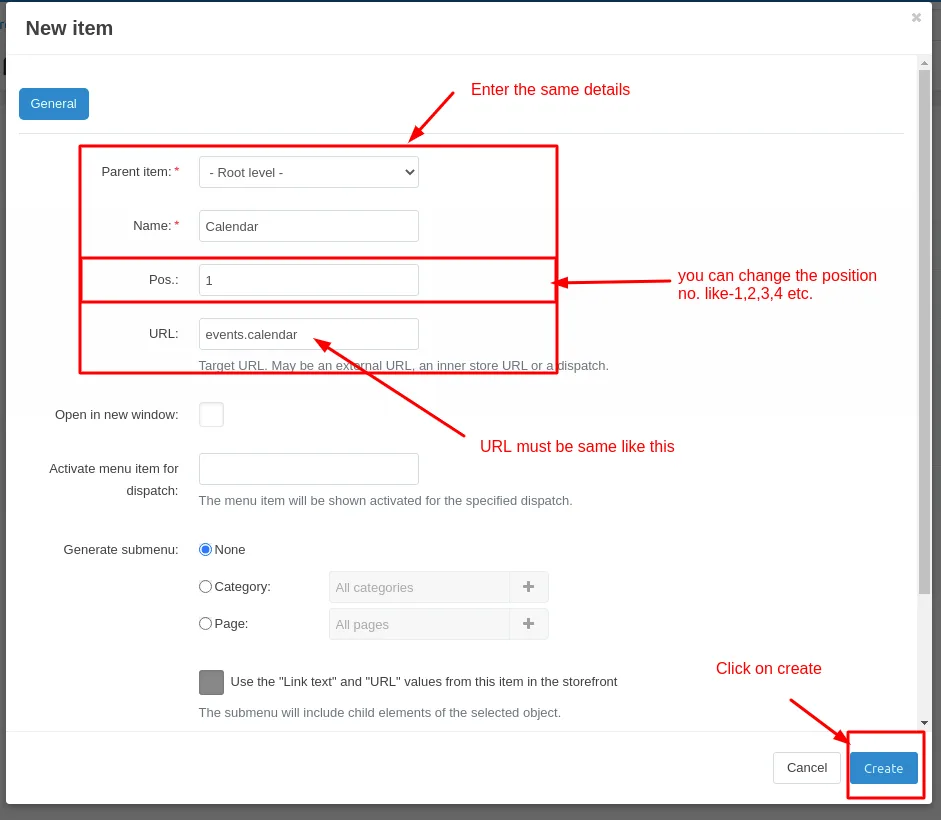
5. Enter the details same as given below.
- Parent item: In this field root level must be selected.
- Name: Name give as calendar.
- Position: you can set position no you can set any no.
- URL: URL mus be same as given below URL link - "events.calendar"
6. Click on >> create.
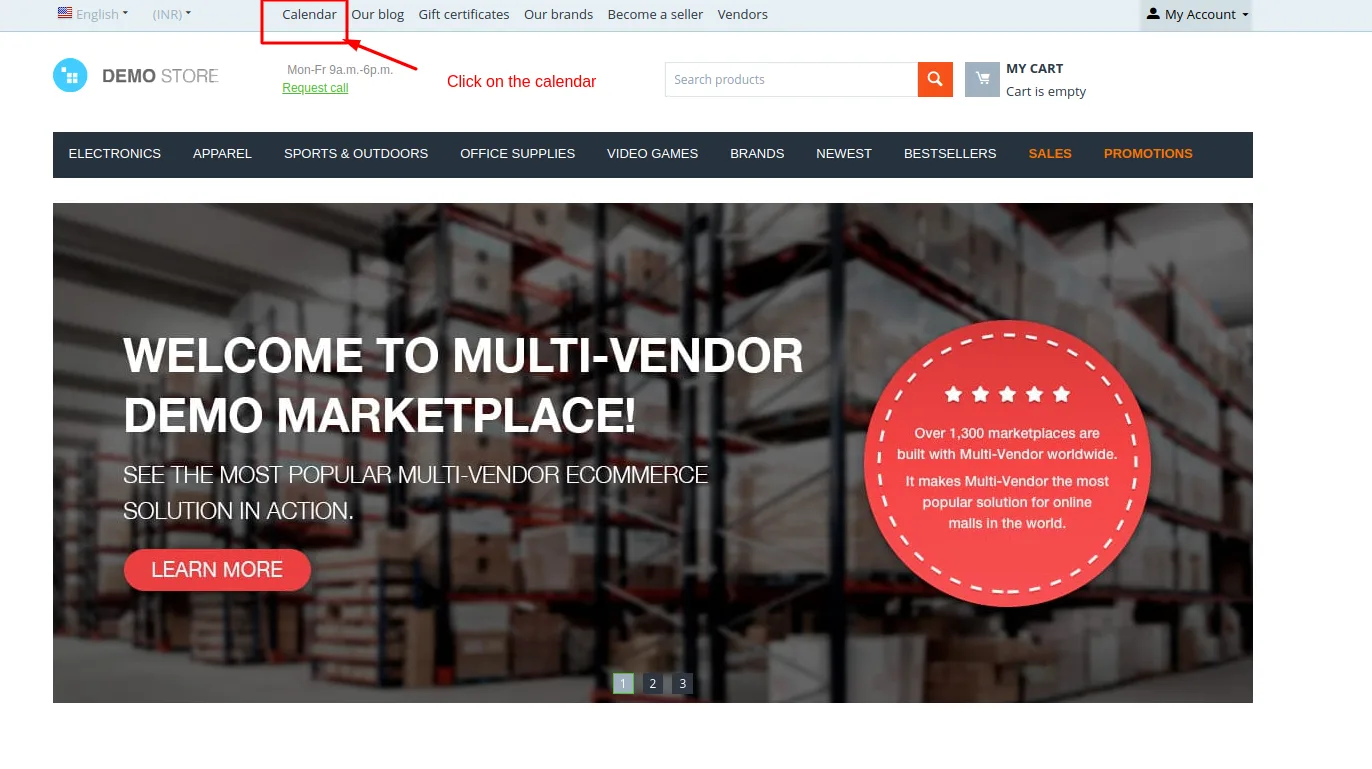
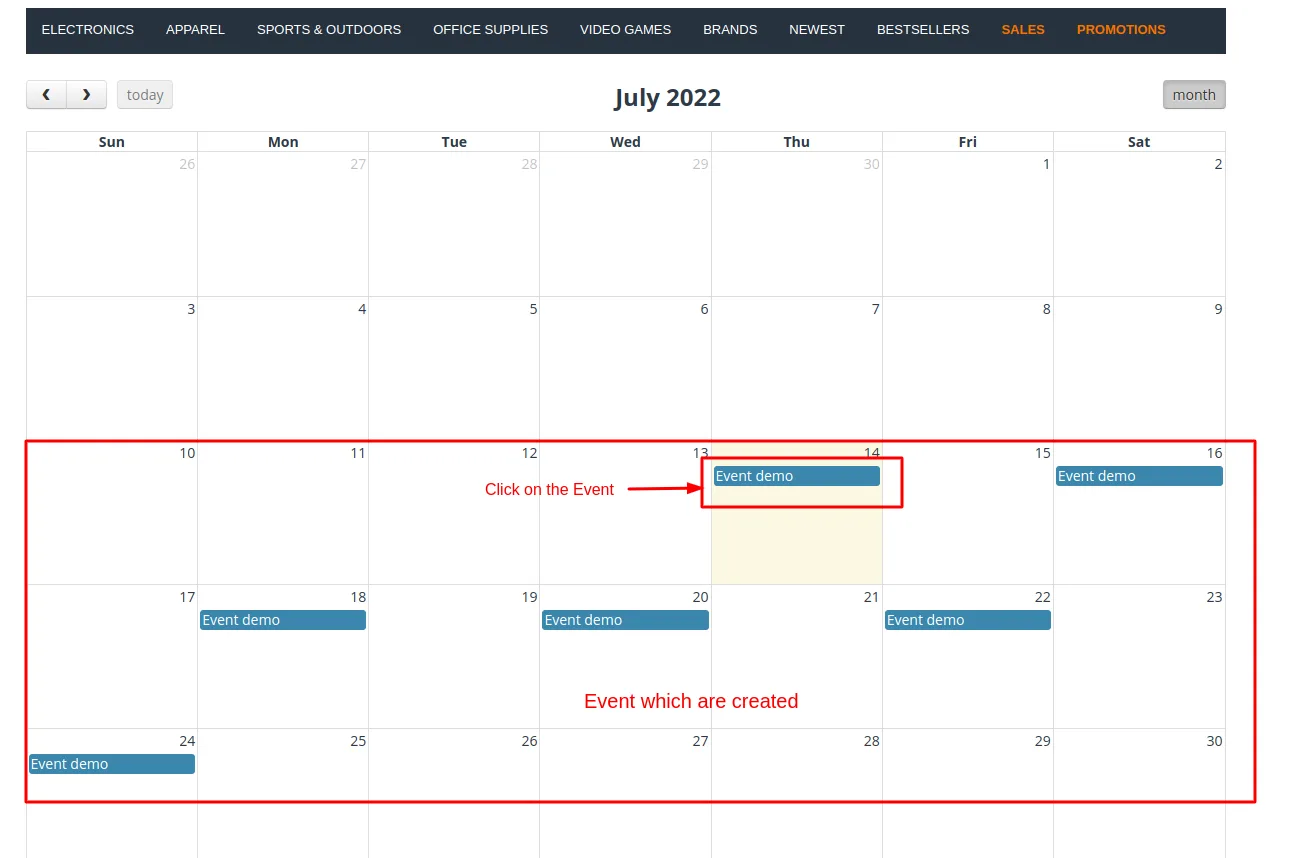
7. Go to storefront and here calendar is created.
8. Click on >> Calendar.
How to create Event Ticket.
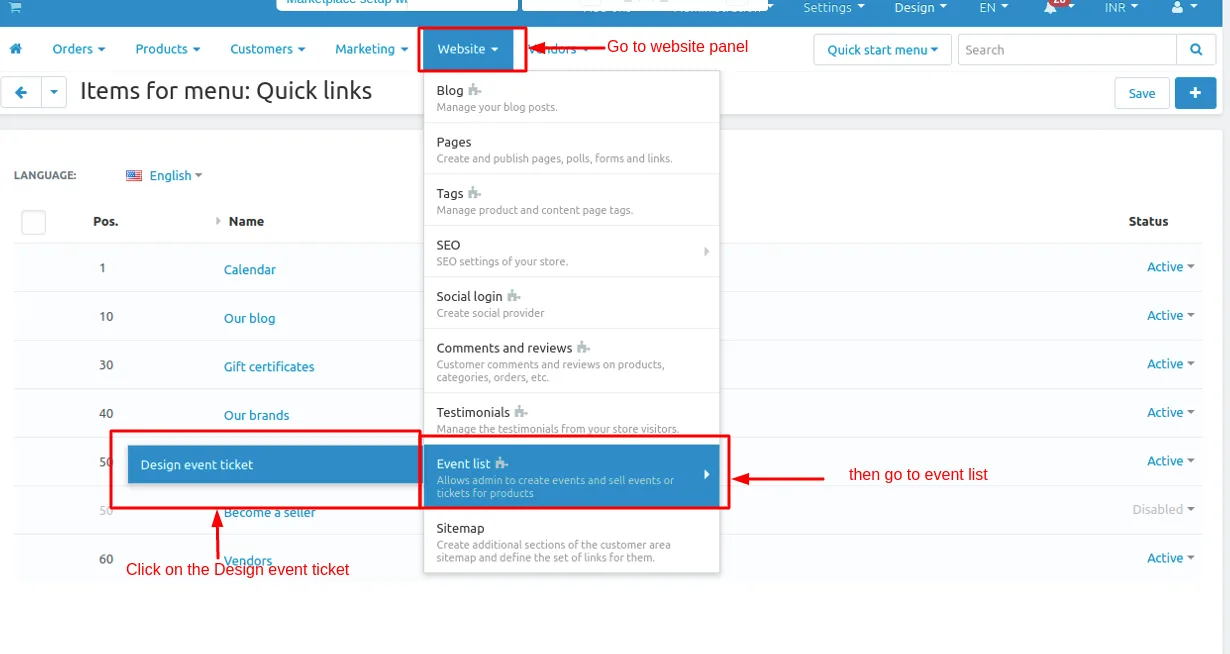
1. Go to >> Website panel then >> Event list click on side bar >> Design event ticket.
2. Event ticket page will be open.
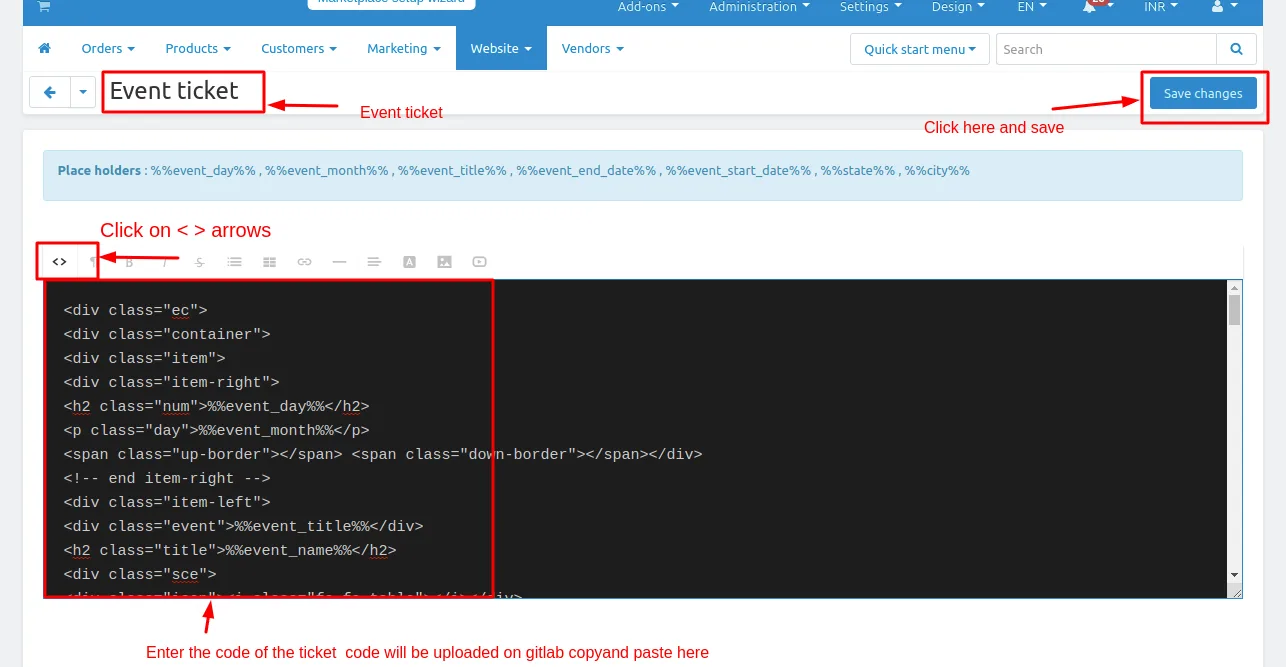
3. To create the event ticket click on (<>) arrow given below type the code for ticket
4. Click on >> Save changes button.
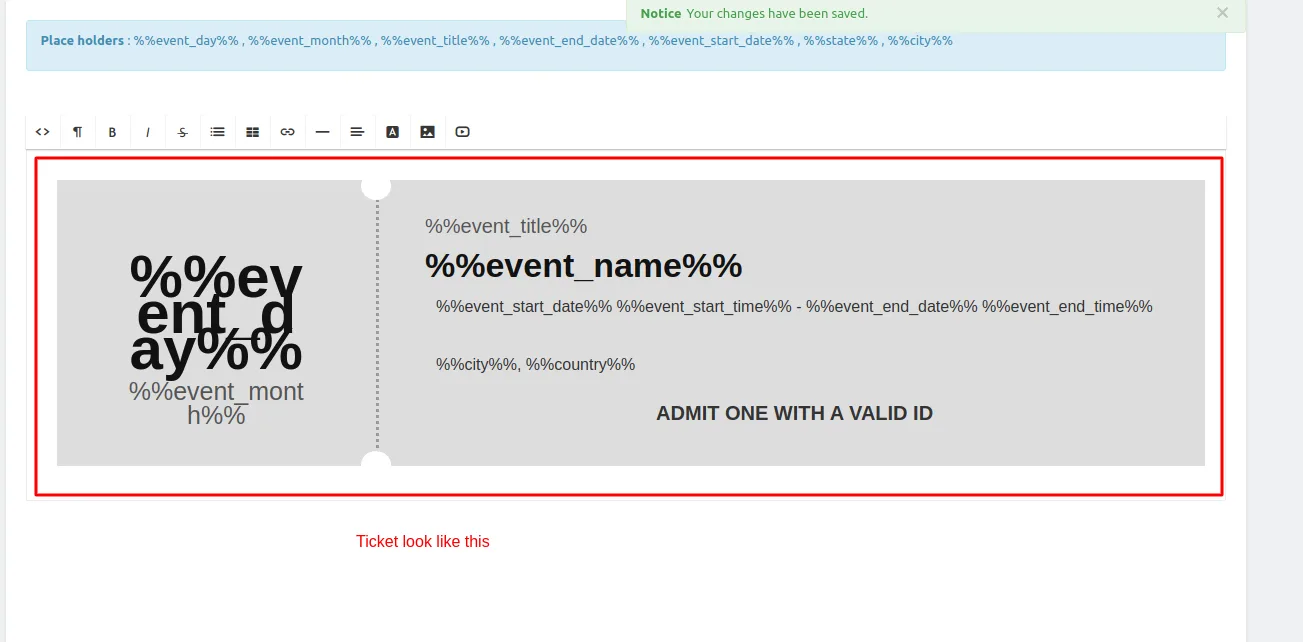
5. Event Ticket is created.
Note : Ticket code will be uploaded on the gitab.
How to Download Event list:
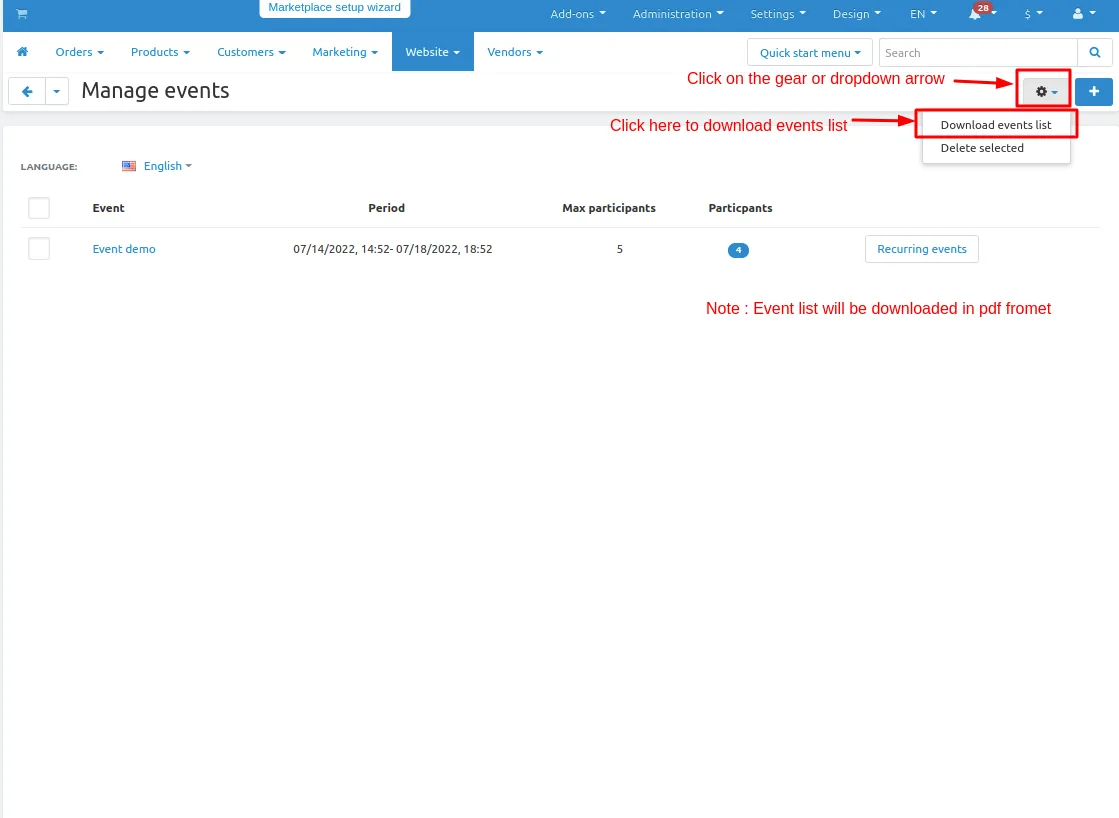
1. Go to Website panel >> click on >> Event list.
2 Manage event page will be open
3. click on >> gear button top right corner and then click on >> download event list.
How to Download participant list and participant ticket
1. Go to Website panel >> click on >> Event list.
2 Manage event page will be open
3. click on >> Participant no. or on participant.
4.After open click on >> gear button top right corner and the here you download the participant list and ticket.
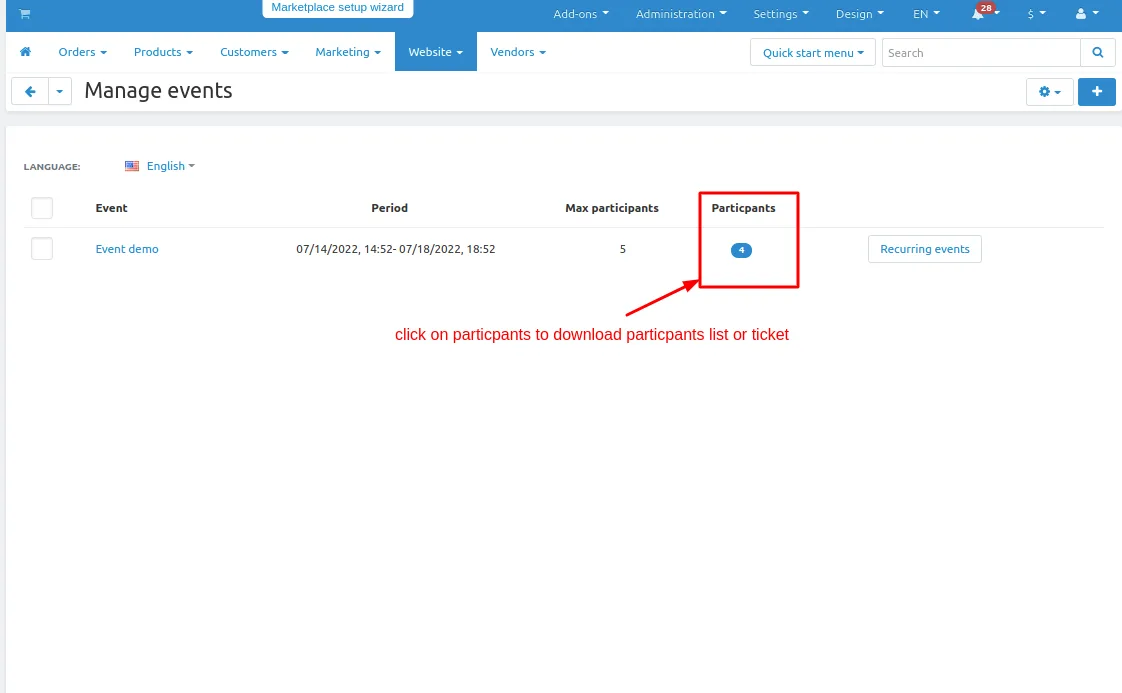
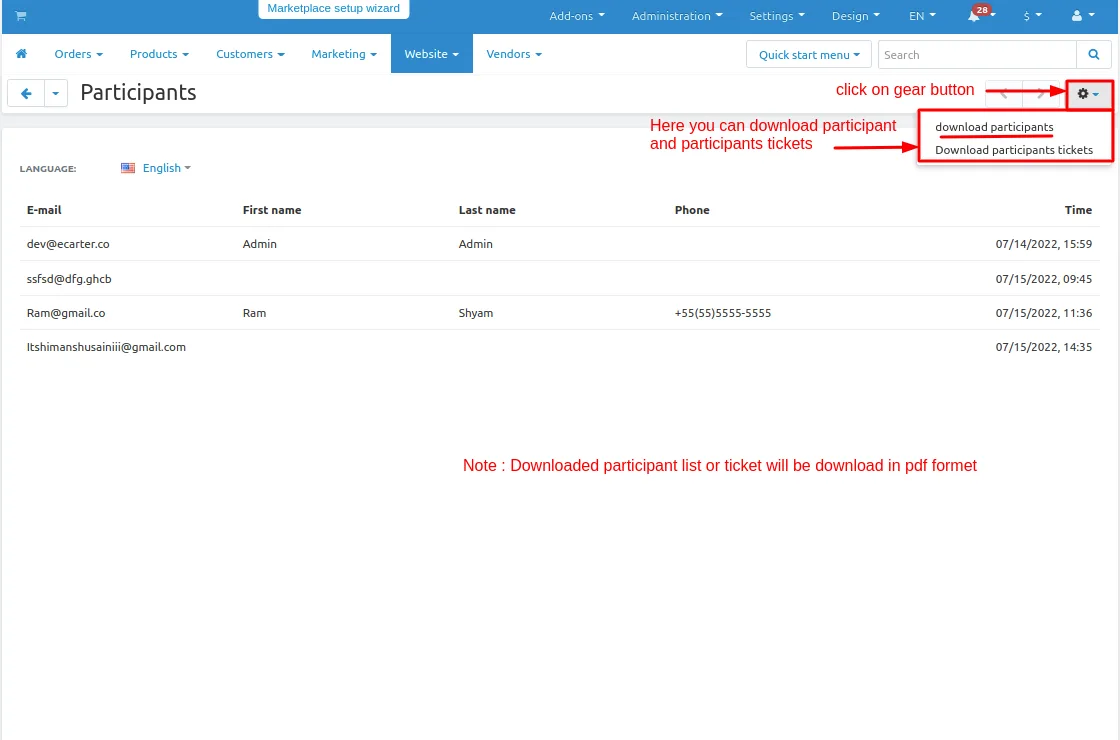
Note: Ticket and list will bee download in pdf formet
How to Download Event ticket
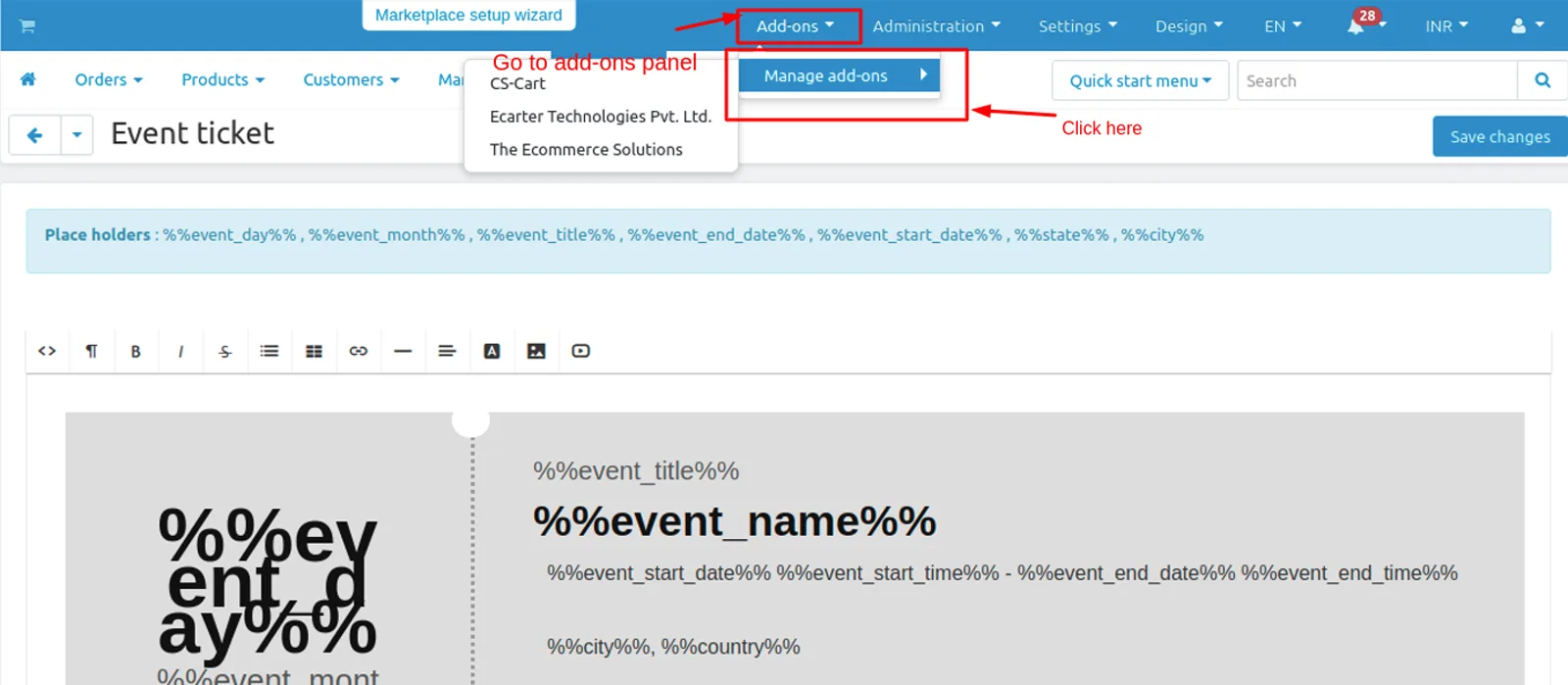
1. Go to > Add-ons click on >> Manage add-ons.
2.Add-ons page will be open.
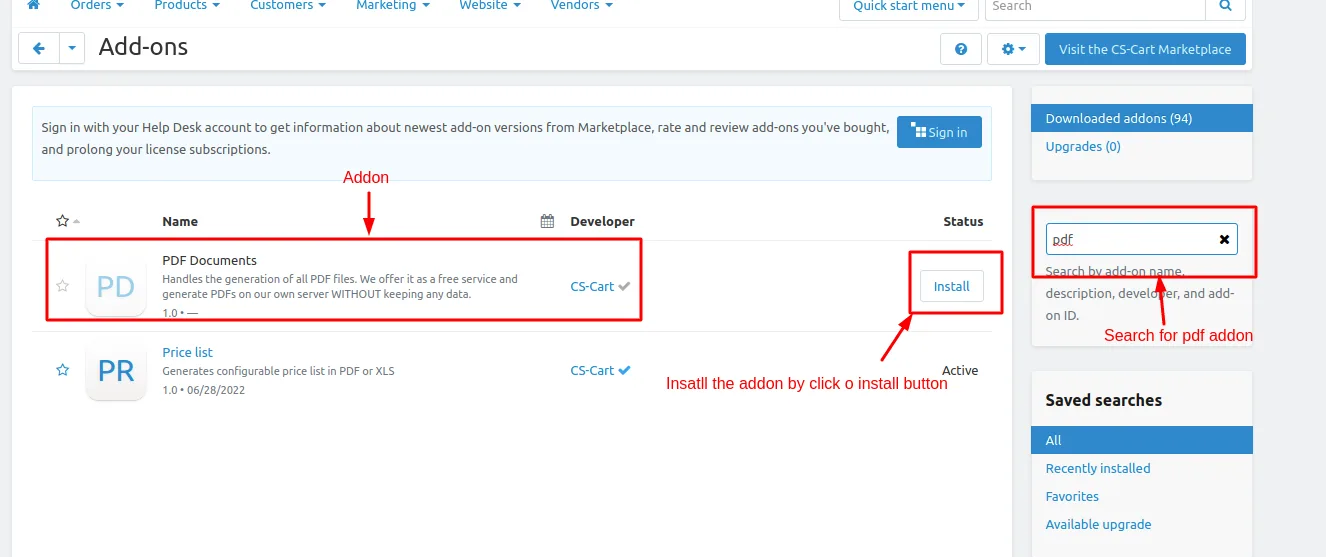
3. Here in left side in search bar search for PDF Documents Addon.
4. Click on >> Install button and install the addon.
5. Go to storefront and click on >> calendar then click on >> event date.
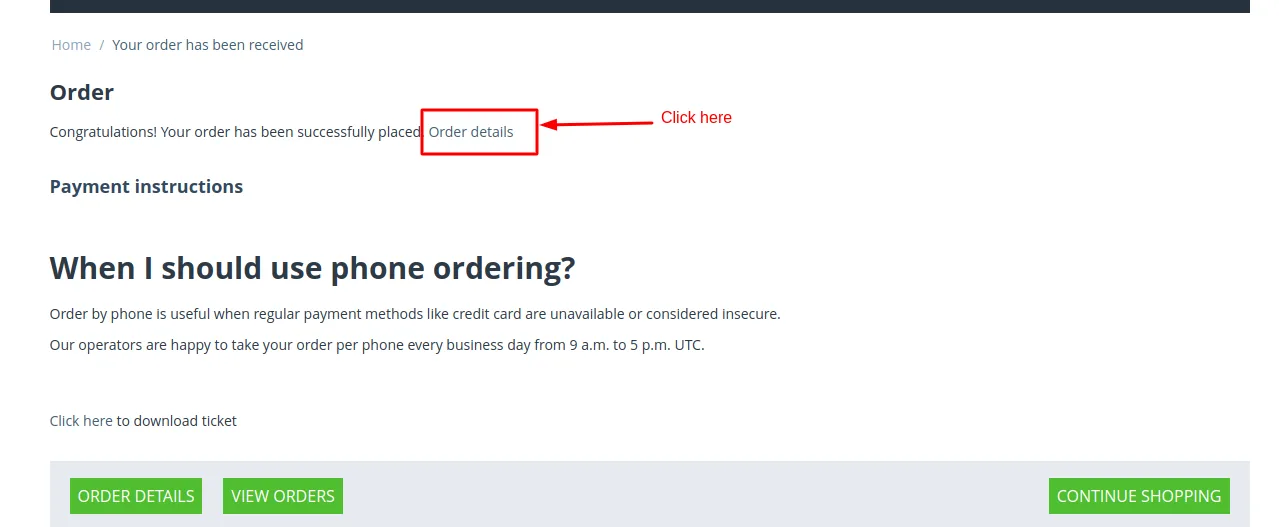
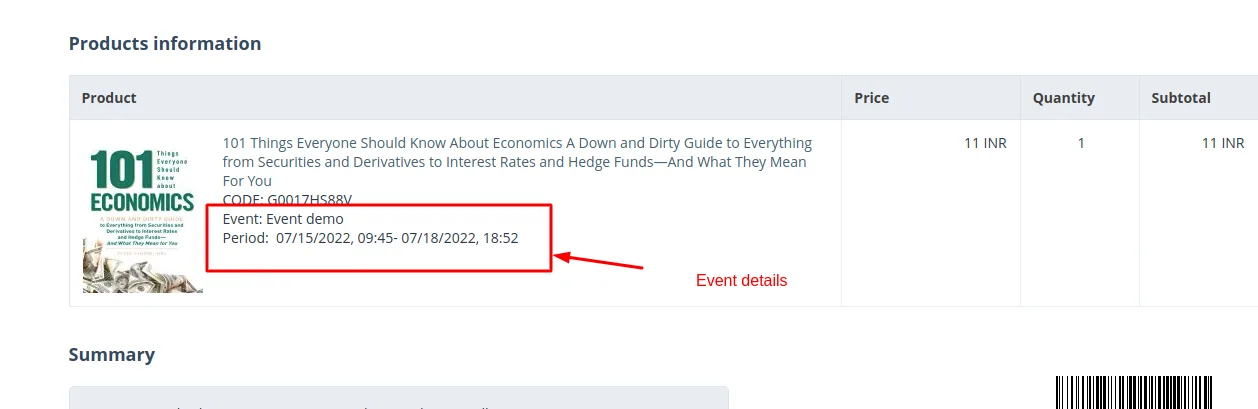
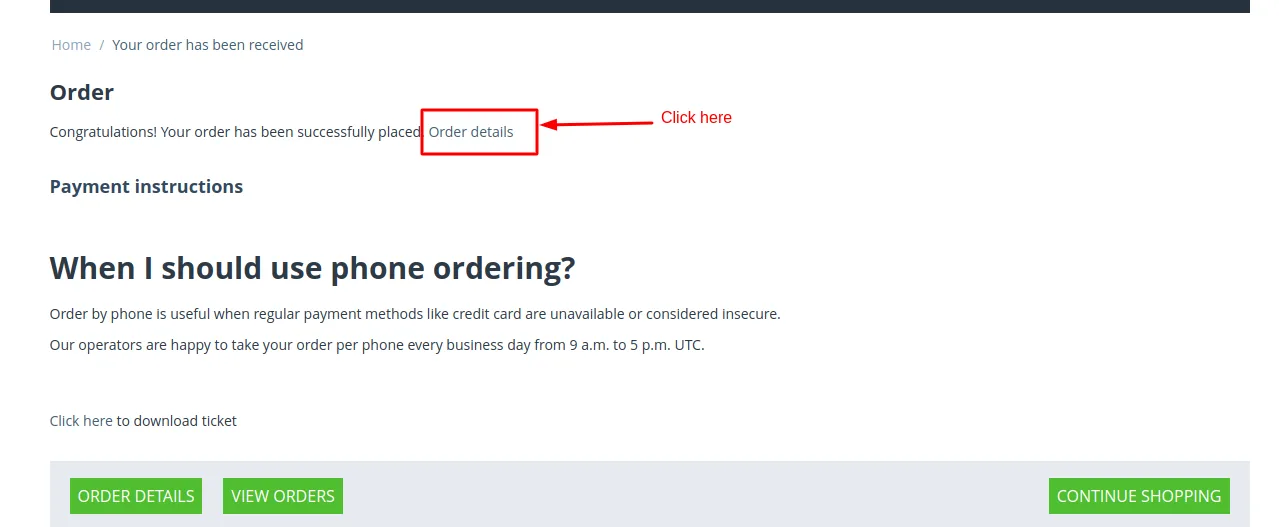
6. place an order after placing the order click on >> Order details. then go to order invoice
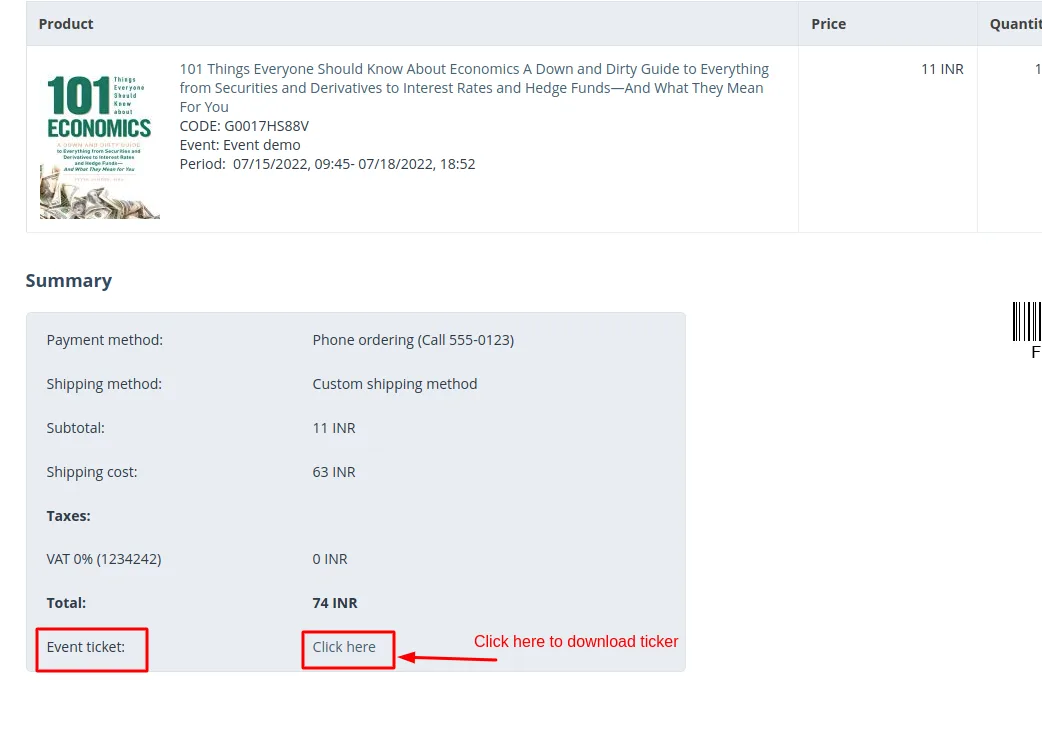
7. Click on >> Event ticket >> Click Here link.
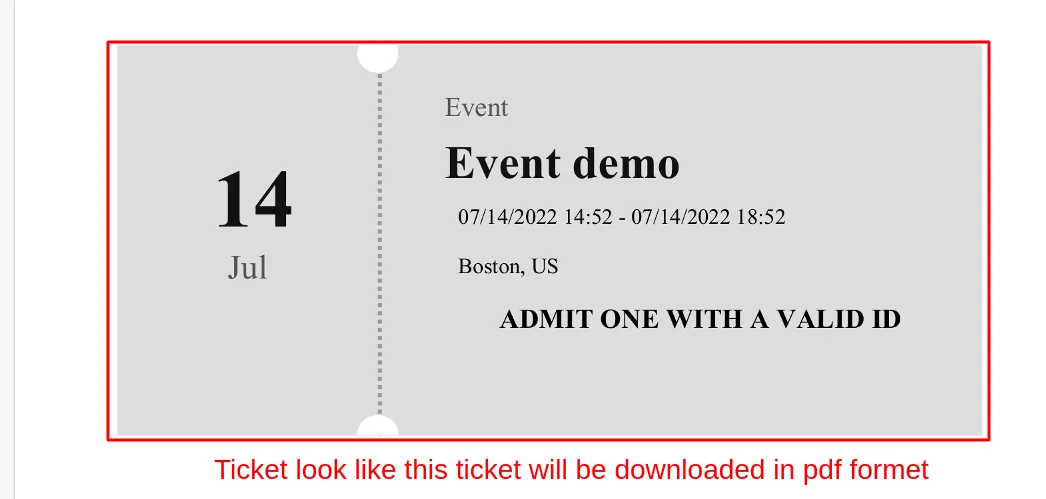
8. Ticket will be downloaded in pdf formet.
Ticket Look likes given below
Tutorial Link:
https://www.loom.com/share/1615f9ea42334c529bfdd0029622b6c3
Addon-Version:
Version-1.0
Supported Versions
CS-Cart, CS-Cart Multivendor 4.8.x, 4.9.x,4.10x,4.11x,4.12,4.13x, 4.14x, 4.15x, 4.16x, 4.17x, 4.18x
Support:
This app is developed and published by Ecarter Technologies Pvt. Ltd., a CS-Cart developer. You are guaranteed a quality add-on.
Frequently asked questions
How do customers receive their event tickets?
After placing an order, customers can download their event tickets from the storefront. All tickets remain available in the customer account so registered users can access them again whenever they need to.
Does the Event Management add-on work with CS-Cart Multi-Vendor?
Yes. The add-on is integrated with CS-Cart Multi-Vendor, so it works in multi-vendor stores as well as standard CS-Cart installations.
Can the admin limit how many people join an event?
Yes. When creating an event, the admin sets a maximum participant count, which controls how many customers can take part in that event. The admin can also create multiple events and multiple event dates.
How do I create an event in the admin panel?
In the admin panel, open the Event List to reach the Manage Event page, then click the plus (+) button in the upper right corner to open the new event form. From there you enter the event name, set the maximum number of participants, and add the event details.
Nisha Gaur is a Technical Content Writer at Ecarter Technologies. She writes technical documentation, tutorials and buying guides covering CS-Cart, Magento, Shopify and eCommerce development.