
Stripe Subscription
Stripe Subscription Add-on lets merchants offer subscription products with recurring payments via Stripe. Customers can manage, update, or cancel subscriptions easily, enhancing convenience and sales.
Stripe Subscription is a CS-Cart add-on that lets merchants offer recurring-payment subscriptions through the Stripe payment gateway. Once set up, payments are automatically charged on a schedule you define, such as daily, weekly, monthly, or yearly, using cards accepted by Stripe at checkout. It works with both existing and new products, and gives customers the option to update, remove, or cancel their subscriptions from the cart. This add-on suits store owners who want to turn one-time purchases into repeat revenue and serve customers who prefer subscribing over reordering the same product.

This addon allows you to configure and offer subscriptions to your customers using the Stripe Payment Gateway. The recurring payments will then be deducted day, weekly, monthly, or yearly from the customer's account (or as you specify). This fantastic add-on integrates with CS-Stripe Cart's payment system at checkout. Cards are all accepted using the Stripe payment platform.
The module allows merchants to offer subscriptions to their existing products as well as new products. It also provides the functionality of choosing. Offering subscription features on any product can be very beneficial for the merchants. Most customers prefer subscriptions over buying the product again and again.
Features
- Product Subscriptions: Provide functionality of product subscriptions to your customers.
- Subscription Discounts: Set different discounts on a subscription product.
- Update Subscription: Allow customers to update the subscription details from the cart page.
- Remove Subscription: Customers can remove the subscription from the shopping cart page.
- Cancel Subscription: Allows customers to cancel their subscriptions anytime.
- Payment Method Selection: Select the payment methods for subscription products.
Installation
How To Install Stripe Subscription Addon
https://store.ecarter.co/blogs/how-to-install-addon/
How Addon Works
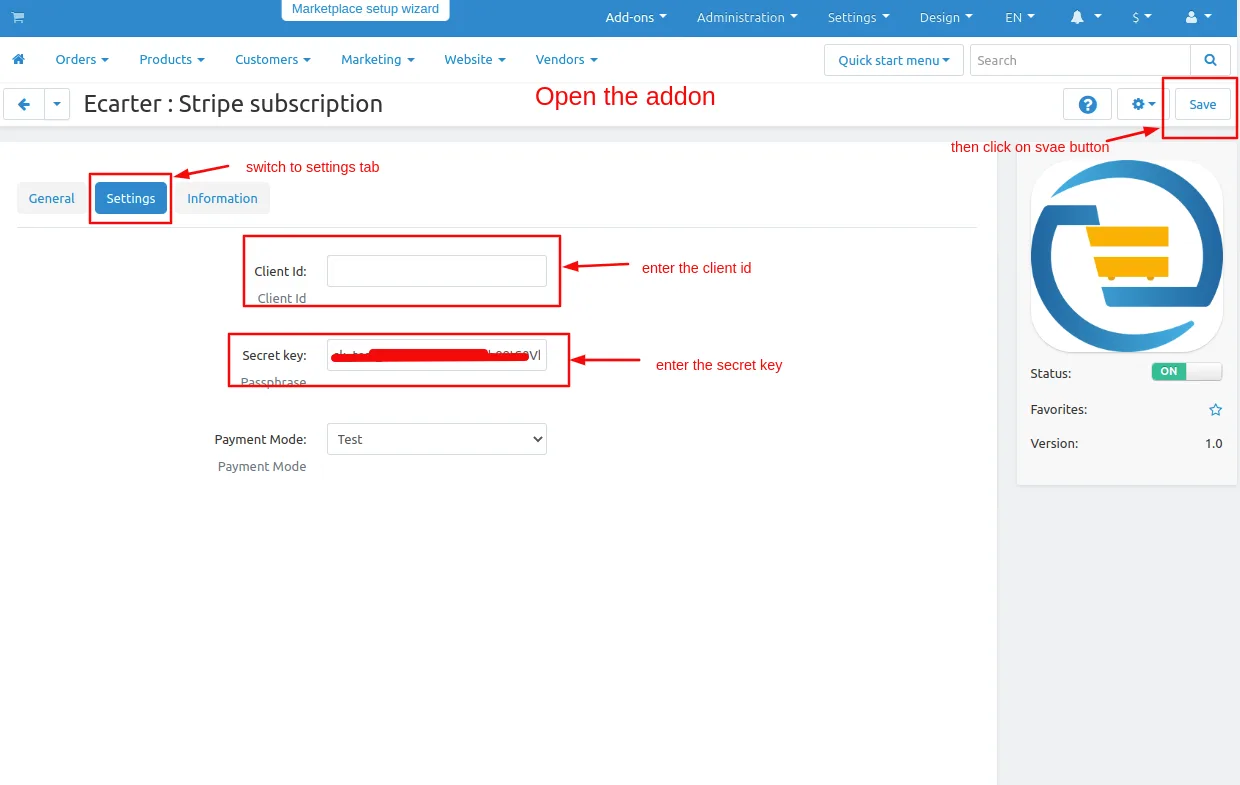
- Open the addon switch to the settings tab
- Enter the client ID and secret key, and then save the settings
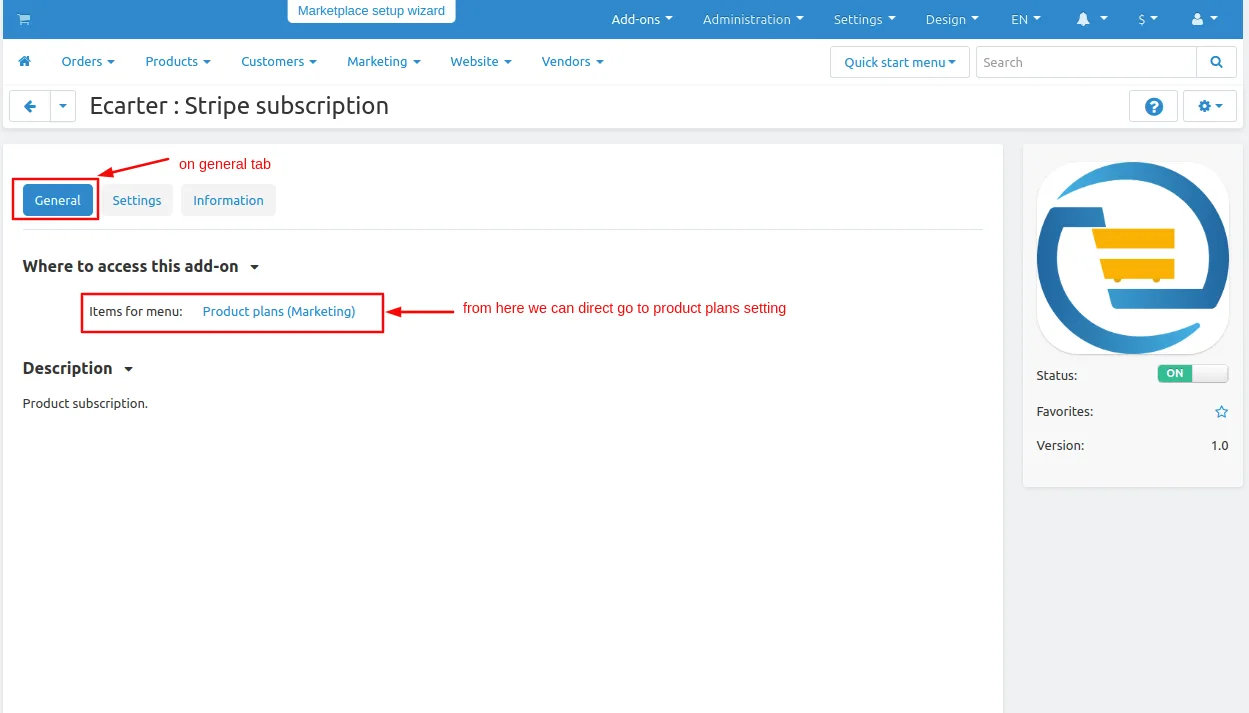
- From general tab you can go direct on product plans page.
- Open the addon and switch to the setting tab.
Now let's see how to add the product plans.
- Go to Marketing section click on >> product plans.
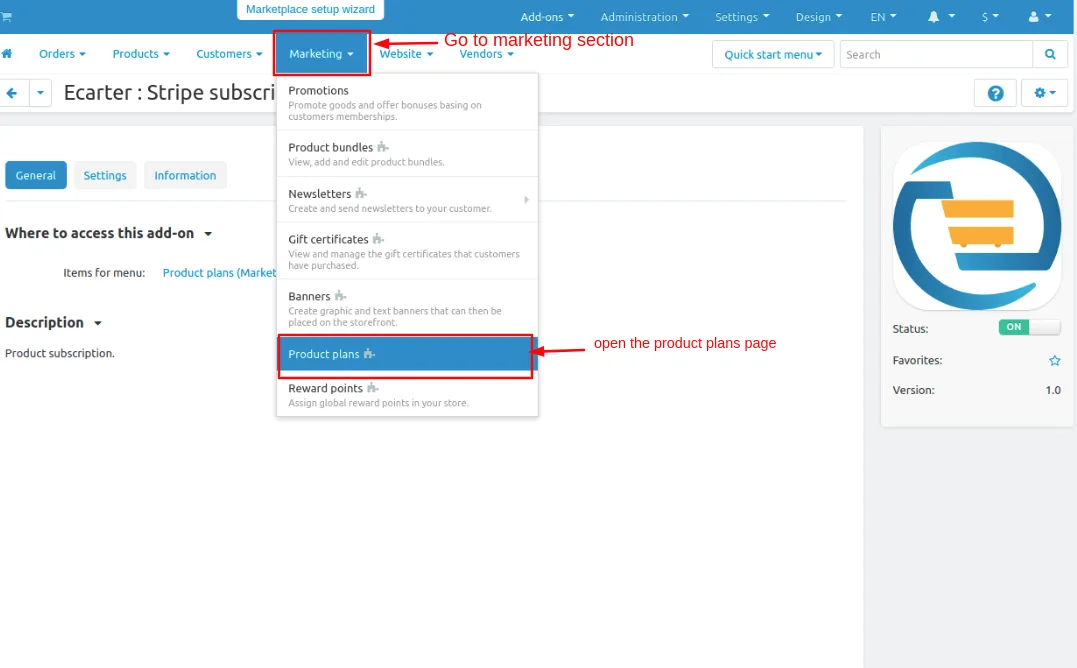
- product subscription plans page will be open.
- click on >> (+) icon to create a plan.
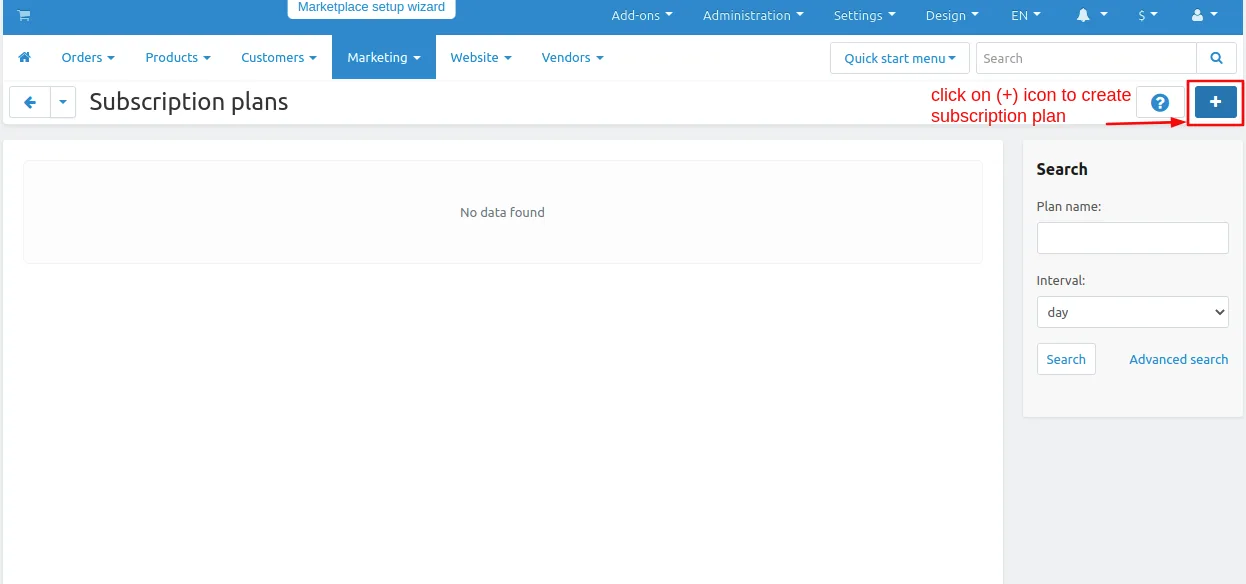
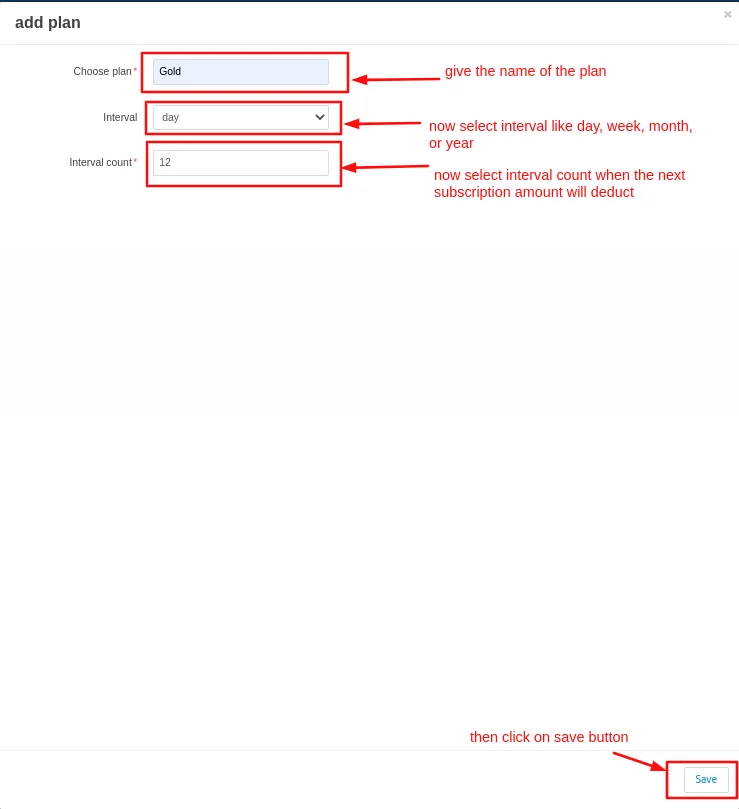
- Add plan window will be open
- then give the name of the plan.
- select intervals like days, weeks, months, and years.
- now select interval count so when the next subscription plan deducts .
- after that click on >> save button.
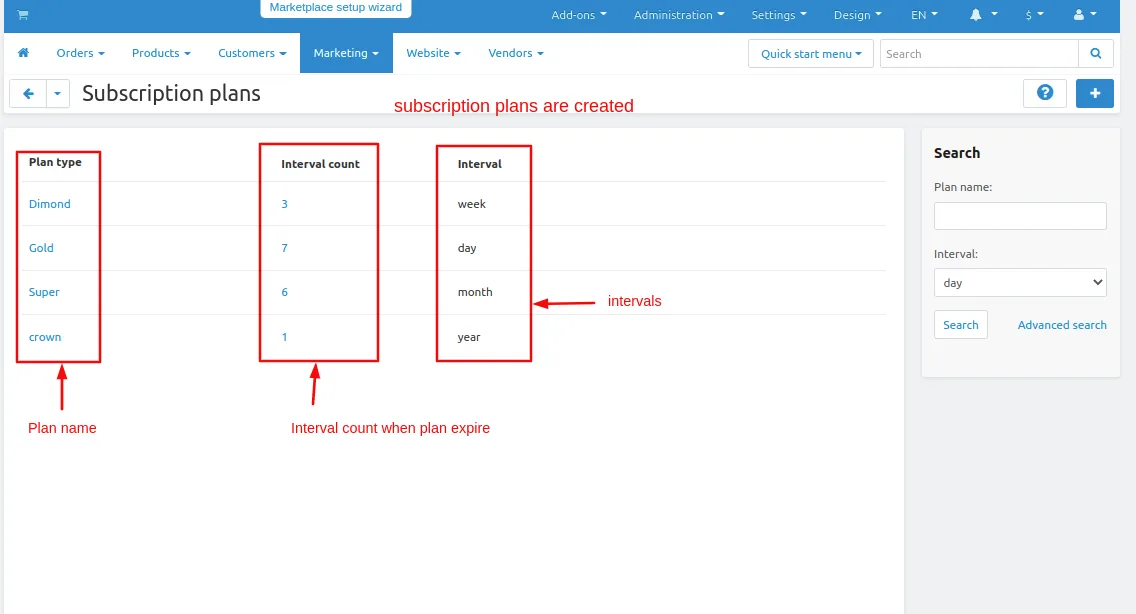
here you see the subscription plans are created at different intervals.
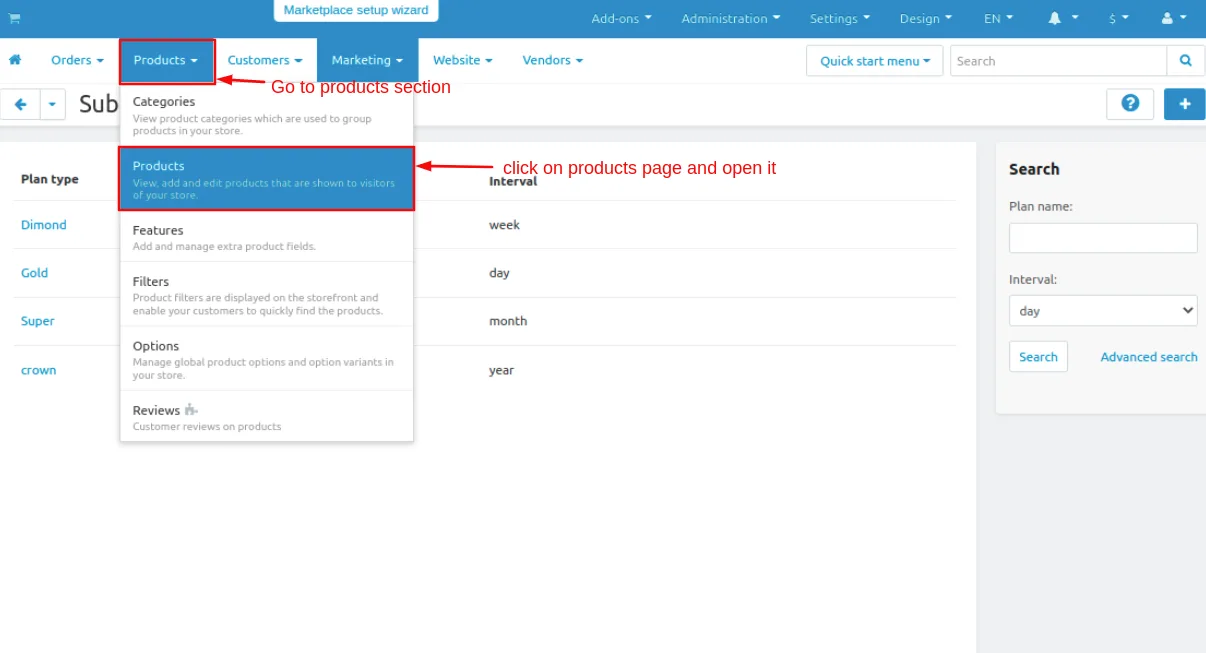
- now go to products section.
- click on >> products page.
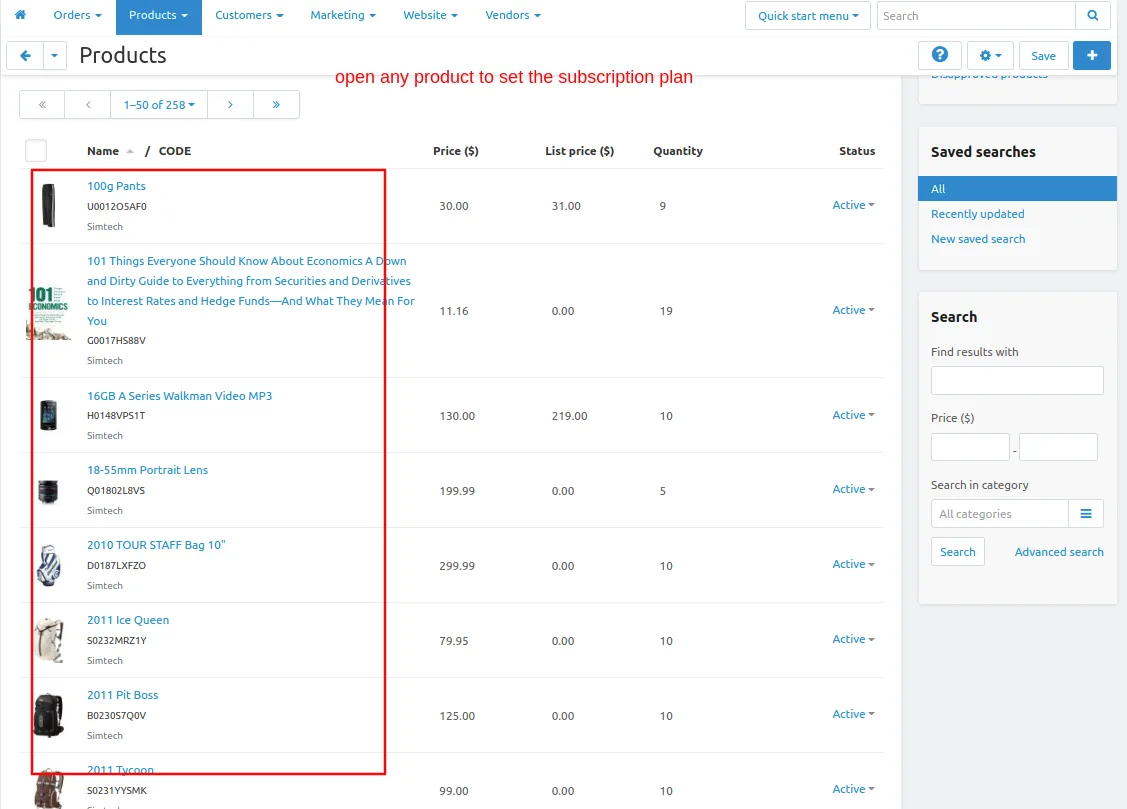
- then select the product you want to create a plan.
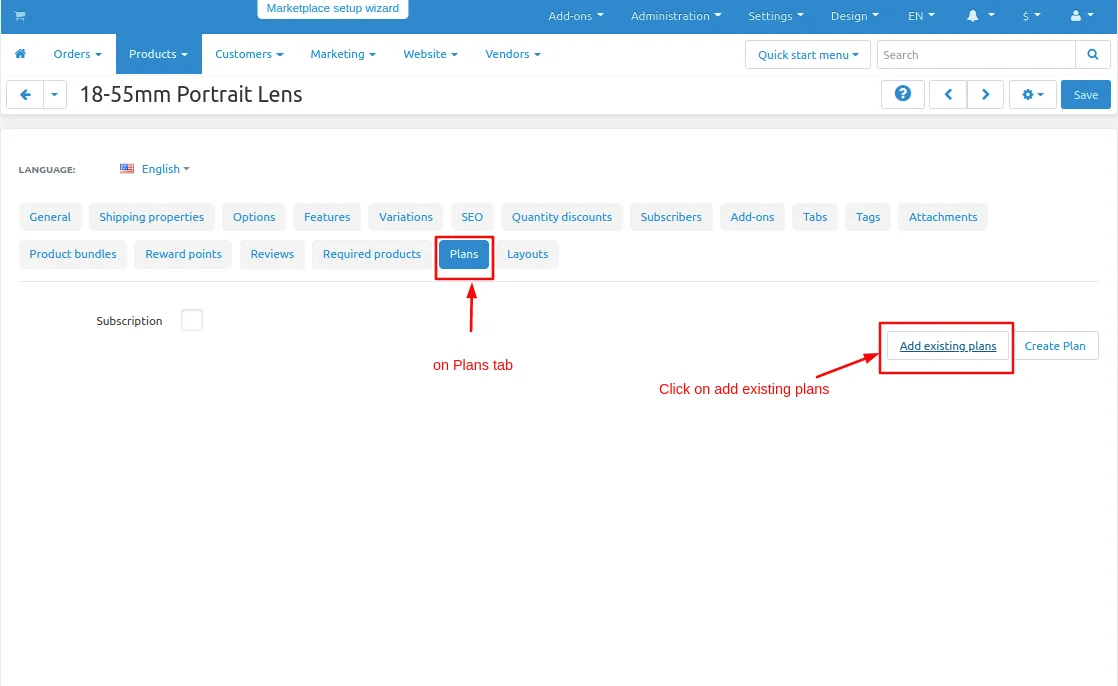
- switch to the plans tab.
- then click on add existing plans
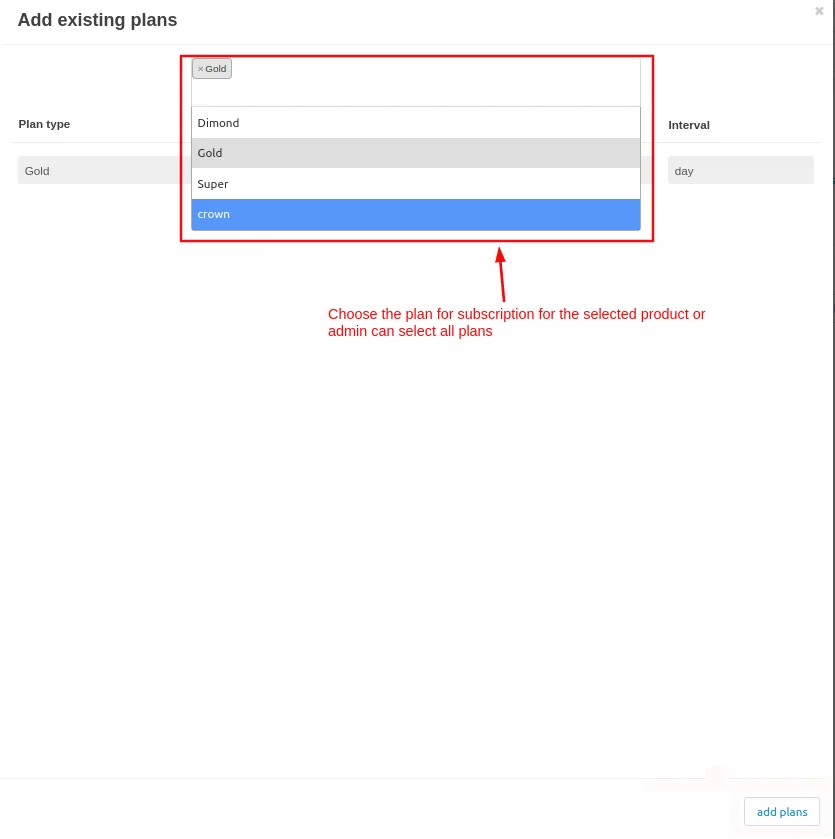
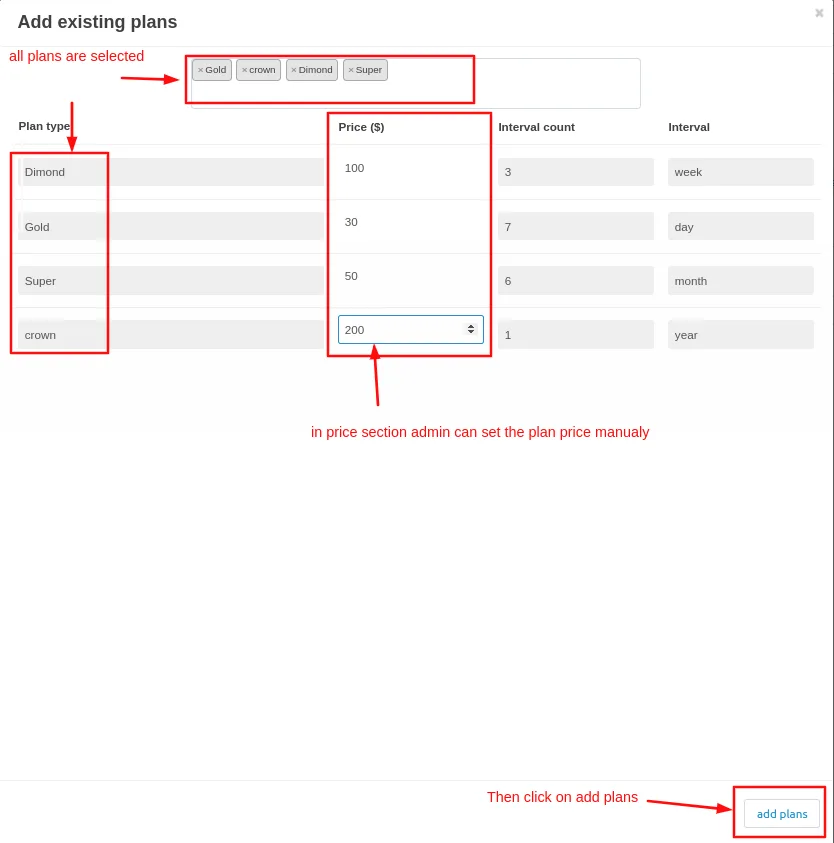
- add existing plan window will open add the plans by clicking on the plans admin can add a single plan or multiple plans
- then the admin can set the price of the subscription plan.
- after that click on >> add plan.
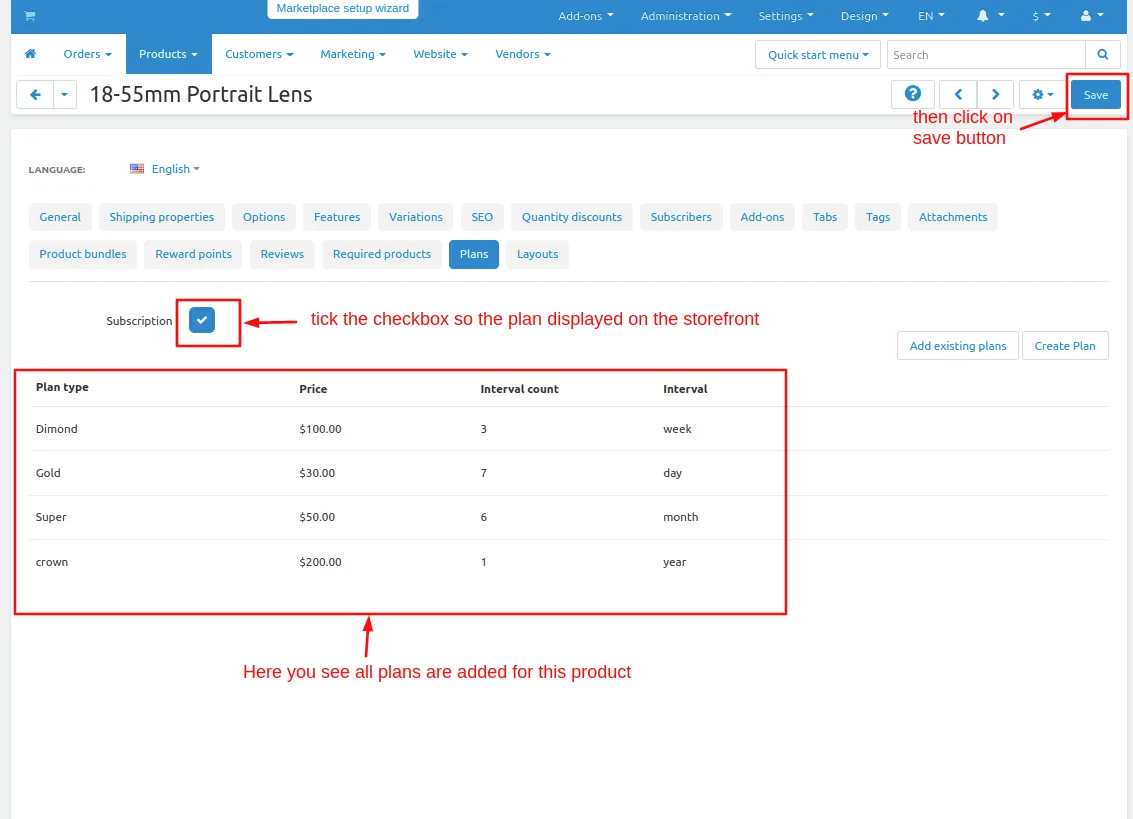
Here you see the subscription plan is created for that product.
Tick the subscription checkbox so the plan will display on the storefront. after that click on >> save button.
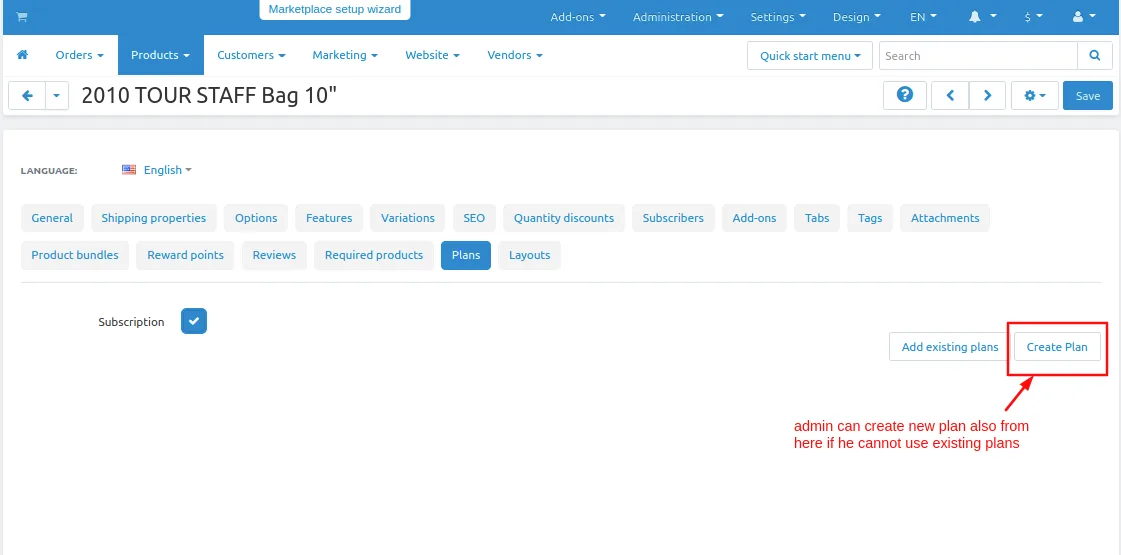
in products, the admin can create a new plan also if he does not use the existing plan by clicking on create a plan.
Now set the stripe subscription payment method.
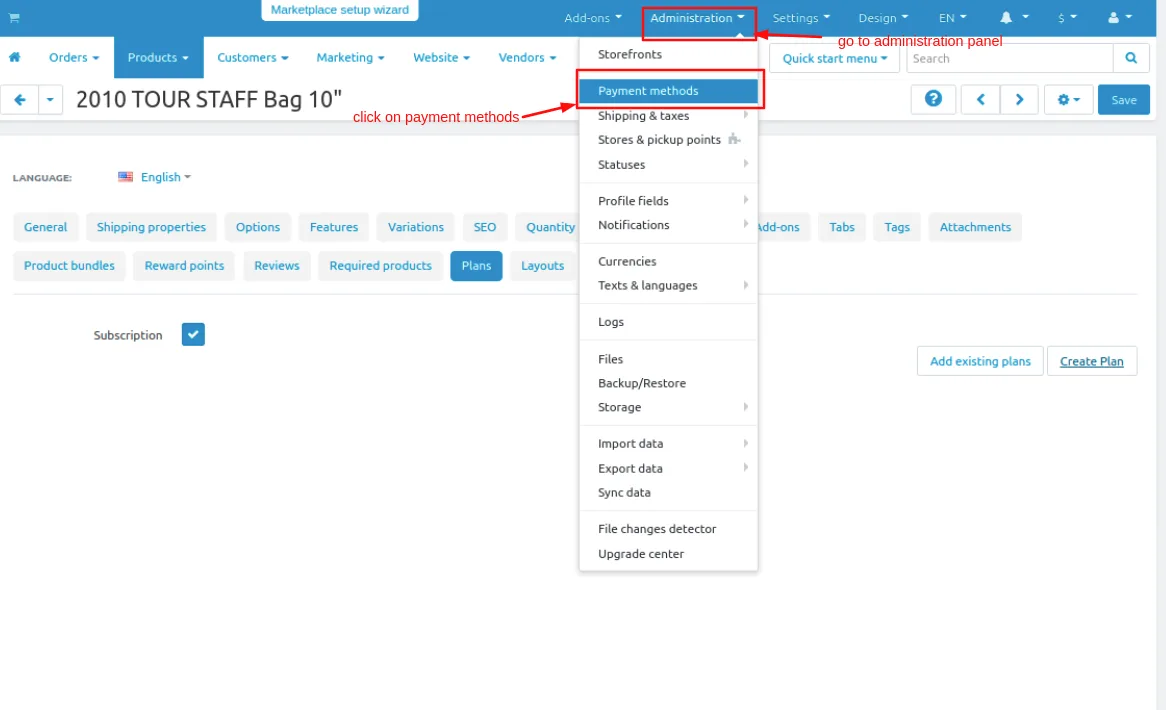
- Go to the administration panel.
- click on >> Payment methods.
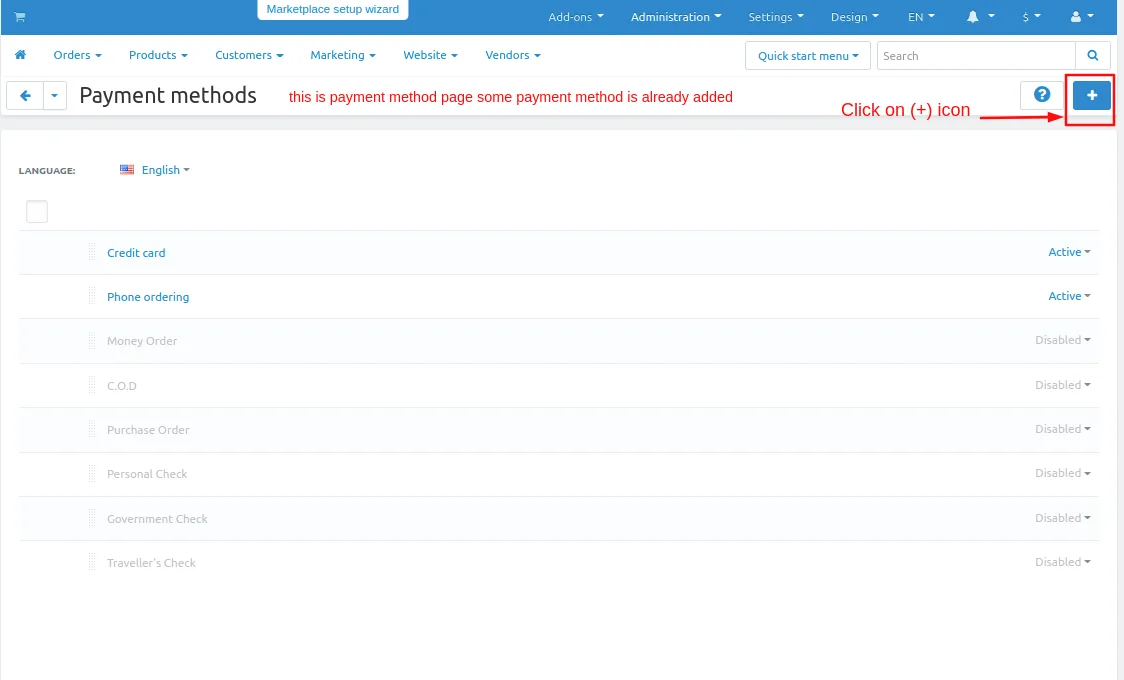
- payment method page will open and some default payment methods will be added.
- to create a stripe subscription payment method click on the>> (+) icon.
- in the processor, text field selects the stripe subscription.
- and then click on >> create button.
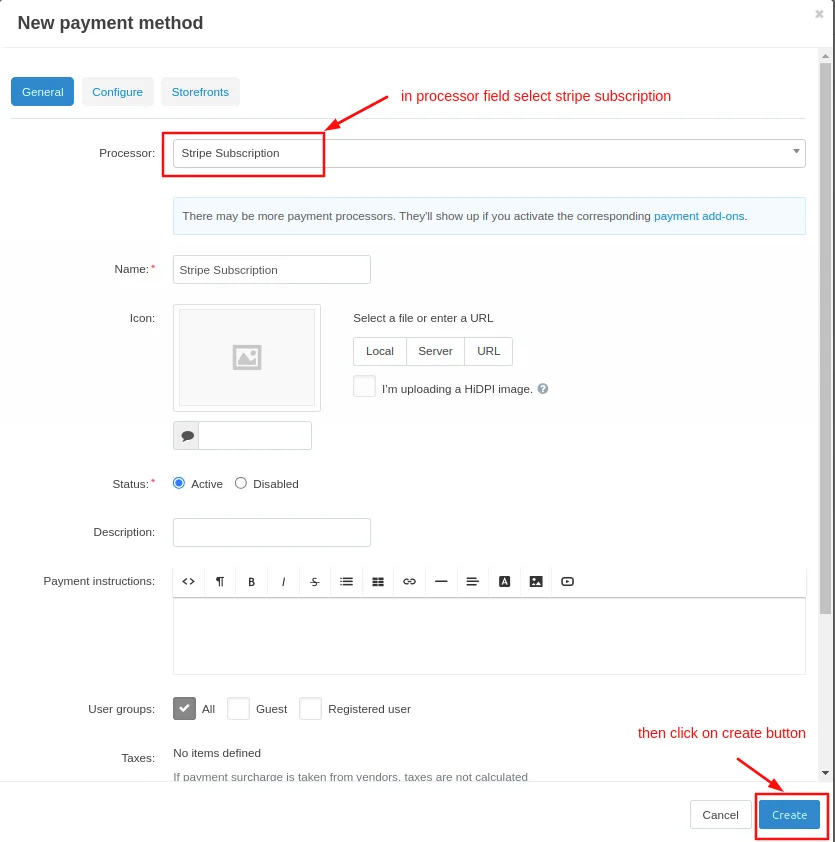
Here you see stripe subscription payment method is created.
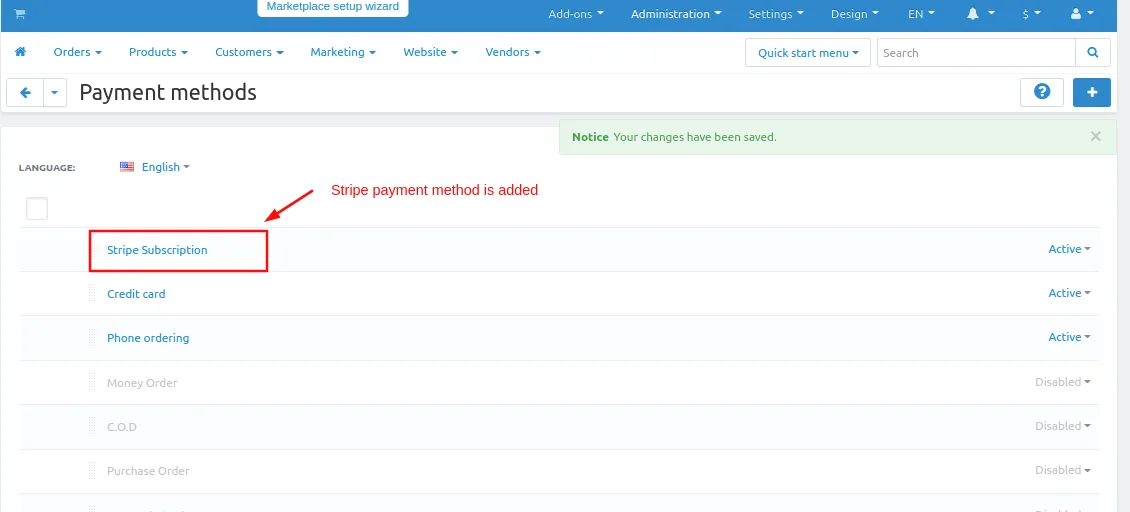
Now let's see how it works on the storefront.
- Go to the storefront and search for the product on which the subscription plan is created.
- user can select the plan which he wants.
- then click on >> add to cart button.
Note:- If a subscription product is on the cart then other products will not be added to the cart and other subscription products also not be added in to the cart one product will be added at one time.
one time purchase means the product will order as a normal product without stripe payment.
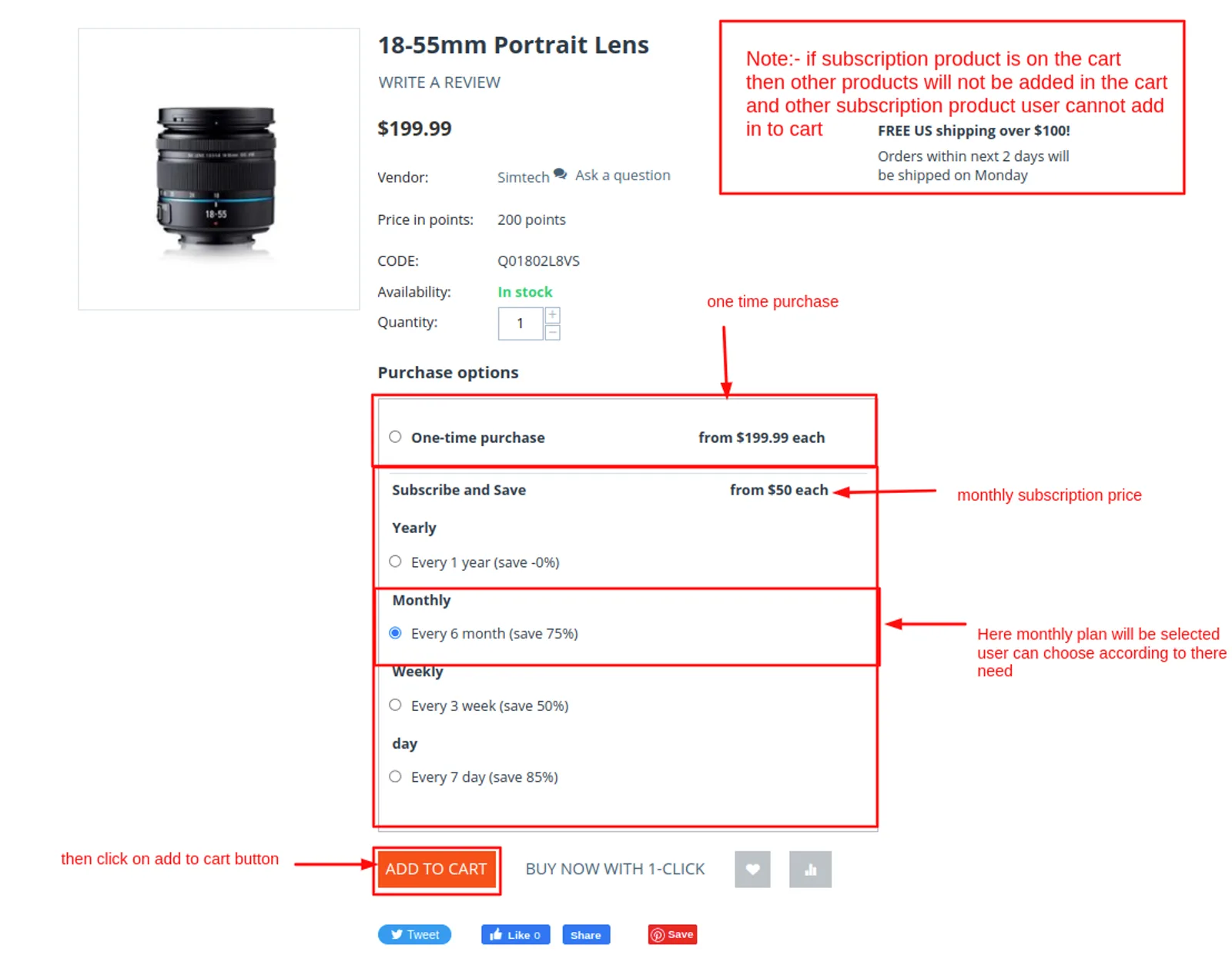
- then click on >> the checkout button.
- the checkout page will be open.
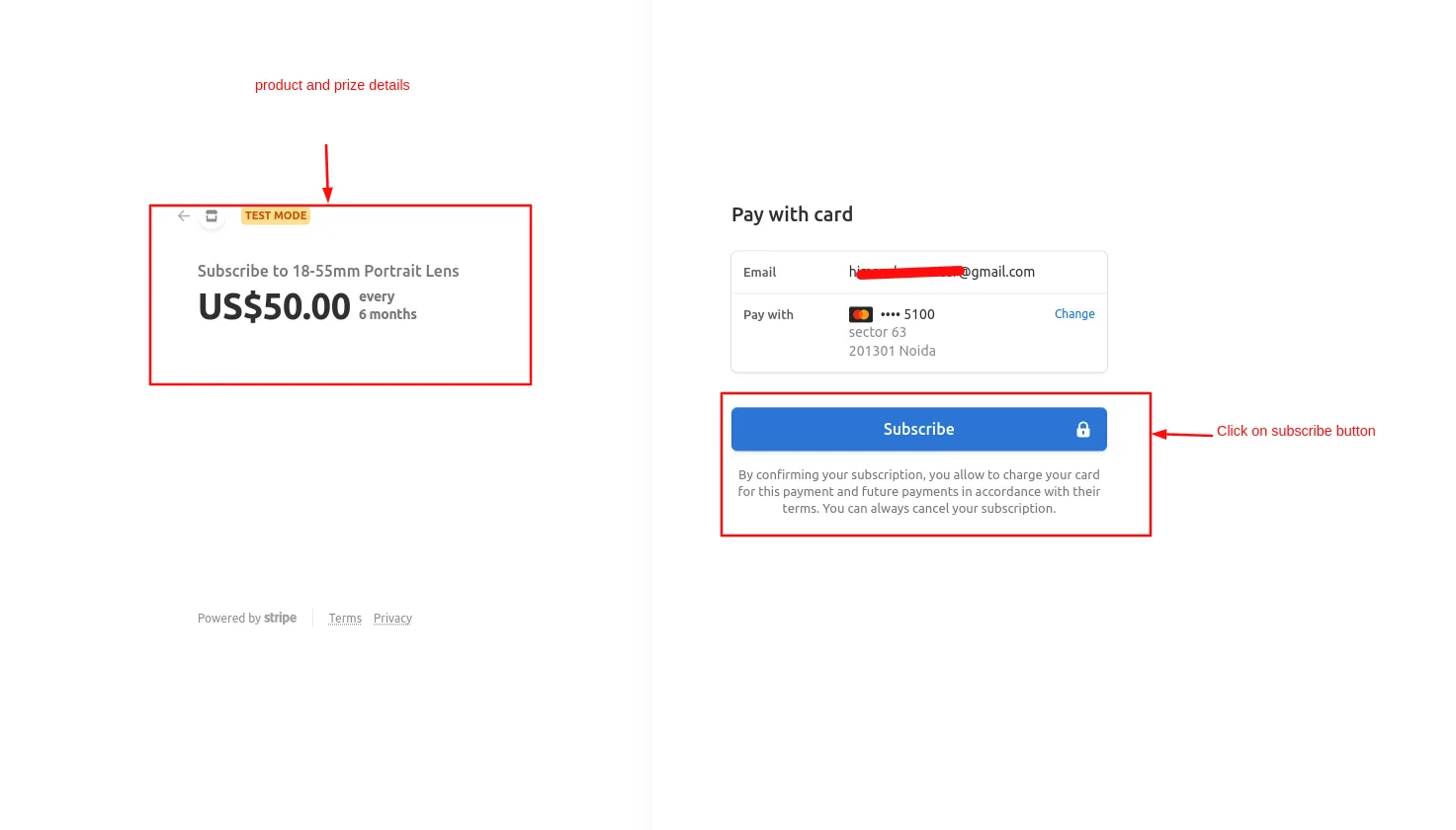
- click on >> place order it will redirect to the stripe payment gatway.
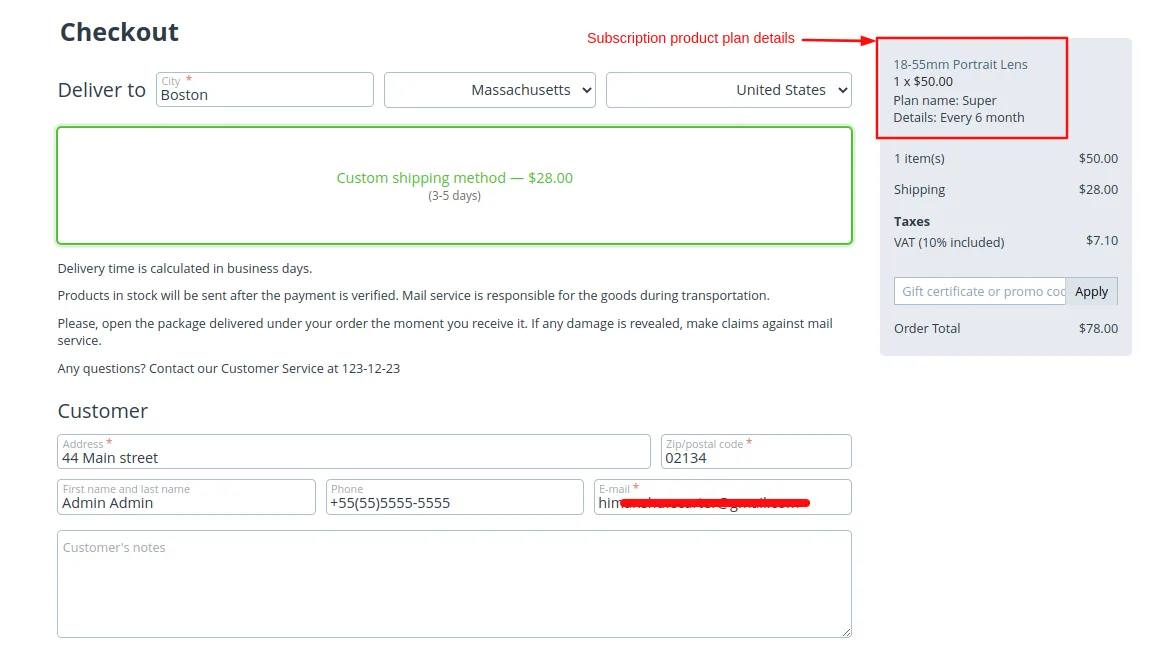
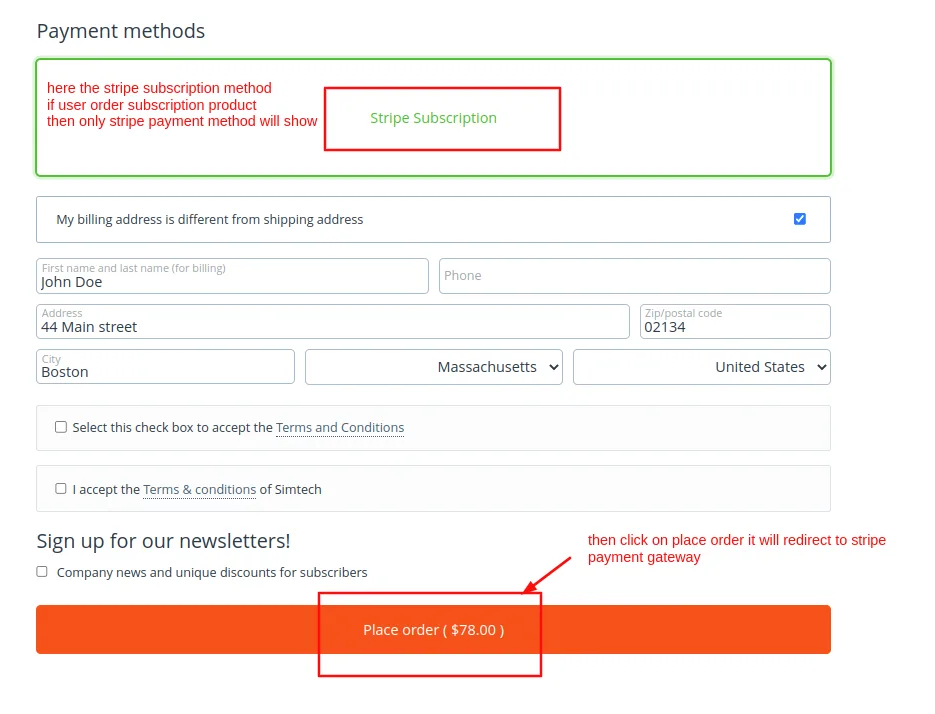
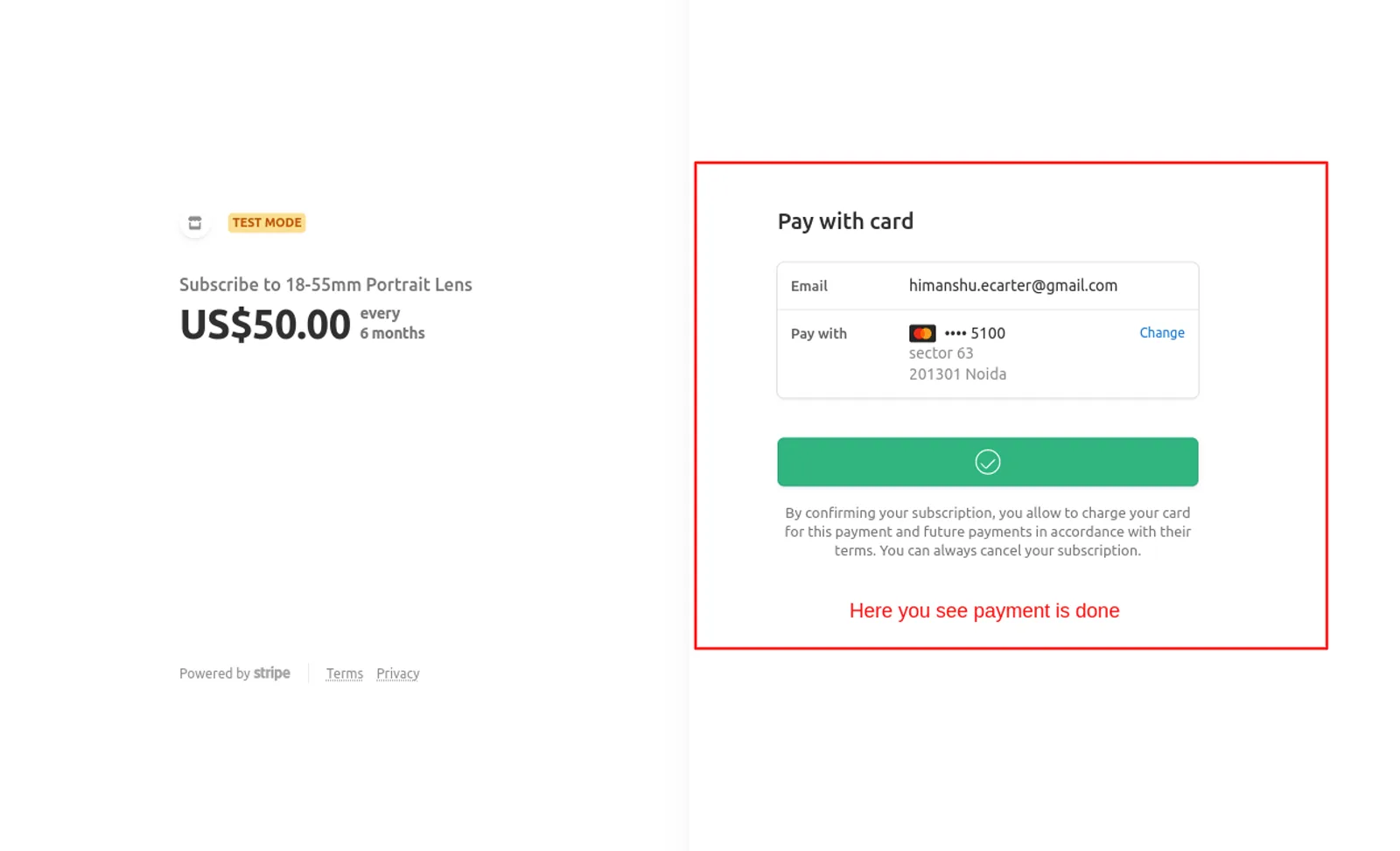
here user doing a subscription payment using the stripe payment gateway.
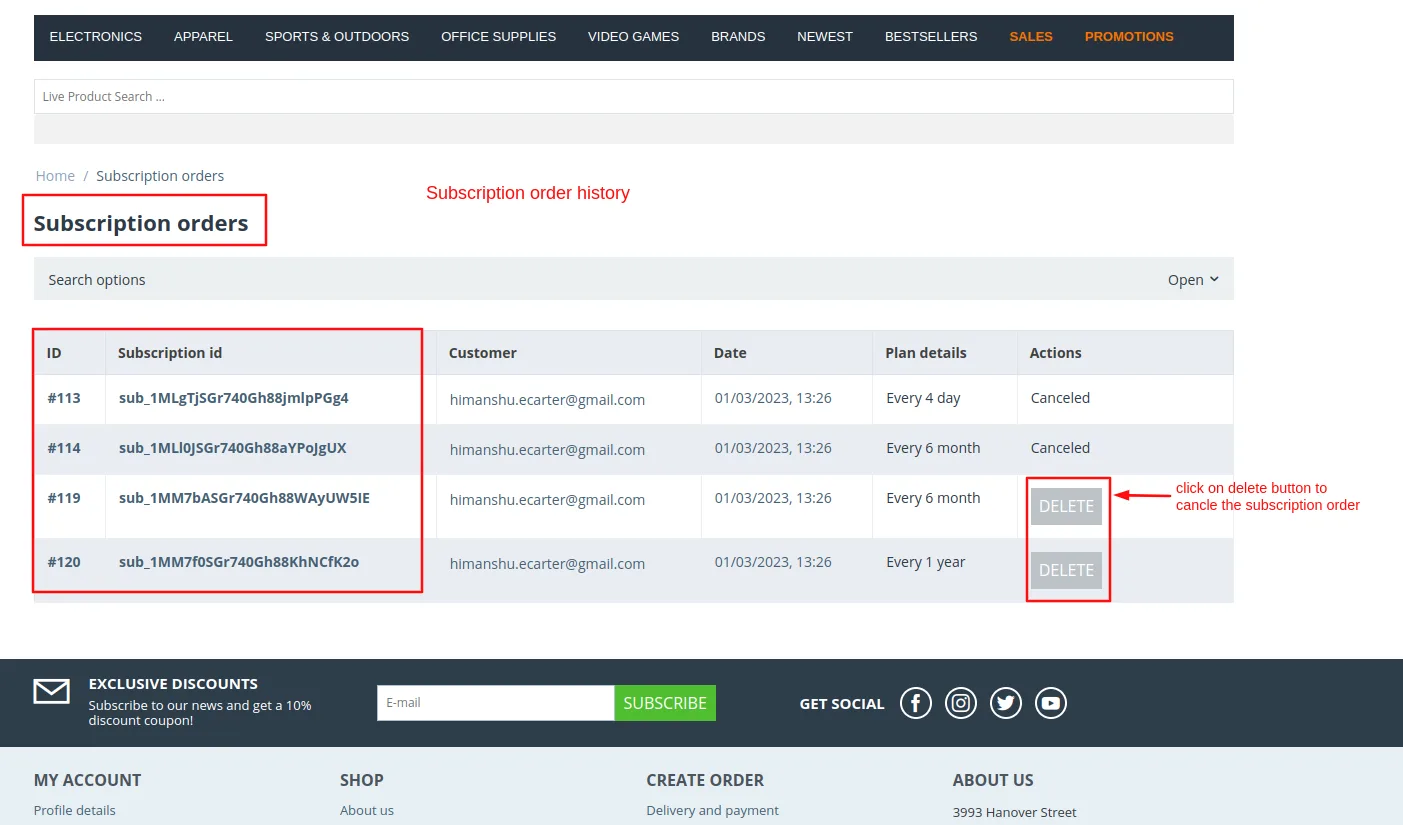
Now check the subscription orders history and how to cancel the subscription order.
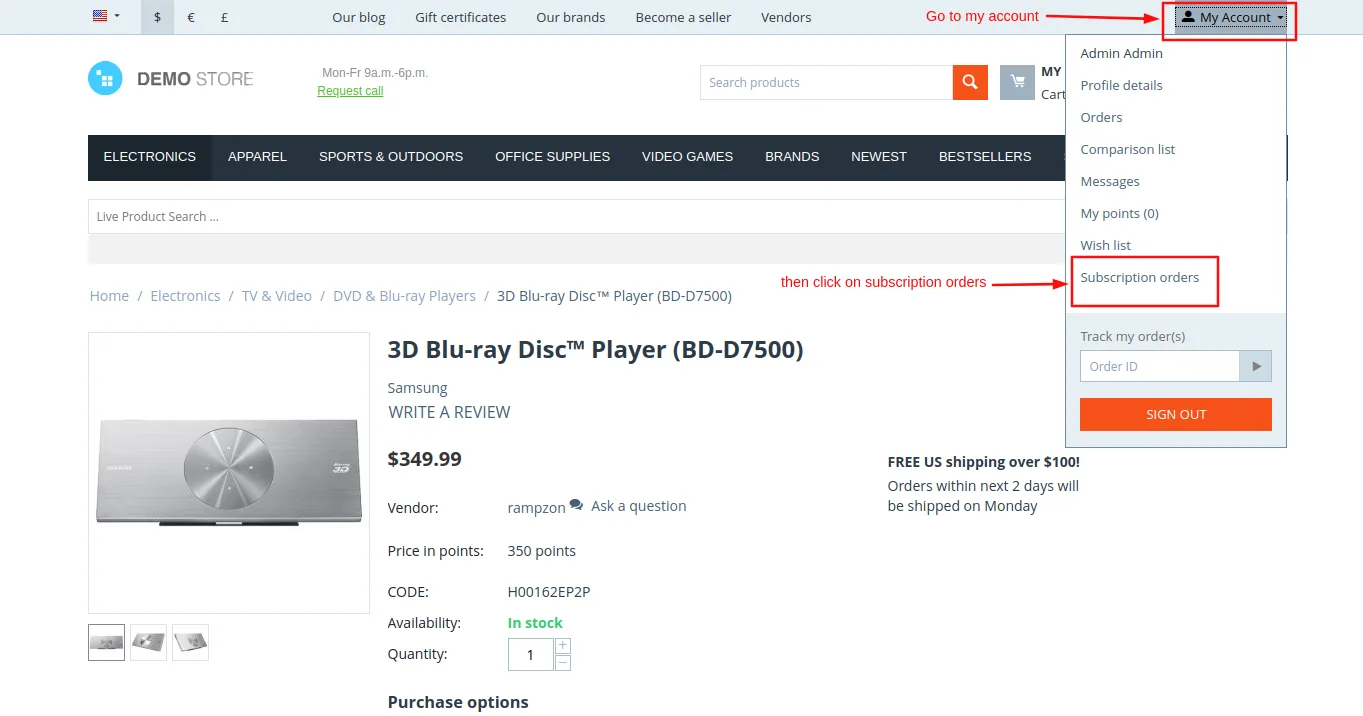
on the storefront Go to >> my account then click on >> subscription orders.
- subscription orders page will open.
- Users can also search for the subscription product by entering their ID and plan type.
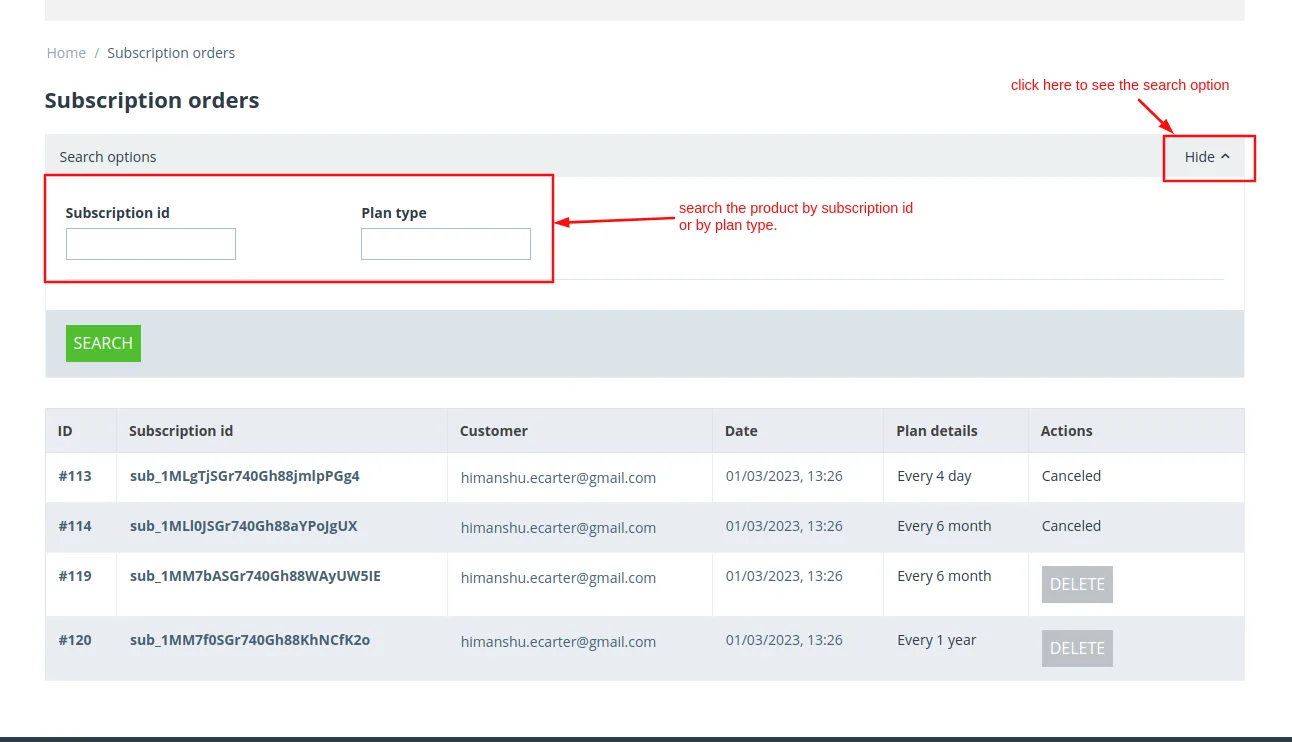
- click on >> delete button to cancel the subscription order.
Addon-Version
Version-1.0
Supported Versions:
CS-Cart, CS-Cart Multivendor 4.8.x, 4.9.x,4.10x,4.11x,4.12,4.13x, 4.14x, 4.15x, 4.16x, 4.17x, 4.18x
Support:
This add-on is developed and published by Ecarter Technologies Pvt.Ltd., a CS-Cart developer. You are guaranteed a quality add-on supported by future versions. If you need help, please contact us via email at support@ecarter.co.
Frequently asked questions
How are recurring subscription payments handled?
Payments are processed through the Stripe payment gateway and charged automatically on the interval you set, such as daily, weekly, monthly, or yearly. All card payments are accepted using the Stripe platform at checkout.
Can customers change or cancel a subscription after signing up?
Yes. Customers can update subscription details from the cart page, remove a subscription from the shopping cart, and cancel their subscription at any time.
Can I add subscriptions to products I already sell?
Yes. The add-on lets merchants offer subscriptions on both existing products and new products, and you can set different discounts on a subscription product and choose which payment methods apply.
How is the add-on installed and set up?
Install it following the standard add-on installation steps, then open the add-on and switch to the settings tab. To connect Stripe, enter your client ID and secret in the settings.
Kajal is a Technical Content Writer at Ecarter Technologies. She writes technical documentation and in-depth guides on eCommerce platforms, mobile commerce and AI in online retail.