
Vendor Wise Payment Method
Vendor Wise Payment Method: This addon allows the admin to hide payment method according Vendor-wise payment for the unlogged.
Vendor Wise Payment Method is a CS-Cart add-on that lets a marketplace admin control which payment methods each vendor can use. Instead of showing every payment option to every vendor, it lets the admin assign specific payment methods to specific vendors and hide payment methods from vendors who are not logged in or not registered. This helps keep vendor payments organized, reduces the chance of orders going through the wrong payment channel, and makes checkout cleaner for each vendor. It is built for CS-Cart Multi-Vendor store admins who need per-vendor payment control, and it works alongside the "Direct Customer-to-Vendor Payments" add-on.

Vendor Wise Payment Method Add-on for CS-Cart helps the admin manage payment options for each vendor separately in the store. It hides payment methods for unregistered or unlogged vendors and gives the admin full control over which vendors use specific payment options.
It simplifies vendor payment management by supporting different payment methods for different vendors. This feature improves order accuracy, supports better vendor coordination, and ensures smoother transactions across the marketplace.
Features
- Hide payment methods for unlogged or unregistered vendors.
- Assign specific payment methods to selected vendors.
- Manage multiple vendors with different payment options.
- Easily create and edit payment methods from the admin panel.
- Ensure only assigned vendors see their respective payment options during checkout.
- Improve store payment control and vendor-wise order management
Note: this add-on works only with "Direct Customer-to-Vendor Payments" addon.
Installation:
How to install Addon
https://store.ecarter.co/blogs/how-to-install-addon/
How Vendor wise payment method is work.
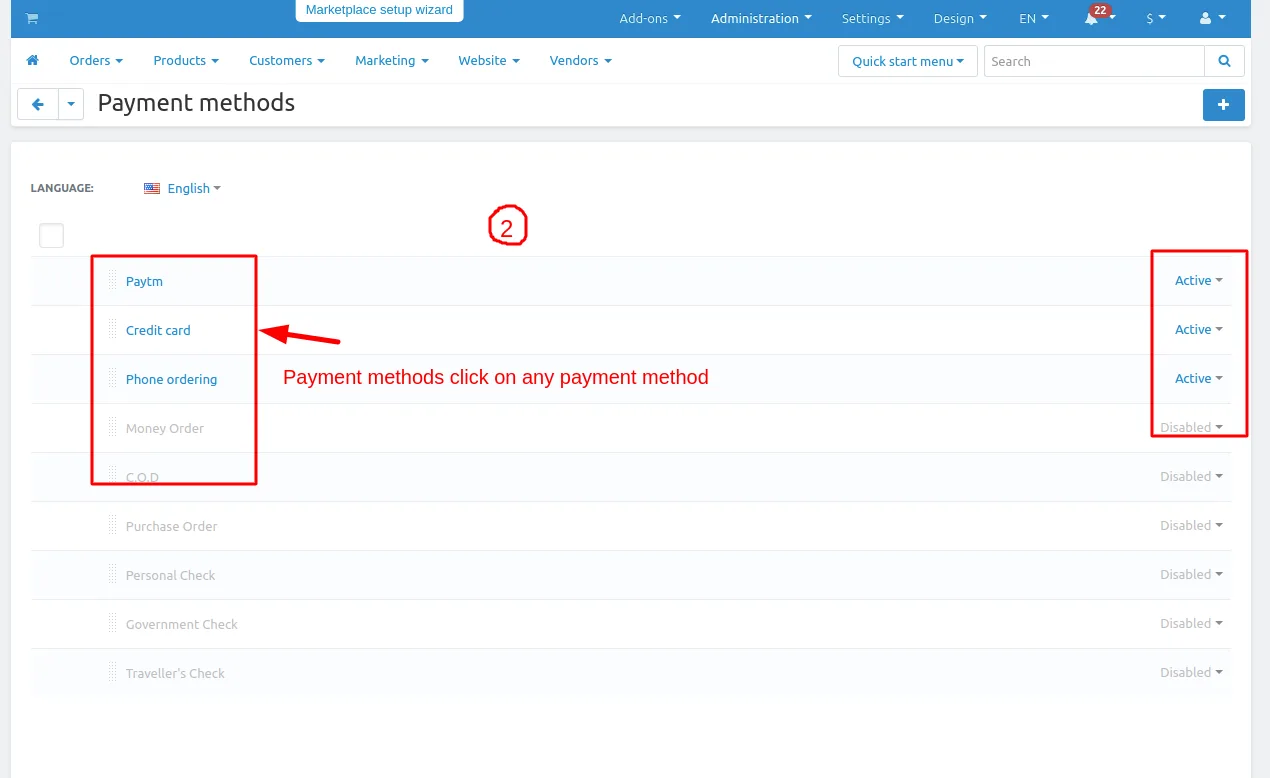
1. Go to >> Administration penal click on >> Payment method.
2. Here payment method page will be display.
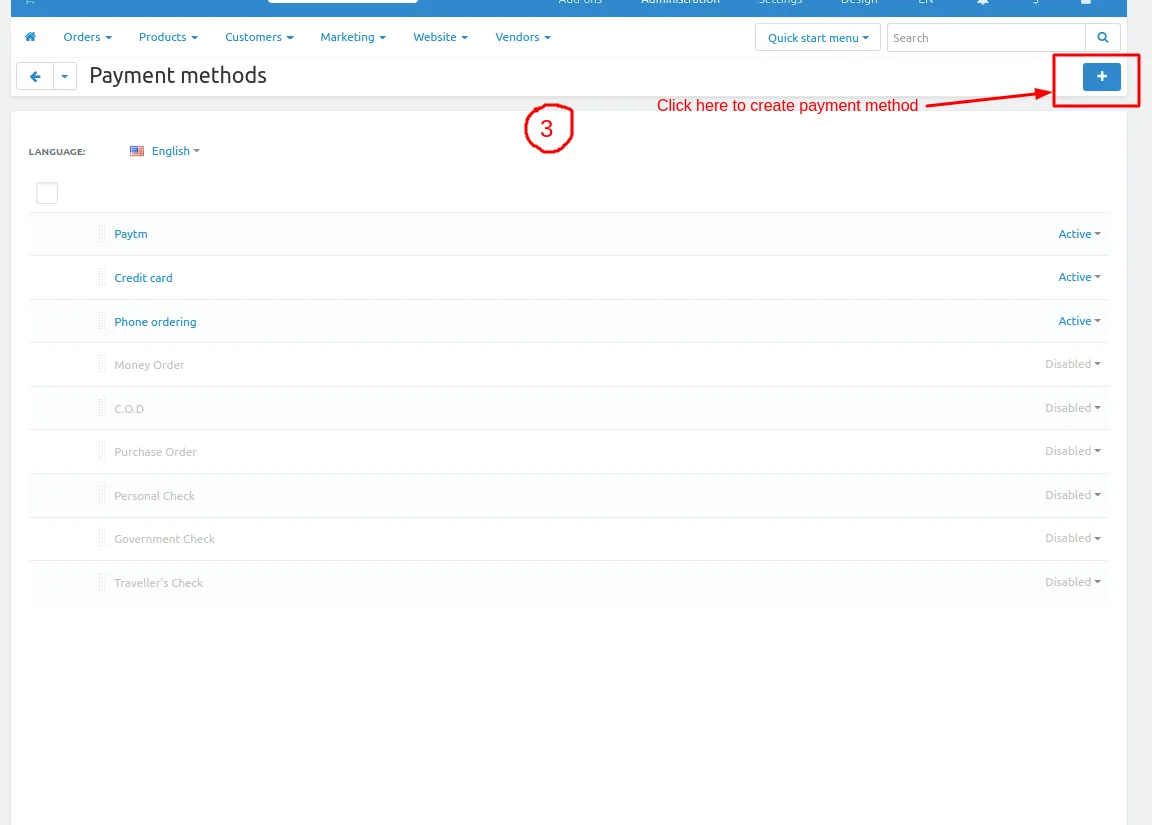
3. Click on the >>(+) button to create the payment method.
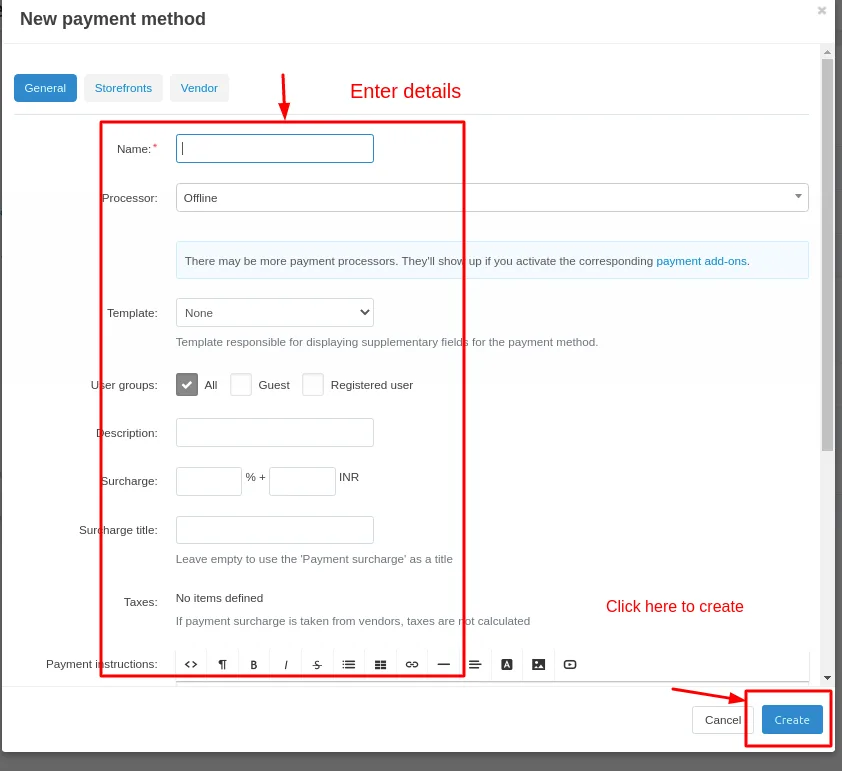
Enter the details and click on the >> create button.
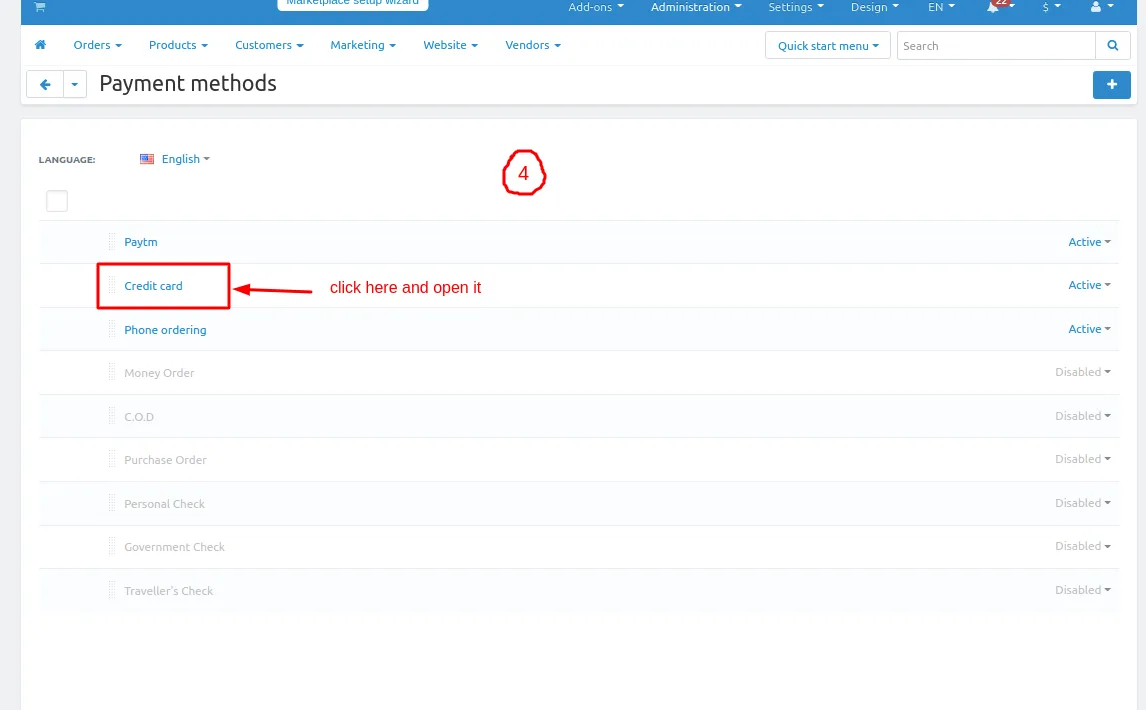
4. Click on the given payment method.
5 payment method page will be open and switch to the Vendor Tab.
Click on the add vendor.
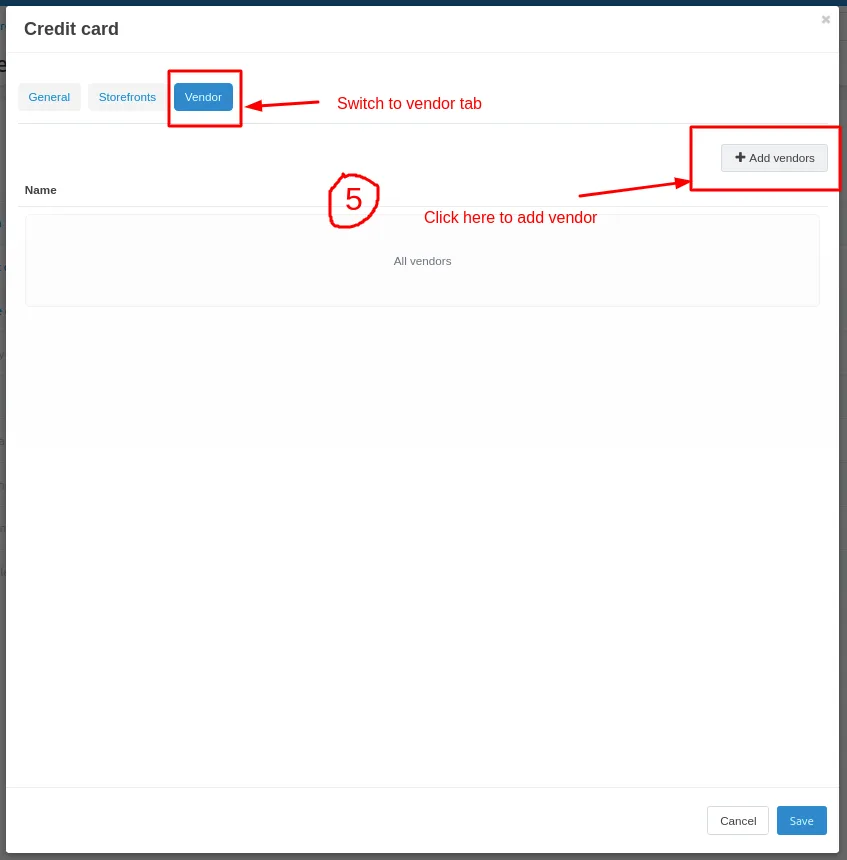
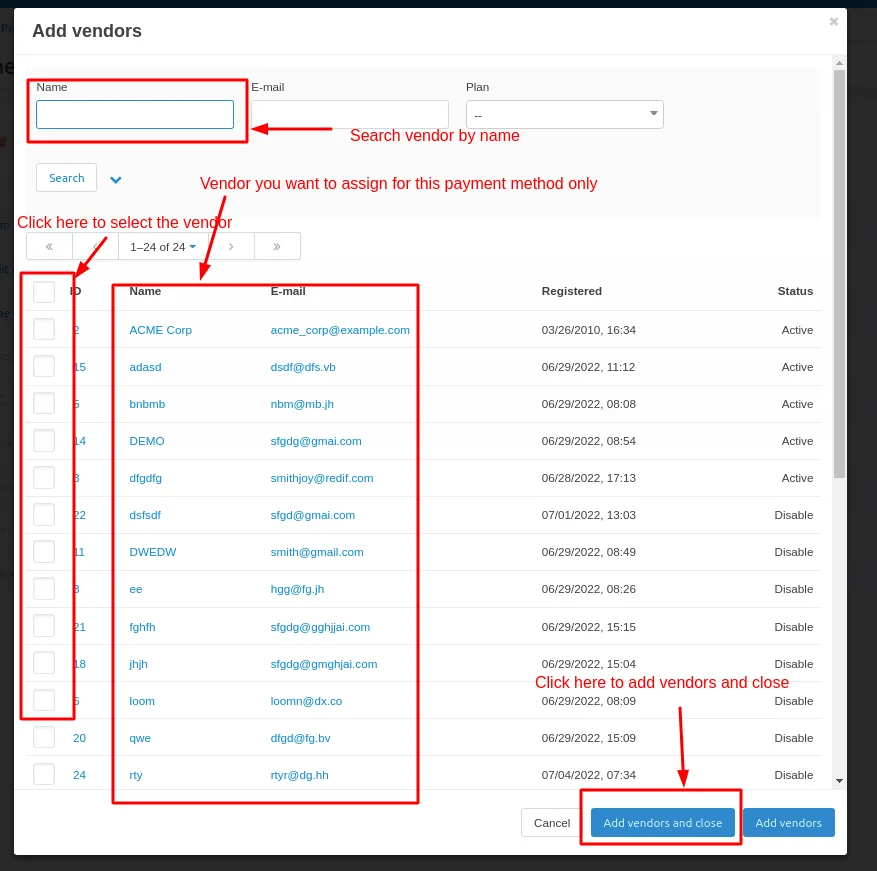
A vendor page will be open here you add the vendor for this payment method which is assign the vendor those vendor products will show only this payment method.
Tick the checkbox and assign the vendor.
Click on >> add vendor and close.
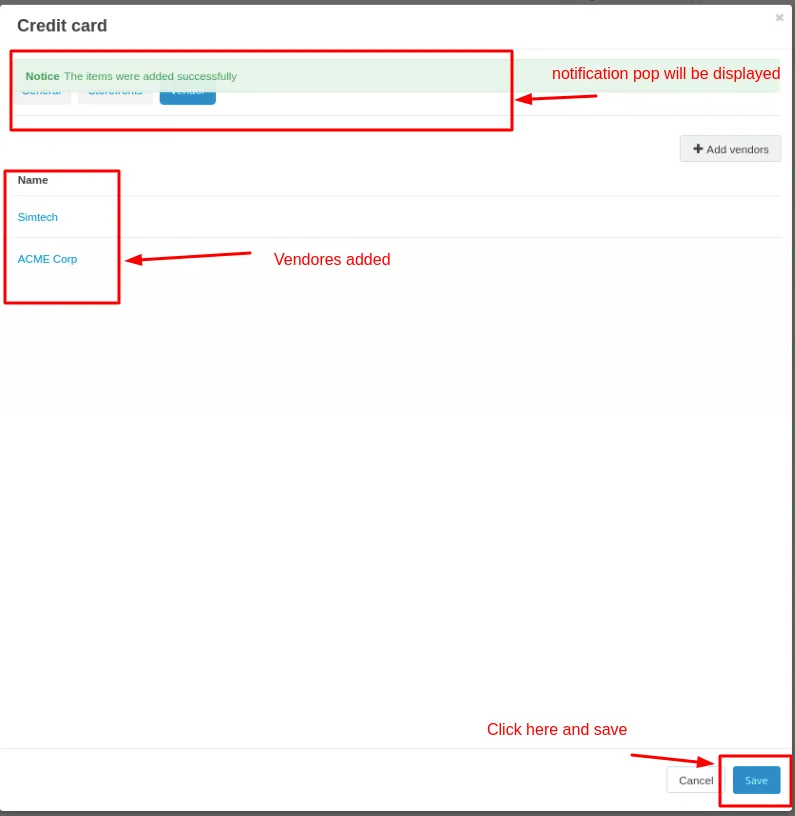
Here you see the vendor will be added and only these vendor will see the credit card payment method.
Click on save button.
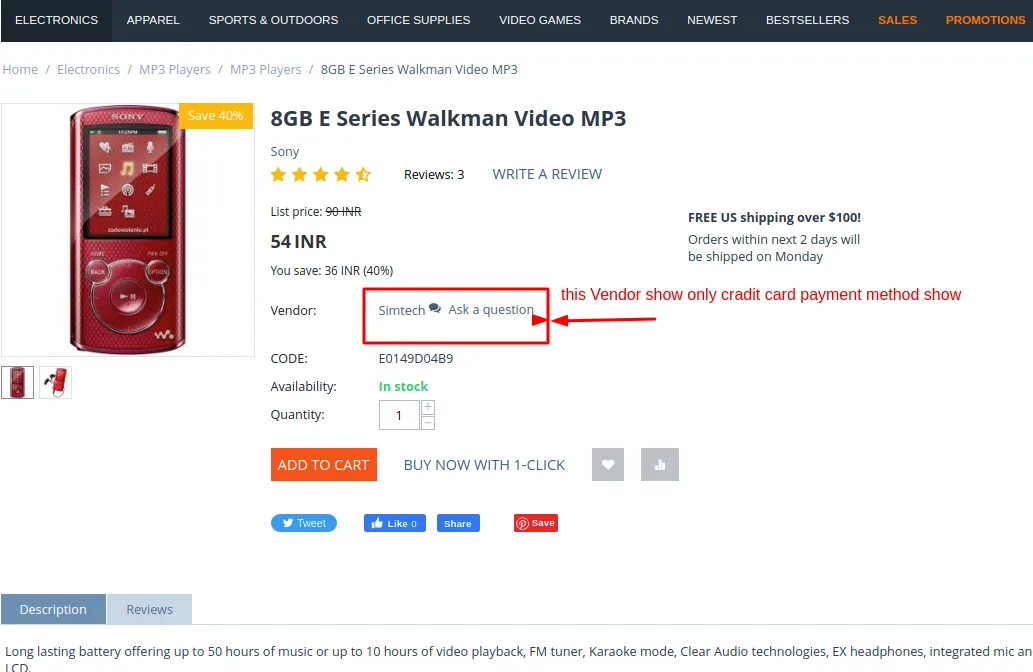
Go to storefront and place an order and here you see the vendor name is Simtech which we assign later.
Click on >> add to cart button and thn click on >> Checkout.
checkout page will be open.
Here you the only credit card payment method will be display.
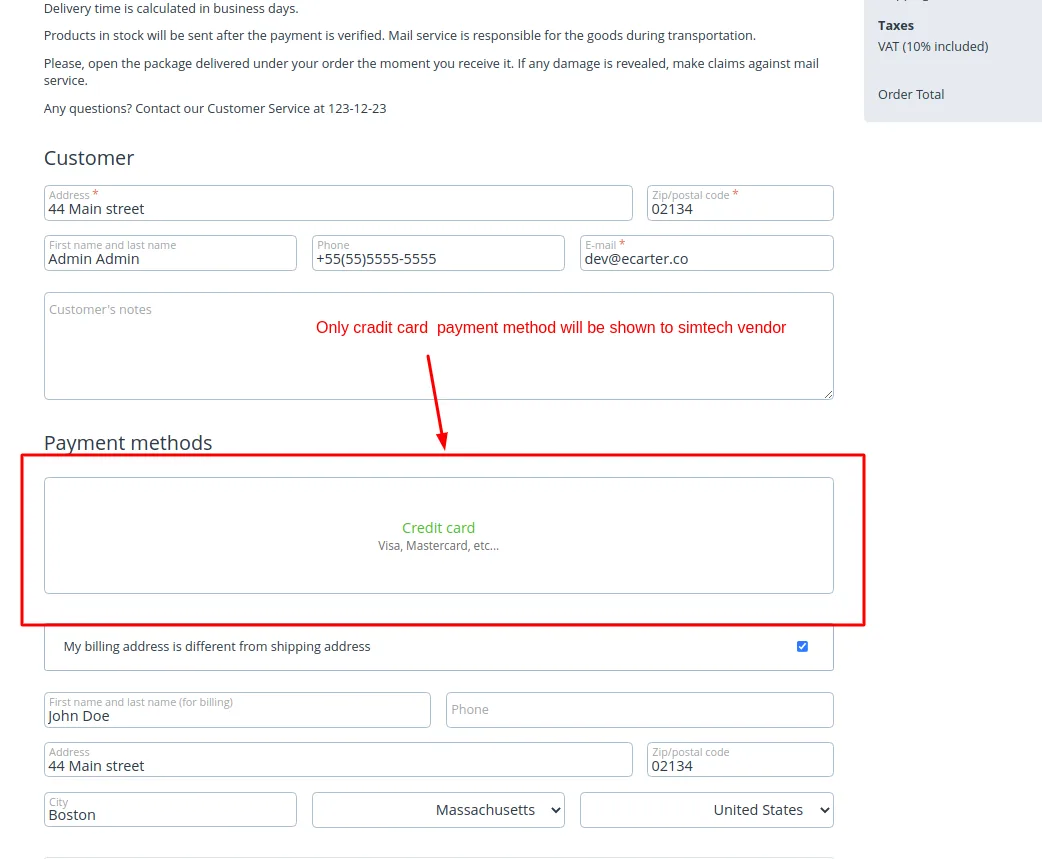
Two different example
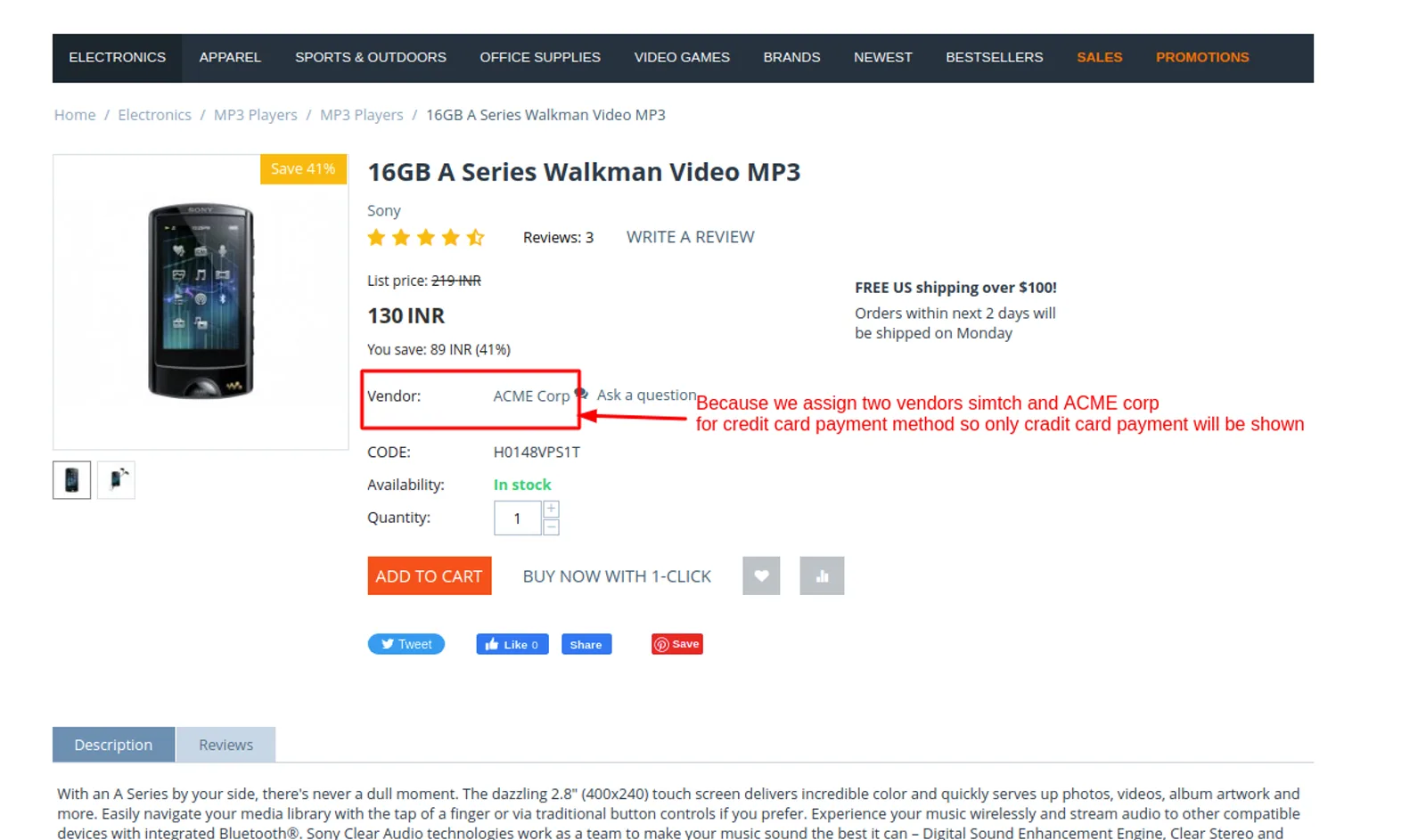
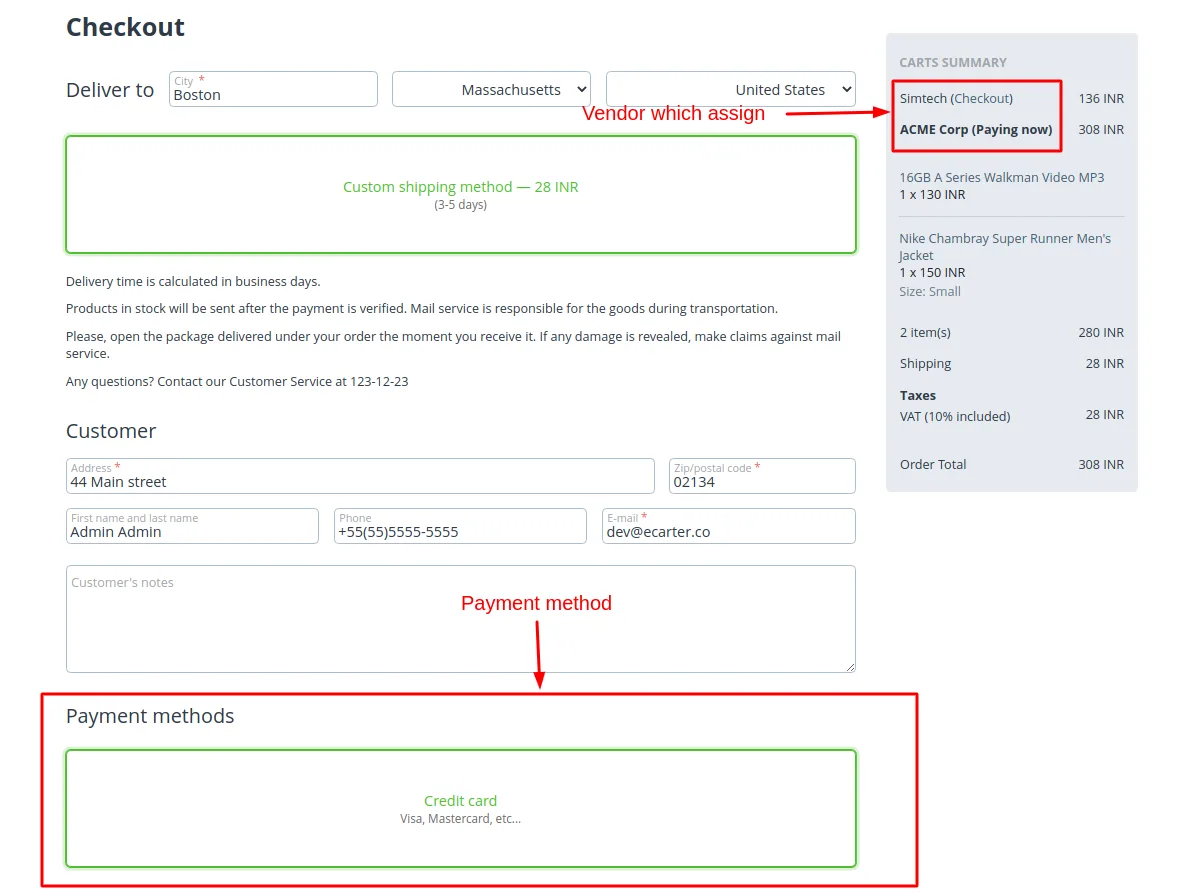
Now let change the payment method and add different vendor.
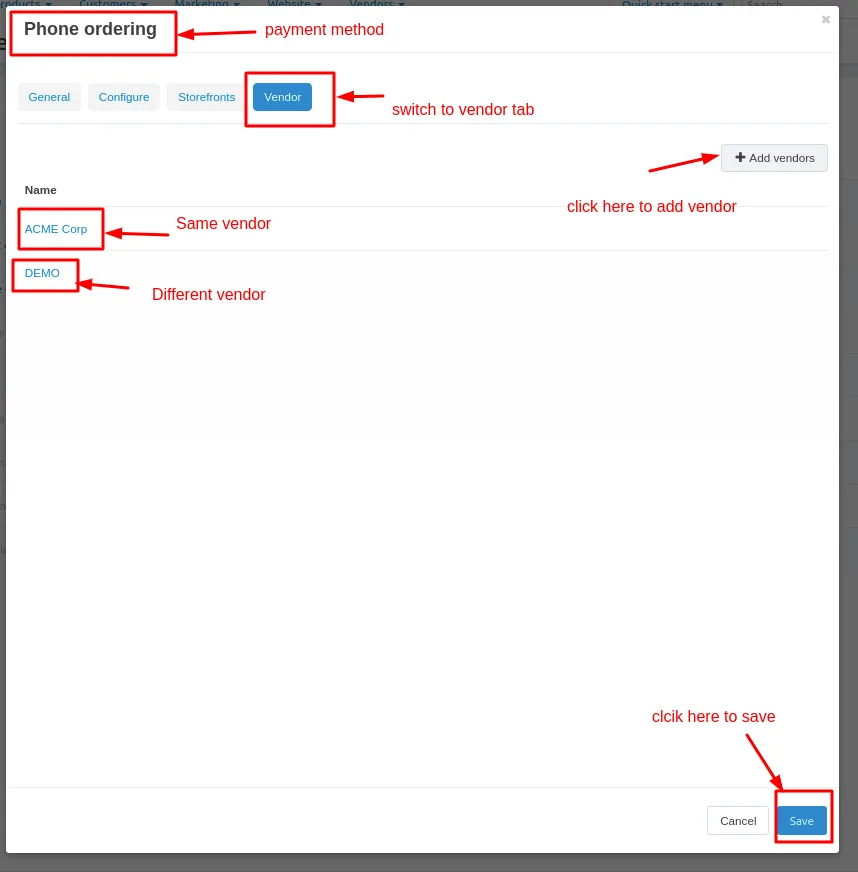
Open the payment method switch to vendor tab and add the different vendor
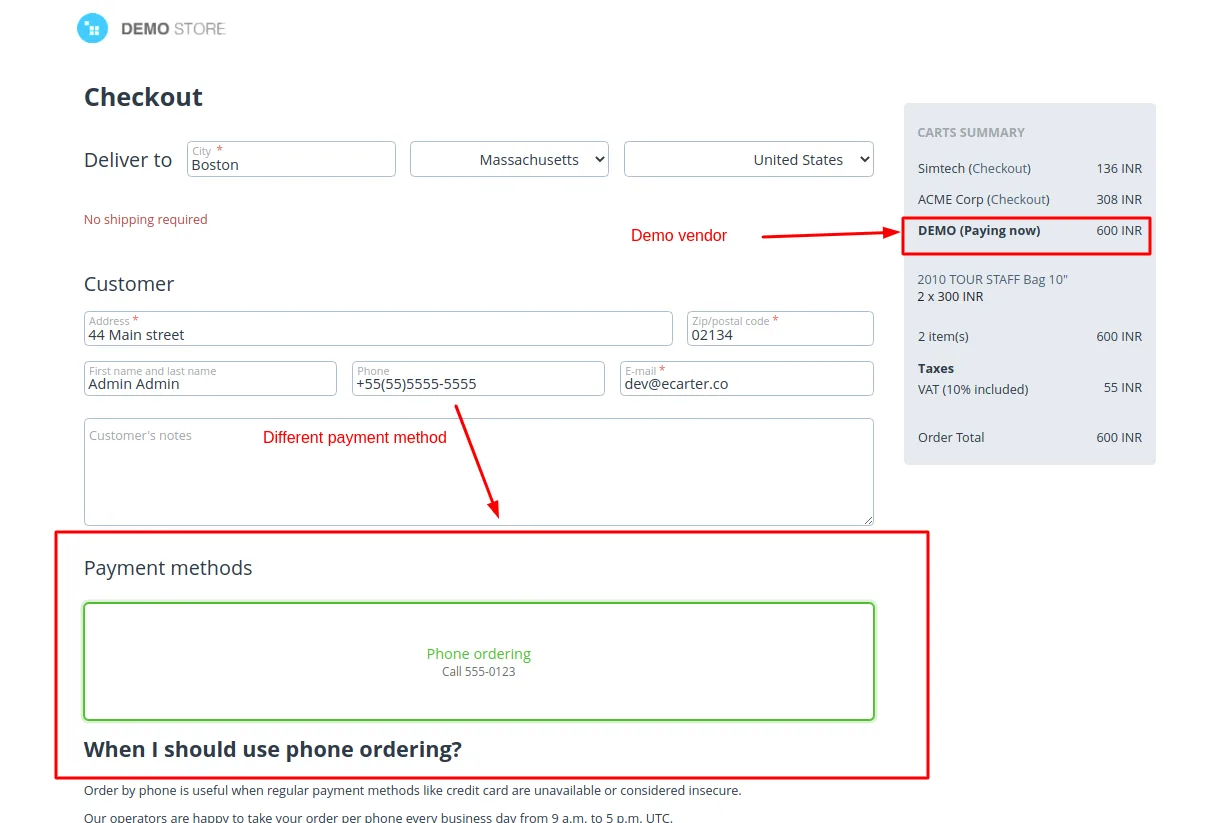
Here we add the Demo vendor.
Click on save button.
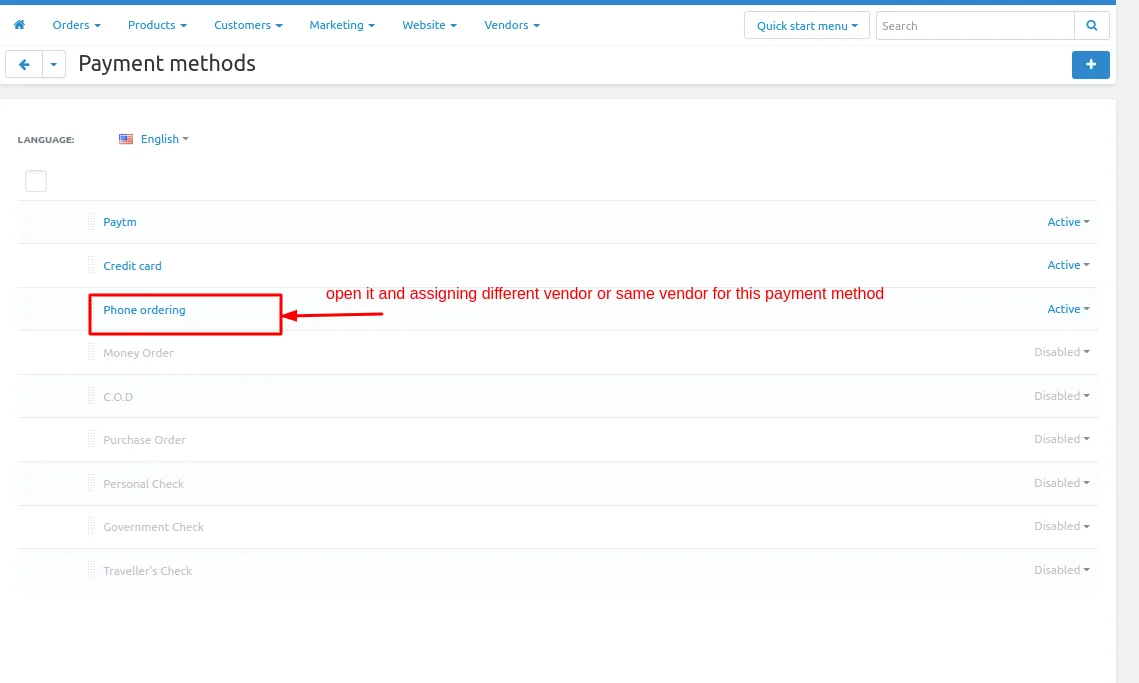
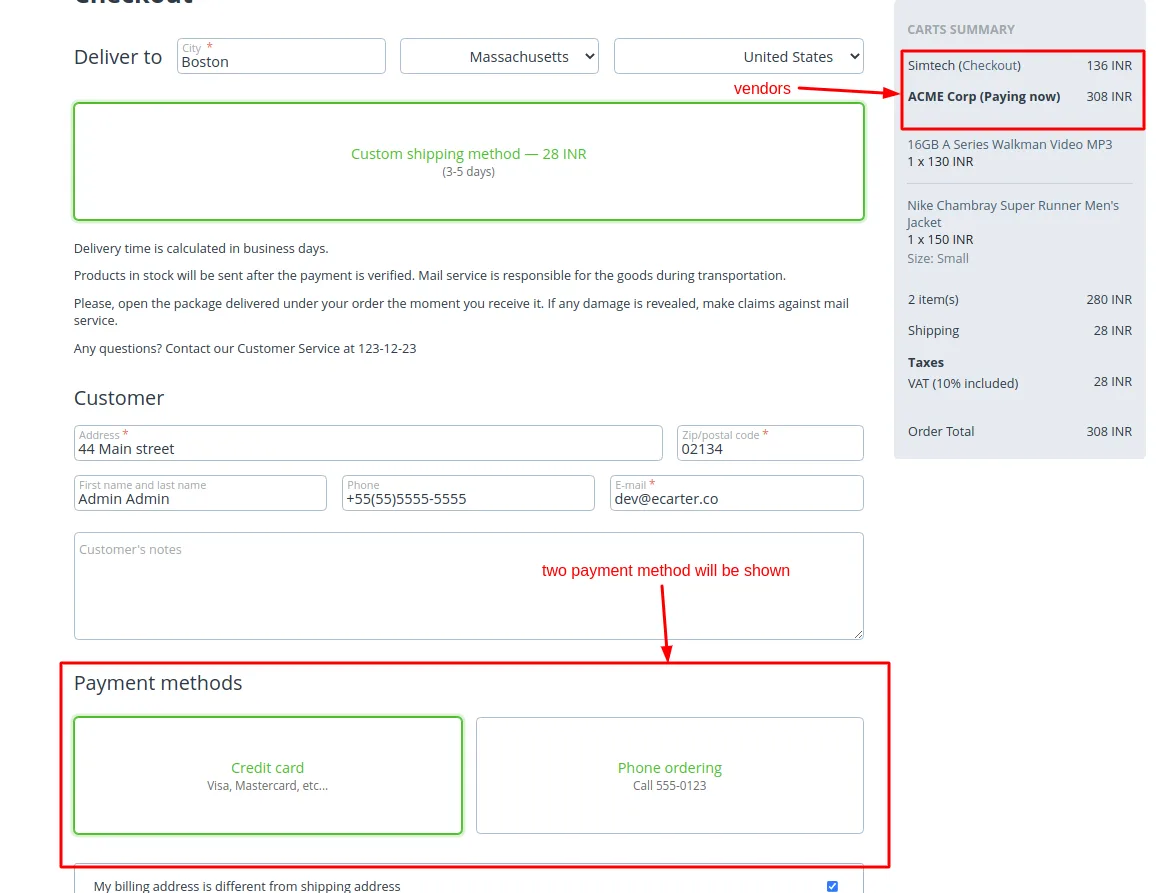
Here we assign two different vedor and in different payment method that why the two payment method will be display.
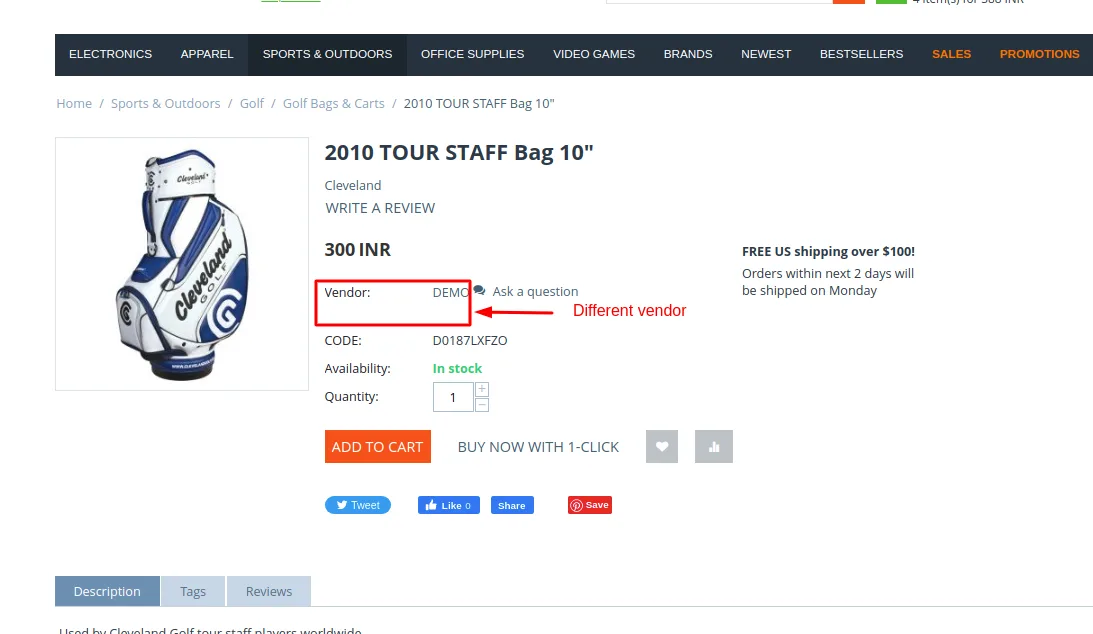
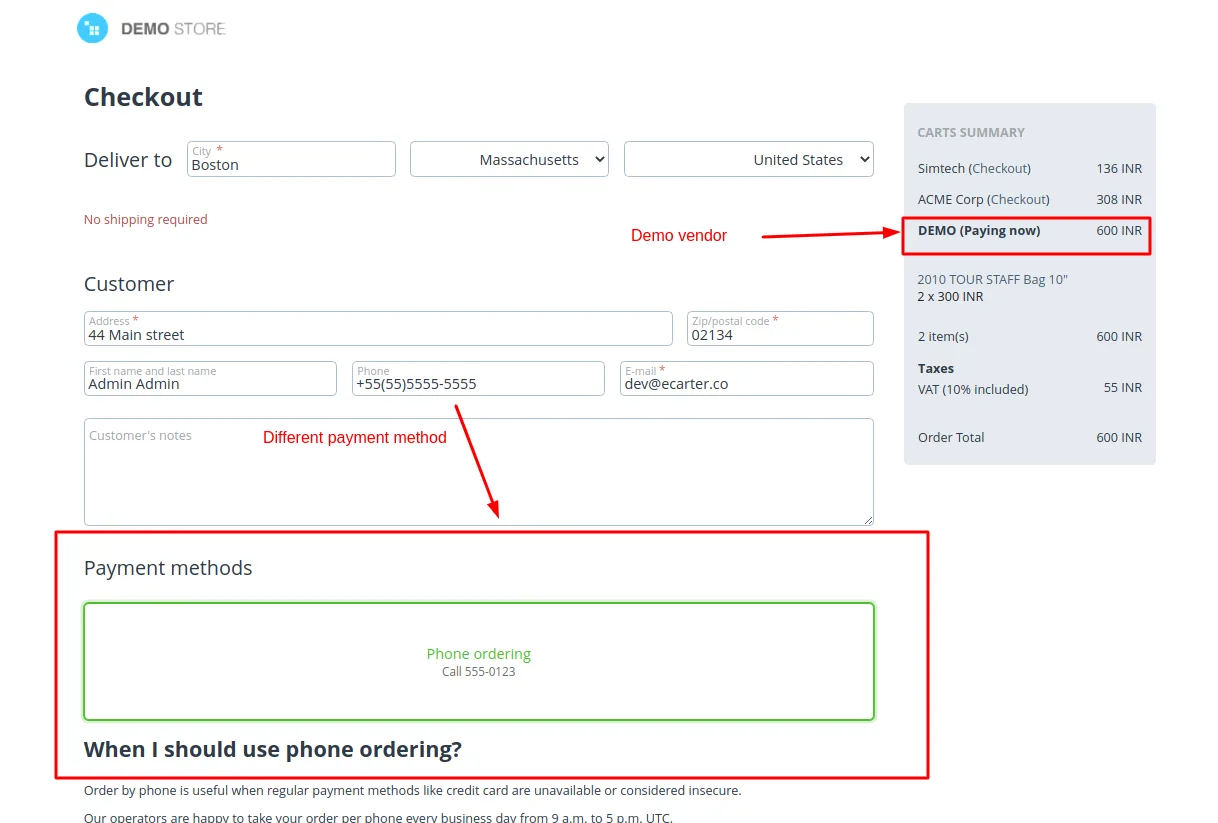
- Go to storefront and place the Demo vendor product only.
- on the checkout page you see only this payment method will be displayed.
Tutorial Link:
https://www.loom.com/share/51526323c60f47a898a4893e0a97acbc
Addon-Version:
Version-1.0
Supported Versions:
CS-Cart, CS-Cart Multivendor 4.8.x, 4.9.x,4.10x,4.11x,4.12,4.13x, 4.14x, 4.15x, 4.16x, 4.17x, 4.18x
Support:
This app is developed and published by Ecarter Technologies Pvt. Ltd., a CS-Cart developer. You are guaranteed quality add-ons.
Frequently asked questions
What does the Vendor Wise Payment Method add-on actually do?
It gives the admin control over which payment methods are available to each vendor. The admin can assign specific payment methods to selected vendors, manage different payment options for different vendors, and hide payment methods from vendors who are not logged in or registered, so each vendor only sees the payment options assigned to them at checkout.
Does this add-on require any other add-on to work?
Yes. It works only with the "Direct Customer-to-Vendor Payments" add-on, which must be installed for vendor-wise payment control to function.
How do I set up a payment method for a vendor?
In the admin panel, go to Administration and open Payment methods. Click the (+) button to create a payment method, enter the details, and save it. Then open that payment method and switch to the Vendor settings to assign it to the vendors who should use it.
Which CS-Cart versions is this add-on compatible with?
It is built for CS-Cart Multi-Vendor stores. If you need confirmation for a specific CS-Cart version, share your version and we will confirm compatibility. Installation follows the standard add-on process described in our guide at https://store.ecarter.co/blogs/how-to-install-addon/.
Nisha Gaur is a Technical Content Writer at Ecarter Technologies. She writes technical documentation, tutorials and buying guides covering CS-Cart, Magento, Shopify and eCommerce development.