
How to generate an API Key in Google Cloud
Working with Google APIs like the Google Sheets API may feel confusing at first, as it involves multiple steps in Google Cloud Console. However, generating an API key follows a clear process. Once the flow is understood, it becomes easy to set up and use. This guide explains the steps in a simple and clear way to help get started without confusion.
Create a Project in Google Cloud
Start by creating a project in Google Cloud Console. A project works as a central place where all API settings, credentials, and configurations are stored. It helps you manage everything in one place and keeps your work organized.
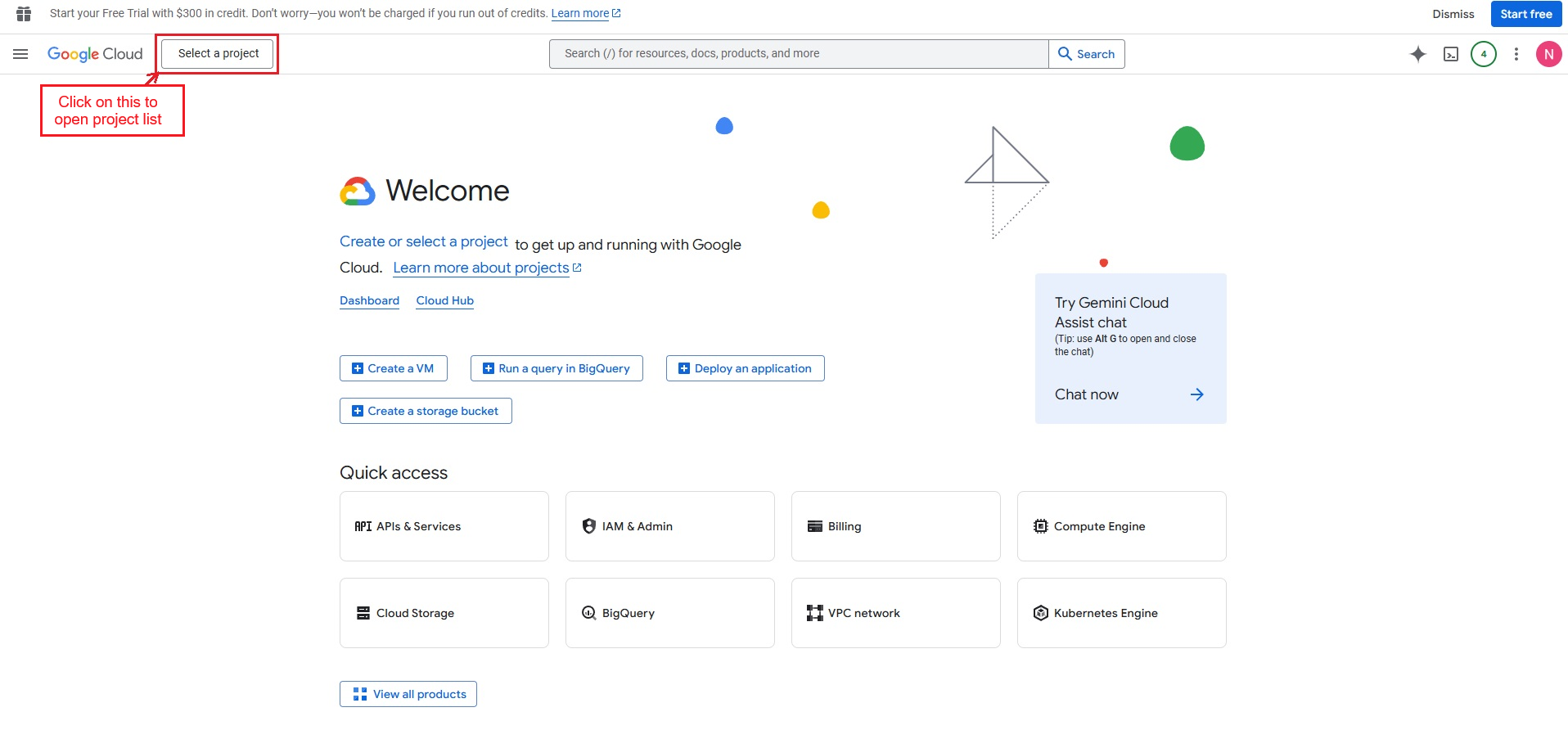
Click on “Select a project” to open the projects list.
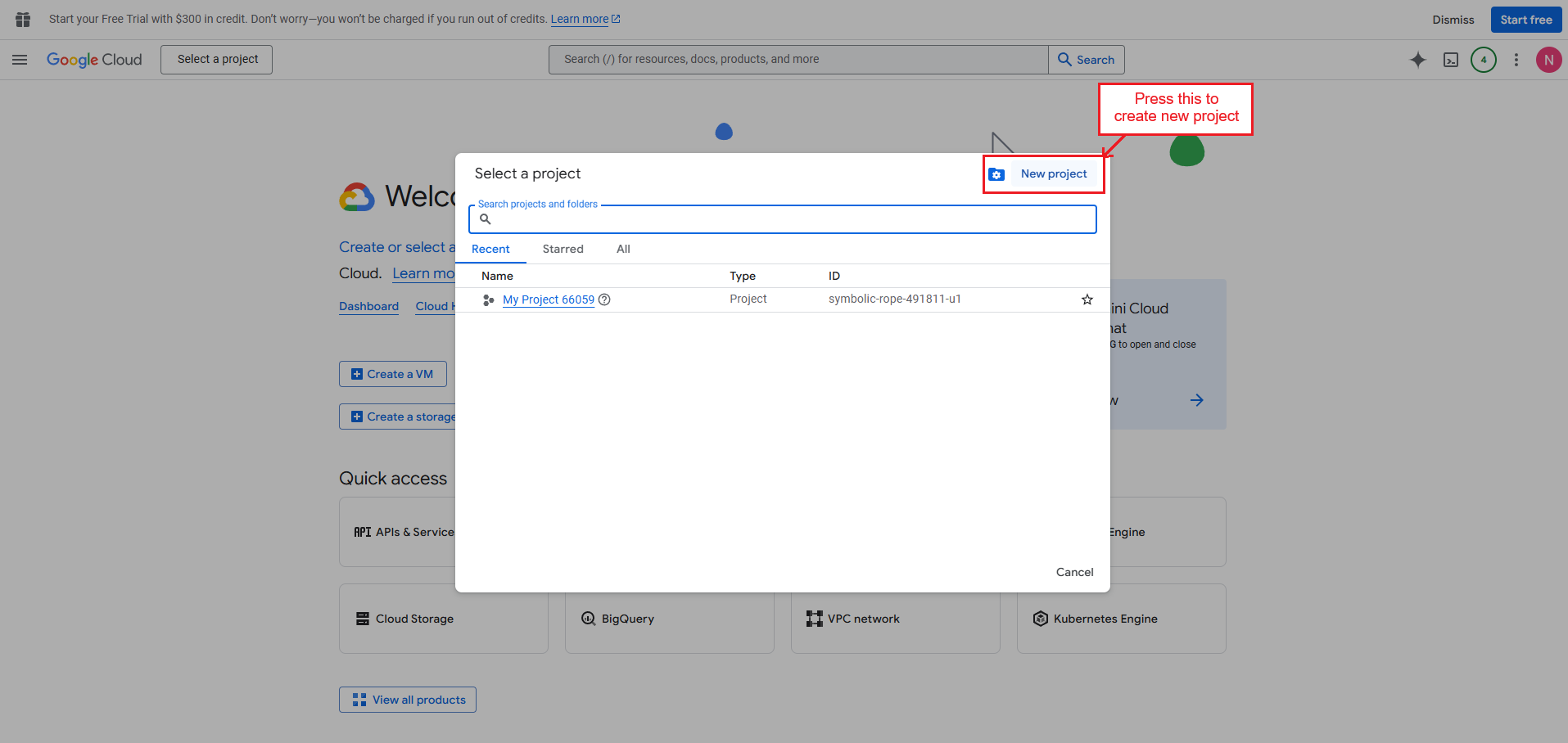
- Press “New Project” to start the project creation process.
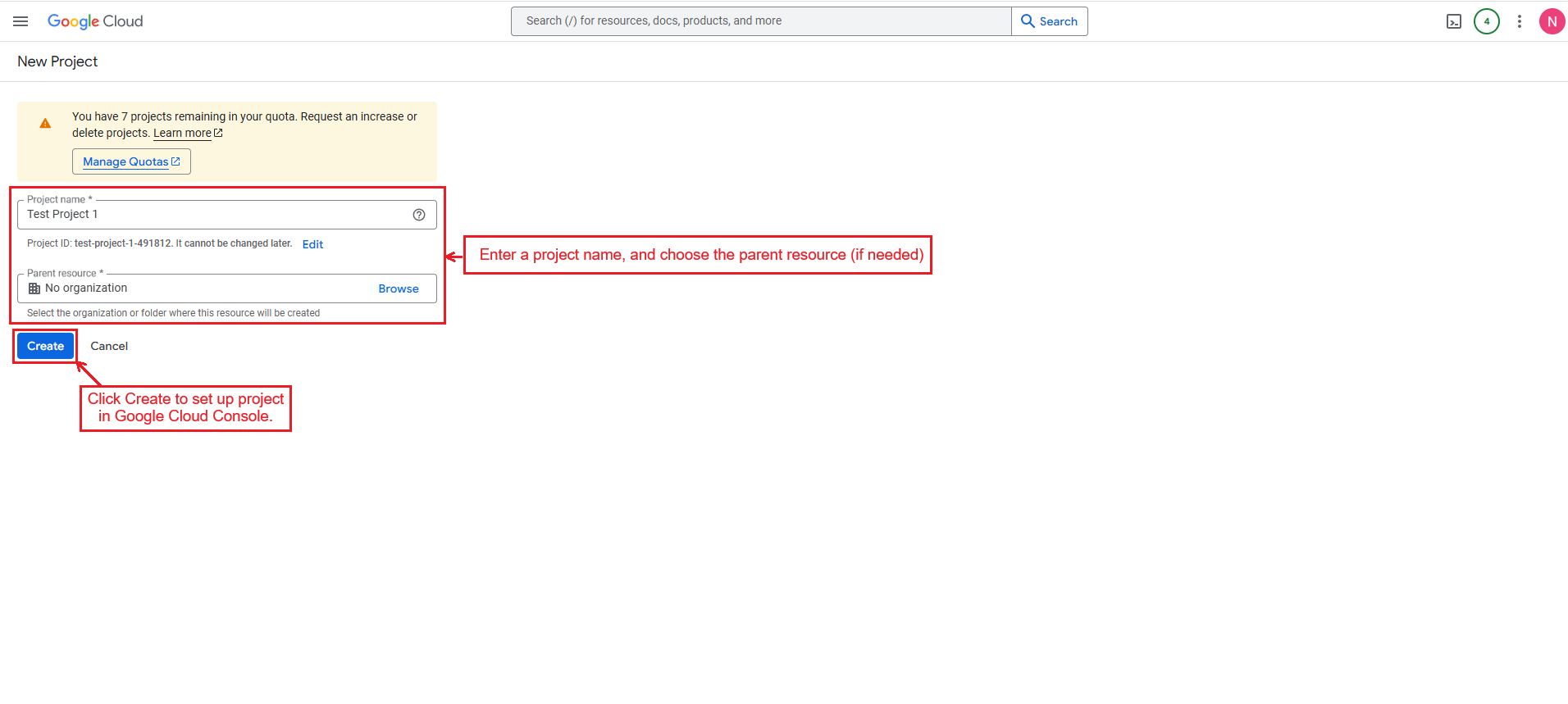
- Enter a project name, choose the parent resource (if needed), and click Create to set up your project in Google Cloud Console.
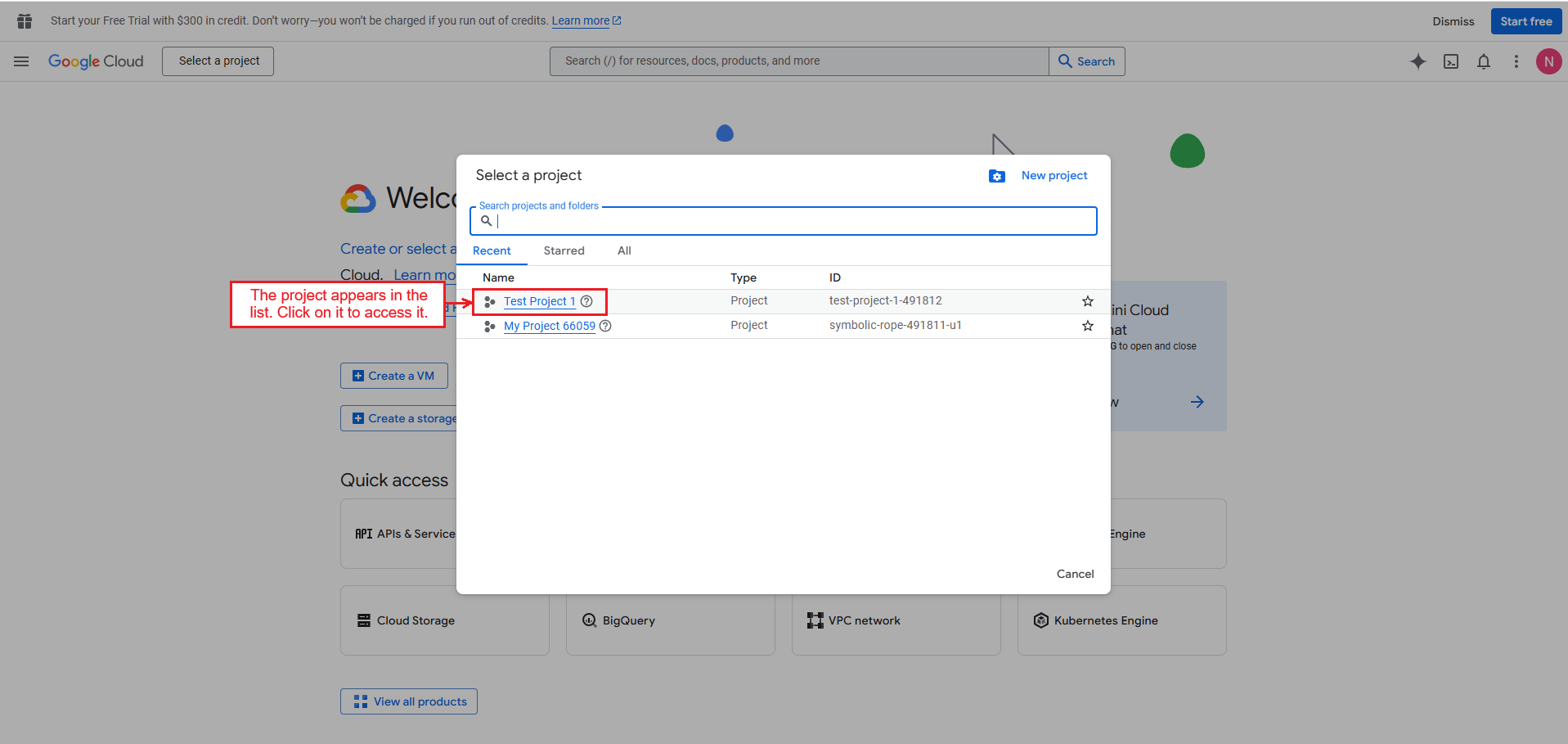
- The newly created project appears in the list. Click on it to access it.
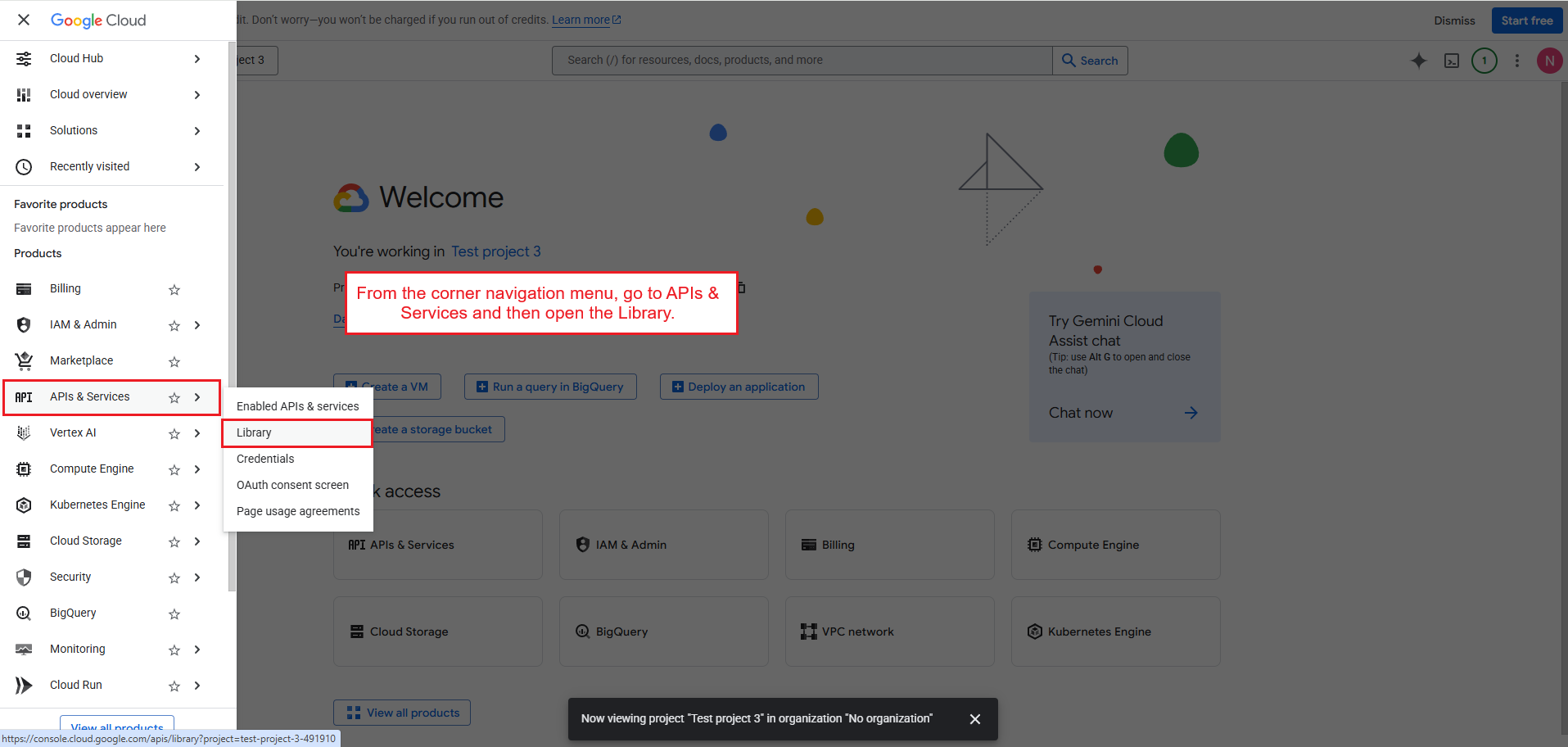
- From the corner navigation menu, go to APIs & Services and then open the Library.
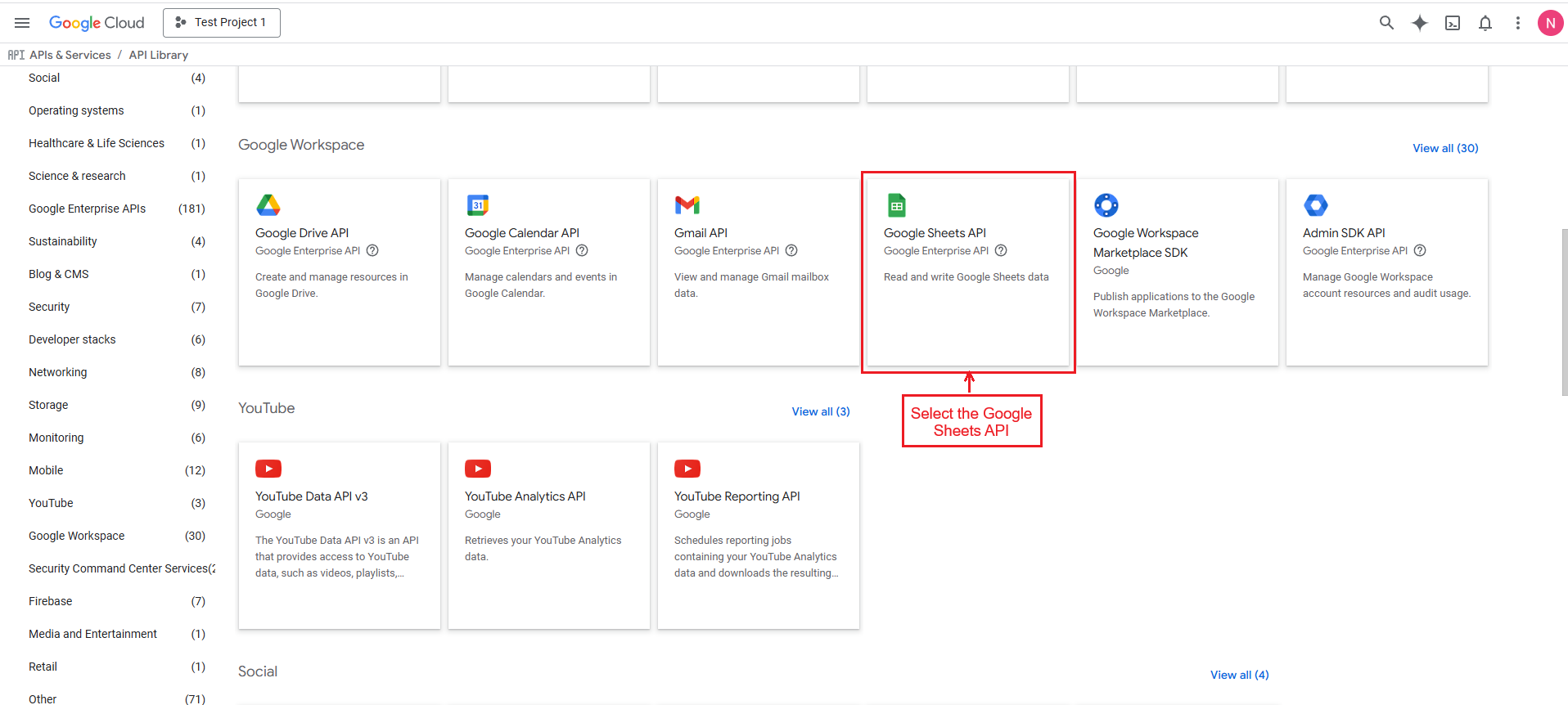
- Select the Google Sheets API.
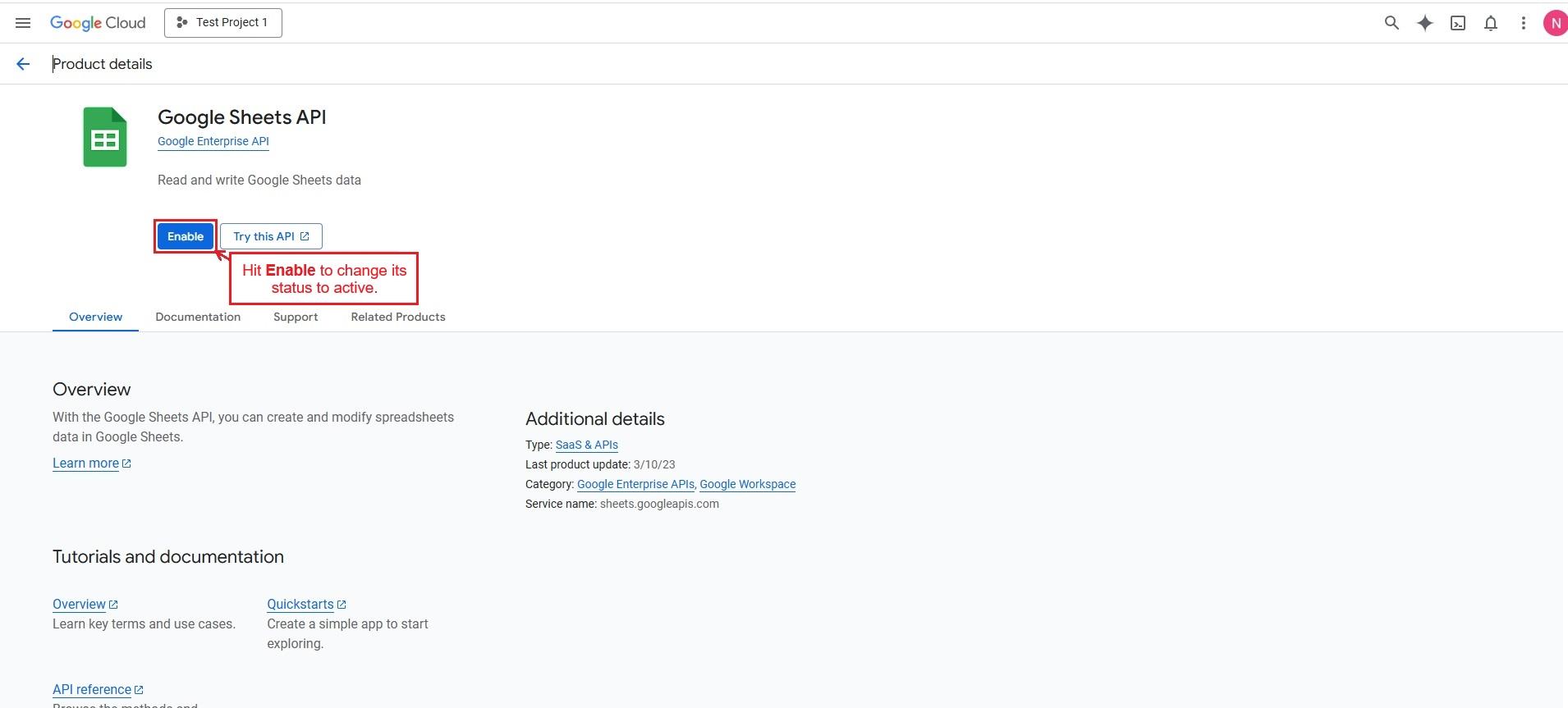
- Hit “Enable” to change its status to active.
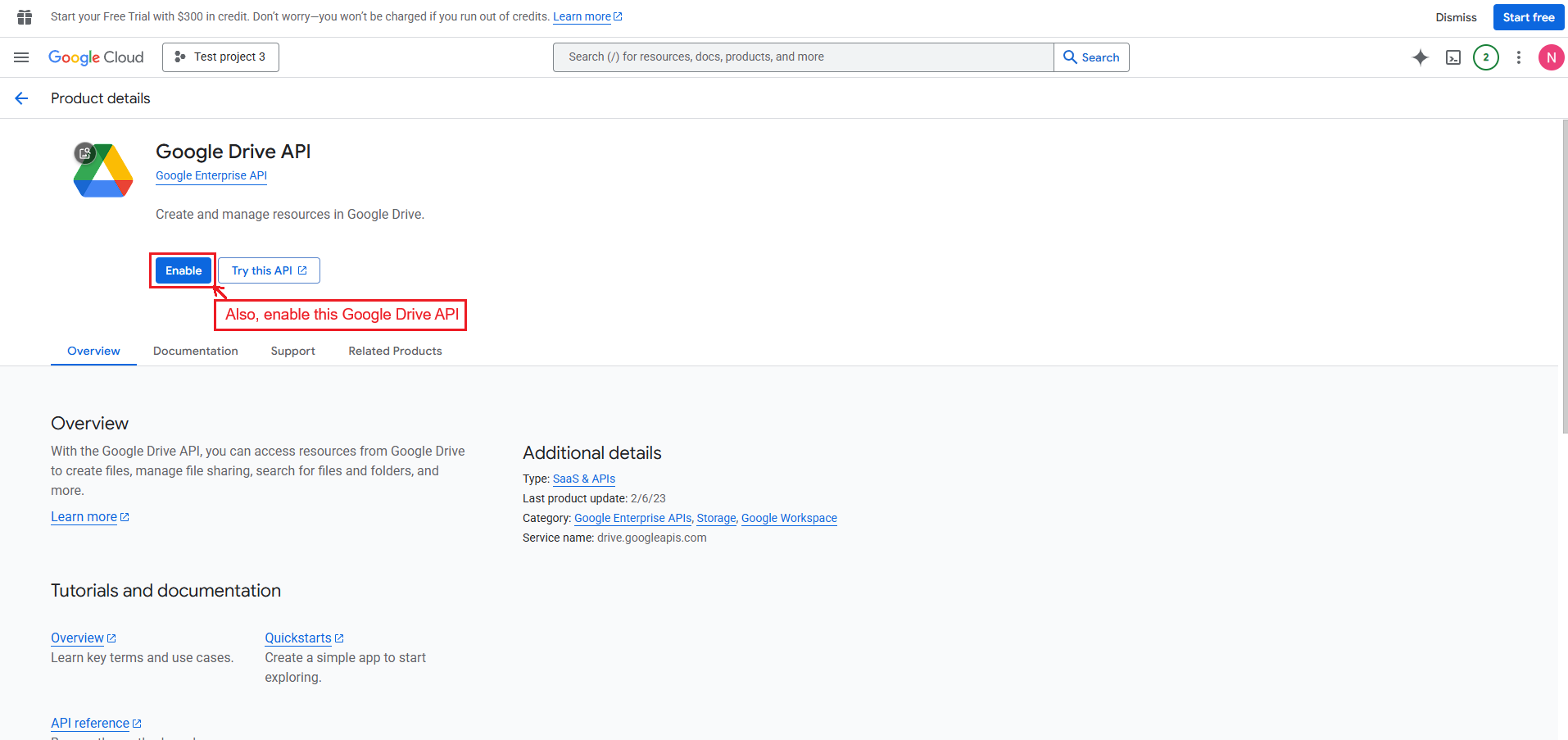
- Also, enable the Google Drive API to access and manage Google Sheets files stored in Google Drive.
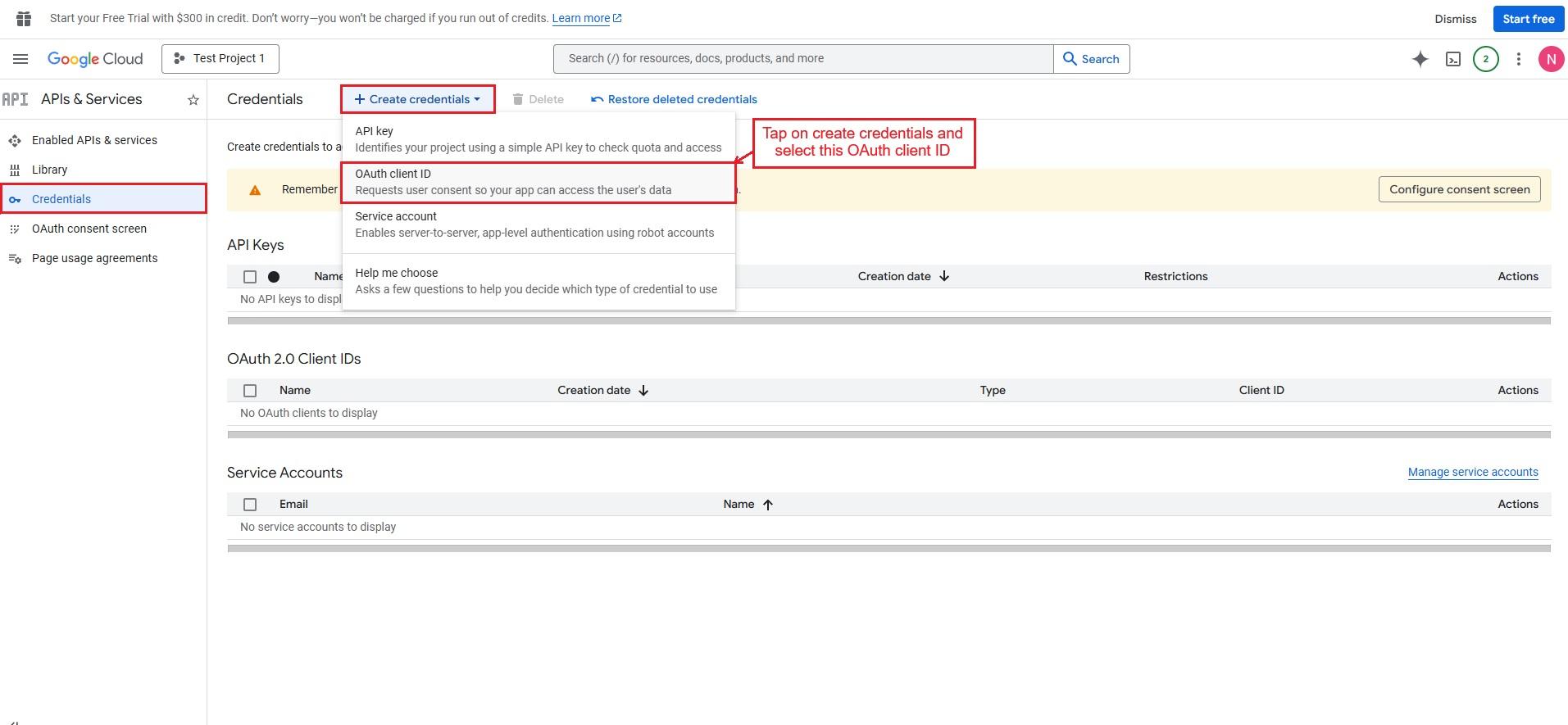
- Now, select the Credentials options, tap on Create credentials, and select the OAuth client ID.
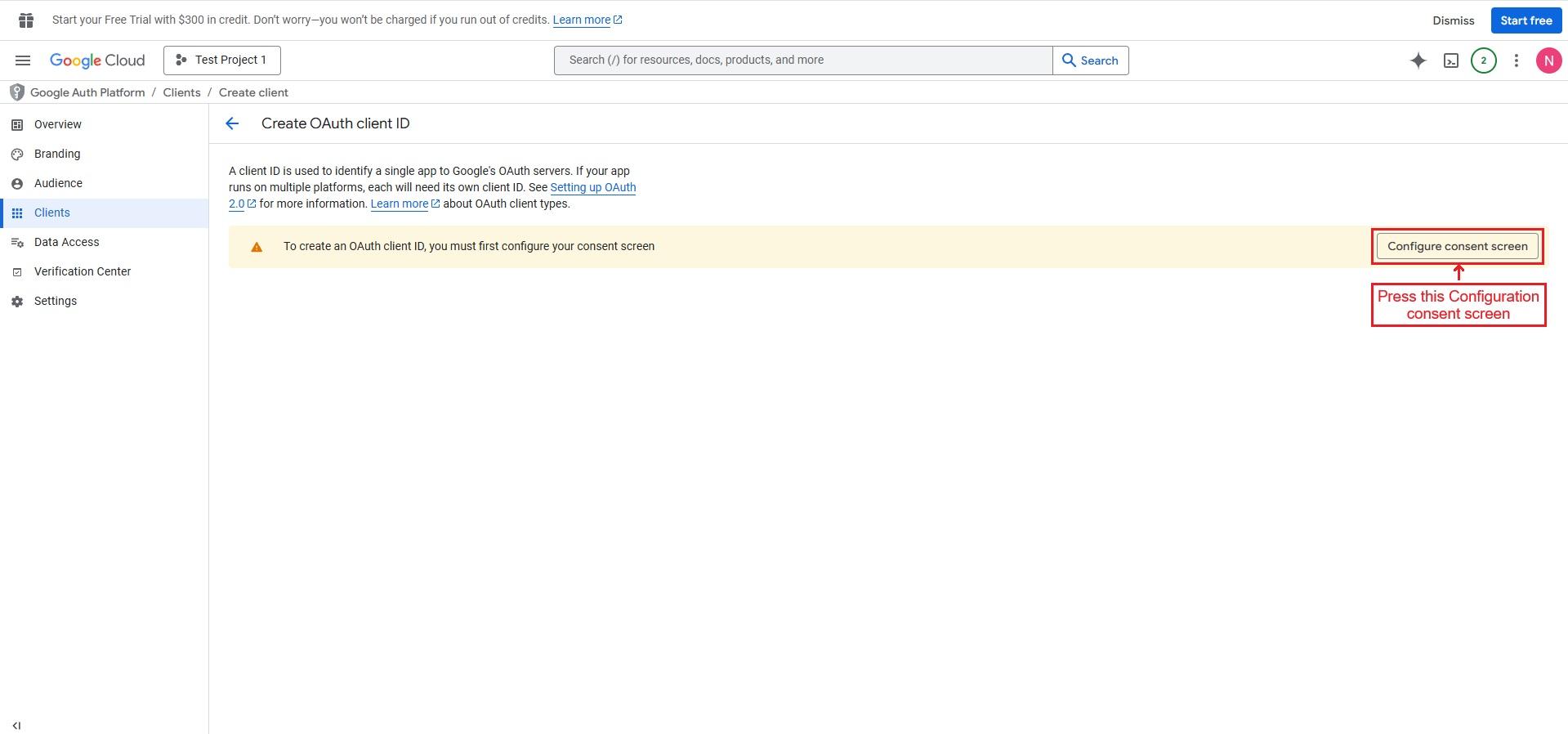
- Press the Configuration consent screen.
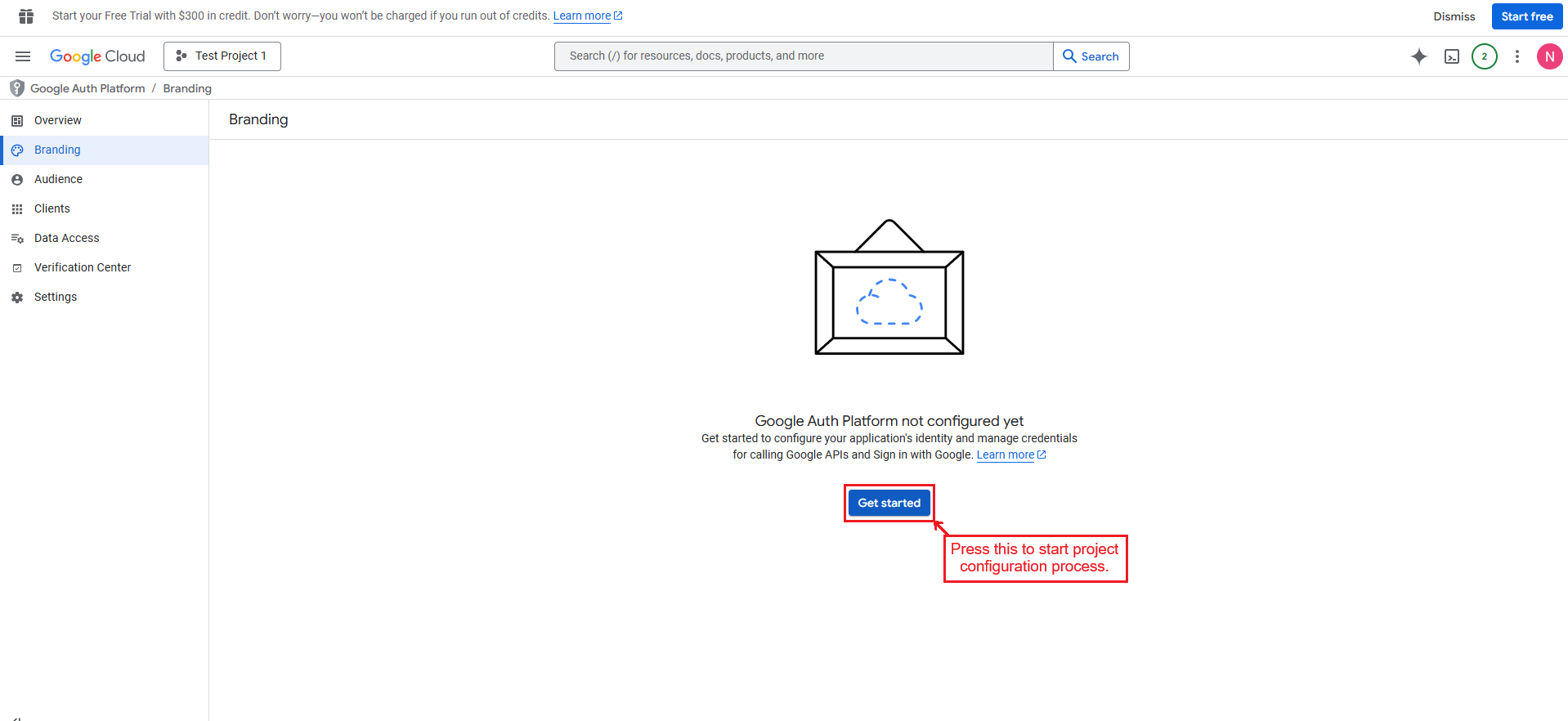
- Enter “Get started” to start the project configuration process.
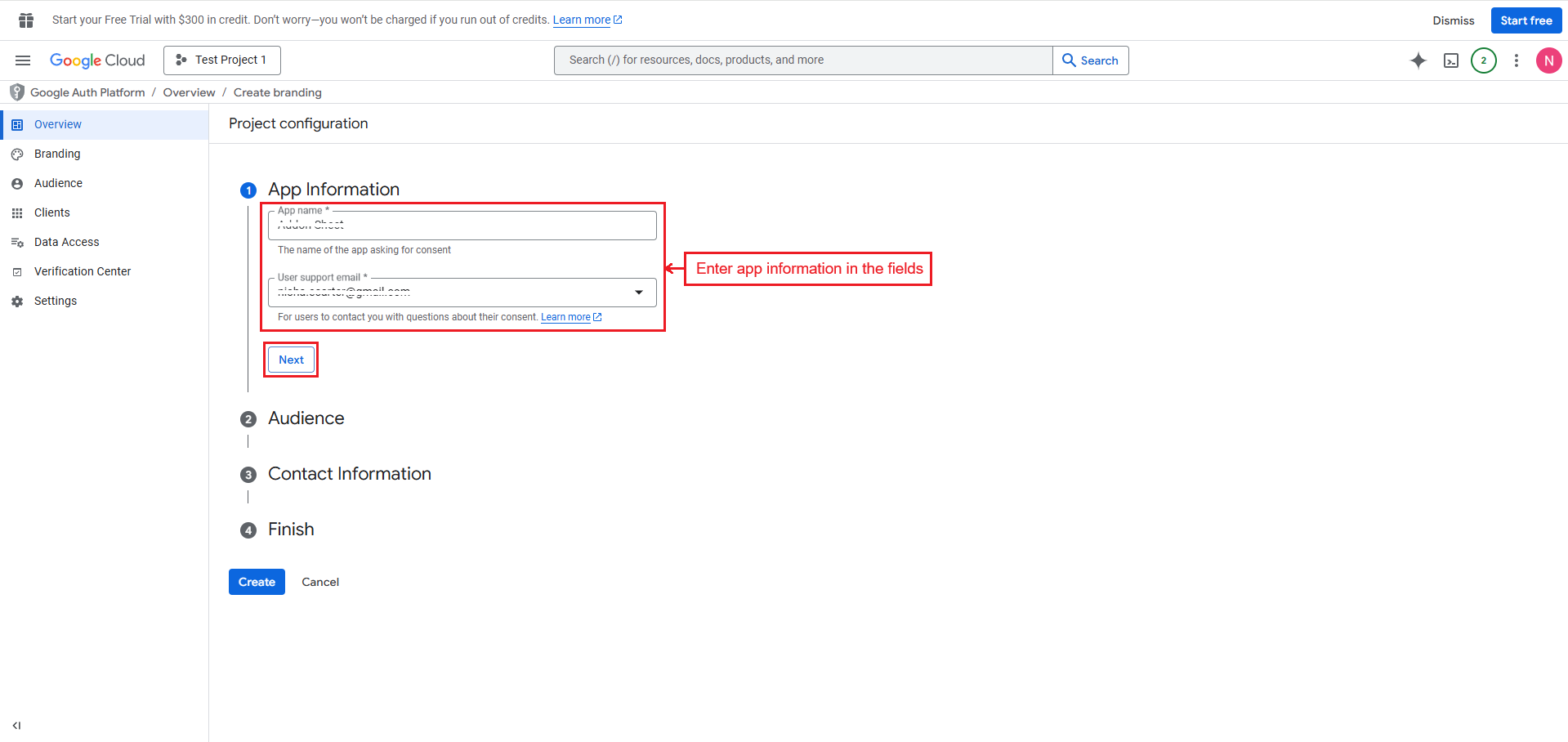
- Enter details in the App information fields.
- Select the external User type.
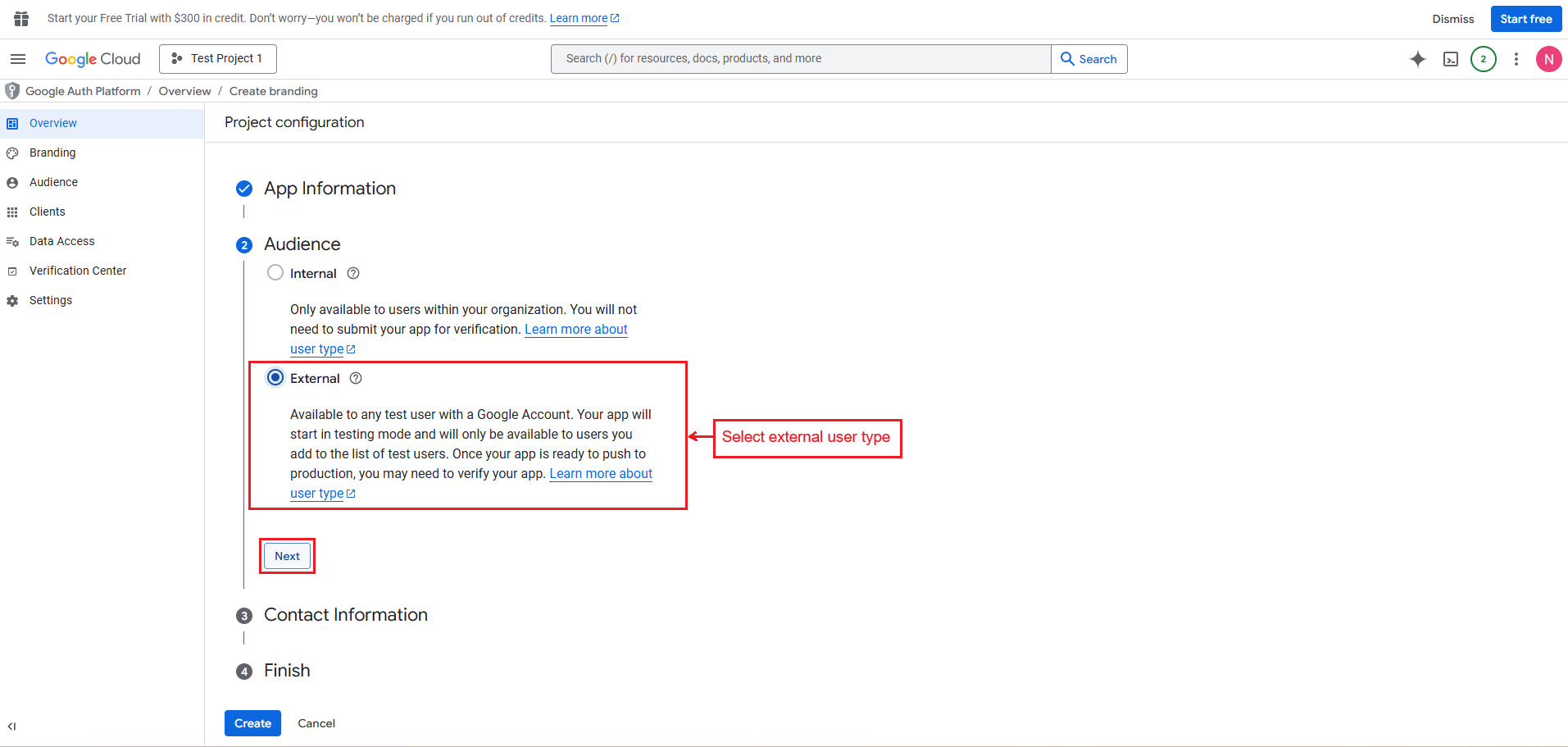
- Agree the policy, proceed with continue and press "Create" button at the end.
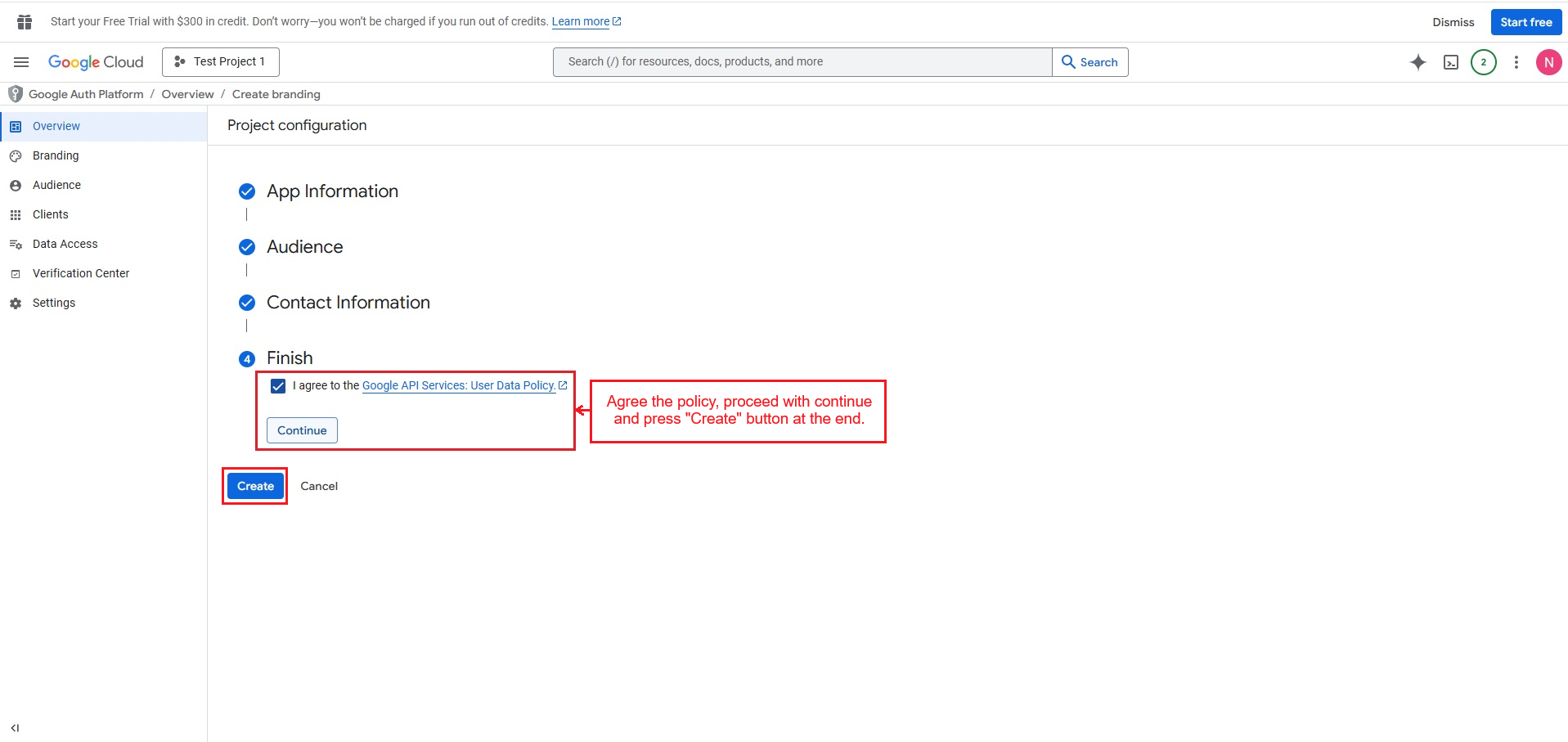
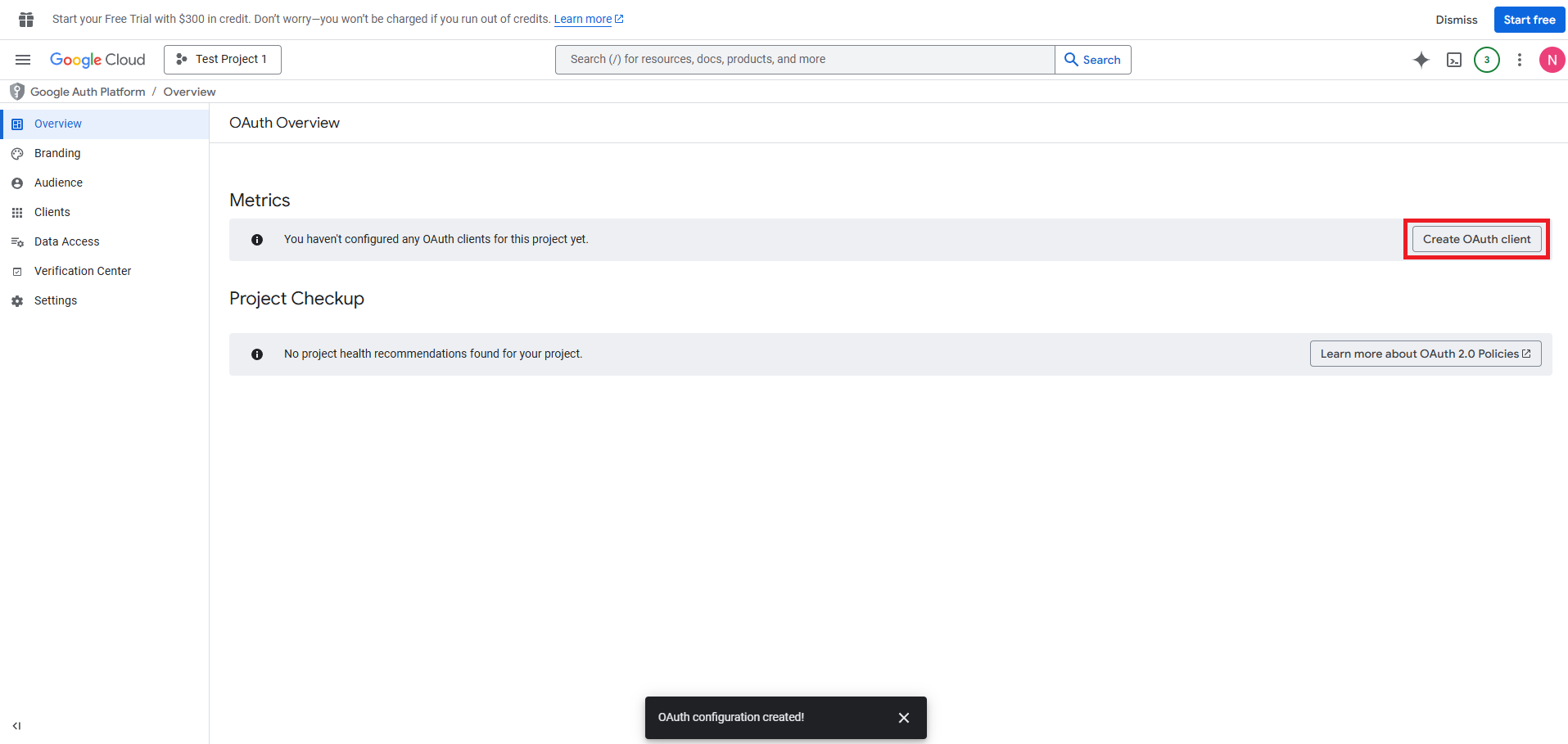
- Continue by using the “Create OAuth Client”.
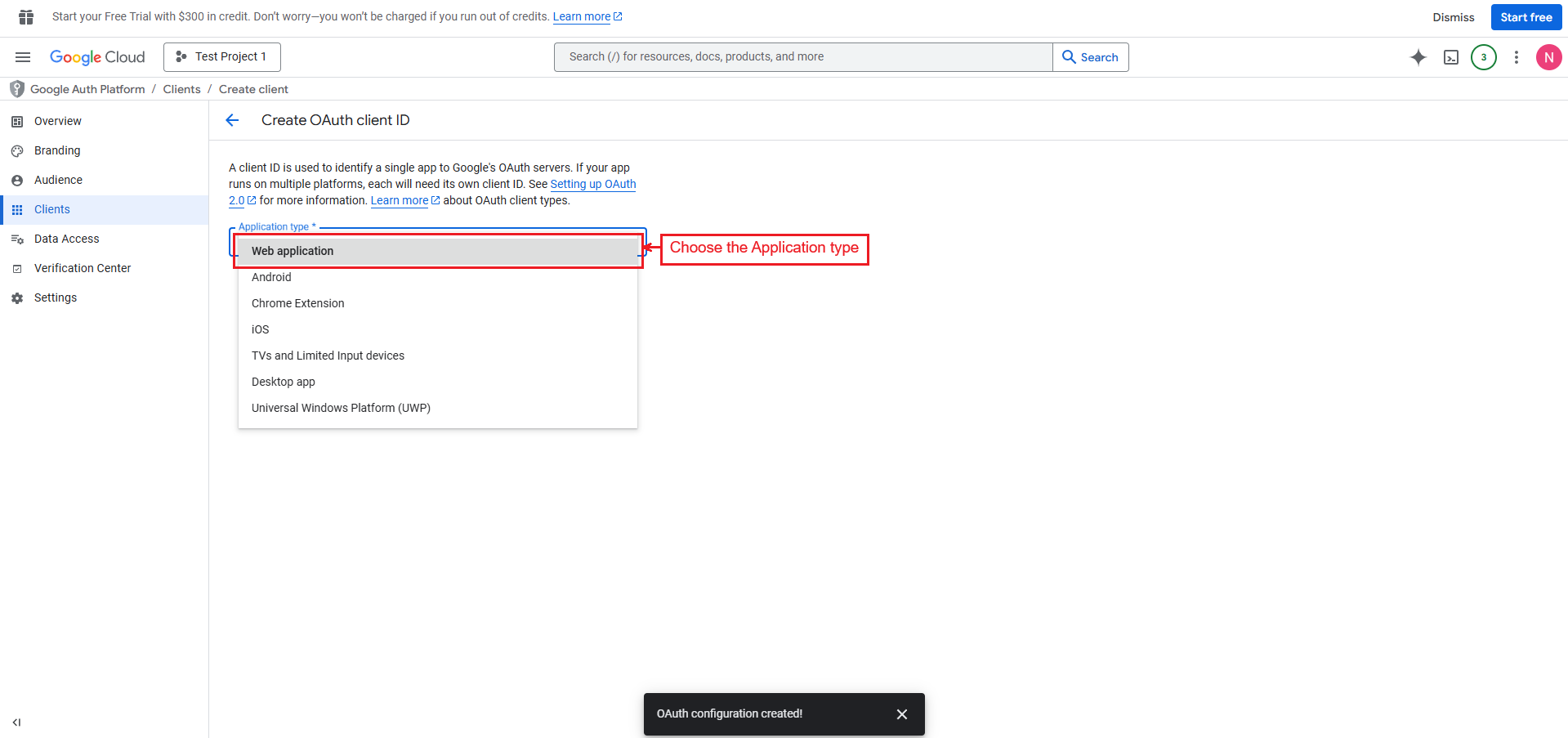
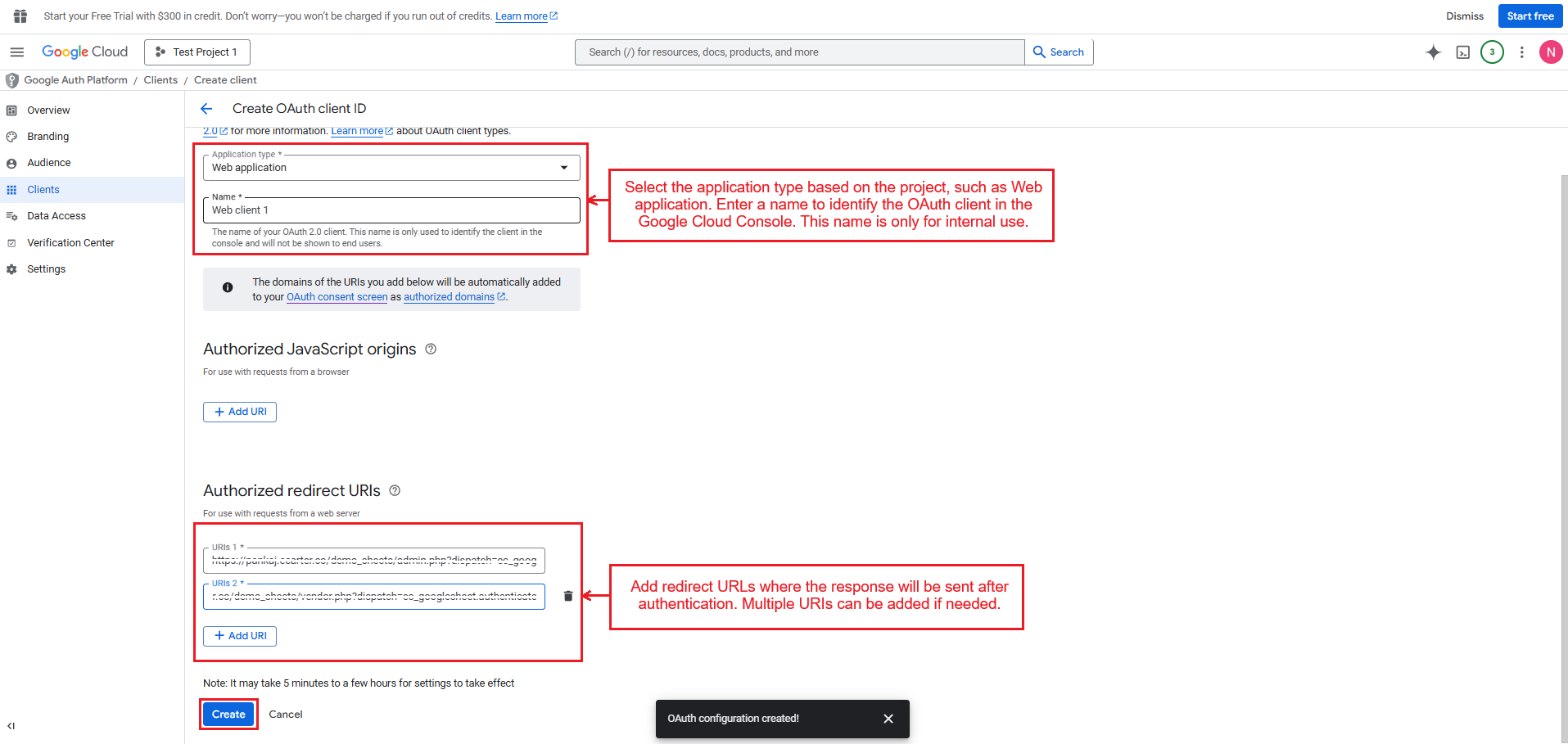
- Choose the Application type.
- Next, enter a name to identify the OAuth client in the Google Cloud Console. This name is only for internal use.
- Add redirect URLs where the response will be sent after authentication. Multiple URIs can be added if needed.
- And press the “Create” button.
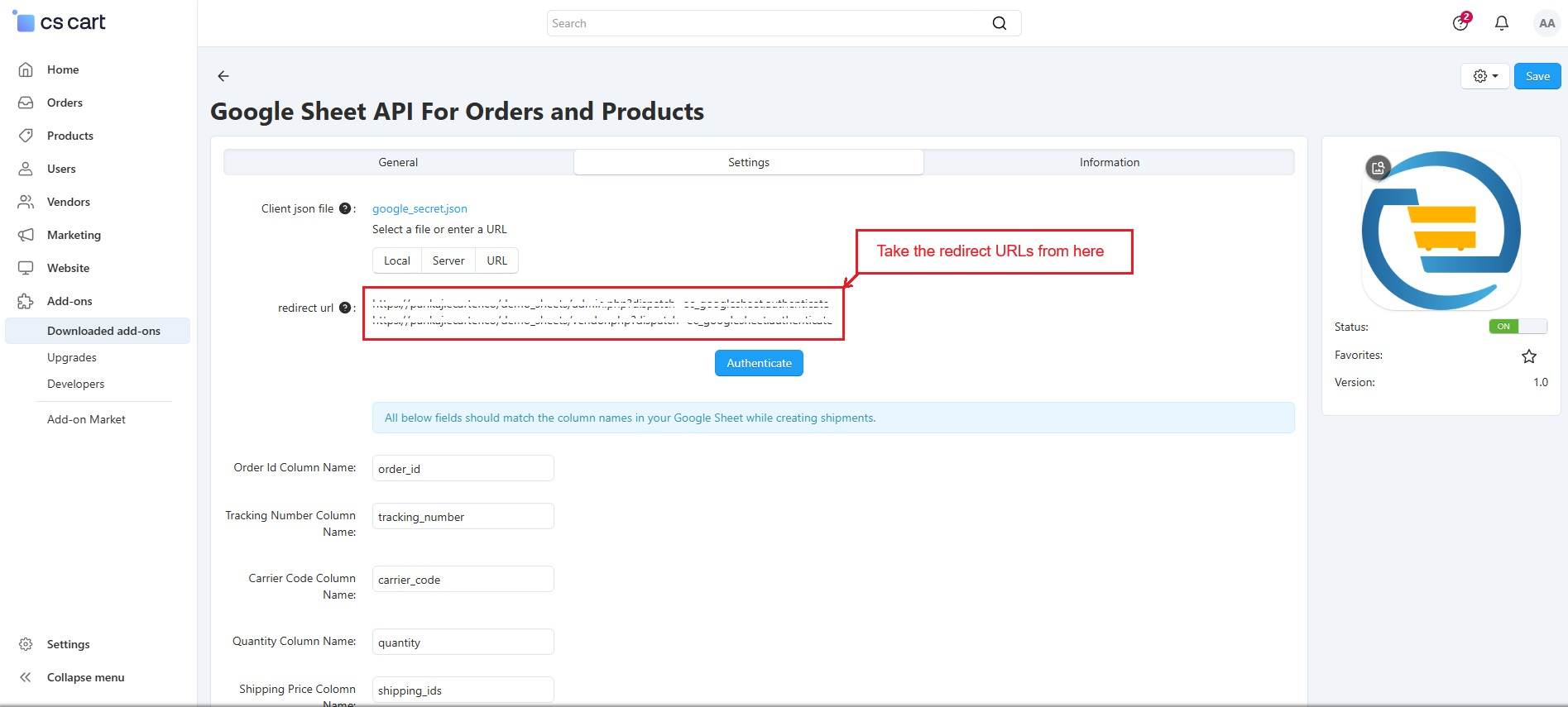
- The above redirect links are available in the Settings tab of the admin panel.
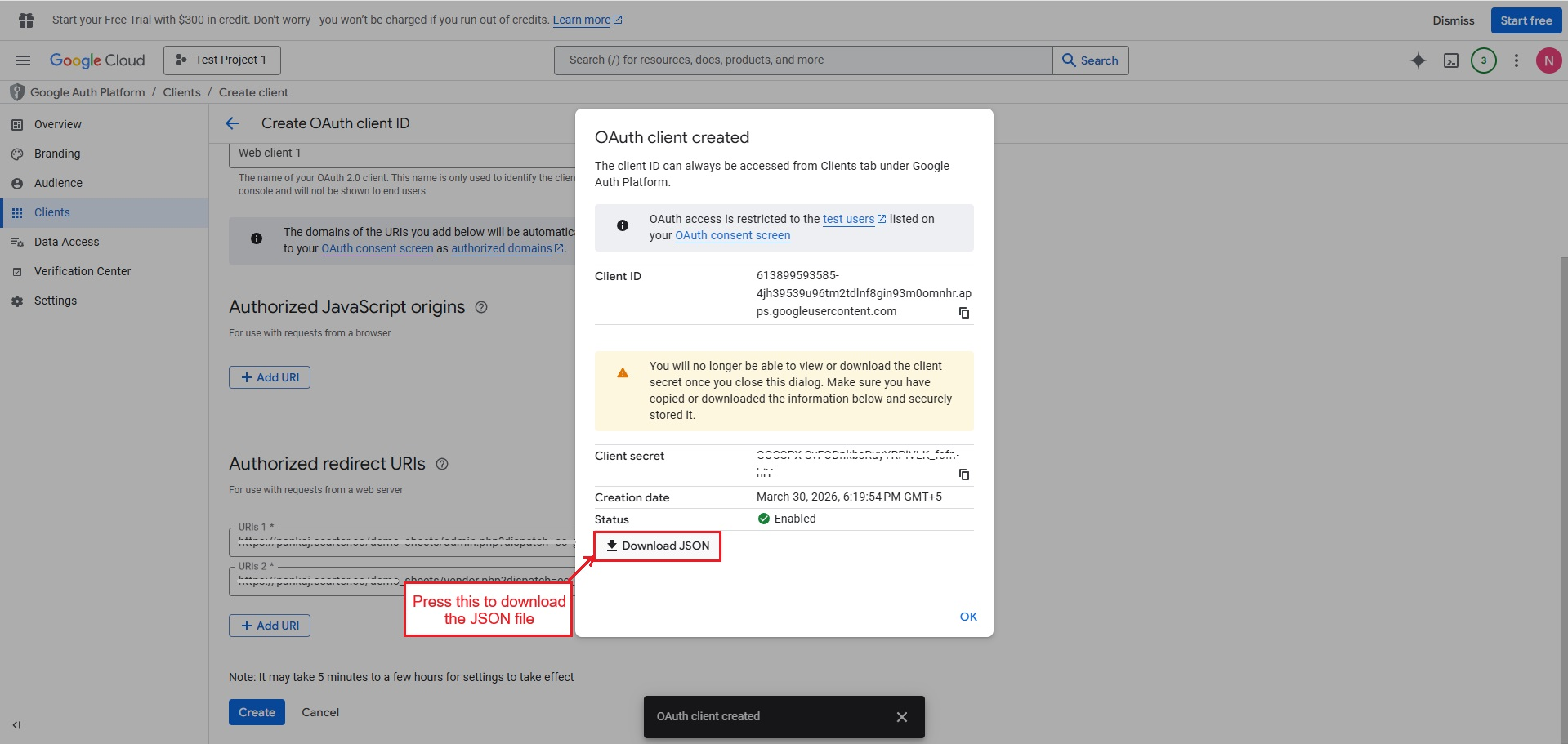
- Select “Download JSON” to save the file.
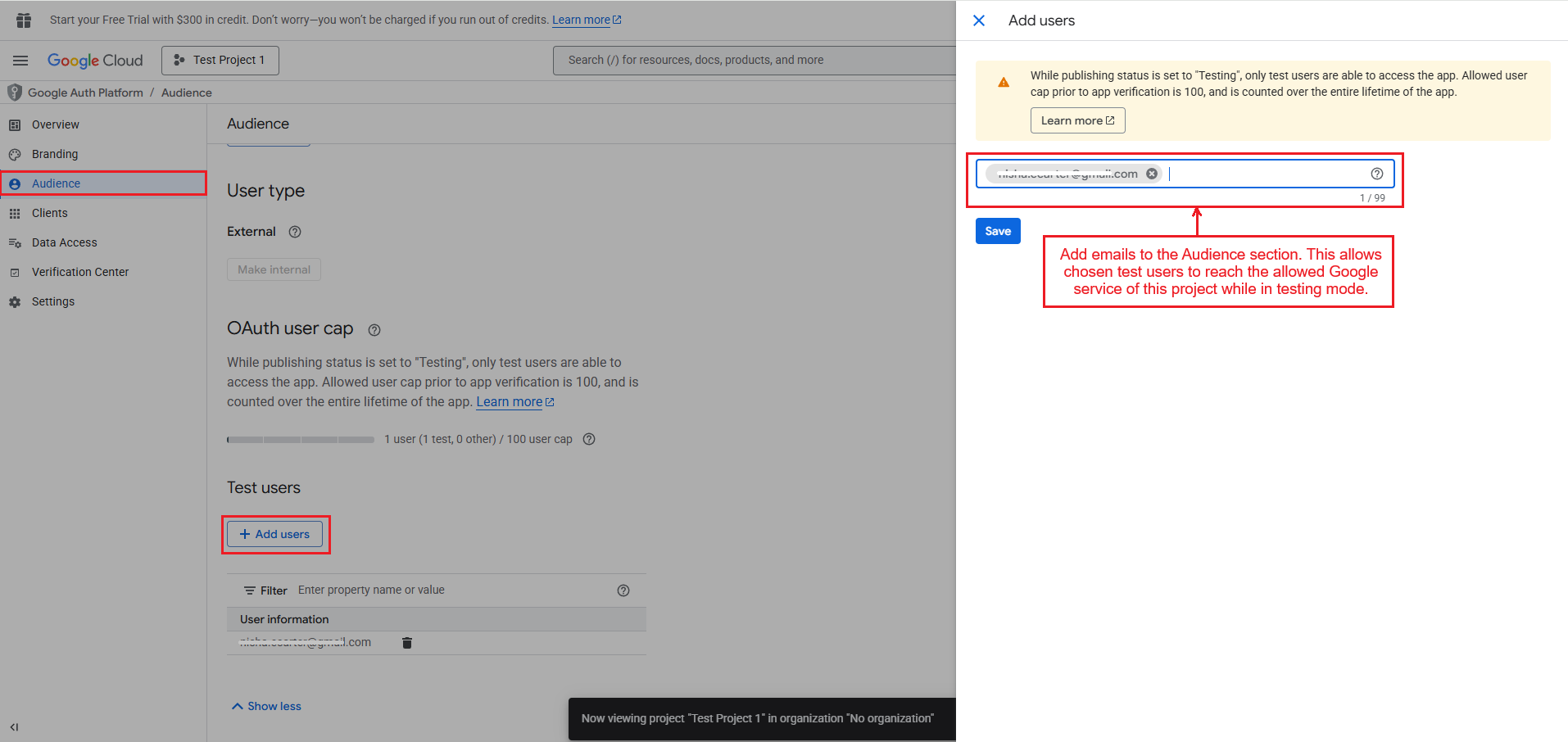
- Also, add emails in the Audience section to allow selected test users to access the approved Google service during testing mode.
- Now, the JSON file is ready to use for authentication, and it can be added to the app /add-on to connect with Google Sheet services.




Ecarter Support
Typically replies within a minute

© 2020 - 2026 Ecarter Technologies Pvt Ltd.