
CS-Cart Printable Products
The Printable Products Addon for CS-Cart adds advanced product customization to the store. It gives customers an easy way to design products before placing an order. Customers create their own designs by adding text, uploading images, or choosing clip art directly on the product page.
The admin and vendors have full control over the setup. They manage clip art, create product slides, and define print areas for each product. The addon automatically generates print-ready files, which reduces manual work and speeds up order processing.
Features
Printable Product Setup: Enable the printable option from the vendor plan. It adds a Printable Product tab to product pages.
Vendor-Specific Clip Art: The admin adds clip art for particular vendors. Those clip art appear only on that vendor’s products.
Easy Clip Art Management: Add, edit, delete, or enable clip art from one page. Upload SVG files with position control.
- Product Design Slides & Print Areas: Add slides with customizable product images and define print areas. These areas control where customers place and resize designs.
- Text Design Tools: Customers add text to products. Font style, size, and placement stay editable.
- Image Upload Option: Customers upload their own images for printing. Uploaded designs stay within the allowed print area.
- Design Preview and Edit: Preview designs before checkout. Edit or re-create designs from the cart or product page.
- Downloadable Print Files: The admin and vendor can download print-ready files. Files show full design and element details.
- Vendor Panel: Vendors have the same control as the admin. They can manage clip art, enable printable products, select clip arts, and add slides for their products.
How to install Addon
https://store.ecarter.co/blogs...
Addon Explanation
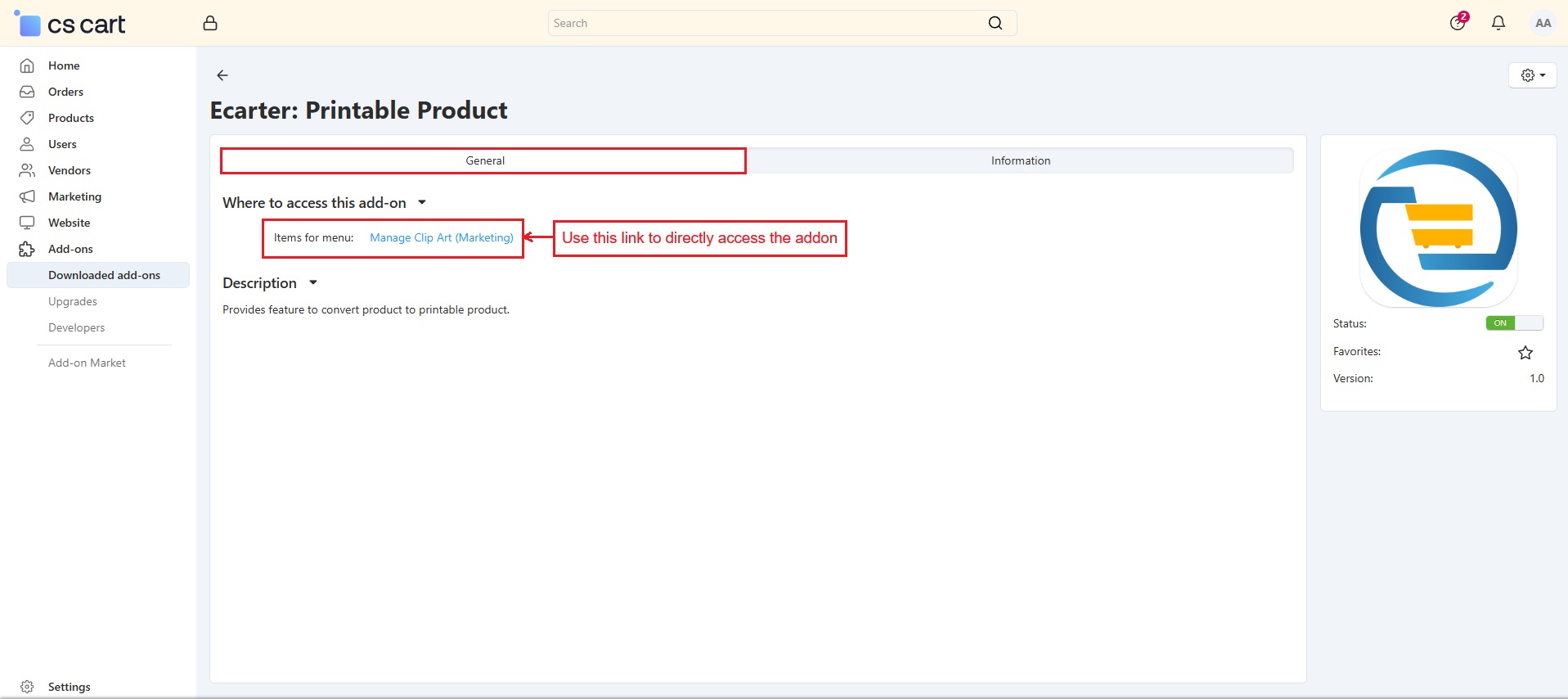
Items for menu: Use the provided link to directly access the addon.
Manage Clip Art
- Go to the Marketing menu and open Manage Clip Art
- Manage Clip Art allows the admin to add pre-made images or icons used in product print designs. This page lists all clip arts with options to edit, delete, or update their status. The admin adds clipart for particular vendors, so they appear only on their products.
- Must press “Save” to keep changes on the Manage Clip Art page.
- Click on “Add Clip Art” to add new one.
Go to Marketing ➡️ Open Manage Clip Art ➡️ Page shows list of created clip art ➡️Click on Add Clip Art to add new one.
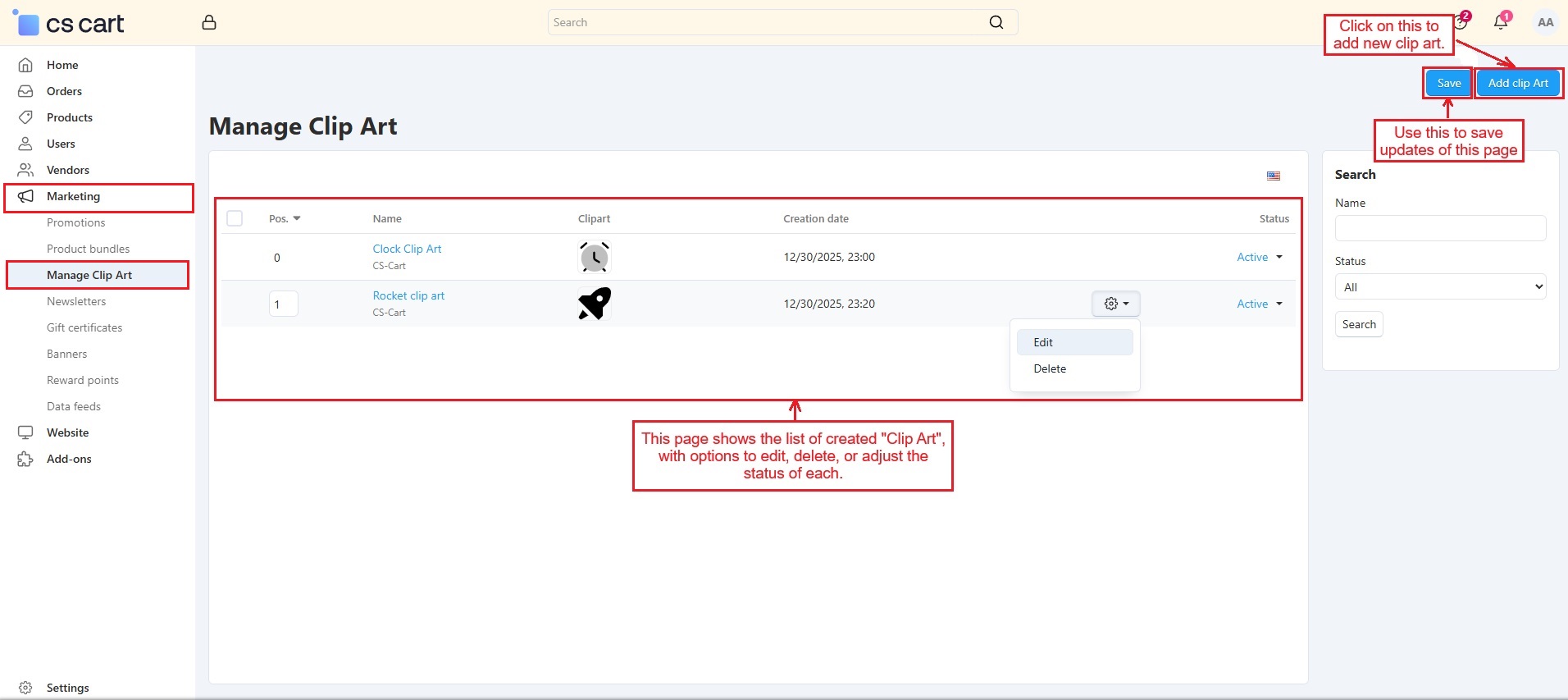
In the Add Clip Art pop-up window,
Select a vendor for this clipart from the drop-down list. Enter the name, upload the SVG image, specify the position number, and set the status.
Then, click “Save” to add the clip art.
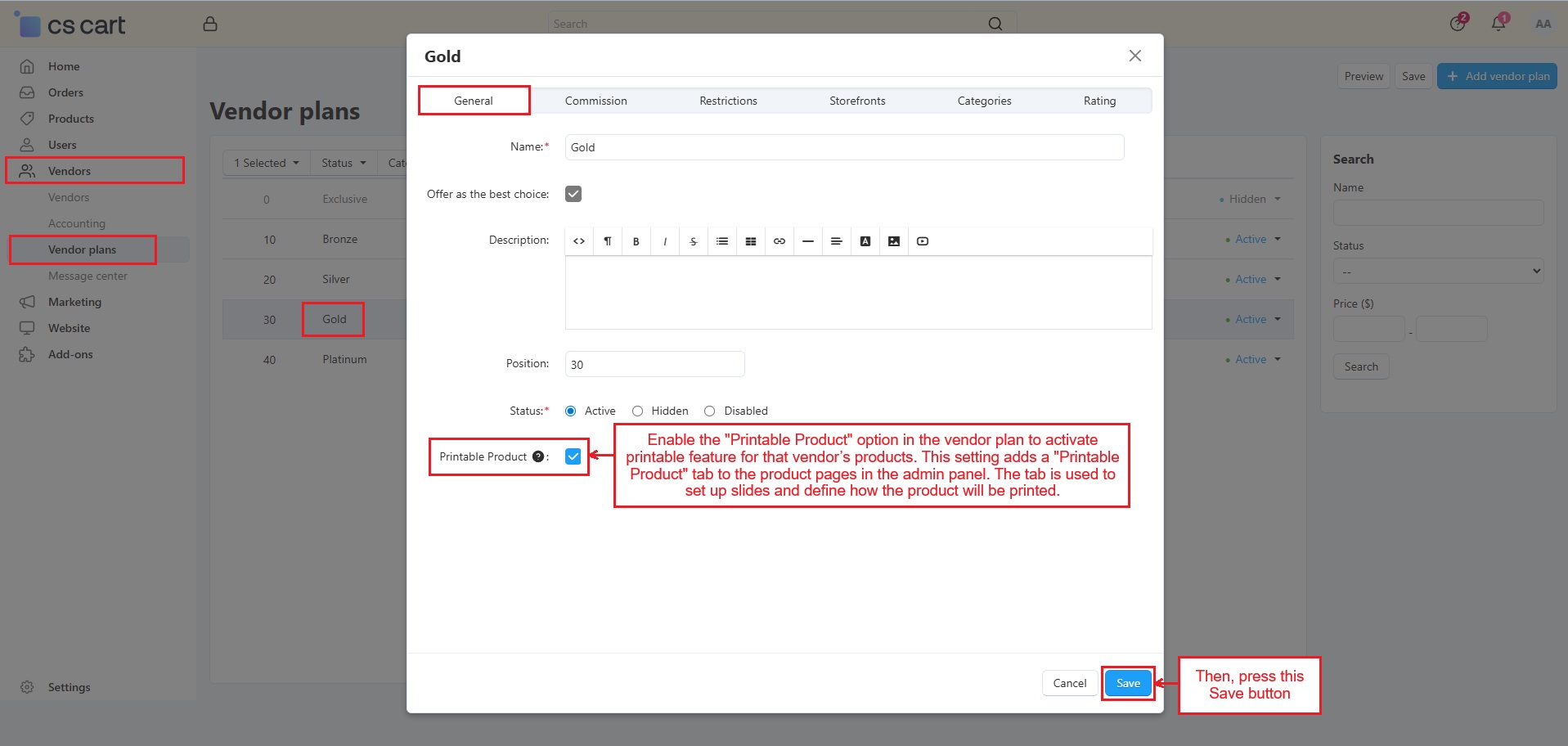
Go to vendors ➡️ Open Vendor plans ➡️ Click on a vendor plan and enable the printable product checkbox ➡️ Then, press Save button.
- In the vendor plan, enable the “Printable Product” option to activate the printable feature for that vendor’s products. This setting adds a “Printable Product” tab to the product pages in the admin panel. The tab is used to set up slides and defines how the product will be printed.
- Then press the Save button.
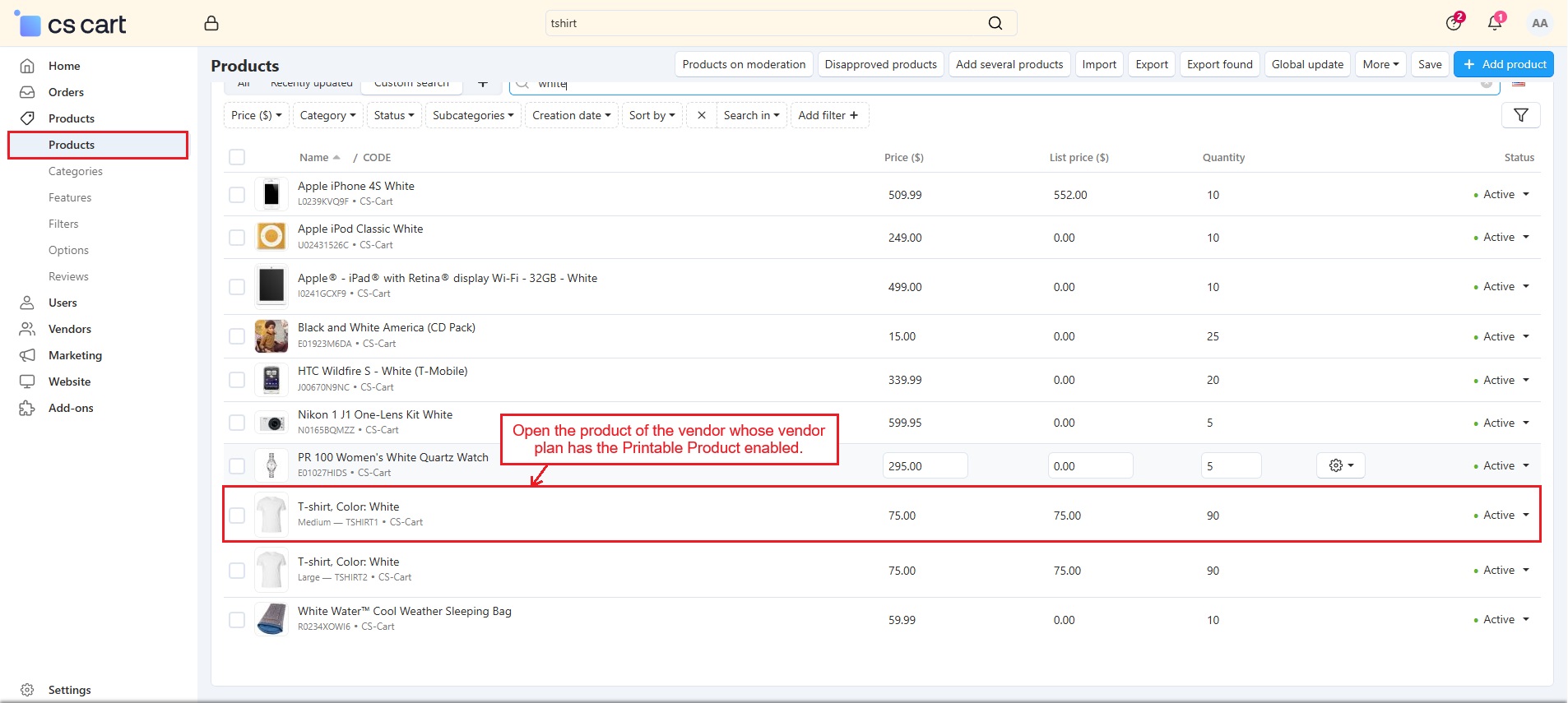
- Open the product of the vendor whose vendor plan has the Printable Product enabled.
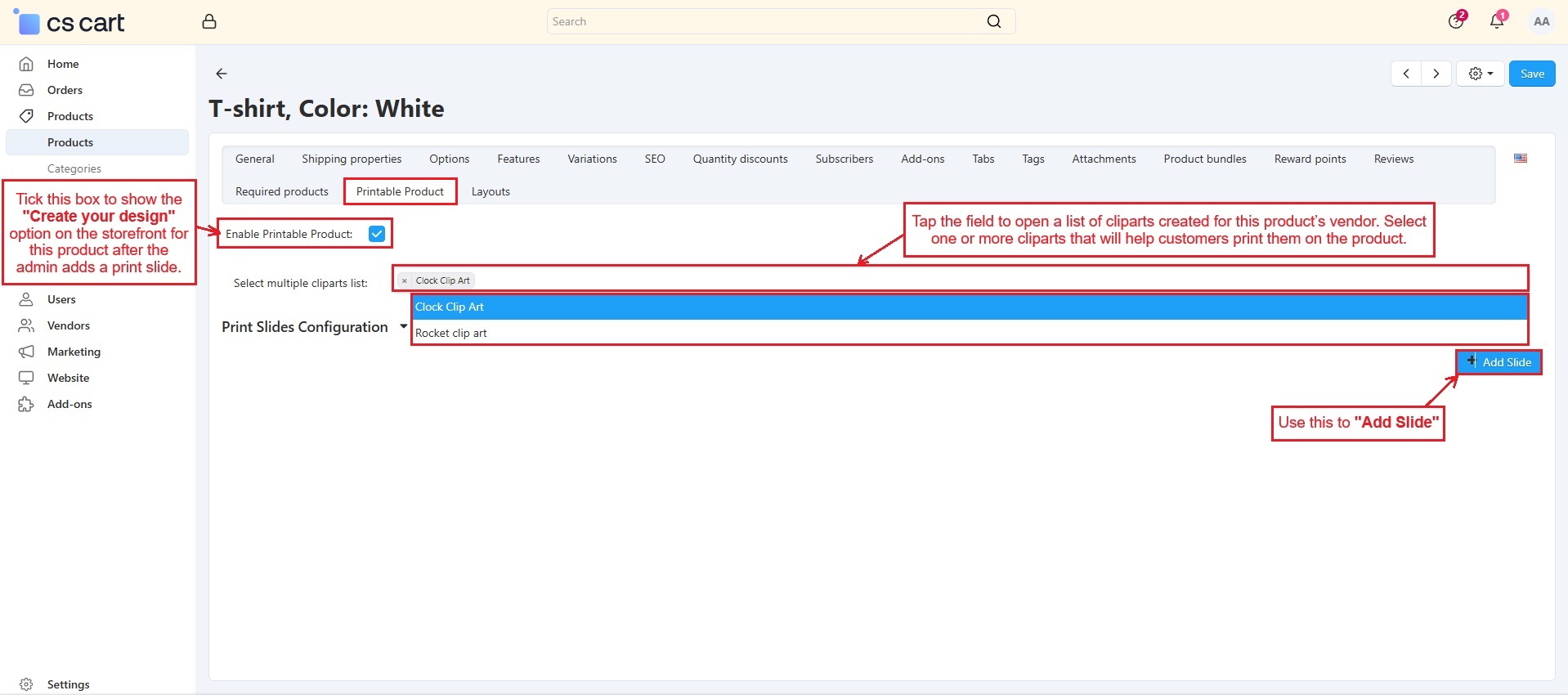
Switch to the Printable Product tab
- Enable Printable product: Tick the checkbox to see “Create your design” button on the storefront for this product once a print slide is added.
- Select multiple cliparts lists: Tap the field to open a list of cliparts created for this product’s vendor. Select one or more cliparts that will help customers print them on the product.
- Now, press Add Slide.
➡️ Switch to the Printable Product tab ➡️ Enable Printable Product ➡️ Select clip arts from the multiple cliparts list ➡️ Add a slide with a customizable product image and other settings.
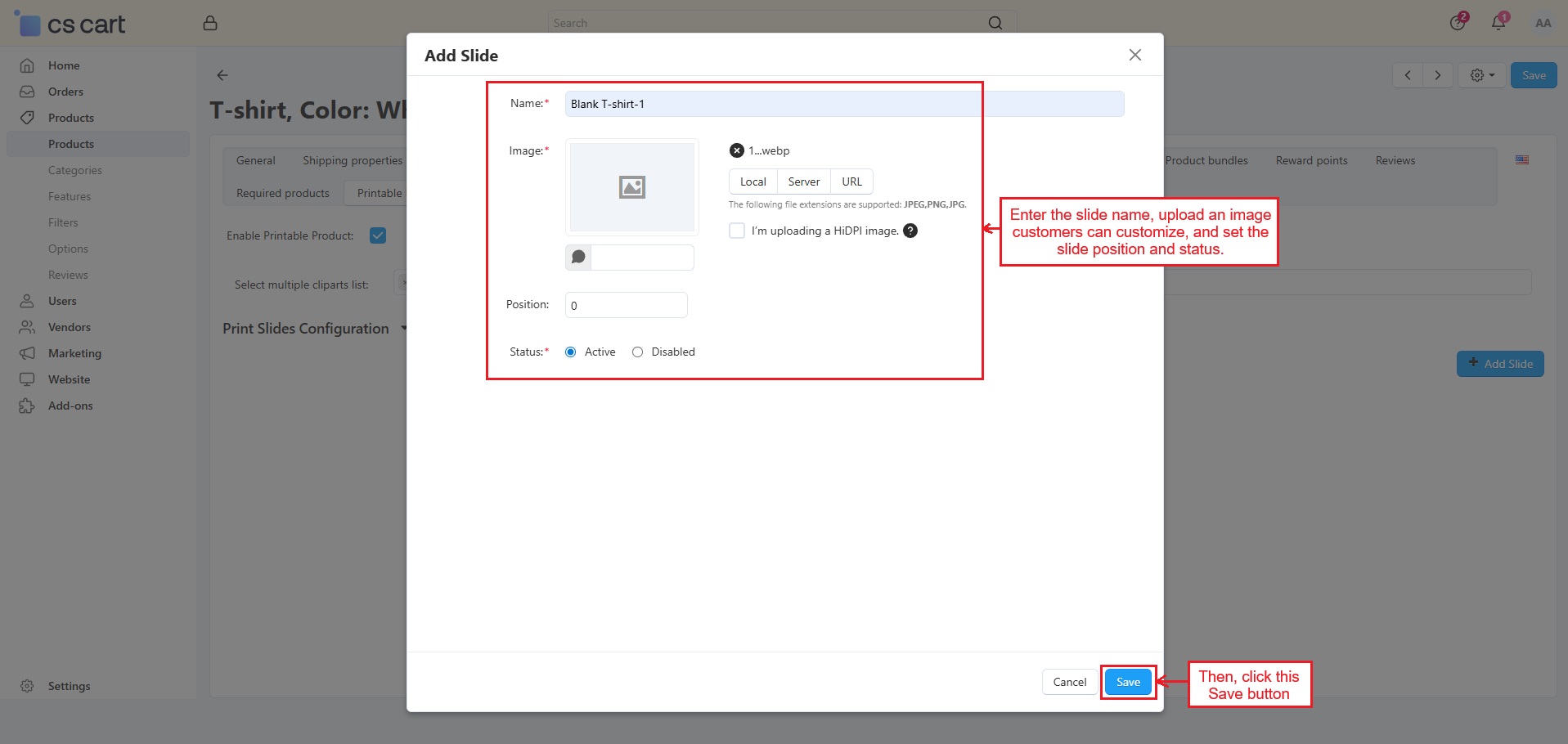
In the Add slide window,
- Enter the slide name, upload an image customers can customize, and set the slide position and status.
- Then, press the Save button.
- Similarly, the admin can add more slides.
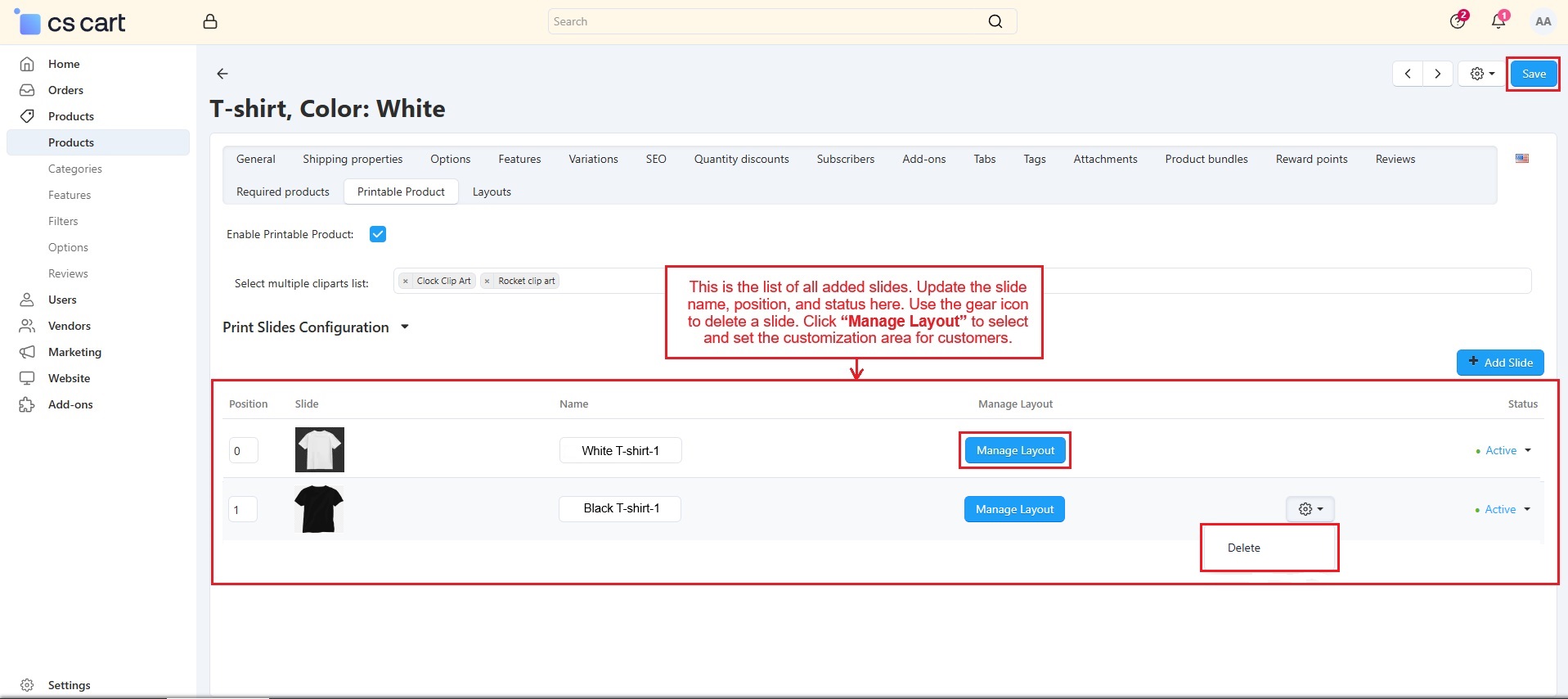
- This is the list of all added slides. The admin can update the slide name, position, and status on this page. Use the gear icon to delete a slide.
- Click “Manage Layout” to select and set the customization area for customers.
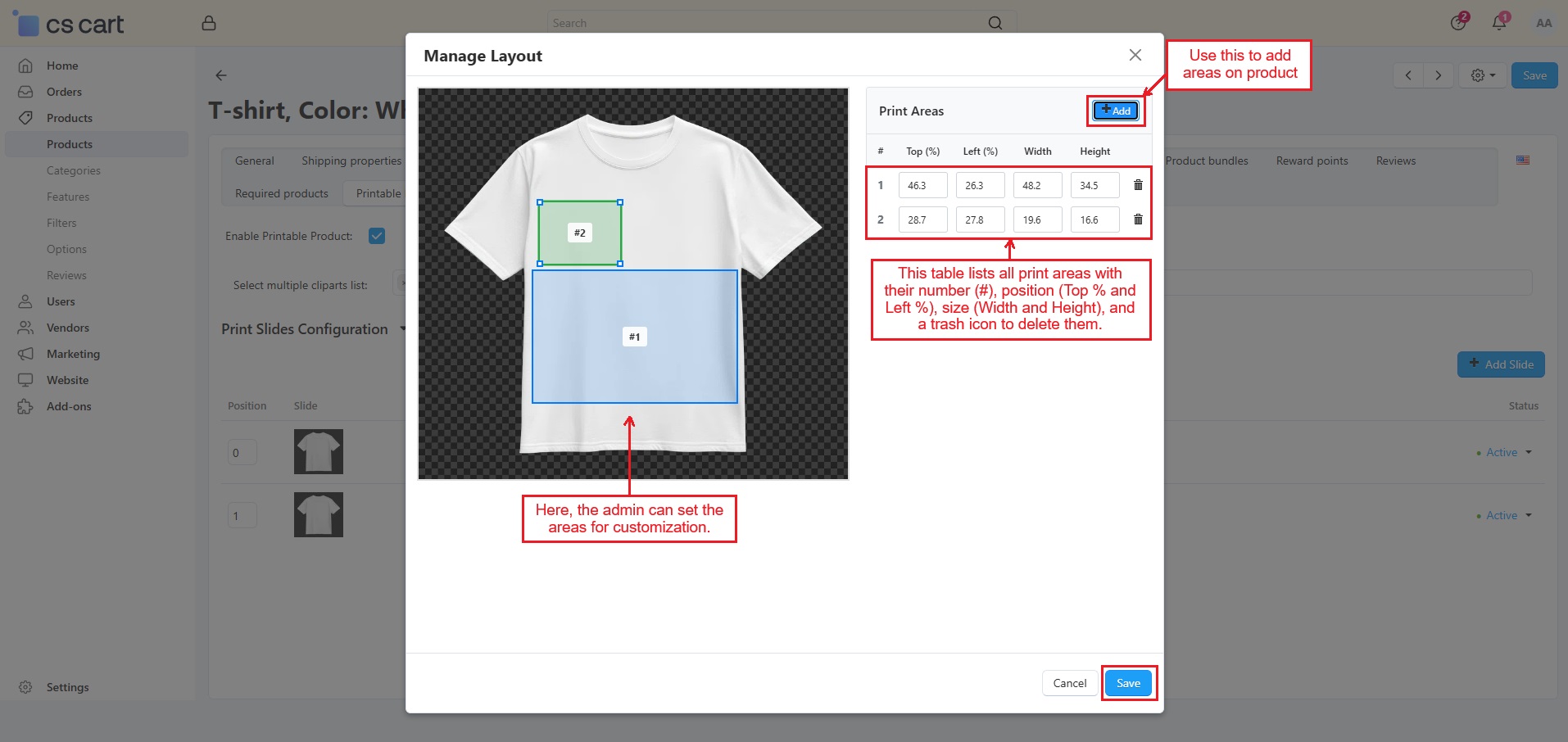
To set the print area layout, click “Add”.
- The first print area appears on the product. The admin adjusts its size by dragging the corners and can add more areas later.
- The table shows all the print areas' details, such as the number (#), its position on the product (Top % for vertical, Left % for horizontal), its size (Width and Height), and a trash icon to delete the area.
- Then, press “Save” once areas are added.
Use of “Create Your Design” on the storefront
Open the product on the storefront and click “Create Your Design” to start designing.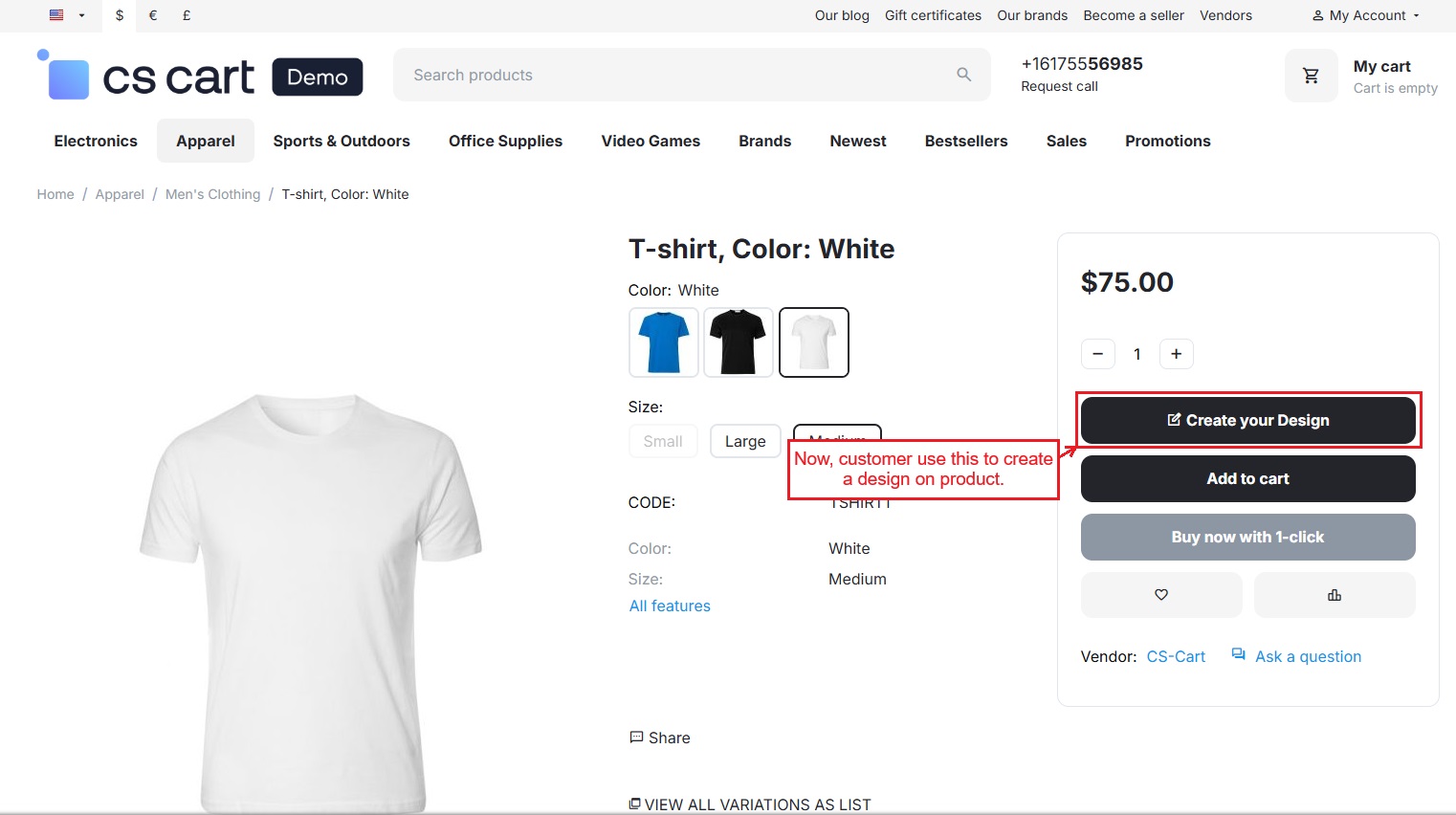
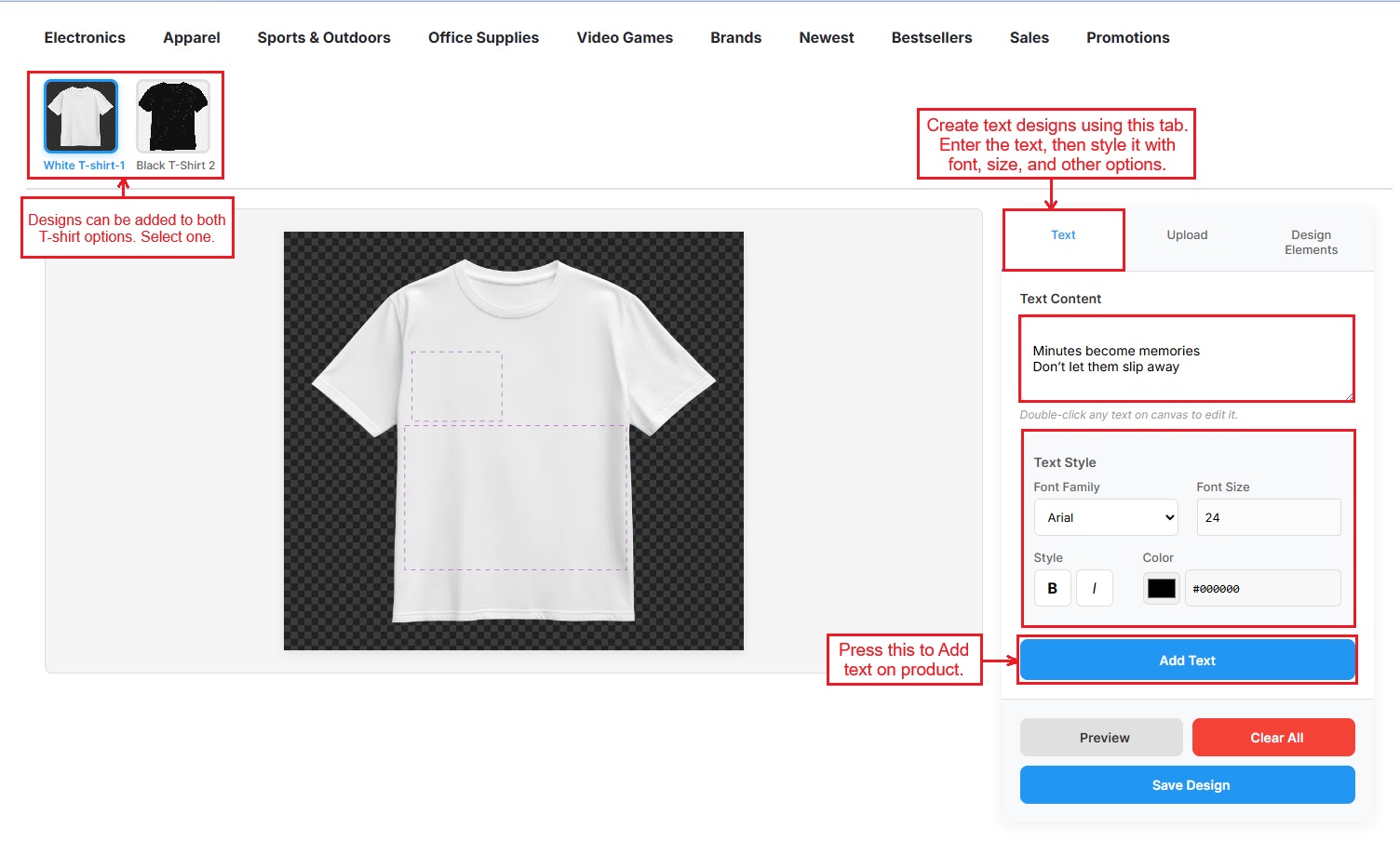
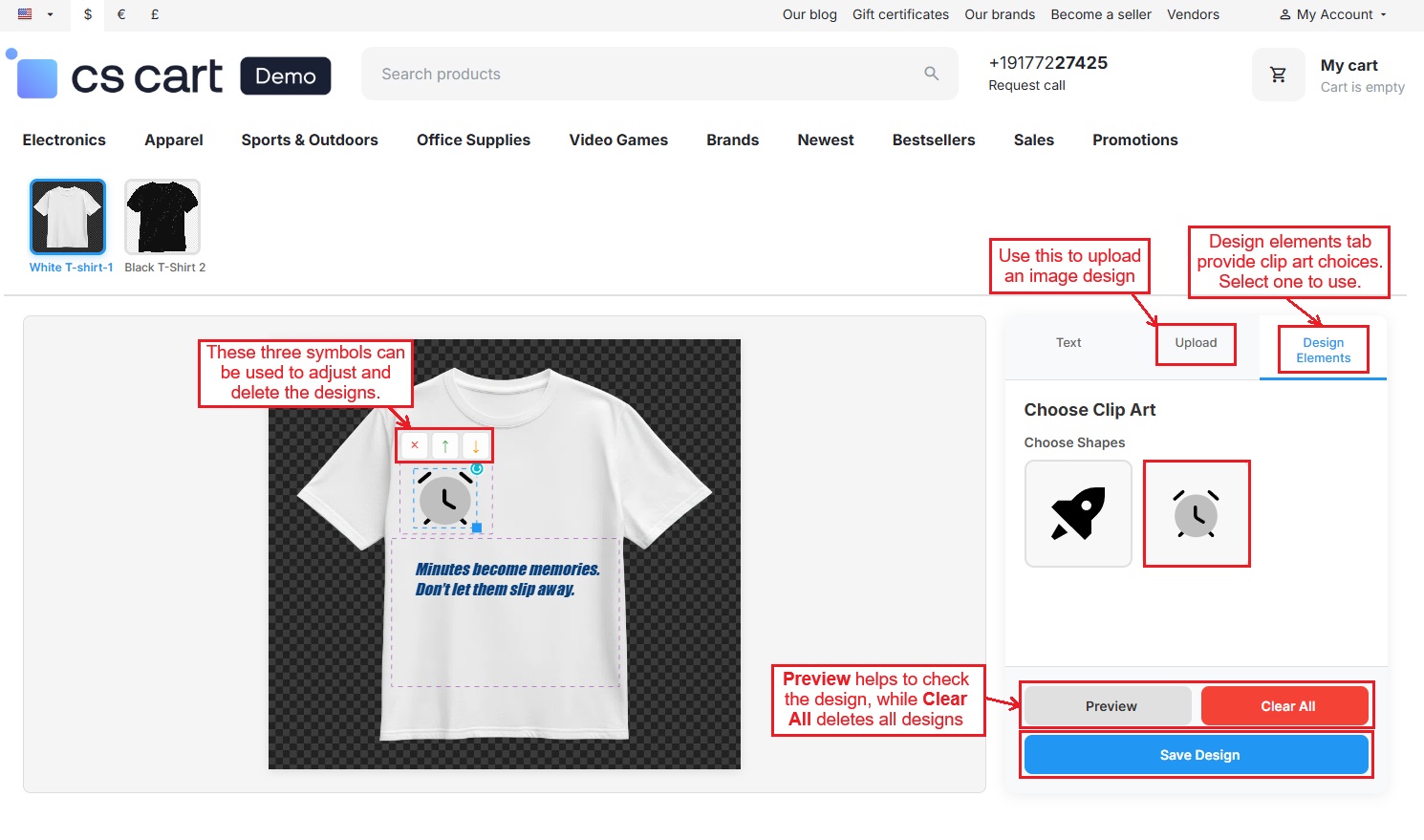
- Added product slides appear at the top. Click one to start designing.
- Text: Create text designs using the text tab. Enter the text, then style it with font, size, and other options.
- Then, press the Add Text to add it to the product.
- Upload: Use the “Upload” button to upload an image design for the product.
- Design Elements: This tab shows clip art options. Multiple elements can be added to the product.
- Preview and Clear All: Preview is used to check the design, while Clear All removes all designs from the slides.
- Press “Save design” at the end.
The design is now printed. Selecting any element on the product shows three icons: a cross to delete, and up/down arrows to reposition elements above or below each other. Elements can only be moved within the allowed areas.
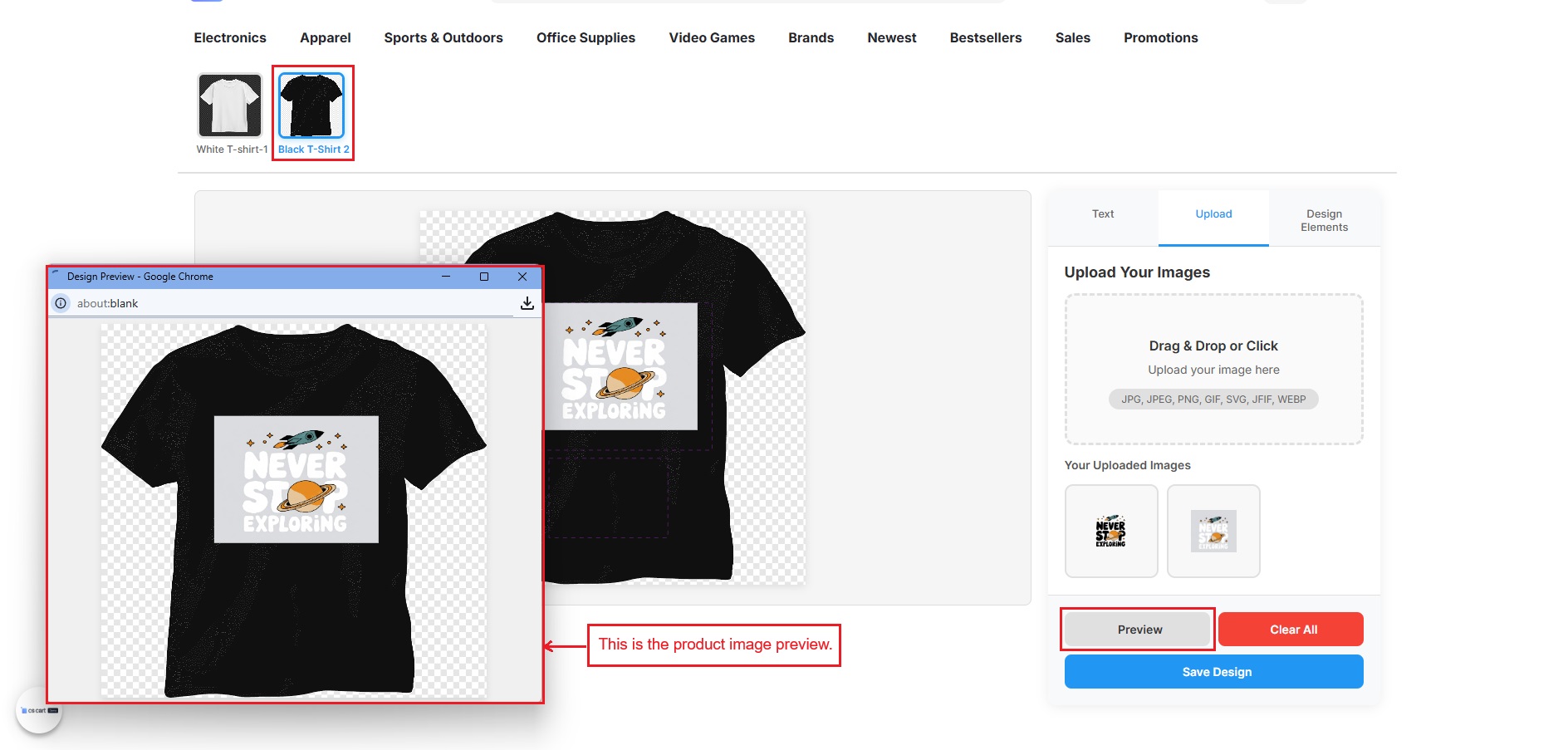
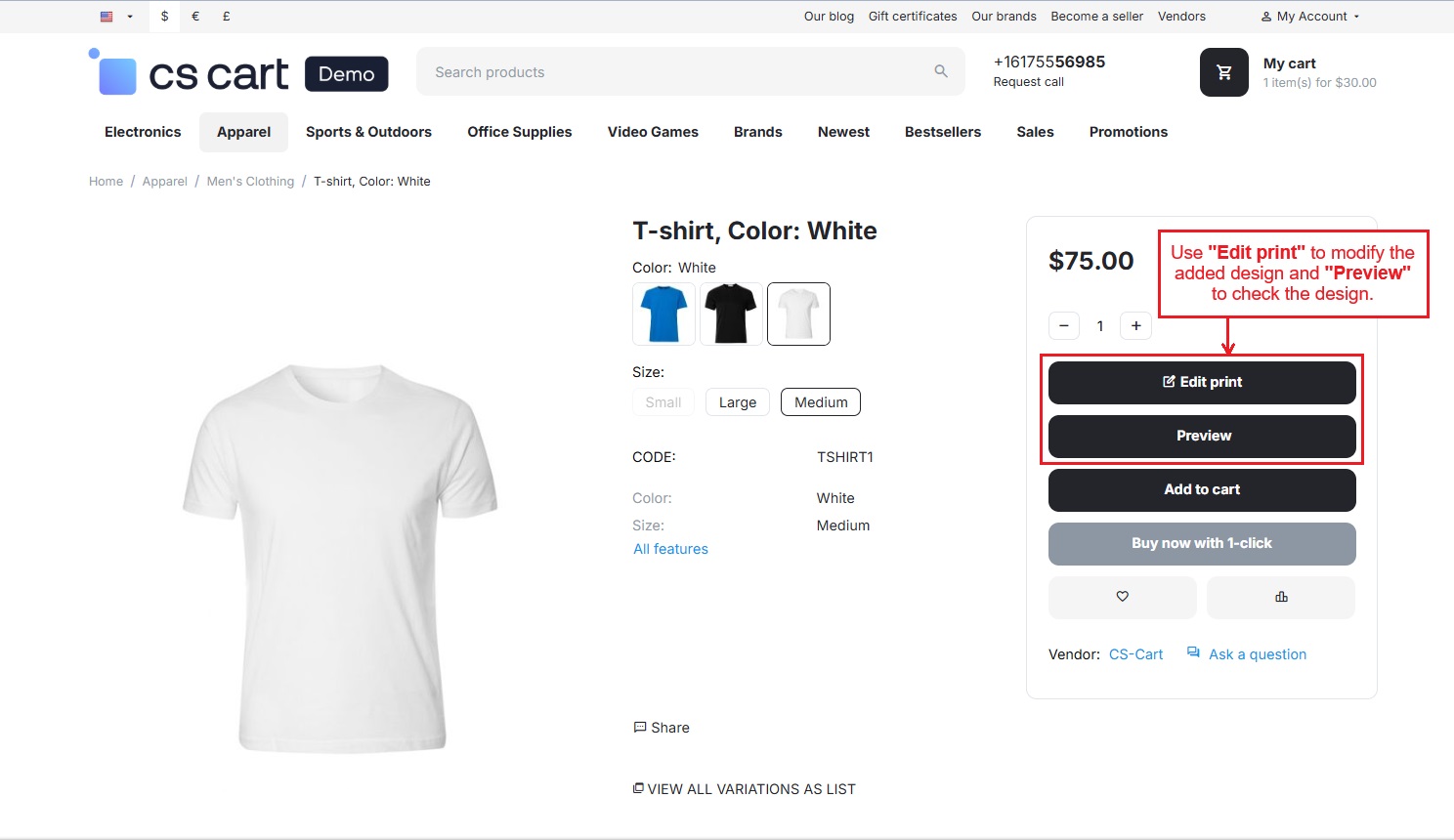
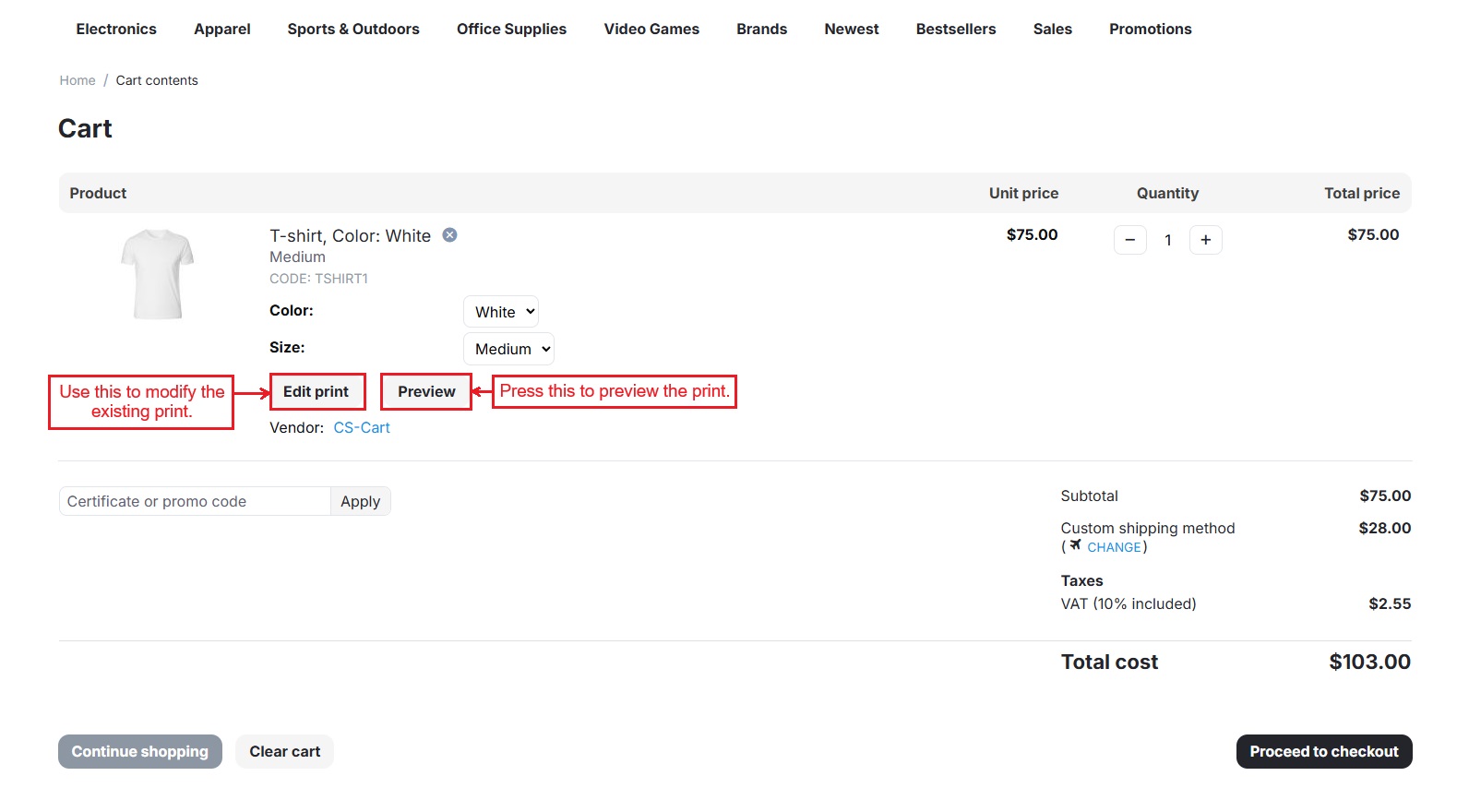
- Use Edit Print to modify the added design and Preview to check the design.
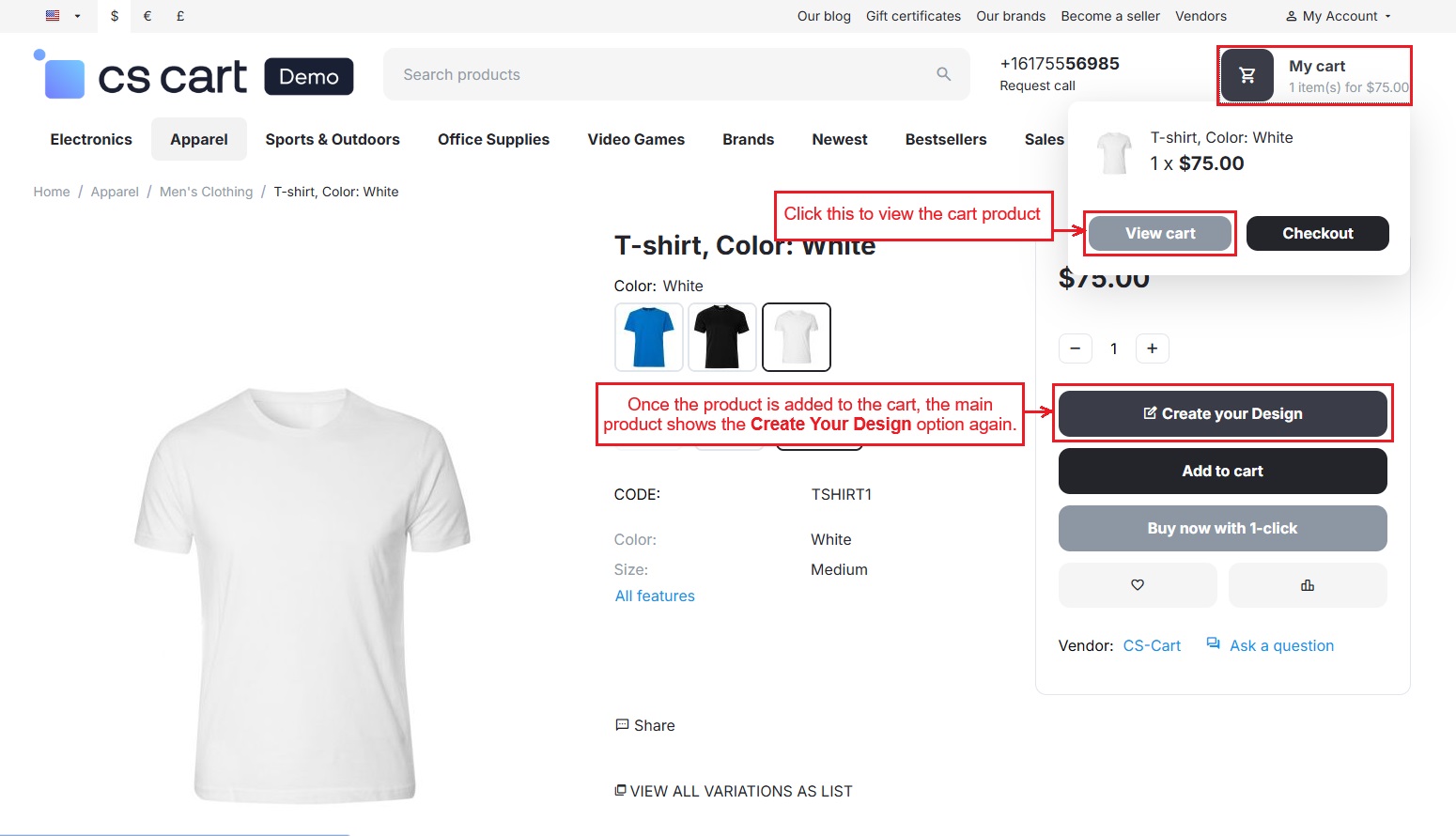
- Once the product is added to the cart, the main product again shows the Create Your Design option for a new design on same product.
- Click on View Cart.
- Now, the product details page shows “Edit Print” and “Preview” options. Use “Edit Print” to modify the existing design, and “Preview” to review it.
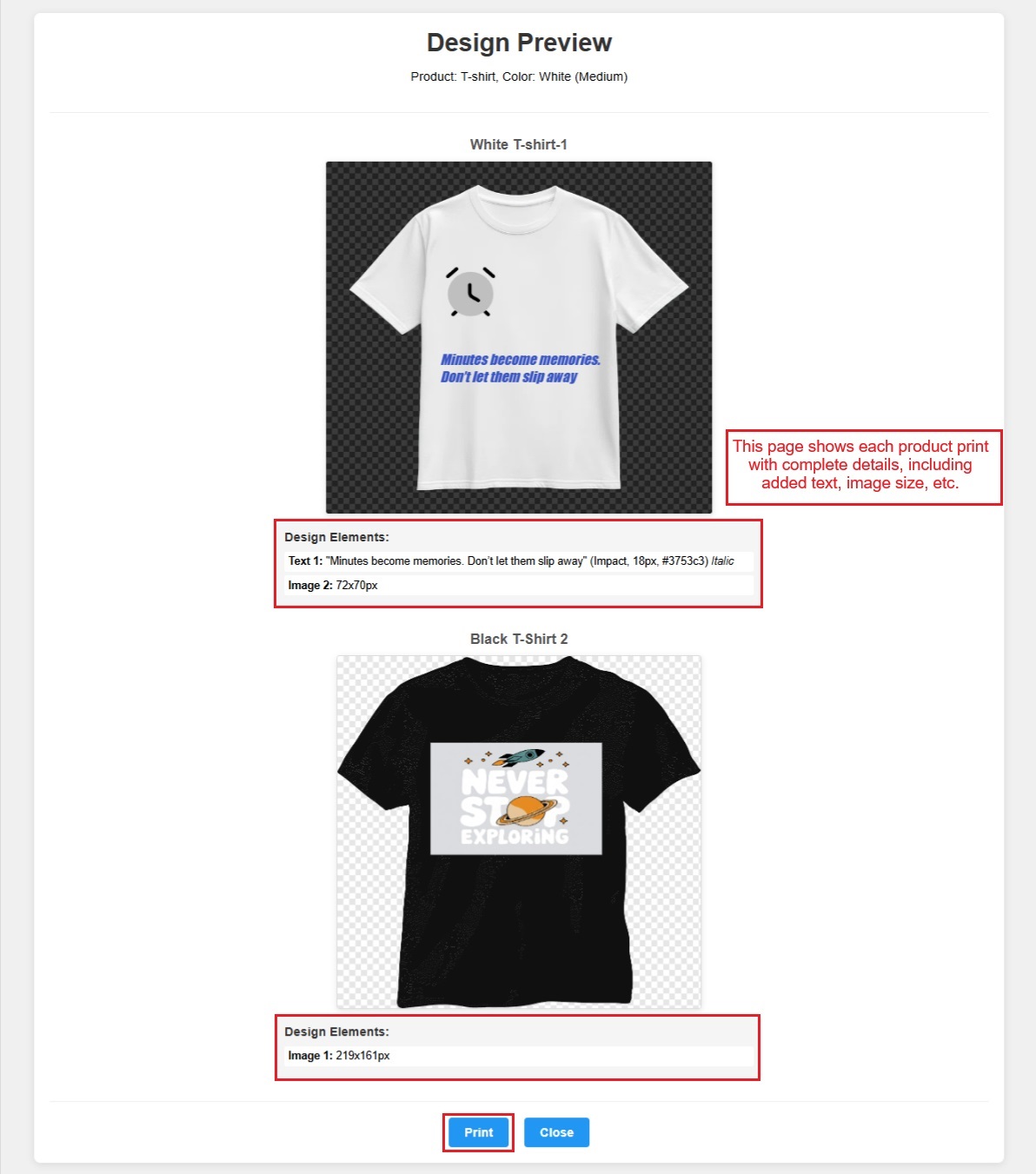
Design Preview
Selecting “Preview” shows each product print along with full details, such as text, image size, and more. This page can be printed using the “Print” button.
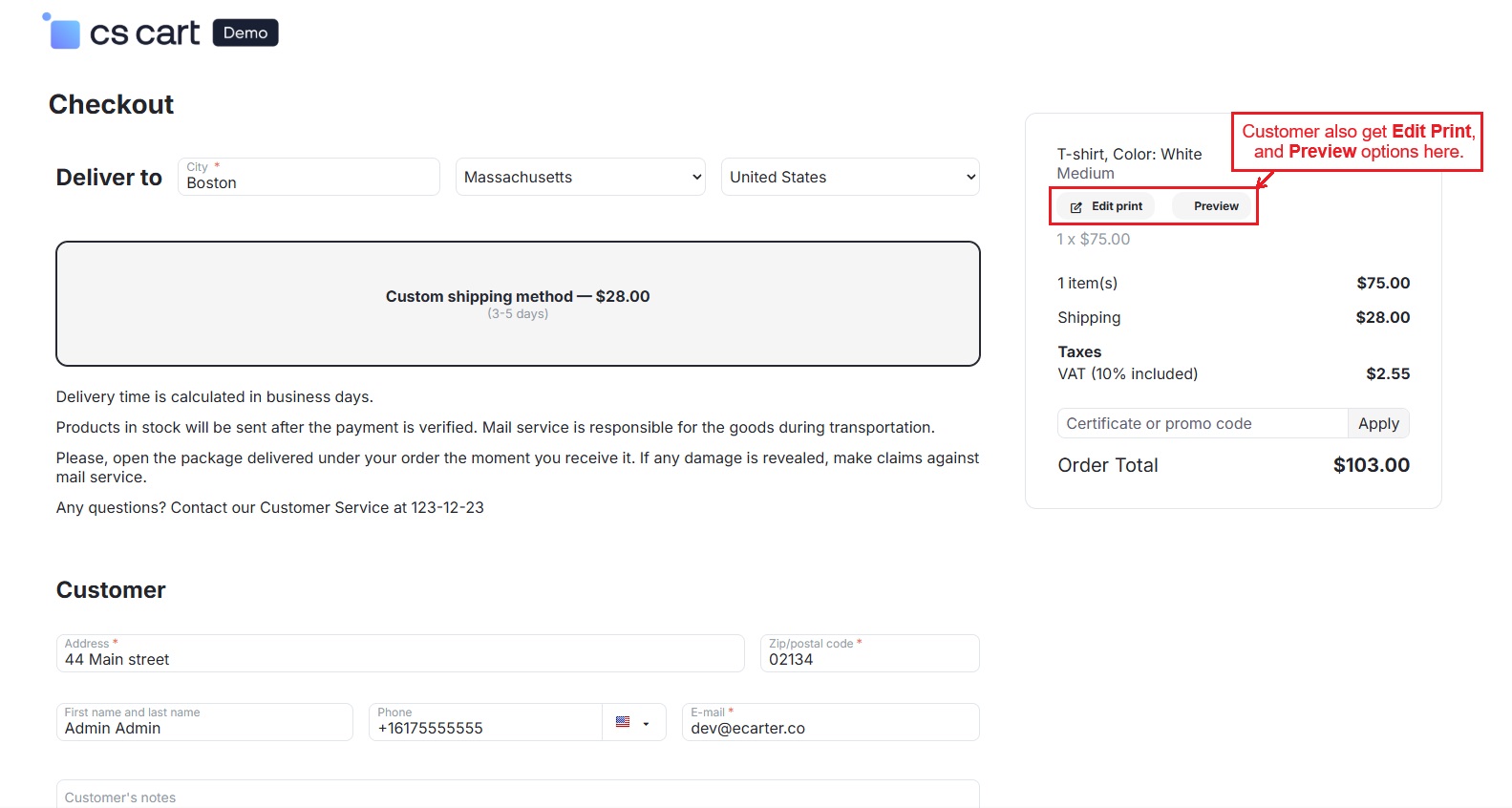
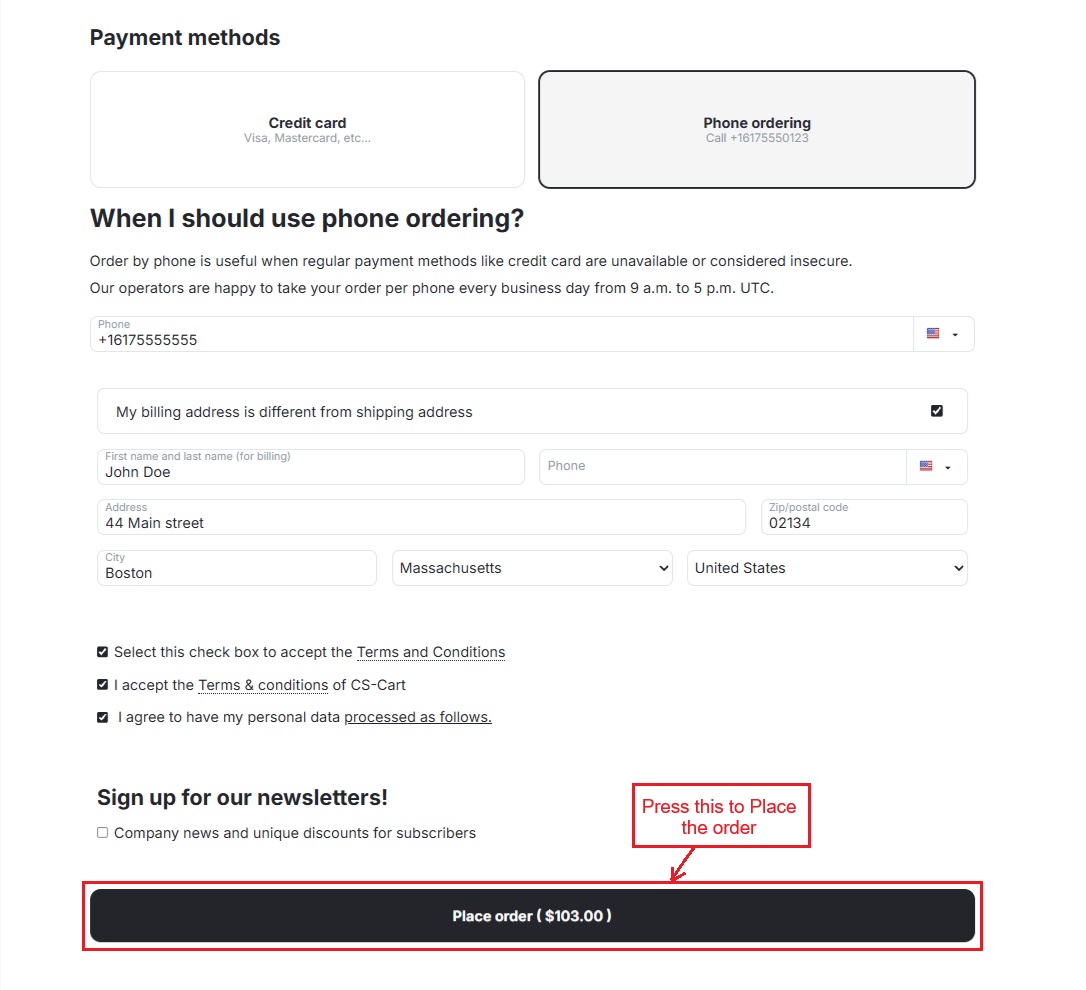
- Use the “proceed to checkout” button from the cart page and place the order. This checkout page also shows Edit print and Preview options.
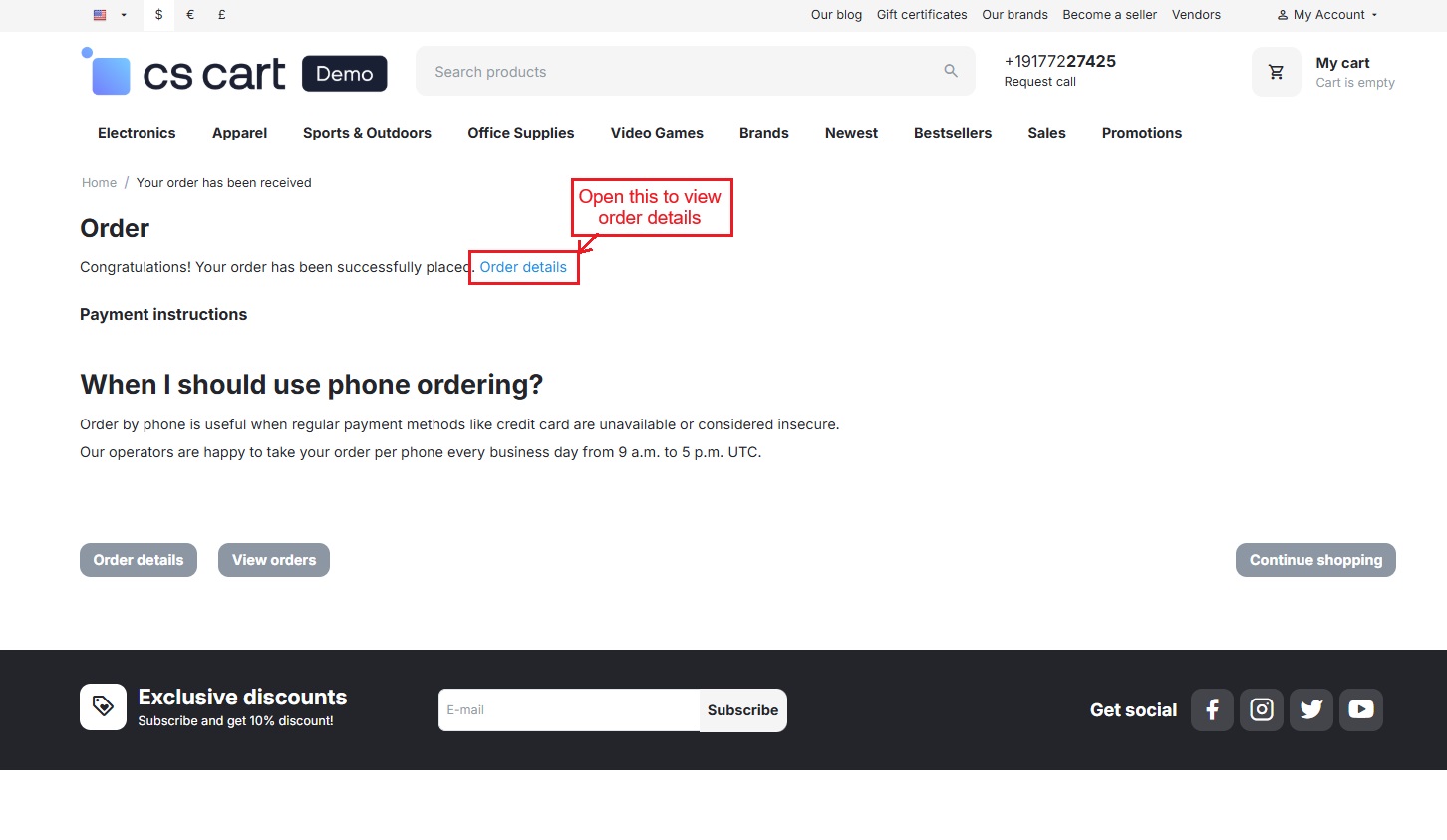
- Click on Order details to open the product information page.
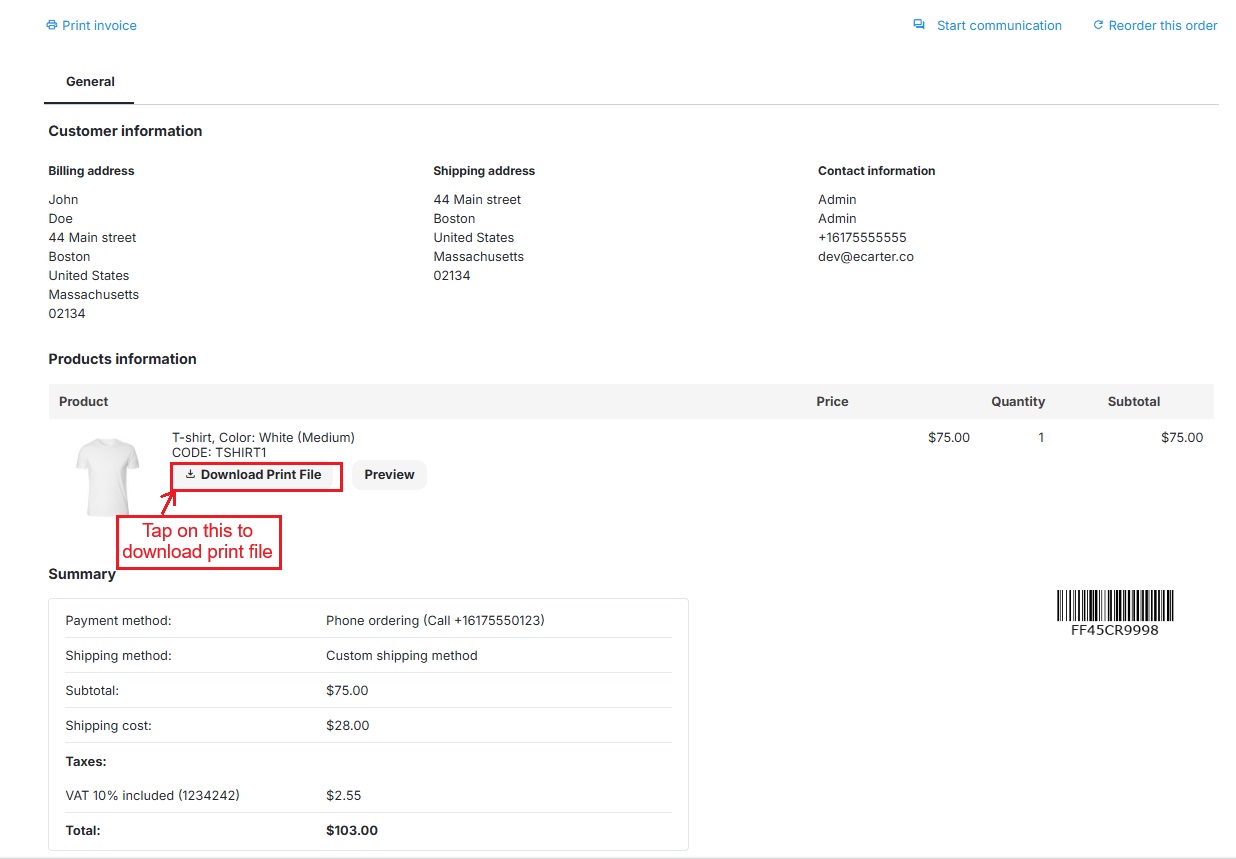
- The product information page provides “Download print file” and “Preview” options.
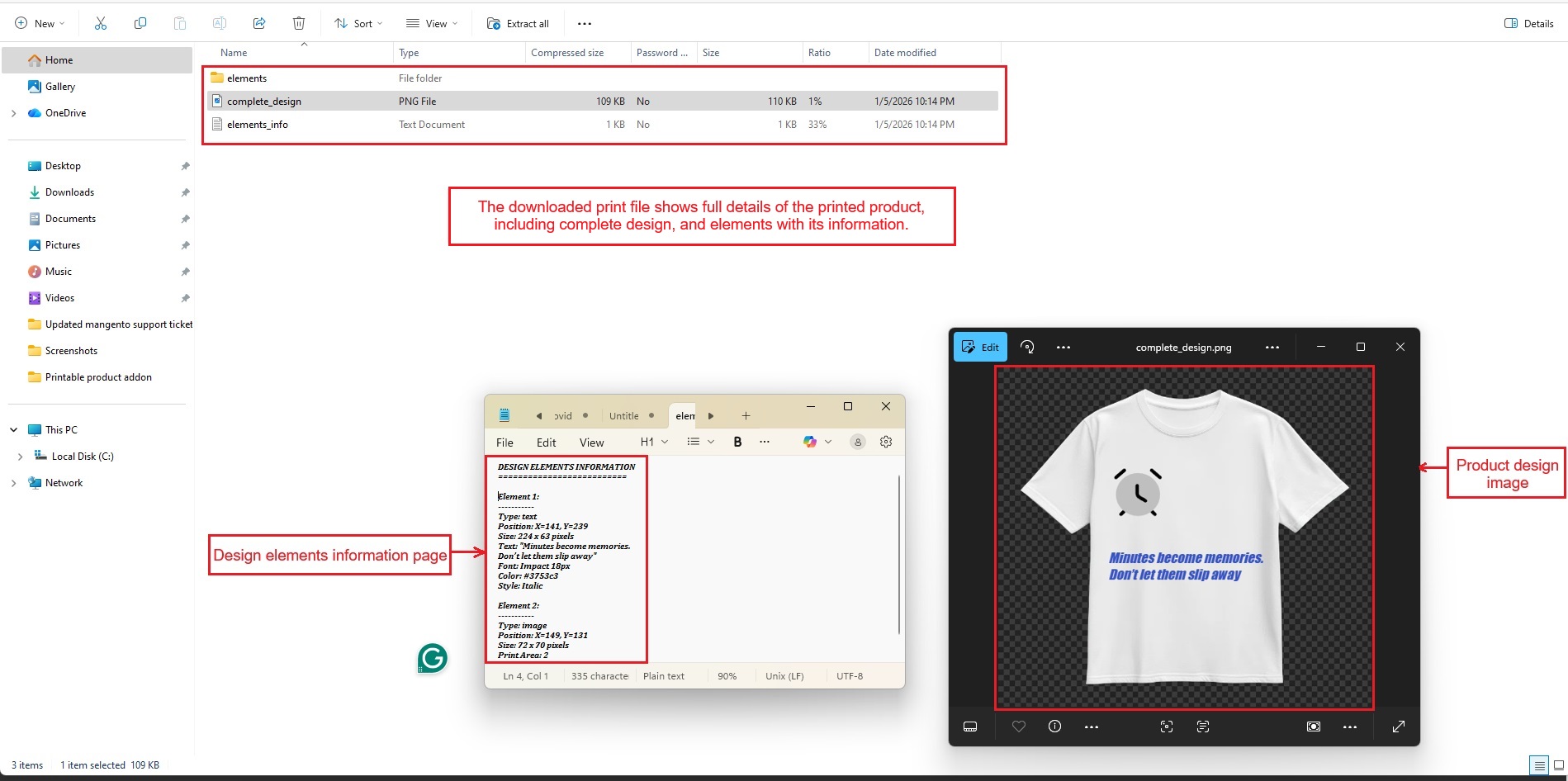
- Tap on download to see complete product design file with elements and its details.
- The downloaded print file shows full details of the printed product, including complete design image and elements with their information.
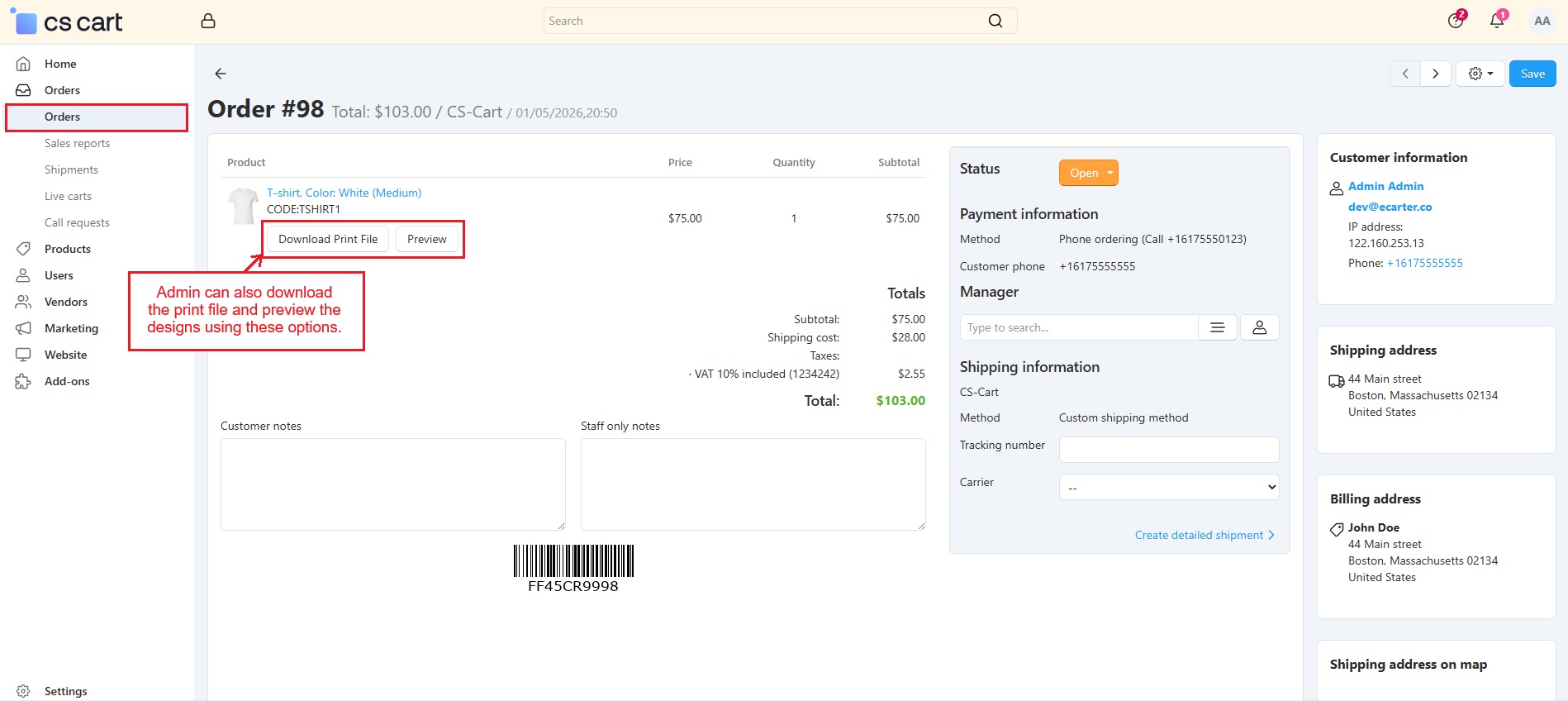
- Admin can also download the print file and preview the designs.
Vendor Panel
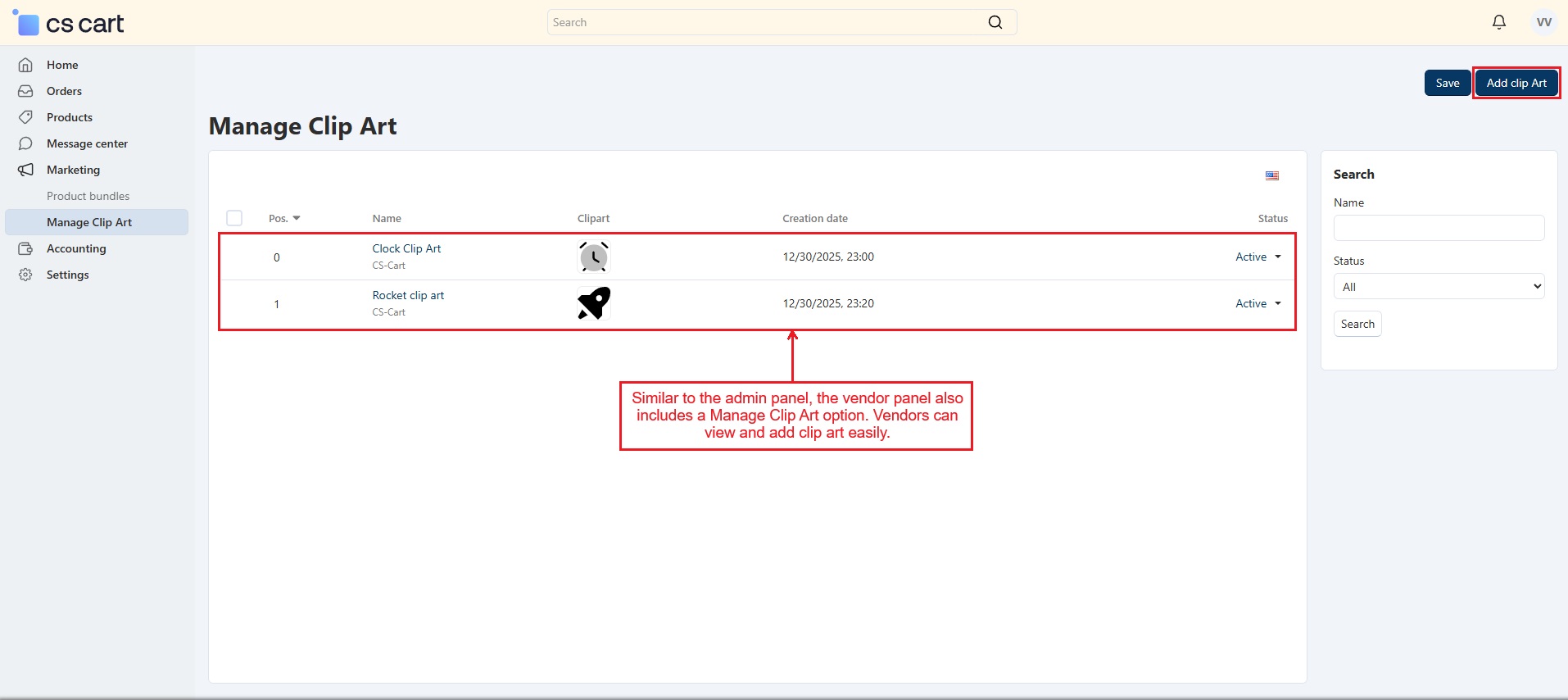
- Similar to the admin panel, the vendor panel also provides “Manage Clip Art” menu. Vendors can easily view and add clip art.
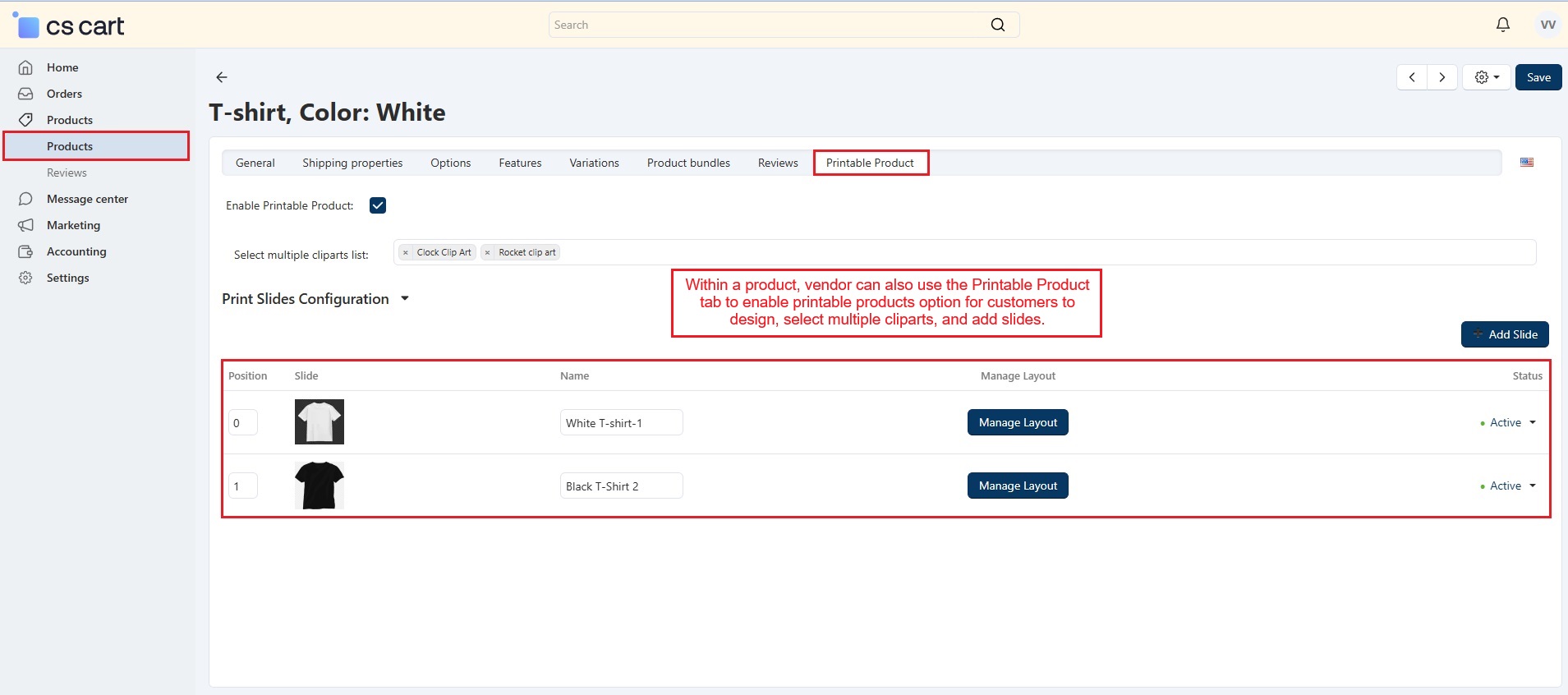
- Within a product, vendors can also use the “Printable Product” tab to enable the printable product option for customers, select multiple cliparts, and add slides.
✅Final thought
This addon brings full control over product customization. Customers can create unique designs, and the admin and vendors can manage print areas and clip art easily. It ensures every order is ready to print with perfect results.
Addon-Version
Version-1.0.3
Supported Versions:
CS-Cart, CS-Cart Multivendor 4.8.x, 4.9.x,4.10x,4.11x,4.12,4.13x, 4.14x, 4.15x, 4.16x, 4.17x, 4.18x
Support:
This add-on is developed and published by Ecarter Technologies Pvt.Ltd., a CS-Cart developer. You are guaranteed a quality add-on supported by future versions. If you need help, please contact us via email at support@ecarter.co.




Ecarter Support
Typically replies within a minute

© 2020 - 2026 Ecarter Technologies Pvt Ltd.