
Magento Auction

The Magento Auction Extension allows store owners to easily create and manage online auctions directly within their Magento store. With this module, administrators can set up auctions for products, configure auction types (incremental or decremental), set starting and reserve prices, enable “Buy Now” options, and customize the auction appearance with colors and timers. Customers can easily participate in auctions with a live countdown timer, place bids, track the current highest bids, and view bid history. The extension also supports email notifications for bidders and admins, ensures privacy for bidder names, and highlights auction winners, providing a smooth and engaging auction experience for both store owners and customers.
Features:
- Easy Auction Management: Create and manage online auctions directly within your Magento store.
- Flexible Auction Types: Support for incremental and decremental auction types.
- Price Configuration: Set the starting price and reserve price for products.
- Buy Now Option: Allow customers to purchase instantly using the “Buy Now” feature.
- Customizable Appearance: Customize auction colors and timers to match your store design.
- Live Countdown Timer: Customers can track the remaining auction time in real-time.
- Bidding System: Customers can place bids and see the current highest bid.
- Bid History: View complete bid history for transparency and trust.
- Email Notifications: Automatic notifications for bidders and admins.
- Bidder Privacy: Keeps bidder names confidential for secure bidding.
- Winner Highlighting: Highlight auction winners for clarity and engagement.
- Engaging Experience: Provides a smooth and interactive auction experience for both store owners and customers.
Working Process of this Module
Here, you will learn how the module operates after setup and how it works for both administrators and customers.
Settings Configuration
These settings control how the auction looks in the store
From the Stores menu, select Configuration to access the module core settings.

- Auction View
- Set Auction Background Color: Admin chooses the background color for the auction section on the product page.
- Set auction status color: Select the color used to display the auction status, such as “Schedule”, “Running”, or “Ended”.
- Set auction timer background color: Set the color of the auction countdown timer, making it more visible to customers.
2. Bid history configuration
- Bid history limit: Set the maximum number of bids shown in the bid history tab.
- Mail to last: Enter the number of recent bidders who should receive an email when the auction ends.
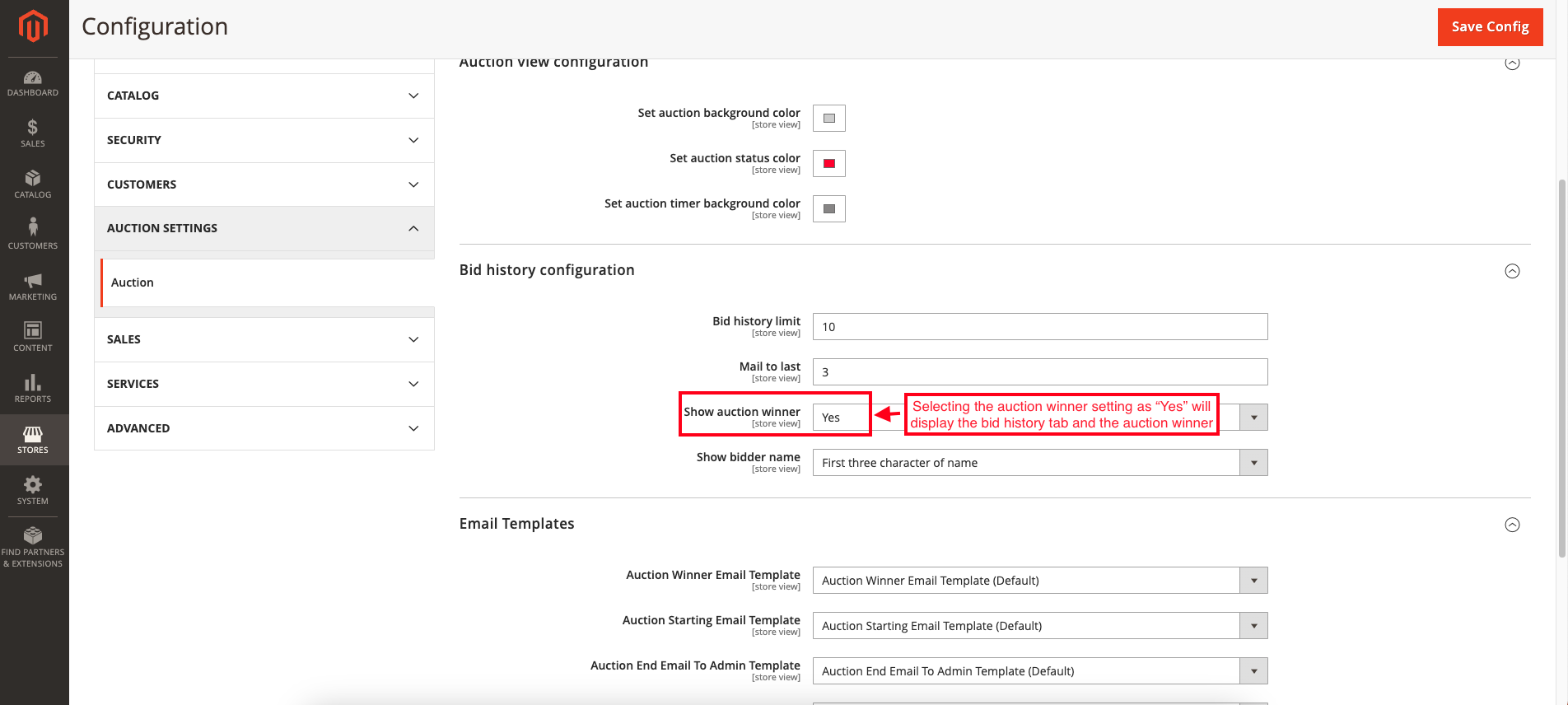
- Shown auction winner: Set Yes to display the auction winner on the store after the auction ends. Set No to hide the auction winner.
- Show bidder name: Controls how the bidder’s name is shown, such as the first three characters of the name, full name, or the email ID if the name is empty, to maintain privacy.

3. Email Templates:
- These are email templates used to send auction-related notifications to customers and admins.

How to create auction
- Go to the Catalog menu and select "Auction."
- You see the list of created auctions.
- Press the "Add Auction" button to add an auction.
- Open the New auction page.
- Store View: Select the store view where the auction will be available.
- Product: Select the product for which you want to create the auction.
- Type: Choose the auction type.
- Incremental: The bid amount increases by a fixed value with each bid.
- Decremental(if available): The price decreases over time.
- Starting price: Enter the price from which the auction bidding will begin.
- Reserve price: Set the price that must be reached for the auction to be considered successful.
- Incremental or decremental price: Set the fixed amount by which the bid price will increase or decrease during the auction.
- Buy Now: Enable or disable the buy now option.
- Yes: Customers can directly purchase the product at a fixed price.
- No: Customers can only participate through bidding.

- Start Time: Set the date and time when the auction will start and become visible to customers.
- End Time: Set the date and time when the auction will end, and bidding will stop.
- Enable Reserve Price: Choose whether the reserve price should be applied to the auction.
- Status: Set the auction status.
- Click on the “Save” button.

- Switch on the “Auction Live info” tab.
- You can view the current auction status along with the remaining time.

- Switch to the Bid History tab.
- Here you can check the list of bidders later.

- See the list of created bids.

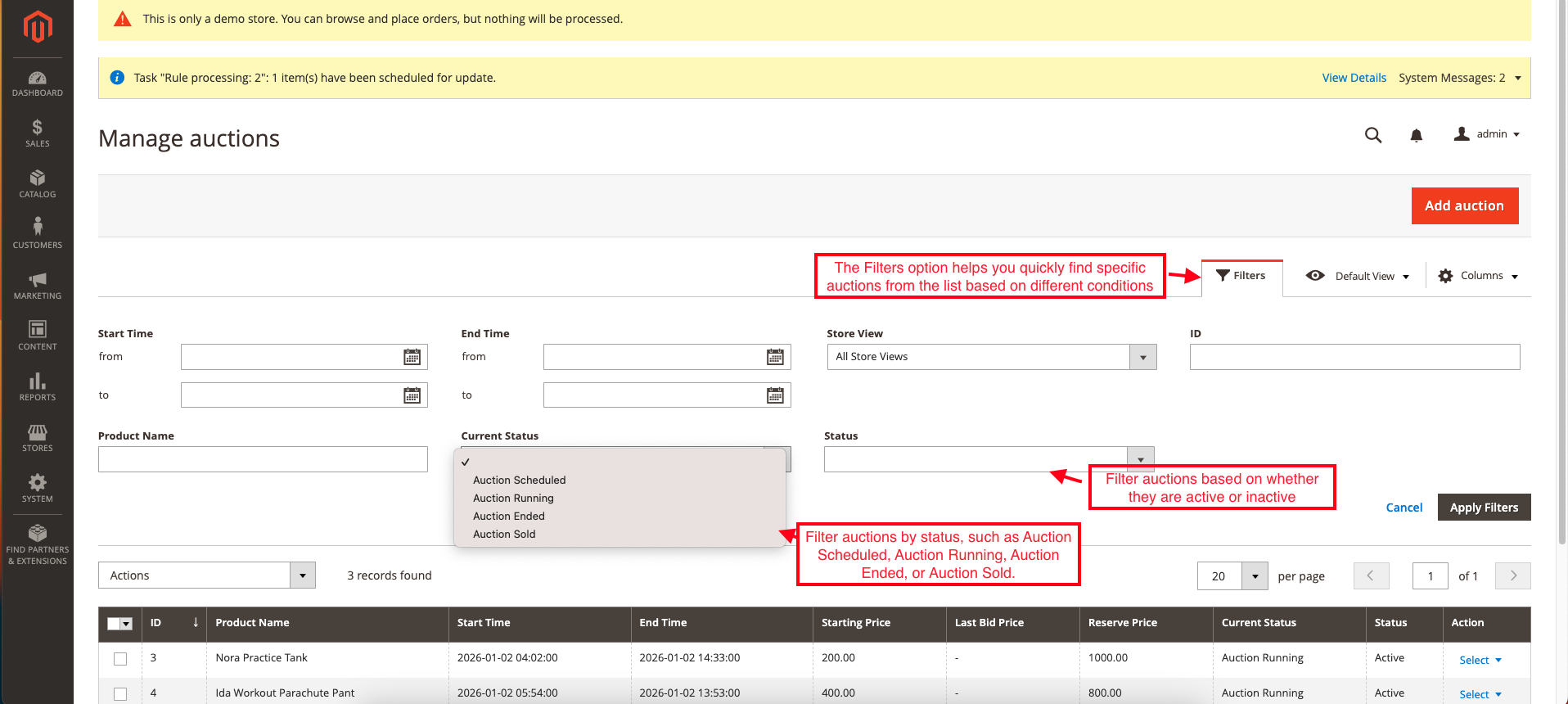
Filters in Manage Auction
The Filters option helps you quickly find specific auctions from the list based on different conditions. You can use the following filter fields:
- Current Status: Filter auctions by status, such as Auction Scheduled, Auction Running, Auction Ended, or Auction Sold.
- Status: Filter auctions based on whether they are active or inactive.
How to make a bid on customer view
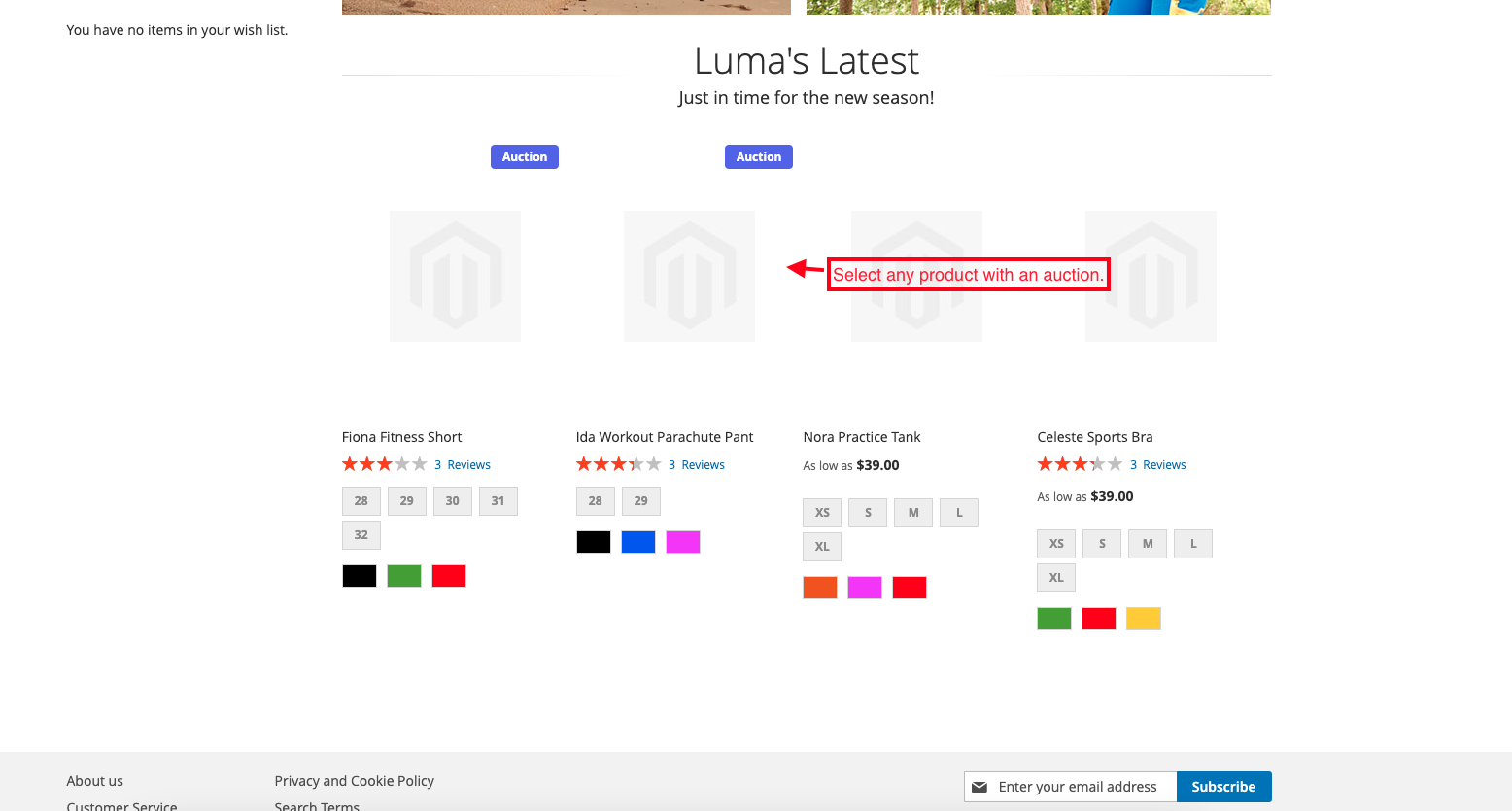
On the storefront, customers can easily place a bid on auction-enabled products. Products available for bidding are clearly marked with an “Auction” label, helping users quickly identify them.
- Select any product with an auction.
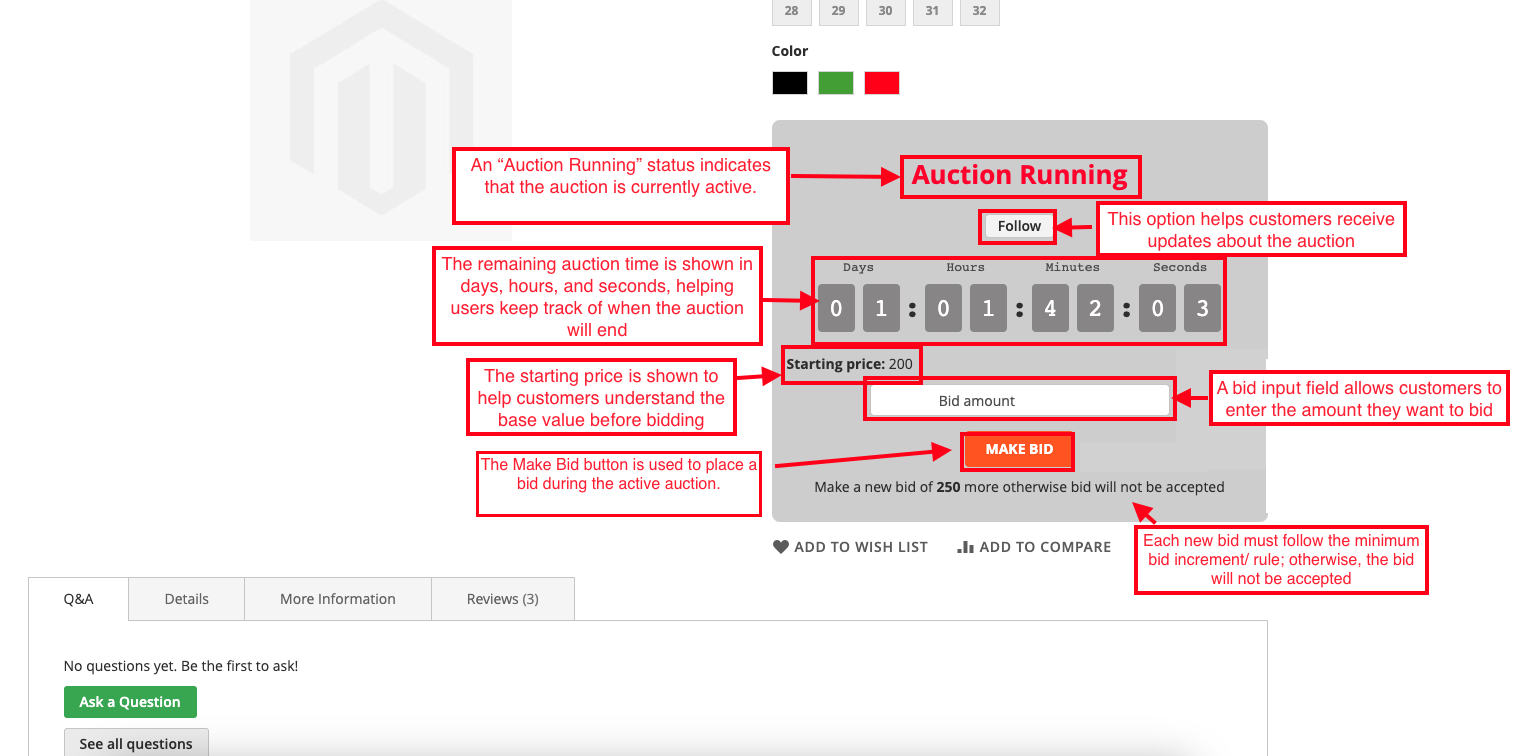
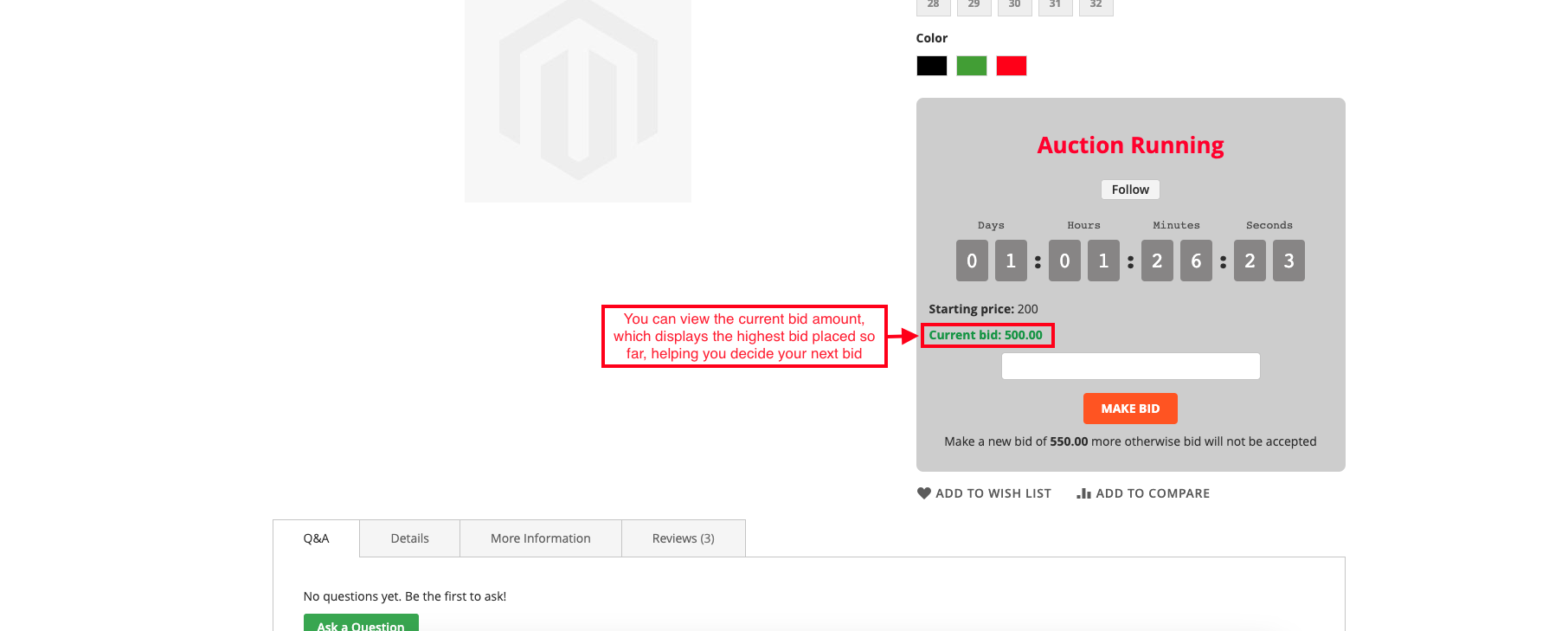
- Auction Status: An “Auction Running” status indicates that the auction is currently active.
- Follow: This option helps customers receive updates about the auction.
- Live Countdown Timer: The remaining auction time is shown in days, hours, and seconds, helping users keep track of when the auction will end.
- Starting Price: The starting price is shown to help customers understand the base value before bidding.
- Bid Amount Input: A bid input field allows customers to enter the amount they want to bid.
- Make Bid button: The Make Bid button is used to place a bid during the active auction.
- Minimum Bid Requirement: Each new bid must follow the minimum bid increment/ rule; otherwise, the bid will not be accepted.
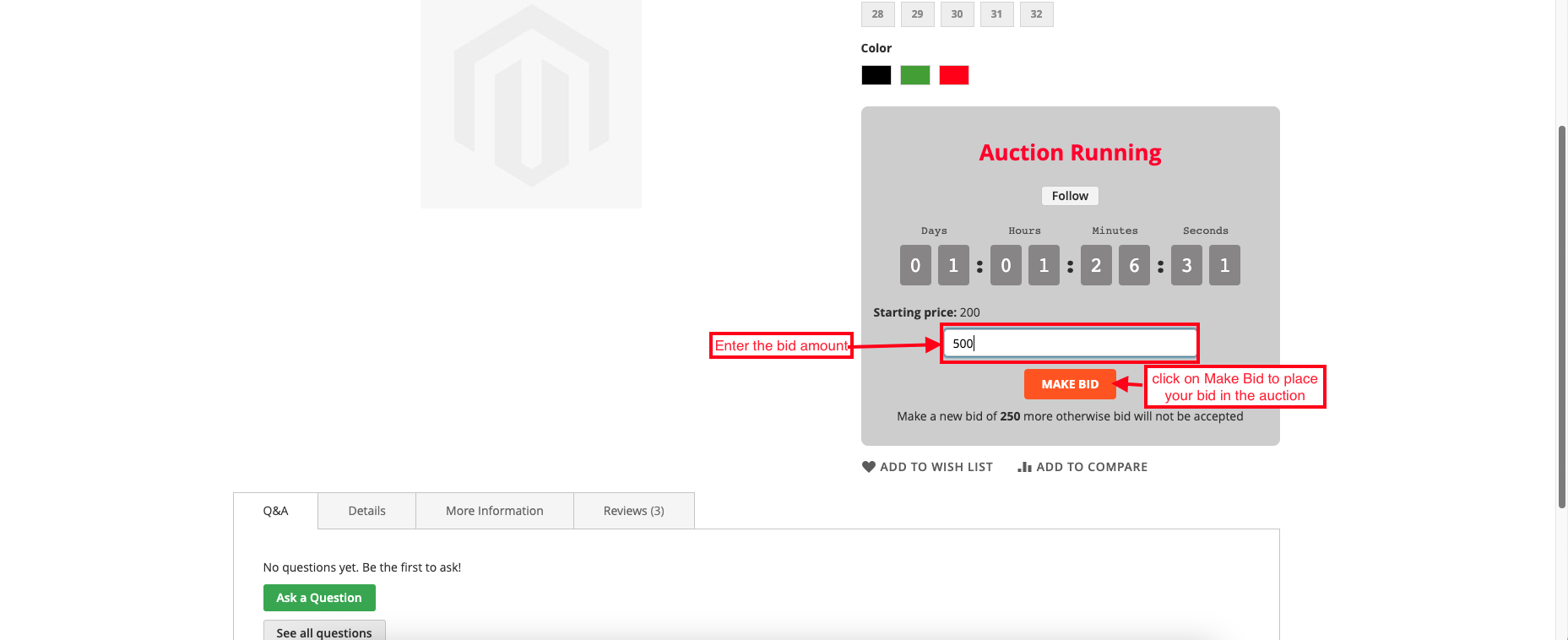
- Enter the bid amount and click on Make Bid to place your bid in the auction.
- You can view the current bid amount, which displays the highest bid placed so far, helping you decide your next bid.
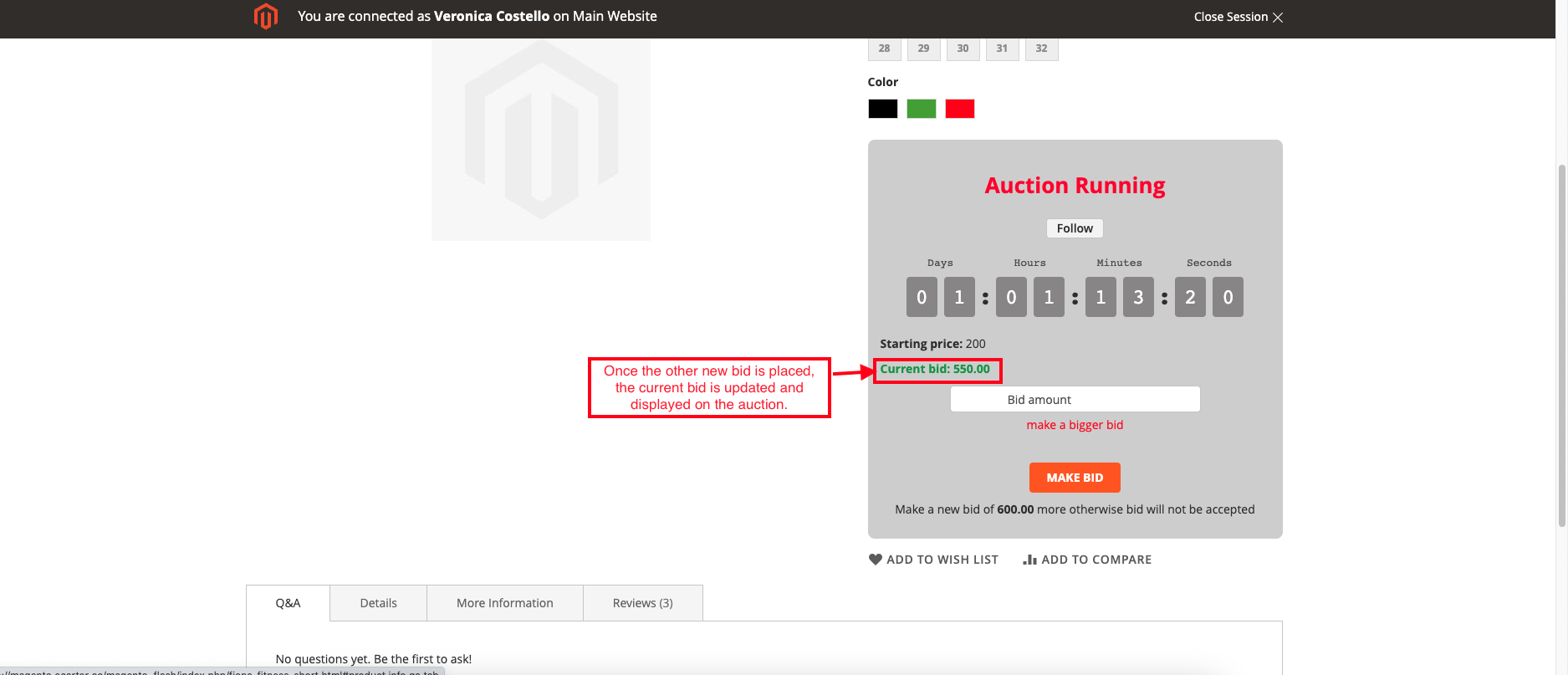
- Once the other new bid is placed, the current bid is updated and displayed on the auction.
- Selecting the auction winner setting as “Yes” will display the bid history tab and the auction winner.
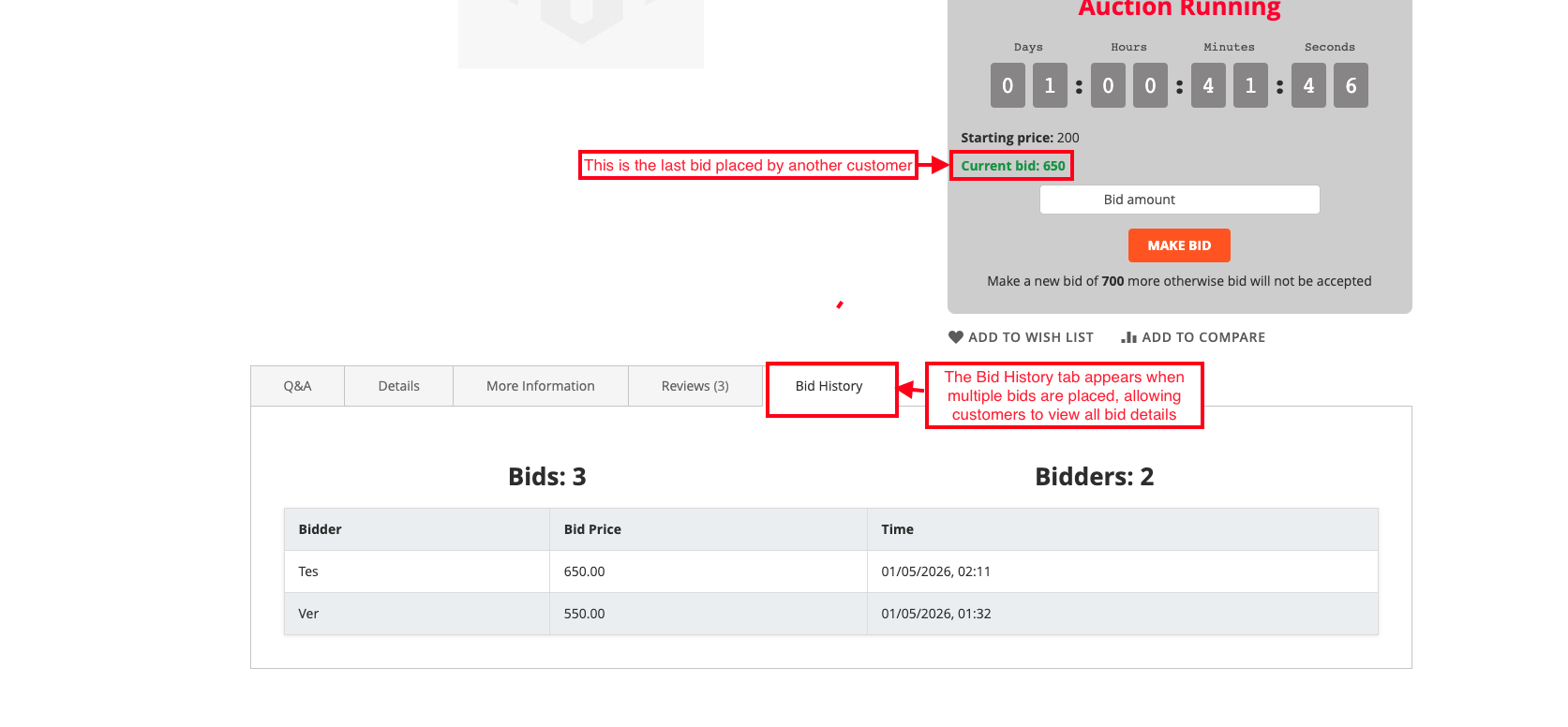
- This is the last bid placed by another customer.
- The Bid History tab appears when multiple bids are placed, allowing customers to view all bid details.
- Enable the buy now button to show on the auction.
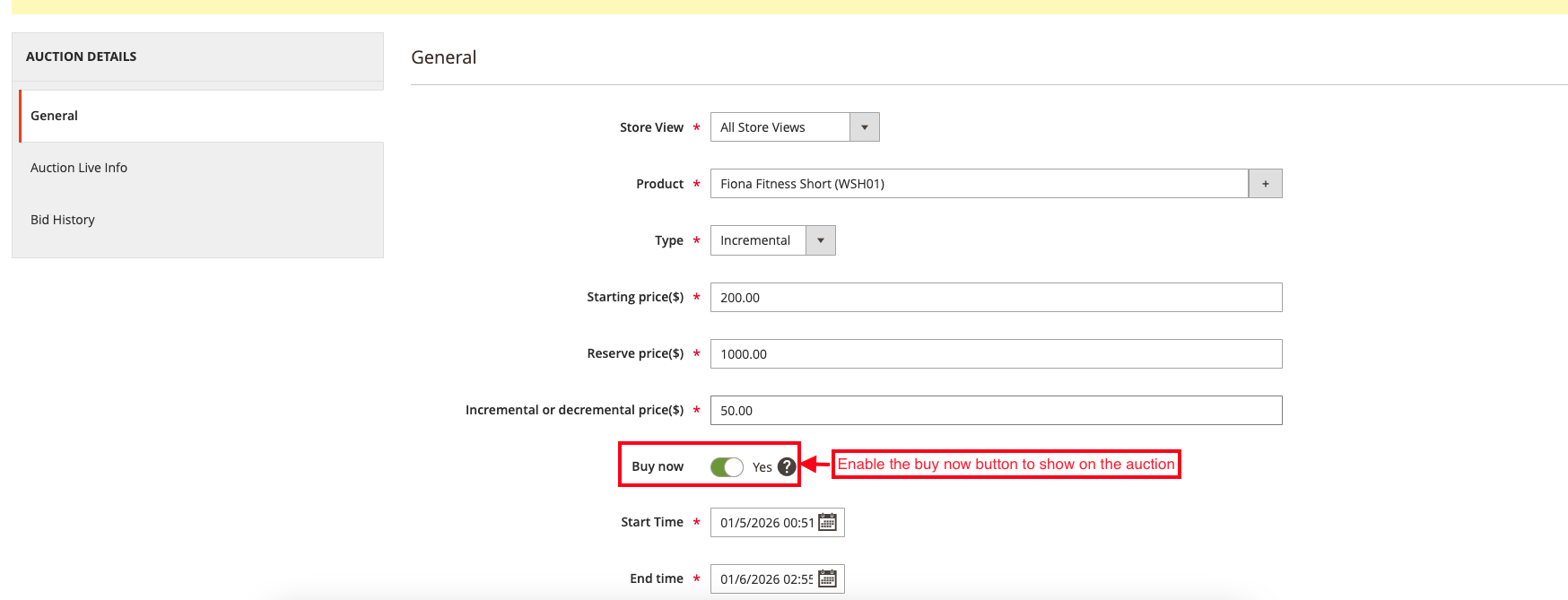
- Use the Buy Now button to purchase this product at the original price if you do not want to place a bid.

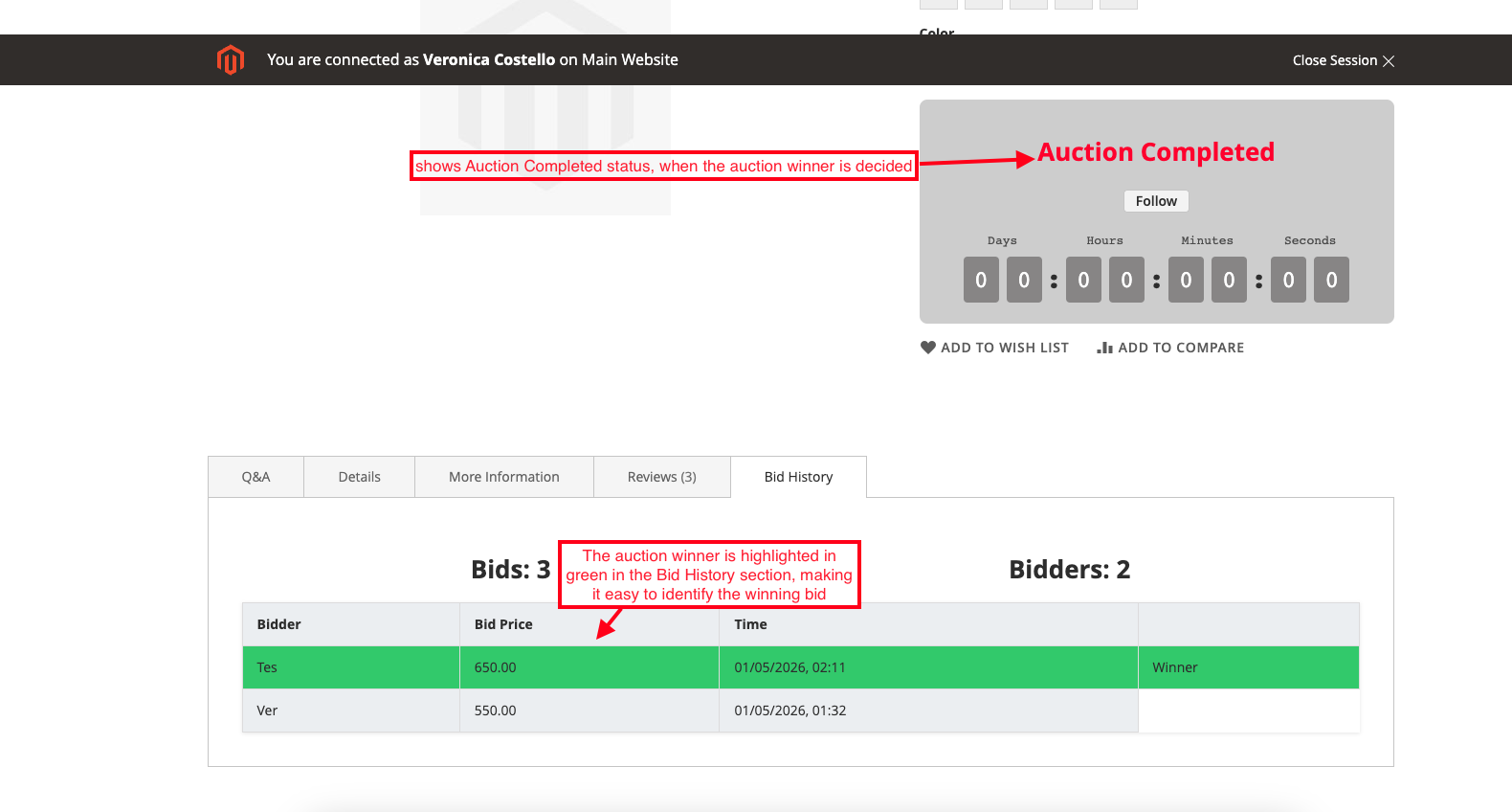
- When the auction time ends, the customer sees the auction status.
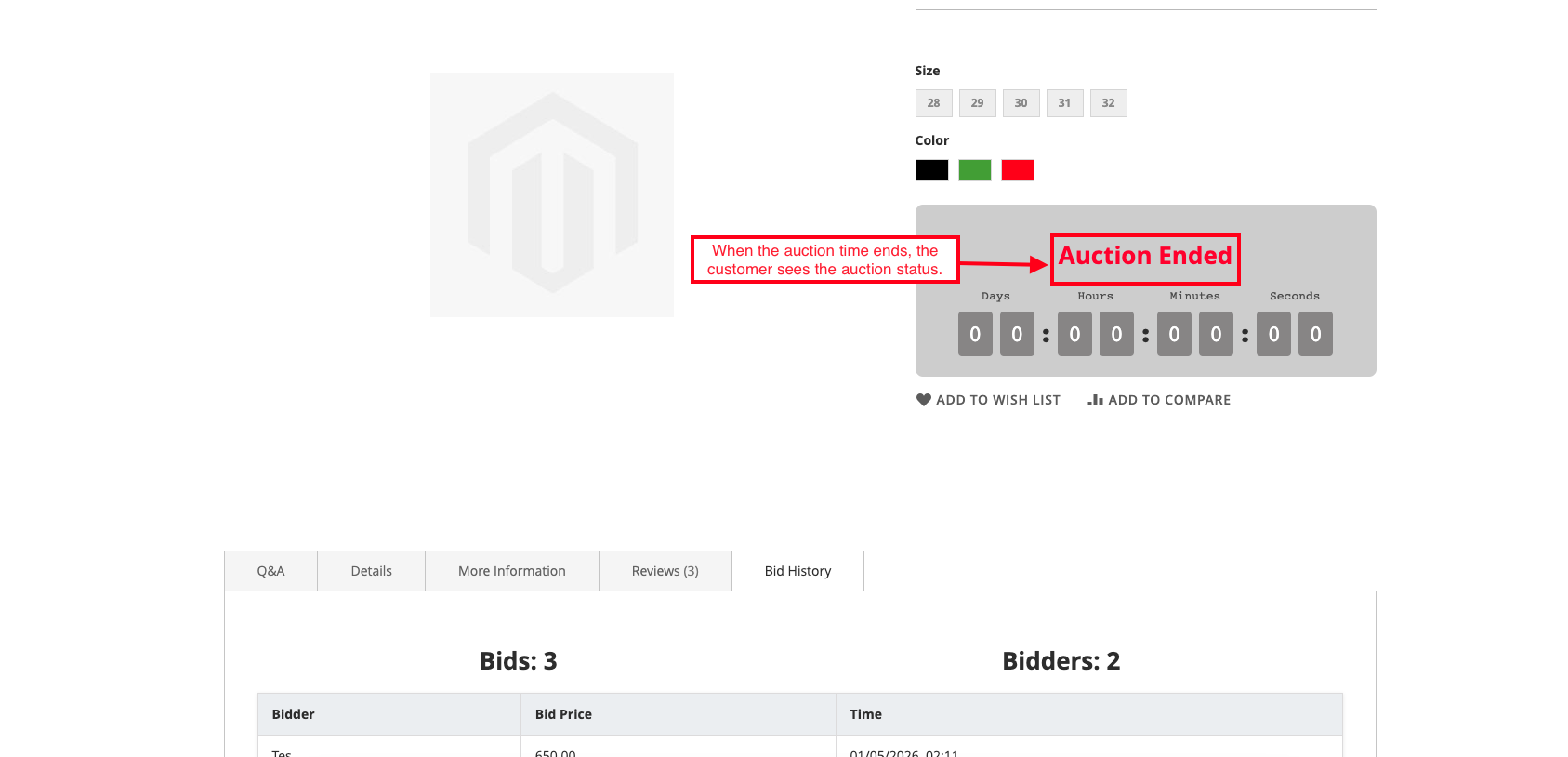
- Switch on the Bid History tab.
- Click on the Make Winner button to select that bidder as the auction winner in the admin panel.
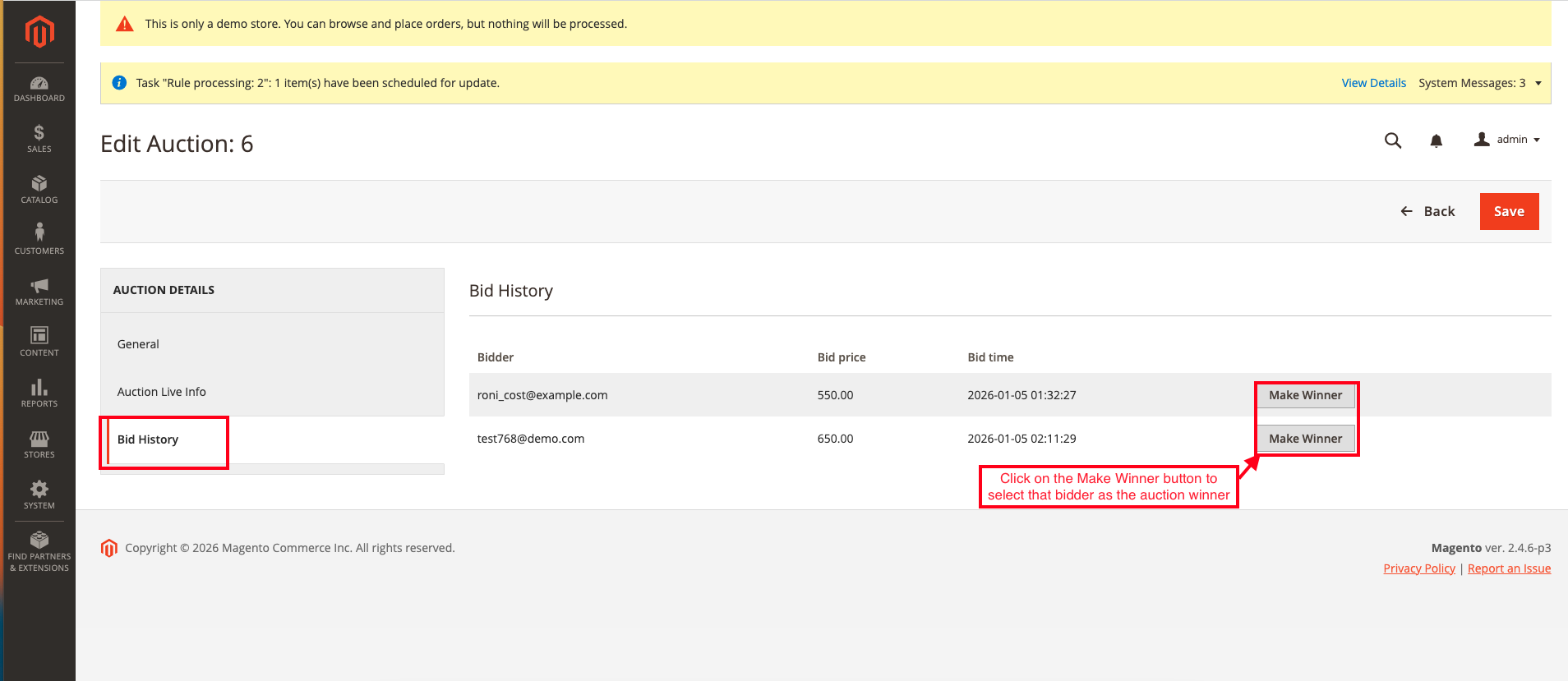
- The selected winner is marked with a green highlight, and the auction is also closed.
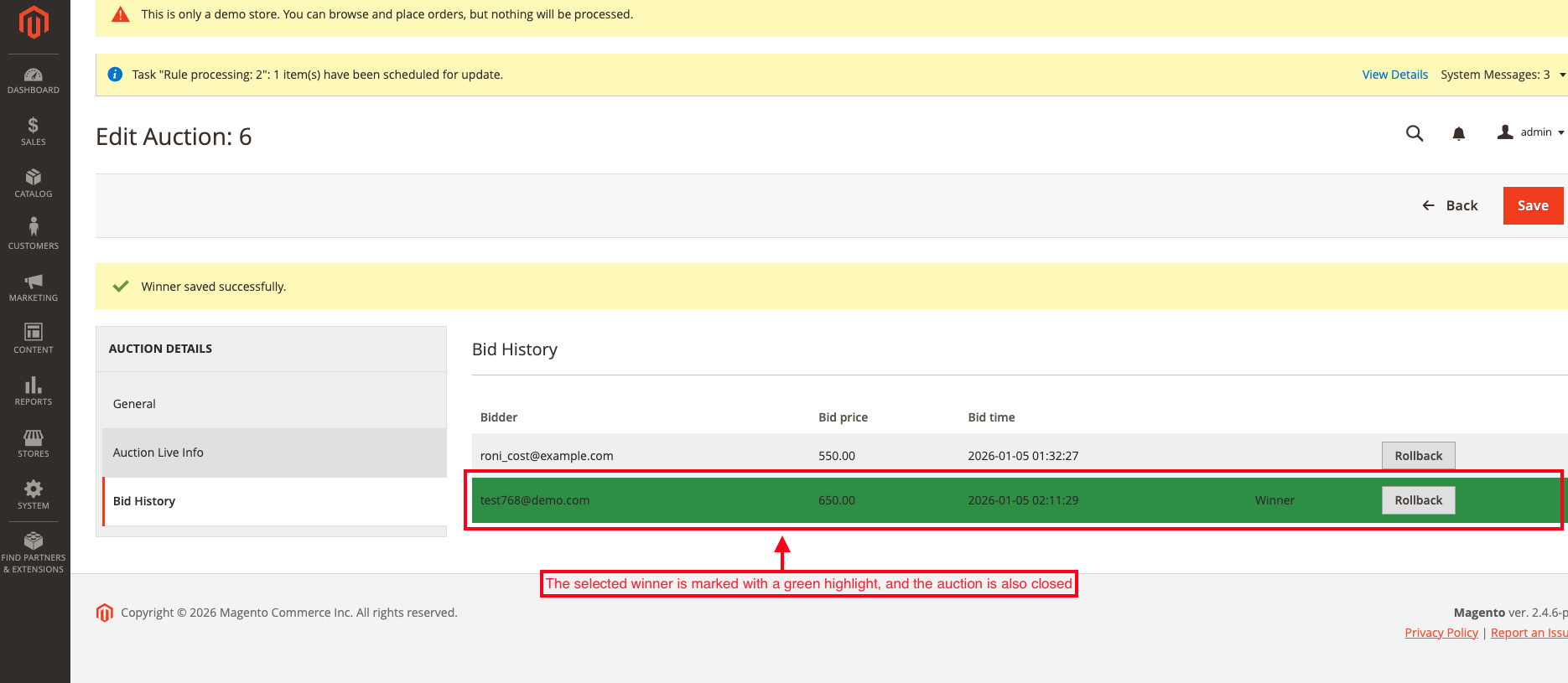
- The auction winner is highlighted in green in the Bid History section, making it easy to identify the winning bid after the auction is completed on the customer view.
Final Thought:
The Magento Auction extension adds an interactive and competitive bidding experience to your Magento store. It helps attract more customers, increase engagement, and boost sales through live auctions. With flexible auction settings and real-time bidding, store owners get full control. Customers enjoy transparency with bid history, timers, and instant notifications. Overall, it’s a smart solution to make your online store more dynamic and profitable.




Ecarter Support
Typically replies within a minute

© 2020 - 2026 Ecarter Technologies Pvt Ltd.