
Magento Product Attachment
%20-%202026-02-20T182251.901.png?1771827278111)
The Product Attachment extension for Magento allows admin to attach downloadable files to products directly from the admin panel and manage them with flexible configuration options. With this module, you can add document files, images, or other important product-related files and control how they appear on the product page.
The admin can configure display settings, set the block title, choose where attachments will appear (product tab, below Add to Cart, or both), manage customer group visibility, and assign icons to specific file types. It also offers different display formats like Table View and List View to match your store layout.
On the customer's view, customers can easily view and download the attached files based on the visibility settings, helping improve product information accessibility and enhancing the overall shopping experience.
Features:
Easy File Attachment: Attach downloadable files such as manuals, certificates, warranty documents, and images to specific products.
Enable / Disable Module: Easily enable or disable the product attachment feature from the configuration settings.
Custom Block Title: Set a custom title for the Product Attachment block and product tab.
Flexible Display Position: Choose where attachments will appear on the product page - Product Tab, Below Add to Cart, Both, or None.
Multiple View Options: Select how attachments are displayed using Table View or List View.
Customer Group Control: Restrict attachment visibility to specific customer groups such as General, Wholesale, Retailer, or Not Logged In users.
Show / Hide File Details: Option to show or hide file icon, file size, and file type on the customer view.
Manage File Type Icons: Upload and assign custom icons for specific file types like PDF, PNG, JPEG, etc.
Custom File Label: Add a custom file label that will be displayed as the clickable download name on the product page.
Individual Attachment Visibility: Enable or disable each attachment separately for better control.
Multiple Attachments per Product: Add and manage multiple attachments for a single product.
Direct Download Option: Customers can easily view and download attachments directly from the product page.
Working Process of this Module
Here, you will understand how the module functions after installation and how it works for both admins and customers.
Settings Configuration
These settings allow the admin to manage how product attachments are displayed on the product page. The admin can define the block title, choose the display position, control visibility for specific customer groups, and manage file type icons. This helps organize downloadable files and ensures they are shown to the right customers.
Store >> configuration >> Ecarter >> Attachment Details
General Configuration
Enable Product Attachment: If you select Yes, attachments will be displayed on the product page; if you select No, the attachment feature will be disabled.
Block Title (Store View): Sets the title of the attachment block and the product tab name.
- Show On: Controls where attachments appear on the product page (tab, below cart, both, or none).
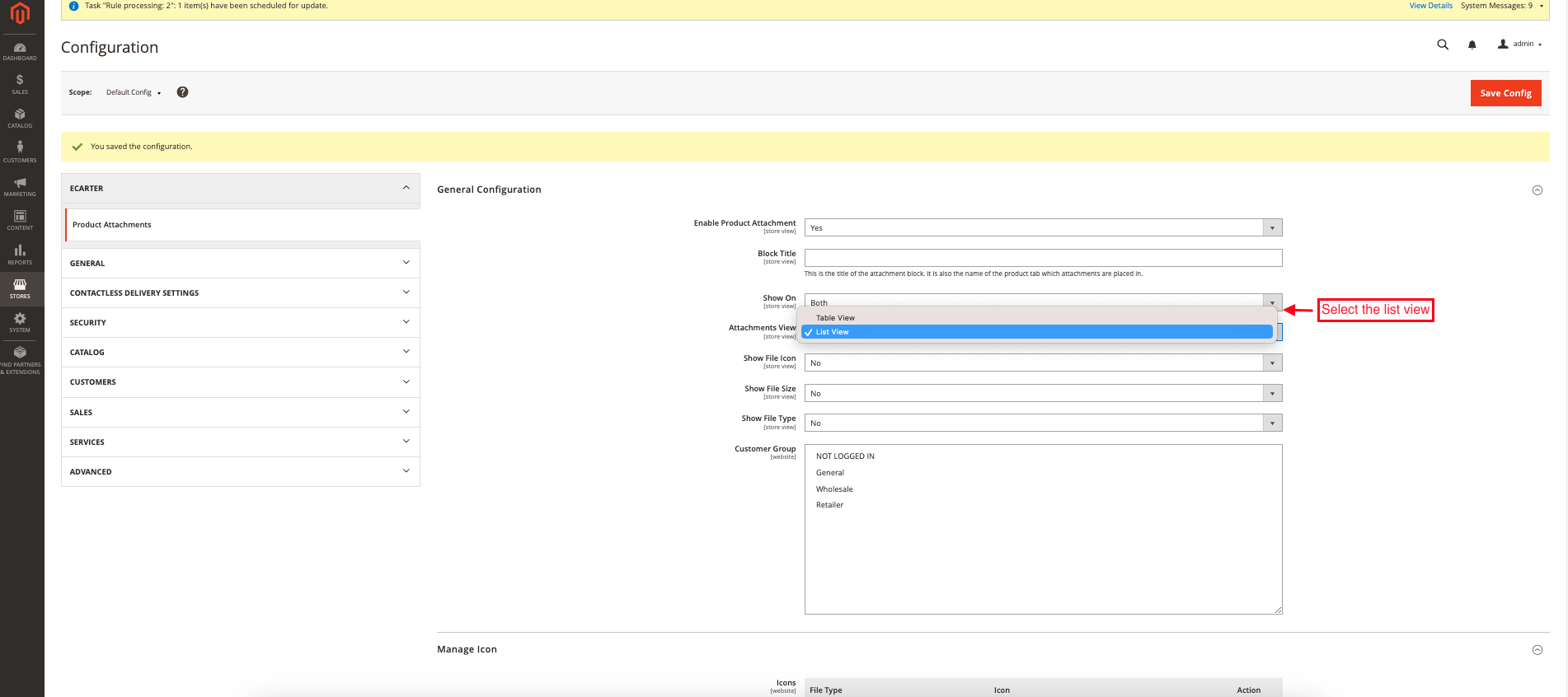
- Attachments View: This setting lets you choose how attachments are displayed on the product page (e.g., Table View, List View).
- Show File icon: If you select Yes, the file icon will be shown with each attachment; if you select No, the file icon will be hidden.
- Show File size: If you select Yes, the file size will be visible to customers; if you select No, the file size will not be displayed.
- Show File Type: If you select Yes, the file format will be shown; if you select No, the file format will be hidden.
- Customer Group: Determines which customer groups can view the attachments.
- Manage icon: Let's you add a new file type icon.
- Click on the Save button.

How to Create Attachment
- Catalog >> Product Attachments.
- Tap on the Add New Attachment button.

- Select any product and click on the add attachment button.

- Product Name: Displays the selected product to which the file will be attached.
- File: Click the Upload button to add a file from your system.
- Customer Group: Select the customer groups who can access this file (All, Not Logged In, General, Wholesale, Retailer). Only selected groups will be able to view/download the attachment.
- Is Visible: if you enable this option, the attachment will be visible on the product page. If disabled, the file will not appear on the front end.
Storefront Display Name
- File label: Enter the name that will be displayed on the customer view. This is the clickable title customers will see for downloading the file.

- View the complete list of added attachments along with their details, such as file label, type, size, status, and update information.

- Switch on the Files tab.
- File icon: Shows the file type icon (such as PNG, JPG, PDF) for easy identification.
- Customer Groups: Indicates which customer group the file is assigned to.
- File Name: Shows the name of the uploaded attachment.
- Number of Downloads: Displays how many times the file has been downloaded.
- Product Name: Shows the product to which the file is attached.
- Visibility Status: Indicates whether the file is visible (Yes) or hidden (No) on the frontend.
- Actions: Provides the Edit option to modify file details anytime.

Customer View
- The Product Attachments tab displays downloadable files related to the product, showing the file label, type, size, and a download option for customers.

Show on
- If you select Both, the product attachments will be displayed in the Product Page Tab as well as below the Add to Cart button on the product page.

- The attachments are displayed both below the Add to Cart button and inside the Product Attachments tab, where customers can view the icon, label, type, size, and download the file.

Manage icon
- Admin can upload icons for specific file types, and the uploaded file name must exactly match the file type name to work properly.

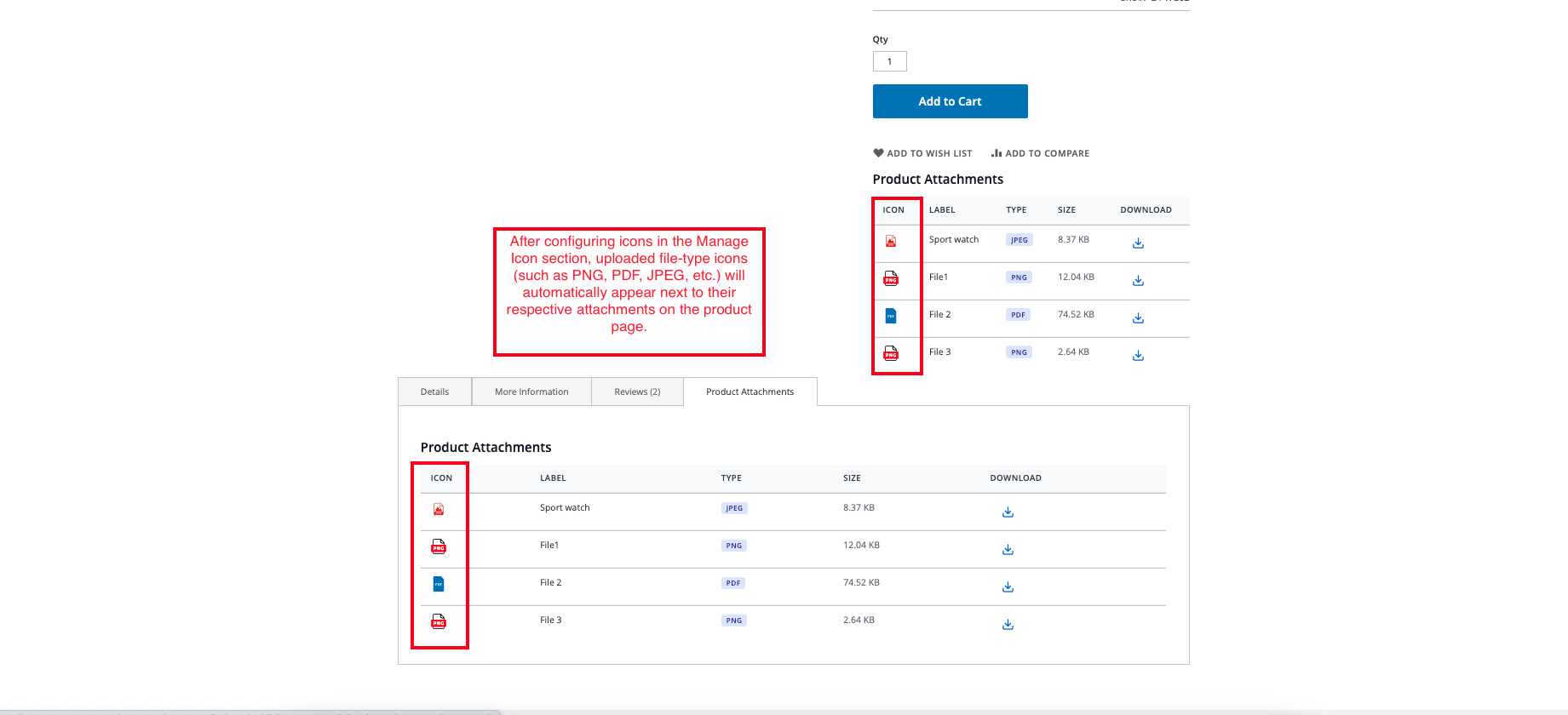
- Icons: After configuring icons in the Manage Icon section, uploaded file-type icons (such as PNG, PDF, JPEG, etc.) will automatically appear next to their respective attachments on the product page.
Attachments View
- Select the List view.
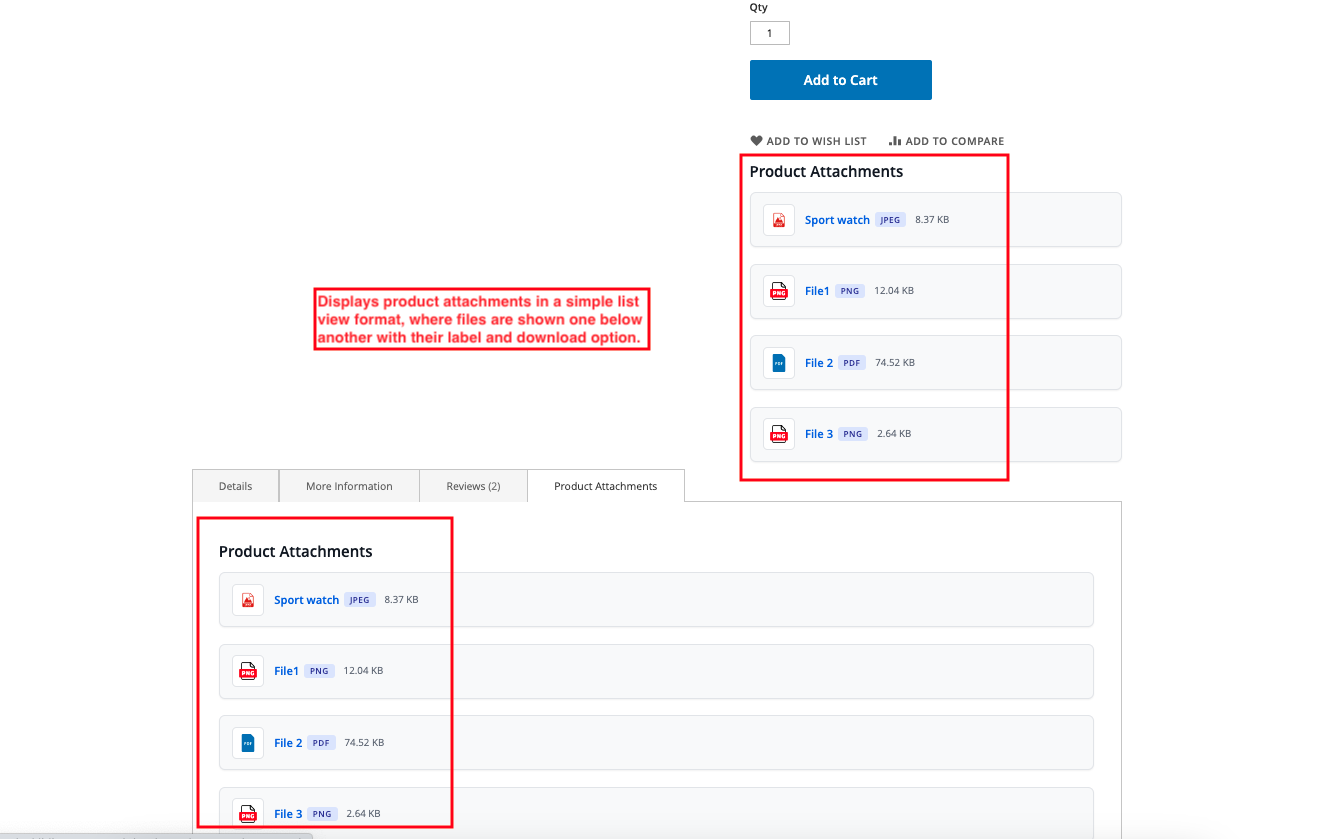
- Displays product attachments in a simple list view format, where files are shown one below another with their label and download option.
Final Thought:
The Product Attachment feature enhances the product page by organizing important files with proper icons and clear details, making it easier for customers to identify and download the required documents.




Ecarter Support
Typically replies within a minute

© 2020 - 2026 Ecarter Technologies Pvt Ltd.