
Magento Product Questions & Answers
The Product Questions & Answers extension for Magento provides a simple way to manage product-related queries on the store. Customers ask questions directly from the product page through the Q&A tab. They submit questions, reply to existing ones, and vote on helpful questions. The system also supports guest users and offers an option to restrict questions to customers who have placed an order.
The admin manages all questions and answers from a dedicated backend section. Each submission requires approval before it appears on the product page. The admin updates the status, edits or deletes content, and adds new questions or answers manually. Settings control the number of questions and replies per page, default status, and email notifications for both admin and customers. Role-based access ensures proper control over Product Q&A management.
Features
- Set Questions Per Page: Control how many questions appear on a product page at a time for better layout.
- Set Replies Per Question: Limit the number of visible answers for each question on the product page.
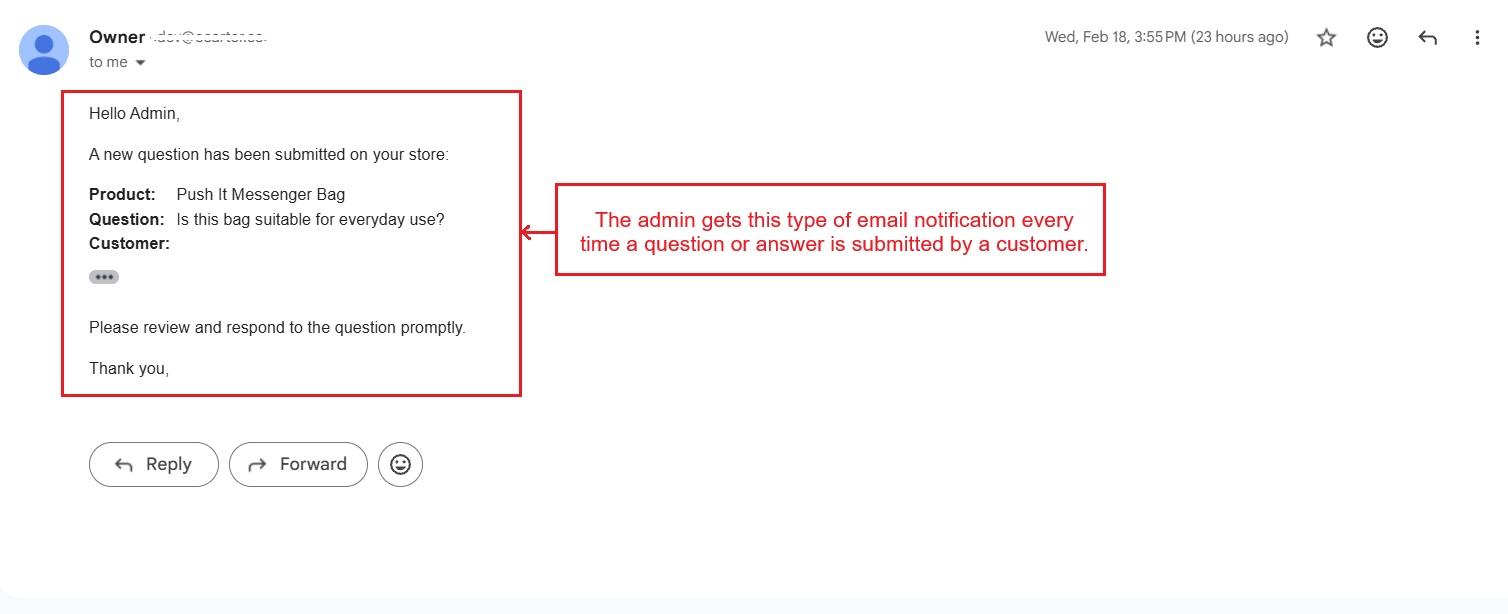
- Admin Email Notifications: Receive instant email alerts whenever a customer asks a question.
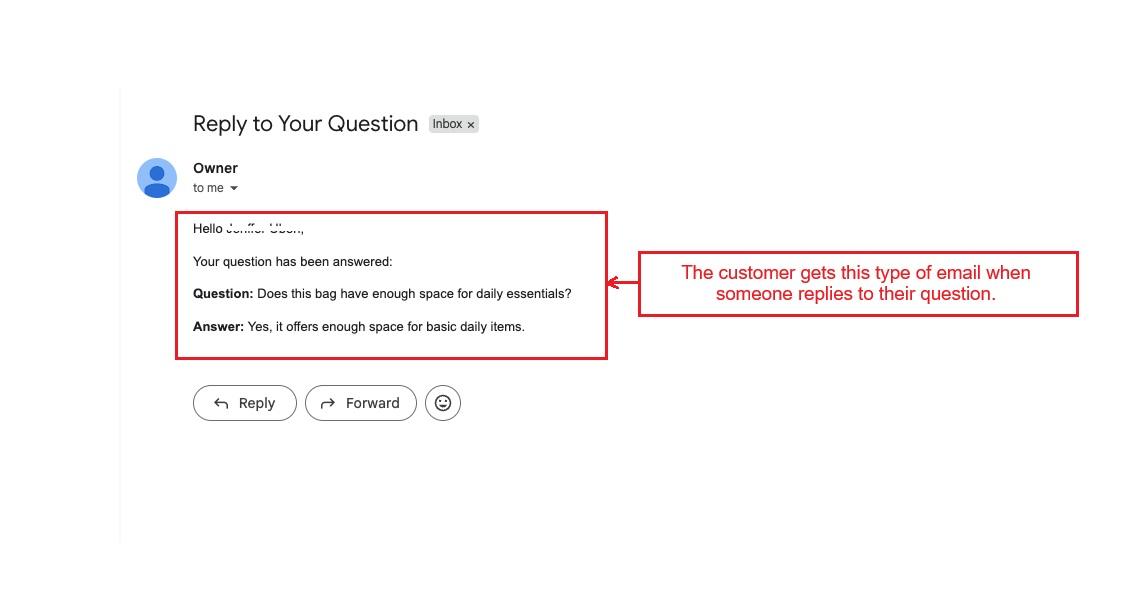
- Customer Reply Notifications: Automatically notify customers when someone replies to their question.
- Guest User Support: Allow visitors to ask questions or reply without logging in.
- Default Question Status: Set the status of new questions as Pending, Approved, or Rejected to manage content effectively.
- Order-Based Question Submission: Restrict question submission to customers who have made at least one purchase.
- Easy Question Submission: Customers can submit questions directly from the product page using the “Ask a Question” button.
- Admin Approval for Questions & Answers: All questions and replies require admin approval before appearing on the product page.
- Upvote & Downvote Support: Users can vote on questions they find helpful or interesting.
- Add or Edit Questions/Answers: Admins can create, edit, or delete questions and answers from the backend.
- Role-Based Access Control: Enable Product Q&A for specific user roles by adjusting role resources in the system.
Overview of the Module
This section covers the backend settings and storefront process of the Product Q&A module.
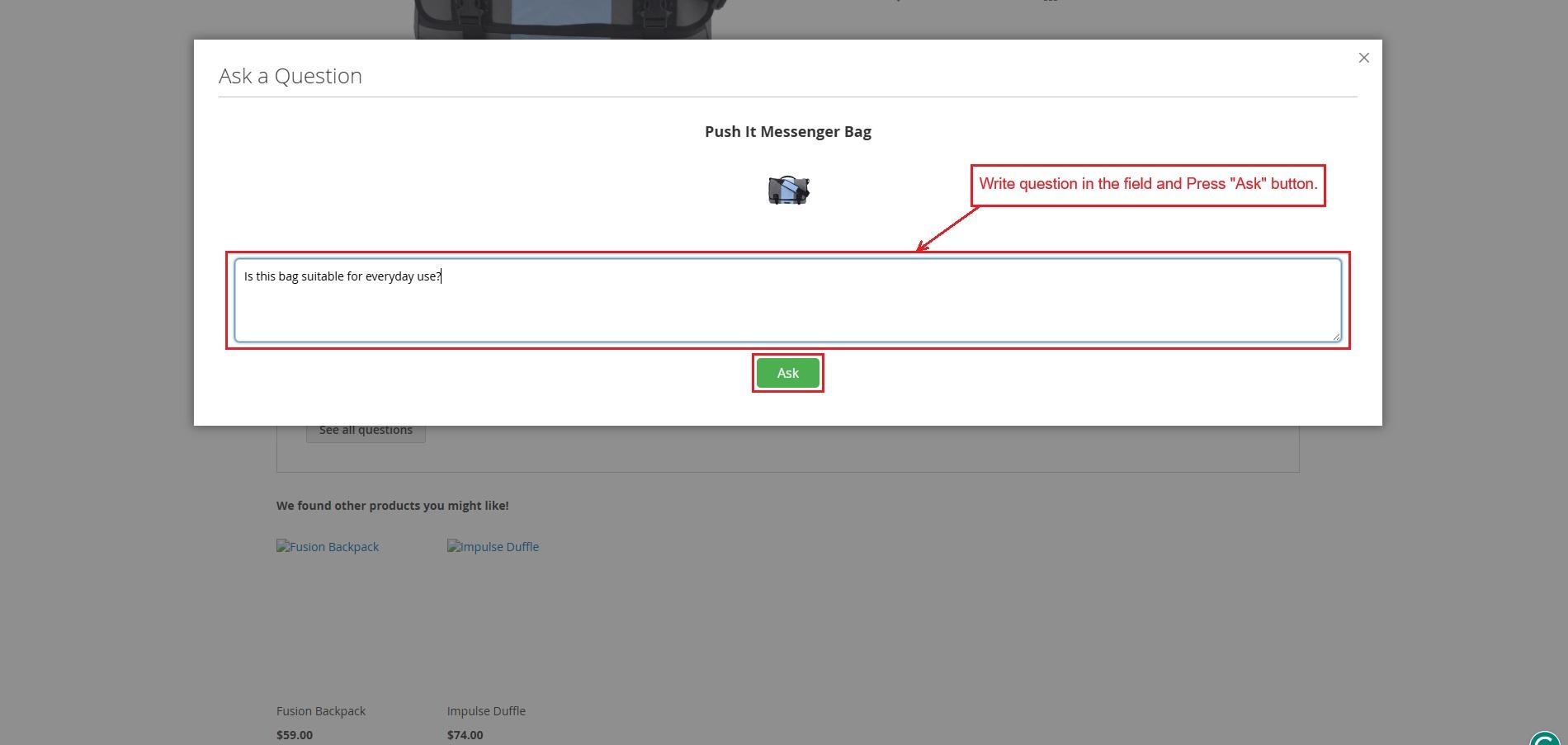
- Items per page (Index page): Set the number of questions to show on the product page at once.
- Replies per question (Index page): Set the maximum number of replies visible for each question.
- Admin Email for Notifications: Enter the admin email address to receive notifications when a customer submits a question.
- Notify Admin by Email When Customer Asks a Question: Select Yes to send an email to the admin every time a customer submits a question.
- Email Template for Admin Notification: Choose the email template used to notify the admin about new questions.
- Send Email to Customer When a Reply is Given: Select Yes to notify the customer via email when someone replies to their question.
- Email Template for Customer Notification: Choose the email template used to send reply notifications to customers.
- Allow Guest Users to Ask Questions: Select Yes to let non-logged-in users submit questions.
- Allow Guest Users to Reply: Select Yes to let non-logged-in users reply to questions.
- Default Status of Question: Set the default status for newly submitted questions (e.g., Pending, Approved).
- Allow Customers to Ask Questions Only After Placing an Order: Select Yes to allow question submission only from customers who have made at least one order.
At the end, press “Save Config”.
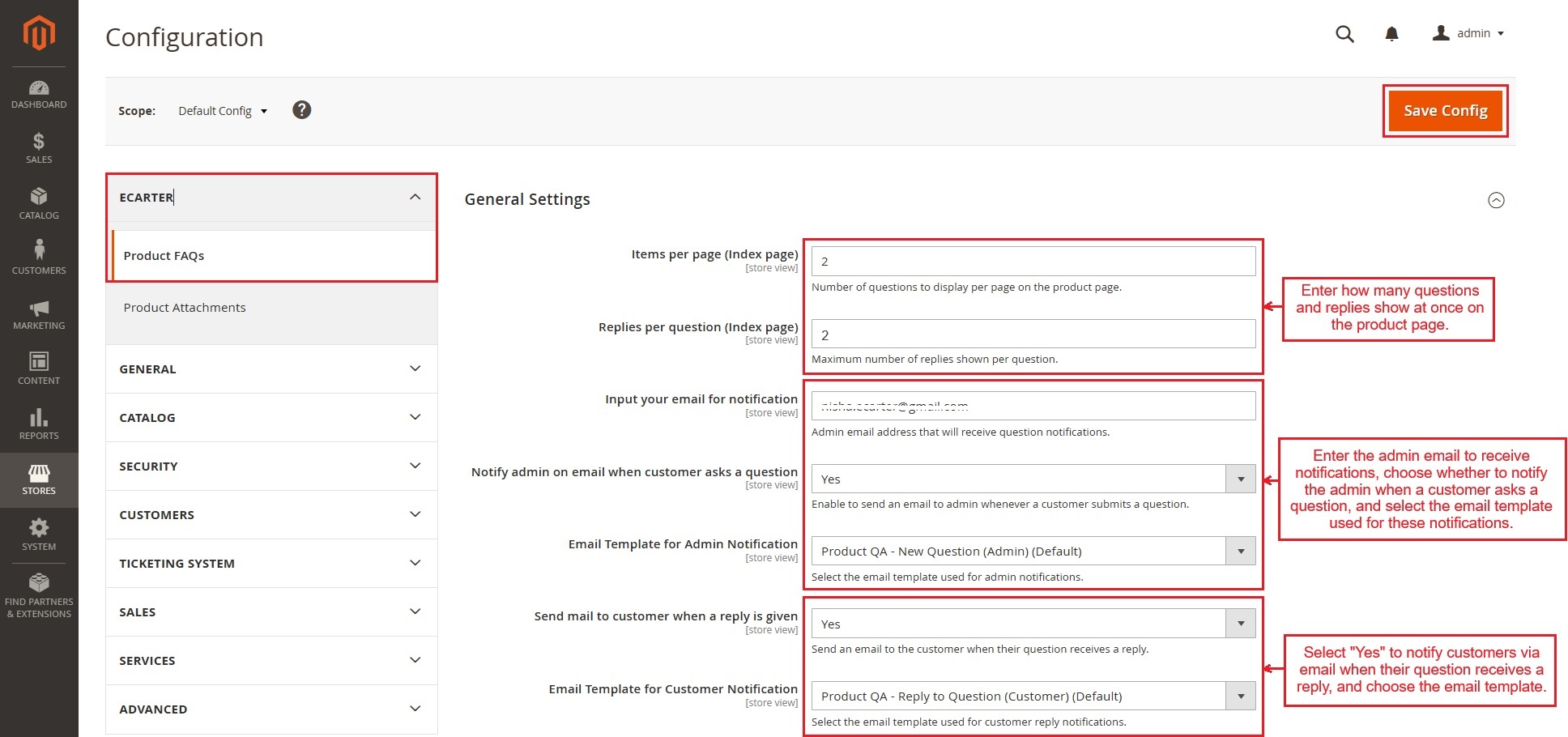

Customer Question Submission on the Storefront
- When a customer opens a product, the page shows this Q&A tab with “Ask a Question” and “See All Questions” options.
- Press the Ask a Question button.
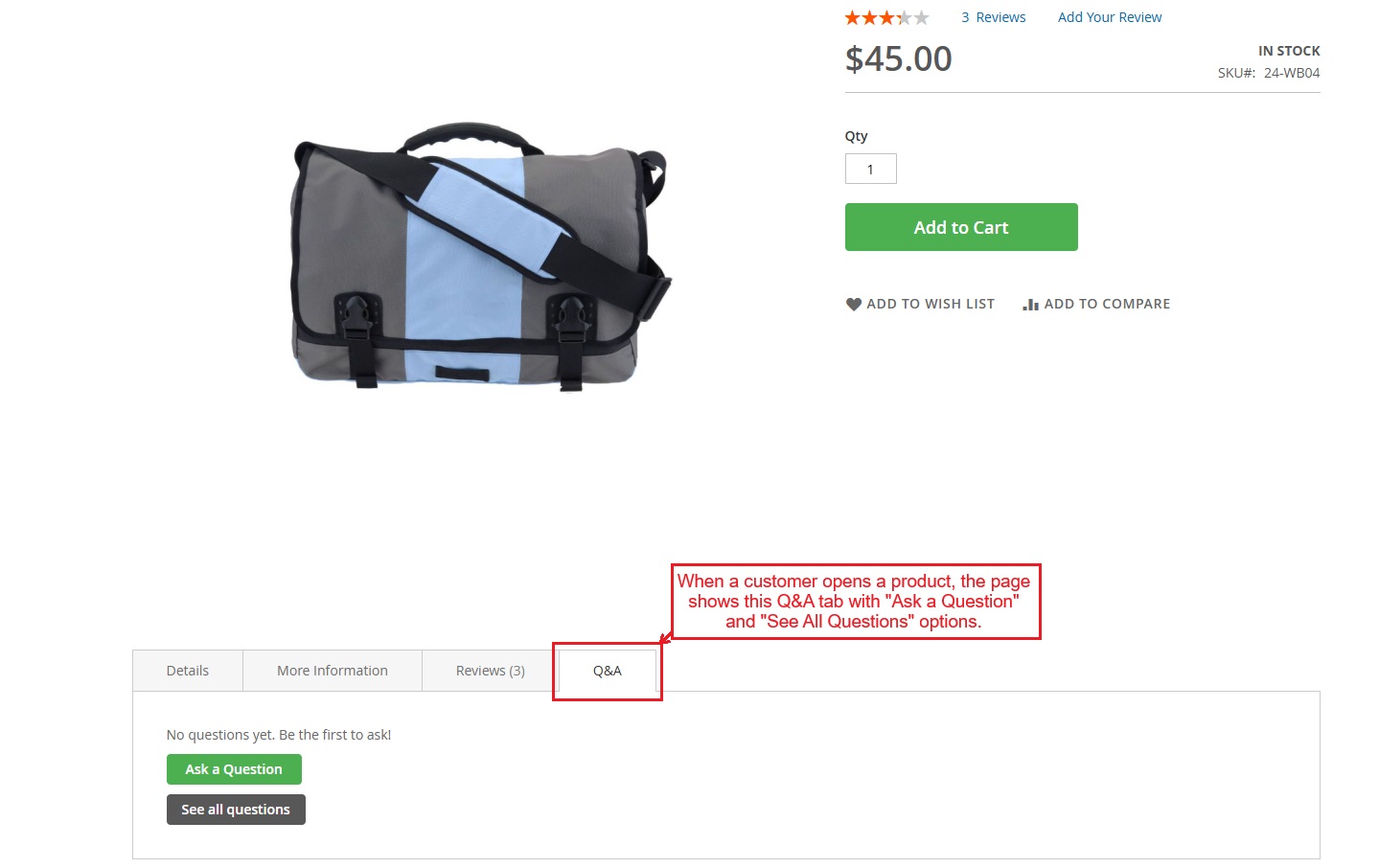
- Then, write a question in the field and Press “Ask” button.
Now, the admin needs to approve the question to show it on the product page.
- Go to the Catalog and open the Product Questions & Answers option.
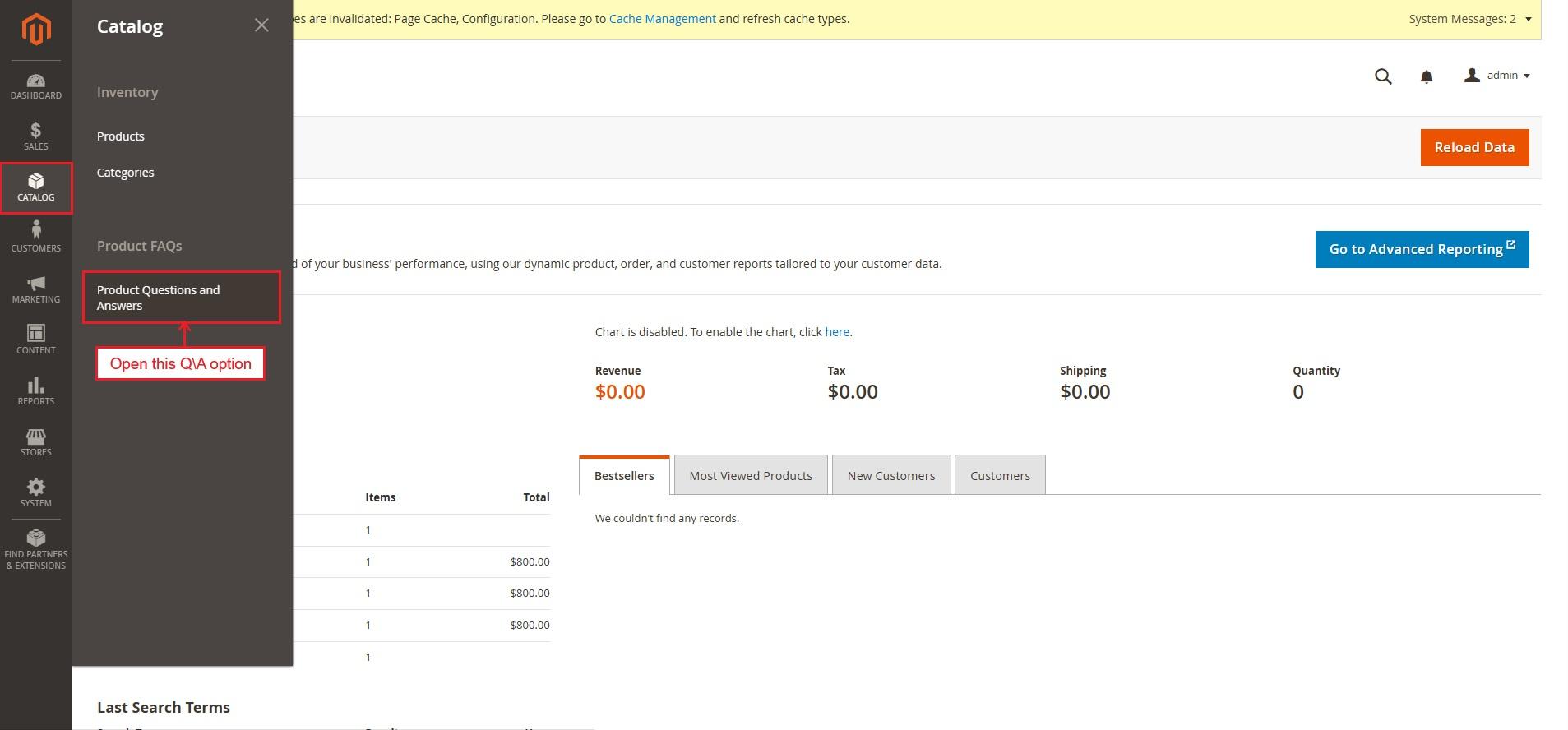
The page shows all questions submitted by customers along with product ID, Status, customers’ votes, and date of creation.
- Tap any detail of this product, and it will allow updating the status.
- Then, select the status to update the question status and press “Save”.
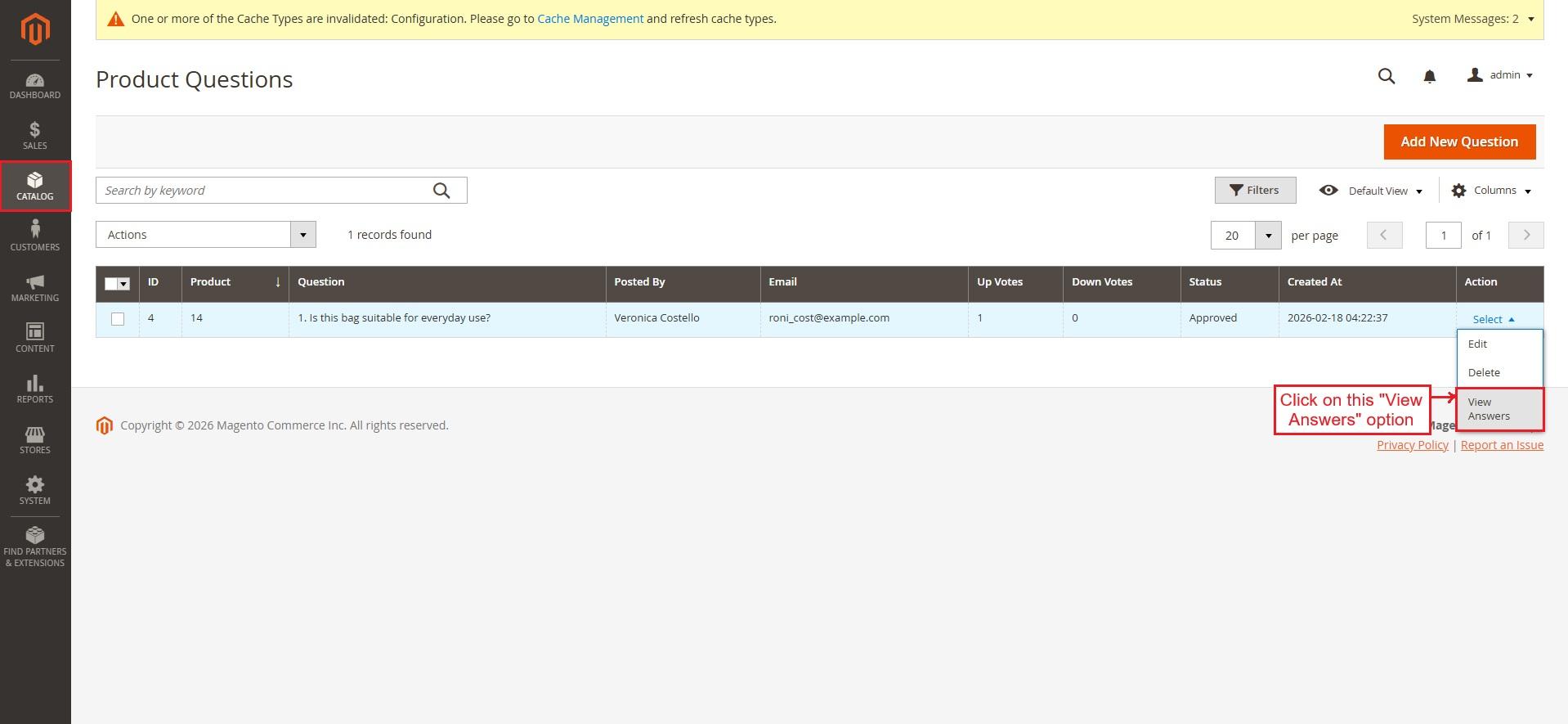
- In action, the admin can select one of these (Edit, Delete, and View Answers) options to take action on the question.
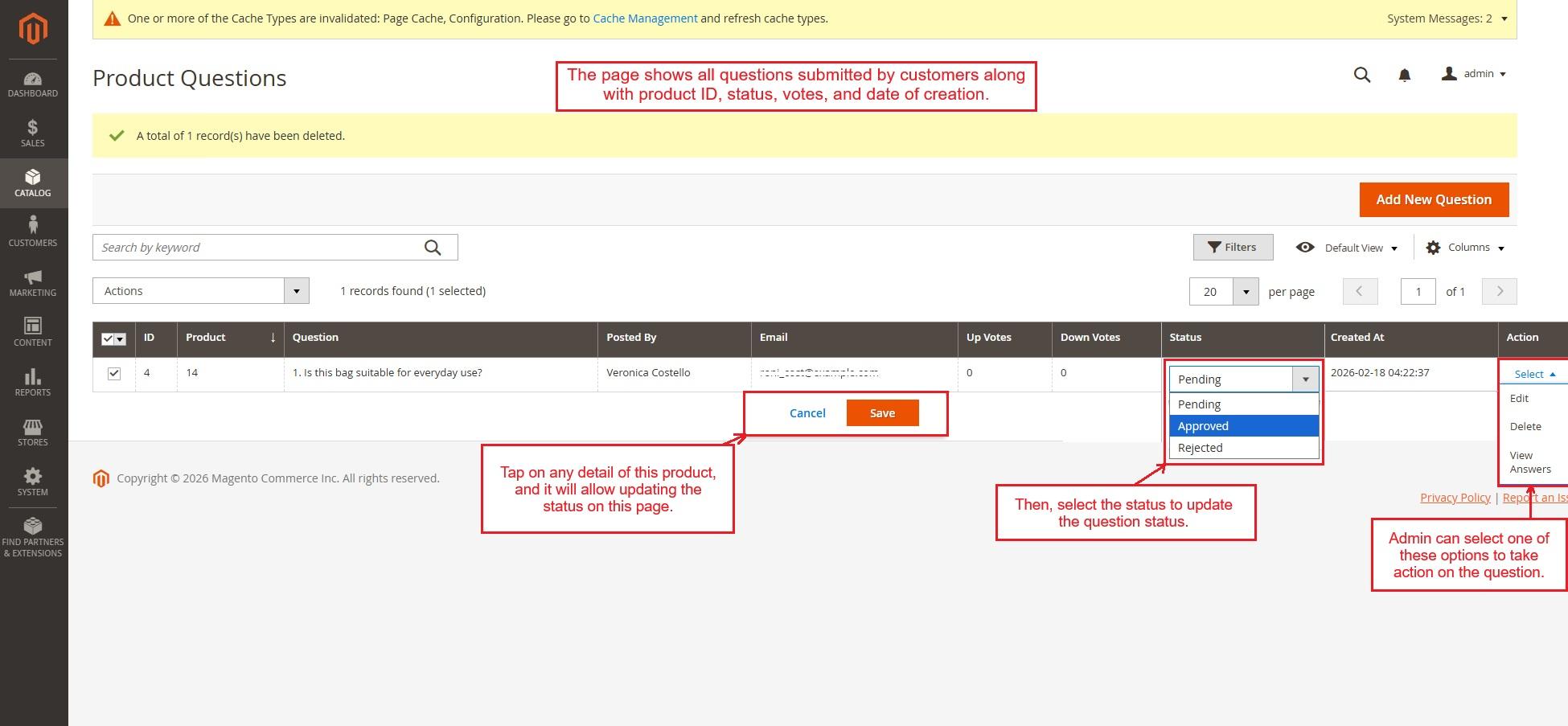
- The “Edit” option allows editing the question and its status.
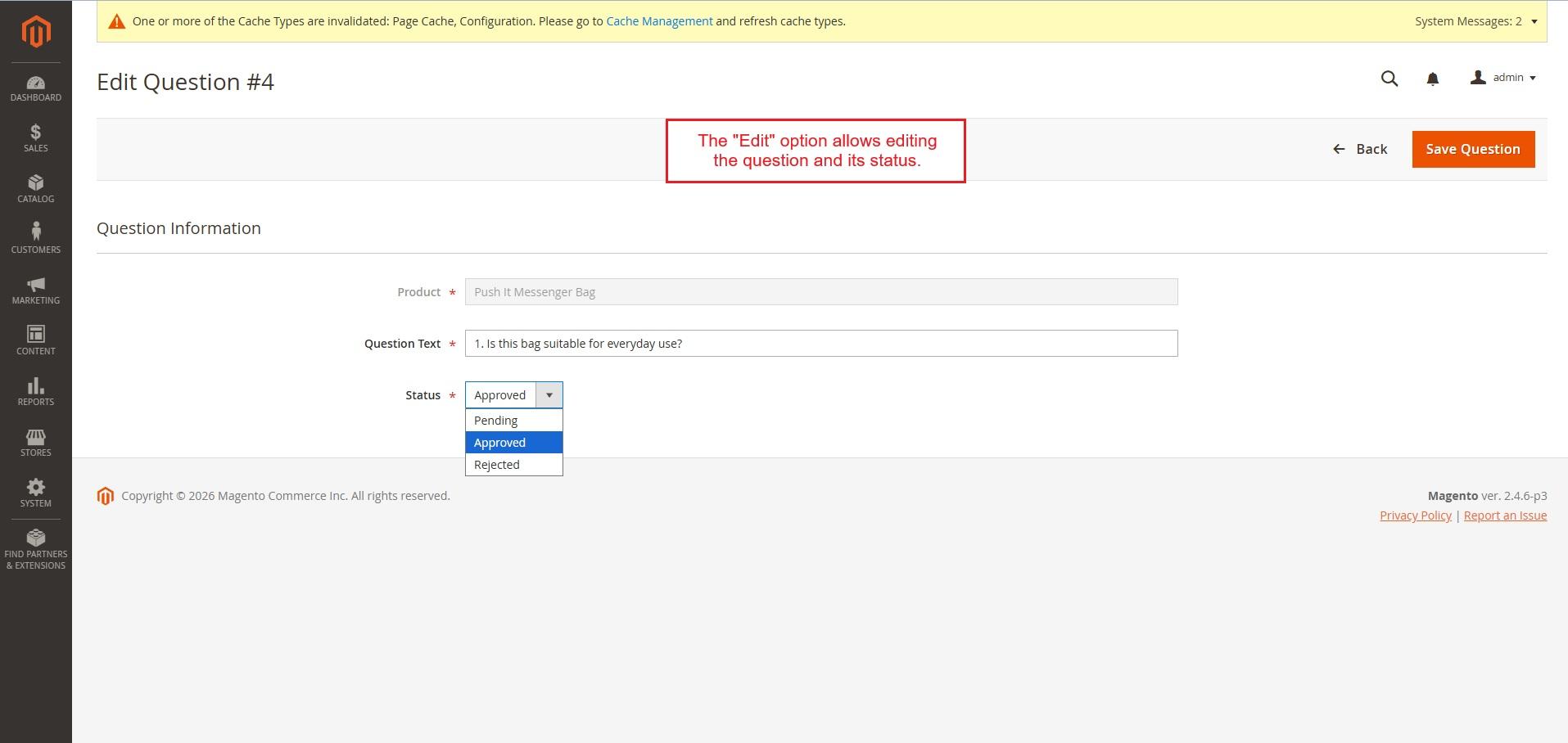
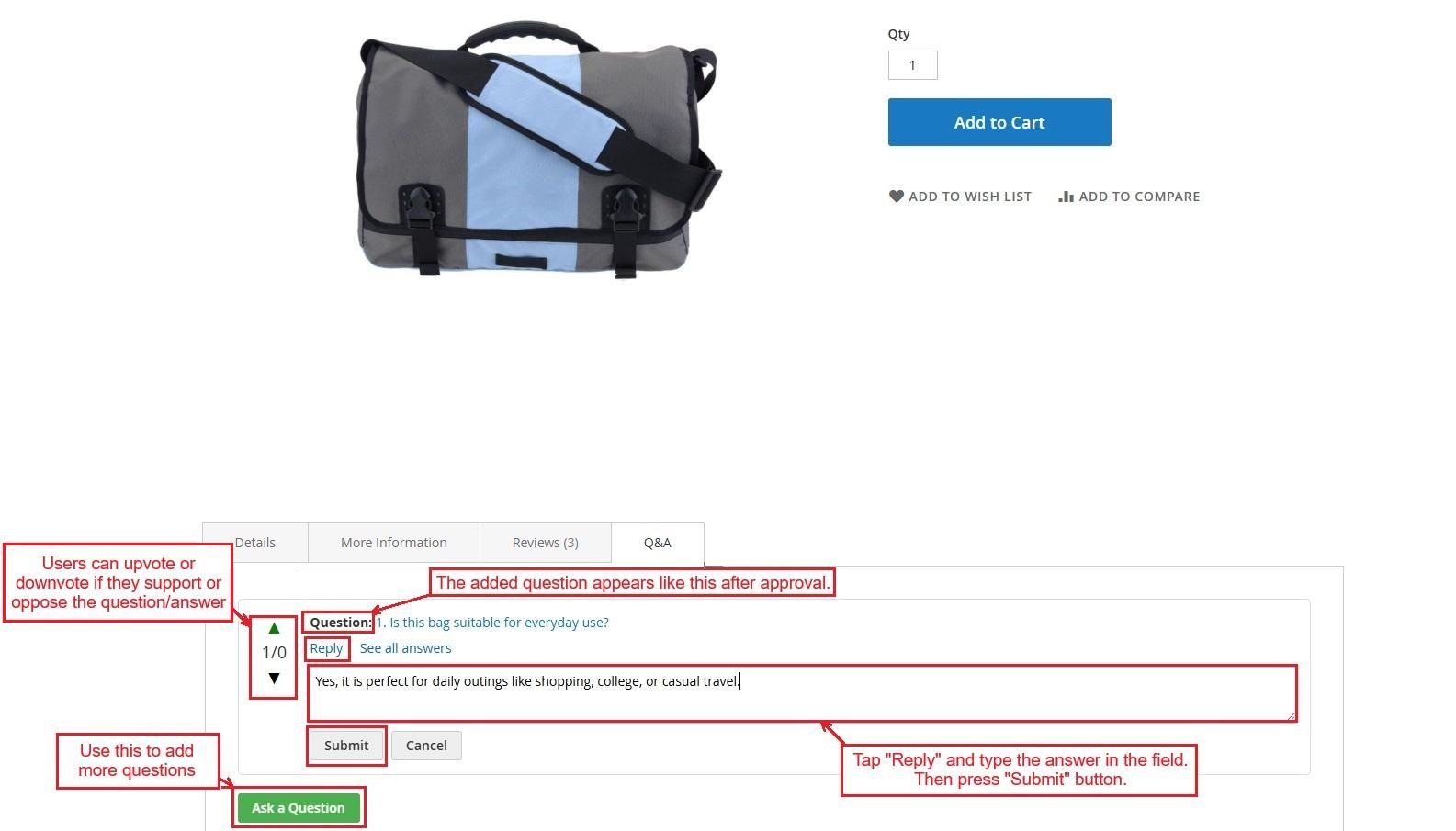
- After approval, the added question appears on this product page.
- Using the arrows, users can upvote or downvote a question to show whether they support or oppose it.
- The Reply option allows customers to answer a question. Click “Reply,” enter the answer in the field, and press “Submit.”
- The notification appears each time a customer submits an answer.
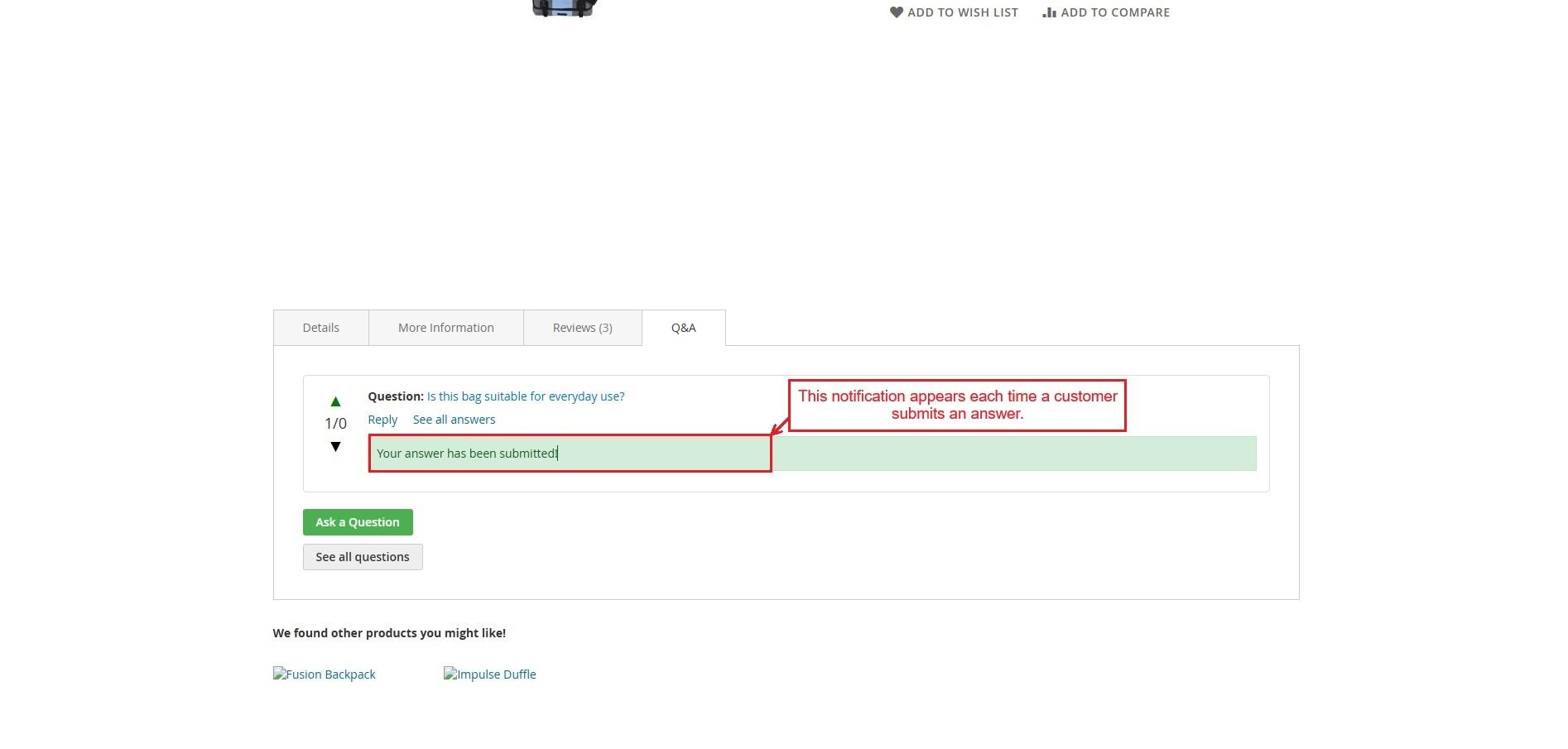
- Now, the answer also requires approval from the admin.
- Go to the catalog menu, and open product questions and answers option.
- Then, press “Select” and open “View Answers”.
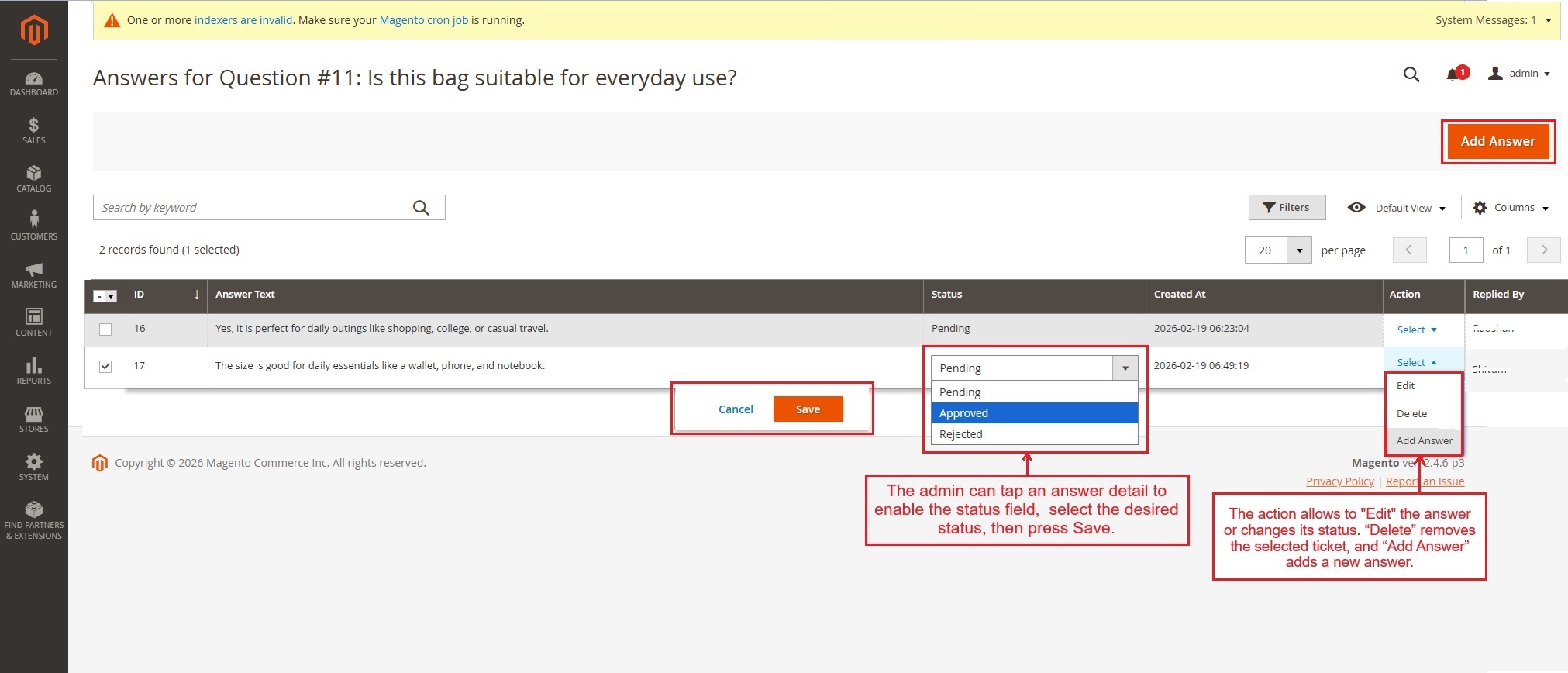
- This page shows the list of answers for this question. The admin can tap any answer detail to enable the status field, select the desired status, and press Save.
- The “Select” in action option allows to "Edit" the answer or change its status. “Delete” removes the selected answer, and “Add Answer” allows to add a new answer.
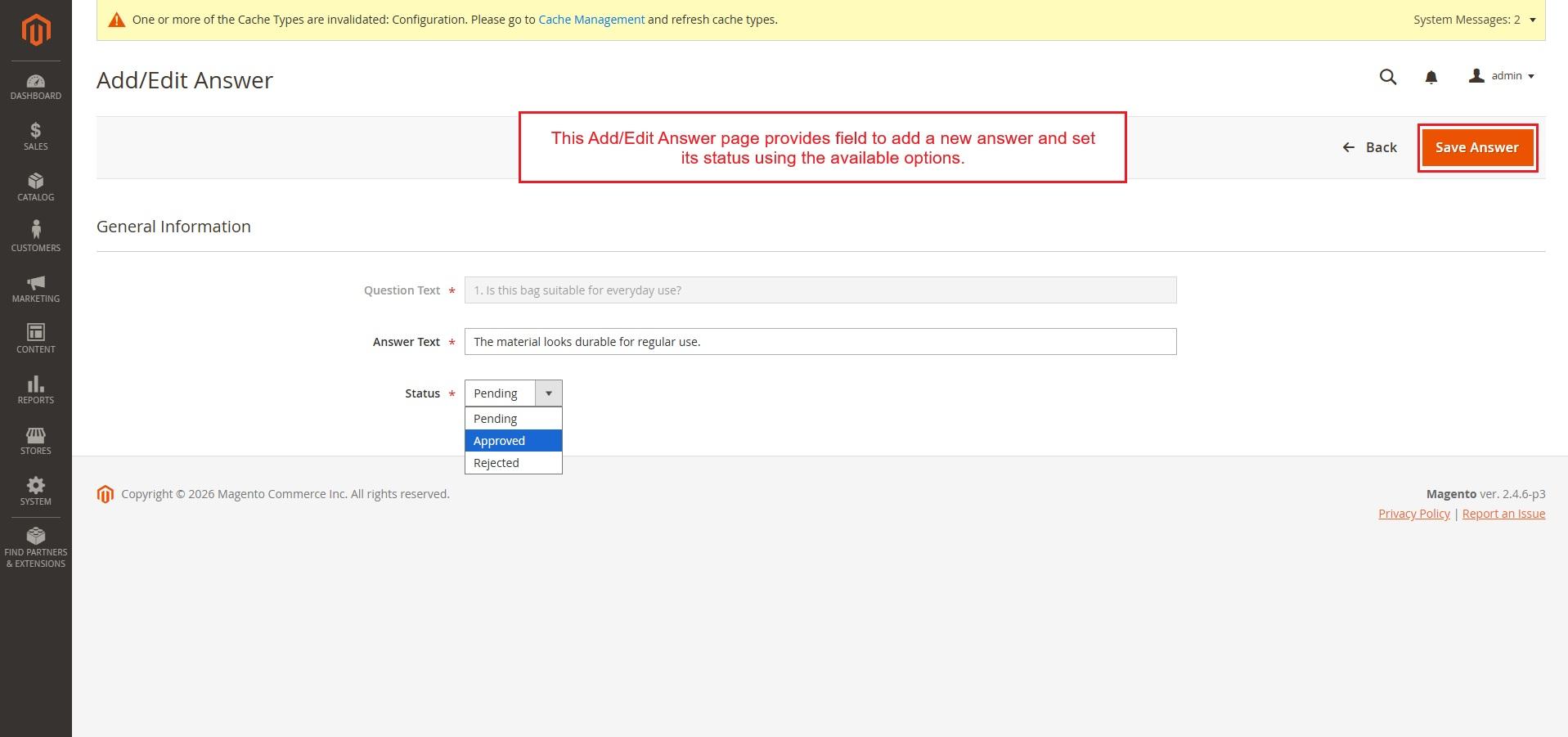
- The “Add Answer” opens this Add/Edit Answer page, where the admin can submit a new answer and set its status.
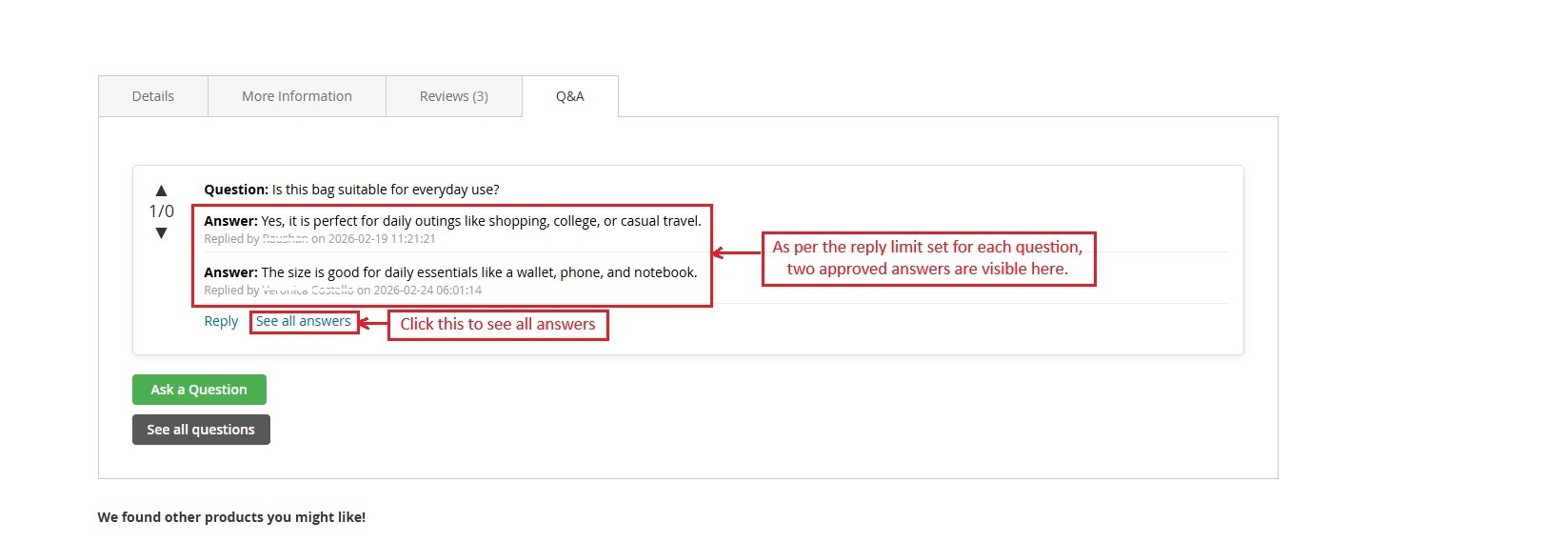
- The product page is showing two approved answers based on the setting to show the number of replies per question on the product page.
- Click “See all answers.”
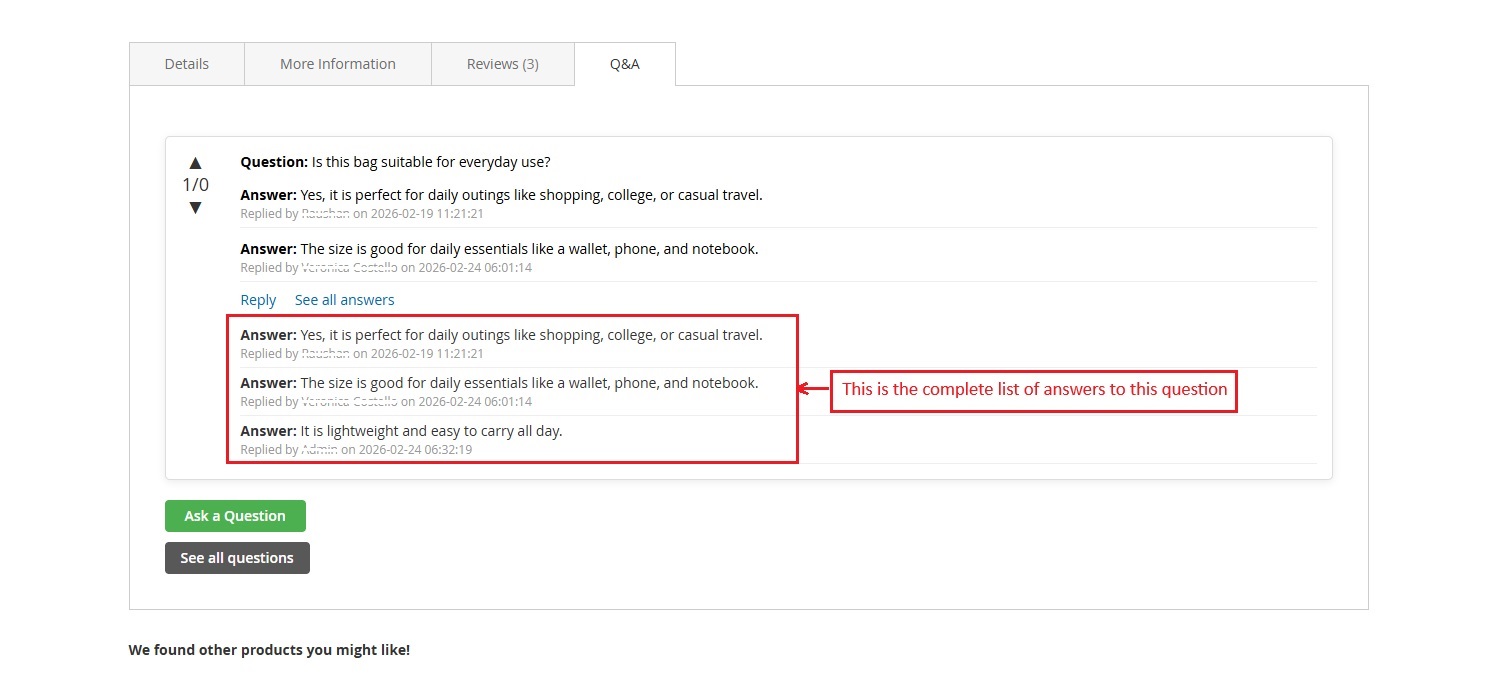
- This is the complete list of answers for this question.
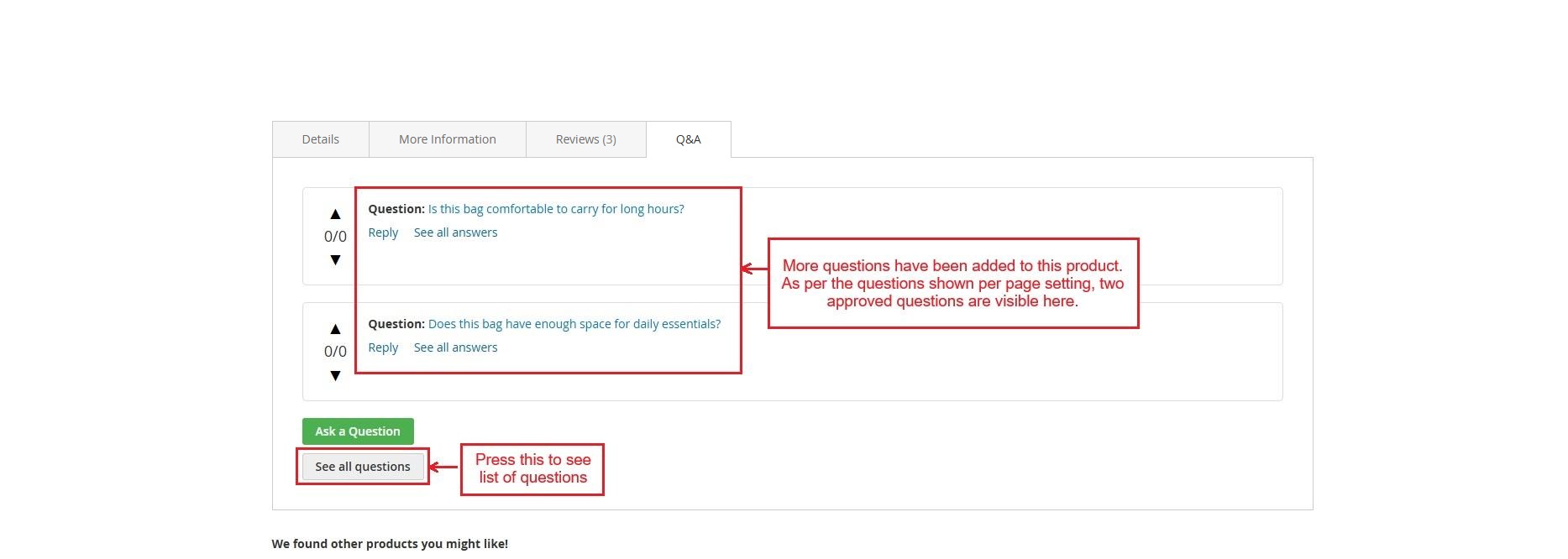
- More questions have been added to this product. Based on the questions-per-page setting, only two approved questions are shown on the product page.
- Press “See all questions”.
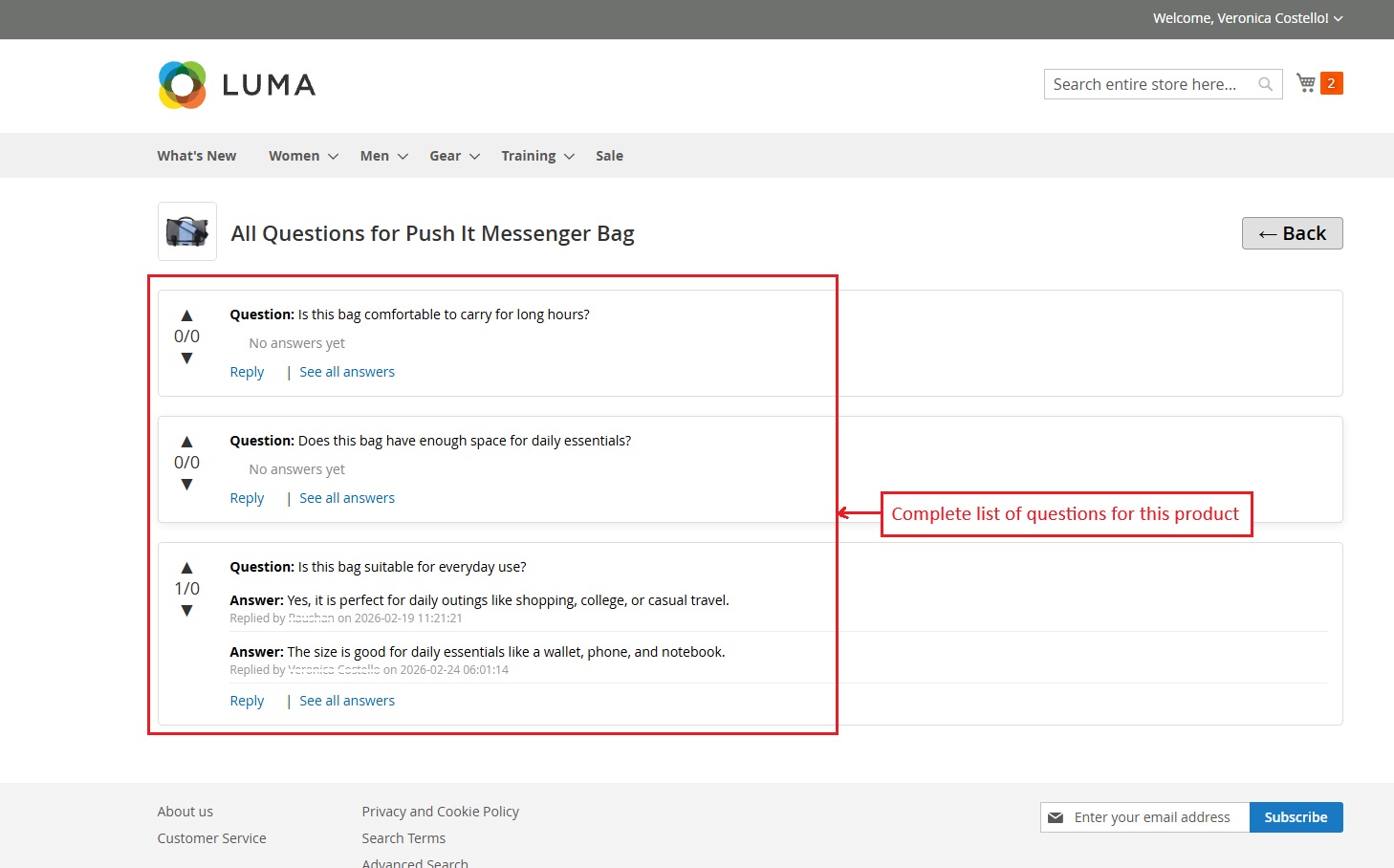
- Complete list of questions for this product.
How Admin Adds New Questions
- The admin can use Add New Question to create a new question.
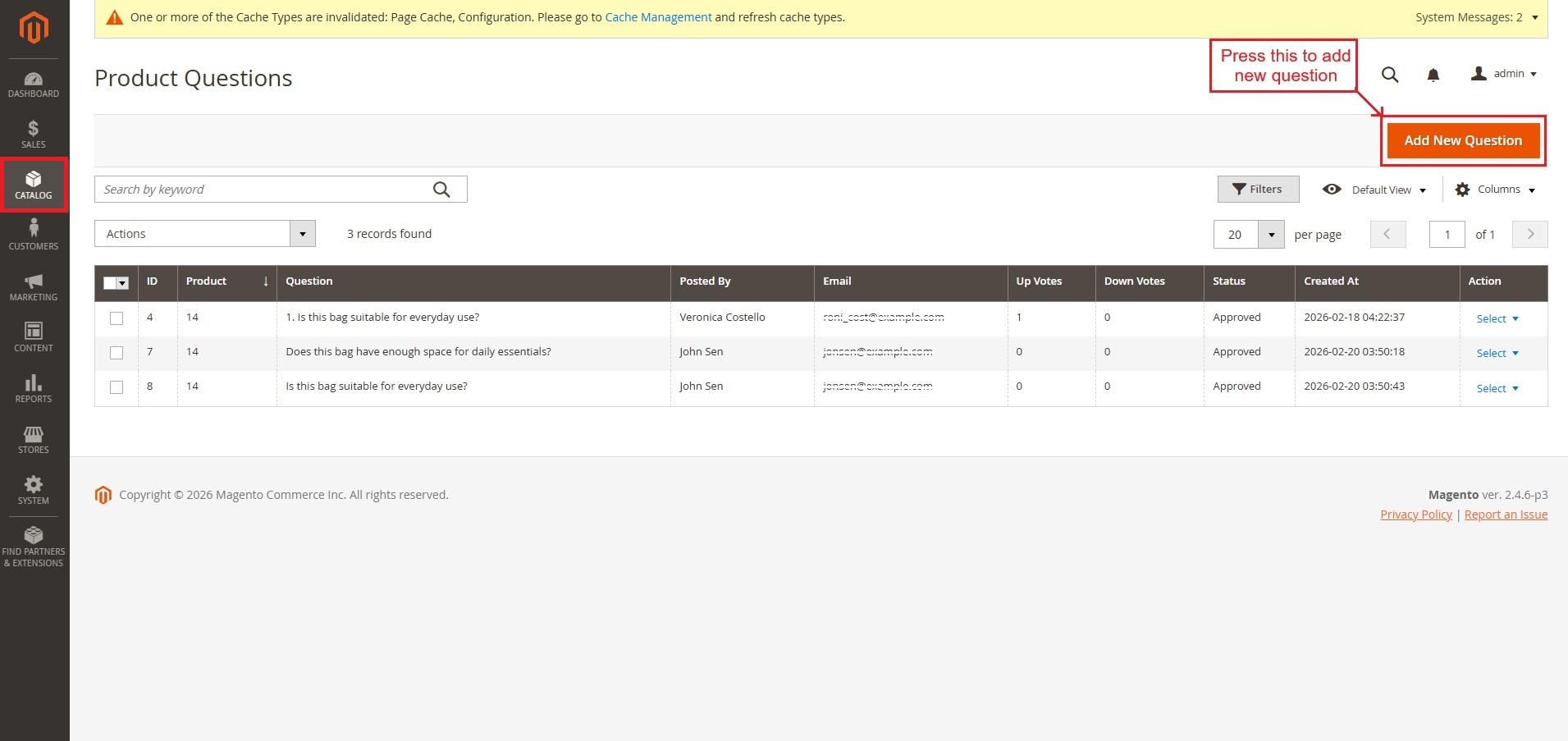
- Now, all products are listed on this page. Use the search option or filters to find the required product.
- Click Add Question on the selected product option.
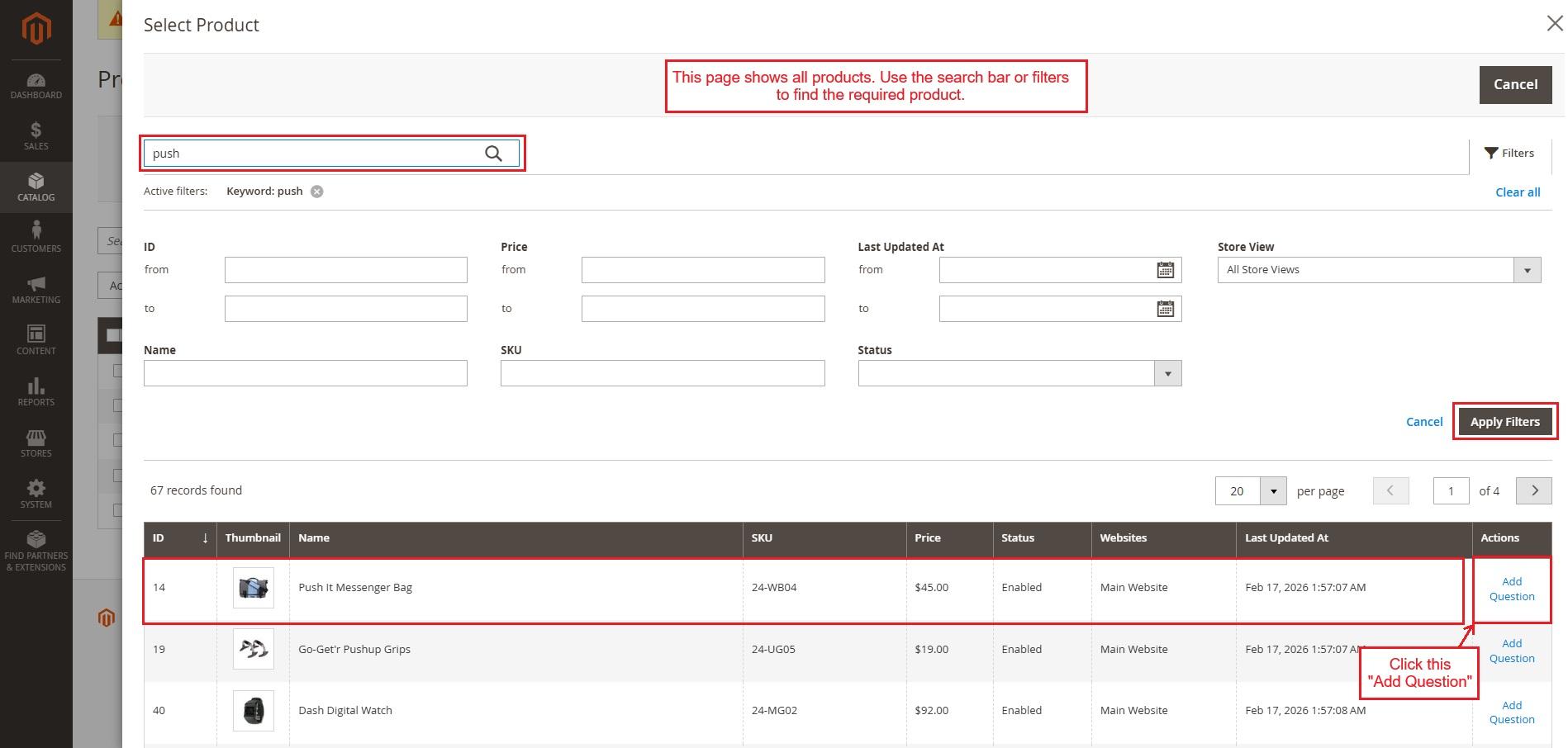
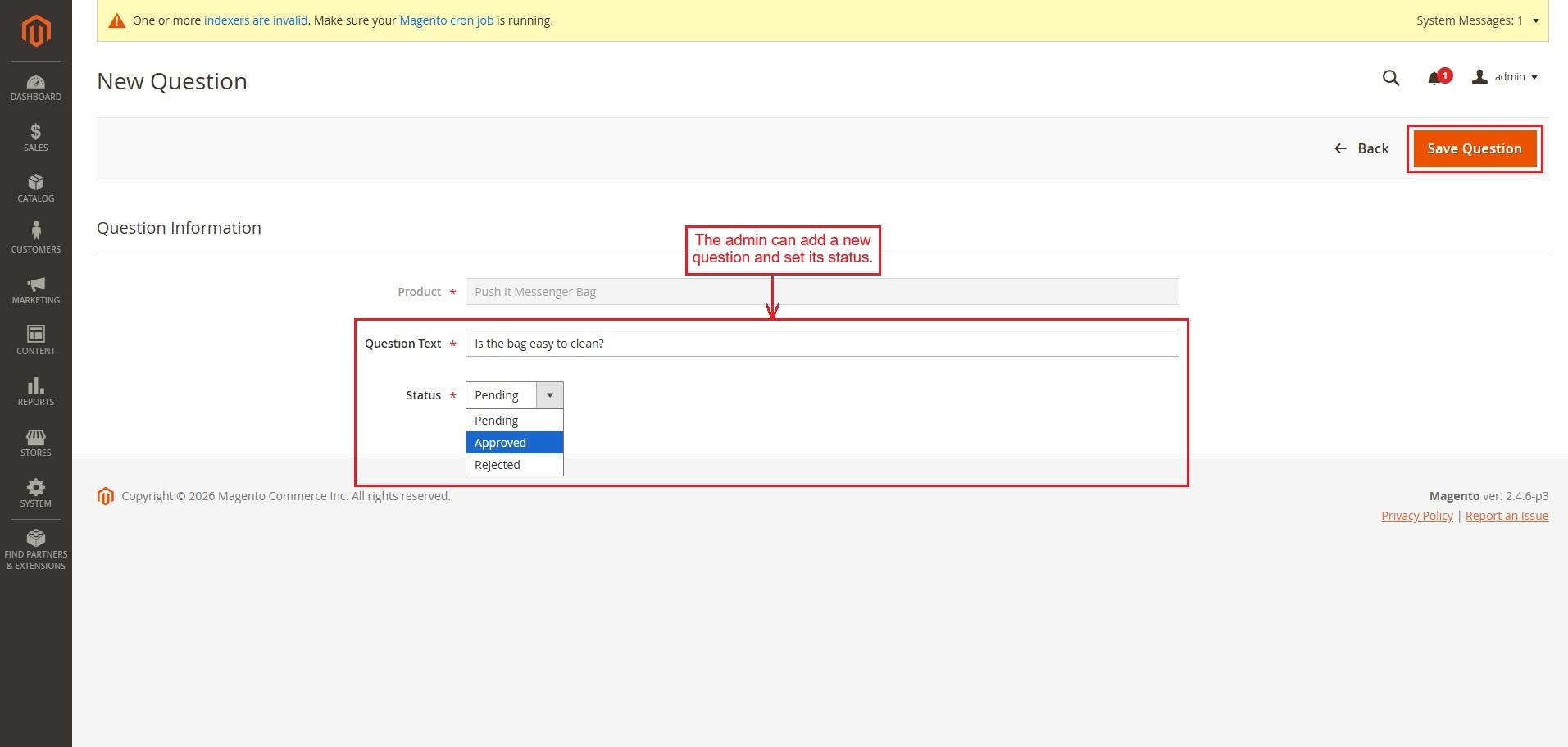
- Now, the admin can enter the new question and set its status.
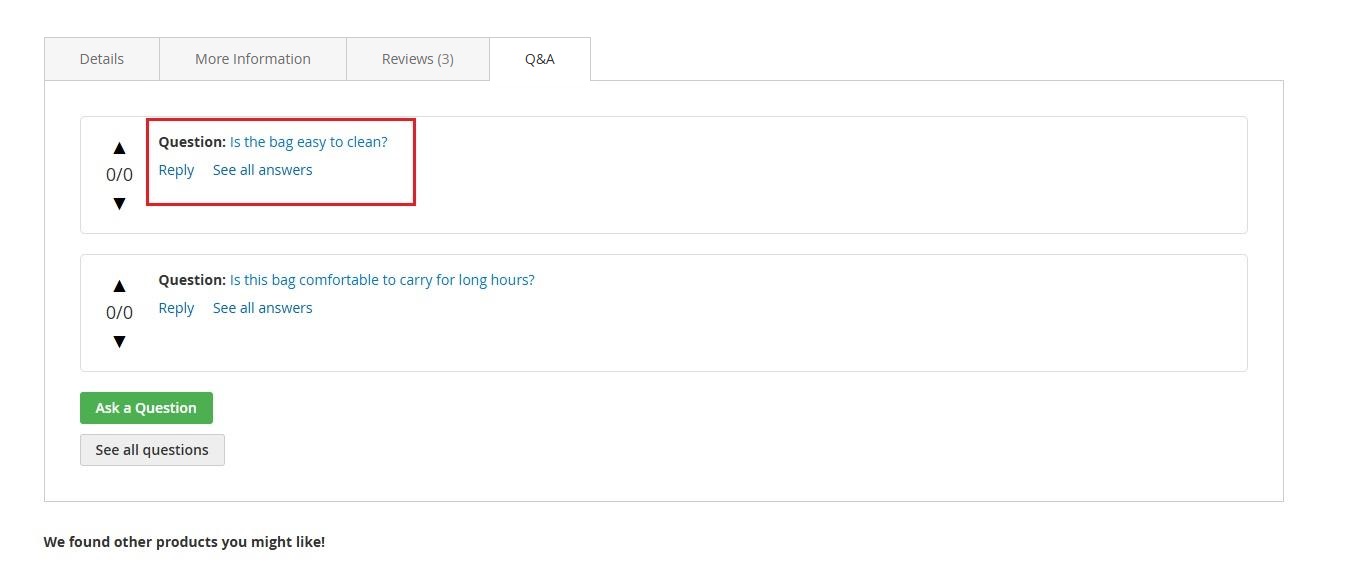
- This is the newly created question by the admin.
- The admin gets this type of email every time a question or answer is submitted by a customer.
- The customer gets this type of email when someone replies to their question.
User Role Access for Product QA
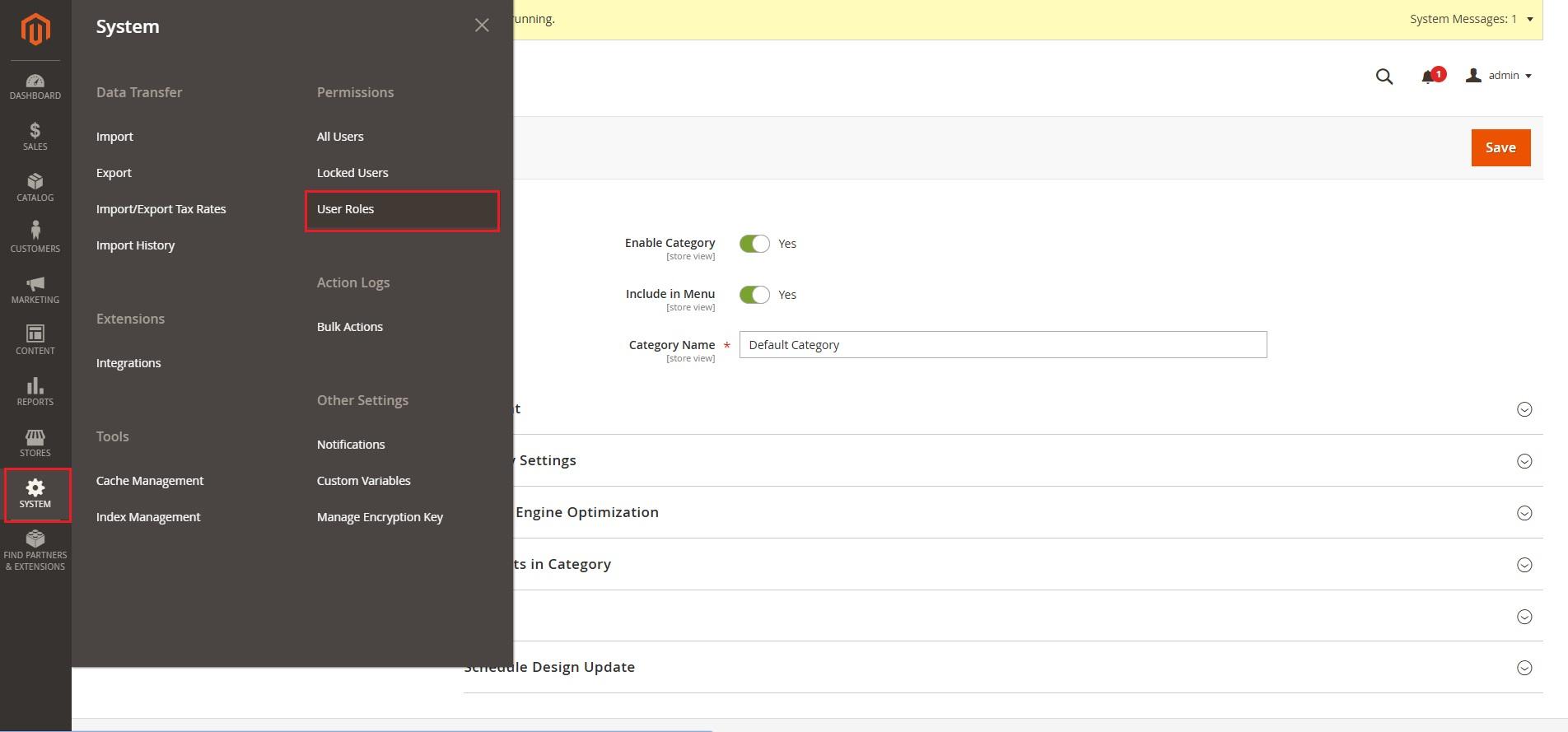
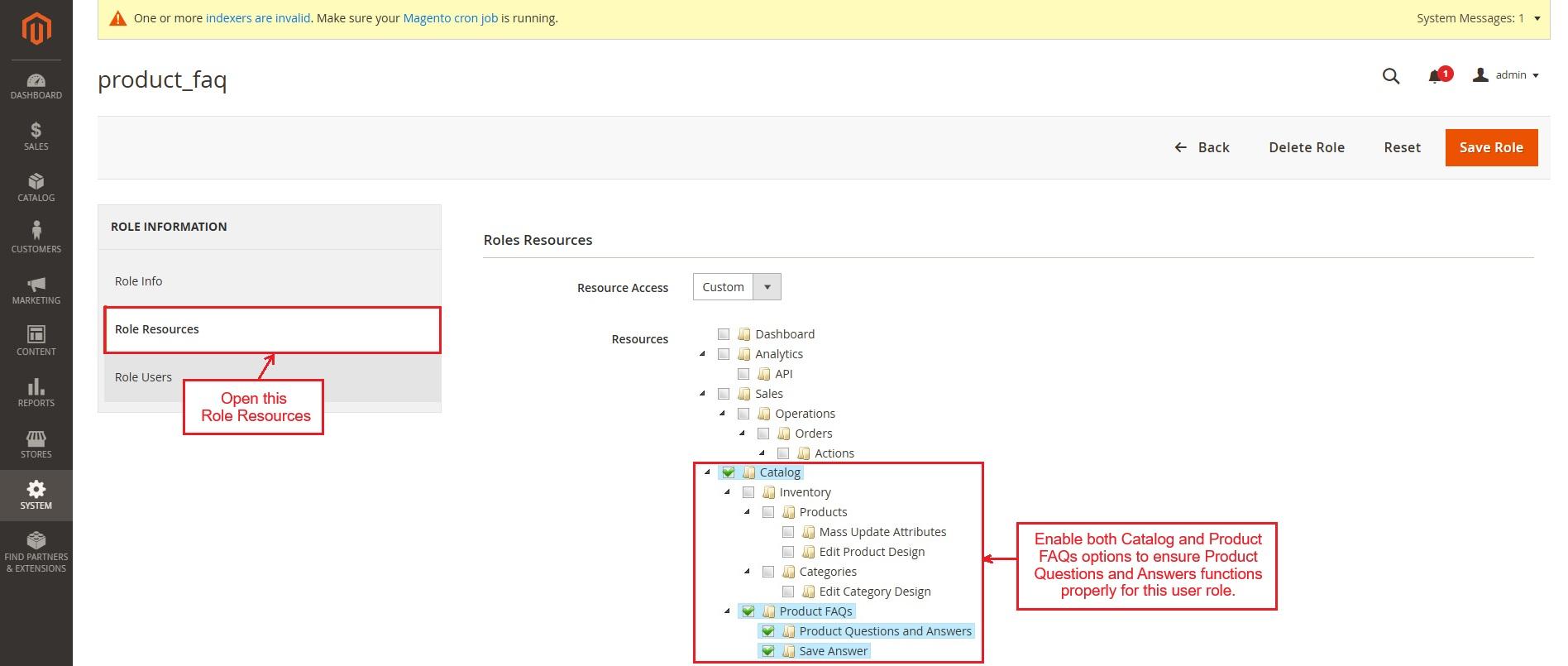
- The admin can enable Product Questions and Answers for specific user roles.
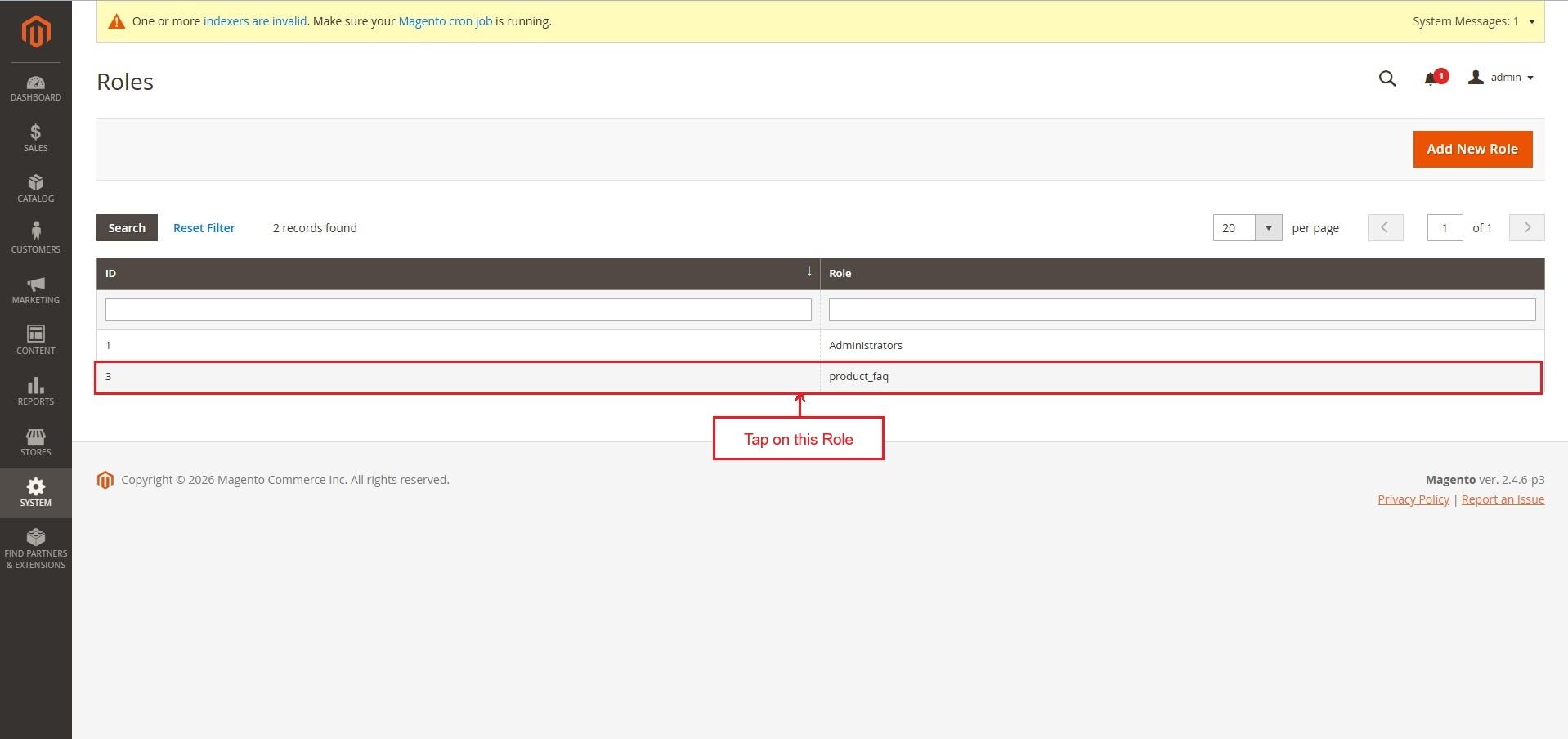
- Go to System and open User Roles. Select a role and open Role Resources. Then enable both Catalog and Product FAQs to ensure Product Questions and Answers work properly for this user role.
✅Final thought
The Product Questions & Answers extension for Magento improves communication between customers and the store. It keeps product discussions organized and easy to manage. Admin approval and email alerts maintain proper control and transparency. This module builds trust, improves product clarity, and supports better buying decisions.




Ecarter Support
Typically replies within a minute

© 2020 - 2026 Ecarter Technologies Pvt Ltd.