
Customer Application
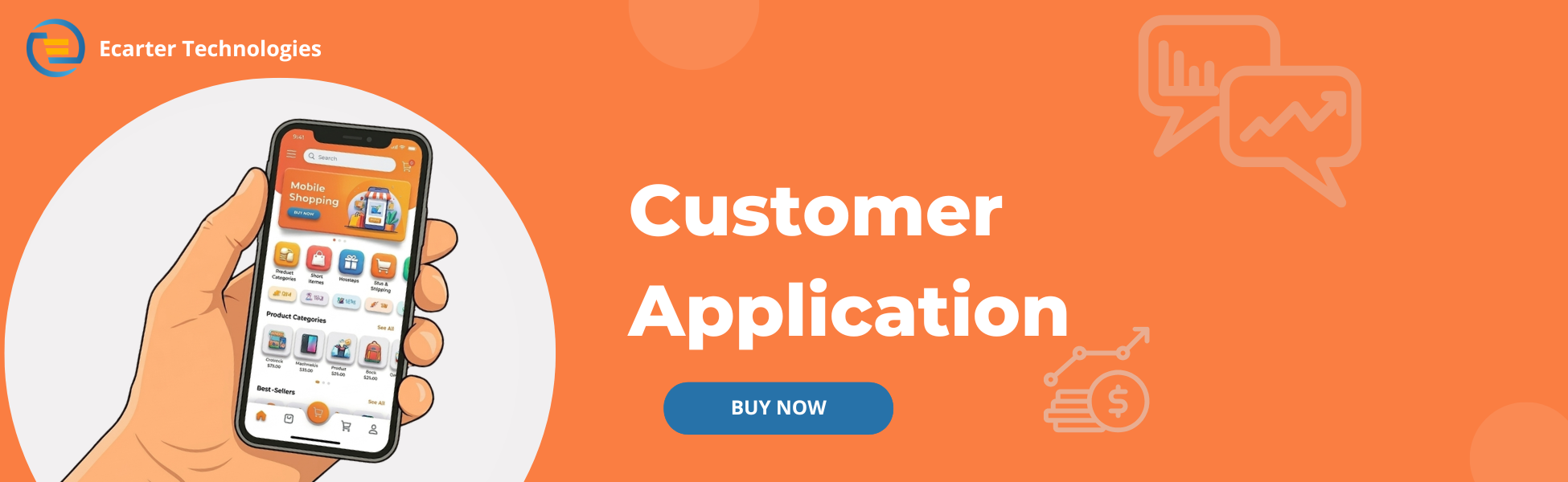
The Customer Application for Magento provides a complete mobile shopping solution with a dedicated admin panel to manage every aspect of the application. It offers customers a smooth and convenient shopping experience while giving administrators full control over the app's content, appearance, and essential settings from a centralized system.
The mobile app enables customers to browse products, explore categories, search items, manage their wishlist and shopping bag, place orders, track order status, and manage their accounts with ease. It also supports features such as notifications, product reviews, multiple payment and shipping options, language and currency selection, and secure account management to deliver a seamless shopping experience.
The admin panel helps manage banners, homepage layouts, product grids, promotional content, CMS pages, notifications, and order records. It also includes configuration options for push notifications, app versions, access keys, and other application settings. Together, the mobile app and admin panel provide a well-organized solution that simplifies app management while delivering an engaging shopping experience for customers.
Application Features
- User Authentication: Customers can sign in, create an account, or log in using Google and Facebook for quick access.
- Product Browsing & Search: Browse categories, search products with text or voice search, and use sorting and filtering options to find products quickly.
- Shopping Bag & Secure Checkout: Add products to the bag, apply coupons, choose delivery and payment methods, and place orders securely.
- Order Tracking: View order history, track order status, access order details, and reorder previously purchased items.
- Wishlist & Account Management: Save products to the wishlist, manage addresses, update profile details, change passwords, and adjust language and currency preferences.
- Product Ratings & Reviews: Read customer reviews and submit ratings and feedback for purchased products.
Admin Panel Features
- Banner Management: Create, edit, and manage app banners with image, title, position, store view, and status settings. Control how banners appear across the app.
- Promotion Banner Management: Promotional banners are set up using the same configuration as regular banners. They appear as pop-ups on the homepage to highlight offers and deals.
- Notification Management: Use this to create and manage app notifications. Add content, title, image, type (product/category/other), and control delivery using status settings.
- Product Grid Management: Show products in structured grid or scroller layouts. Choose manual selection or automatic listing based on newest products.
- CMS Page Management: Manage app pages by linking CMS pages. Control page title, position, and visibility status for better content organization.
- App Order History Management: View and manage all customer orders with details like order ID, customer info, amount, status, billing, and shipping information.
- Terms & Conditions Control: Add and manage terms and conditions content for the app. Enable or disable visibility as required for user acceptance during signup.
- Customer App Basic Configuration: Set up key options like access key, allowed order statuses, and app theme settings to control app behavior and theme colors in the demo setup.
- FCM Push Notification Setup: Enable push notifications by uploading the Firebase Cloud Messaging (FCM) JSON file for real-time user updates.
- App Version & Update Control: Manage Android and iOS app versions, set update messages, and force users to update when required for better compatibility.
- Homepage Layout Management: Design the app homepage by adding multiple sections like banners, products, categories, and promo blocks with custom positions and styles.
Application Overview
This section introduces the Customer Application and explains how customers browse products, place orders, track orders, and manage their accounts.
Splash Screen
When a customer opens the app, a welcome splash screen appears first. It shows the app name and logo for a few seconds while the app loads in the background.
Notification Permission
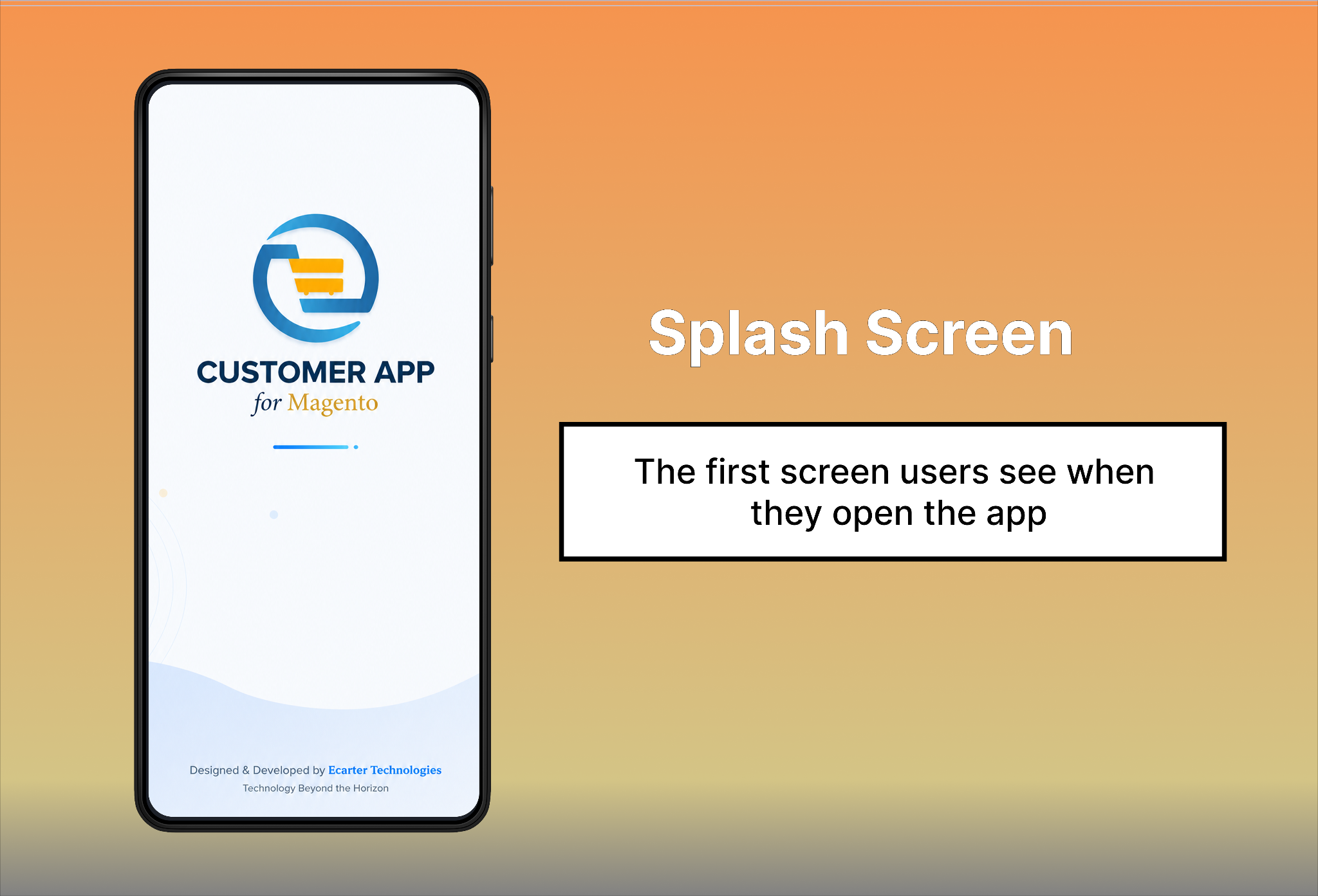
Enable notifications to receive order updates, offers, promotions, and other important app alerts.
Sign In
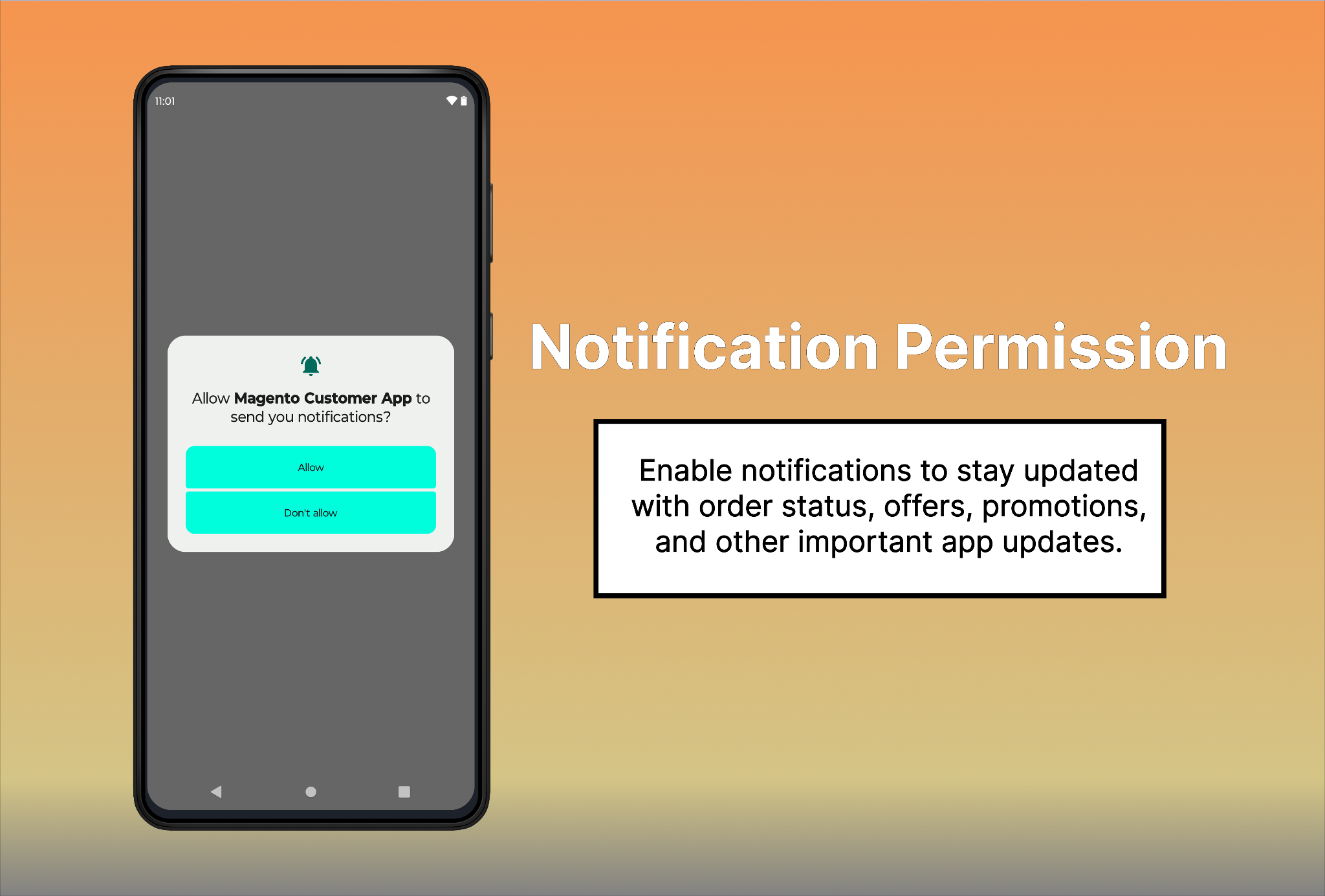
- Registered users can sign in by entering their email address and password, then tapping the Login button.
- If you are a new user, tap Sign Up and enter the required details to create an account.
- You can also sign in or create an account using your Google or Facebook account by tapping the respective icons. This provides a quick and easy way to access the app.
Create New Account
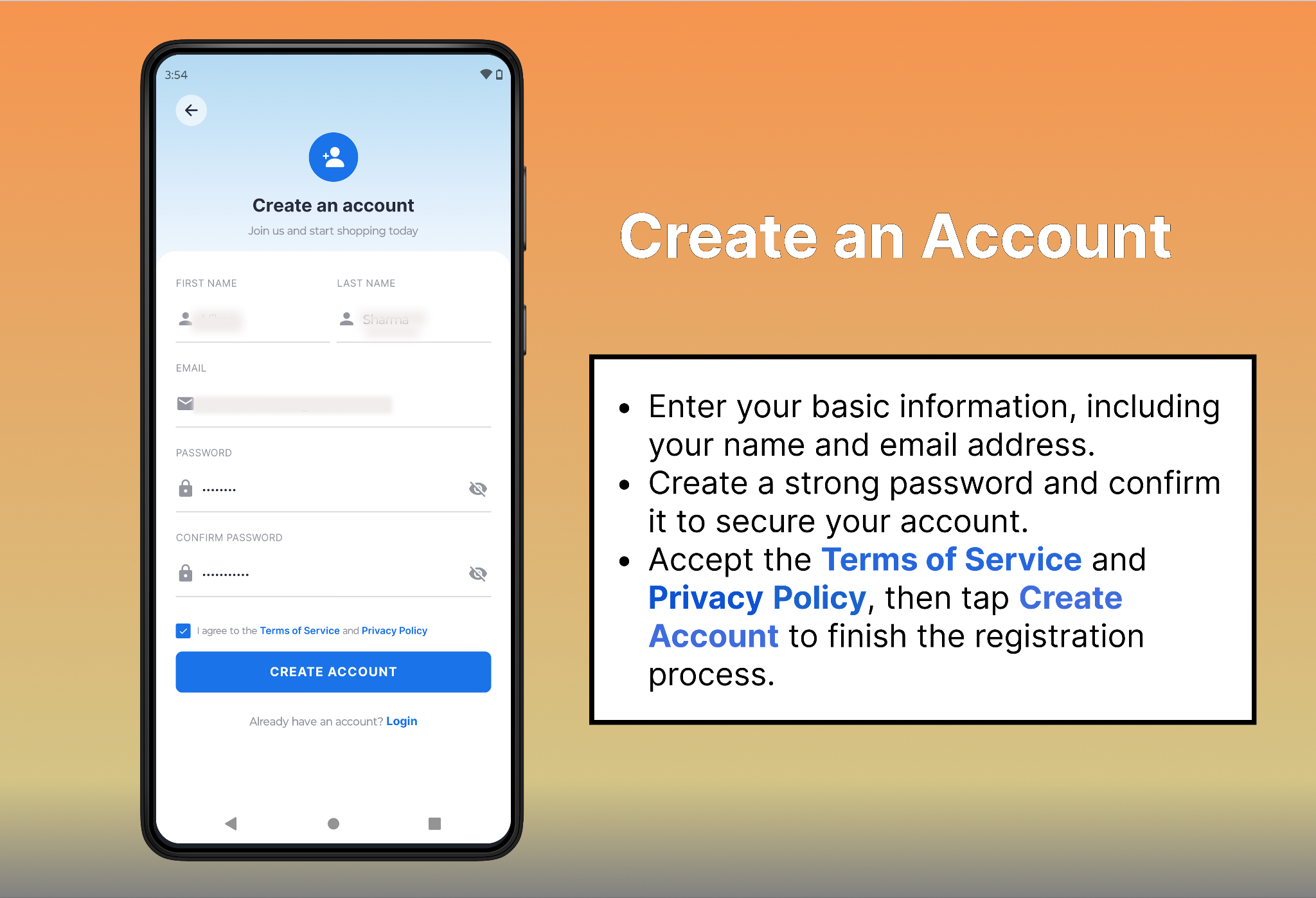
- New users can create an account by entering the required details, including their first name, last name, email address, password, and confirm password. After accepting the Terms of Service and Privacy Policy, tap Create Account to complete the registration.
Forgot password
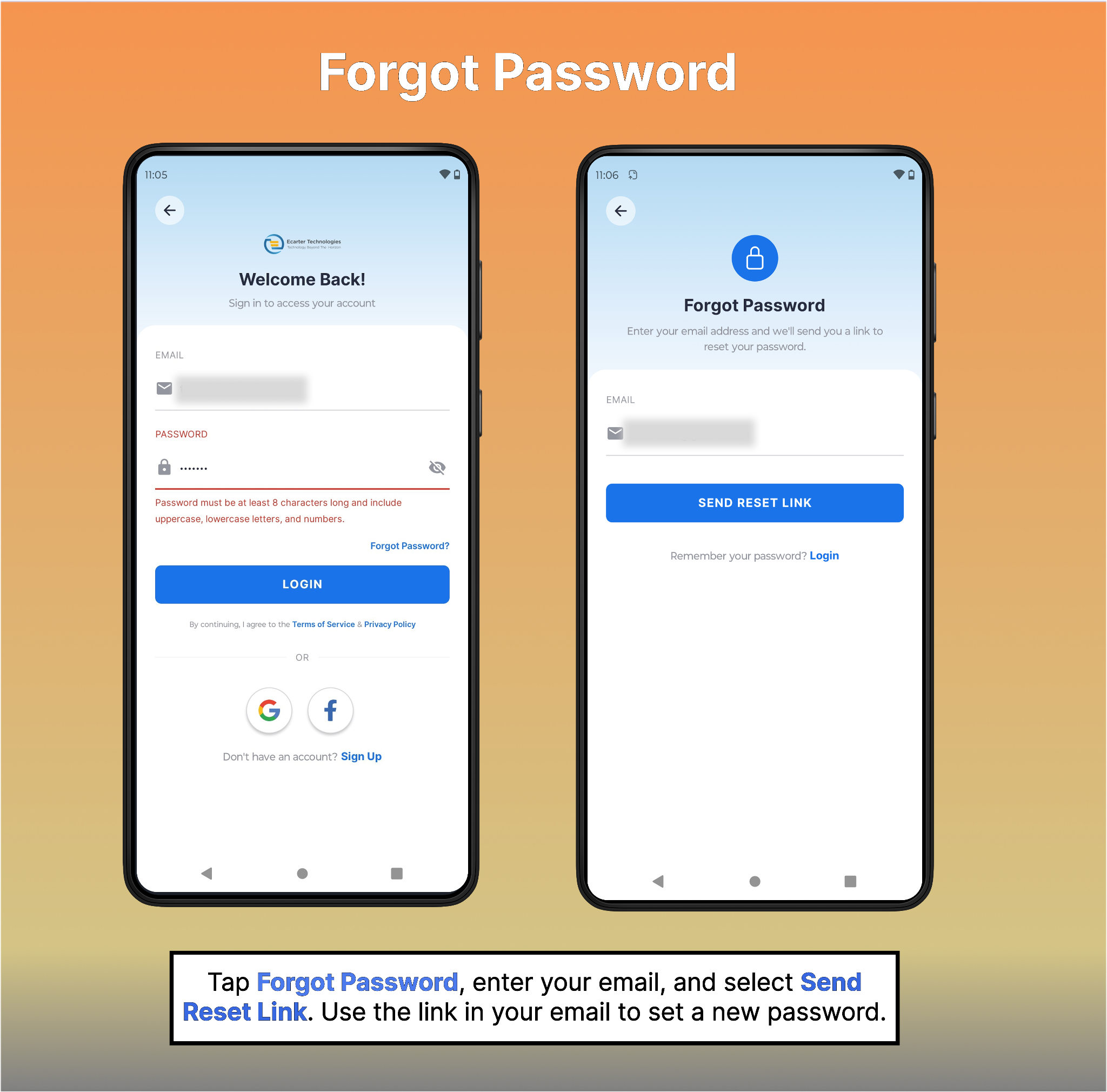
To reset your password, tap Forgot Password, enter your registered email address, and tap Send Reset Link. Then, check your email and follow the password reset link to create a new password and sign in to your account.
Home Screen
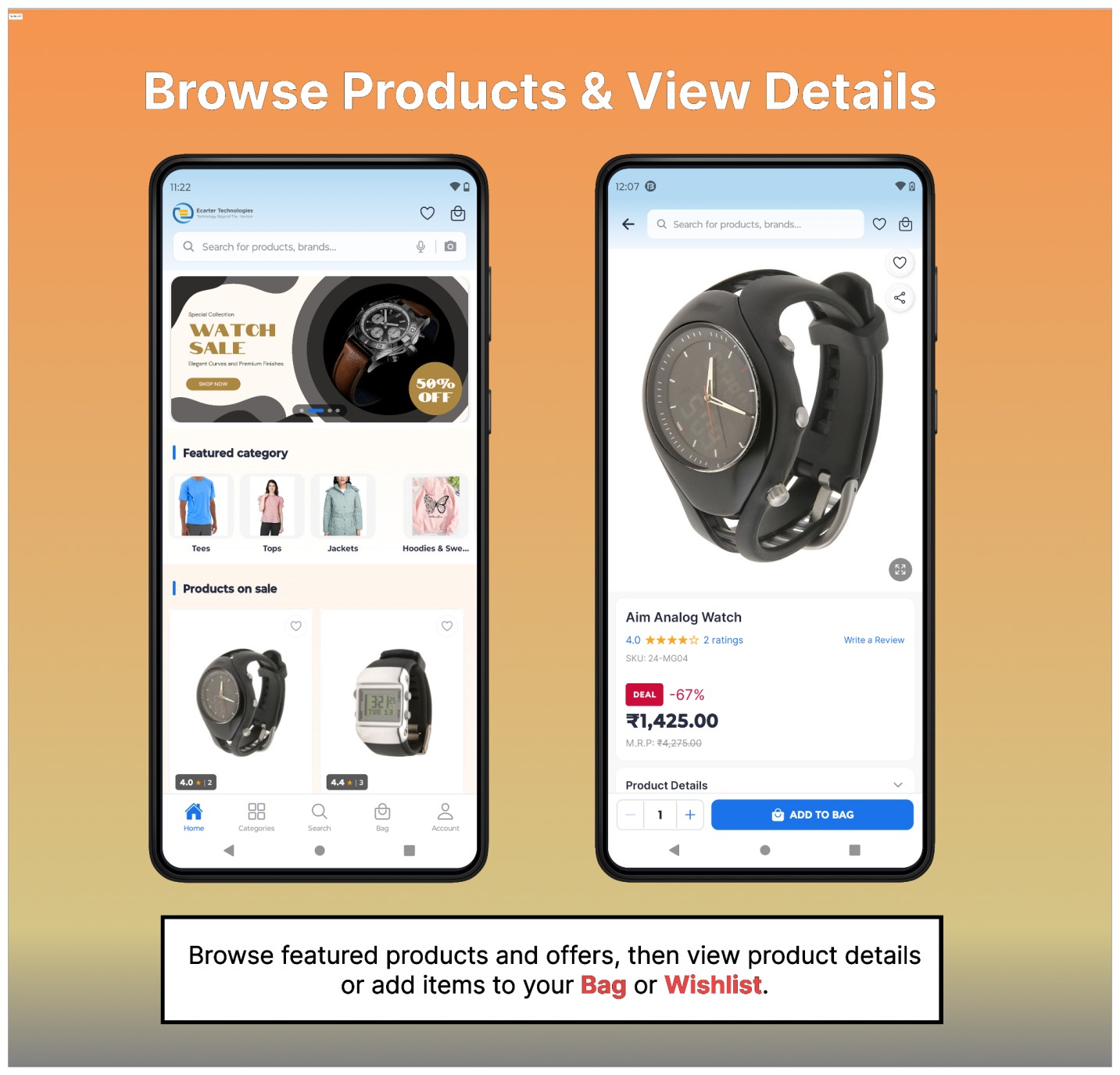
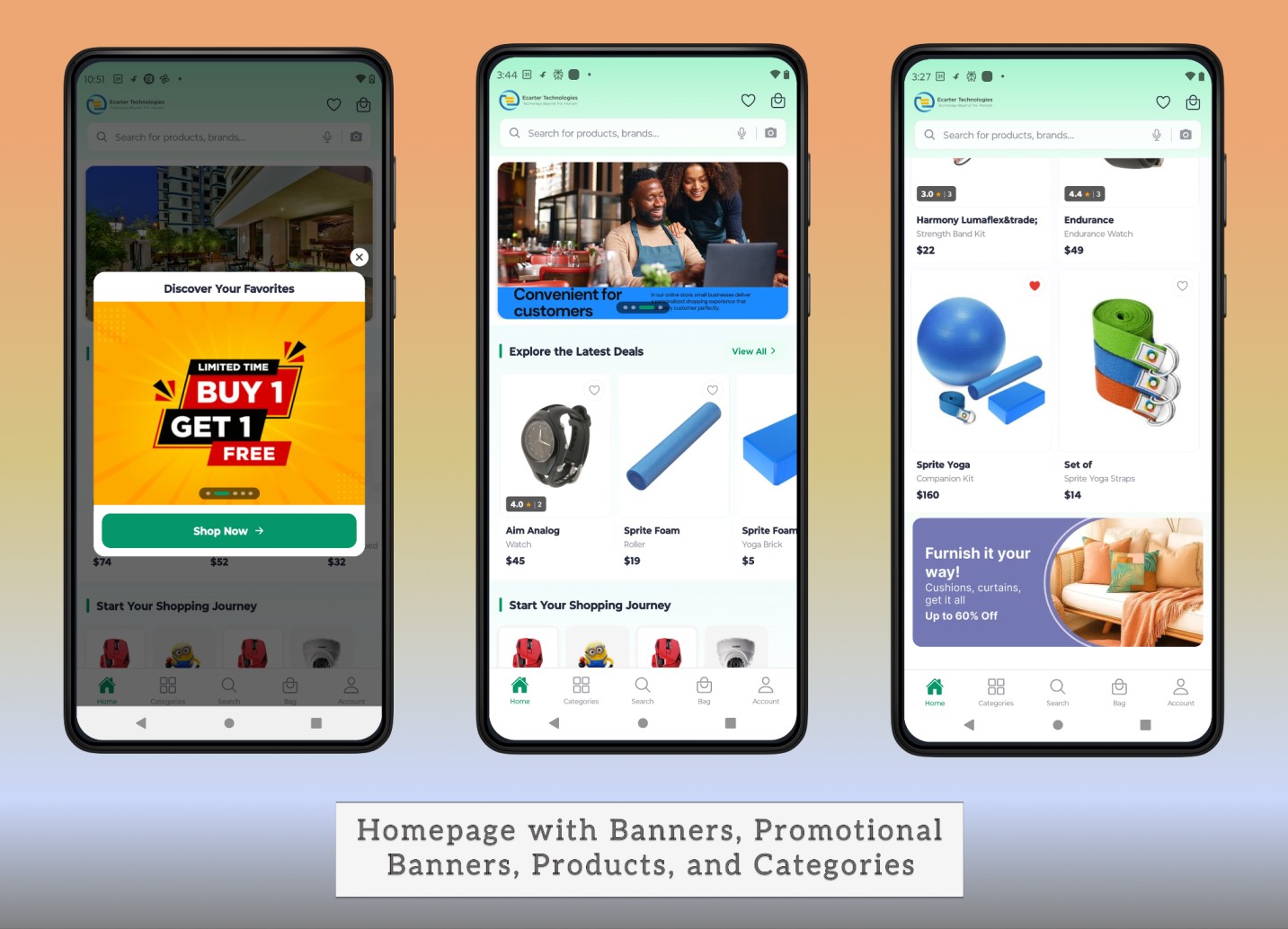
- The Home screen provides quick access to featured products, special offers, and popular categories. At the top, users can search for products or brands using the search bar, or tap the microphone icon for voice search.
- The home page shows promotional banners, featured categories, and products on sale, making it easy to discover new items and ongoing deals. Users can also access their Wishlist and Shopping Bag directly from the top-right corner.
- Selecting a product opens its Product Details page, where users can view product images, ratings, pricing, discounts, and descriptions. They can adjust the quantity, add the product to their shopping bag, or save it to their wishlist for later.
- The menu at the bottom of the screen provides quick access to Home, Categories, Search, Bag, and Account.
Manage Your Bag
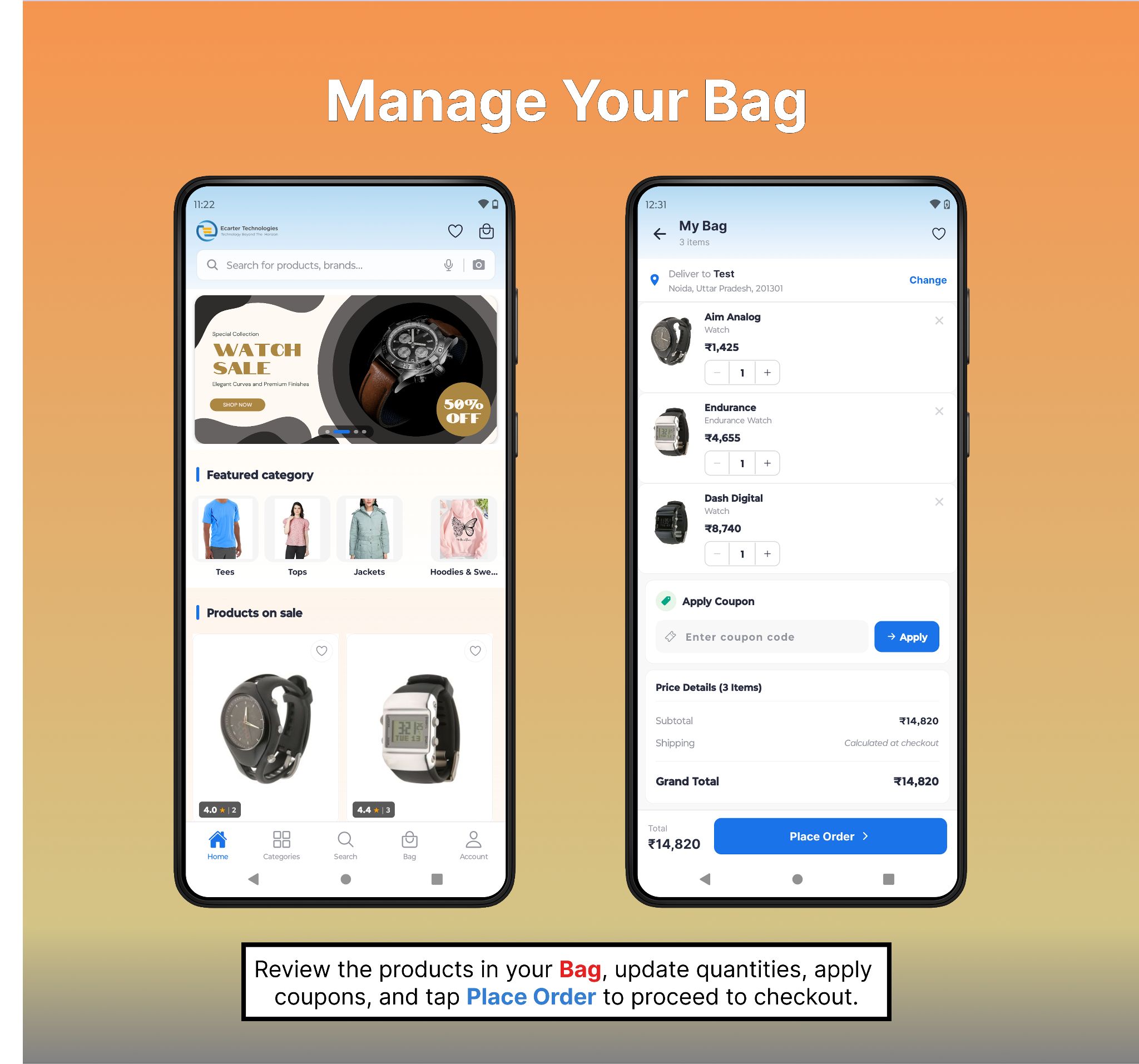
- After adding products to the bag, customers can open the My Bag page to review all selected items. They can update product quantities, apply a coupon code, view the order summary, and tap Place Order to continue to checkout.
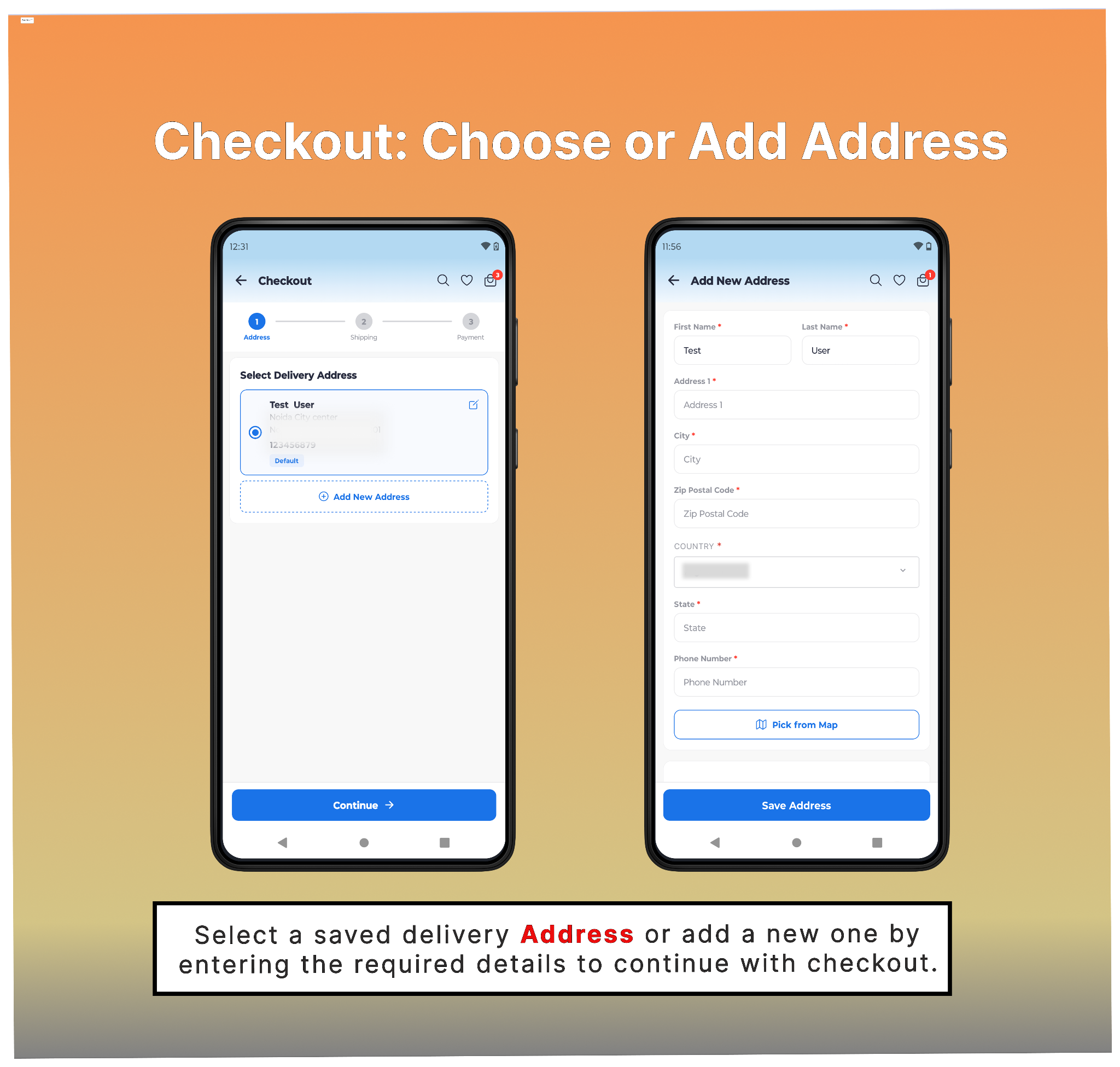
Choose or Add a Delivery Address
Select a saved delivery address or add a new one by providing the required details. Save the address to continue with the checkout process.
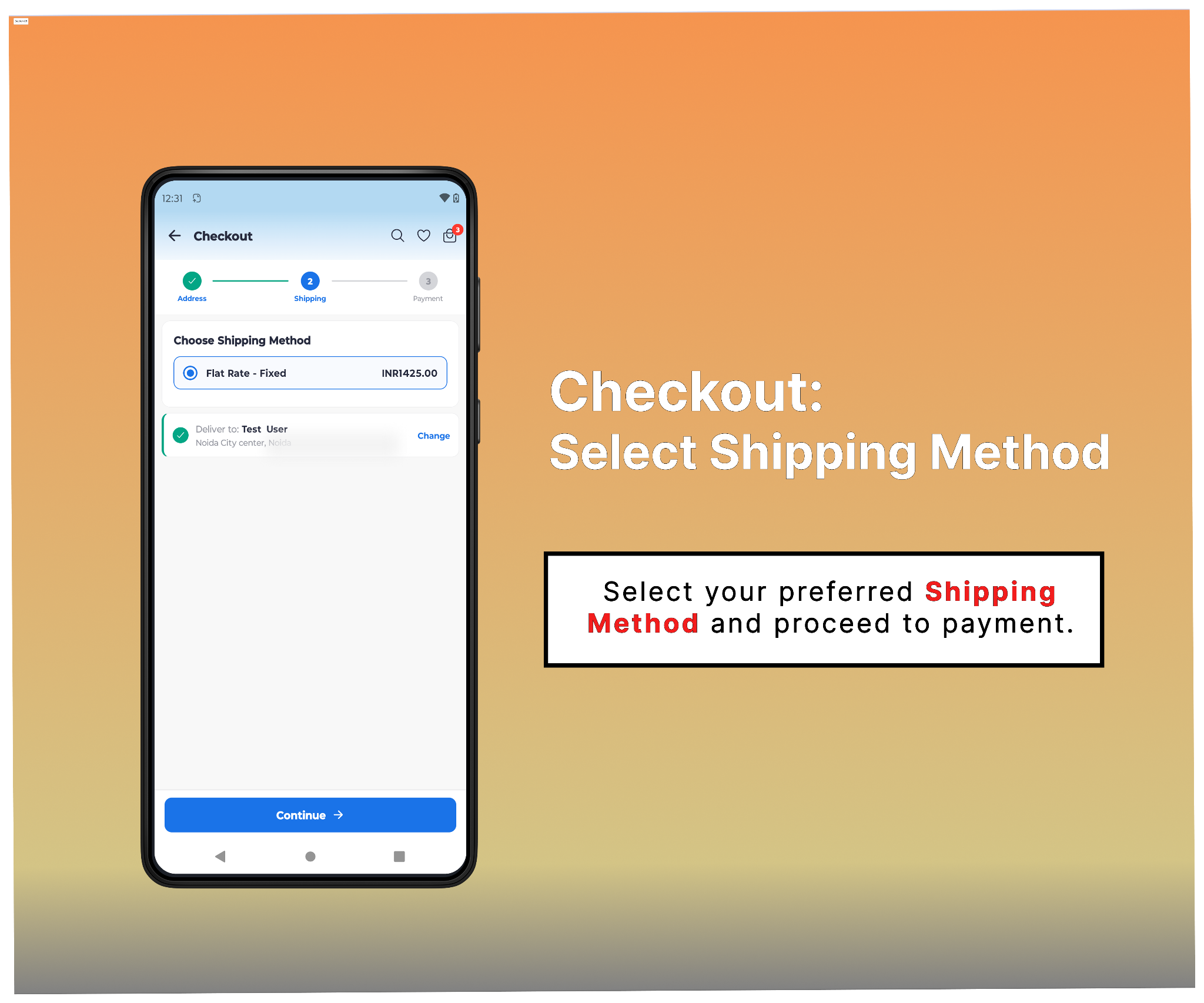
Select Shipping Method
Select the shipping method, review the delivery address, and tap Continue to proceed to the payment step.
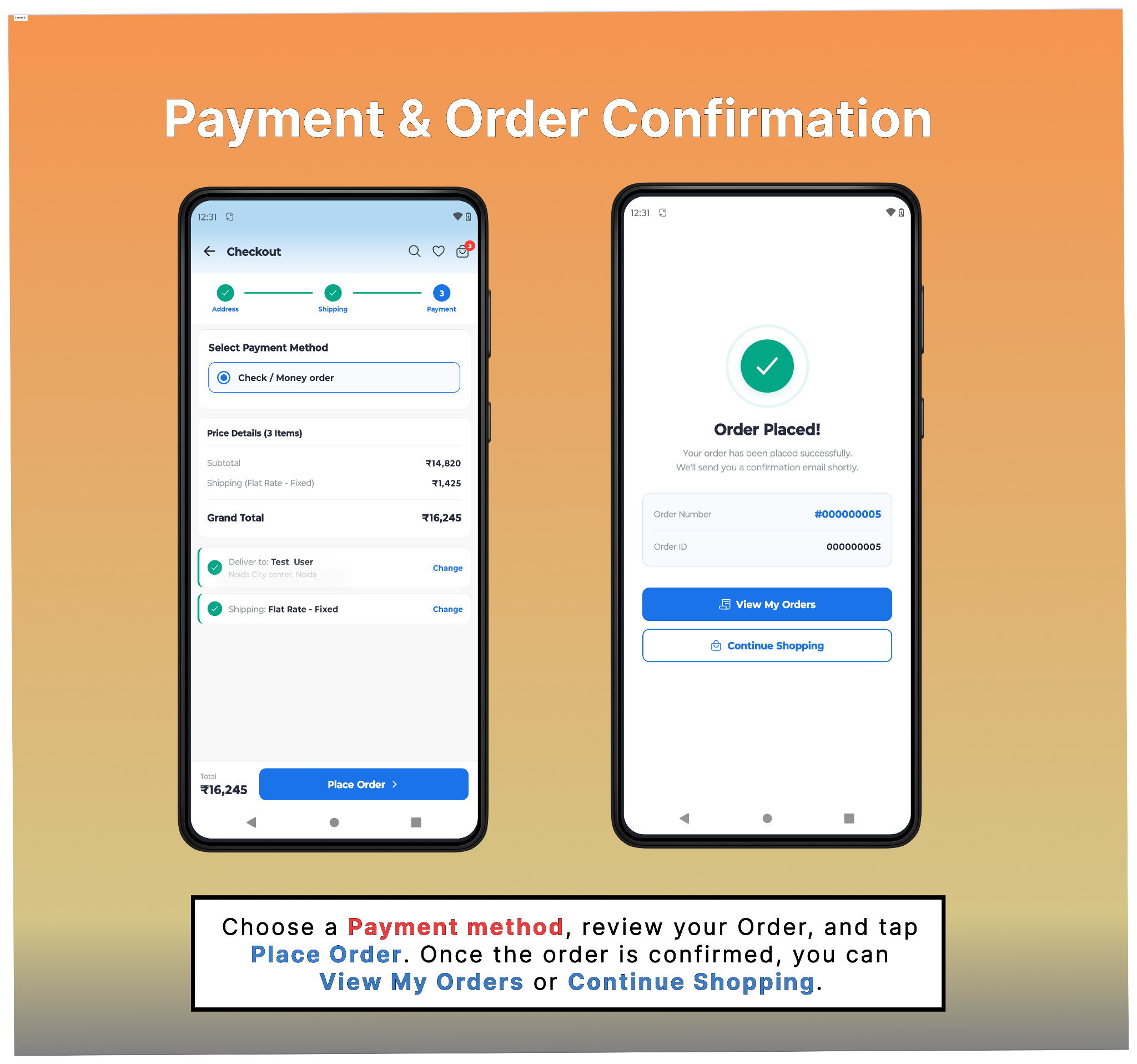
Payment Method & Order Confirmation
Select a payment method, review the order details, and tap Place Order to complete your purchase. Once confirmed, you can view your orders or continue shopping.
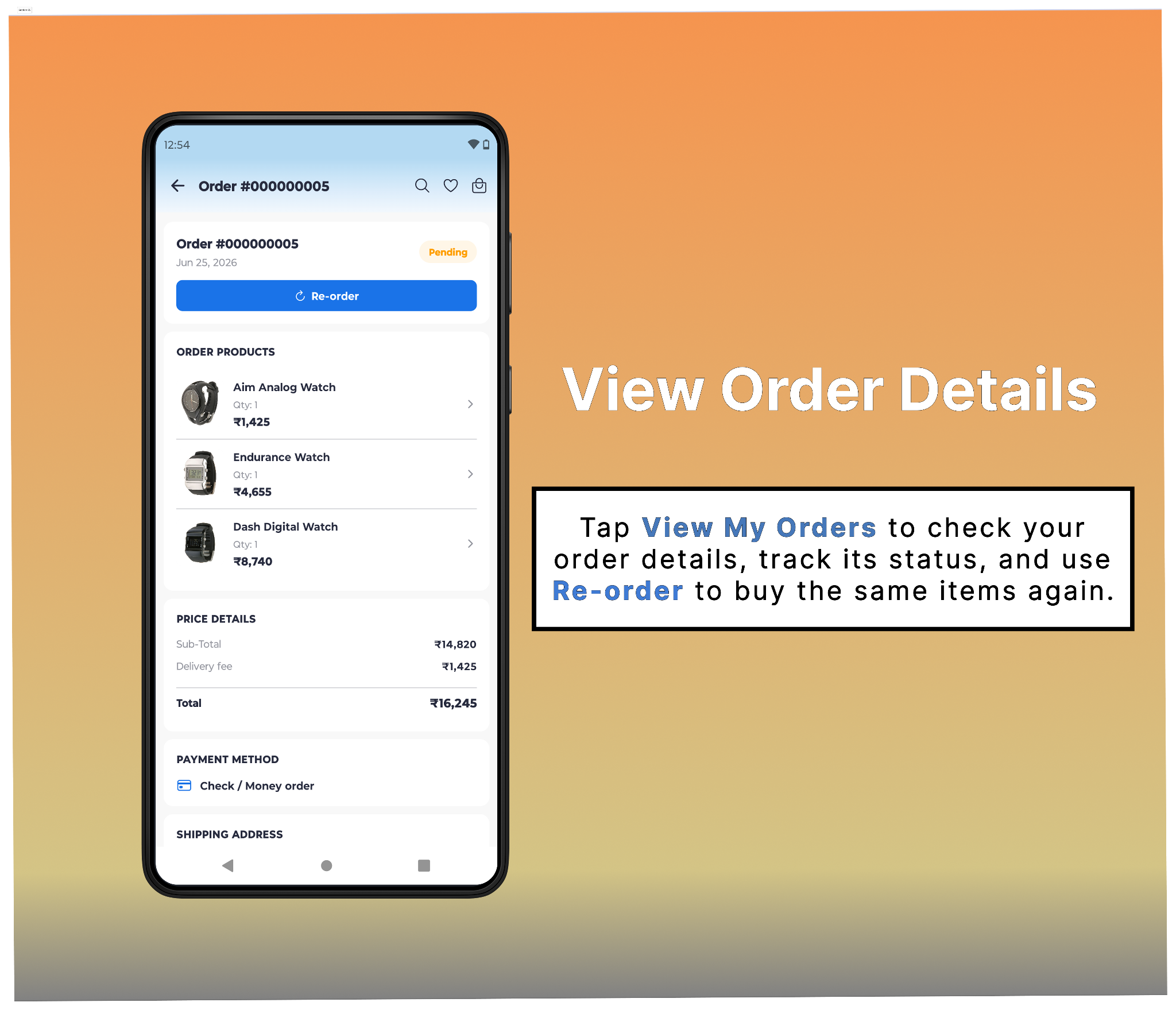
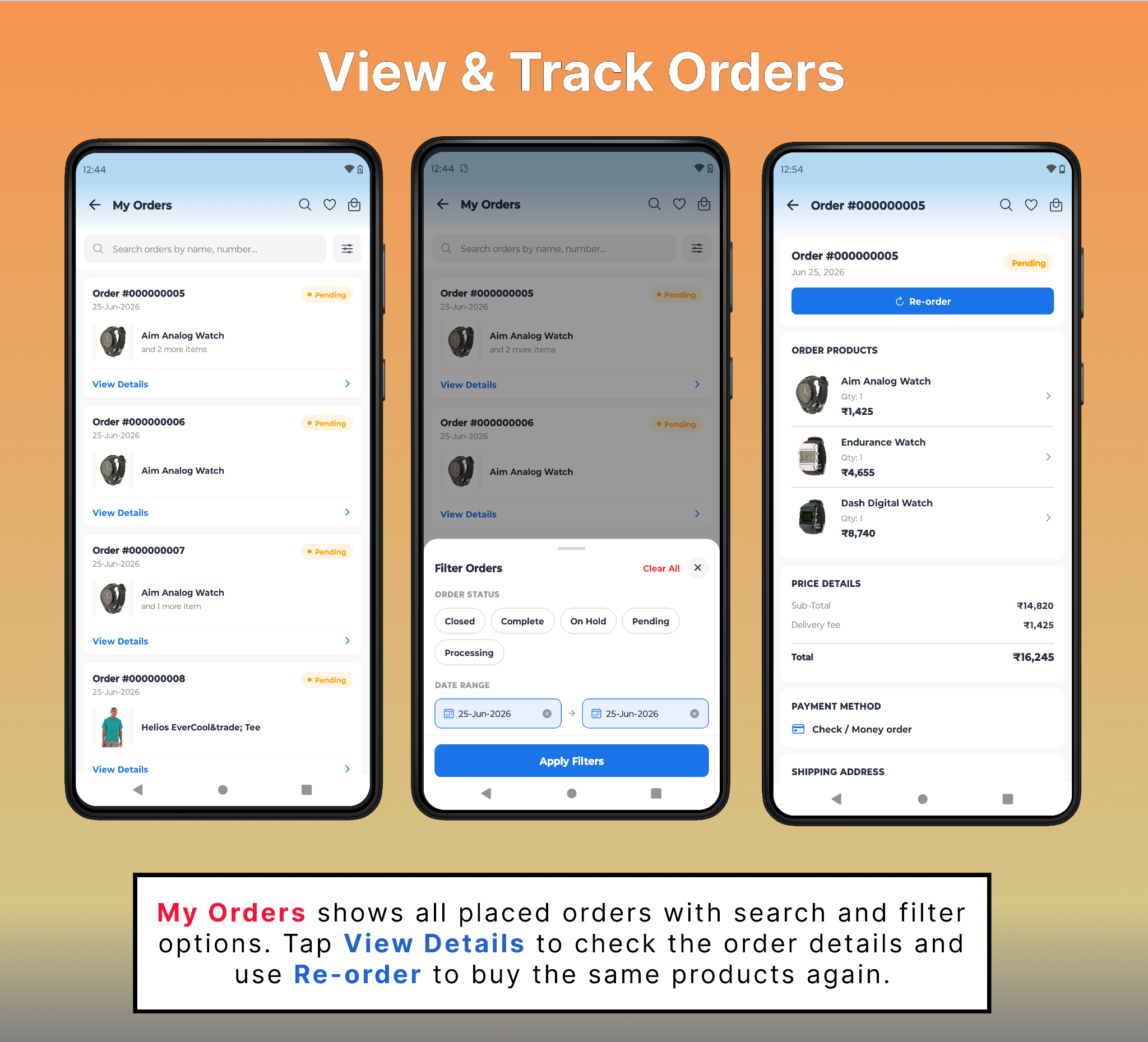
Track Your Order
Tap View My Orders to see your order status, purchased items, payment details, and shipping address. You can also use the Re-order button to place the same order again.
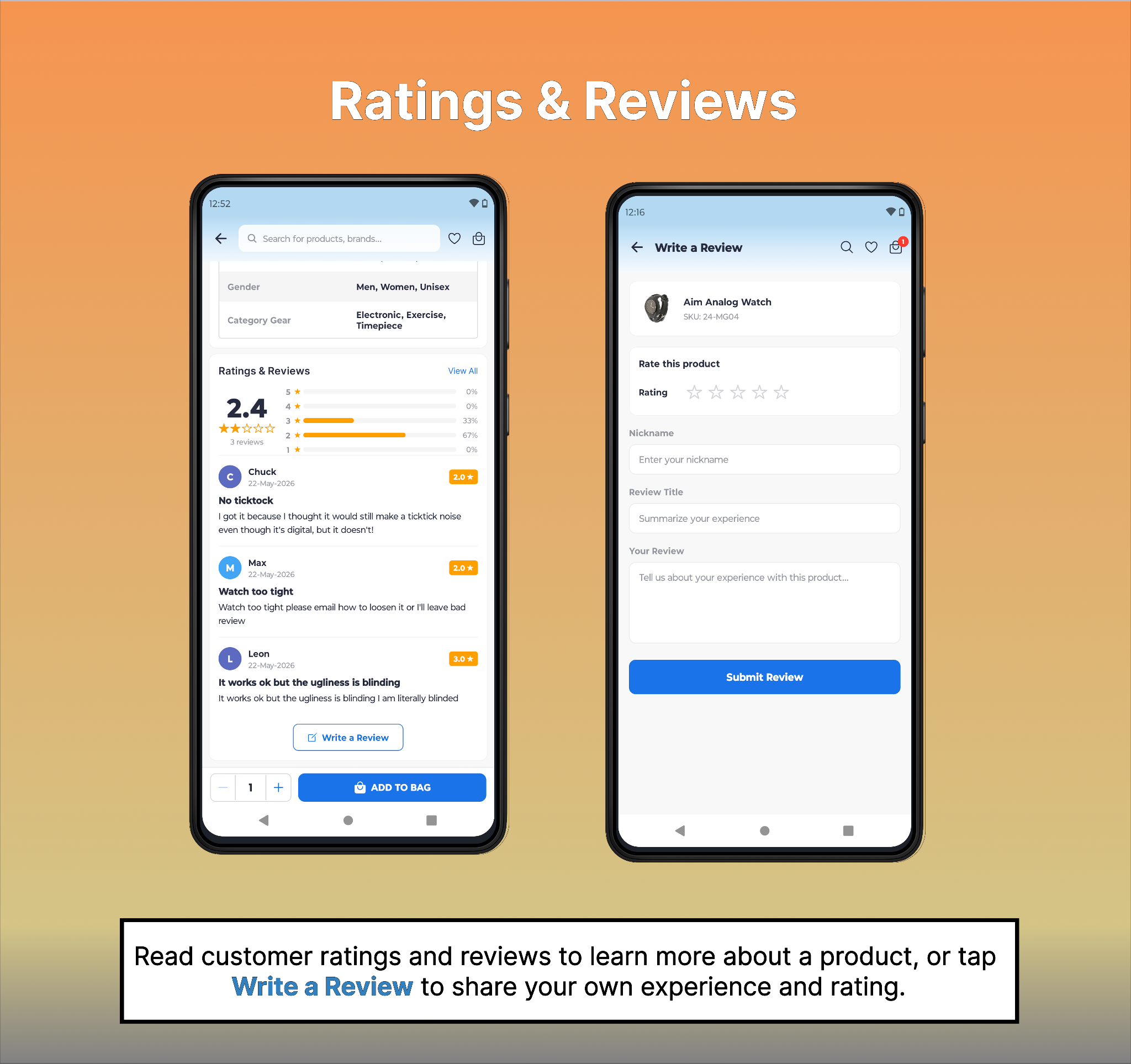
Ratings & Reviews
- Customers can view product ratings and read user reviews on the product detail page before making a purchase. They can also tap Write a Review to rate the product, share their experience, and submit their feedback.
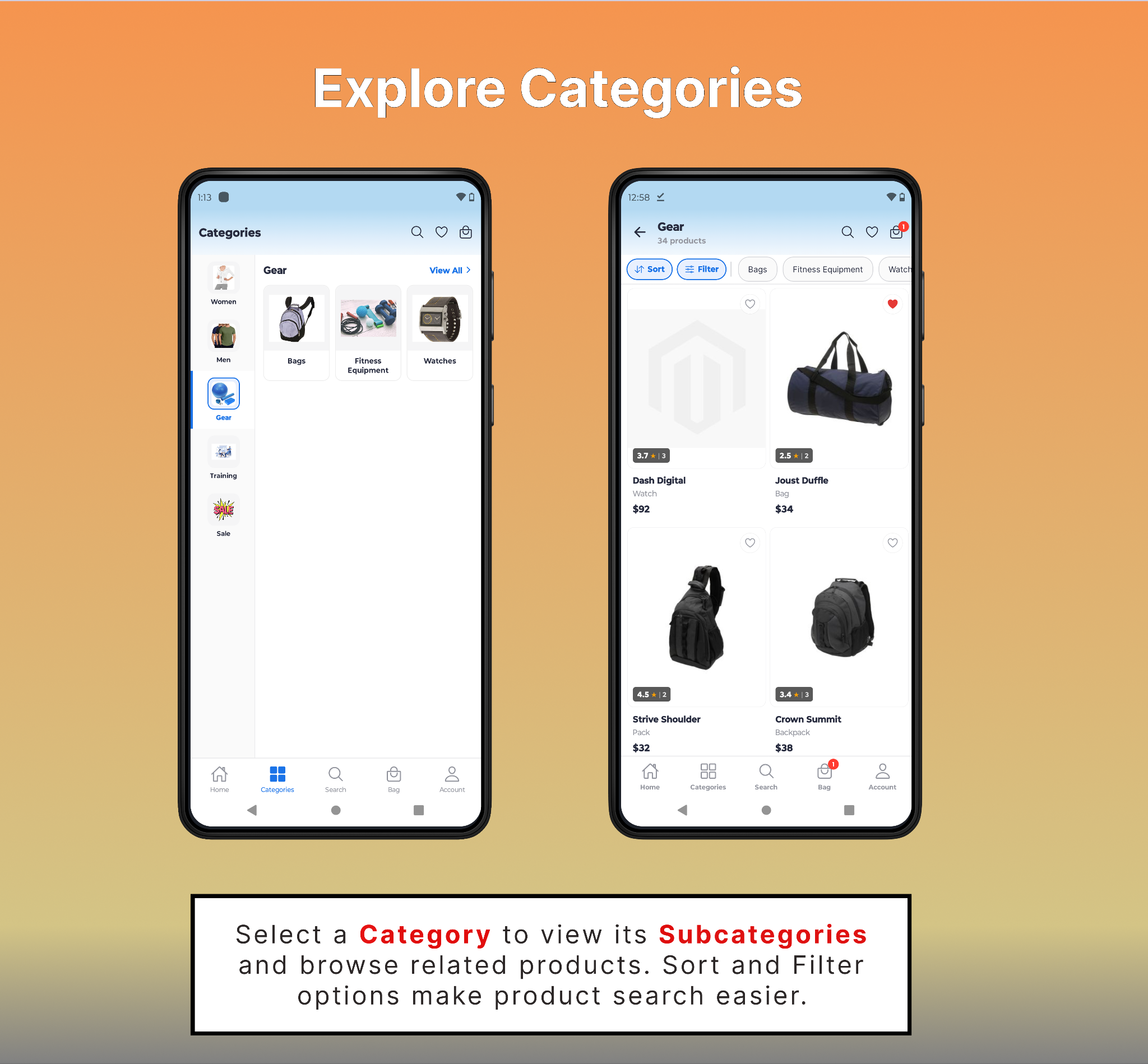
Browse Categories
The Categories menu helps customers explore products by category and subcategory. Select one to view related items, then open a subcategory to browse specific products. Customers can also use sorting and filters to find what they need more quickly.
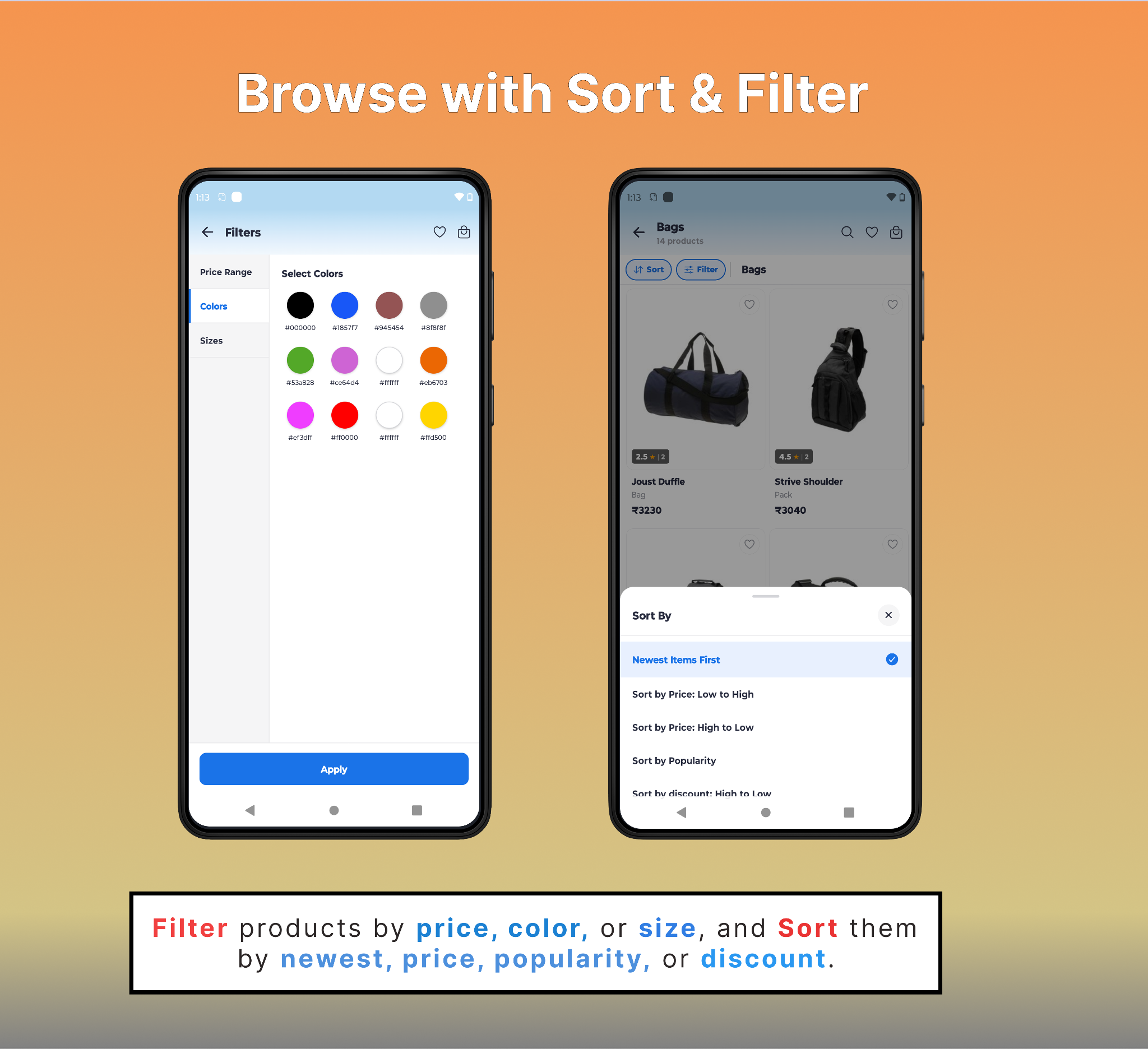
Sort and Filter Options
Use the Filter option to find products by attributes such as price, color, size, and other available criteria. The Sort option helps to arrange products by newest, price, popularity, or discount.
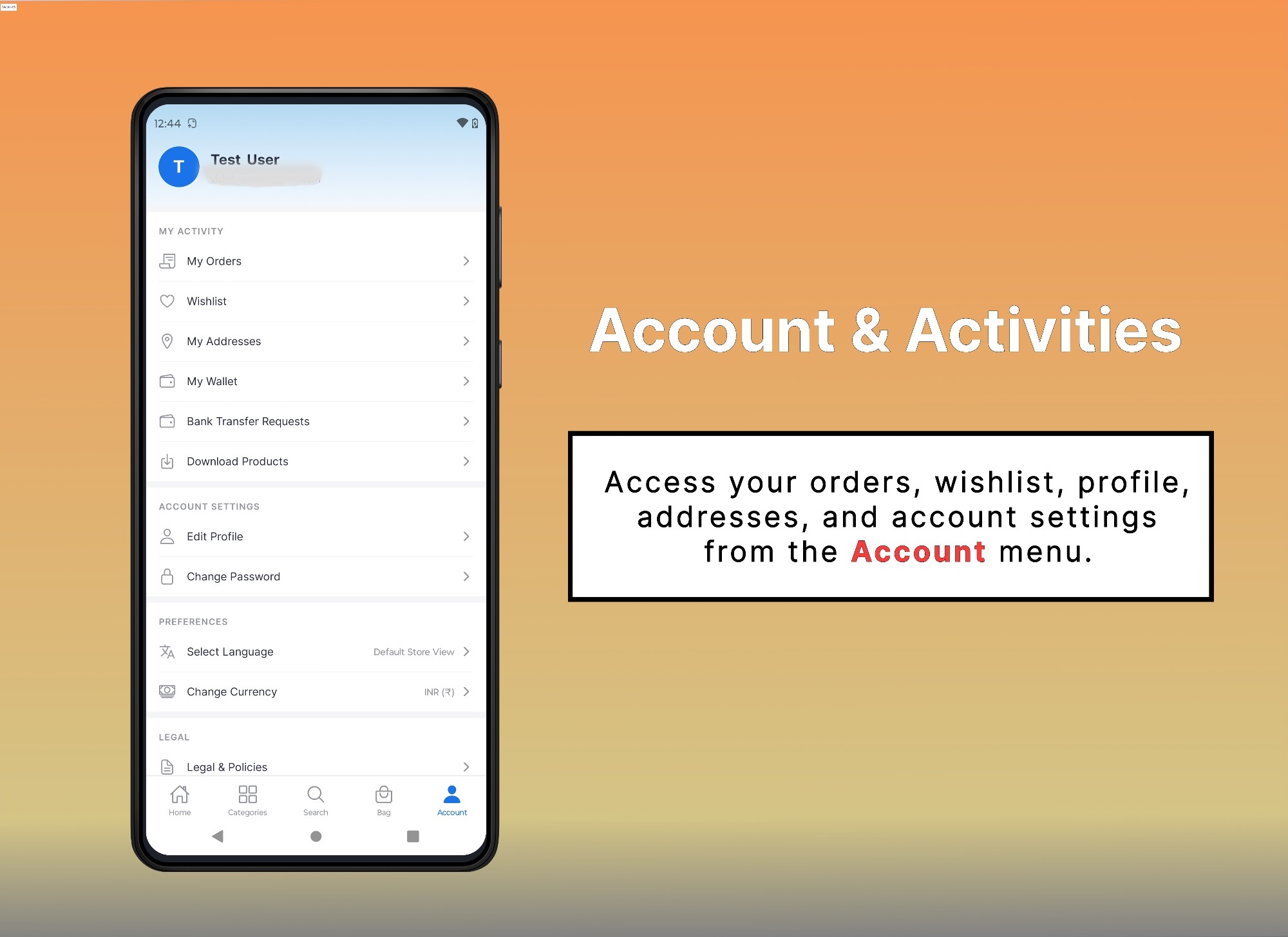
Account Menu
Use the Account menu to manage orders, profile, addresses, wishlist, password, language, currency, and other account settings.
My Orders
This section lets customers view all placed orders, search or filter them, and access detailed order information, including purchased items, payment, shipping details, and order status. Customers can also reorder previously purchased items for a faster checkout experience.
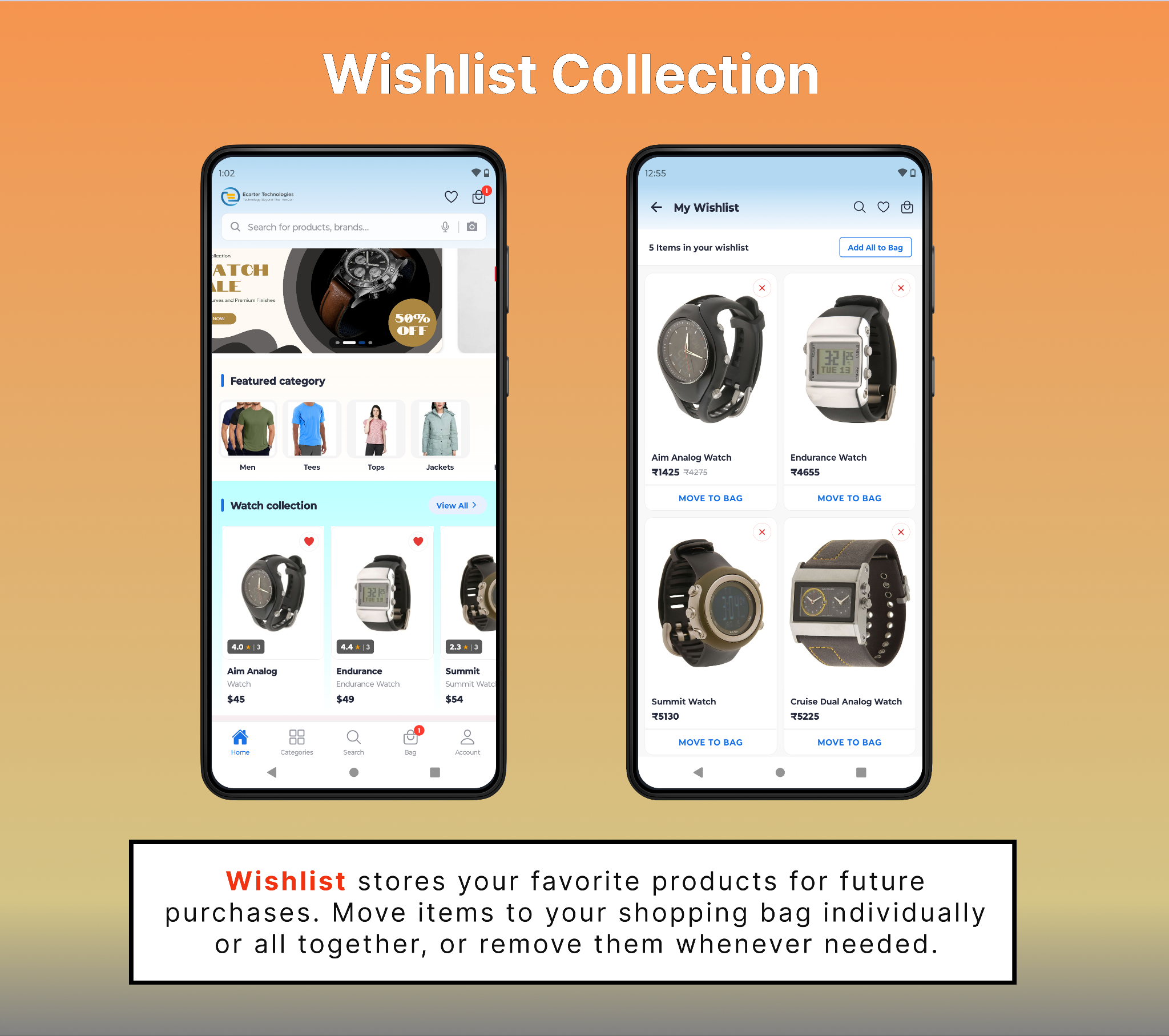
Wishlist Collection
The Wishlist page stores products saved for future purchase. Customers can view their saved items, move them to the shopping bag, or remove them from the wishlist at any time.
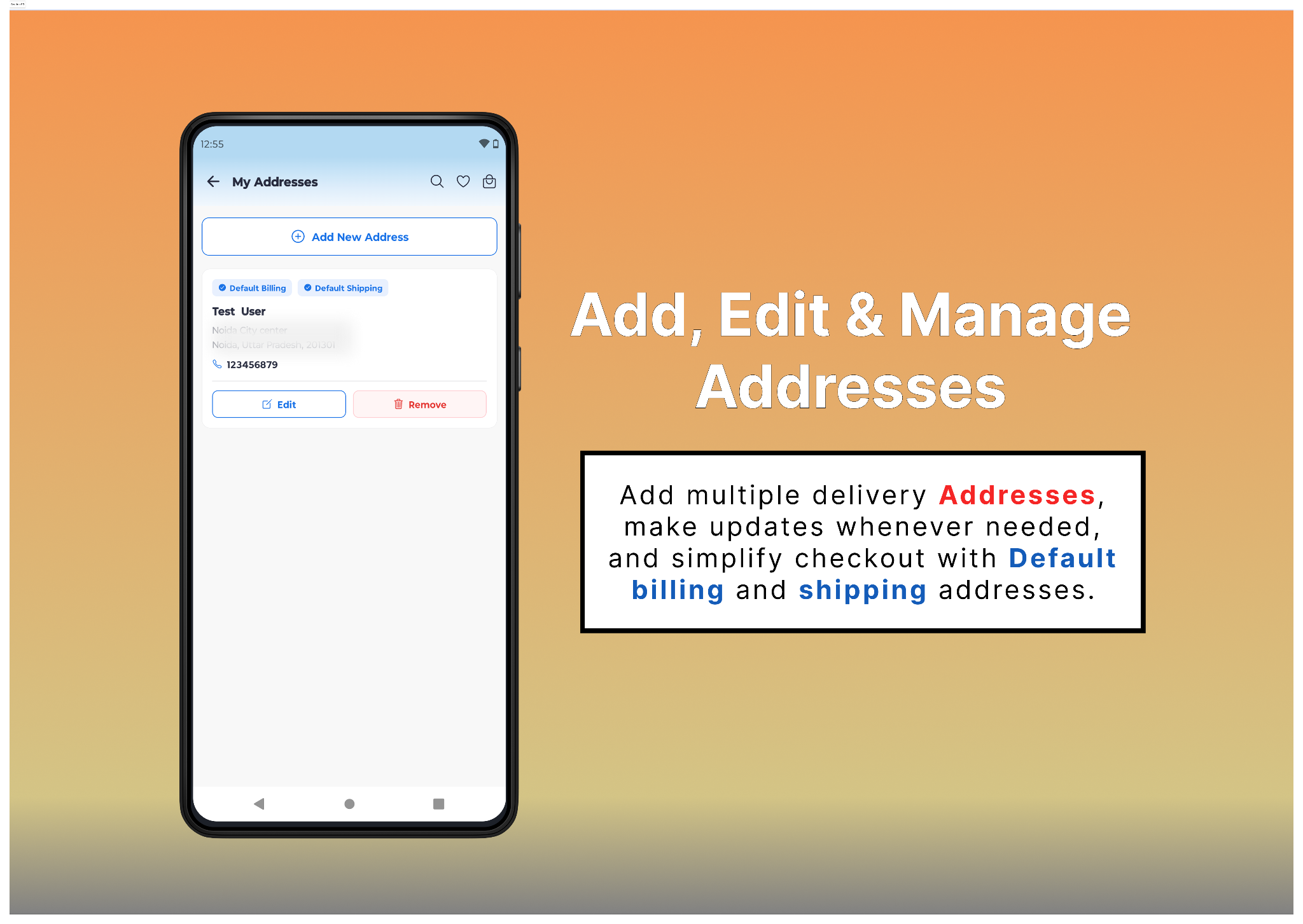
Manage Delivery Addresses
The My Addresses page allows customers to manage their saved delivery addresses. They can add a new address, edit existing details, remove addresses, and set default billing and shipping addresses for a faster checkout experience.
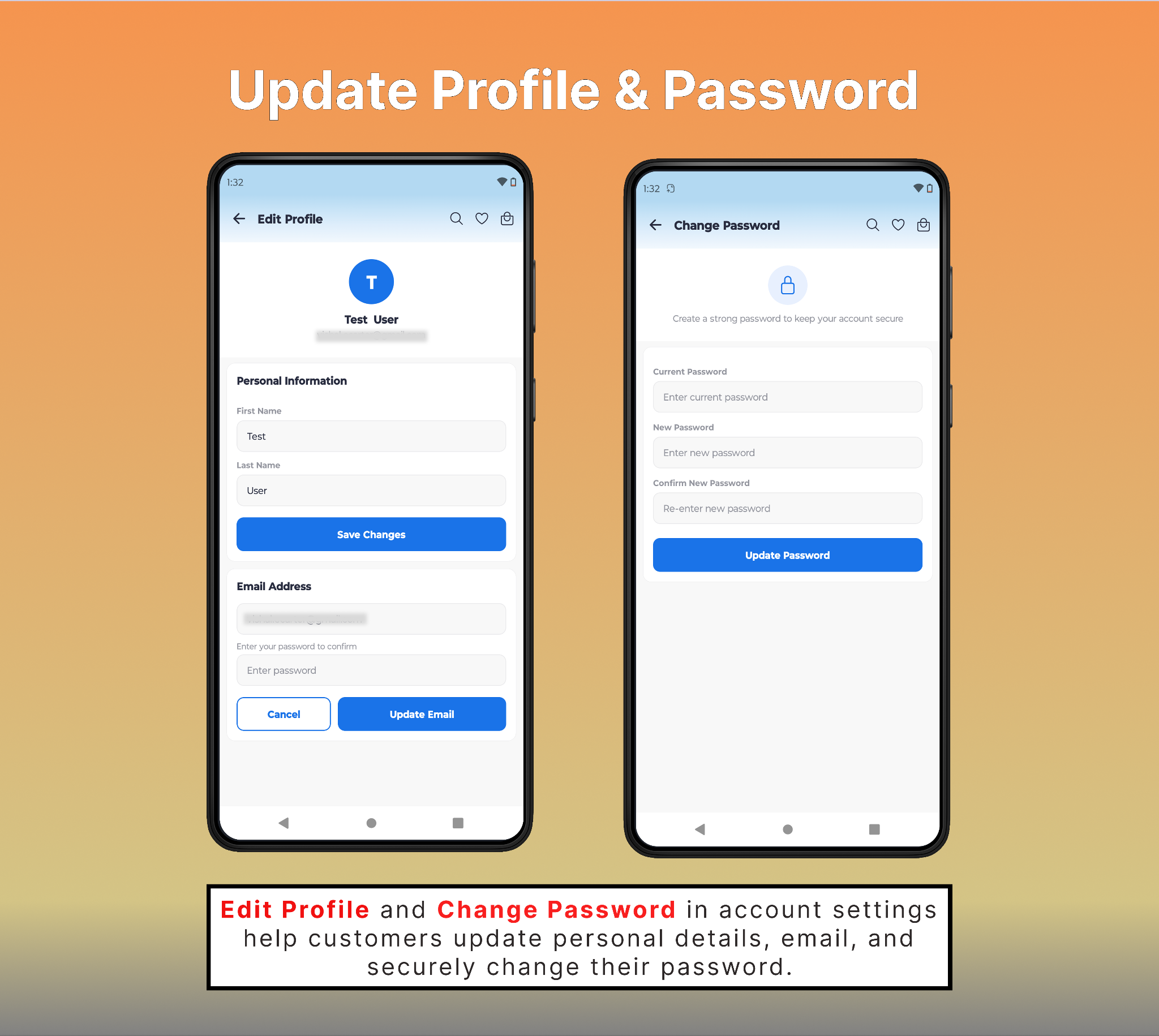
 Manage Account Settings
Edit Profile and Change Password in account settings help customers manage their accounts. Update personal details and email in Edit Profile, and update the account password securely through Change Password.
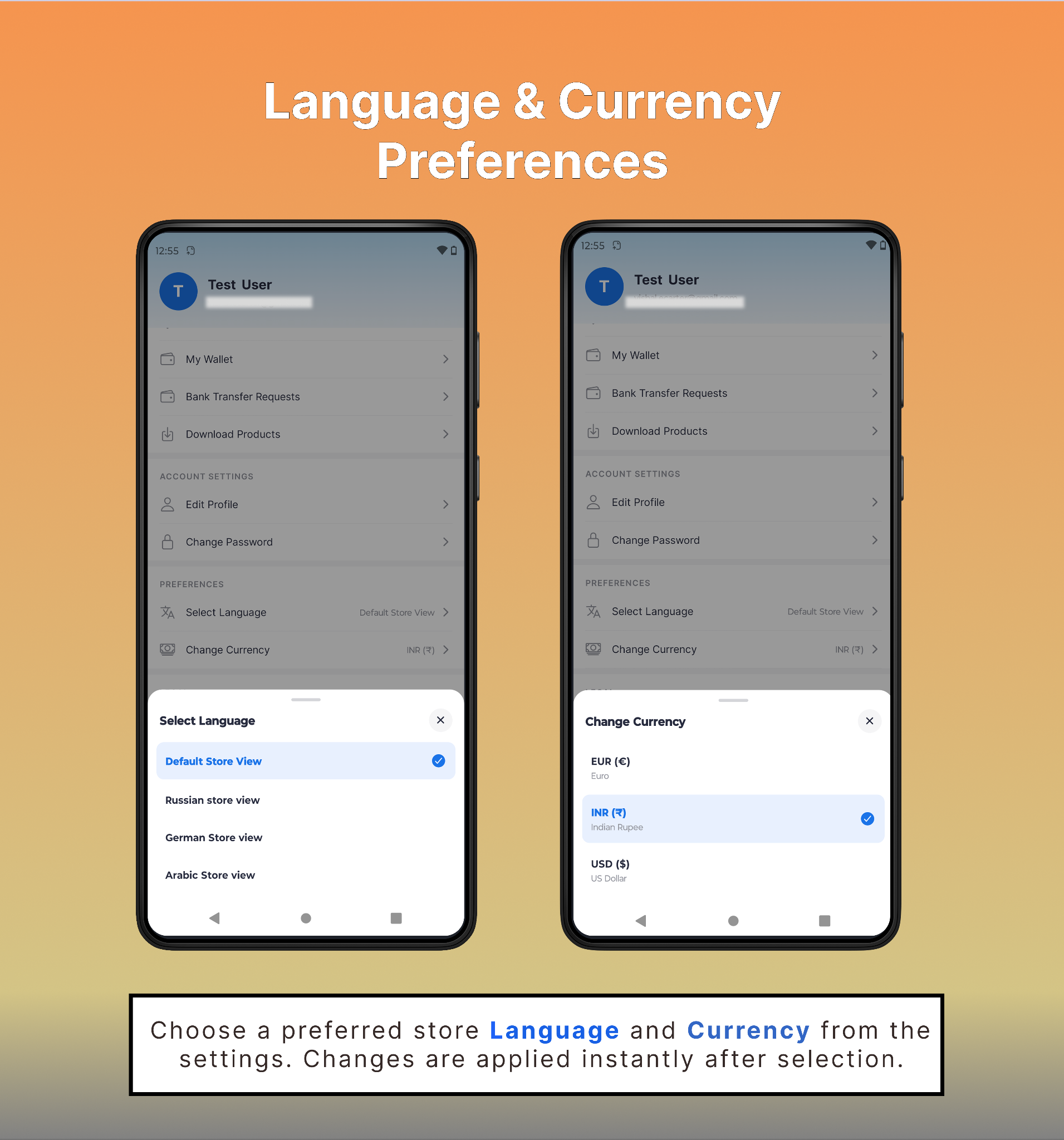
Language and Currency Setting
Language and currency preferences can be updated at any time in the account settings. Select a store view in your preferred language and switch currencies to show product prices in your preferred currency
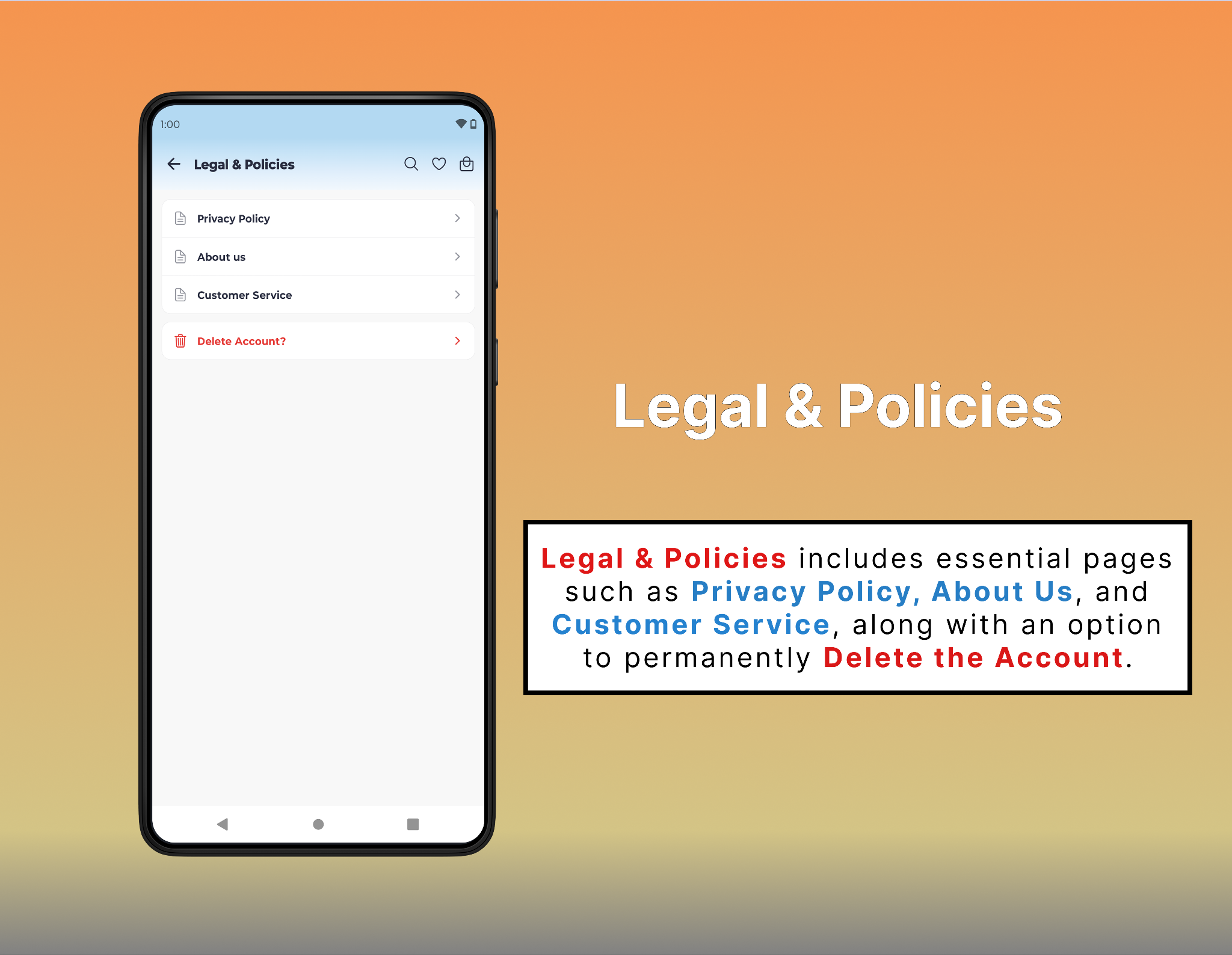
Legal & Policies
From Legal & Policies, users can navigate to the Privacy Policy, About Us, and Customer Service pages, and customers can also choose the Delete Account option to permanently remove their account if needed.
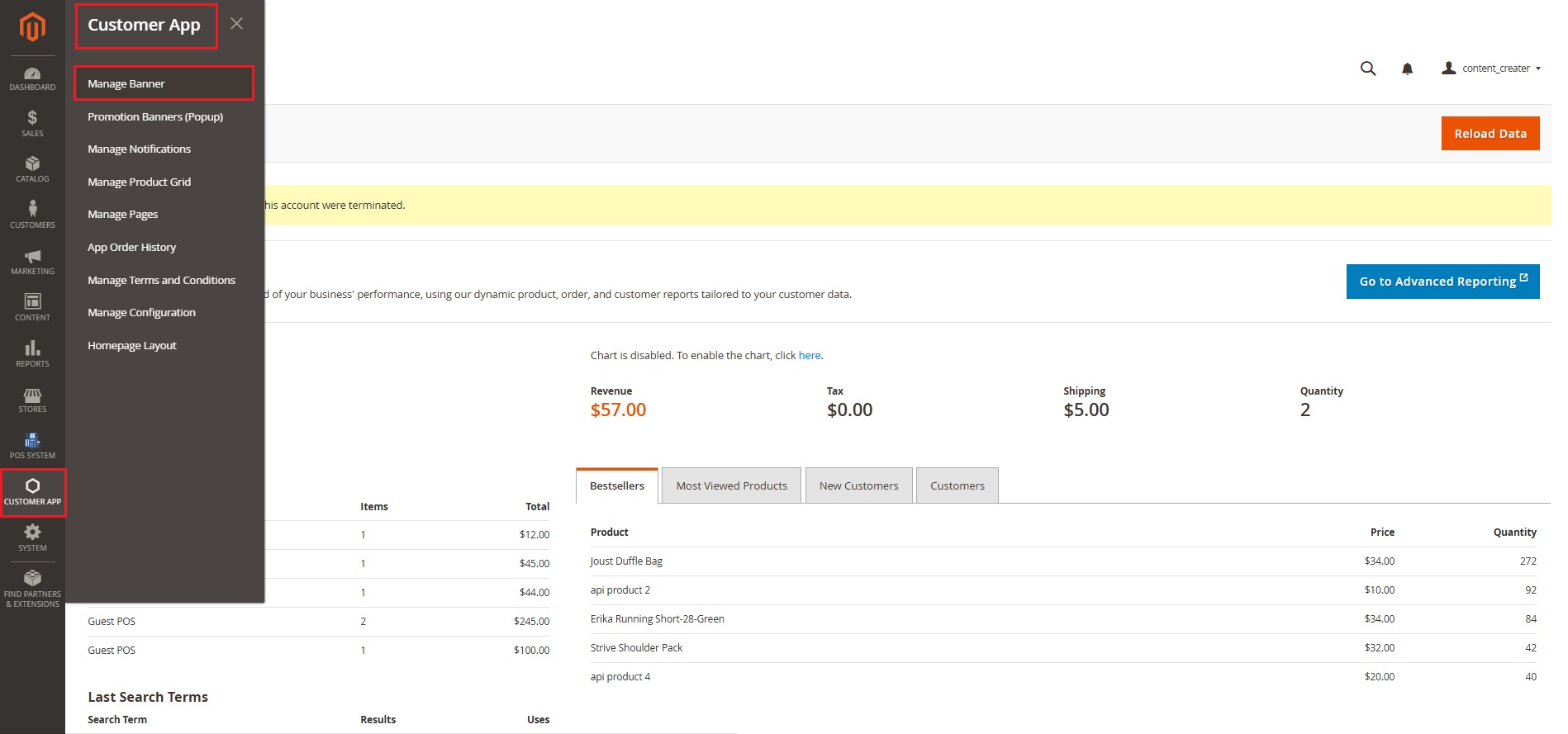
App Admin Panel Explanation
The Customer App Admin Panel brings all management and settings together to control and customize the mobile application easily. Now let’s understand how it works.
- Go to the Customer App menu and select Manage Banner.
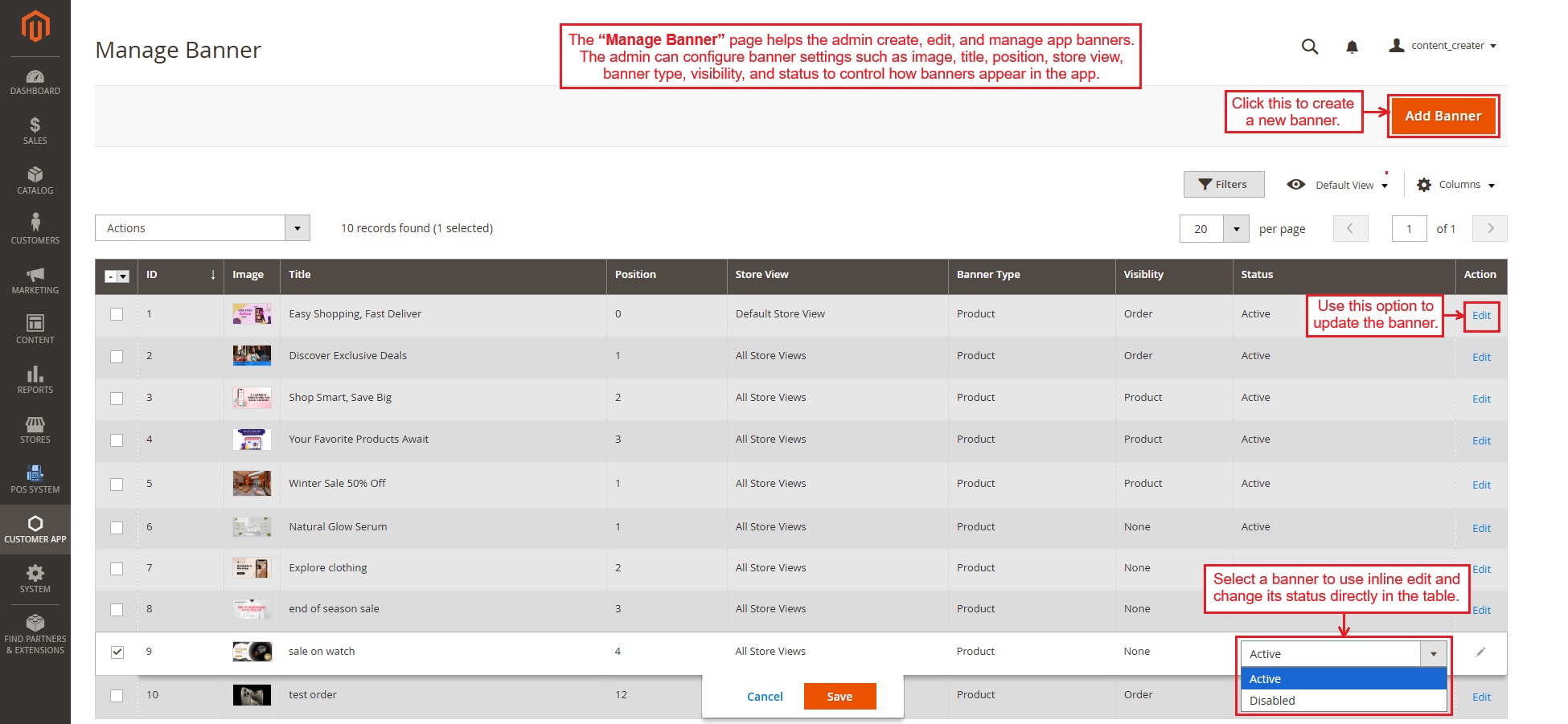
Manage Banner
This “Manage Banner” page helps the admin create, edit, and manage app banners. The admin can configure banner settings such as image, title, position, store view, banner type, visibility, and status to control how banners appear in the app.
- The admin can select a banner to quickly change its status using inline editing or use the Edit option to modify all other settings.
Click “Add Banner” to create a new banner.
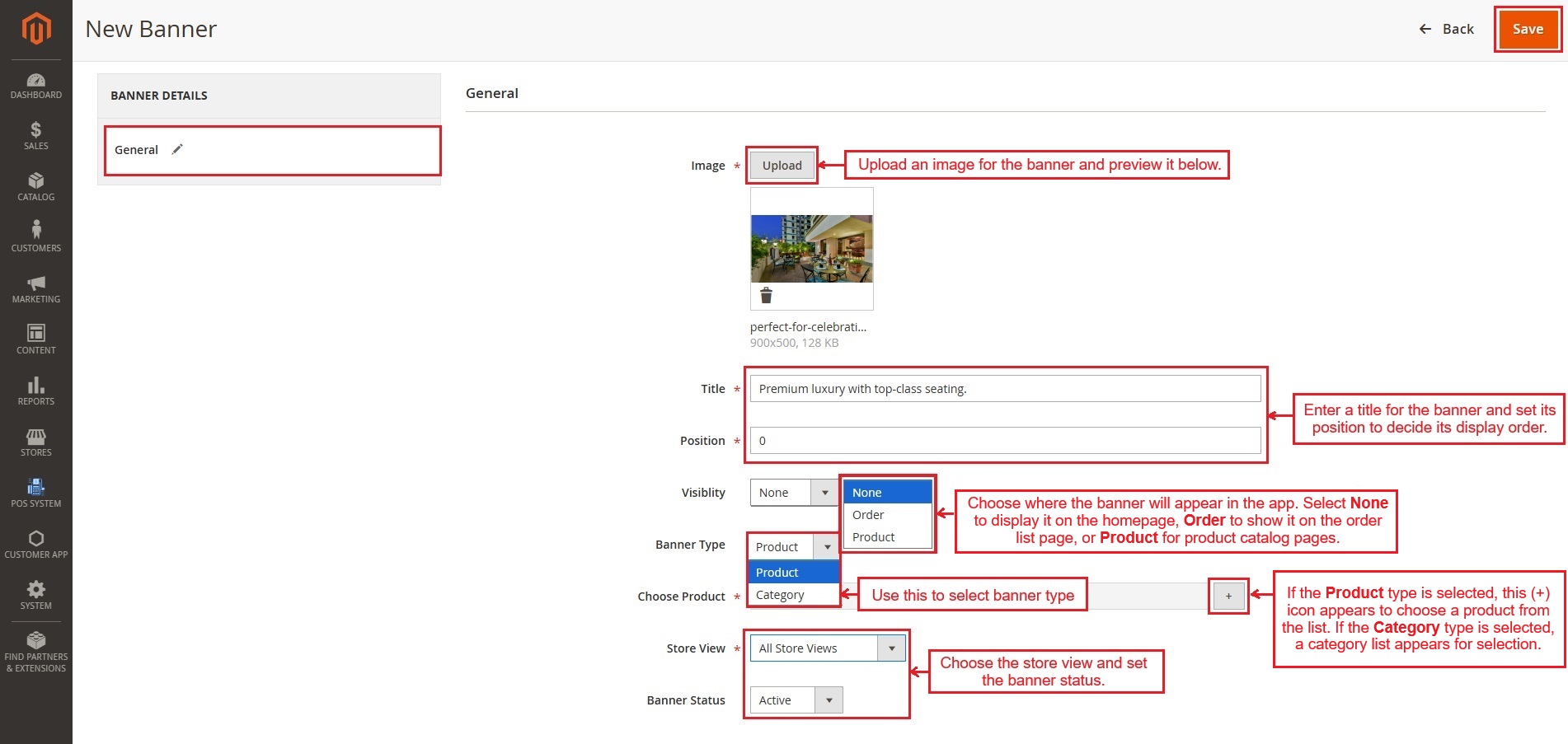
Below is the explanation of the New Banner page settings.
- Image: Upload a banner image and preview how it will appear.
- Title: Add a title for the banner display.
- Position: Set the banner order on the storefront. Smaller numbers appear first.
- Visibility: Control where the banner will be shown:
- None: Shows the banner on the homepage only.
- Order: Displays the banner on the order list page.
- Product: Shows the banner on product catalog pages.
- Banner Type: Choose the banner type, such as Product or Category.
- Choose Product/Category: When the Product type is selected, a (+) icon appears to select a product from the list. When the Category type is selected, a list of categories appears for selection.
- Store View: Select the store view where the banner will appear.
- Banner Status: Enable or disable the banner status.
- Save: At the end, save the banner and apply all settings.
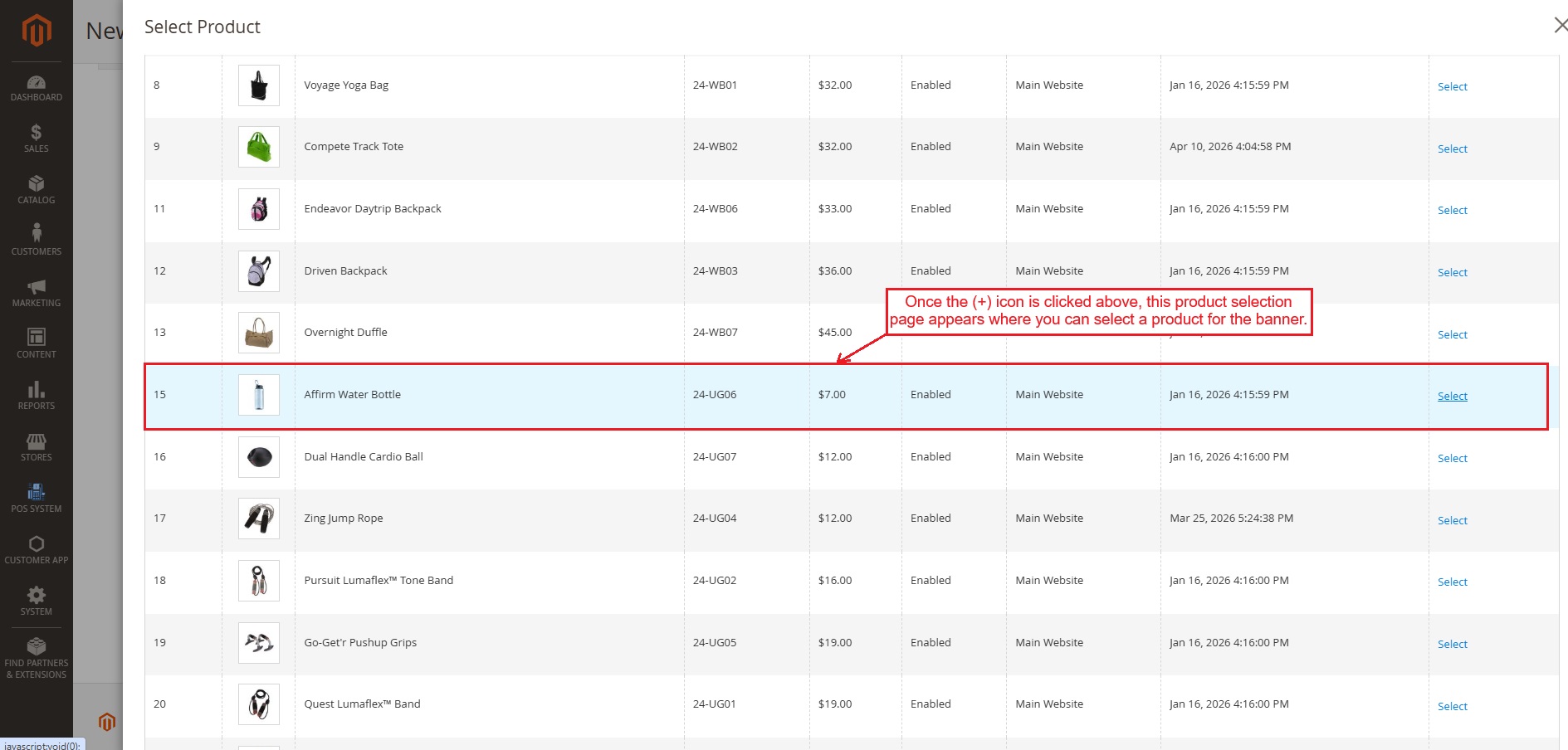
- Clicking the (+) icon above opens the product selection page shown below.
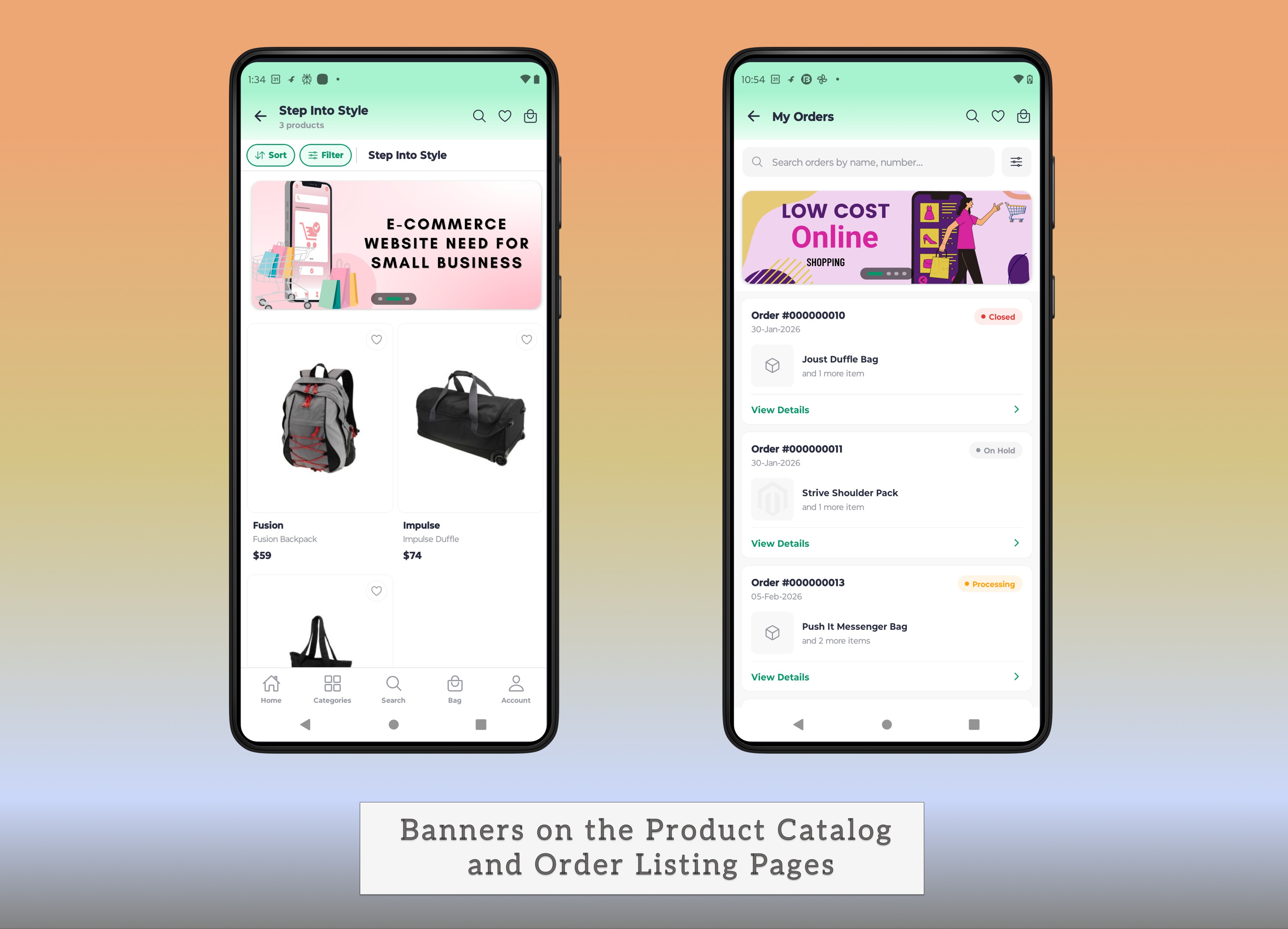
- Banners created with Order or Product visibility automatically appear on the Order List page or Product Catalog pages in the app, as shown below.
Promotion Banner
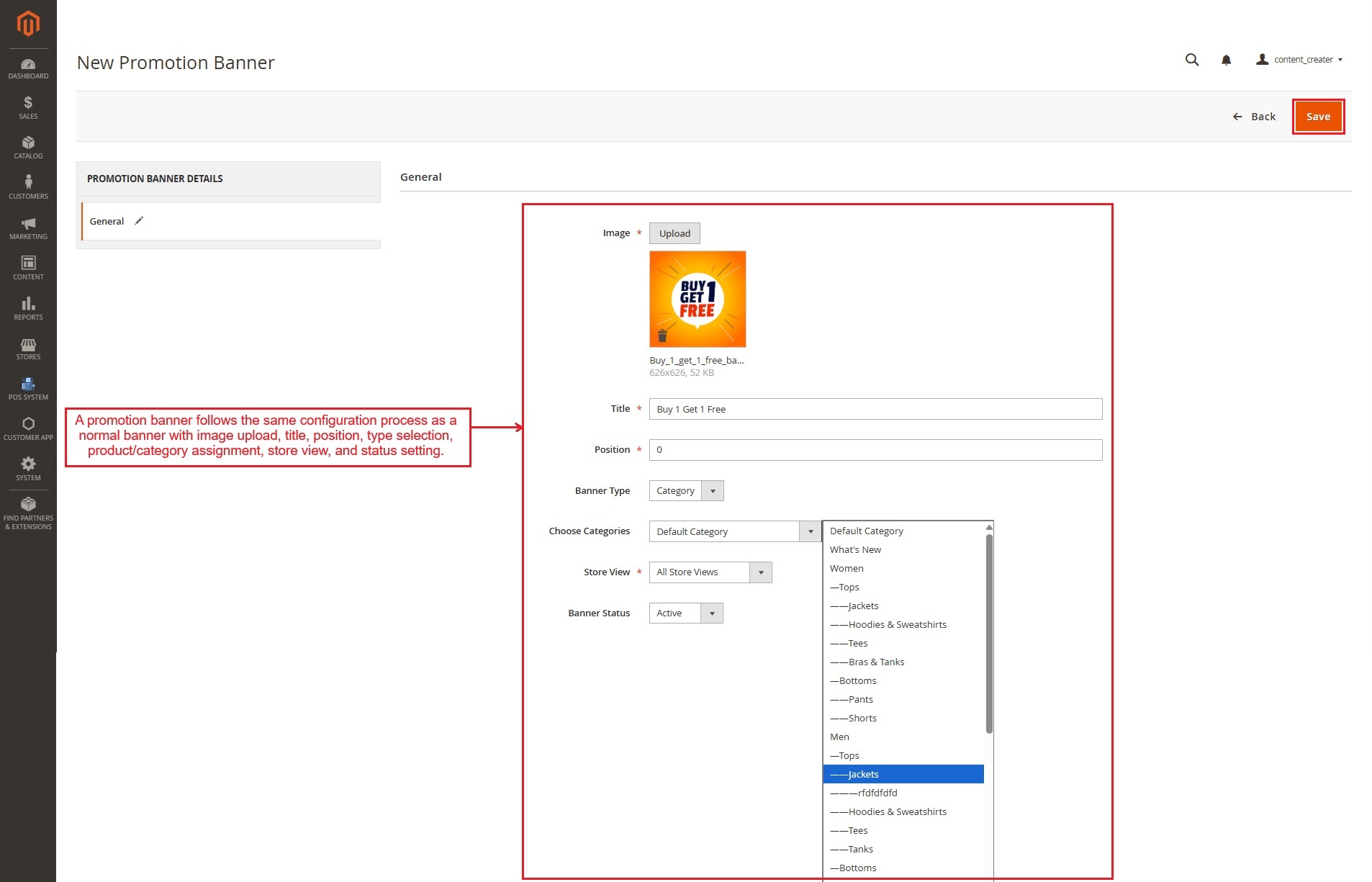
- A “Promotion banner” follows the same configuration process as a normal banner creation with image upload, title, position, type selection, product/category assignment, store view, and status setting.
- Only the visibility option is not available for promotion banners, as all promotion banners appear on the homepage as a pop-up.
Manage Notification
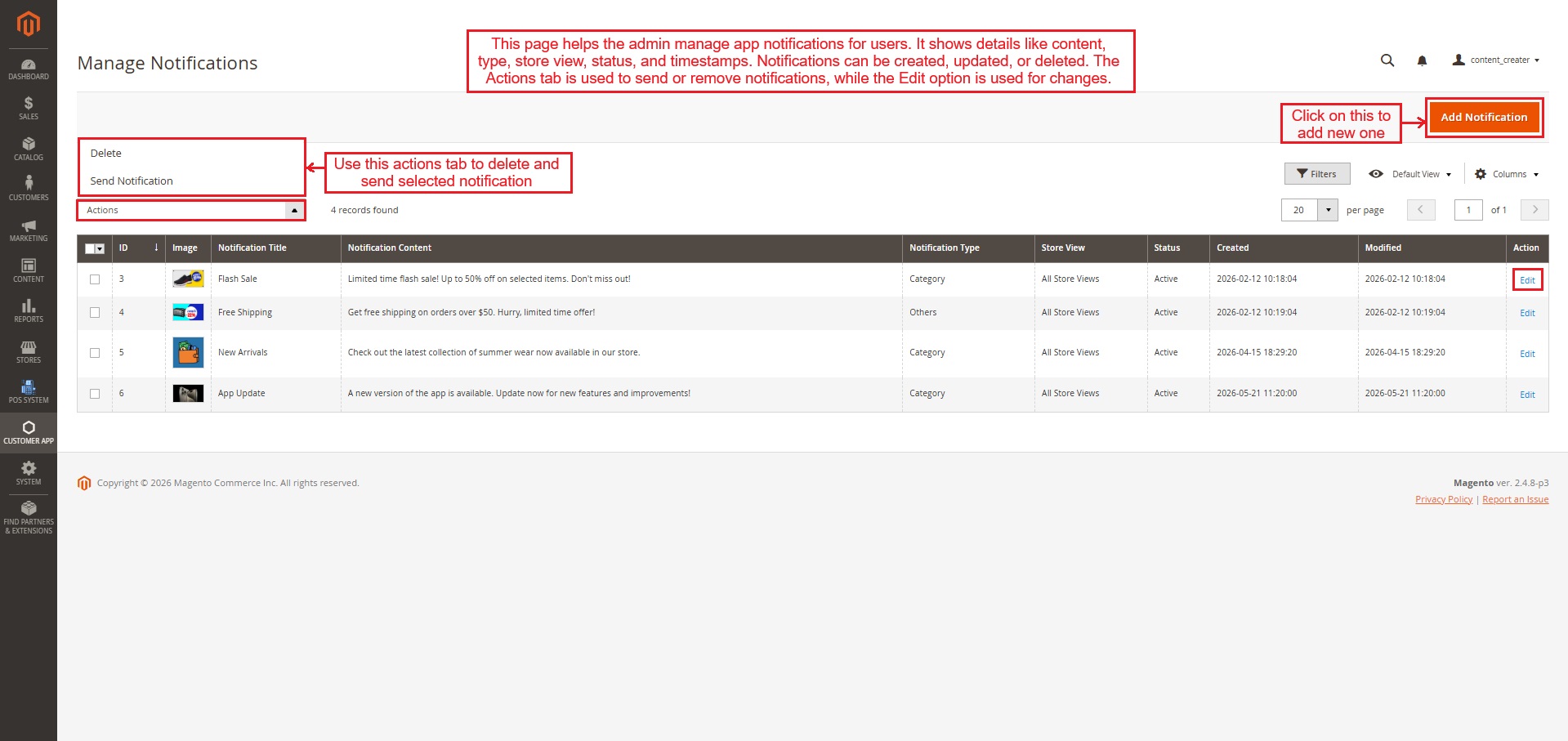
- Selected “Manage Notifications” from the customer app menu. This page helps the admin manage app notifications for users. It shows details like content, type, store view, status, and timestamps. Here, the notifications can be created, updated, or deleted. Use the Actions tab to send or remove notifications and the Edit option to make changes.
- Click on “Add Notification” to add a new one.
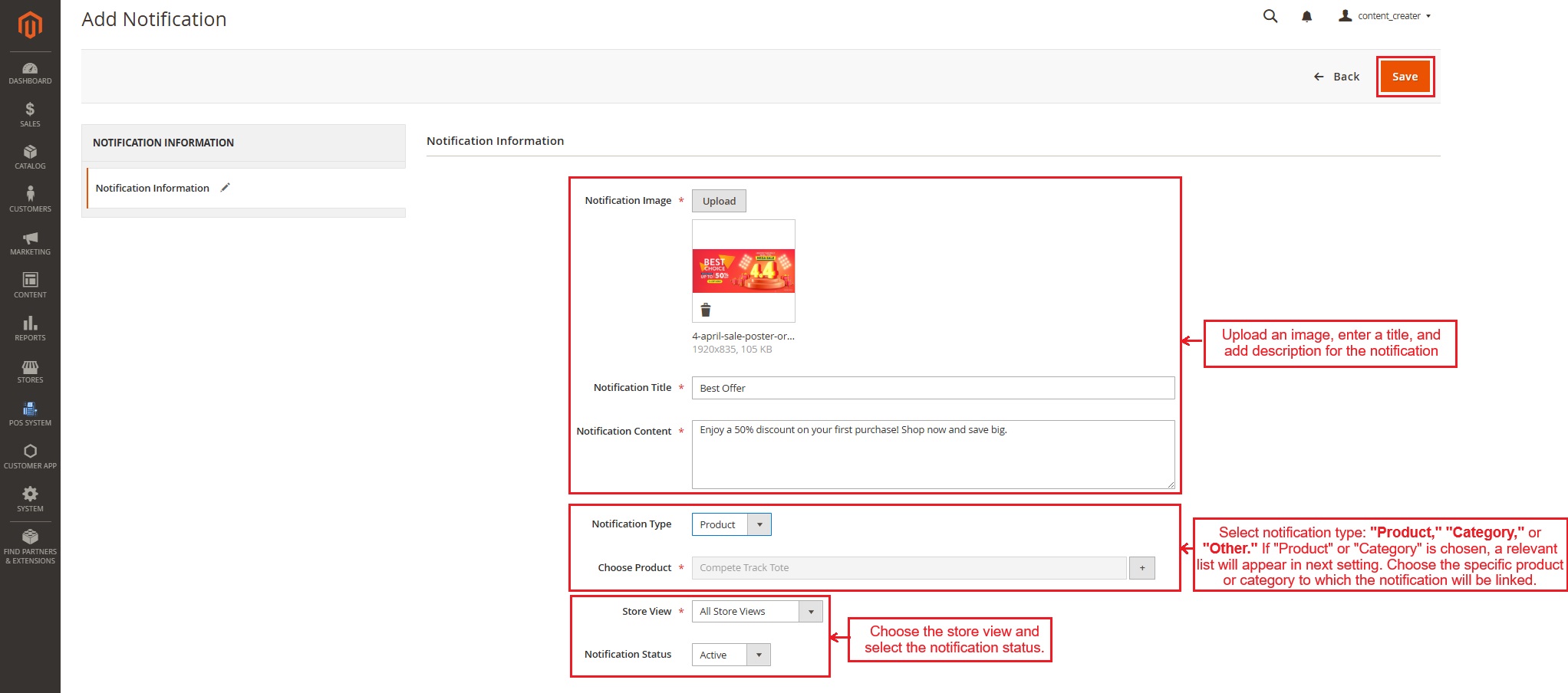
Notification Information explanation:
- Notification Image/Title/Content: Upload an image, enter a title, and a description for the notification.
- Notification type: This provides three options: product, category, and other. The admin must select one notification type.
- Choosing product/category: Selecting Product or Category type shows a related list in this setting. Choose the specific product or category to which the notification will be linked.
- Store view and notification status: Select the store view and set the notification status.
Press “Save” at the end.
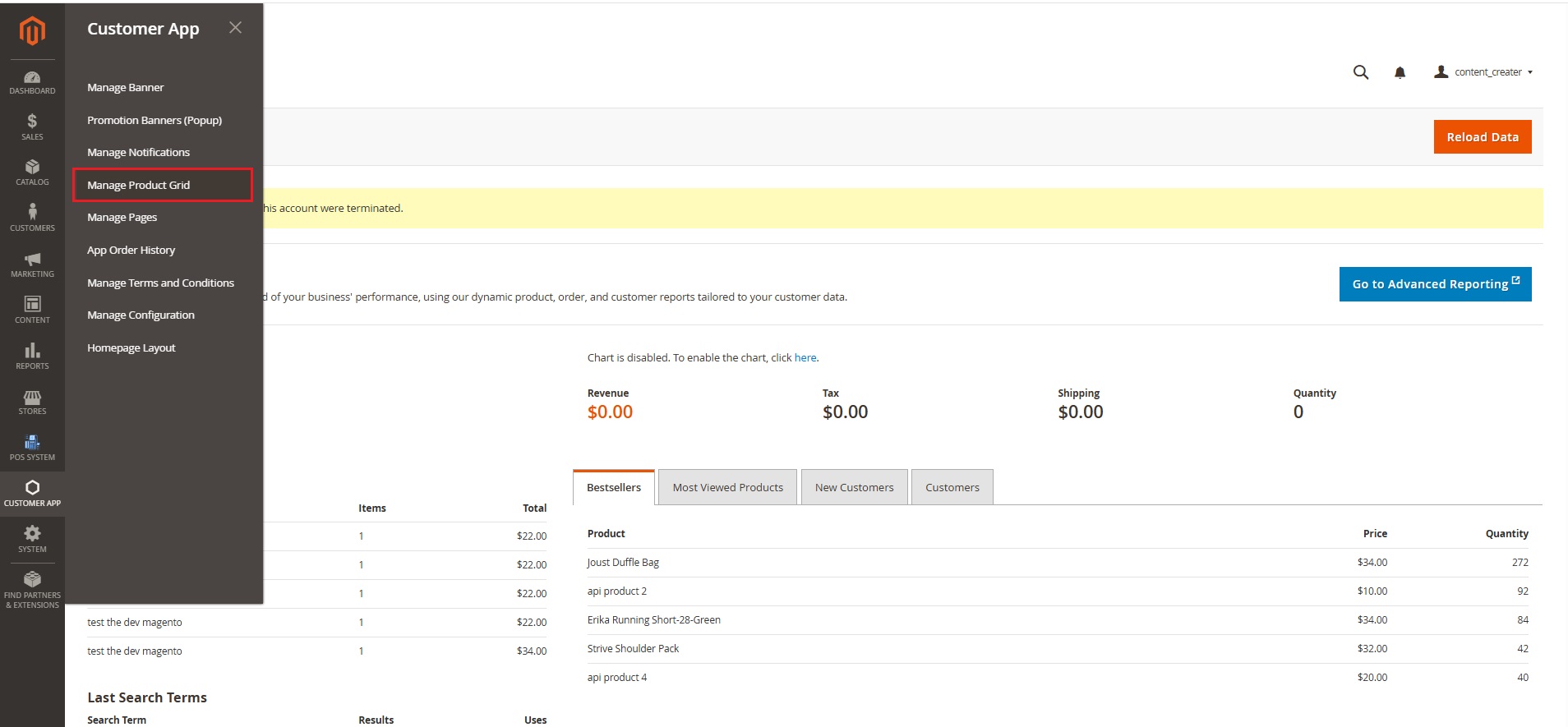
Manage Product Grid
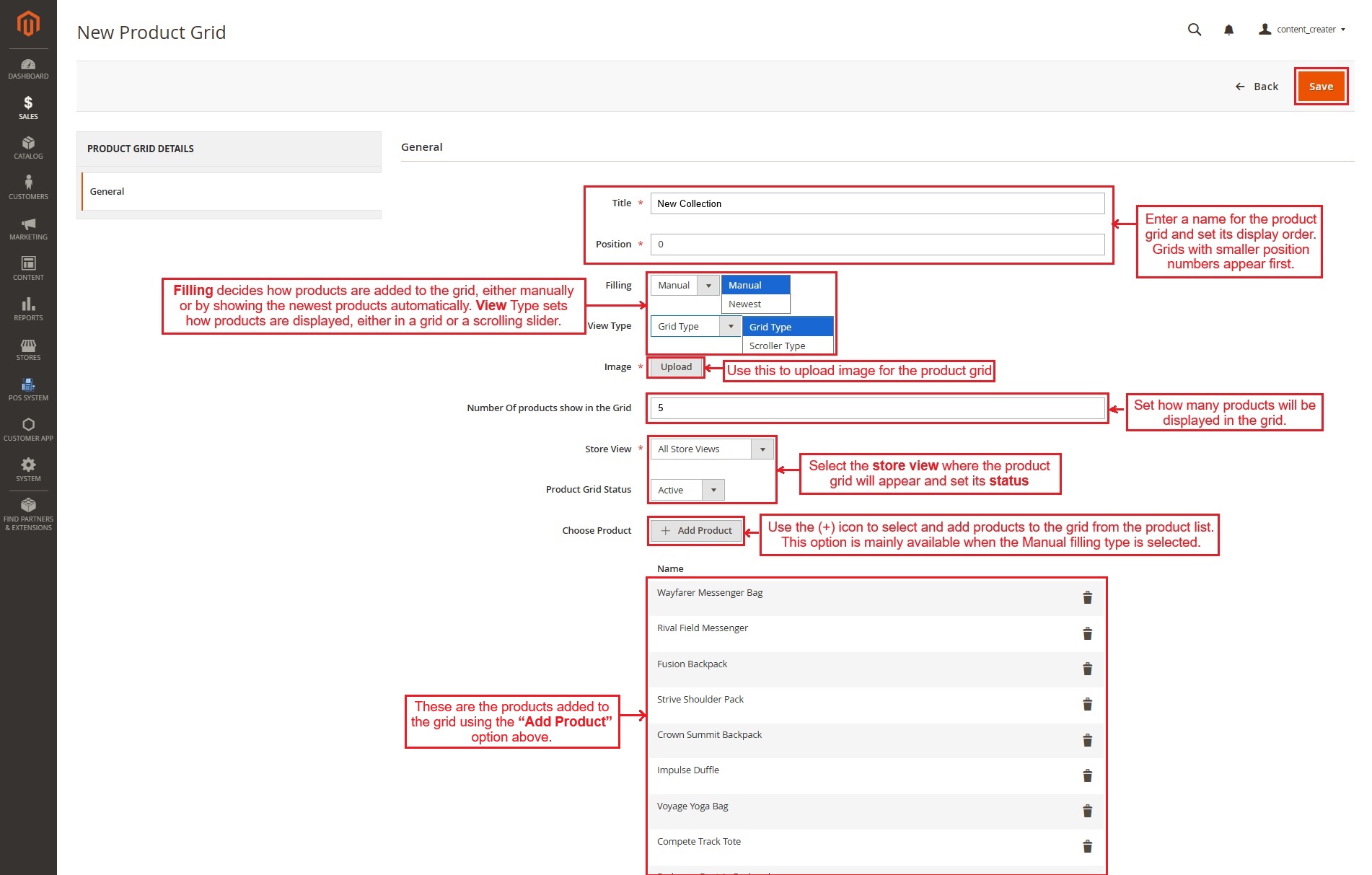
- Product Grid is used to showcase multiple products in a structured layout for easy browsing. Open the “Manage Product Grid” menu, which allows the admin to create and edit the existing product grids.
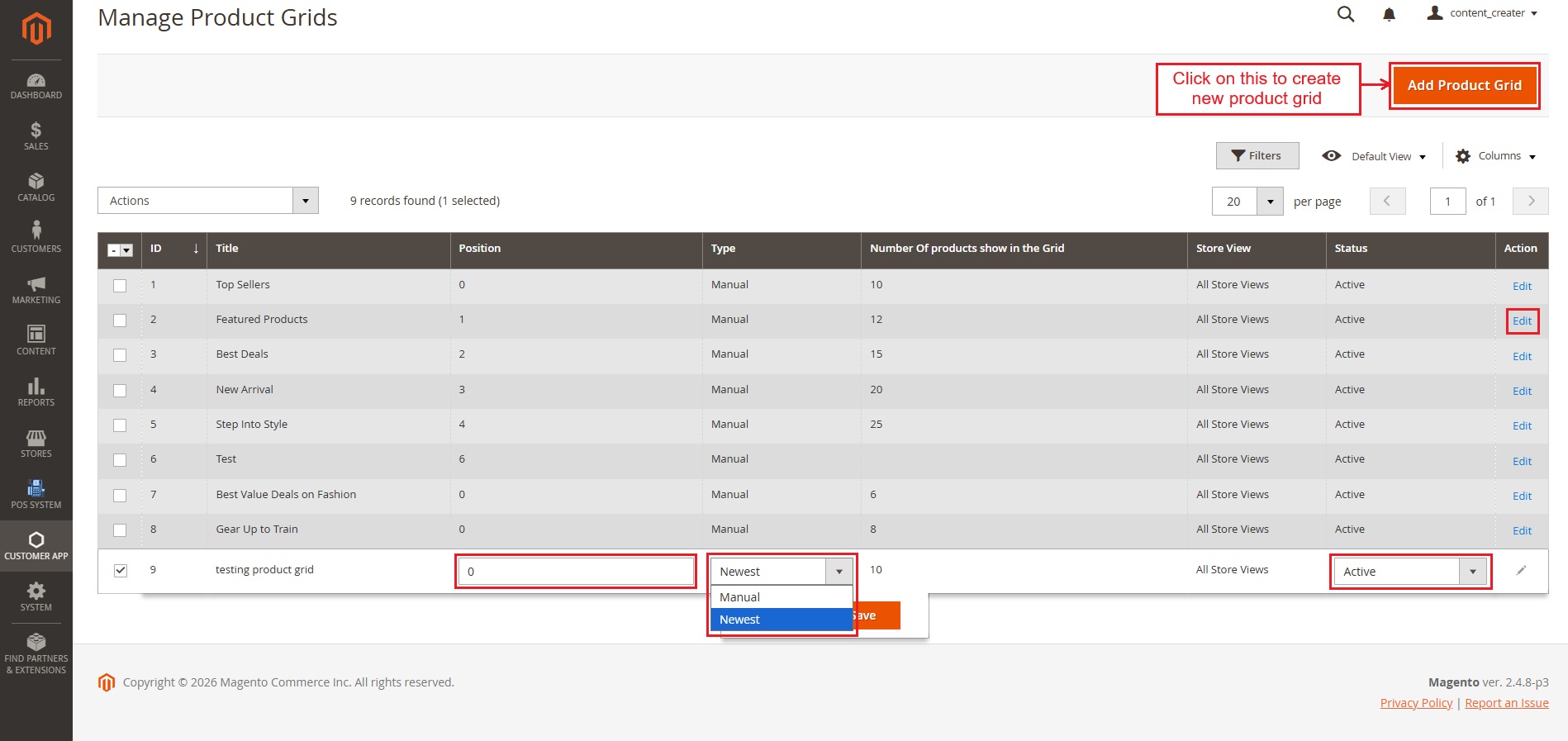
- The table contains all created product grids. Use inline editing to quickly update basic settings, or select the Edit option to access and modify all settings.
- Click “Add product Grid” to create a new product grid.
Below are the general settings available for new product grid creation.
- Title: Enter a name for the product grid. This helps you identify it later.
- Position: Set the order of this grid among others. A smaller number means it will appear earlier.
- Filling: Choose how products are added to the grid.
- Manual: You select specific products to add to the grid.
- Newest: The grid automatically shows the most recently added products.
- View Type: Select how the products are displayed.
- Grid Type: Products are shown in a grid layout.
- Scroller: Products are shown in a scrolling list, allowing users to scroll through items.
- Image: Upload an image to represent this product grid visually.
- Number of products to show in the Grid: Specify how many products will be visible in this grid when it appears in the app.
- Store View: Select the store view where the product grid will appear.
- Product Grid Status: Choose whether the grid is active or inactive.
- Active: The grid is visible to customers.
- Inactive: The grid is hidden and not visible.
- Choose Product: Use the (+) icon to choose products for the grid.
- This option is mainly available when “Manual” filling is selected.
- Click the (+) icon to select and add products from the provided list.
- Products Added to this Grid: These are the products you added using the “Add Product” option. They will appear in the grid on the storefront.
Once all settings are configured, click the “Save” button to apply your changes.
Manage Pages
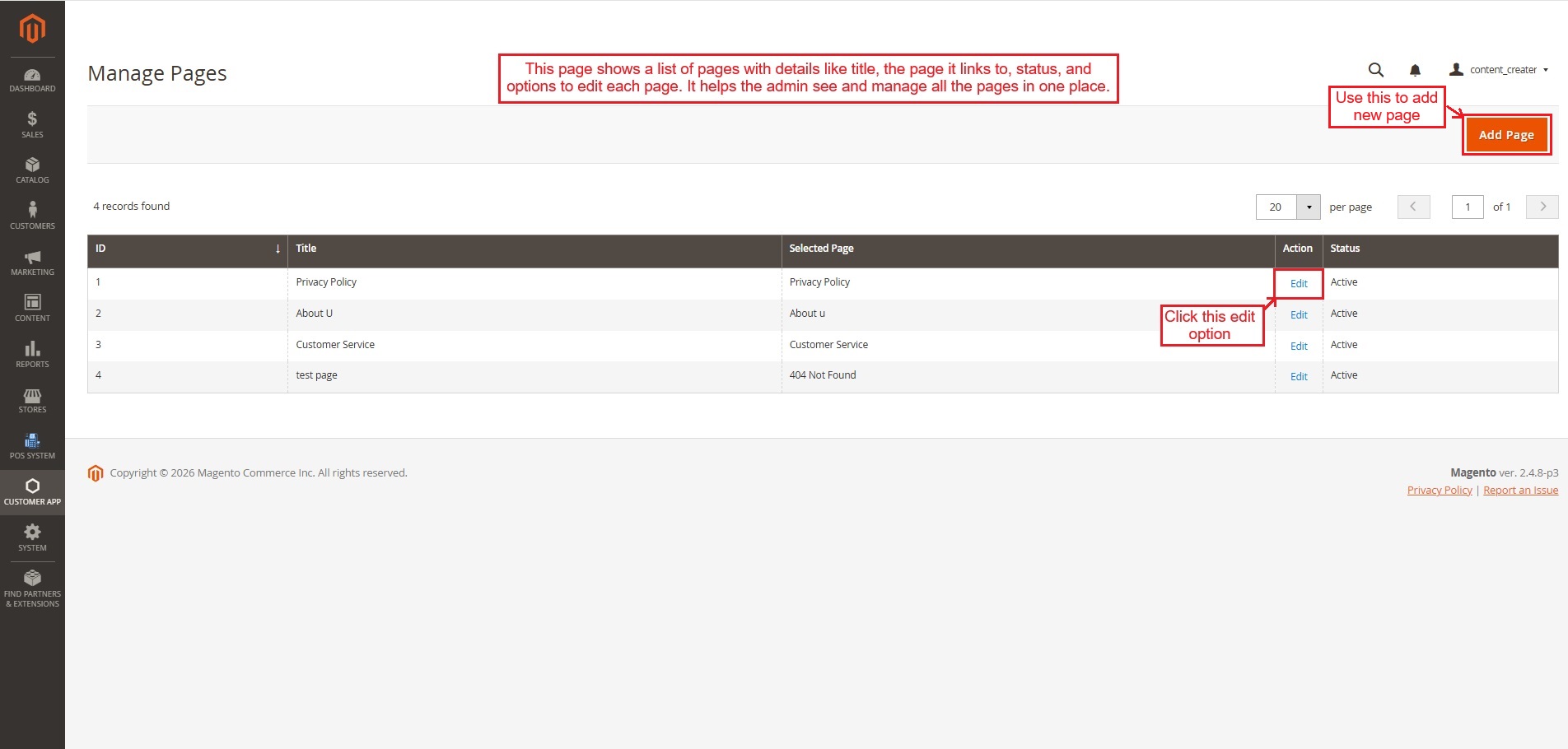
- The admin can view and manage all app pages from the “Manage Pages” menu, which shows page title, linked page, status, and edit actions. The “Add Page” button helps create new pages.
- Click “Edit”.
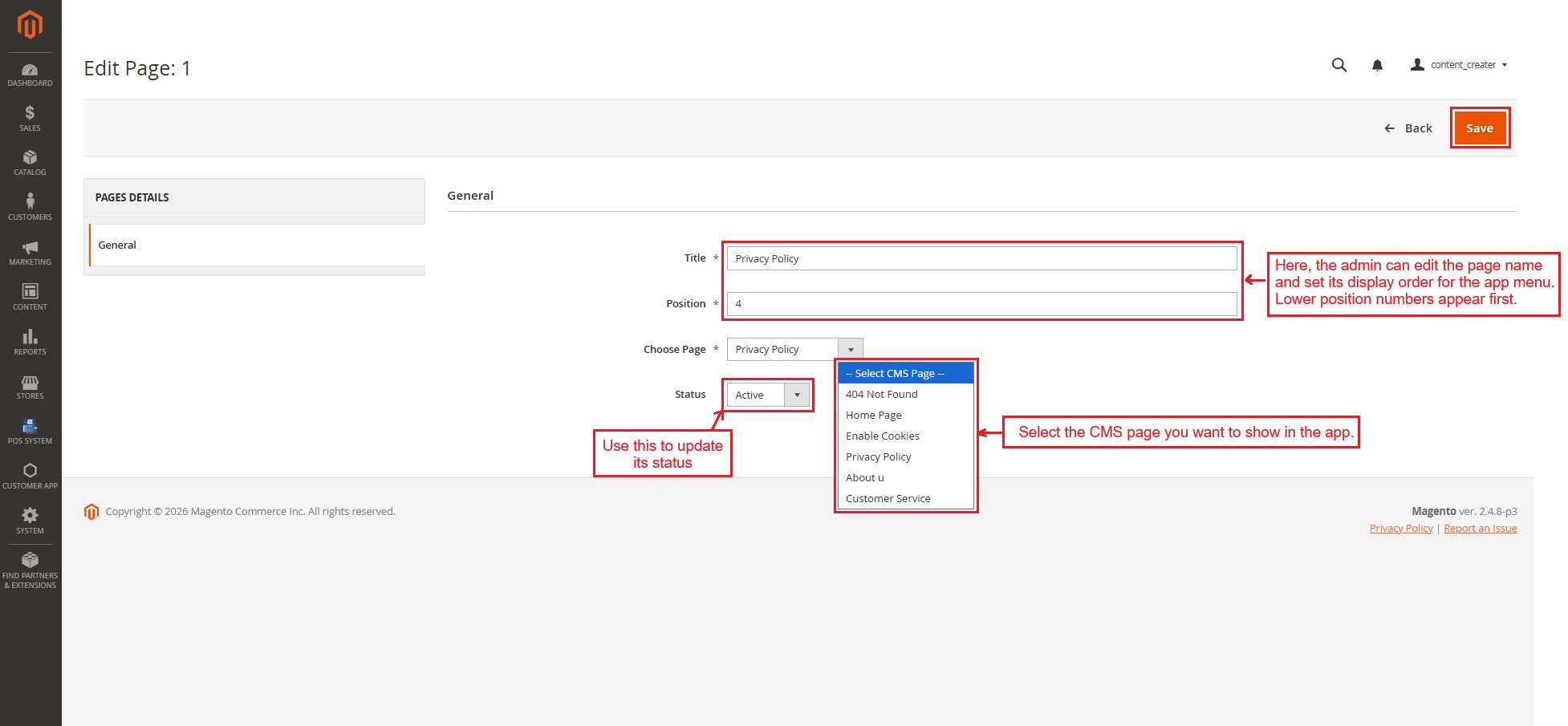
- This edit page allows the admin to change the page title, set its position in the list, select the CMS page to display in the app, and set the status as active or inactive.
App Order History
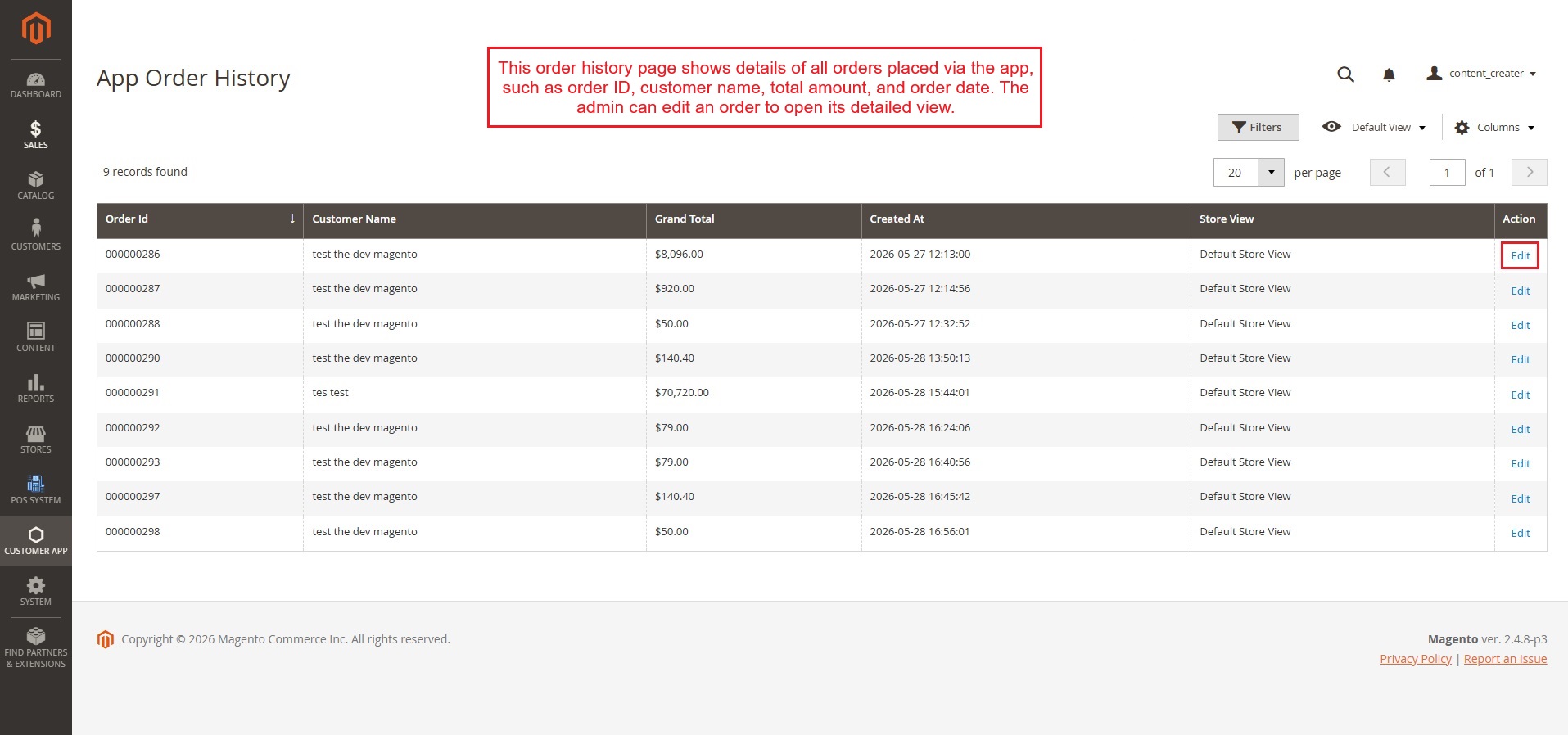
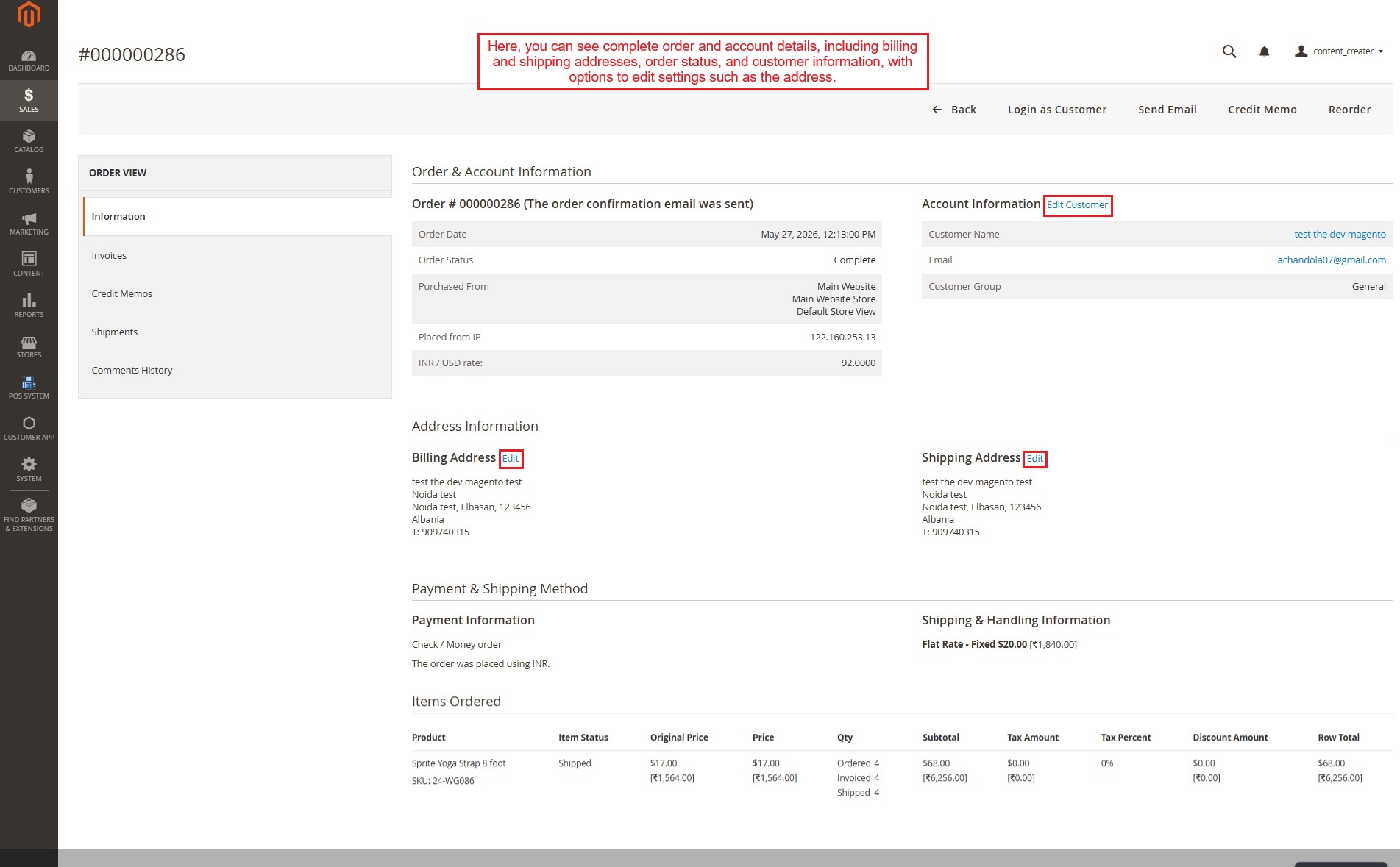
- This App order history page shows details of all orders placed via the app, such as order ID, customer name, total amount, and order date. The admin can use the edit options to open the order's detailed view.
- Here, the admin can view complete order and account details, including billing and shipping addresses, order status, and customer information, with options to edit settings such as the address.
Manage Terms and Conditions
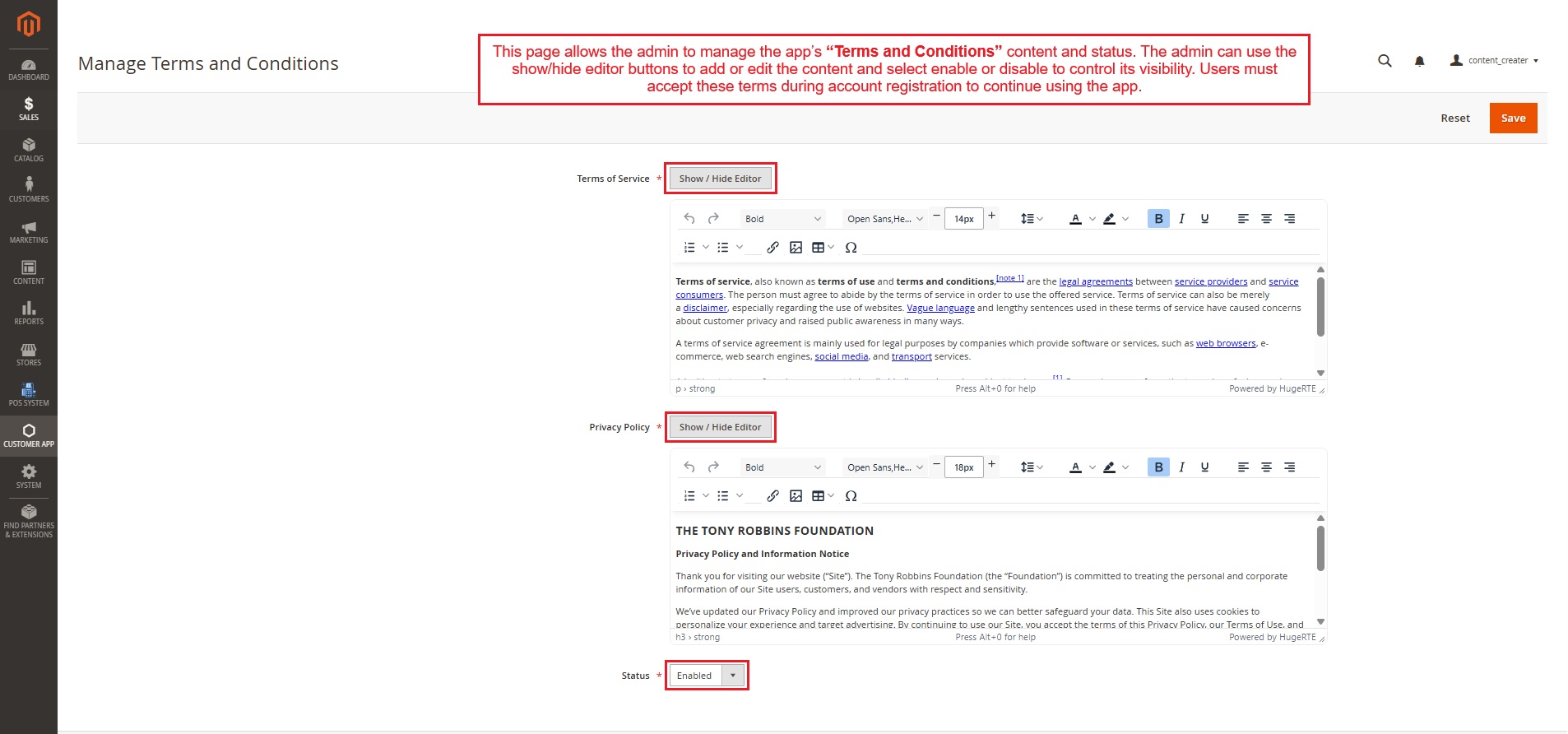
Open the “Manage Terms and Conditions” option in the customer app’s menu. This allows the admin to manage the app’s “Terms and Conditions” content and status. The admin can use the show/hide editor buttons to add or edit the content and select enable or disable to control its visibility. Users must accept these terms during account registration to continue using the app.
Manage Configuration
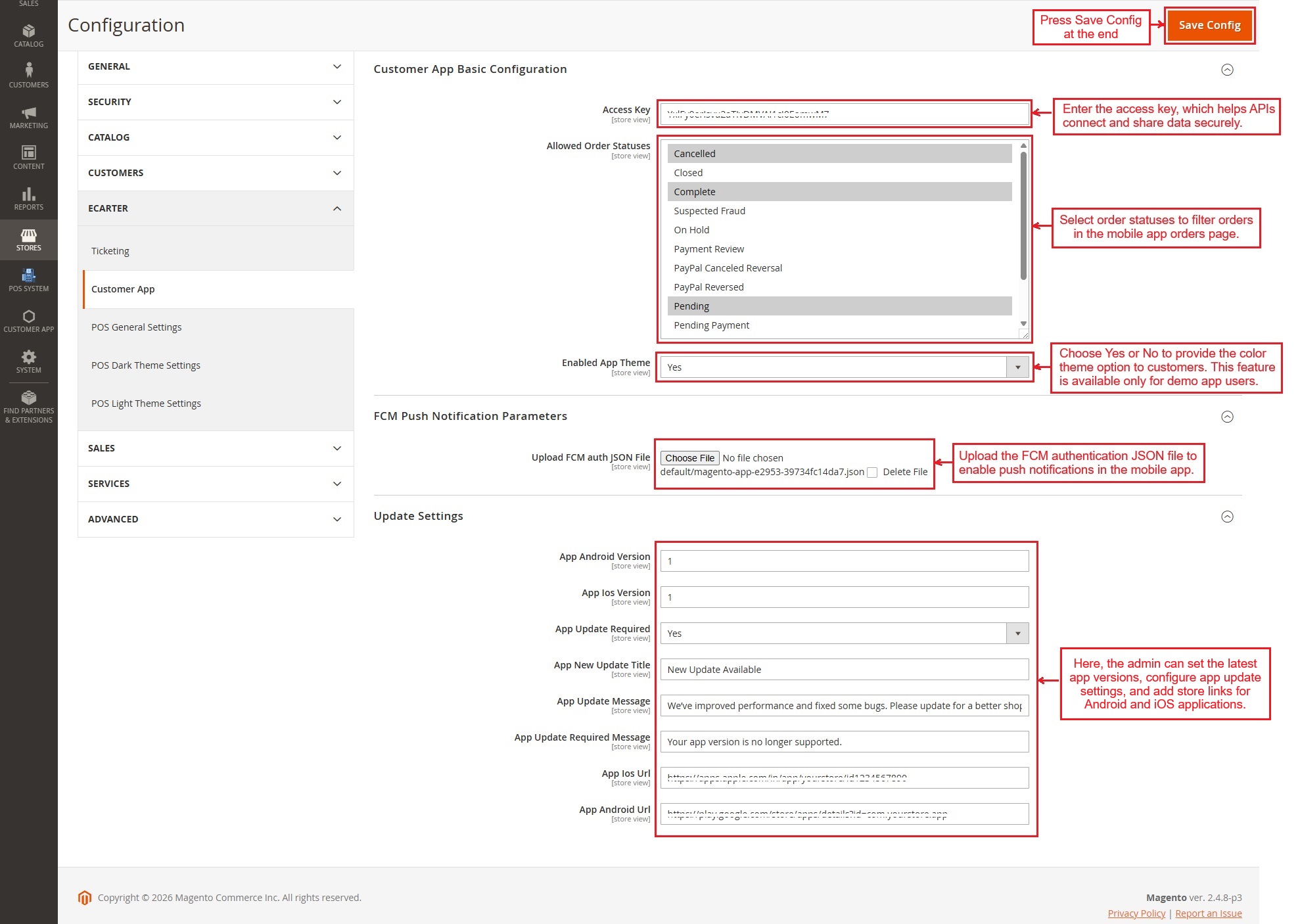
Go to the “Manage Configuration” section to configure the app's basic settings.
- Access Key: Enter the access key, which helps APIs connect and share data securely.
- Allowed order statuses: Select order statuses that help customers filter orders in the mobile app's order list page.
- Enabled App Theme: Choose Yes or No to provide the color theme option to customers. This feature is available only for demo app users.
FCM Push Notification Parameters
- Upload FCM Auth JSON File: Upload the Firebase Cloud Messaging (FCM) authentication JSON file to enable push notifications in the mobile application.
Update Settings:
- App Android Version: Enter the latest version number of the Android application available for users.
- App iOS Version: Enter the latest version number of the iOS application available for users.
- App Update Required: Enable this option to force users to update the application before continuing to use it.
- App New Update Title: Set the title for the app update popup message.
- App Update Message: Add a message to inform users about what’s new, improved, and fixed in this update.
- App Update Required Message: Enter the update message for users when the installed app version is no longer supported.
- App iOS URL: Provide the Apple App Store link to download or update the iOS app.
- App Android URL: Provide the Google Play Store link to download or update the Android app.
Click Save Config to save all configuration settings and apply the changes to the mobile application.
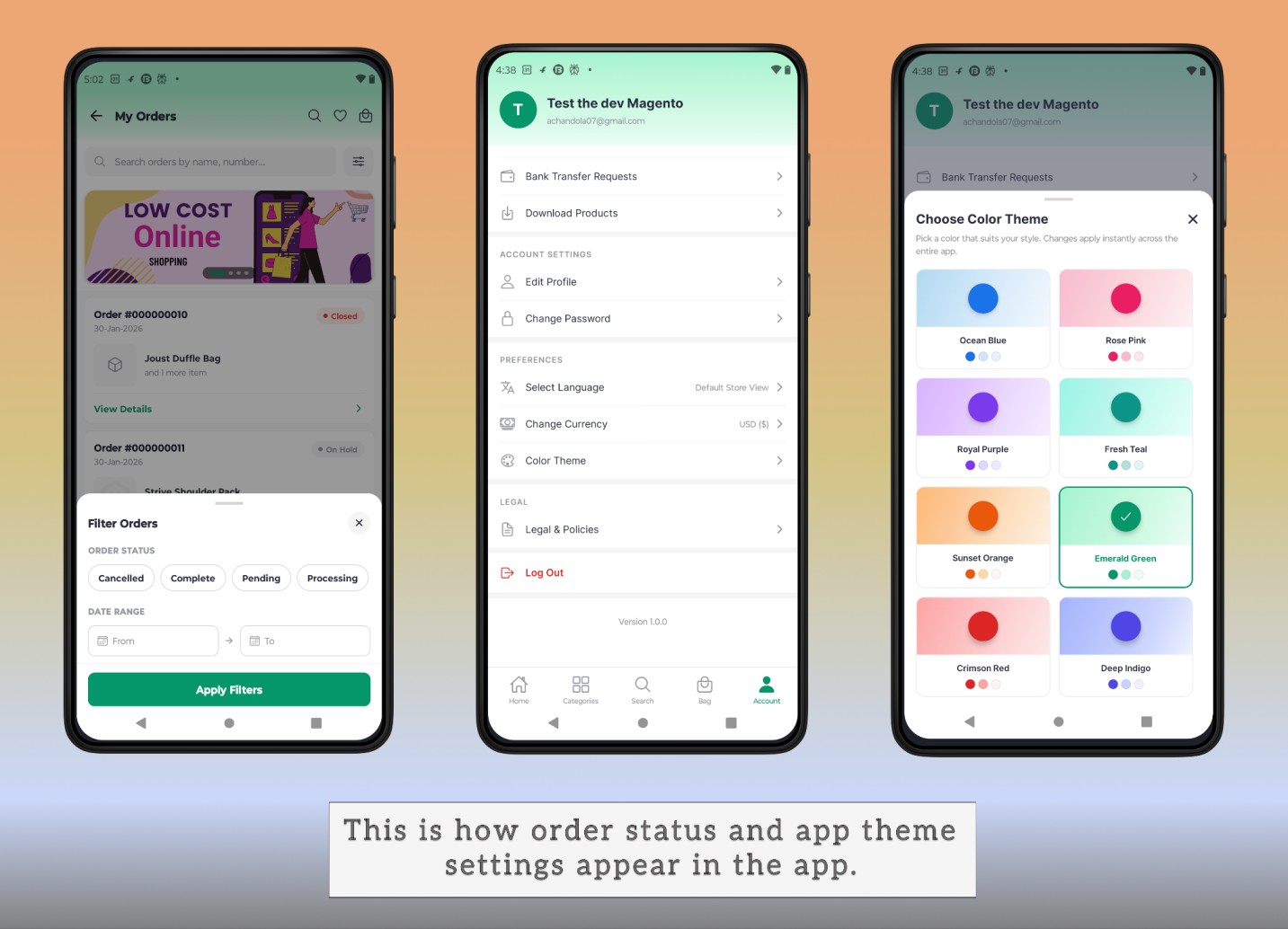
- This shows how order statuses are set to filter orders and how the app theme can be changed.
Homepage Settings
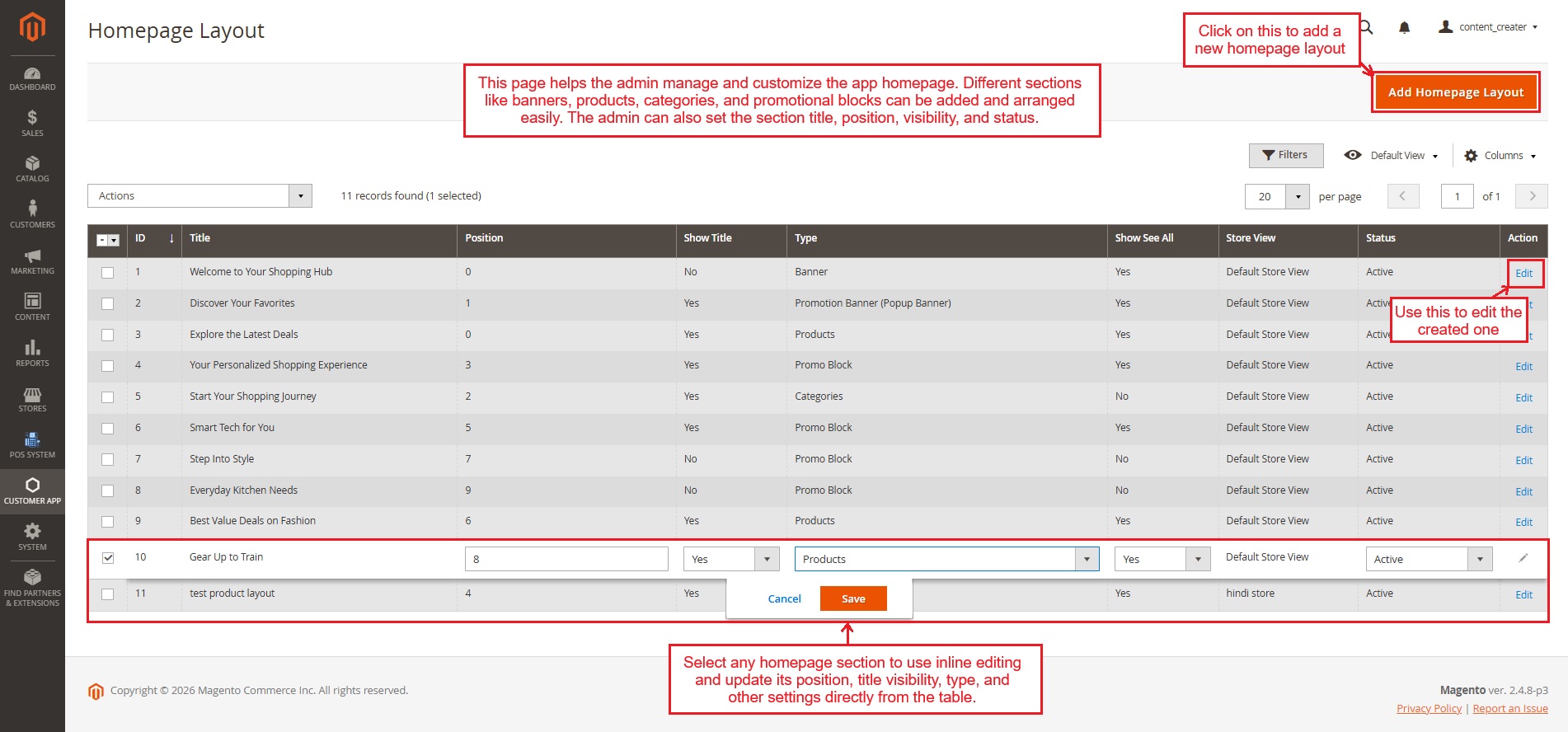
- This page allows the admin to customize the app homepage layout. The table below shows different sections, such as banners, products, categories, and promotional blocks, which can be easily added and edited. The admin can define the section position, title, content type, visibility, and status to create a clean and engaging home screen for users.
- Click on “Add Homepage Layout” to add a new layout.
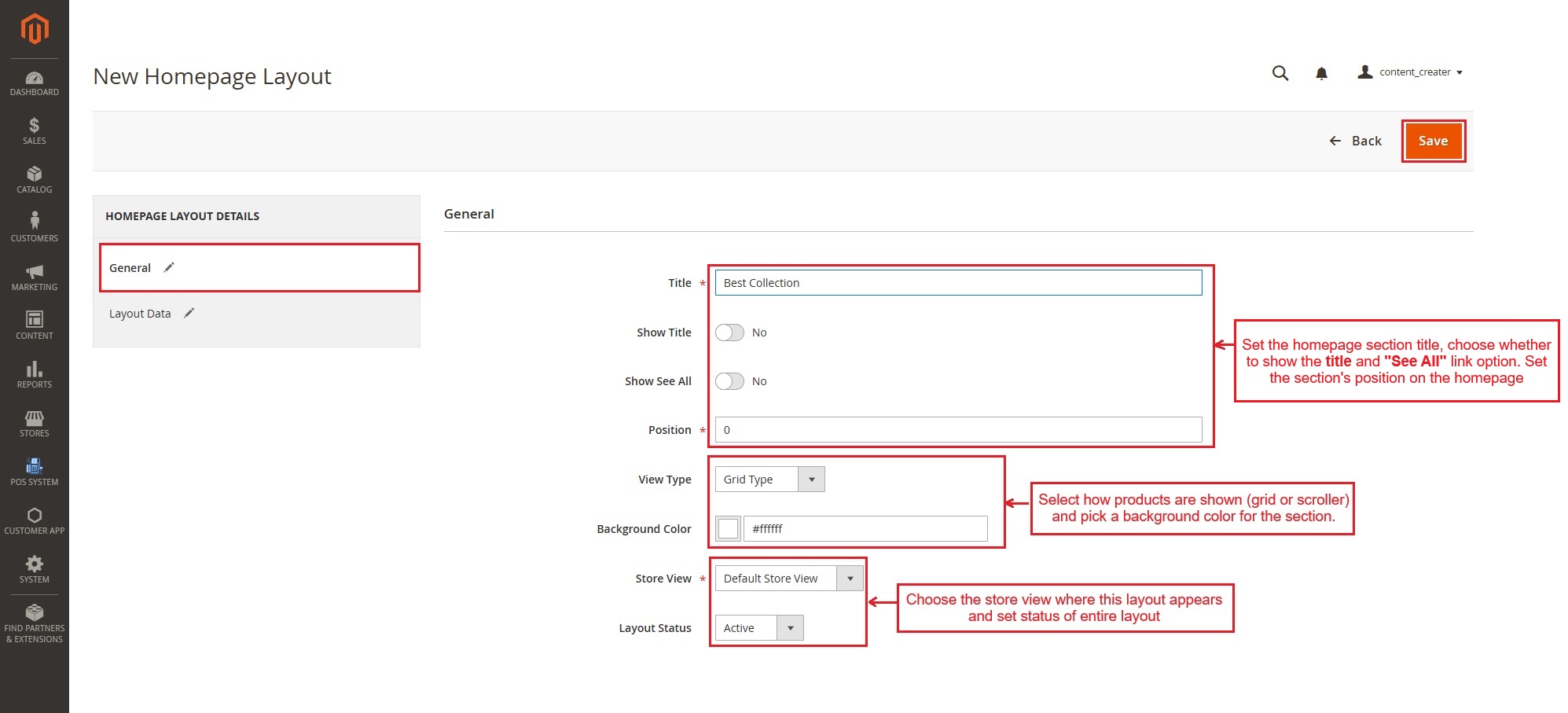
Below is an explanation of all the settings present in the general tab:
- Title: Enter the name of the homepage layout. It helps identify this specific layout.
- Show Title: Toggle this option to Yes or No to display or hide the title on the homepage.
- Show See All: Toggle this option to Yes or No to show or hide the "See All" link or button on the homepage. Customers can use it to view all products of the selected section. This option appears only after selecting a product type in the Layout Data tab.
- Position: Sets the order in which the layout appears on the page.
- View Type: Choose how the products or items are displayed, such as in a "Grid" or “Scroller” type.
- Background Color: Select or enter a color code to set the background color of this layout.
- Store View: Select the specific store view where this layout will be active, such as the default store or other available store views.
- Layout Status: Set the status of this layout to “Active” or “Inactive” to enable or disable it on the website.
- Switch to Layout Data
Type: Now, the type of layout must be selected. Choosing any type will show different settings to add the relevant data for that specific layout.
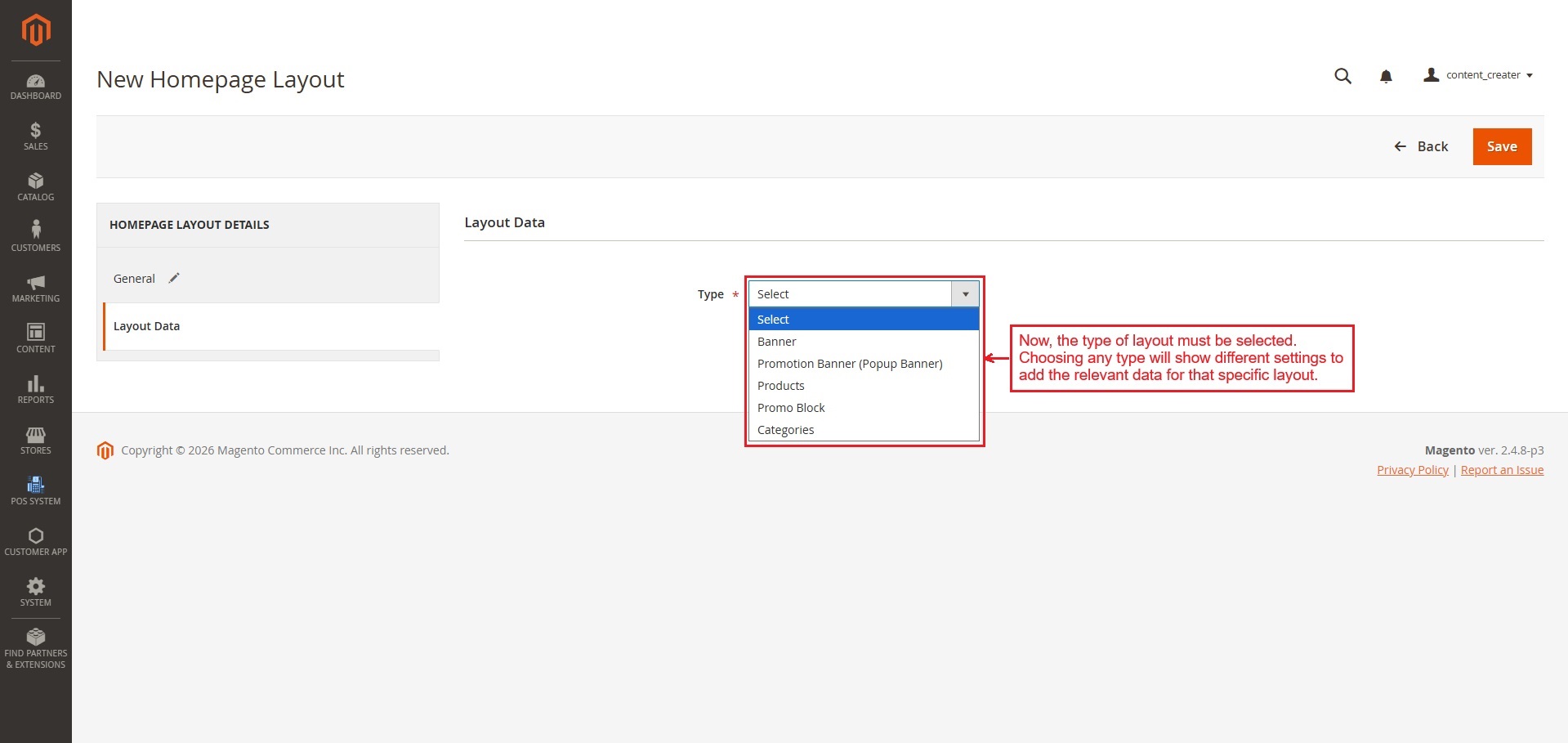
Below you can see how each layout type works when Banner, Promotional Banner, Products, Promo Block, or Categories are selected in the Layout Data settings.
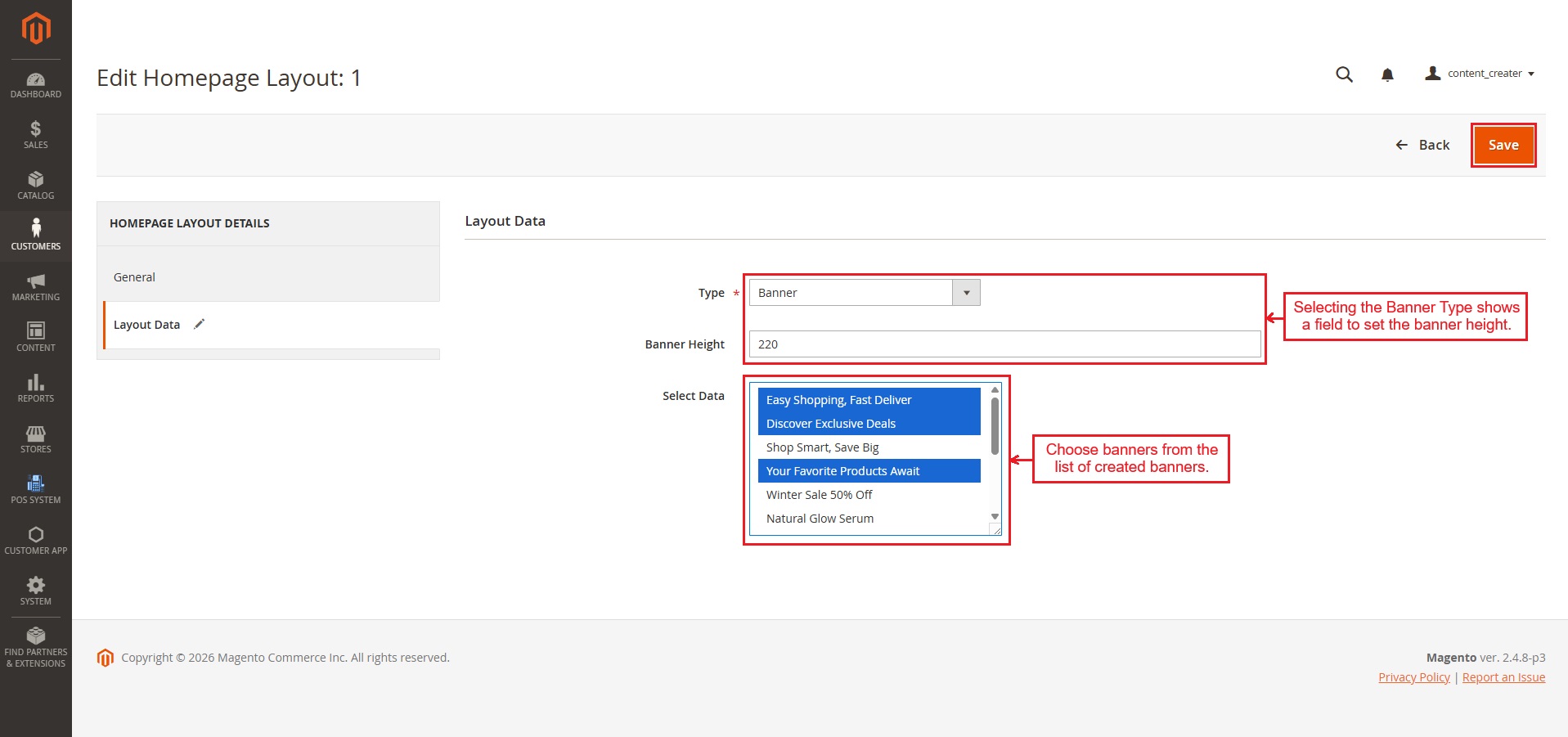
Banner Type
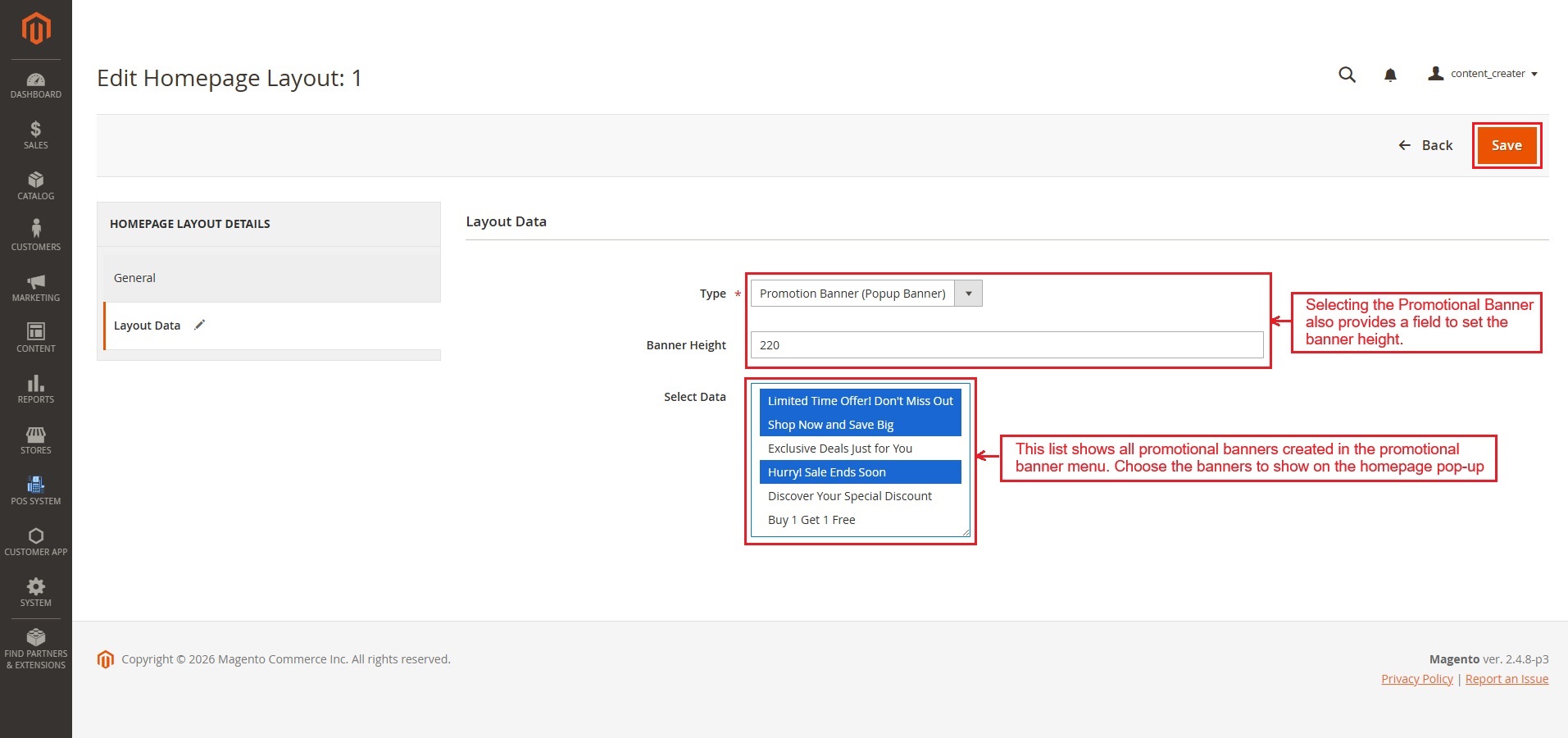
- Type/ Banner Height: Selecting the banner Type shows a field to set the banner height.
Select Data: Choose banners from the list of created banners.
Promotional banner type
- This list shows all promotional banners created in the Promotional Banner menu. Choose the banners to show on the homepage pop-up.
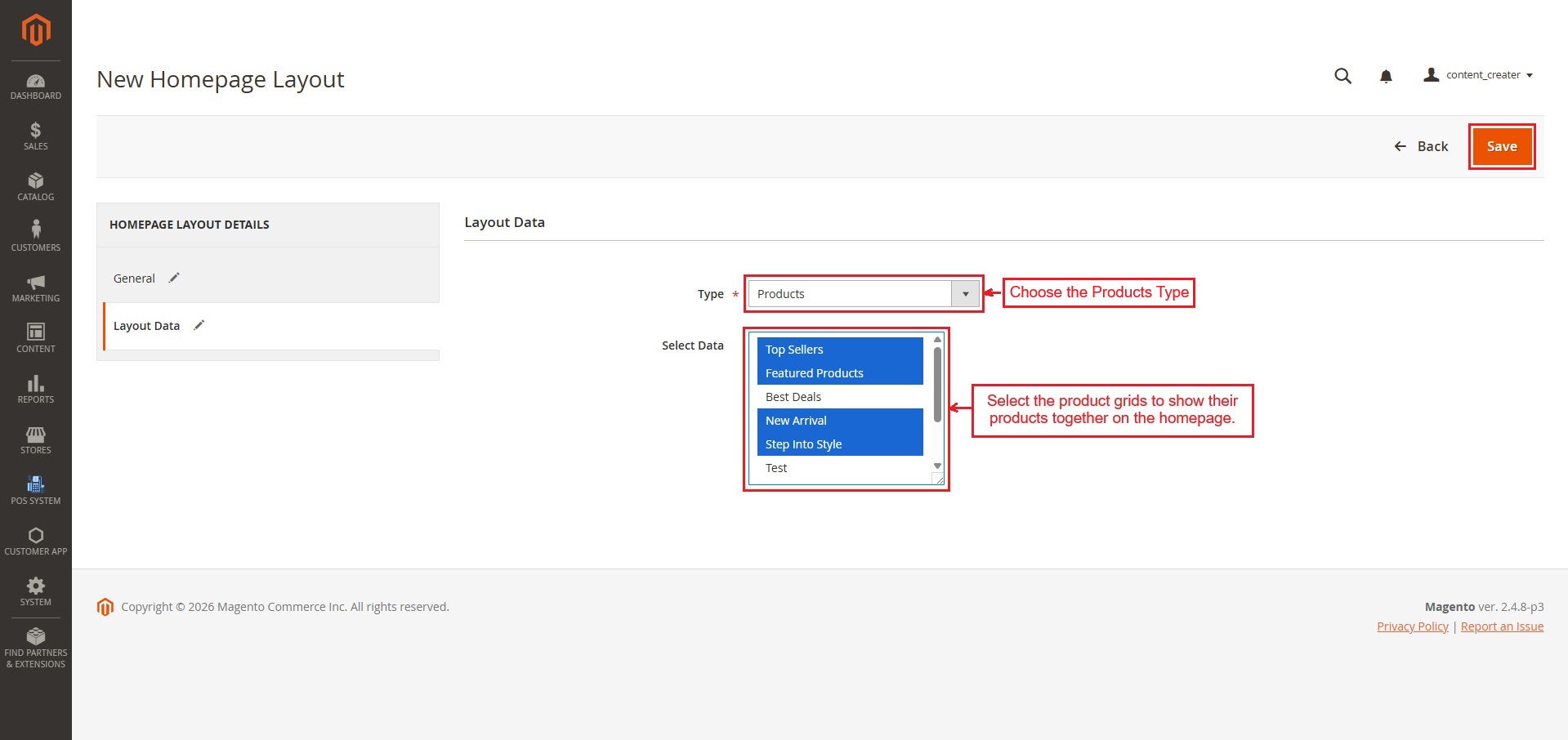
Products
- Type: Choose the products type.
- Select Data: Select the product grids to show their products together on the homepage.
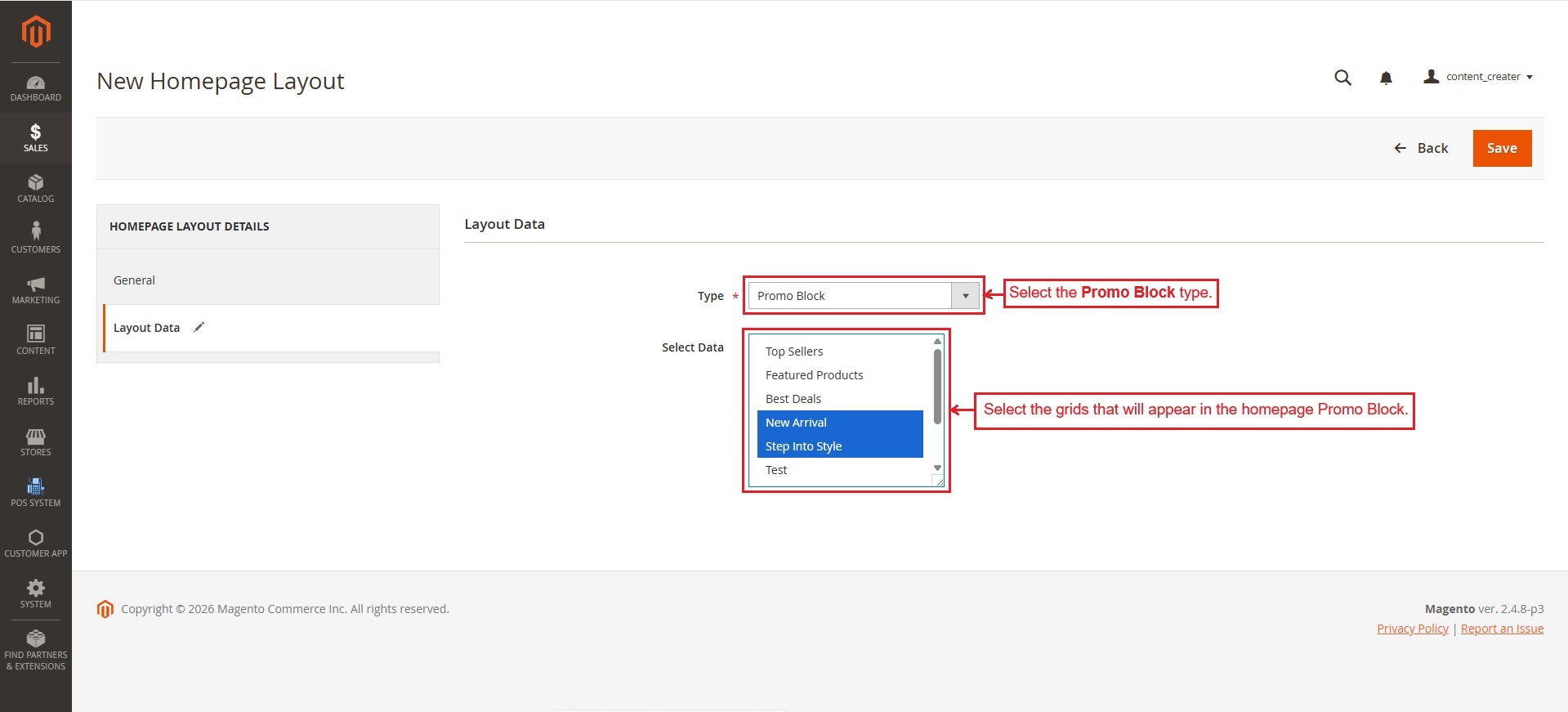
Promo Block Type
- Type: Select the Promo Block type.
- Select Data: Select the grids that will appear in the homepage Promo block.
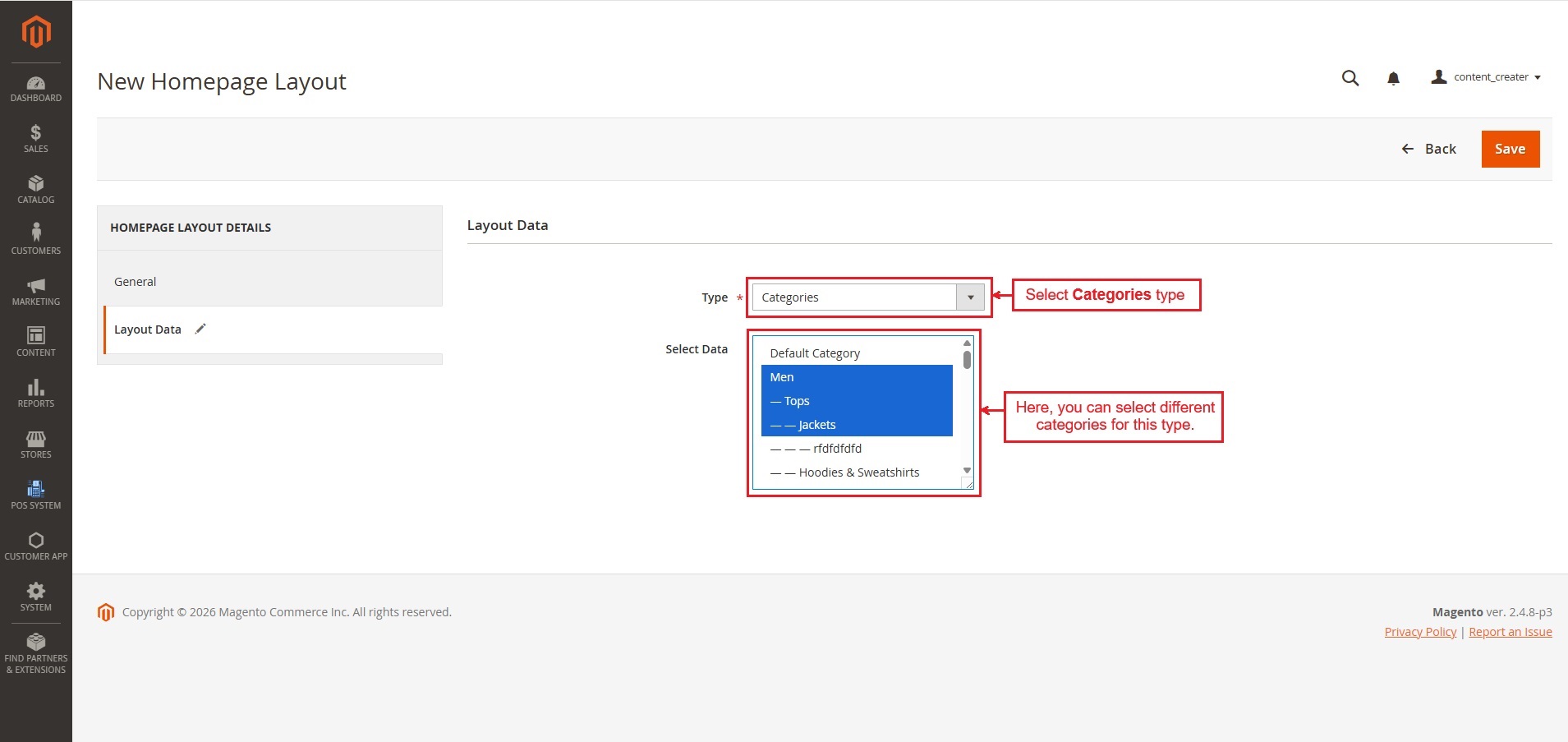
Category Type
- Type: Select Categories Type.
- Select Data: Here, you can select different categories for this type.
- Once you configure the settings, click “Save” to apply the changes.
- Below, you can see how the homepage layout is set for different sections such as Banners, Promotional Banners (Pop-up banners), Products, Categories, and Promo Blocks.
✅ Final thought
The Customer App for Magento brings together complete control over both the mobile app and the admin management system. It helps create a smooth and well-structured shopping experience through easy configuration and content management. With its flexible features and centralized controls, it supports efficient store management and a better shopping experience.
Supported Framework Version - 2.0.x, 2.1.x, 2.2.x,2.3.x, 2.4.x
Support:
This module is developed and published by Ecarter Technologies Pvt.Ltd., a Magento developer. You are guaranteed a quality module supported by future versions. If you need help, please contact us via email at support@ecarter.co.




Ecarter Support
Typically replies within a minute

© 2020 - 2026 Ecarter Technologies Pvt Ltd.