
Google Enhanced E-Commerce
Google Enhanced E-commerce Add-on for CS-Cart allows you to easily integrate Google Analytics with your website
The Google Enhanced E-commerce Add-on for CS-Cart connects your store to Google Analytics so you can track how customers interact with it. It automatically collects data across the shopping journey, including customer logins, product views, cart additions, and purchases, and lets you create and manage your own tracking events from the store admin. This gives you clearer, real-time insight into user behavior without manual data setup. It is intended for CS-Cart store owners and marketers who want reliable Google Analytics tracking to understand and improve customer activity.

The Google Enhanced E-commerce Add-on for CS-Cart enables you to easily integrate Google Analytics with your website, allowing for effortless tracking of user data collection in Google Analytics. This add-on simplifies data collection from customer logins to product views, cart additions, and purchases. Users can easily create and manage their tracking events, enhancing insights into user behavior with ease.
Features:
- Seamless Integration: Connects Google Analytics smoothly to your e-commerce website.
- Easily Tracking: Easily monitor user data collection on Google Analytics.
- Simplified Data Collection: Streamlines gathering customer login, product views, cart addition, and purchases.
- User-Friendly Interface: Simple setup and management of tracking events.
- Customizable Tracking: Tailor tracking events to fit your specific needs.
- Automated Reporting: Receive automatic updates on key metrics.
- Quick Setup: Get started swiftly with an intuitive setup process.
- Reliable Support: Access assistance for any questions or issues with ease.
- Real-Time Monitoring: Track data in the moment for immediate insights.
Installation:
How to install Addon
https://store.ecarter.co/blogs/how-to-install-addon/
Configuration
Let's Check How the addon works
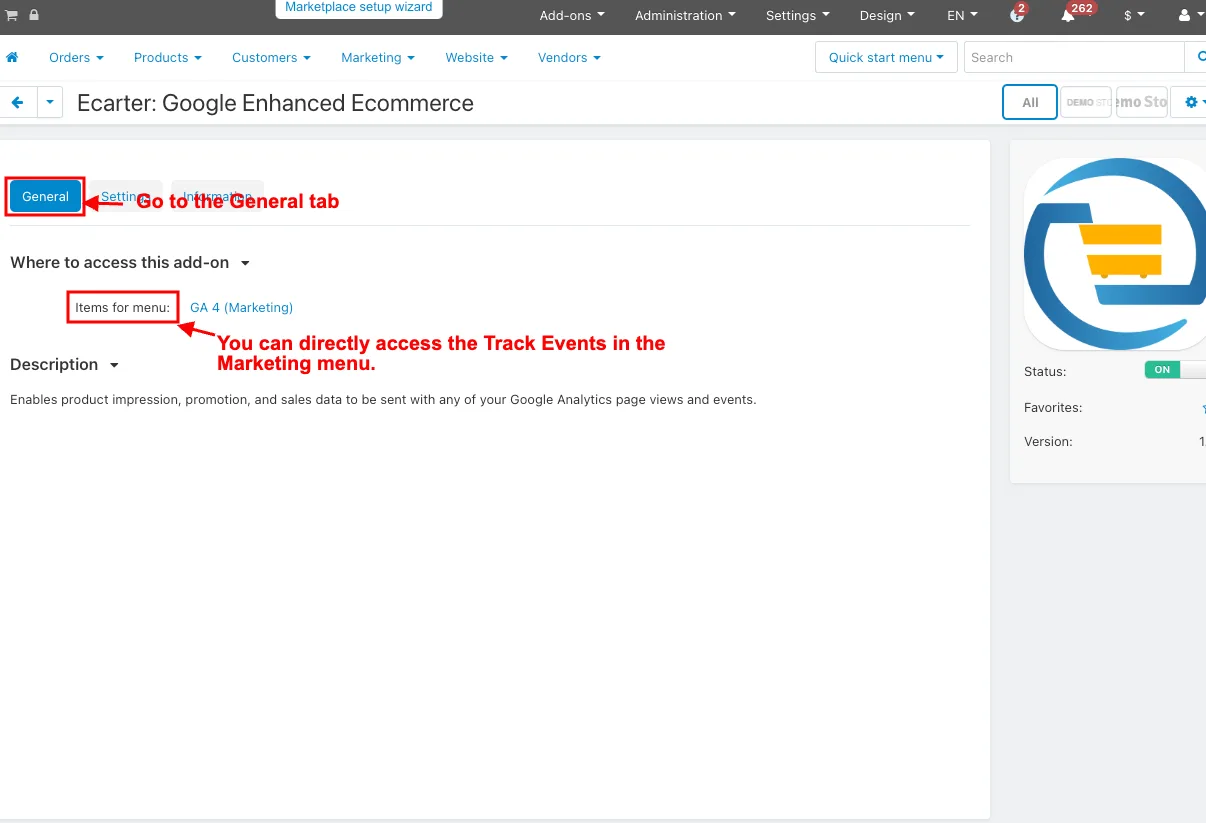
- Go to the General tab.
- Items for menu: You can directly access the Track Events in the Marketing menu.
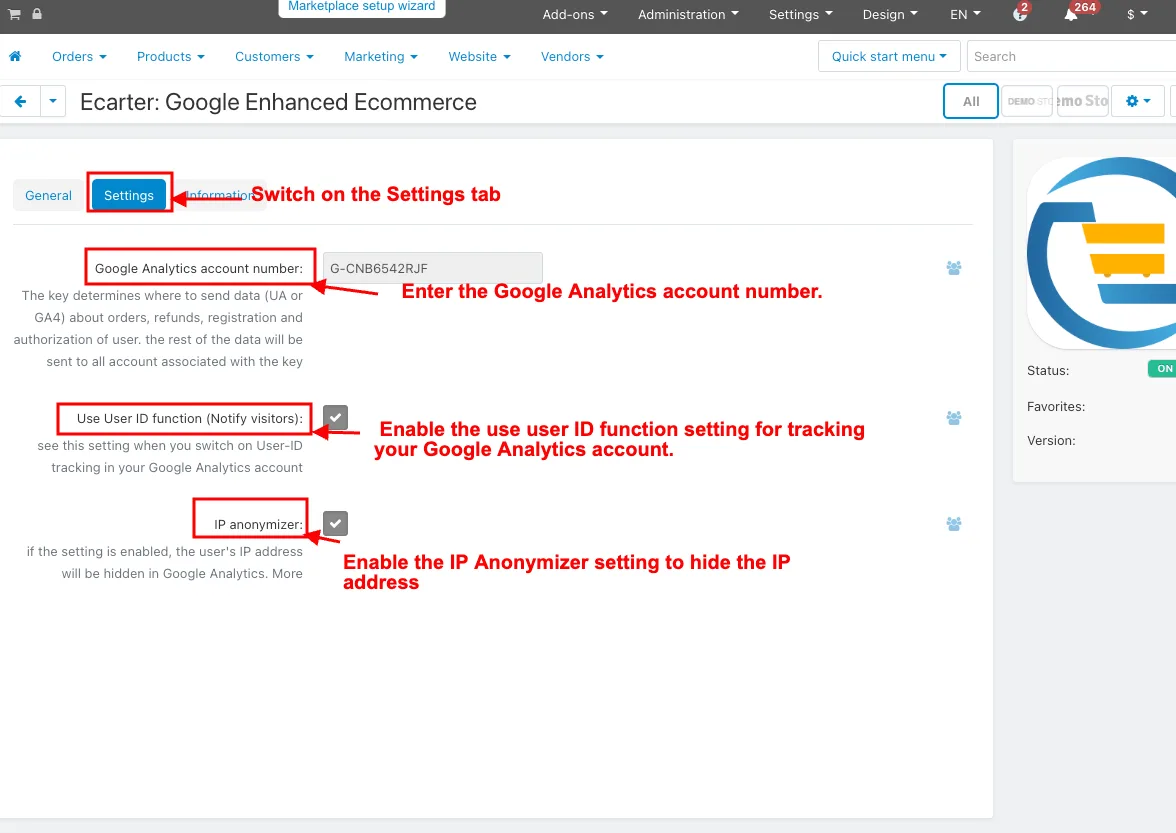
- Switch on the Settings tab.
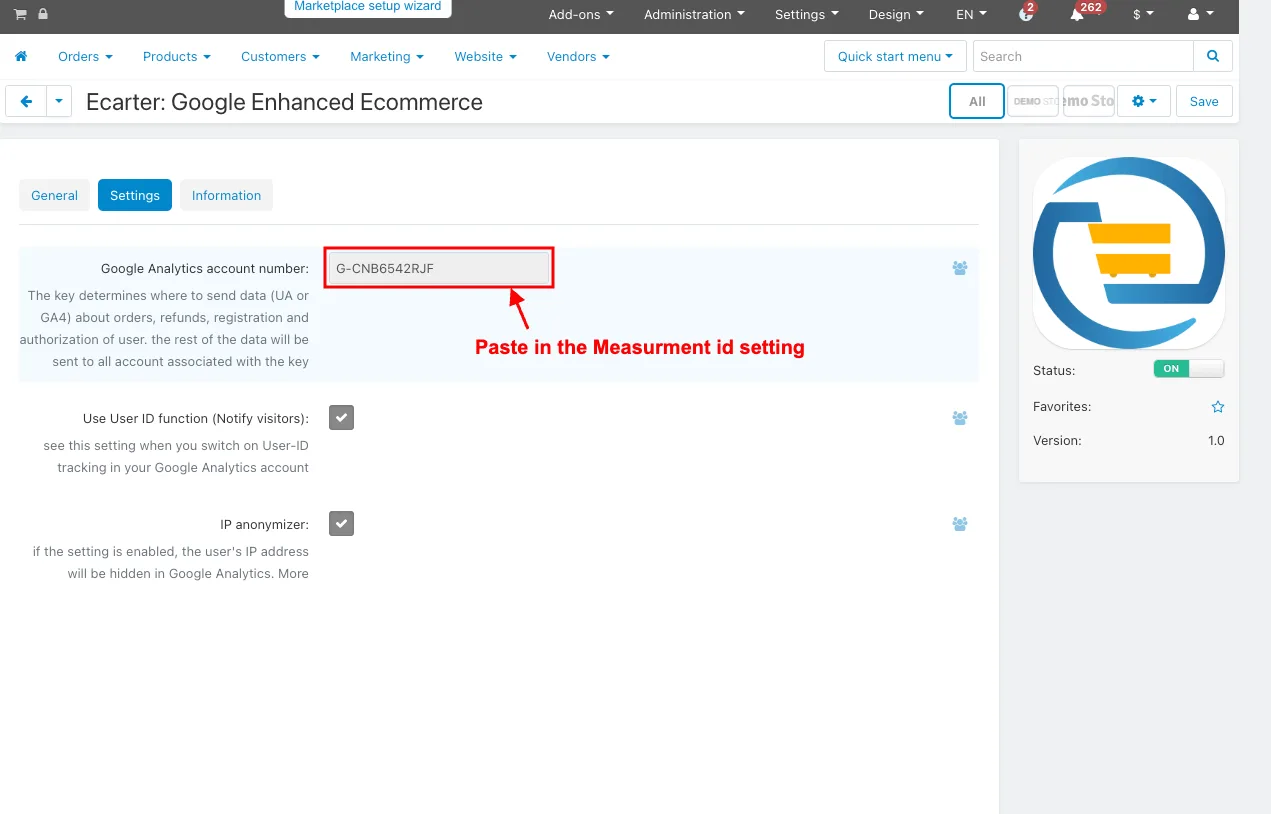
- Google Analytics account number: Enter the Google Analytics account number.
- Use User ID function: Enable the use user ID function setting for tracking your Google Analytics account.
- IP Anonymizer: Enable the IP Anonymizer setting to hide the IP address.
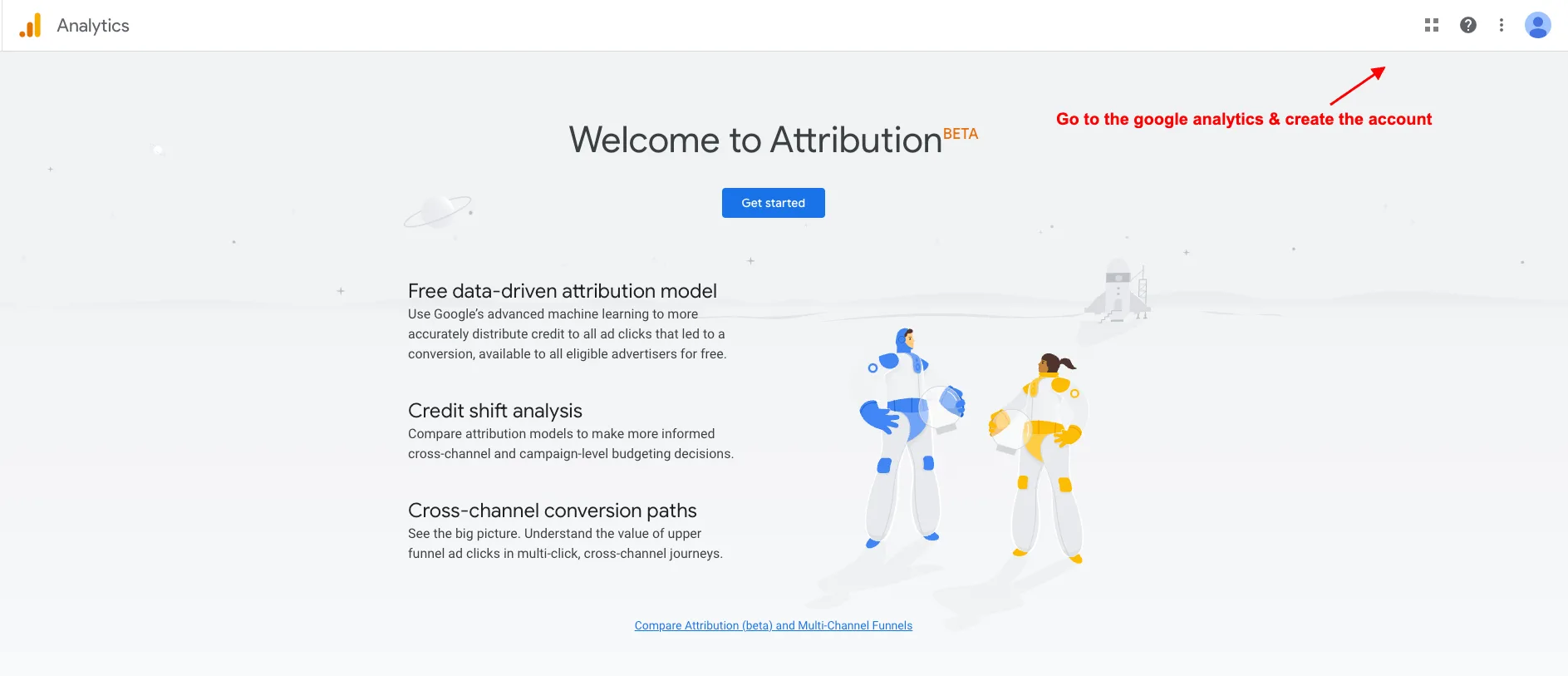
How to Create Google Account Number in Google Analytics
- Go to the google analytics & create the account.
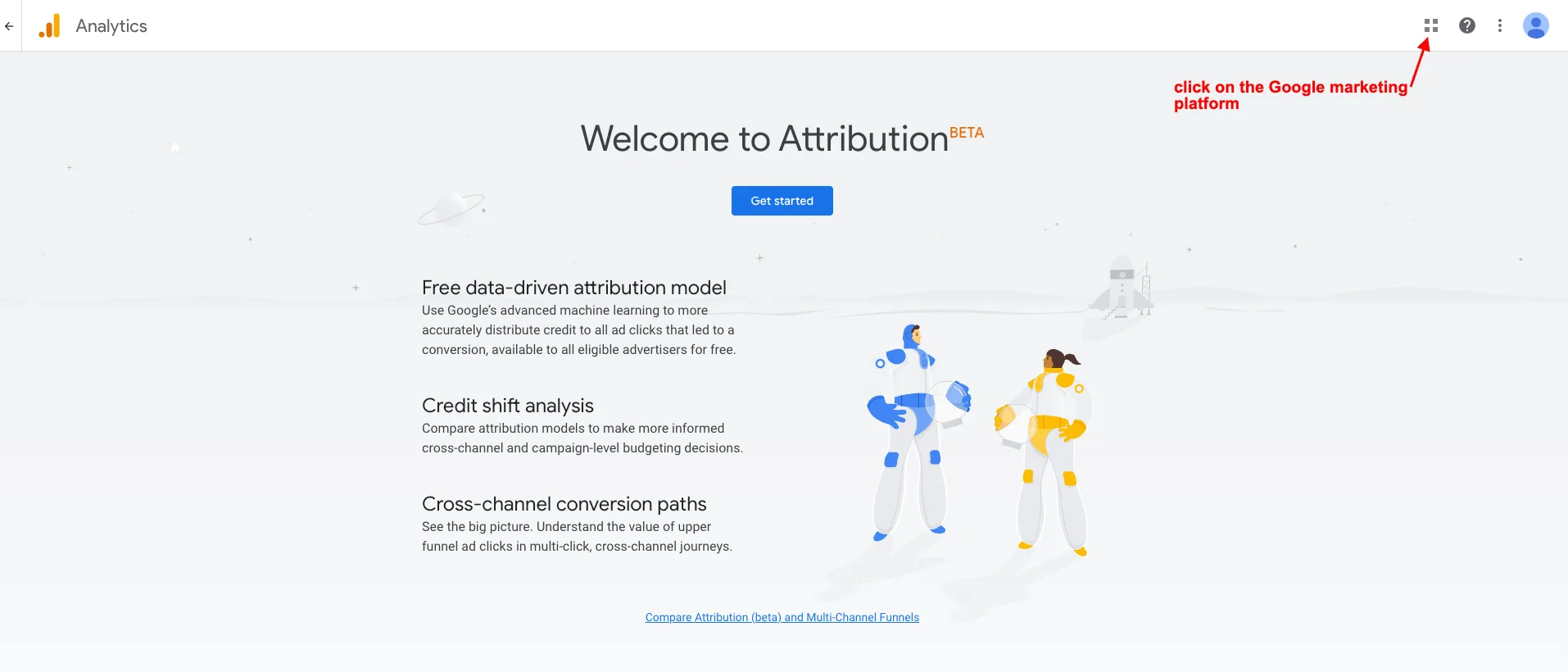
- After creating the account click on the Google marketing platform.
- And then choose the Analytics.
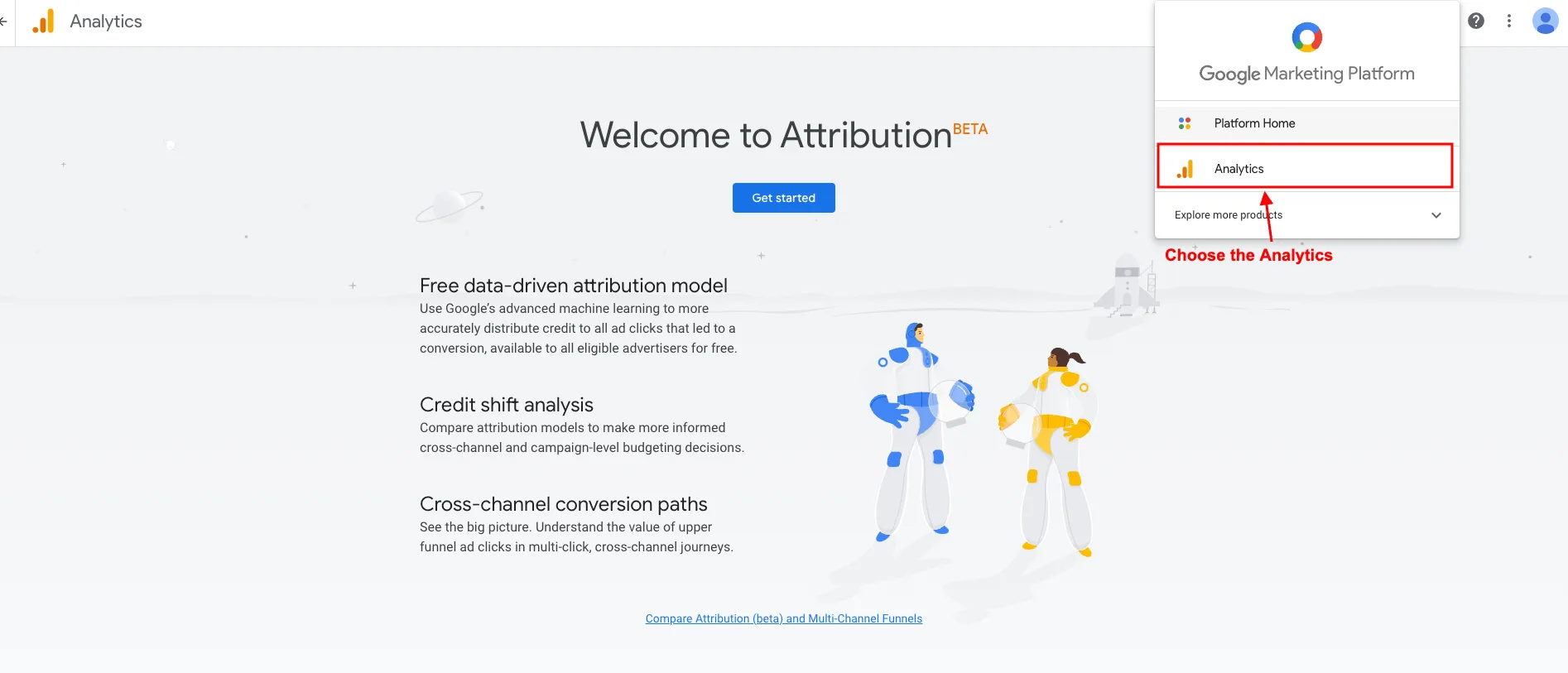
- Then Analytics page will be open.
- Click on the Admin.
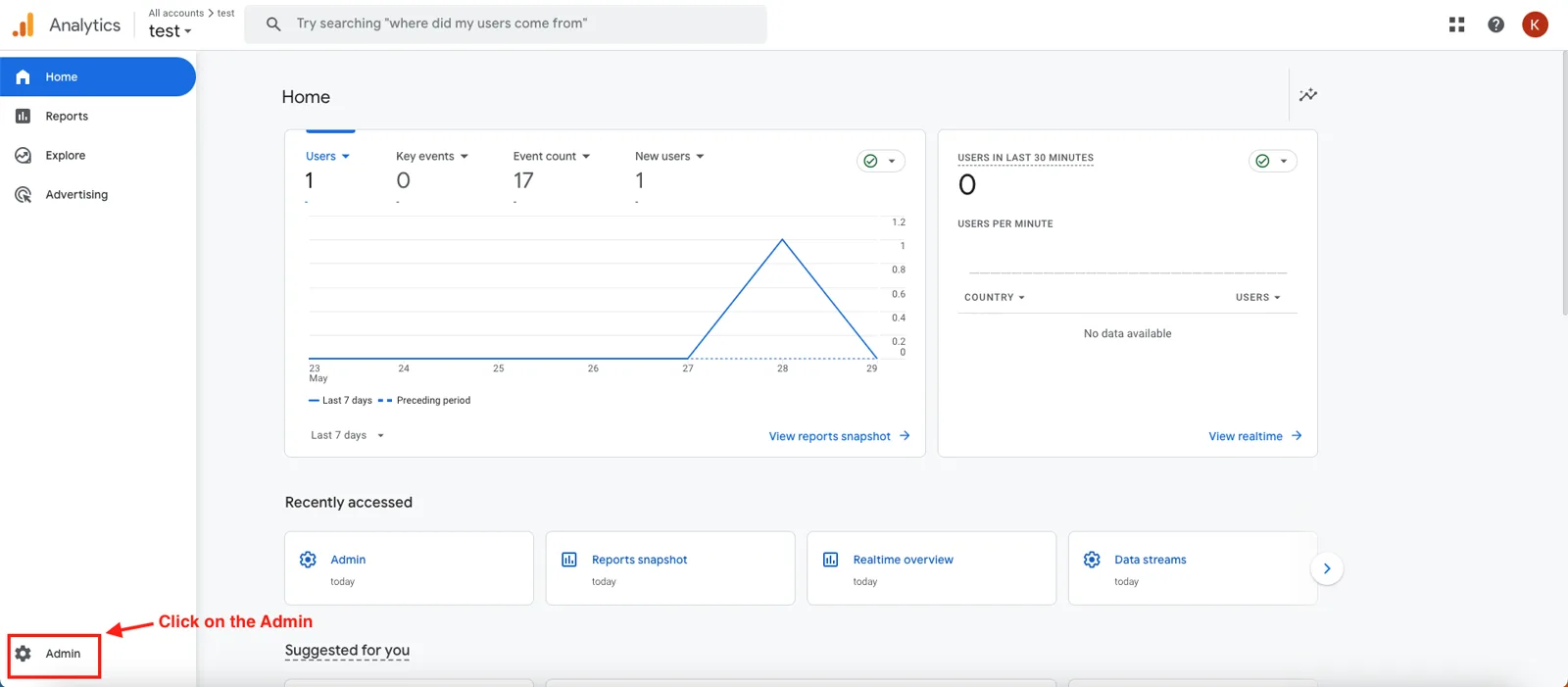
- Click on the Data stream.
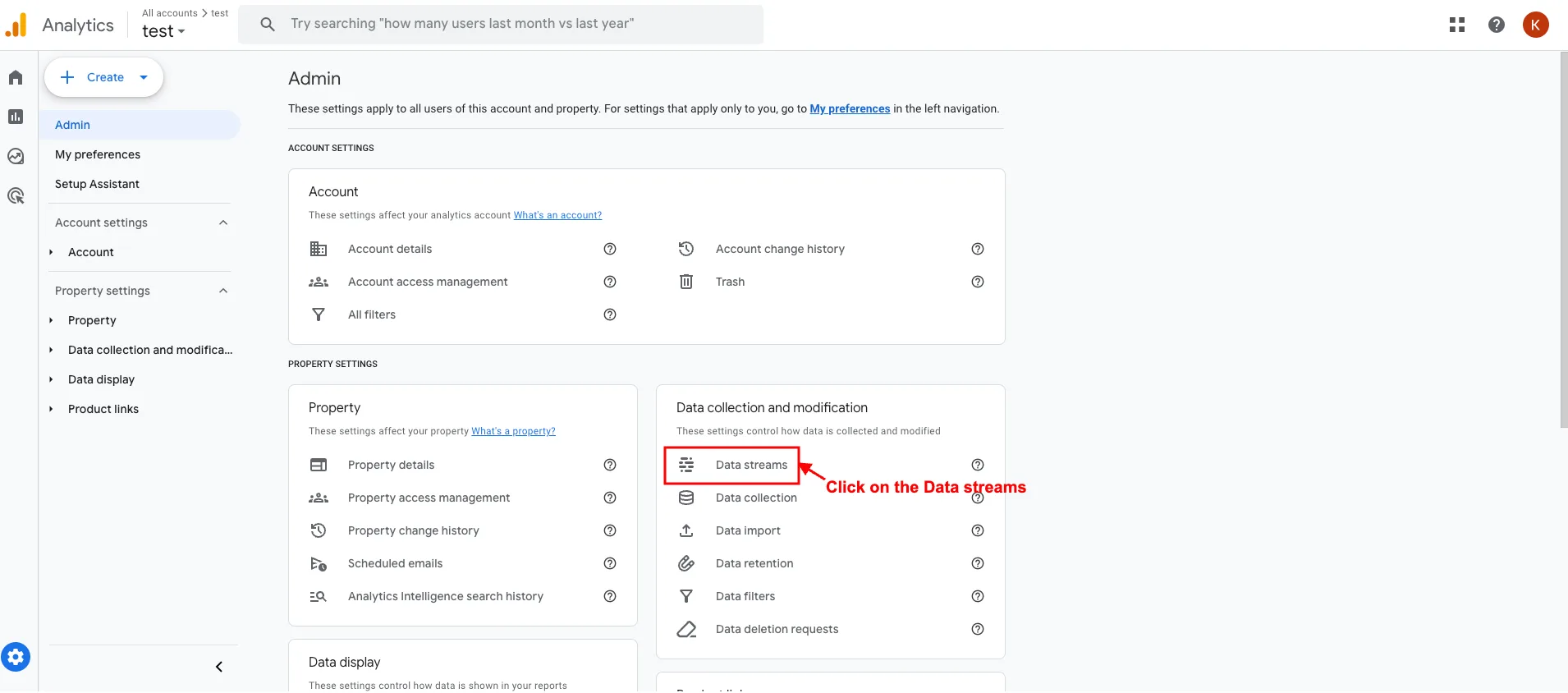
- The data stream page will be open.
- Click on the web.
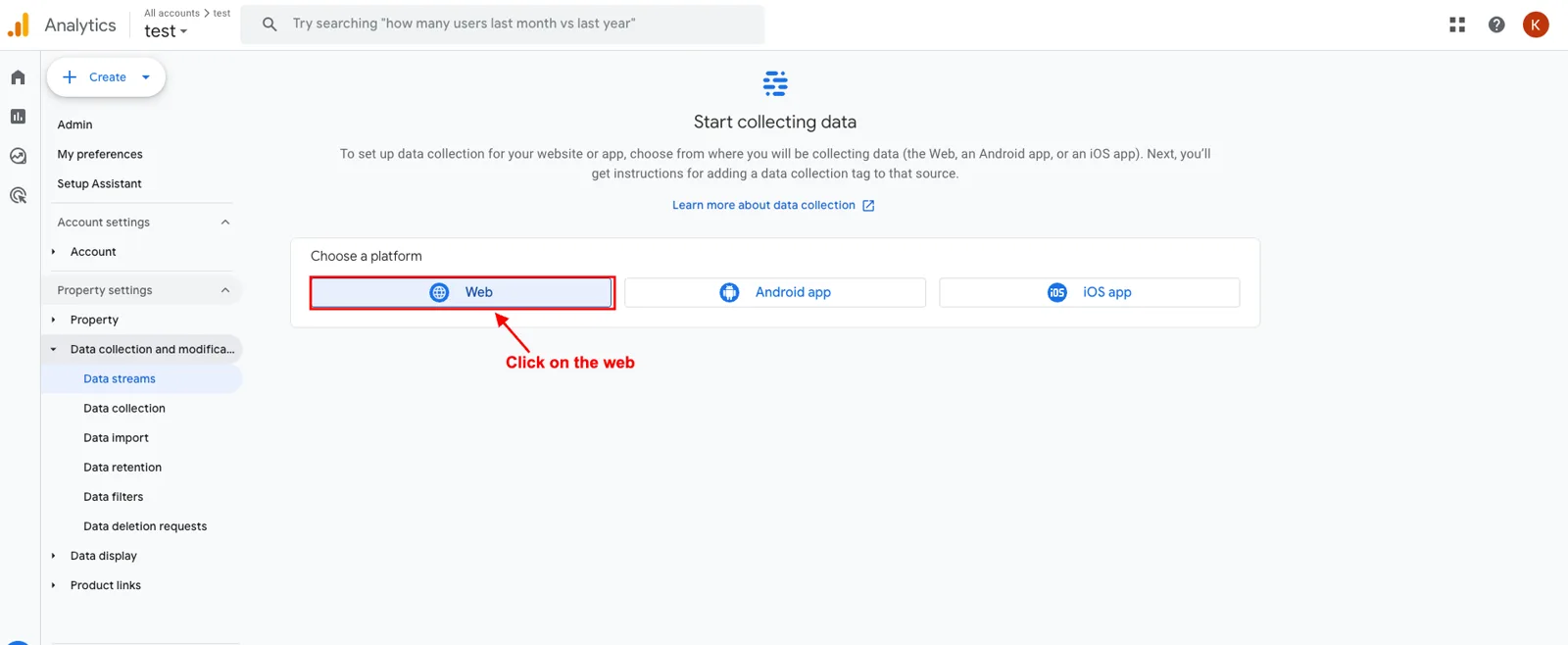
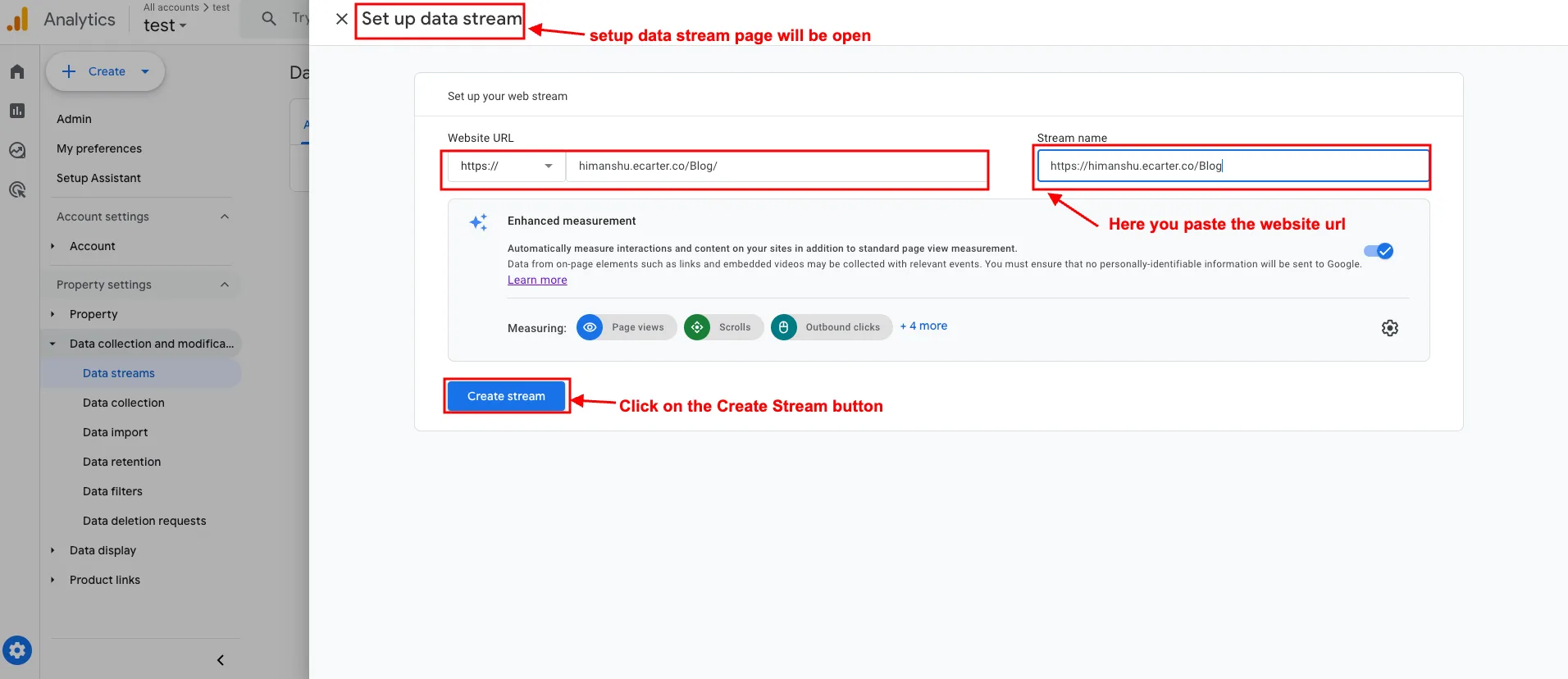
- The setup data stream page will be open.
- Here you paste the website URL.
- Click on the Create data stream.
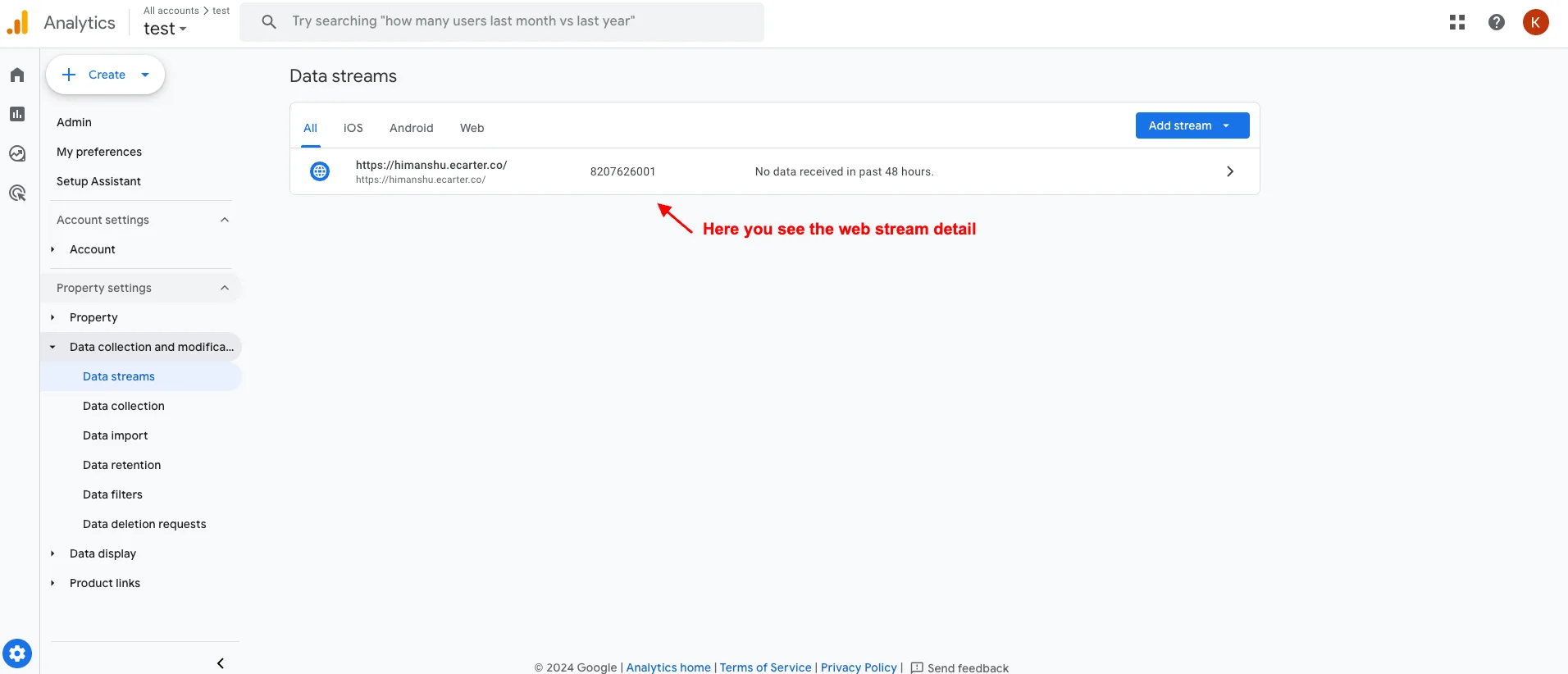
Here you see the web stream detail.
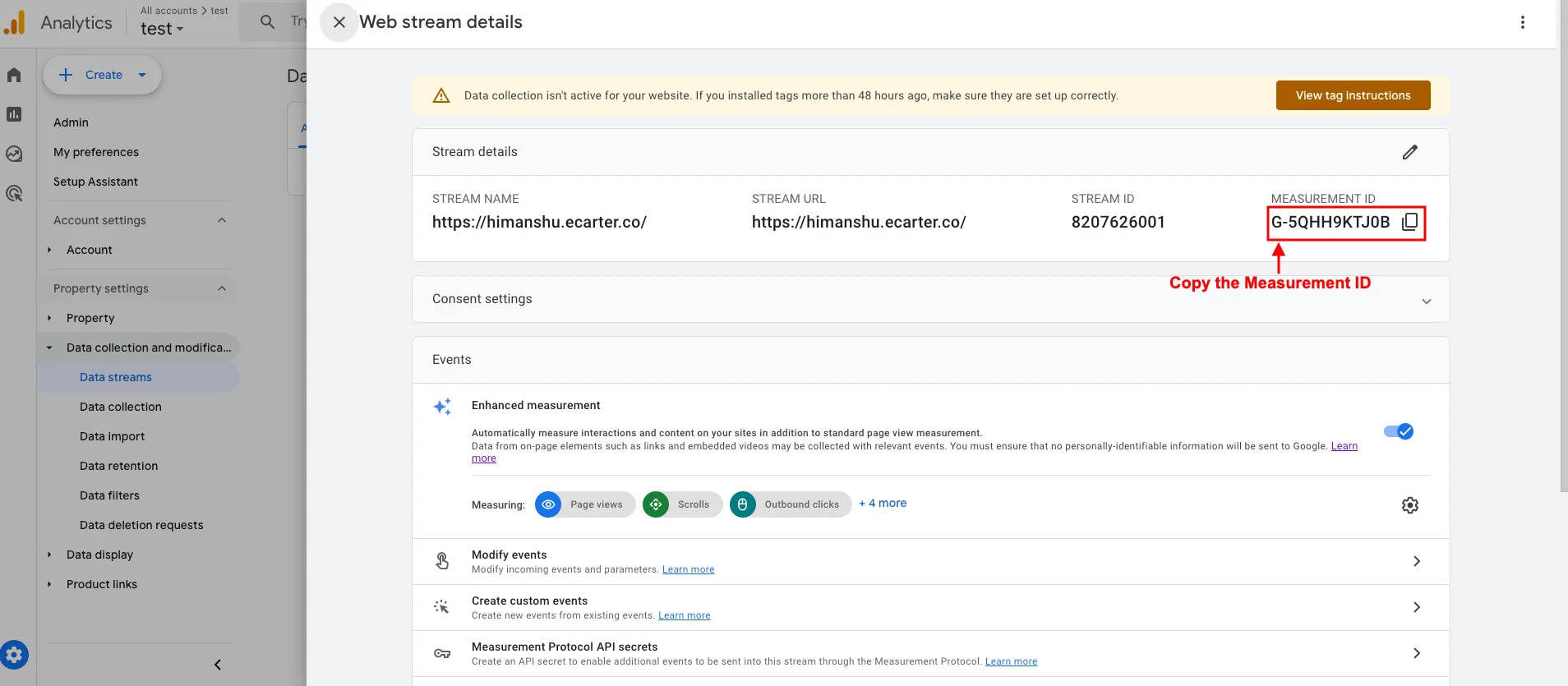
- Copy the Measurement ID.
- Paste in the Google Analytics account number setting.
How to create the Track Event
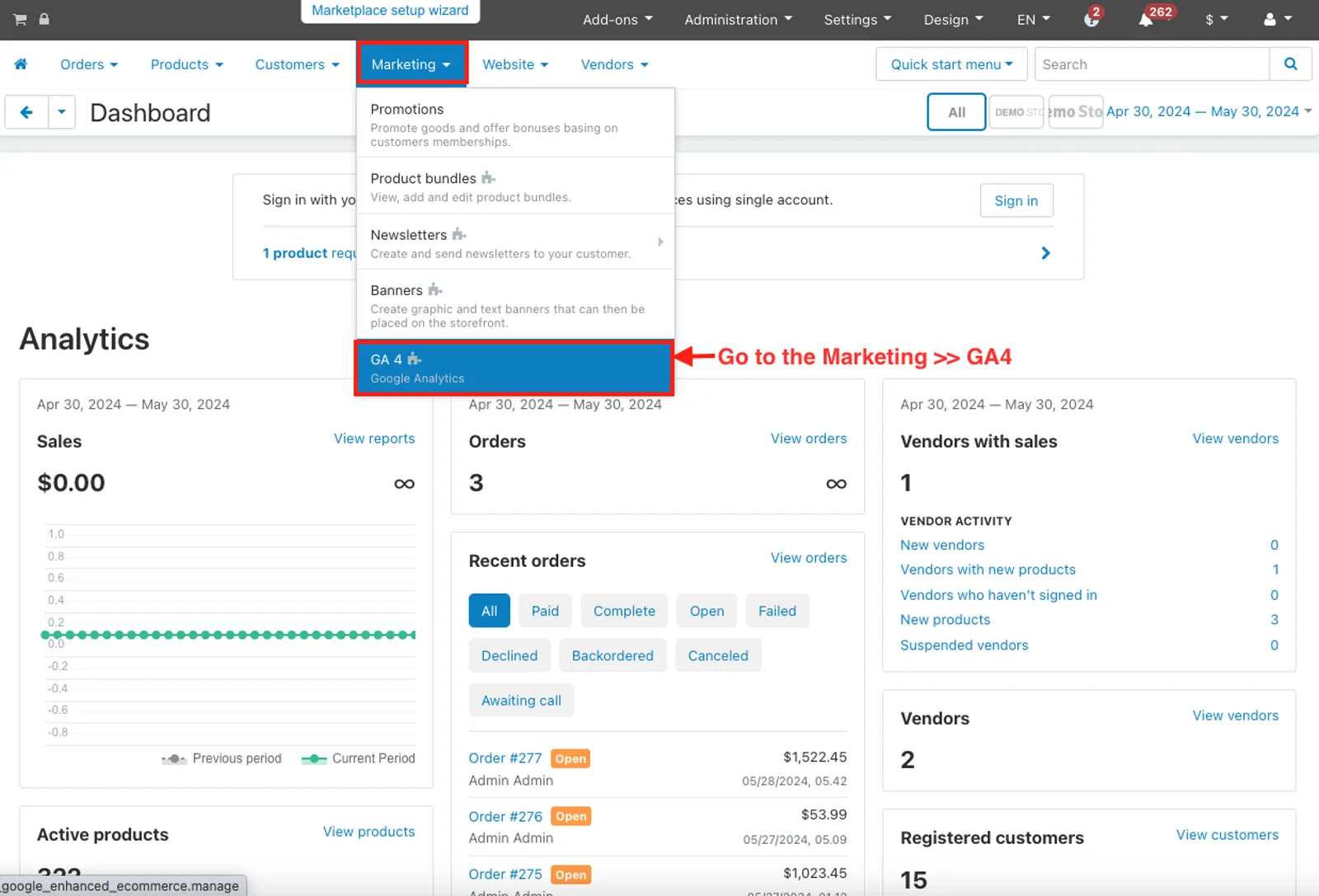
- Go to the Marketing>>GA4.
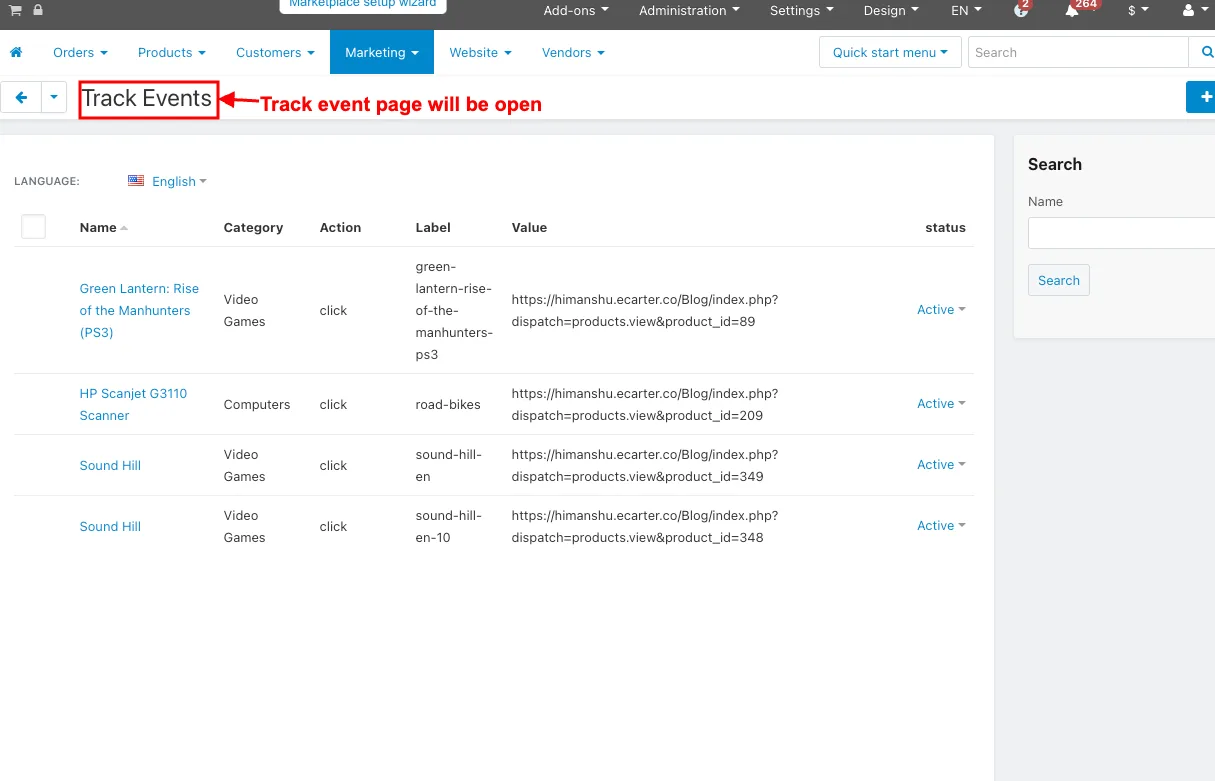
- Track event page will be open.
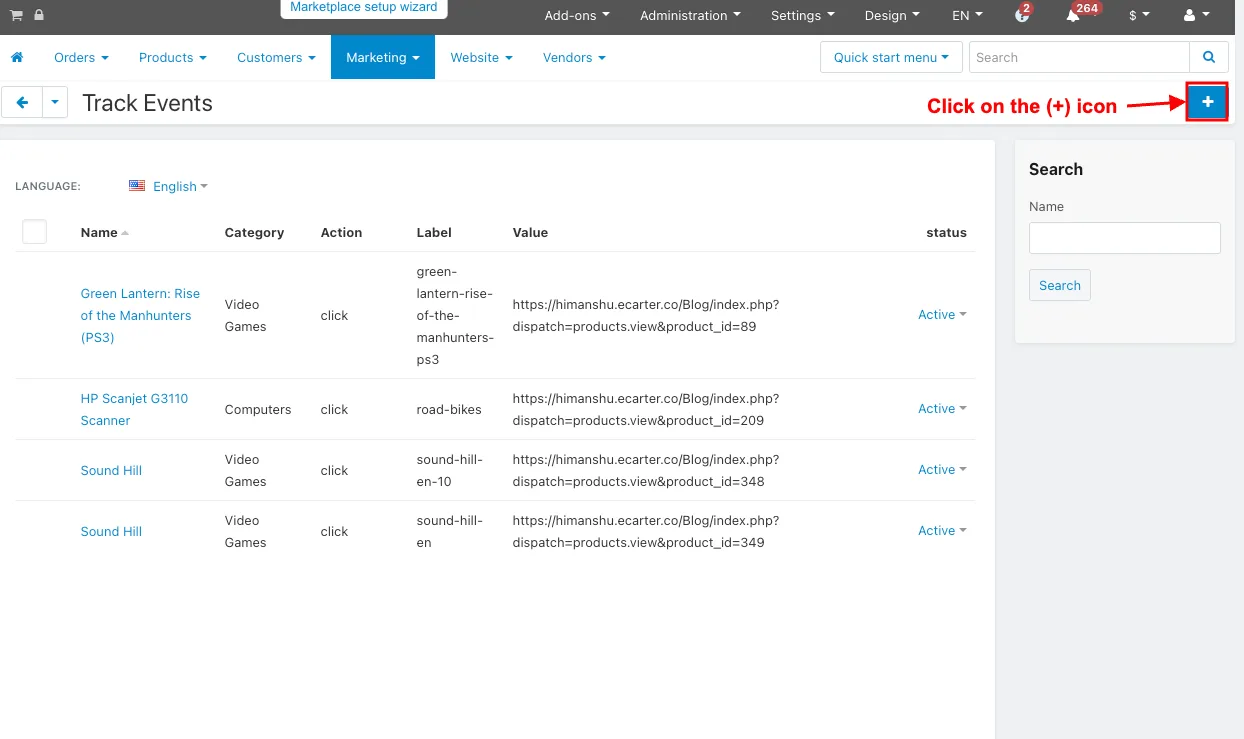
- Click on the (+) icon.
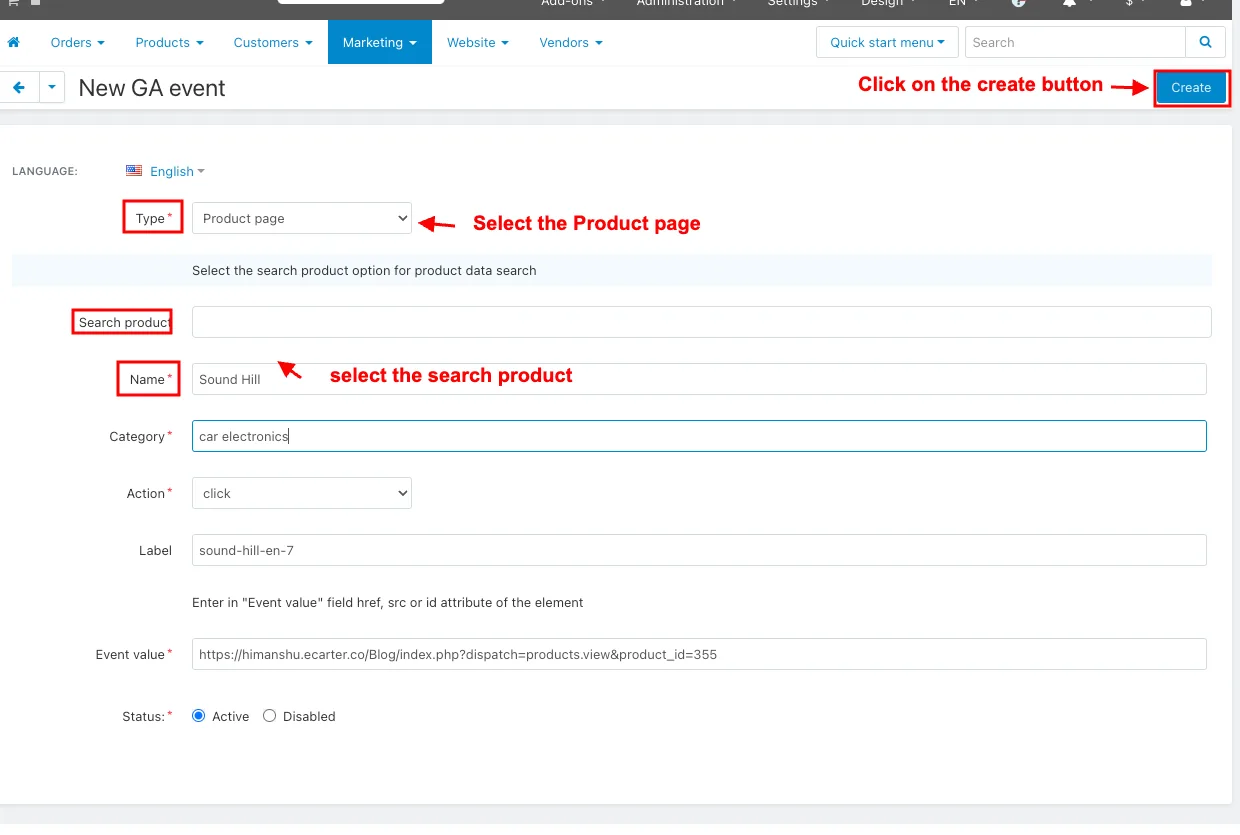
- Type: Select the Product page.
- Select the search product.
- Click on the Create button.
Create the Track Event Event in another Way
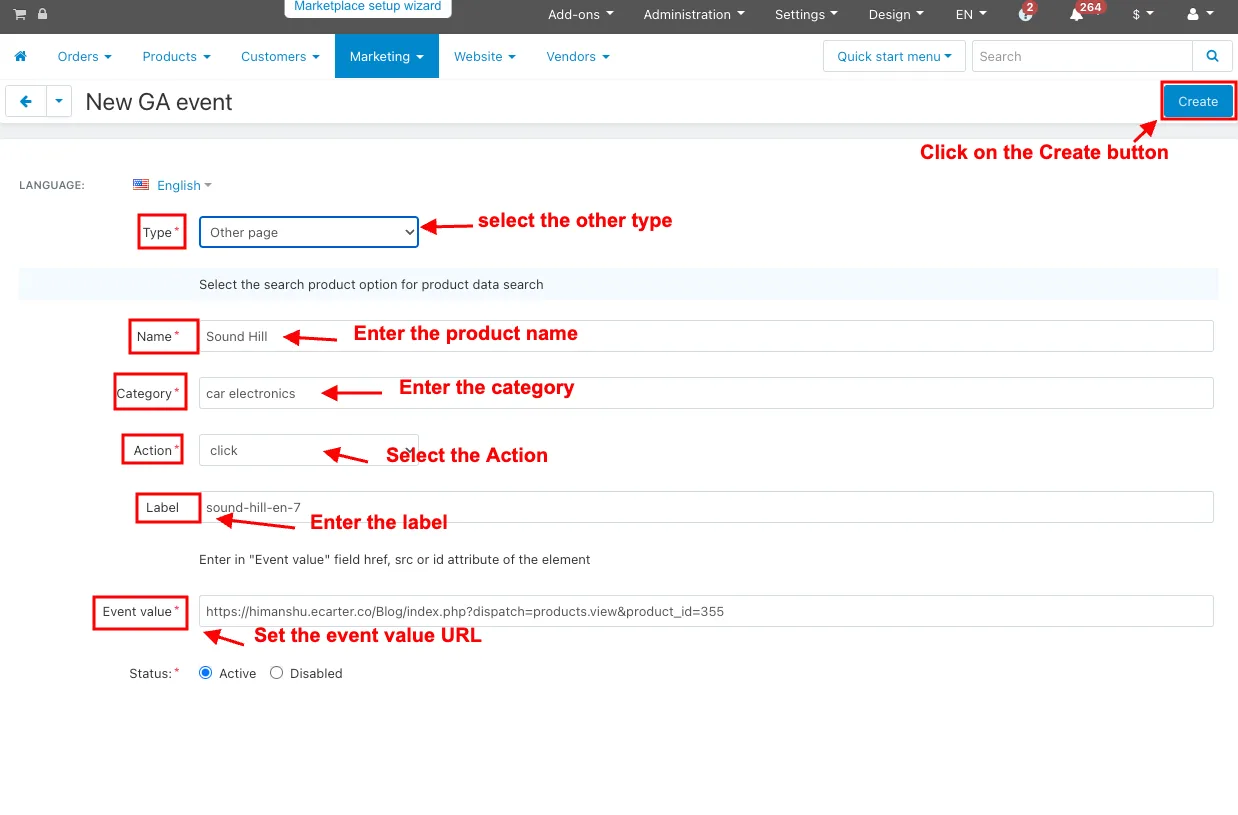
- Type: select the other type.
- Name: Enter the product name.
- Category: Enter the category.
- Action: Select the Action.
- Label: Enter the label.
- Event Value: Set the event value URL
- Click on the Create button.
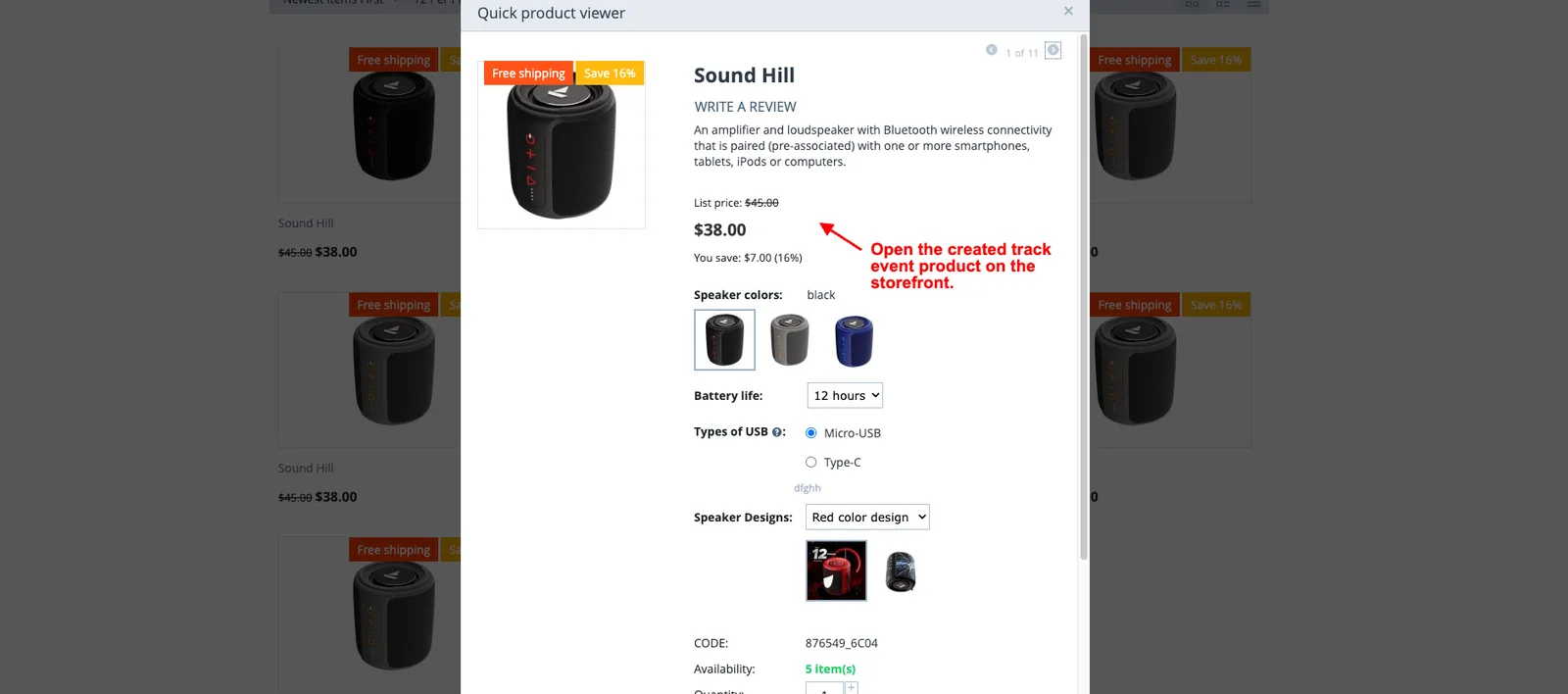
- Open the created track event product on the storefront.
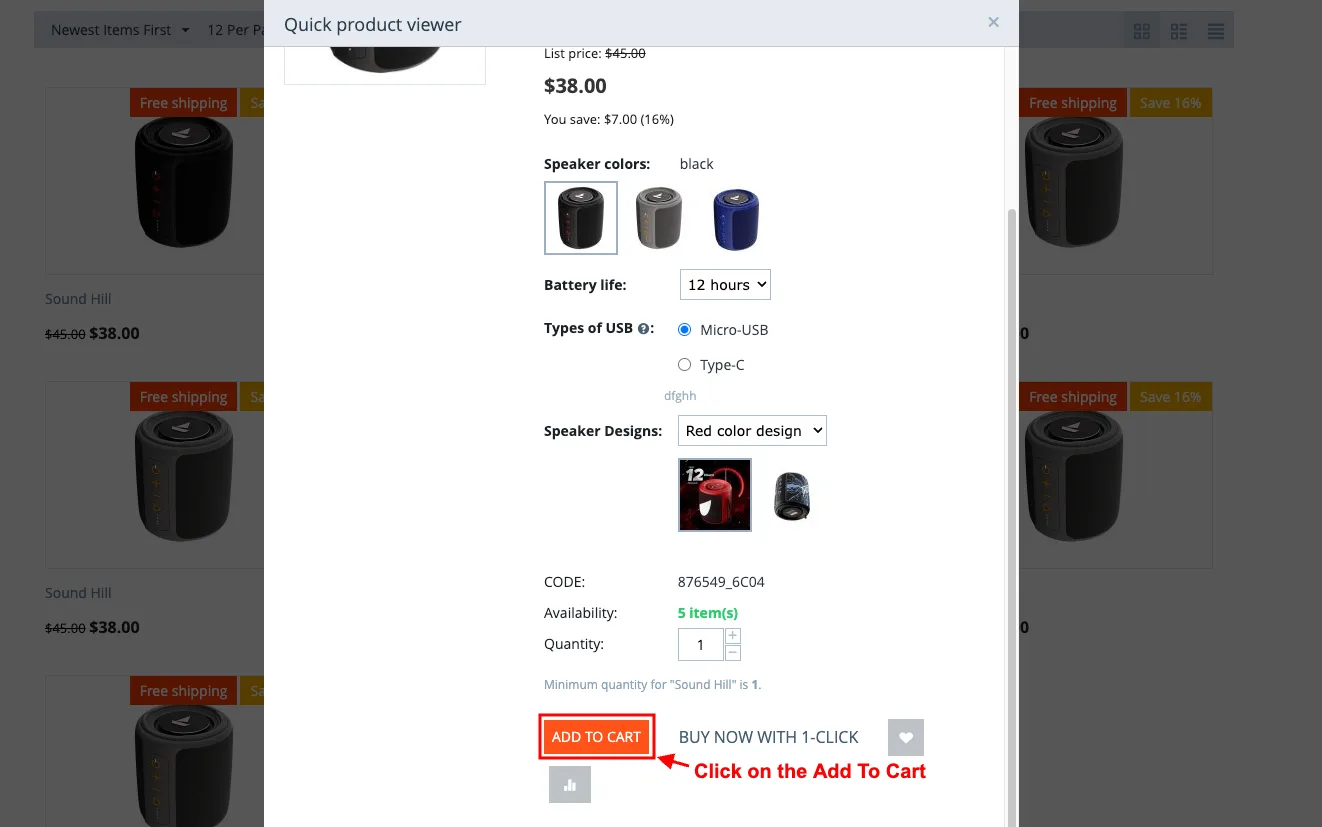
- Click on the add to cart.
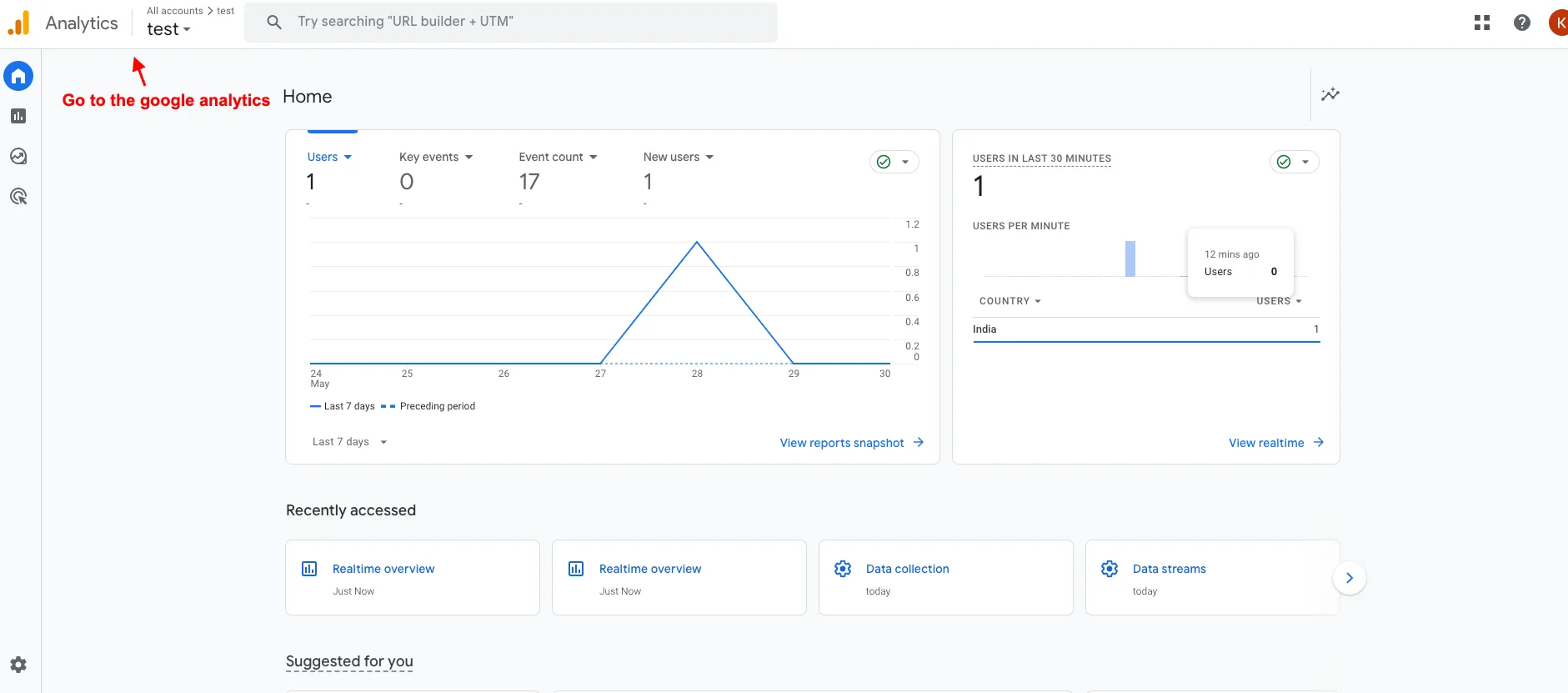
- And then go to the google analytics.
- Click on the report.
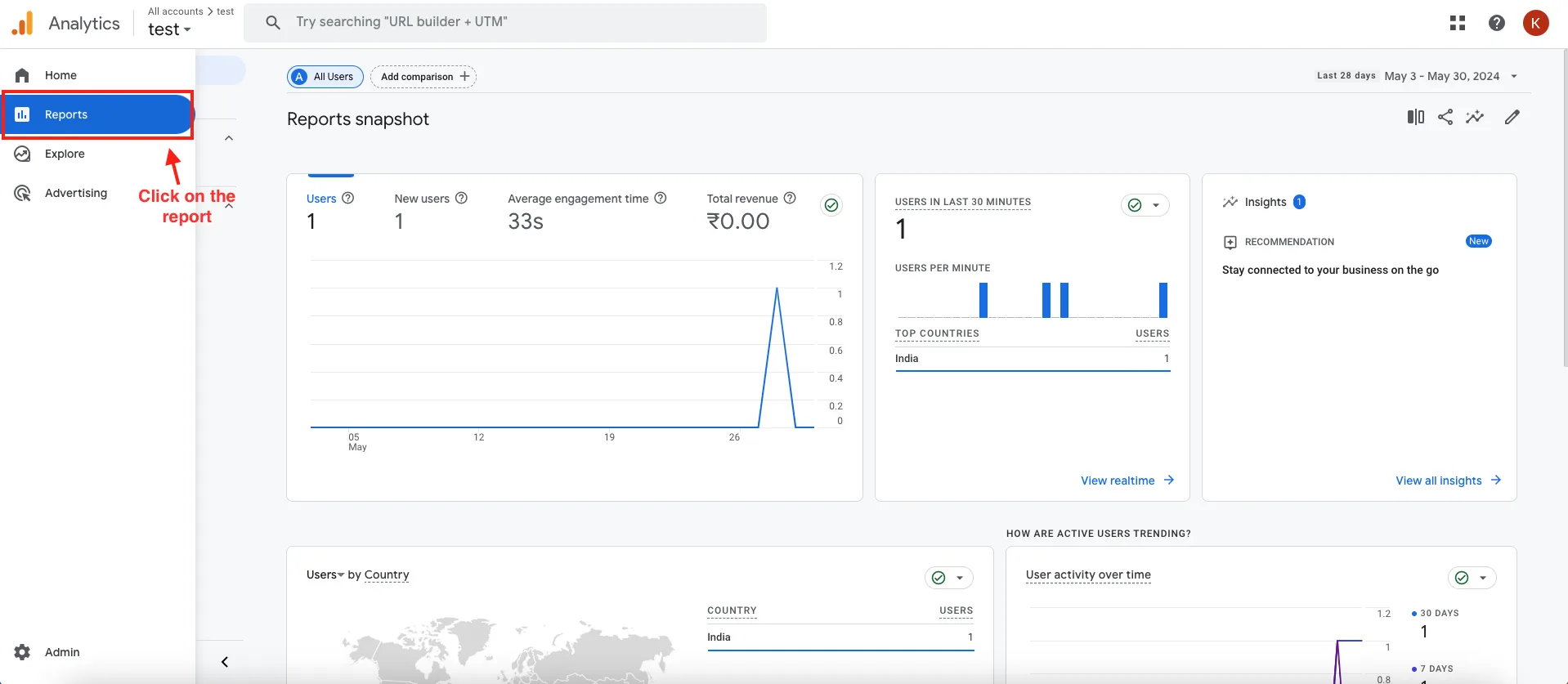
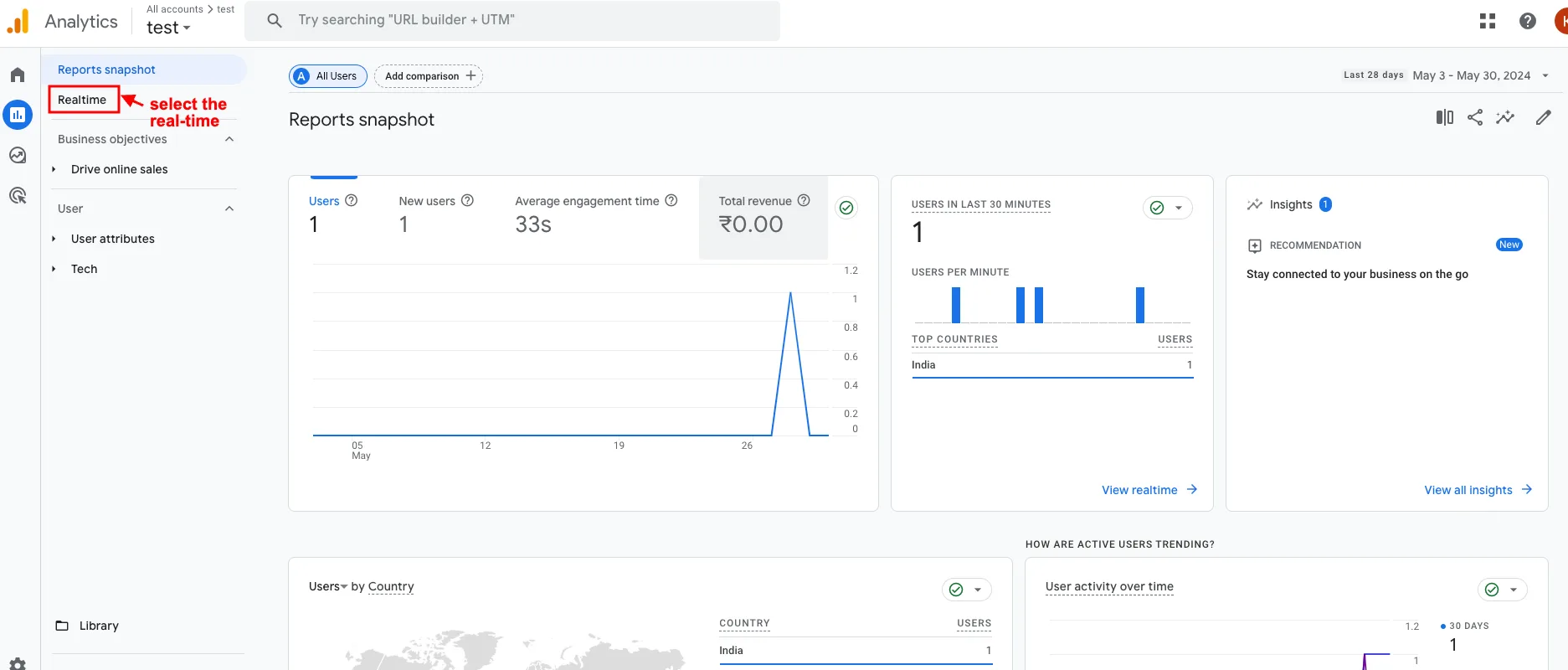
- Select the real-time.
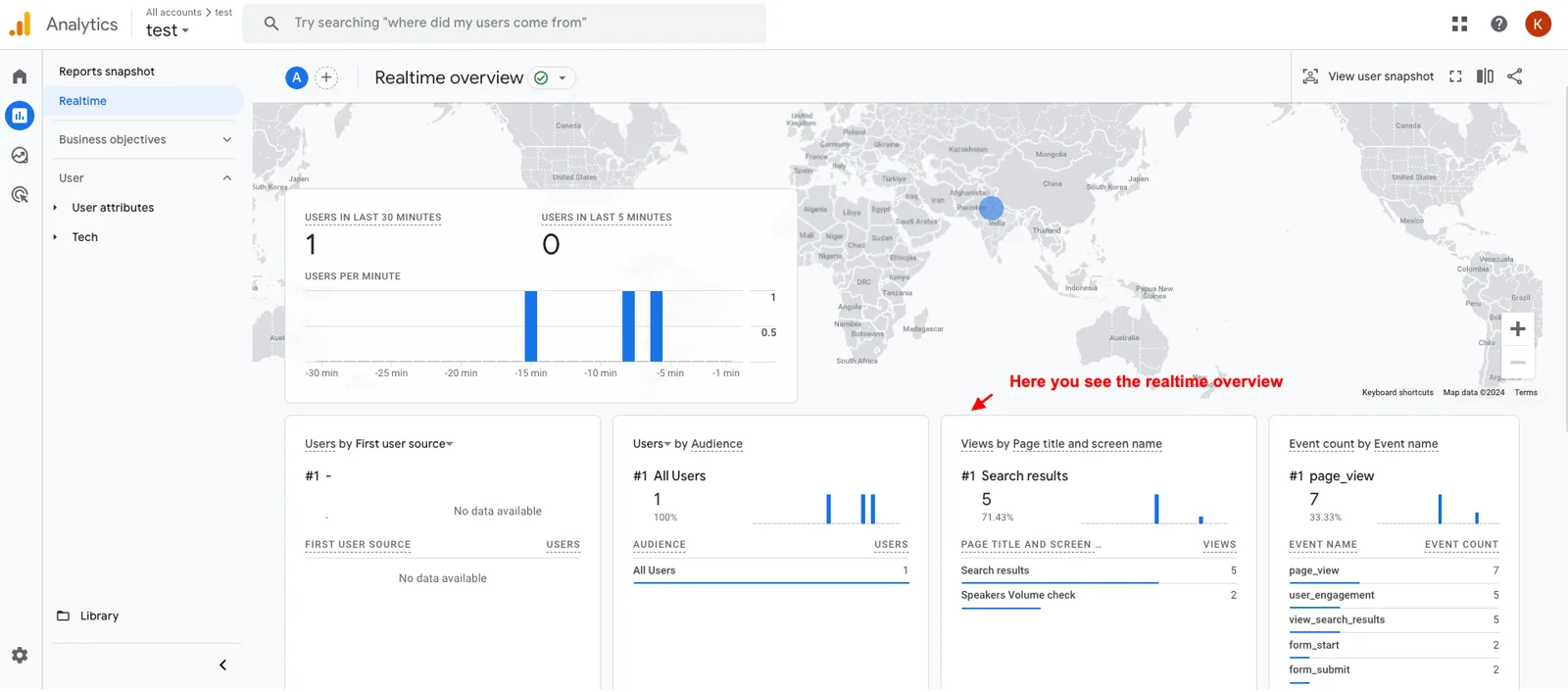
- Here you see the real-time overview.
Addon-Version:
Version-1.0
Supported Versions:
CS-Cart, CS-Cart Multivendor 4.8.x, 4.9.x,4.10x,4.11x,4.12,4.13x, 4.14x, 4.15x, 4.16x, 4.17x, 4.18x
Support:
This app is developed and published by Ecarter Technologies Pvt. Ltd., a CS-Cart developer. You are guaranteed quality add-ons.
Frequently asked questions
What customer activity does this add-on track in Google Analytics?
It collects data across the shopping journey, including customer logins, product views, cart additions, and purchases. You can also create and manage custom tracking events to fit your specific needs.
Where do I manage tracking events after installing the add-on?
Tracking events are available under Track Events in the Marketing menu. You configure Google Analytics and related options from the add-on's General and Settings tabs.
How do I install and set up the add-on?
Installation follows the standard CS-Cart add-on process (see the how-to-install-addon guide), and the setup is designed to be quick with an intuitive configuration screen. After installing, enable the Settings tab and enter your Google Analytics details to begin tracking.
Is this add-on compatible with my version of CS-Cart or CS-Cart Multi-Vendor?
It is built for CS-Cart stores and works with recent versions. Share your CS-Cart edition and version and we will confirm compatibility before you install.
Kajal is a Technical Content Writer at Ecarter Technologies. She writes technical documentation and in-depth guides on eCommerce platforms, mobile commerce and AI in online retail.