
Make Packages
Make Package: This addon allows the admin to make the product package and Product Package Builder is built for shop owners.
Product Package Builder is a CS-Cart add-on that lets store owners and vendors bundle several products together and sell them as a single package. It is built to support cross-selling and bundle deals, so shoppers can buy grouped products together while the store combines items that sell well. The admin or vendor sets up each package with details such as name, code, vendor, categories, and an image, then adds the products it contains. It is aimed at shop owners who want to boost sales across different product types and offer customers a reasonable combined deal.
The add-on allows the admin to make the product package and Product Package Builder is built for shop owners to create amazing deals that combine several products to put for sale together. This is such a powerful Addon for boosting sales of different product types, and at the same time offering customers some reasonable benefits. Product package Addon is a smart tool for enhancing cross-selling strategies on your online shop. It is also optimized for search engines, increases site ranking, and ensures a higher conversion rate.
Feature:
- Quantity: Allow to set the default quantity of the current Package item.
- The add-on allows the admin to make the product package and Product Package Builder is built for shop owners to create amazing deals that combine several products to put for sale together.
- Admin or vendor can apply discount on product percentage wise or with absolute value.
Installation:
How to install Addon
https://store.ecarter.co/blogs/how-to-install-addon/
How to Create Product Package
Steps To Create Product Package.
1. Go to Products Panel >> Click on Product package.
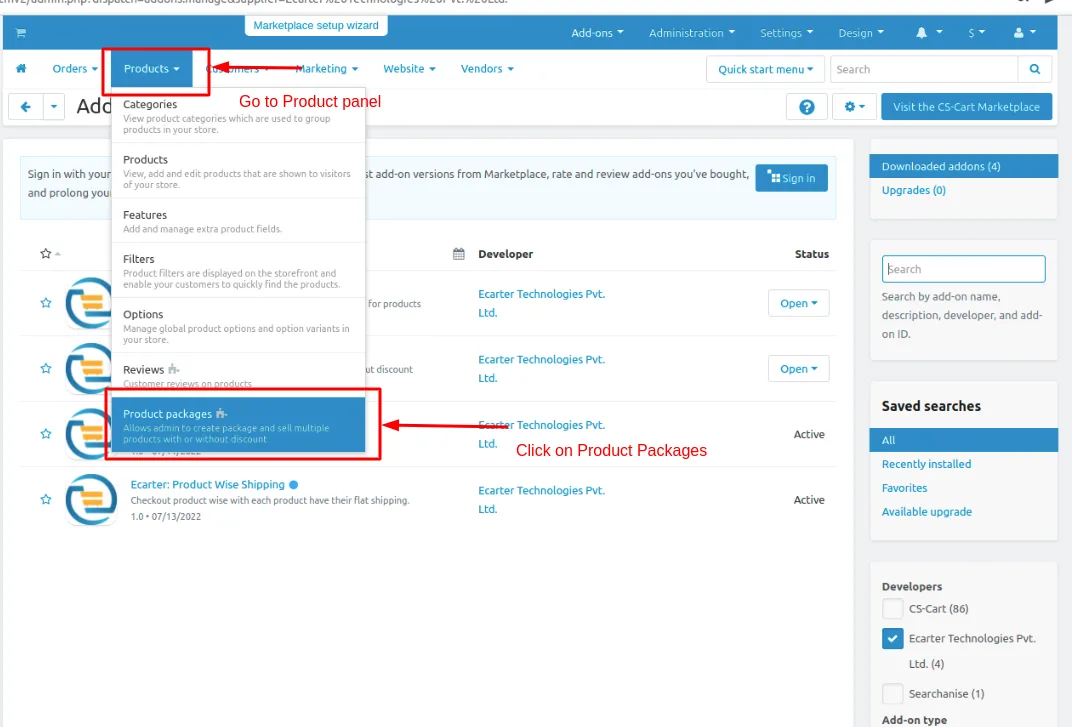
2. New Package page will be open
3. Click on >> (+) button to create the product package.
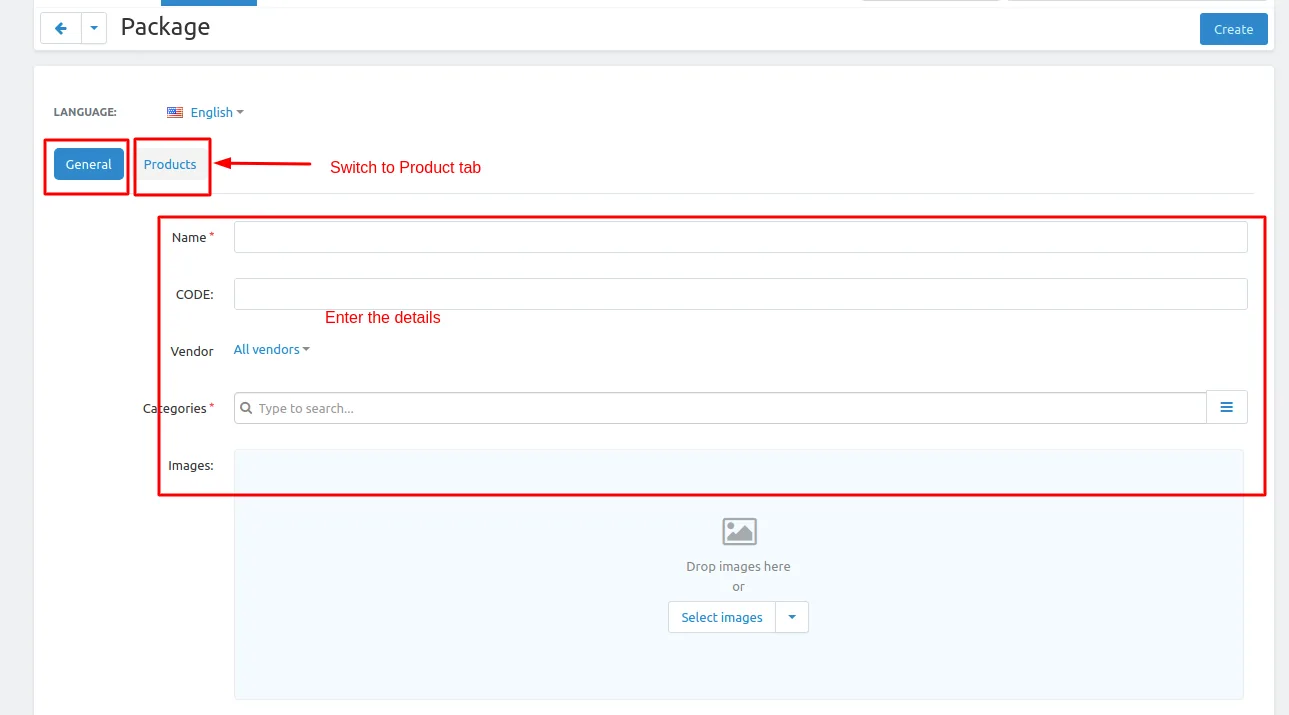
4. Package page will be open
5. Enter the details of the package like--
- Name
- Code
- Vendor
- Categories
- image
6. Switch to Products Tab.
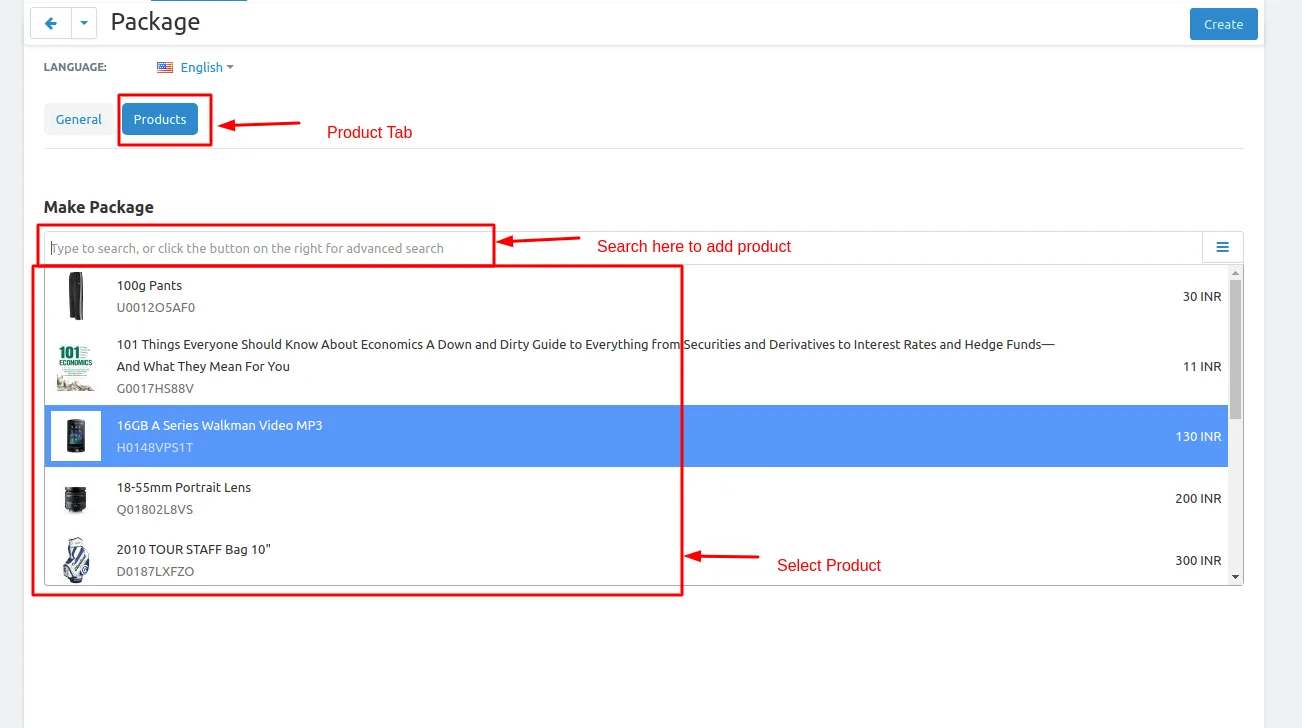
7.On the Product Tab
- Add the product click on >> search bar, search the product which you want to make the package
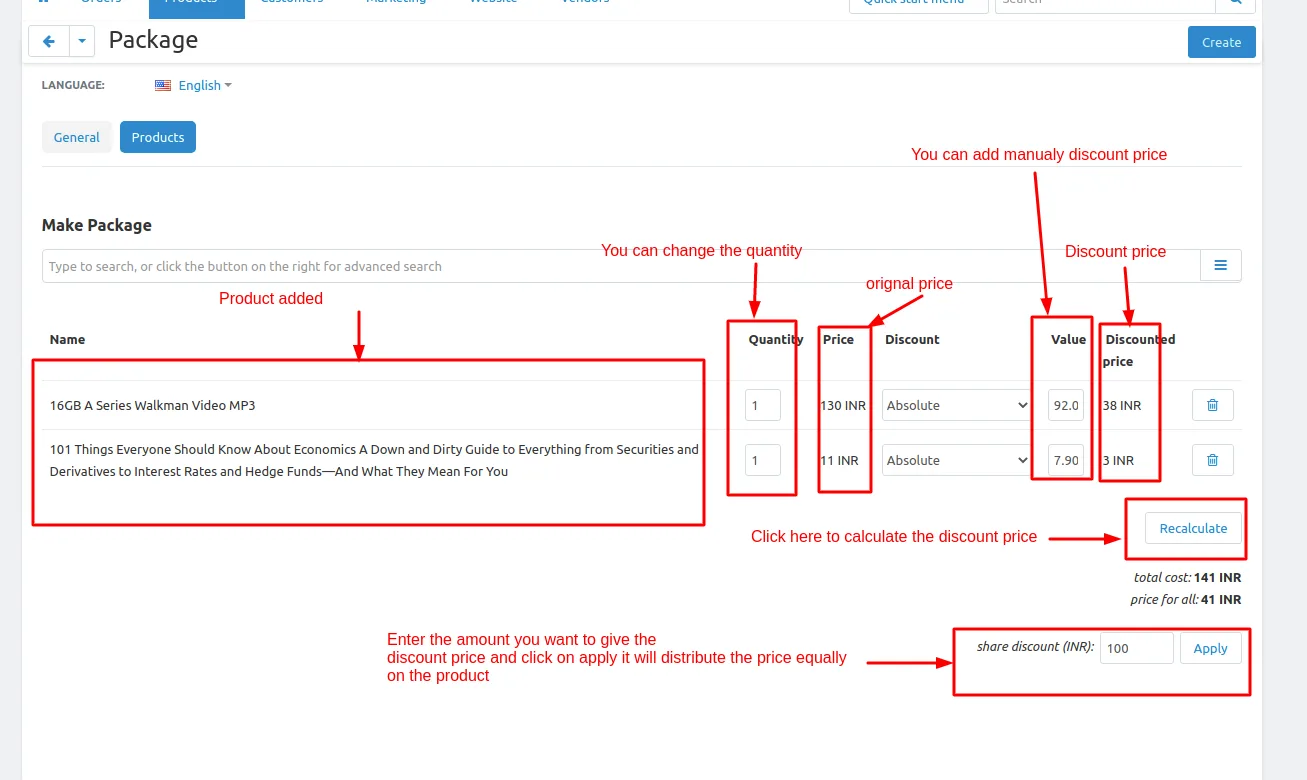
8. Here are the details of the package
- You see the product added list
- You can change the quantity of the product
- Change the discount method also
- You can give the amount manualy for discount on the product
- After changing the amount click on the recalculate button
- Enter the amount on the share discount and the discount will be distributed on the all product equally.
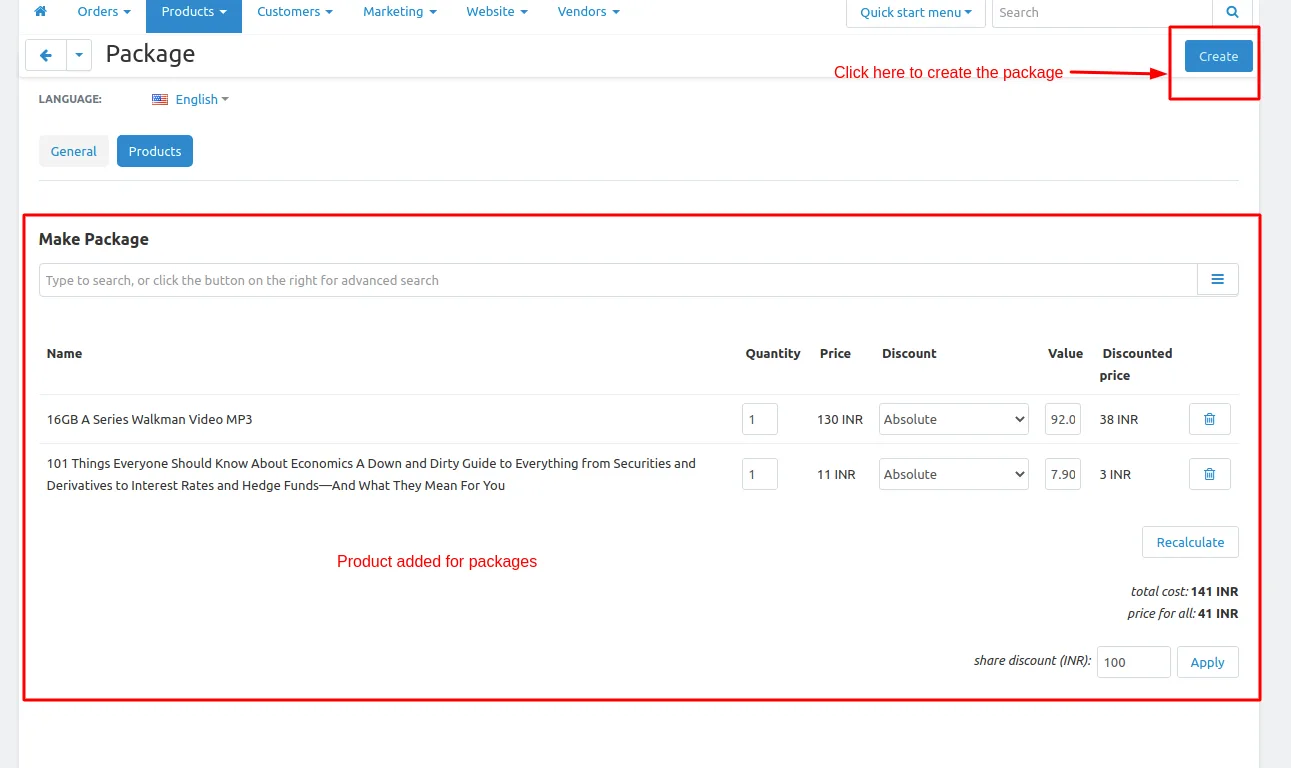
9. Click on the >> Create Button.
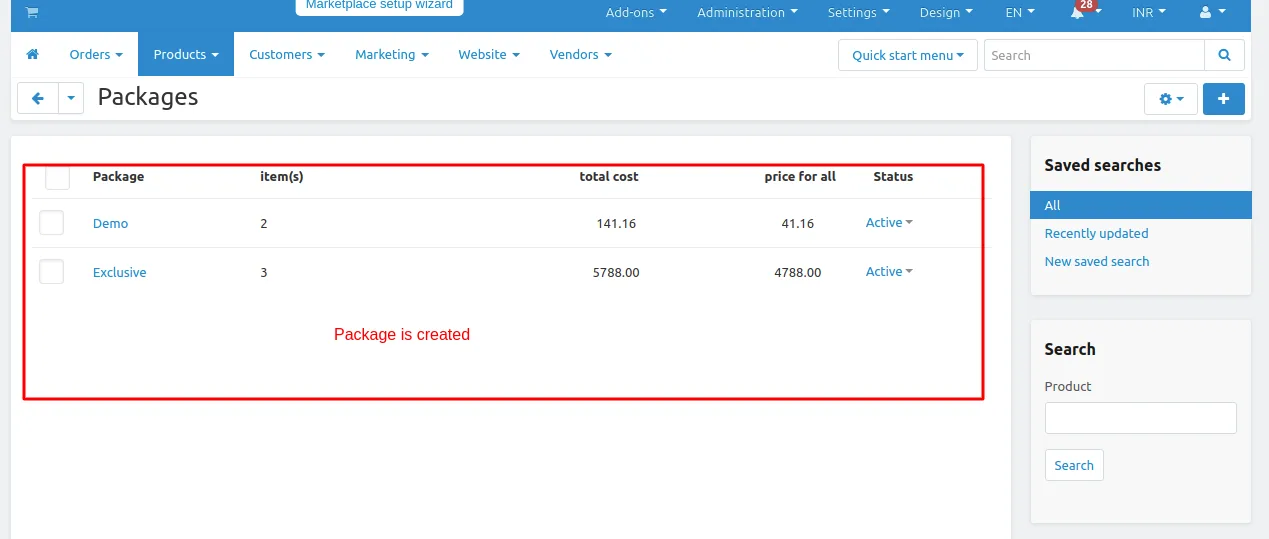
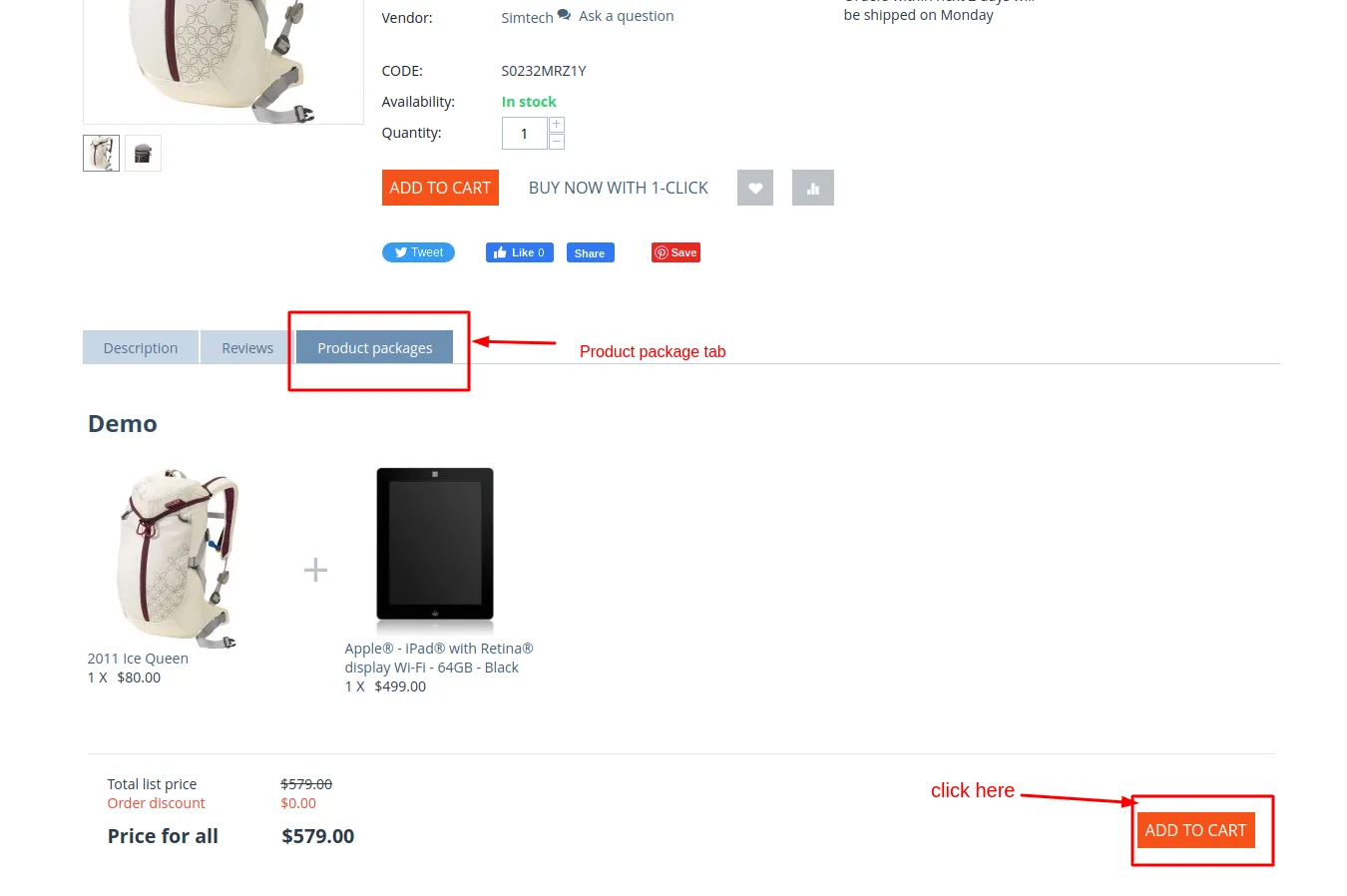
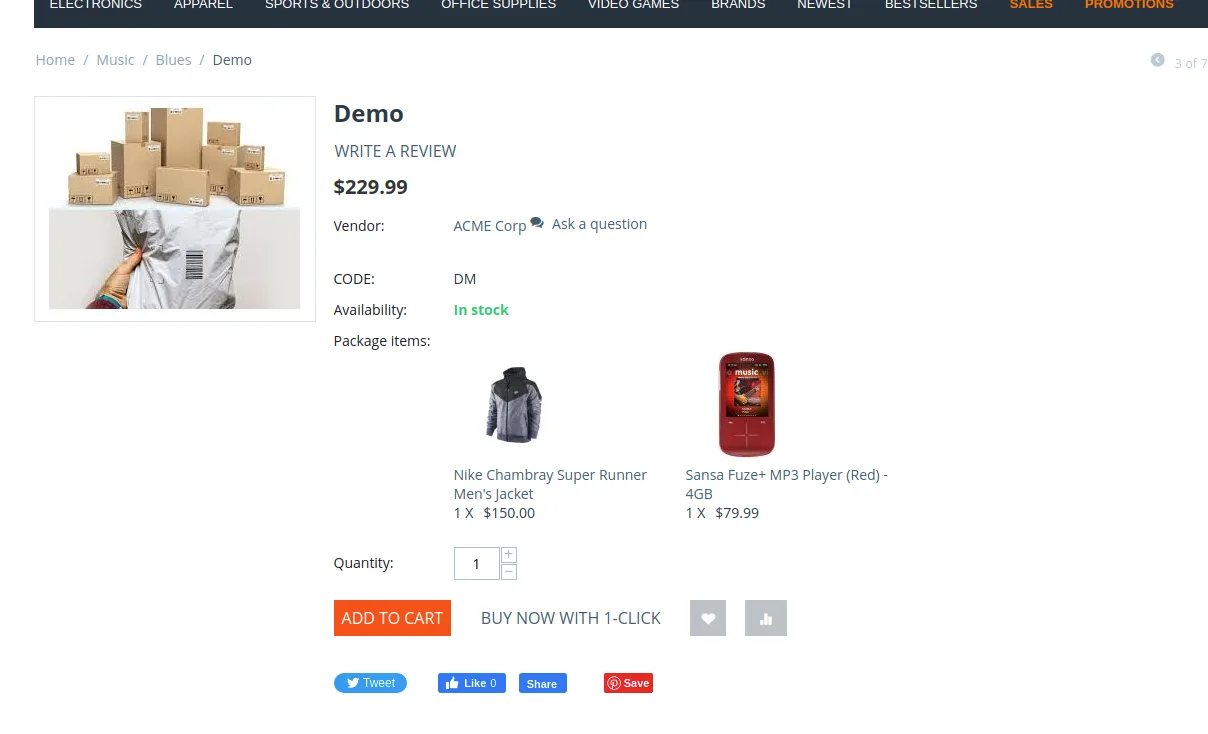
10. Go to storefront search for the package or product.
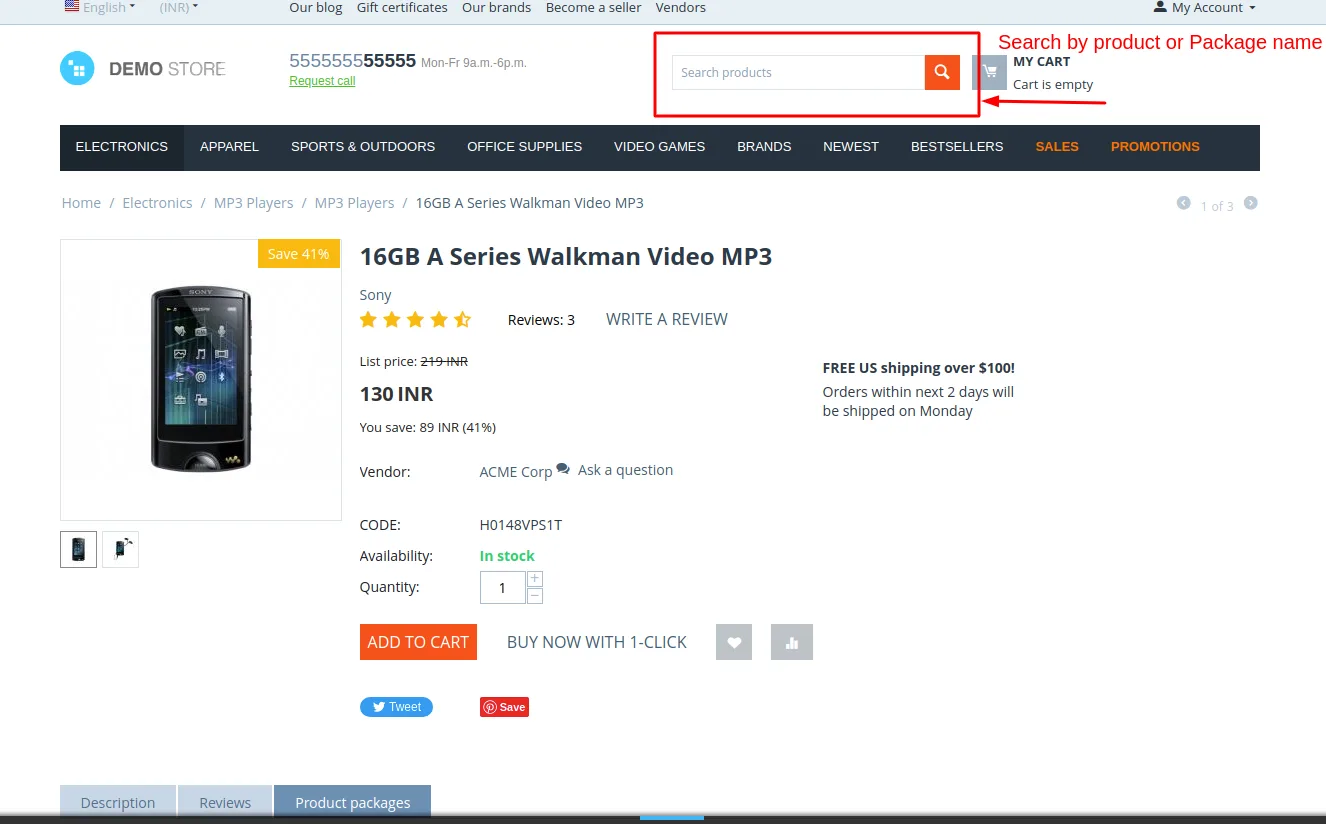
Here you see the Package details
- Package Name
- No. of Product in the package.
11. Click on >> Add to cart button. checkout page will be open.
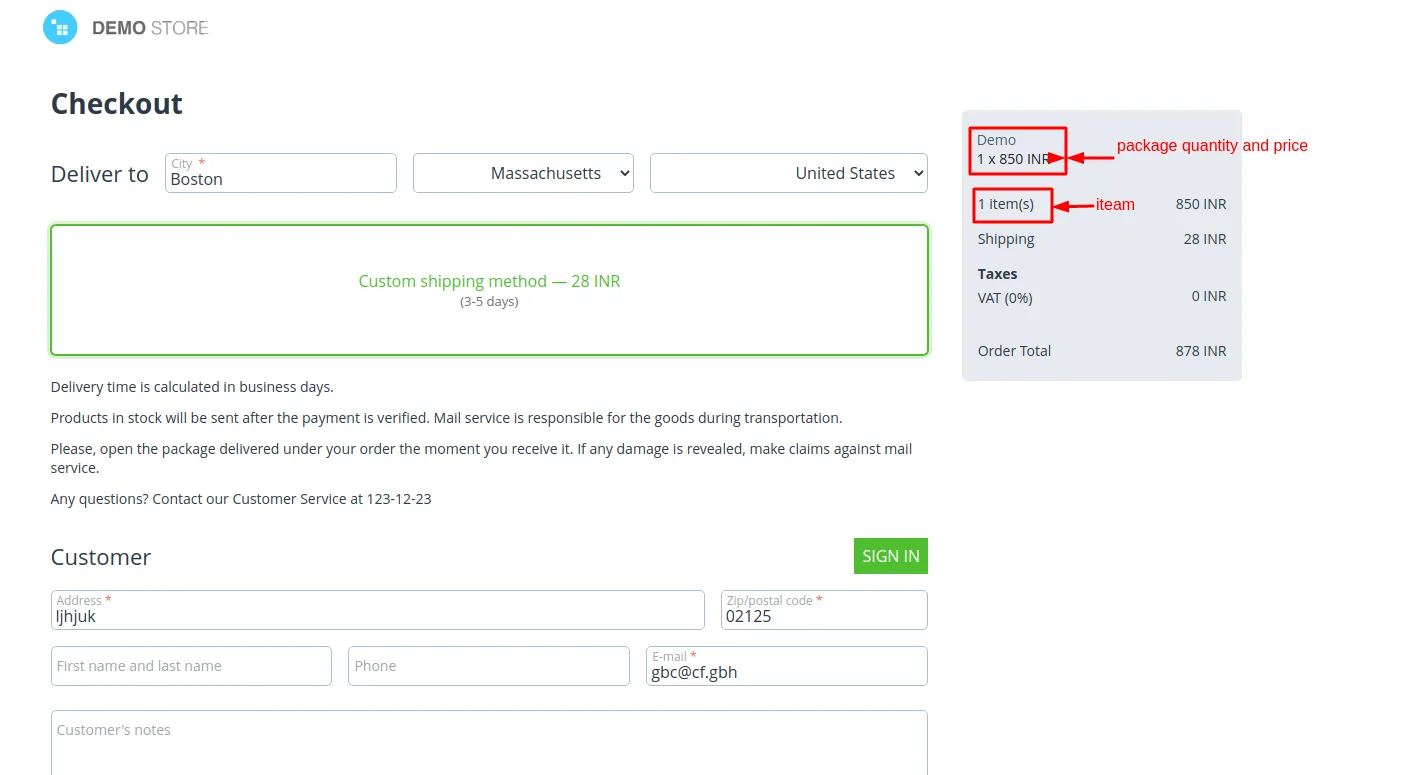
12. Check the details and Click on >> Place order.
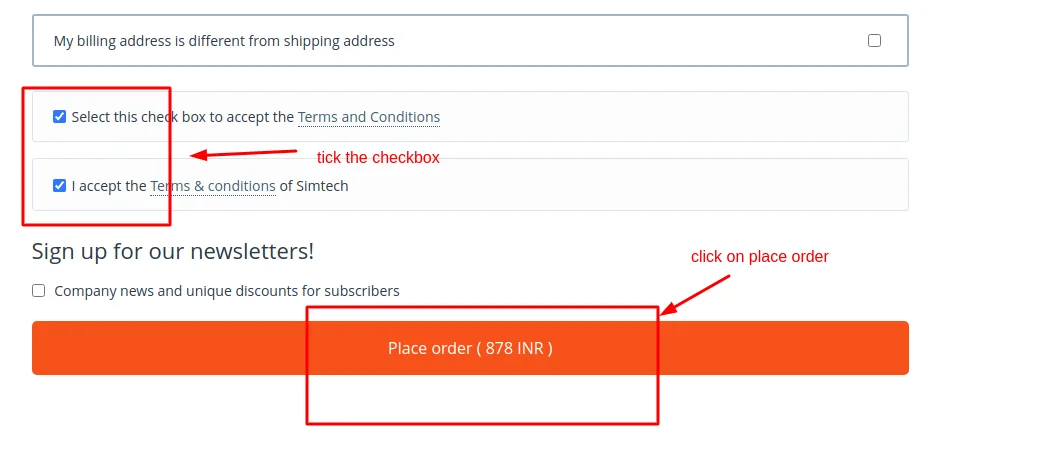
Here the package details and package is created.
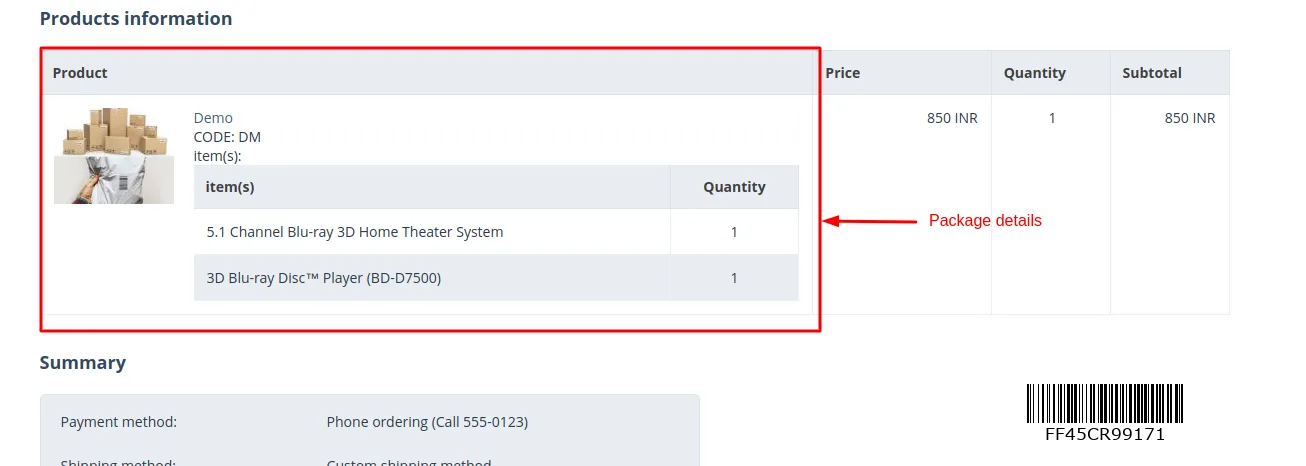
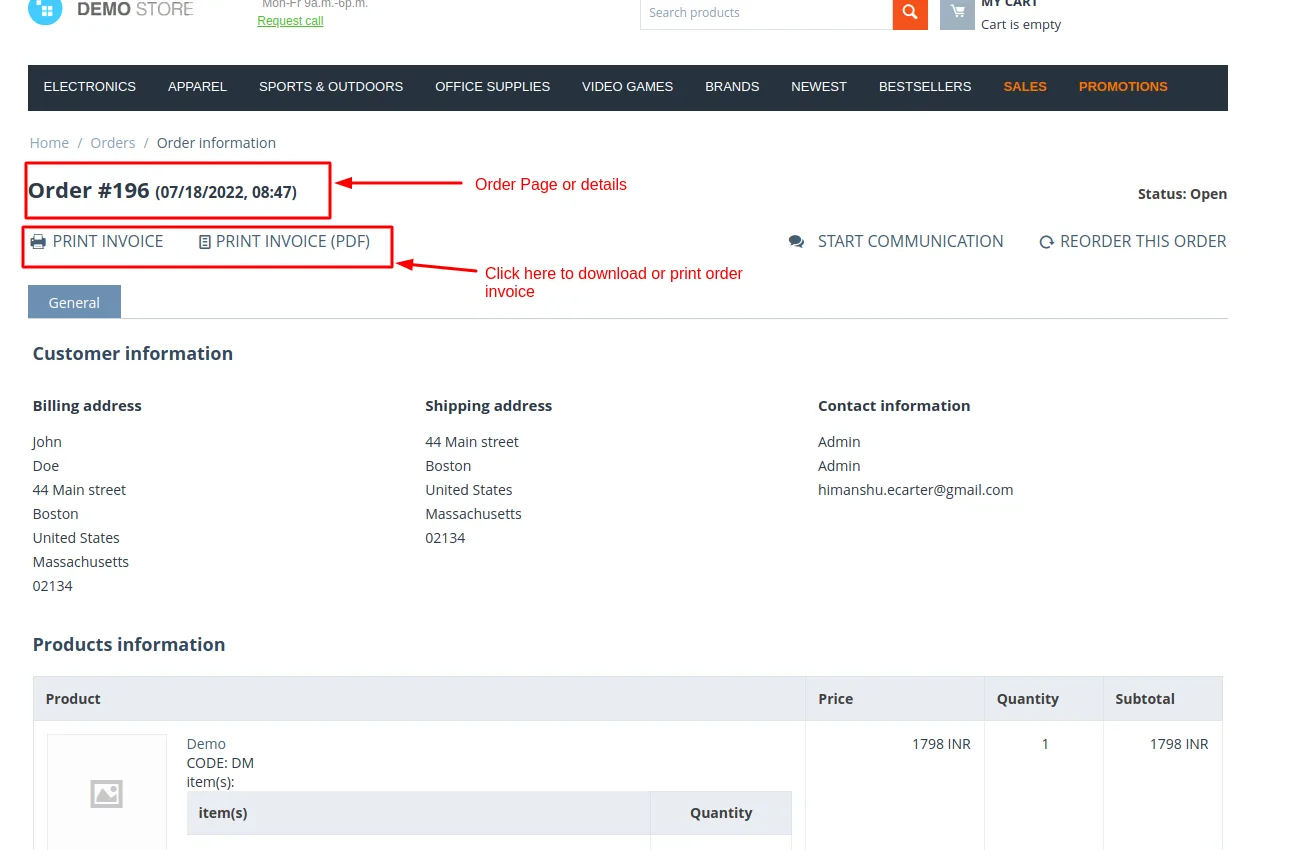
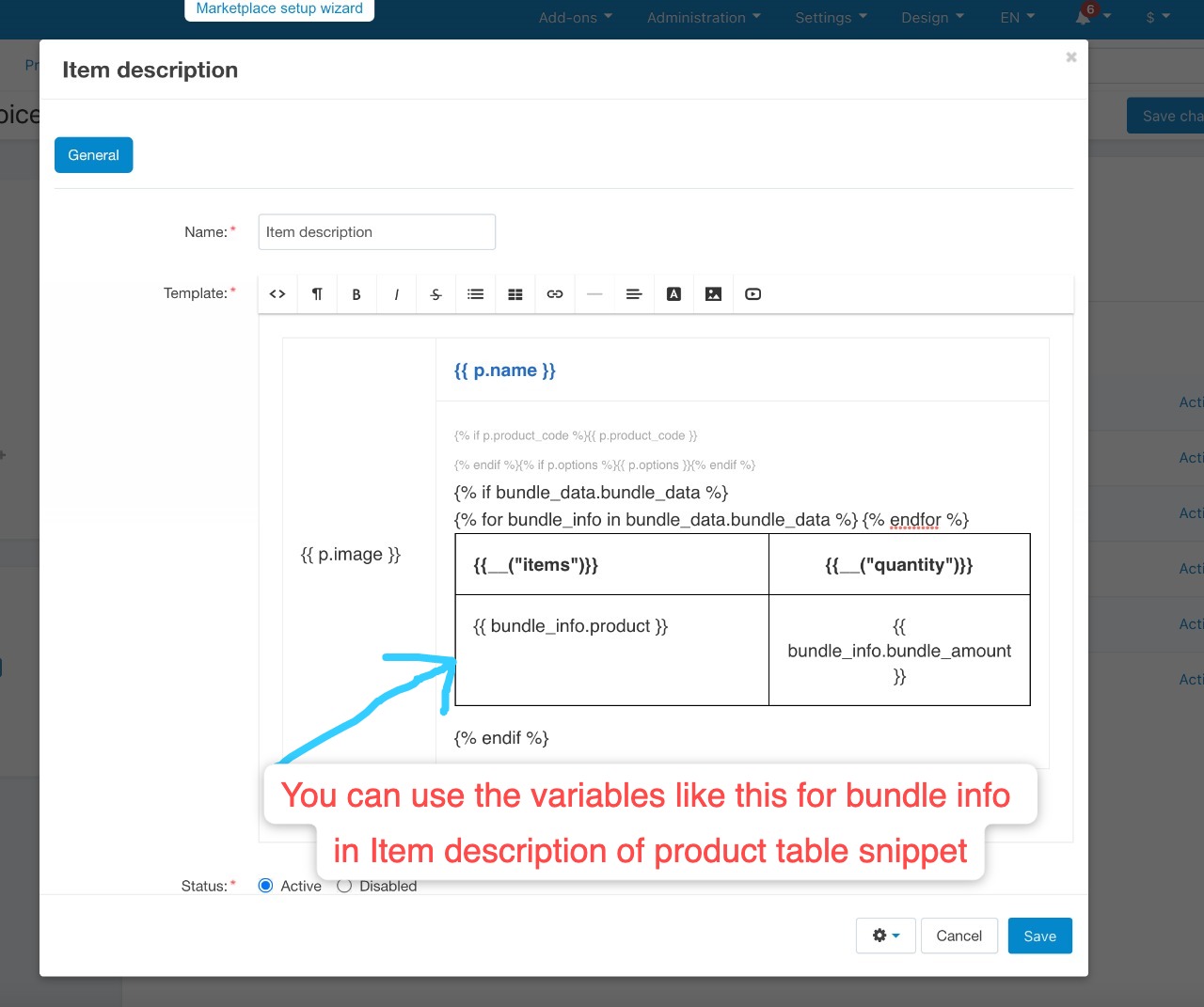
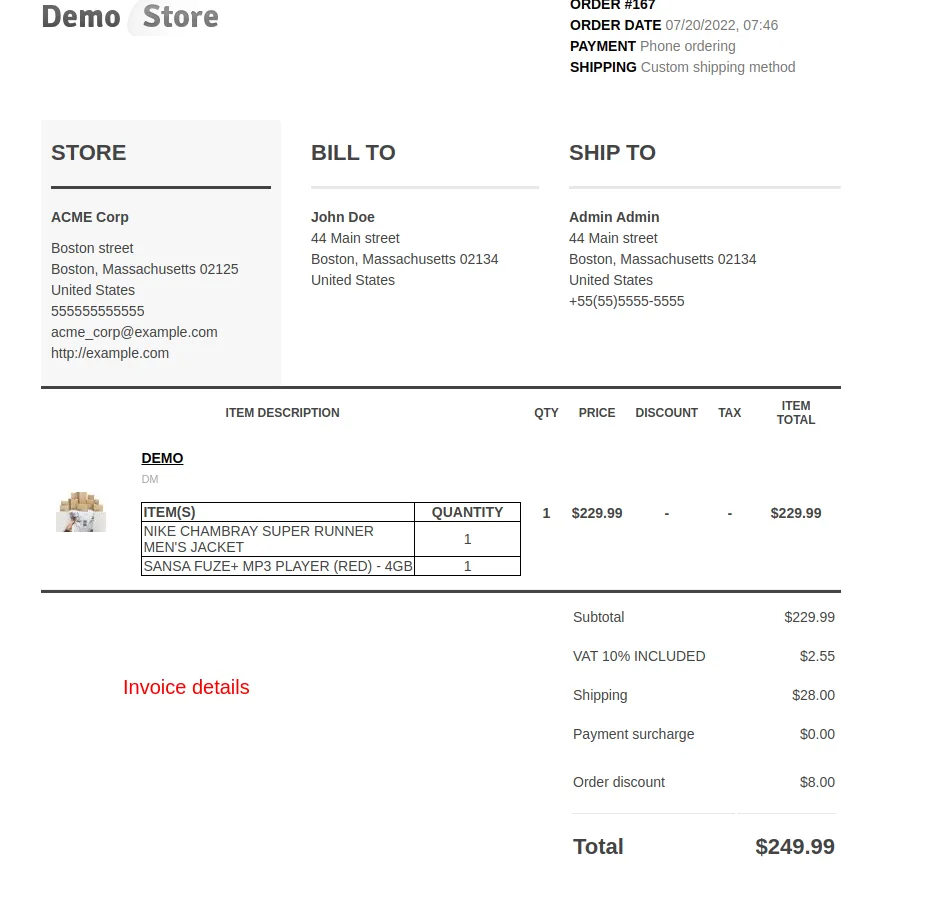
- Click on >> Print invoice/or print invoice as pdf
- Invoice recipient will be open.
Tutorial Link:
Addon-Version:
Version-1.0
Supported Versions:
CS-Cart, CS-Cart Multivendor 4.8.x, 4.9.x,4.10x,4.11x,4.12,4.13x, 4.14x, 4.15x, 4.16x, 4.17x, 4.18x
Support:
This app is developed and published by Ecarter Technologies Pvt. Ltd., a CS-Cart developer. You are guaranteed a quality add-ons
Frequently asked questions
What does the Product Package add-on let me do?
It lets the admin or vendor combine several products into a single package and put them up for sale together. This supports cross-selling and lets you build bundle deals from products that complement each other.
Can I apply a discount to a package?
Yes. The admin or vendor can apply a discount to a package either as a percentage or as an absolute value.
Can I set how many of an item are included in a package?
Yes. The Quantity setting lets you define the default quantity for each item included in the package.
How do I create a product package after installing the add-on?
Go to the Products panel and click Product Package, then click the (+) button to open a new package page. Enter the package details (name, code, vendor, categories, image), switch to the Products tab, and use the search bar to add the products you want in the package. Full installation steps are covered in the how-to-install-addon guide.
Kajal is a Technical Content Writer at Ecarter Technologies. She writes technical documentation and in-depth guides on eCommerce platforms, mobile commerce and AI in online retail.