
Mangopay Payment Gateway
Enable secure card payments on your CS-Cart store with the Mangopay Payment Gateway add-on. Accept Visa, Mastercard, Diners, and more, manage transactions, KYC, and transfers easily.
The Mangopay Payment Gateway add-on lets a CS-Cart store accept card payments through Mangopay, supporting card types including Visa, Mastercard, Masterpass, and Diners. At checkout, customers select Mangopay and enter their debit or credit card details to complete an order, while the admin reviews transactions, manages received payments, and transfers funds from the Mangopay wallet to a bank account. It works with both standard CS-Cart and CS-Cart Multi-Vendor, and includes admin controls for enabling the method, submitting KYC details, and setting order-total limits. It is intended for CS-Cart store owners and marketplace operators who want to collect card payments through Mangopay.
Mangopay Payment Gateway Add-on for CS-Cart allows a CS-Cart store or e-commerce website to accept card payments via the Mangopay Payment Gateway. Mangopay supports multiple card types, including Visa, Mastercard, Masterpass, Diners, and more. Customers select Mangopay at checkout and securely enter their debit or credit card details to complete orders.
The admin can view transaction details, manage received payments, and transfer funds from Mangopay to the bank account. This add-on works seamlessly with CS-Cart and CS-Cart Multi-Vendor, providing flexibility and control over payment management.
Cs-Cart Mangopay Payment Features -
- The admin can enable/ disable the payment method from the admin panel.
- Well integrated with CS-Cart & CS-Cart Multi-Vendor.
- Functionality to submit KYC details via admin end itself.
- The admin can transfer payment from his wallet to the bank account.
- Works with both Test and Live modes on the payment gateway.
- Set a custom payment method title.
- Set minimum and maximum order total to use this payment method.
- Set a refund validation period.
Installation:
How to install Addon
https://store.ecarter.co/blogs/how-to-install-addon/
Addon Settings:
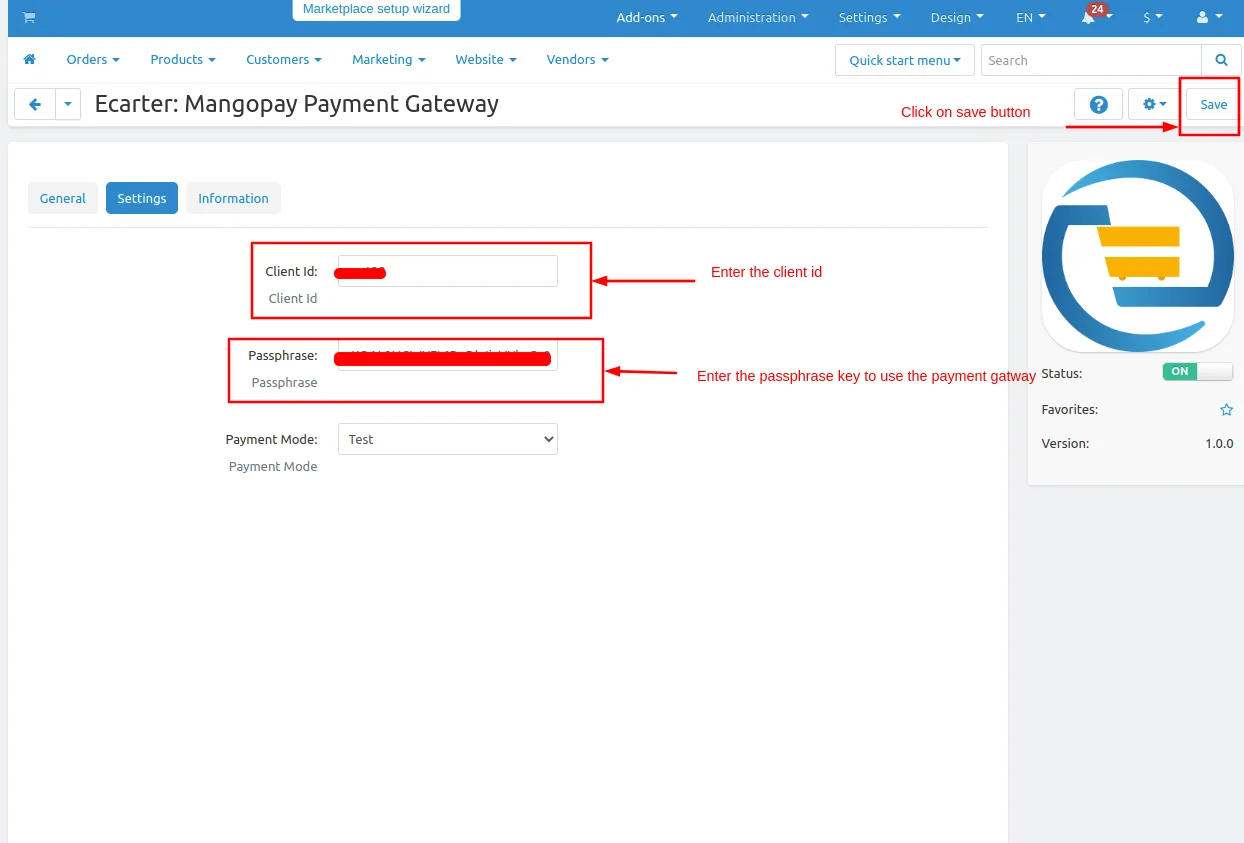
How Addon Works
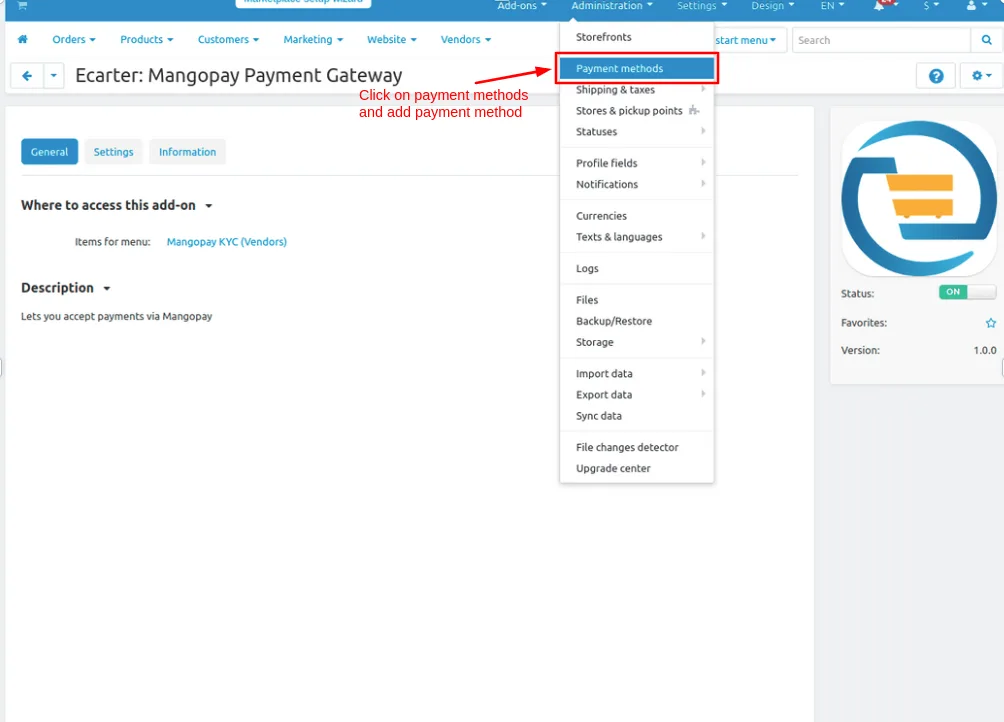
Go to >> Administration Penal and click on >> Payment methods.
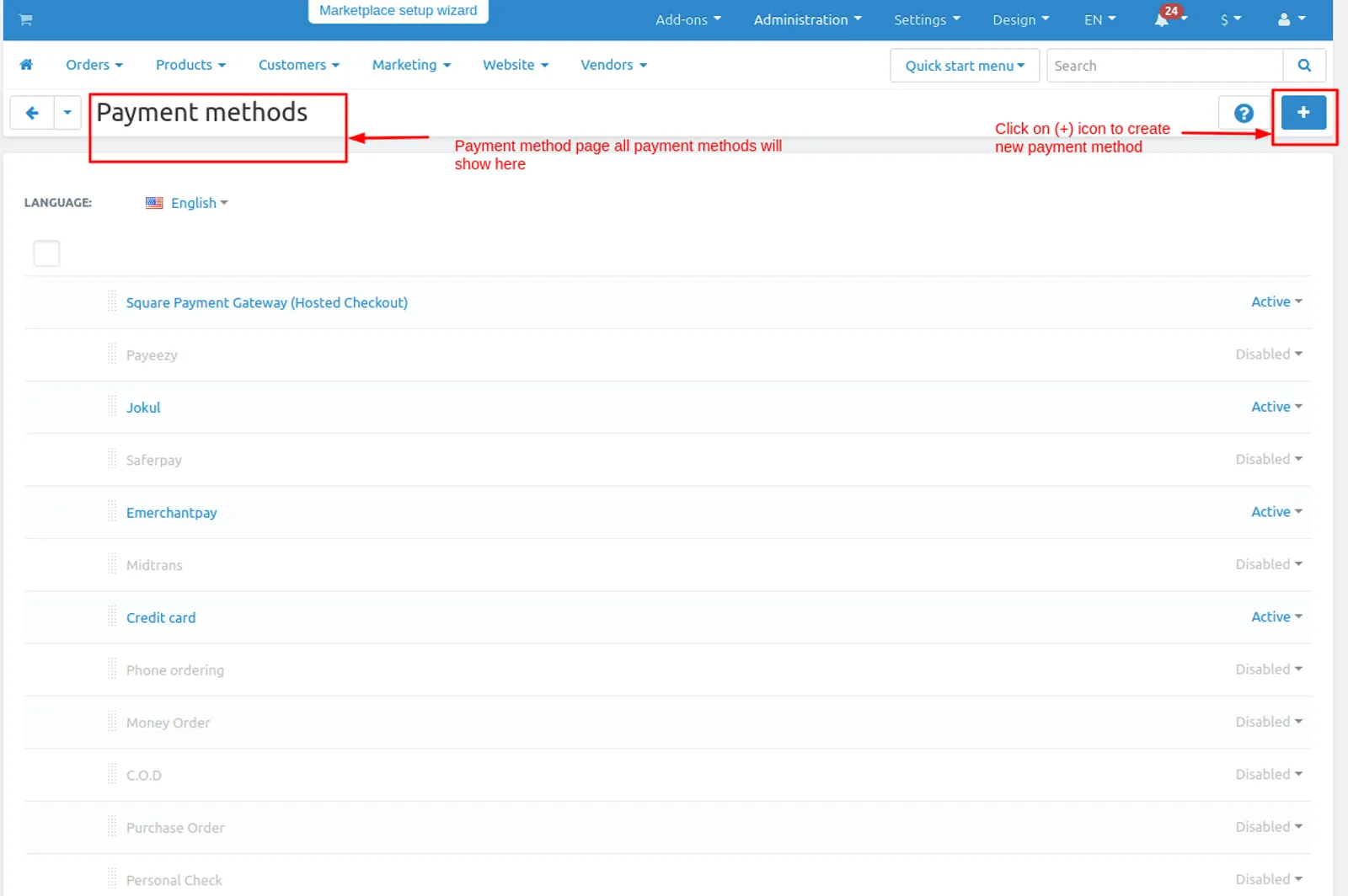
In the Payment methods page, Click on >> (+) icon
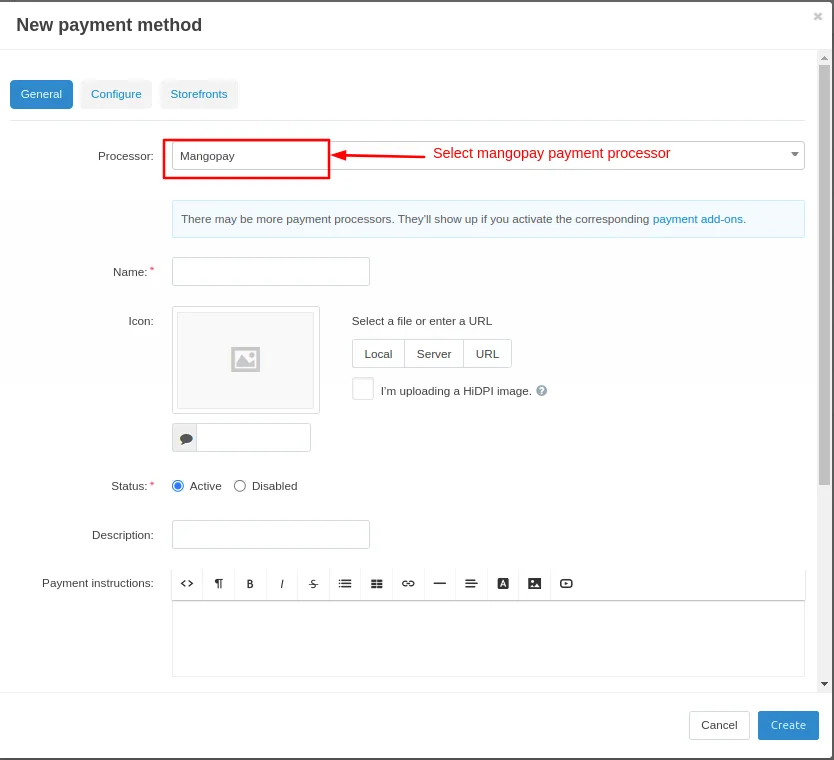
- New Payment method page will be open
- Select mangopay payment processor
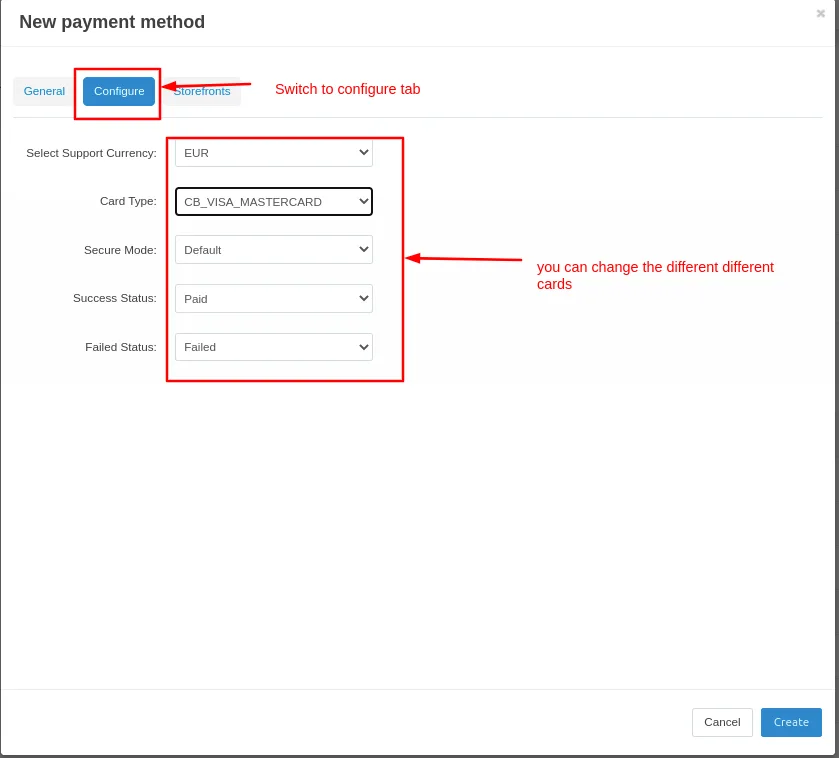
- Move to the Configure tab to set up the payment method by selecting the currency, card type, security mode, and payment statuses.
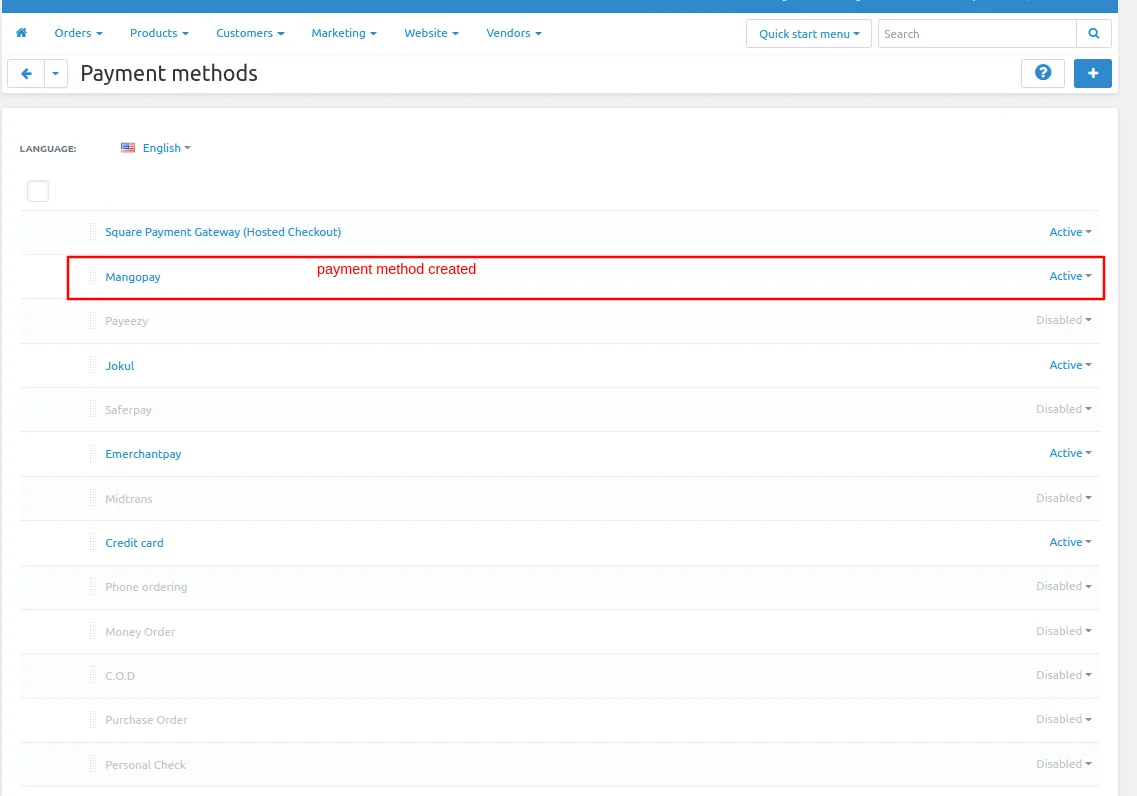
Created >> Payment method
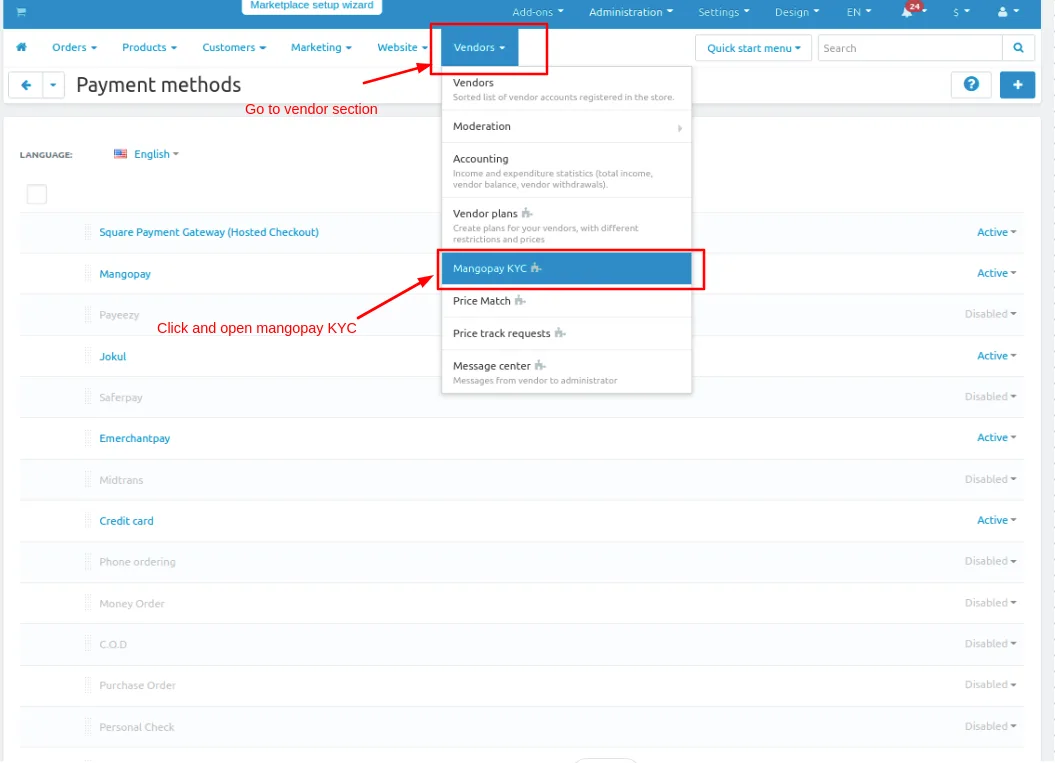
Go to >> Vendors Section and click on >> Mangopay KYC.
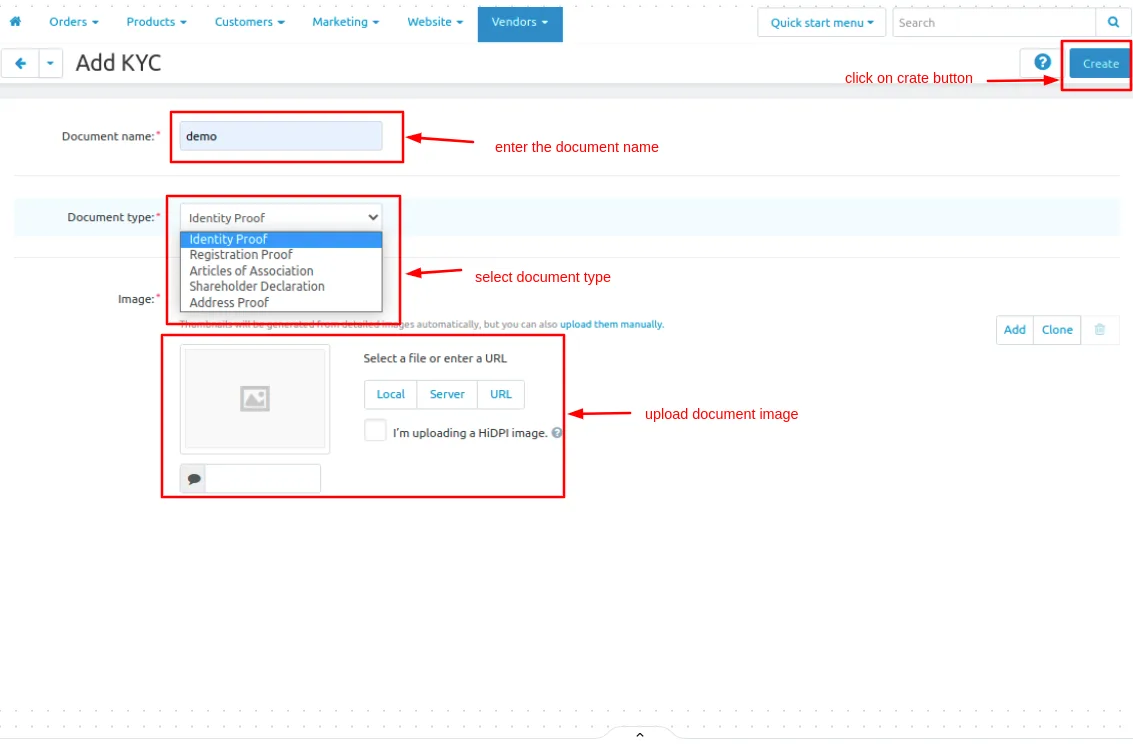
- Add >> KYC. Enter the document name, select the document type, and upload image.
- Then, Click on >> Create button.
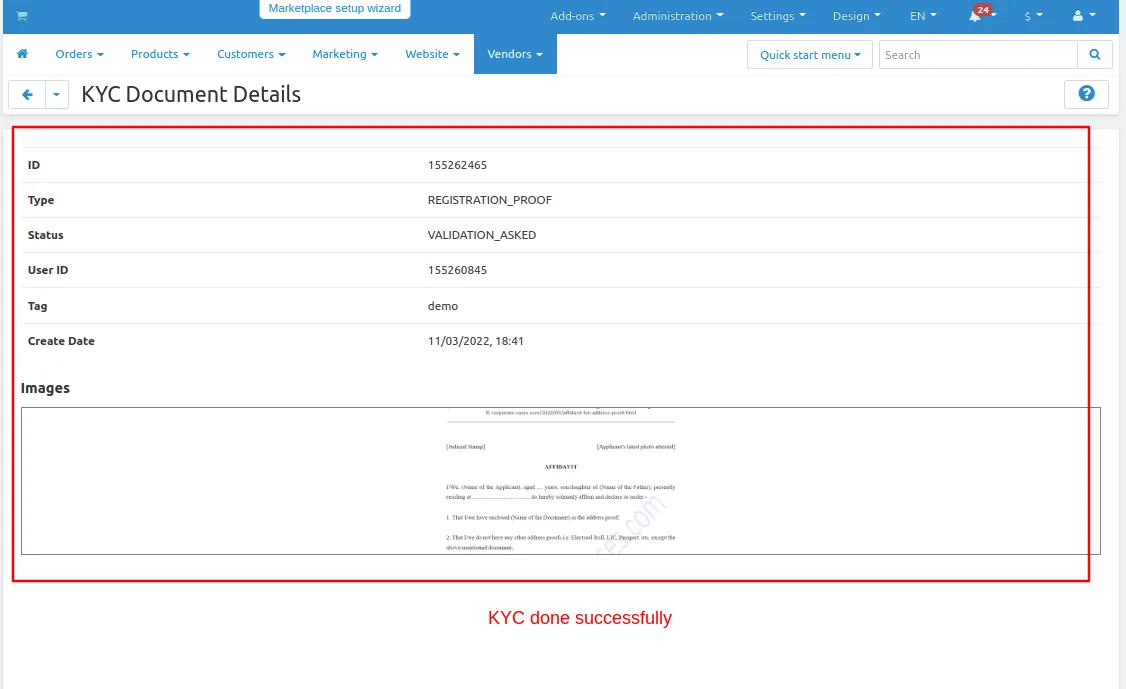
- KYC >> Documents Details
- KYC >> done successfully
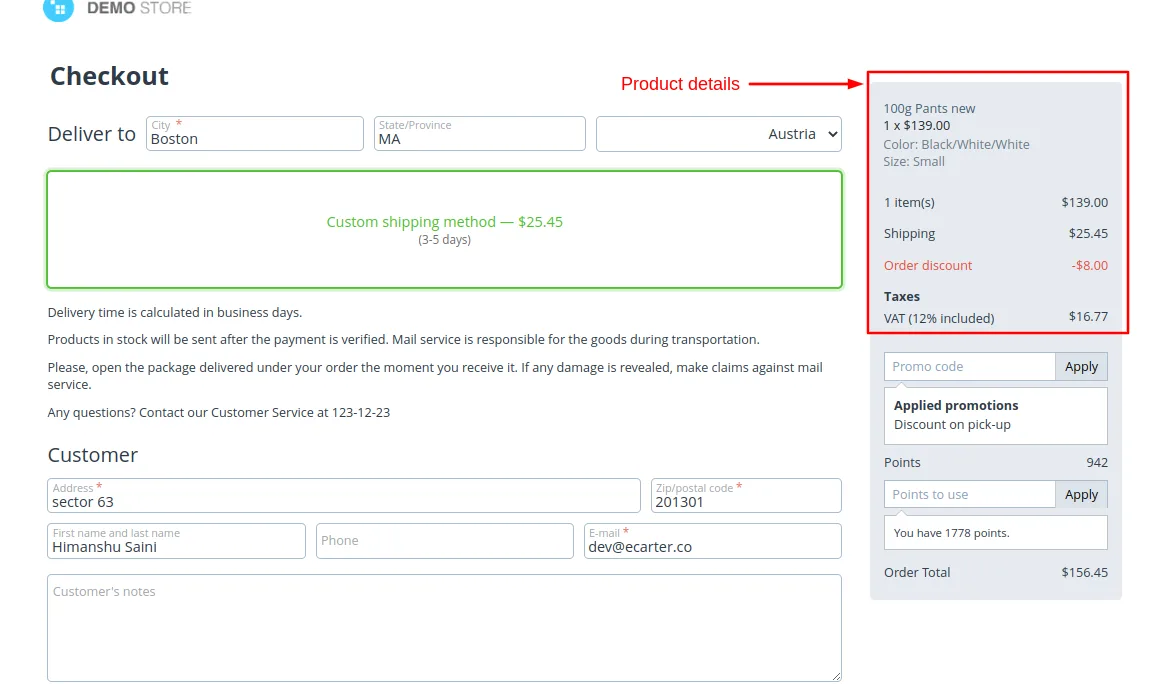
Let's select any product and move towards the checkout page.
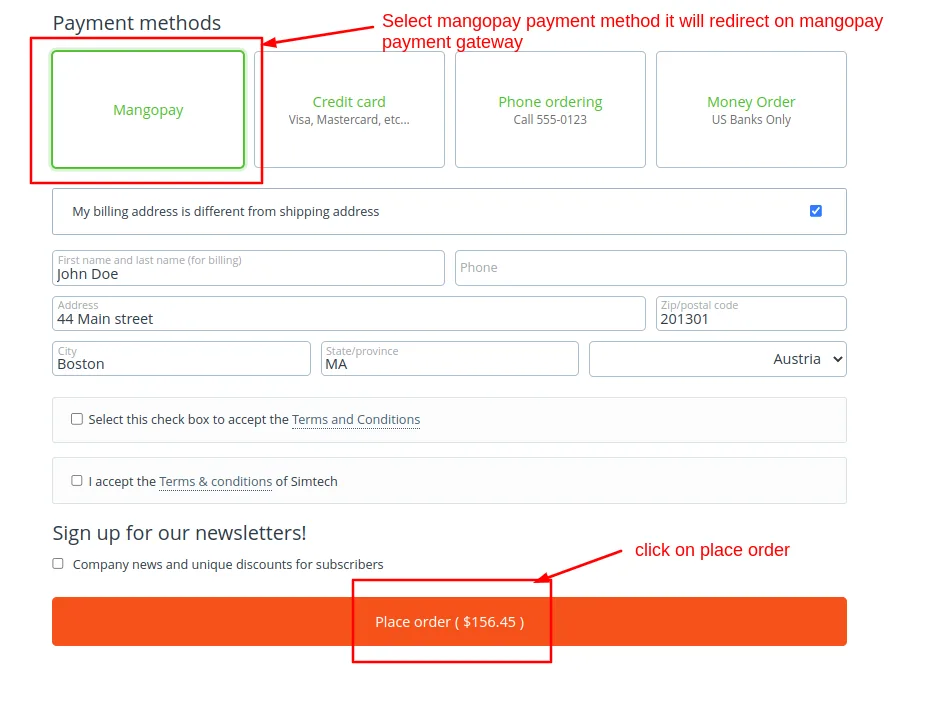
- Here you can select Mangopay payment method and Click on >> Place order
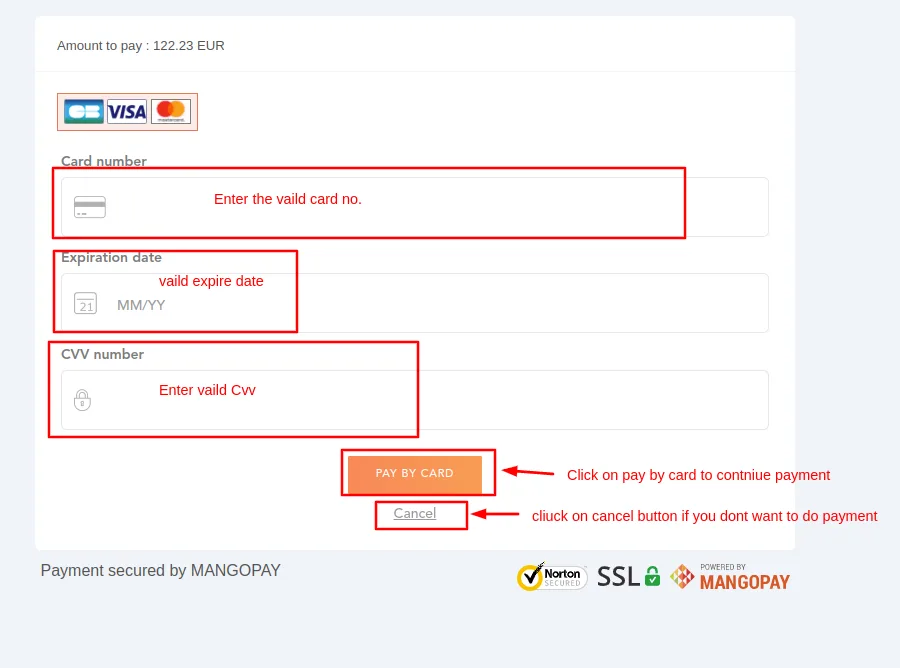
- Enter >> Card details
- Click on >> Pay By Card
- Click on >> Cancel button if you don't want to do payment.
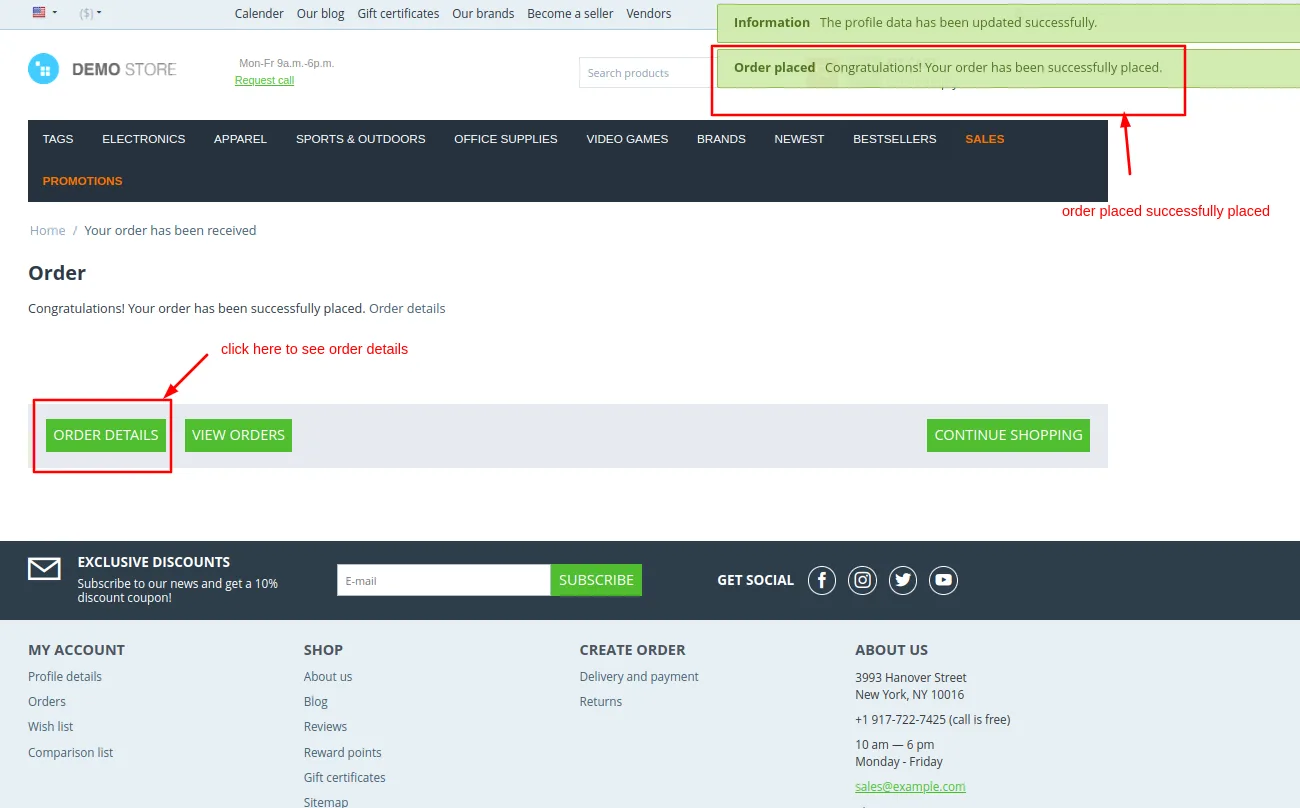
You will get an Order placed successfully notification. Use the Order details button to view the details.
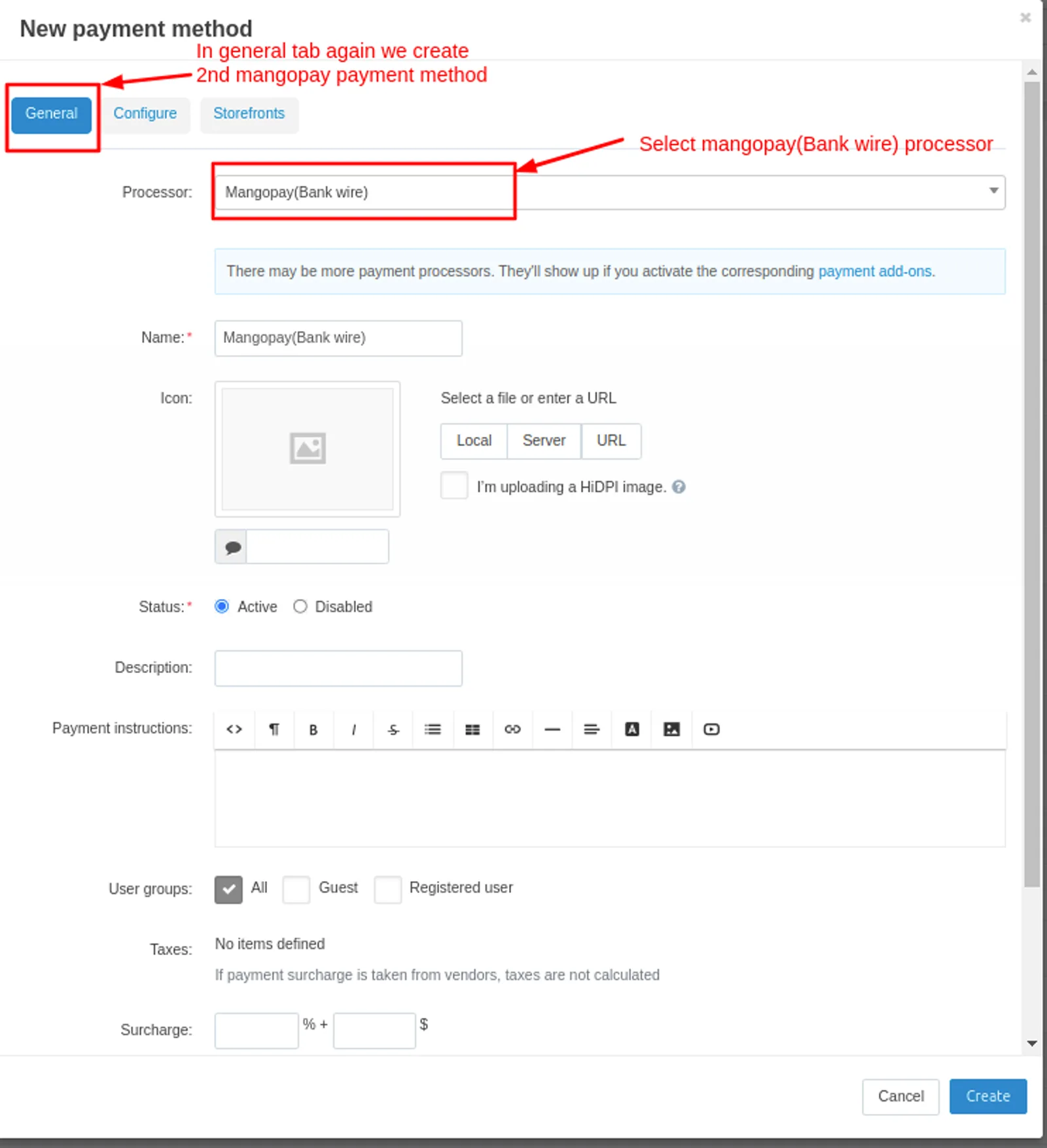
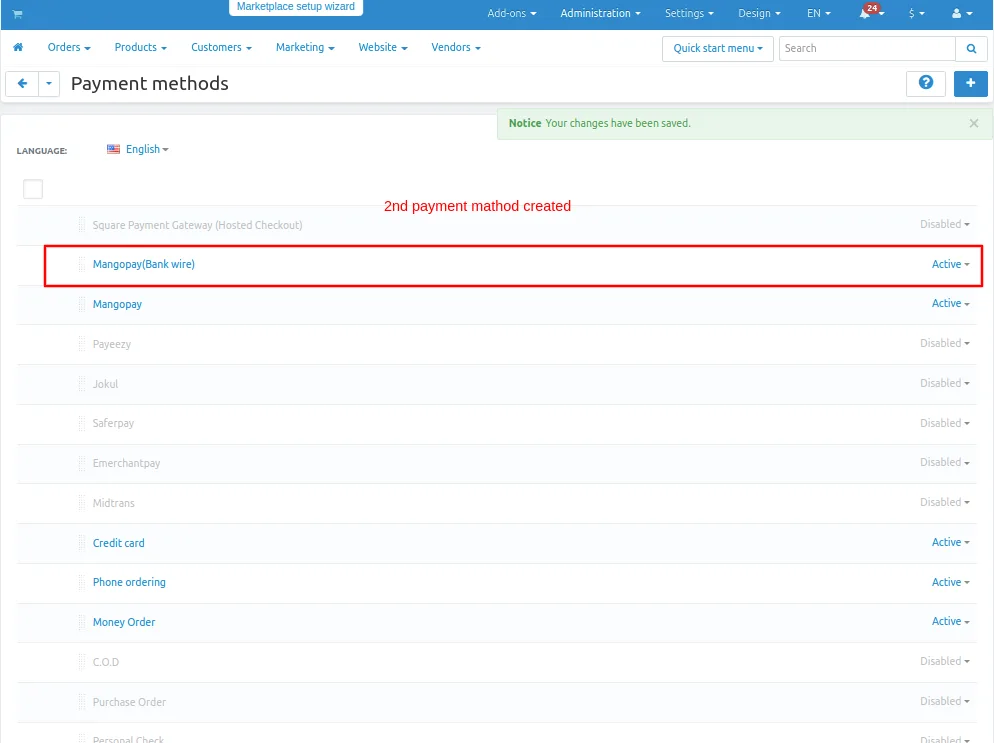
- Again Create >> Second mangopay payment method
- Select >> mangopay processor
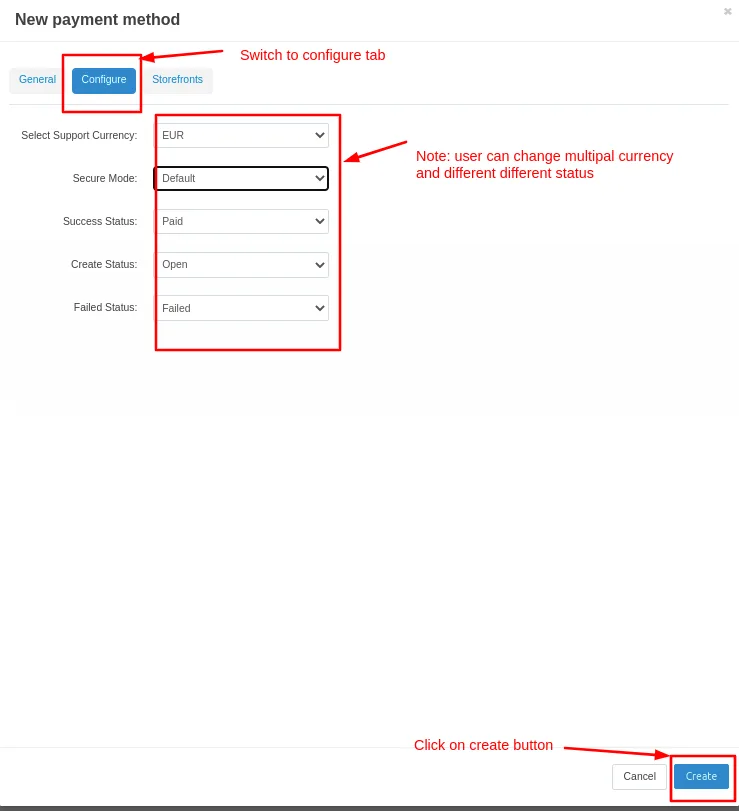
Move on >> configure tab
select >> Multipal currency
Click on >> create button
Created >> Second Payment method
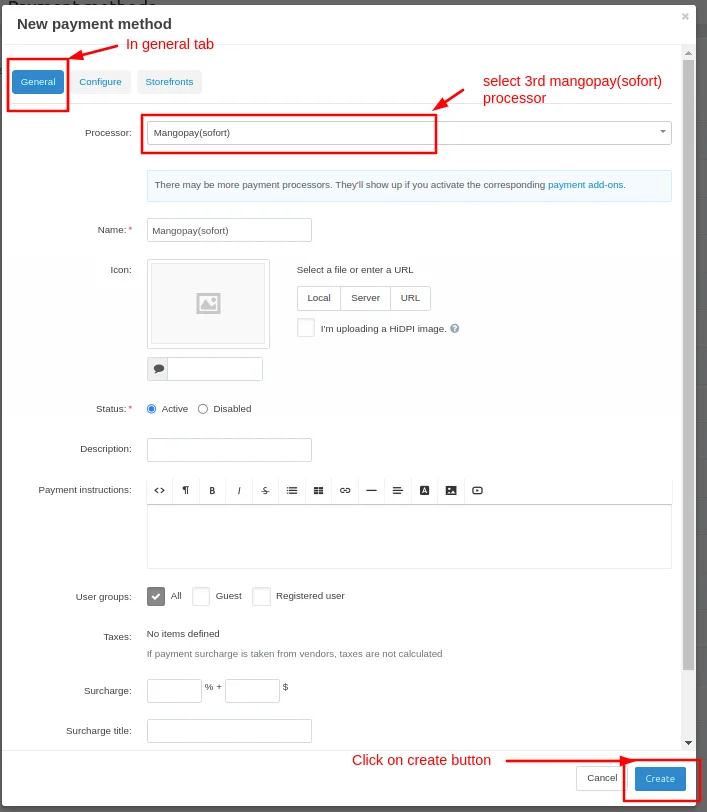
New Payment method page will be open
Select >> Third Mangopay payment processor
Click on >> Create button
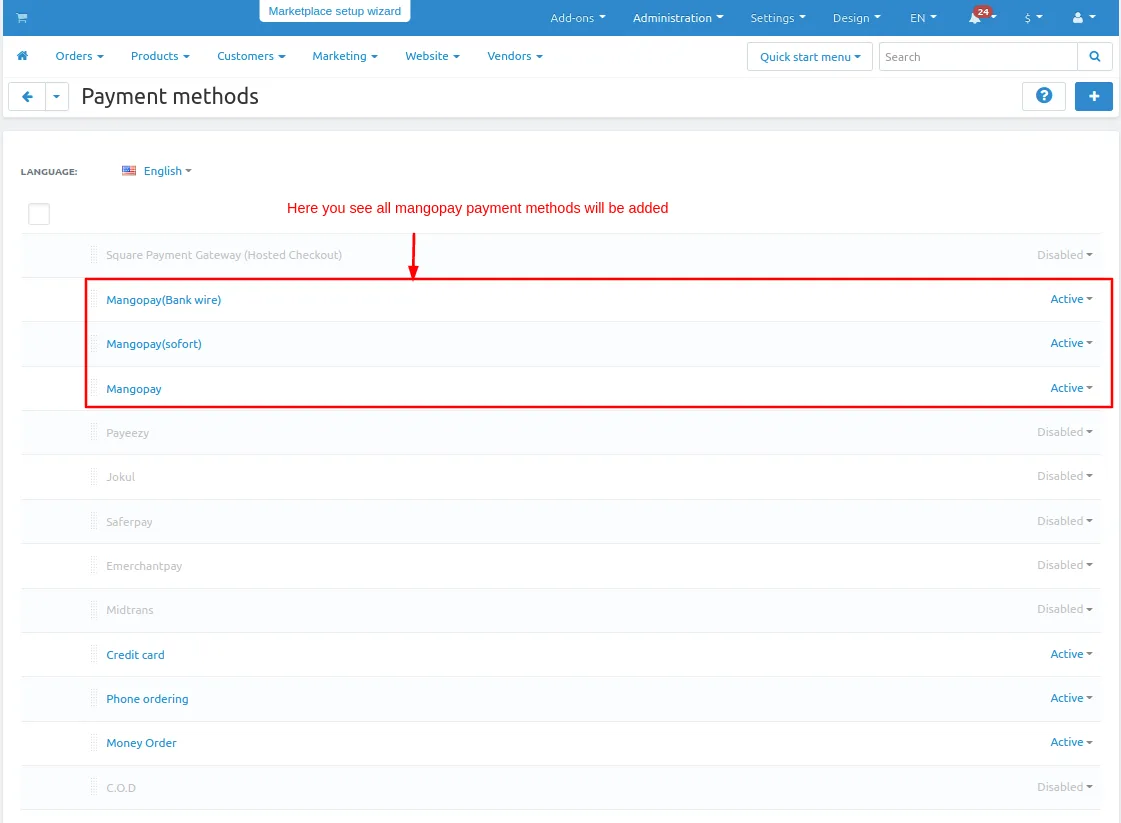
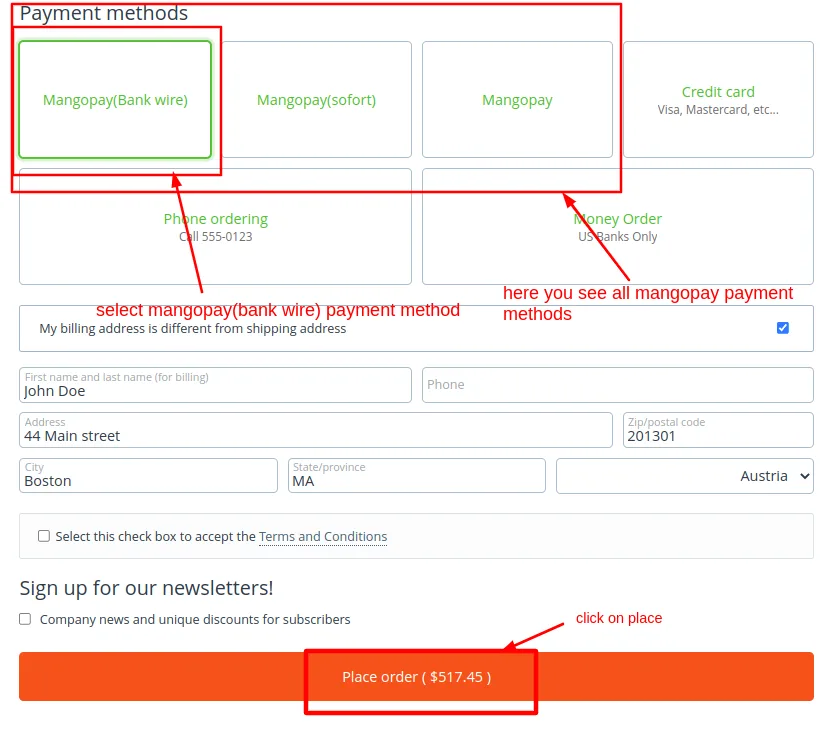
Added >> All mangopay payment methods
Checkout page will be open
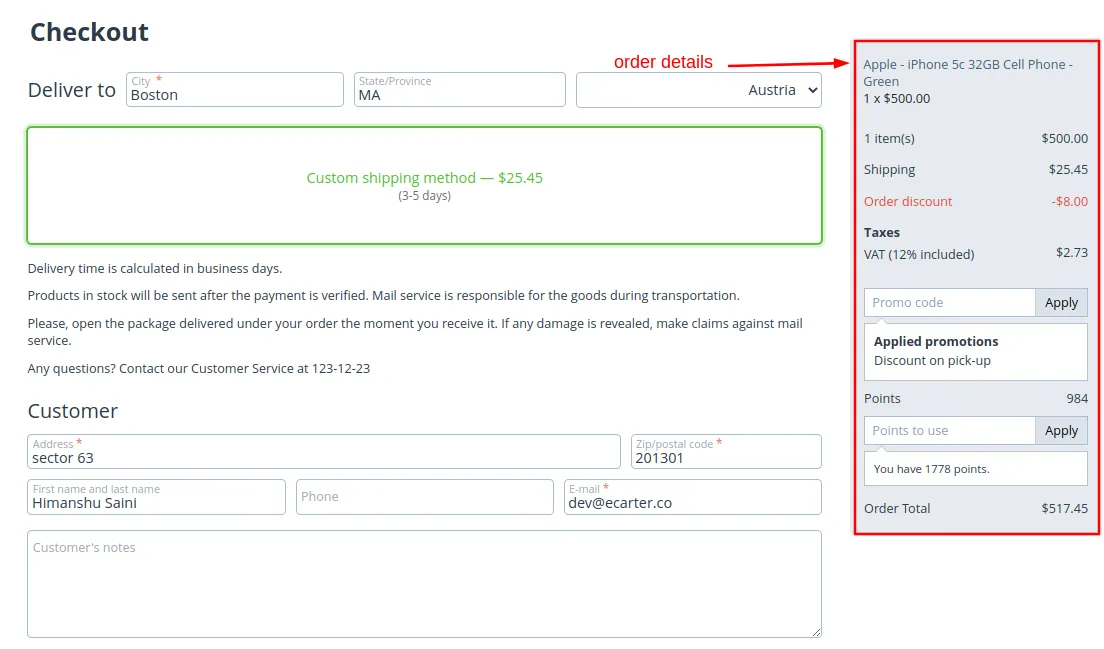
Select payments methods
- Click on >> Place order.
- This page shows all Mangopay methods created above. You can select any of them.
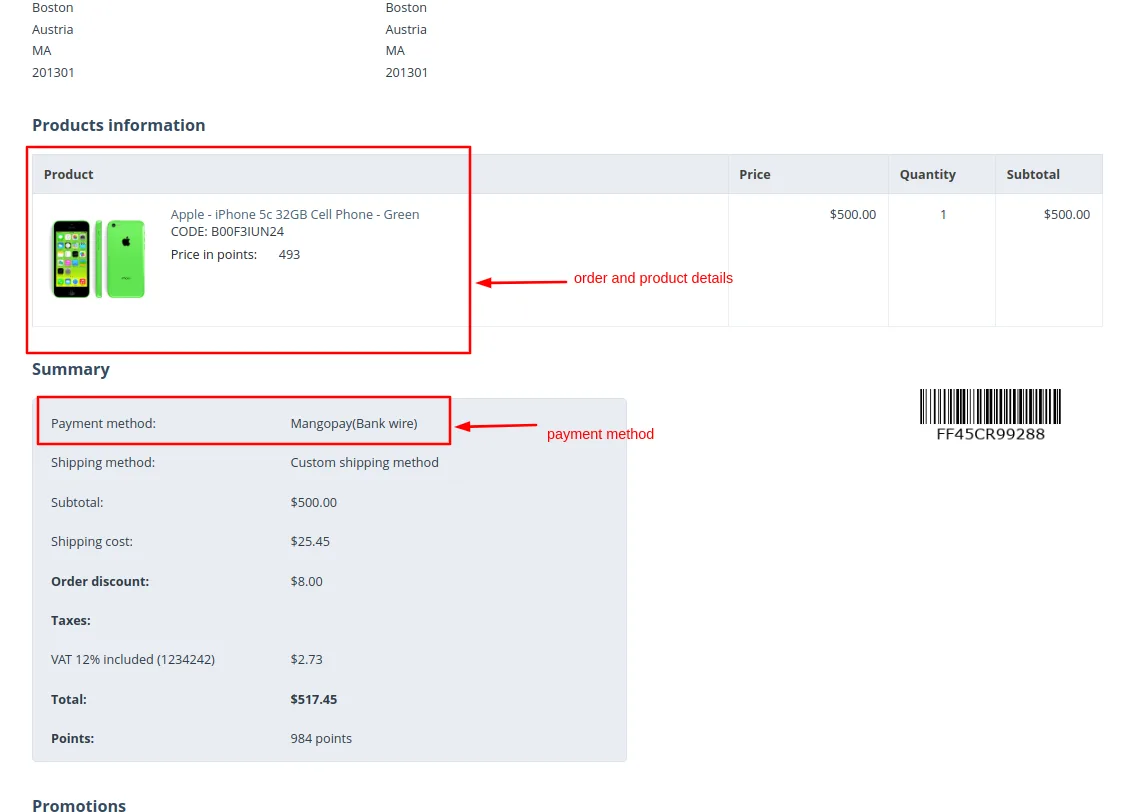
View >> Order and Product details
Payment method >> Mangopay
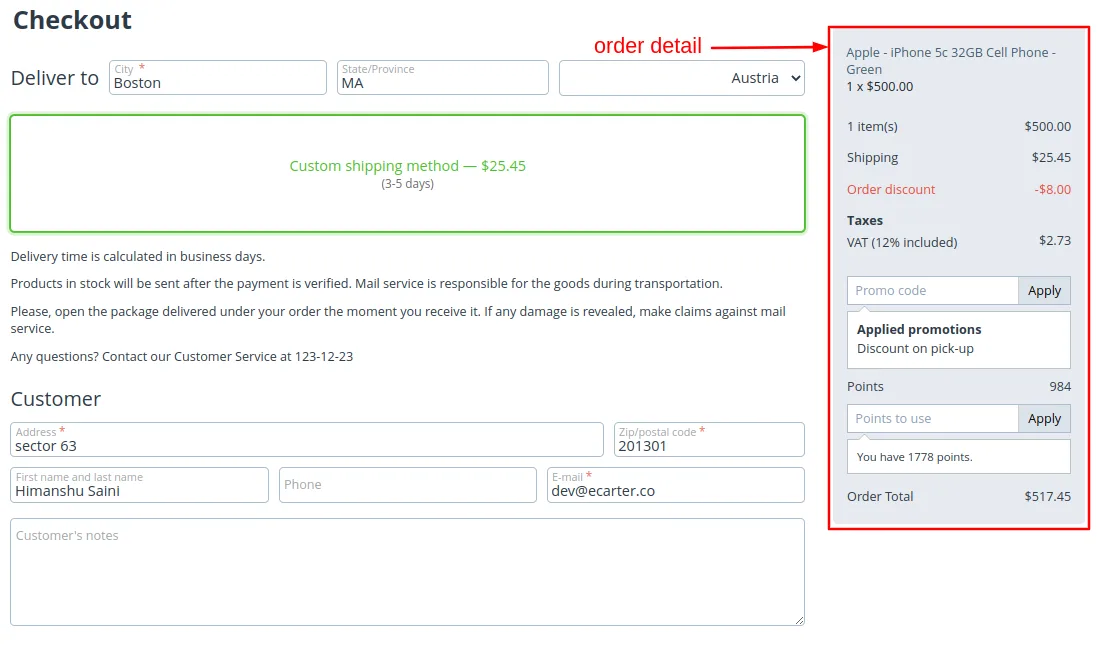
Checkout page will be open
Select payments methods
- Click on >> Place order
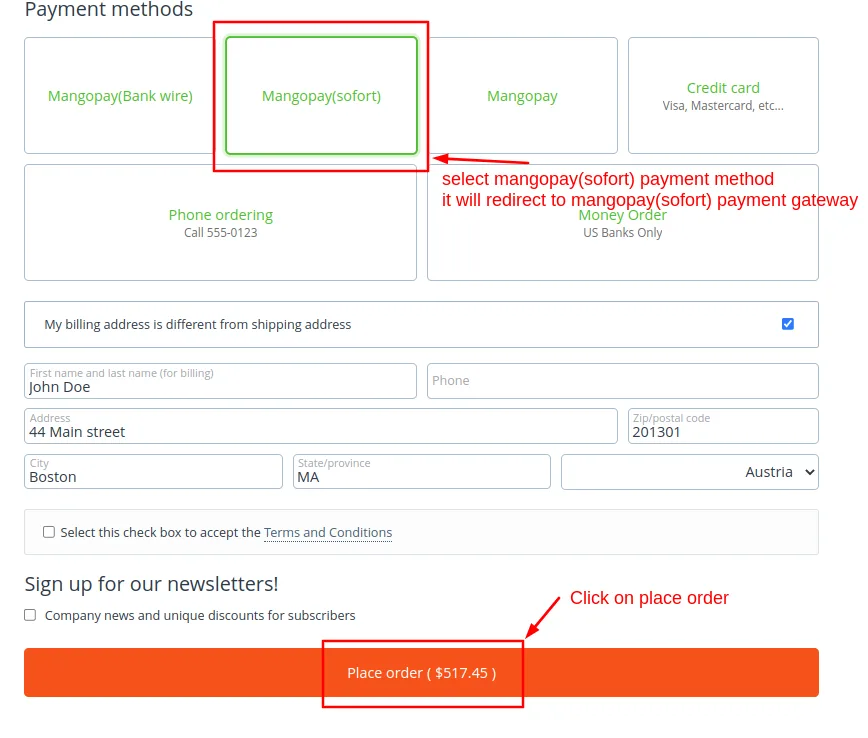
Payment gateway >> Mangopay
Click on >> Pay
Click here >> If you want to cancel
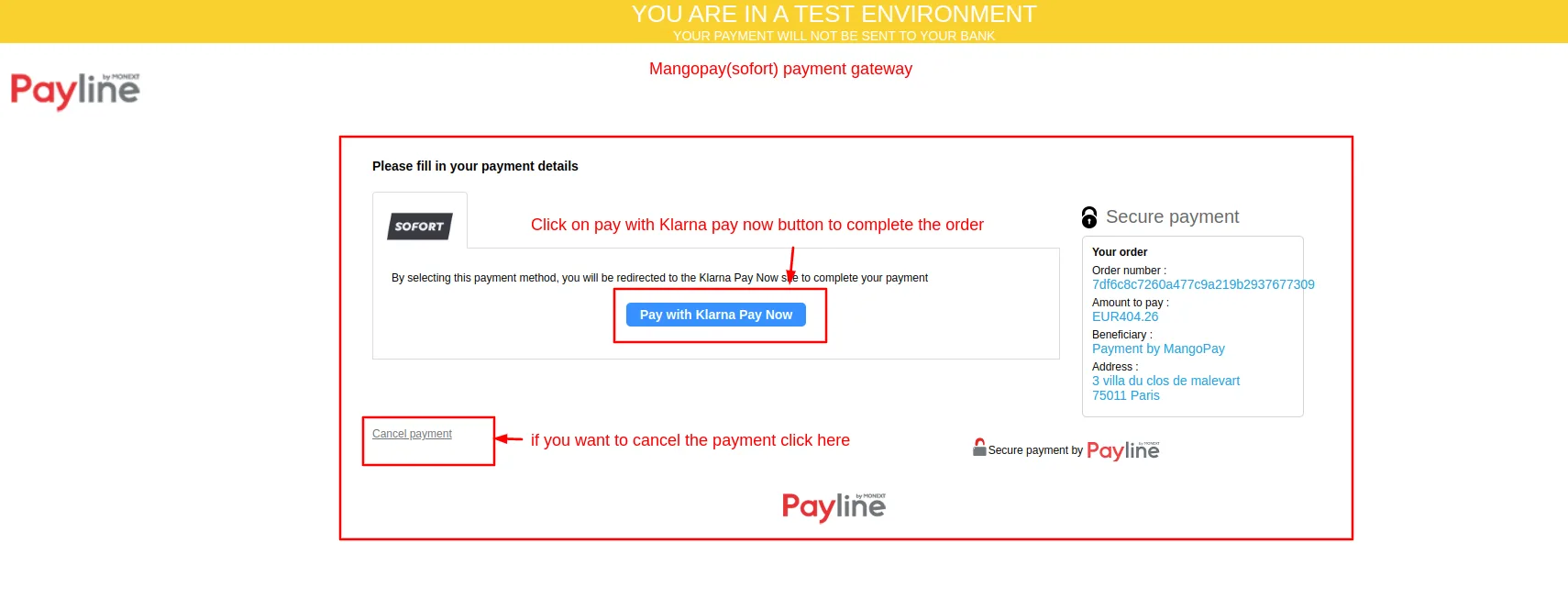
Fill Demo Bank details
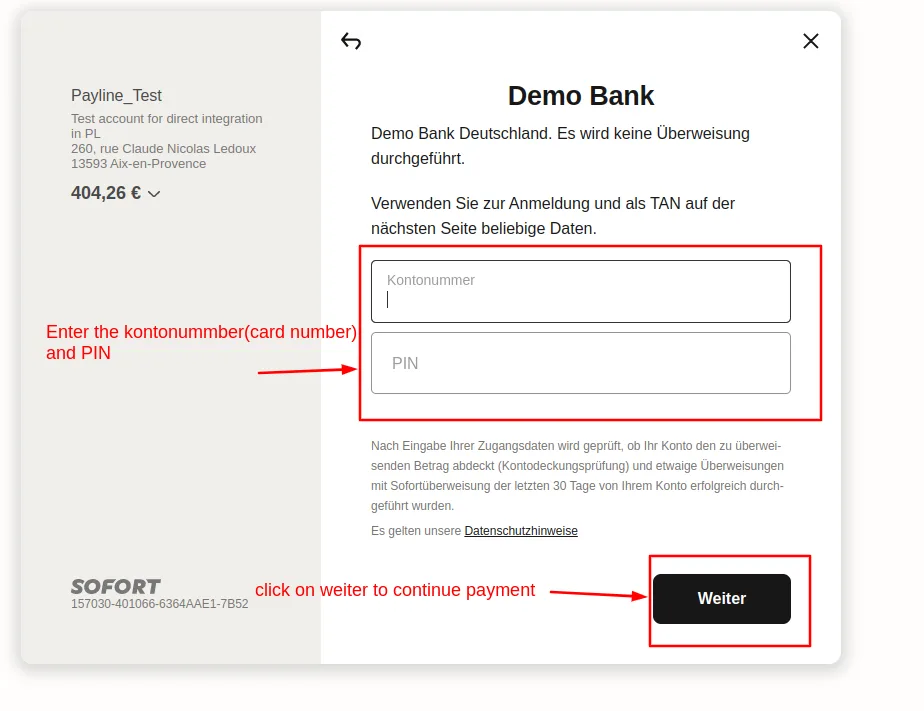
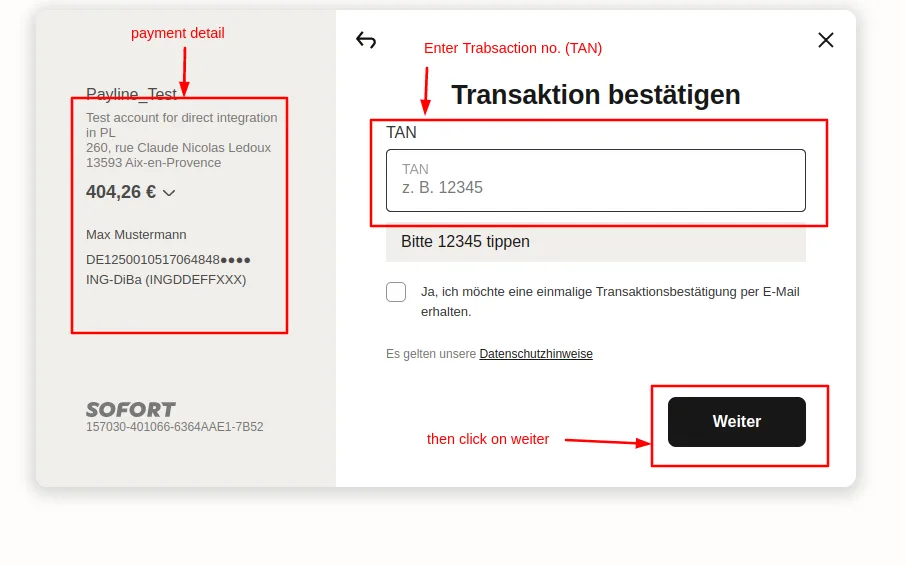
Enter >> Transaktion bestatigen
Click on >> Weiter
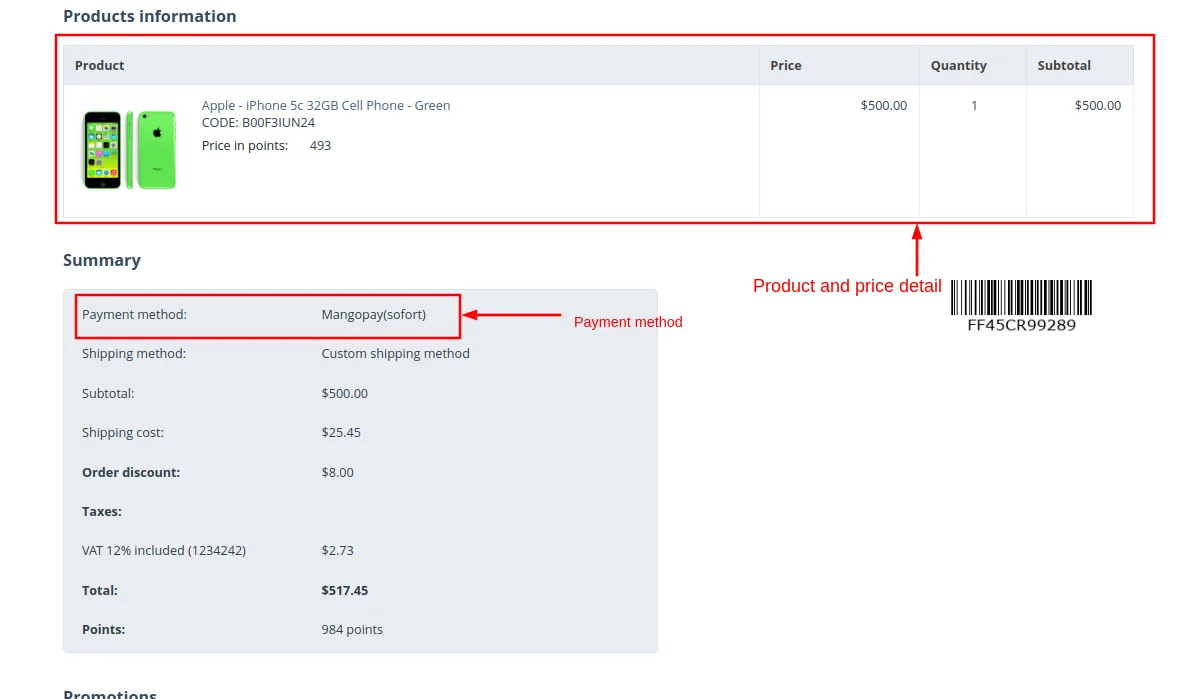
See >> product and price details
Payment method >> Mangopay
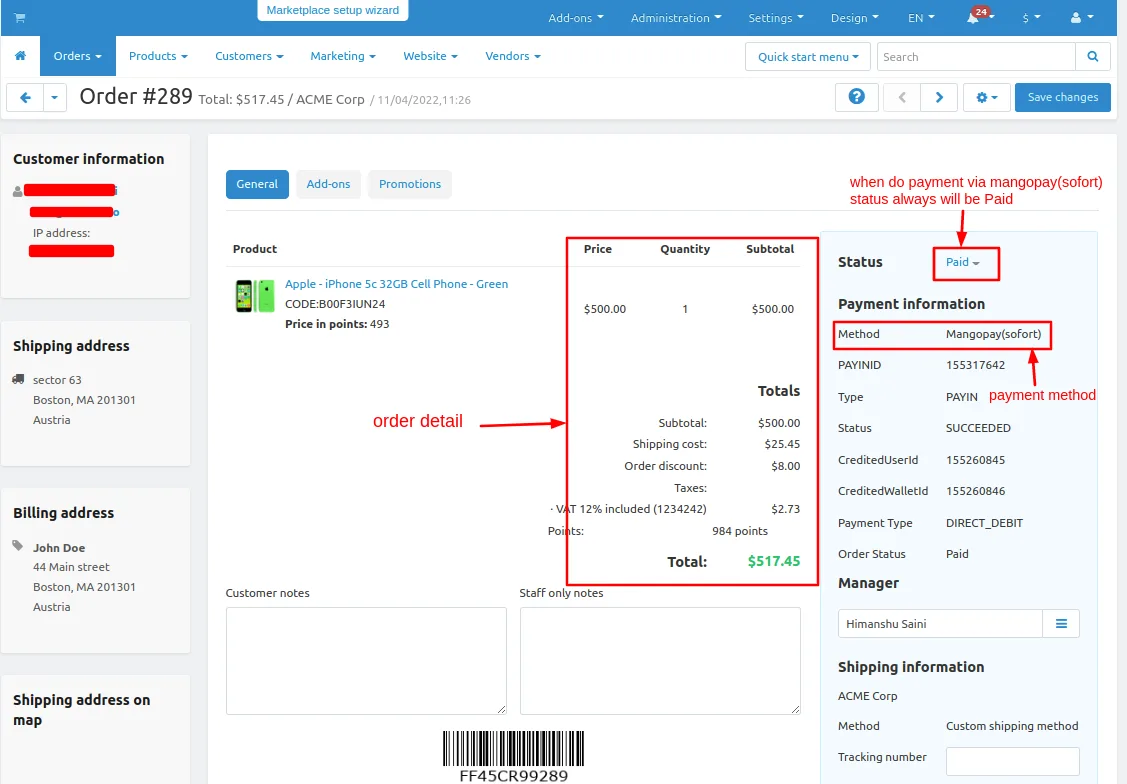
See >> Order details
Status >> paid
Payment method >> mangopay(sofront)
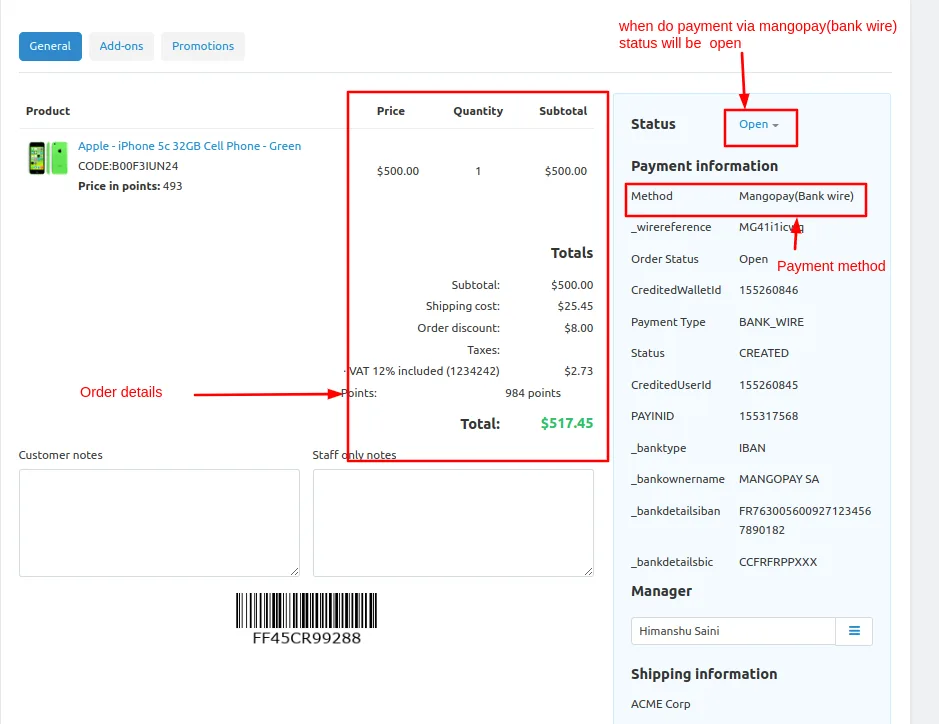
Status >> Open
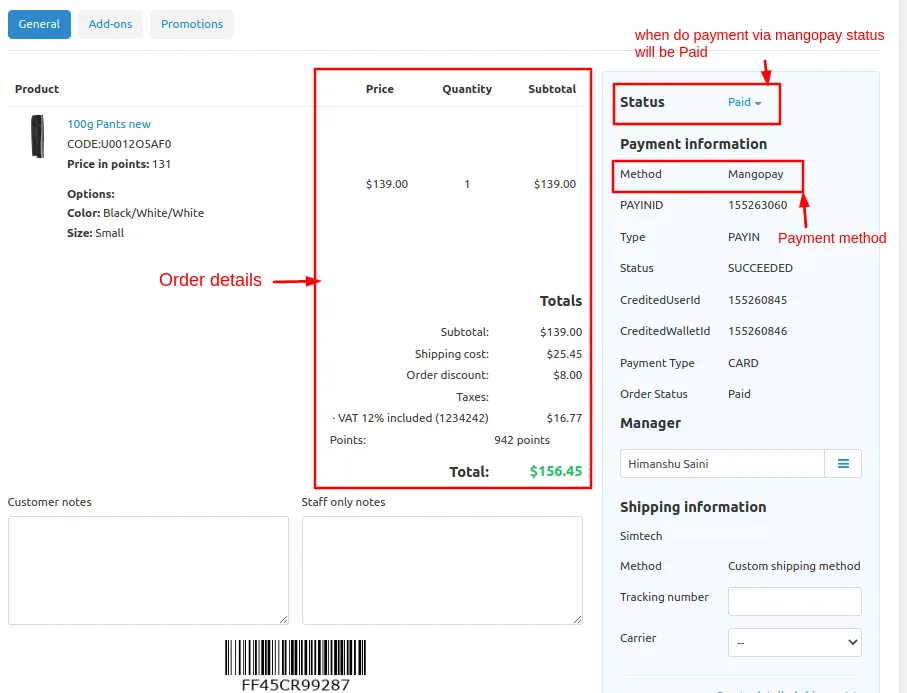
See >> Order details
Status >> paid
Payment method >> mangopay(storefront)
Addon-Version:
Version-1.0
Supported Versions:
CS-Cart, CS-Cart Multivendor 4.8.x, 4.9.x,4.10x,4.11x,4.12,4.13x, 4.14x, 4.15x, 4.16x, 4.17x, 4.18x
Support:
This app is developed and published by Ecarter Technologies Pvt. Ltd., a CS-Cart developer. You are guaranteed a quality add-ons
Frequently asked questions
Which card types does the Mangopay add-on accept at checkout?
It supports multiple card types through the Mangopay gateway, including Visa, Mastercard, Masterpass, and Diners. Customers securely enter their debit or credit card details at checkout to complete their order.
Does it work with CS-Cart Multi-Vendor?
Yes. The add-on is integrated with both standard CS-Cart and CS-Cart Multi-Vendor, so it can be used on single stores and marketplaces.
How does the admin manage payments and payouts?
From the admin panel, the admin can enable or disable the payment method, view transaction details, and manage received payments. KYC details can be submitted from the admin end, and funds can be transferred from the Mangopay wallet to a bank account.
Can I test the add-on before going live, and what settings can I customise?
Yes. It works in both Test and Live modes on the gateway. You can set a custom payment method title, define minimum and maximum order totals for using the method, and set a refund validation period; the payment method is configured under Administration > Payment methods.
Kajal is a Technical Content Writer at Ecarter Technologies. She writes technical documentation and in-depth guides on eCommerce platforms, mobile commerce and AI in online retail.