
Google Sheet Import Export
Easily manage your store data with the Google Sheet Import Export Addon for CS-Cart. Import and export products and orders seamlessly.
The Google Sheet Import Export add-on connects a CS-Cart store with Google Sheets so admins and vendors can manage order and product data outside the admin panel. After a simple Google authentication, you can export store data to a sheet, edit it there, and import the updated data back into your store, with custom field mapping to keep Google Sheet columns aligned to the correct CS-Cart fields. It supports separate sheets for orders and products, date-range selection, and the option to include vendor details, which cuts down manual work and data-entry errors. It is aimed at store owners and marketplace vendors who prefer to handle bulk data in familiar spreadsheets rather than the CS-Cart interface.
h

The Google Sheet Import Export Addon for CS-Cart allows admins and vendors to easily connect their store with Google Sheets to manage order and product data in a more efficient and organized way. It enables users to export store data to Google Sheets and import updated data back into their store with ease. With custom field mapping, you can ensure that the data in your Google Sheet matches the CS-Cart fields accurately, including order details and product information.
This addon offers a simple authentication process with Google and provides options to create separate sheets for orders and products, select date ranges, and include vendor details when needed. It helps reduce manual work, minimize errors, and streamline data management. Additionally, vendors can use this addon in the same way as the admin, making it a convenient and flexible solution for managing store data through Google Sheets.
Features
- Google Sheet Integration: Easily connect your store with Google Sheets using secure authentication for smooth data access and management.
- Import & Export Data: Quickly export order and product data to Google Sheets and import updated data back into your store without manual effort.
- Custom Field Mapping: Create flexible mappings to match Google Sheets columns to CS-Cart fields for accurate data transfer.
- Order Data Management: Export and manage order details, including Order ID, shipping price, carrier code, quantity, and order status, directly in Google Sheets.
- Easy Import Process: Import data using a simple interface by selecting the sheet and action, and let the system fetch and process data automatically
- Order Status Update: Update order statuses directly from Google Sheets and sync them with your CS-Cart store.
Installation:
How to install Addon
https://store.ecarter.co/blogs/how-to-install-addon/
How to Generate a Google Secret JSON File for Google Sheets Integration
Learn how to create and download the Google Secret JSON file from Google Cloud Console. This guide covers project setup, API enablement, OAuth credentials, and secure store connection for Google Sheets import and export.
https://store.ecarter.co/how-to-generate-an-api-key-in-google-cloud/
Admin Setting Configuration
These settings help connect your Google Sheet data with your CS-Cart store for managing orders and shipments.
Configuration fields
- Client JSON file: Upload the Google_secret.json file. This file is generated from your Google Cloud Console.
- Redirect URL: This URL can be used to complete the Google authentication process. Click on the Authenticate button to connect your Google account and access Google Sheets.

- After clicking on the authenticate button, select a Google account to securely sign in.

- Click on the continue button.

- Requesting full access to Google Drive and Sheets data, with all permissions selected and a reminder to trust the app before proceeding.

- Click on the continue button to connect to Google.

Column Mapping
These fields must match the column names in your Google Sheet:
- Order ID: Used to identify each order in the Google Sheet.
- Tracking Number: This setting is used to update tracking details in orders.
- Carrier Code: This setting defines the shipping company code.
- Quantity: Shows the number of items shipped.
- Shipping Price: Defines the shipping cost of the order.
- Product ID: Identifies the product
- Order Status: Used to update the order status in CS-Cart.
- Notify User Column: Controls whether the customer receives notifications.
- Order Status: Defines the default order status when processing data. Helps in automatically updating orders.
 /p>
/p>

How to Add Order and Product Google Sheet maps
Explains how to create and manage field mappings for orders and products to structure data in Google Sheets.
Order Sheet Map
Allows you to create a mapping for order data by selecting required fields and organizing them for export.
- Go to Website >> Product List >> Product Field Mapping
- Click on the (+) icon to add field mapping.

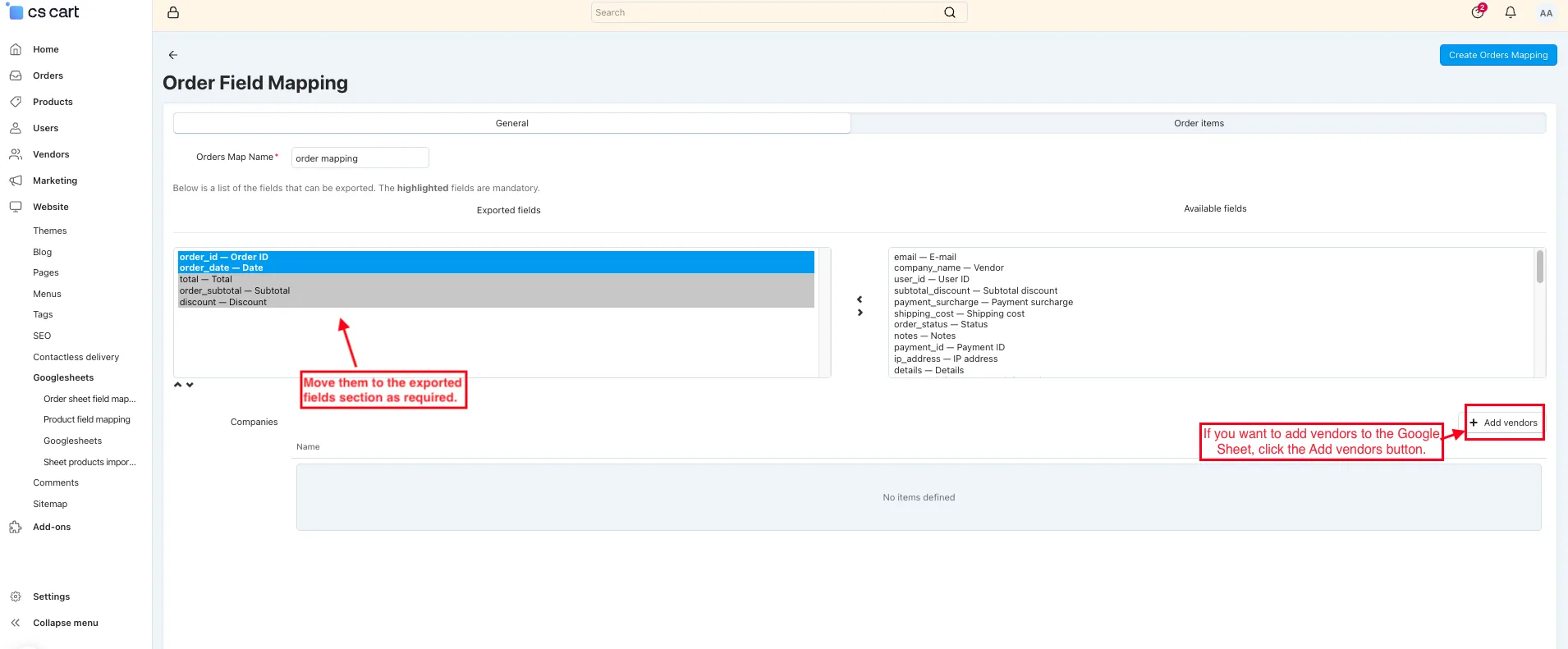
- Order Map name: Enter the name of the order map.
- Select the available fields from the right panel.

- Move them to the exported fields section as required.
- If you want to add vendors to the Google Sheet, click the Add vendors button.
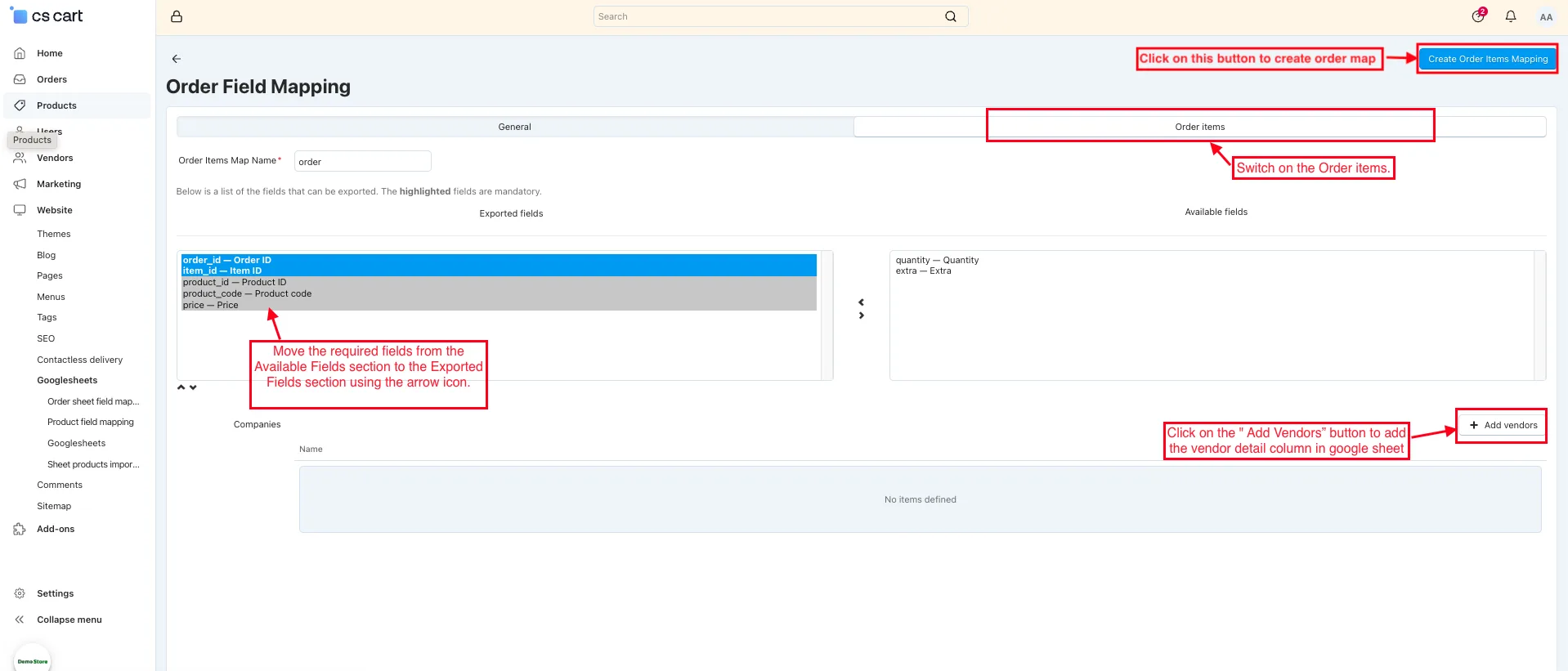
- Switch on the Order items.
- Order Item Map Name: Enter the name of the order item.
- Move the required fields from the Available Fields section to the Exported Fields section using the arrow icon.
- Click on the " Add Vendors button to add the vendor detail column in the Google Sheet.
- Click on the " Create Order Items Mapping " button.
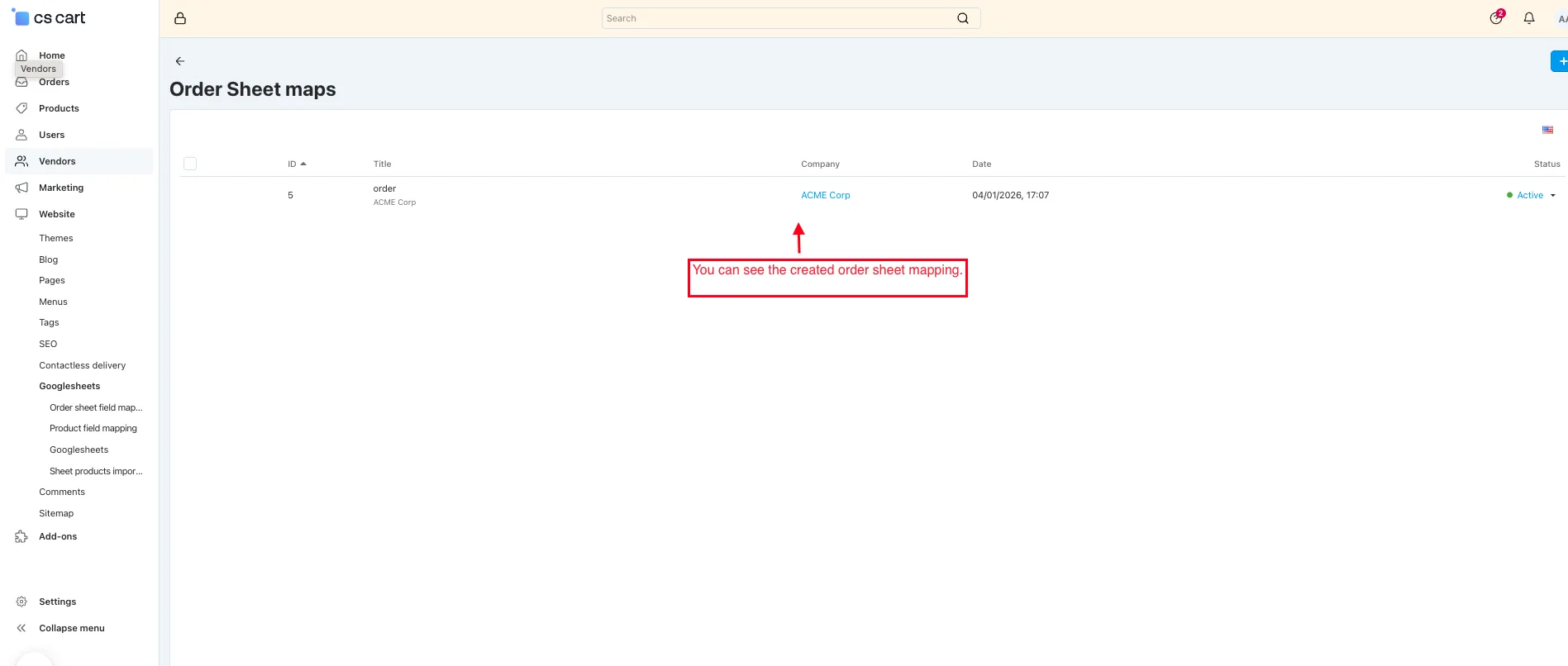
- You will see the created order sheet mapping.
Product mapping
- Helps in mapping product fields between Store and Google Sheets for accurate product data export.
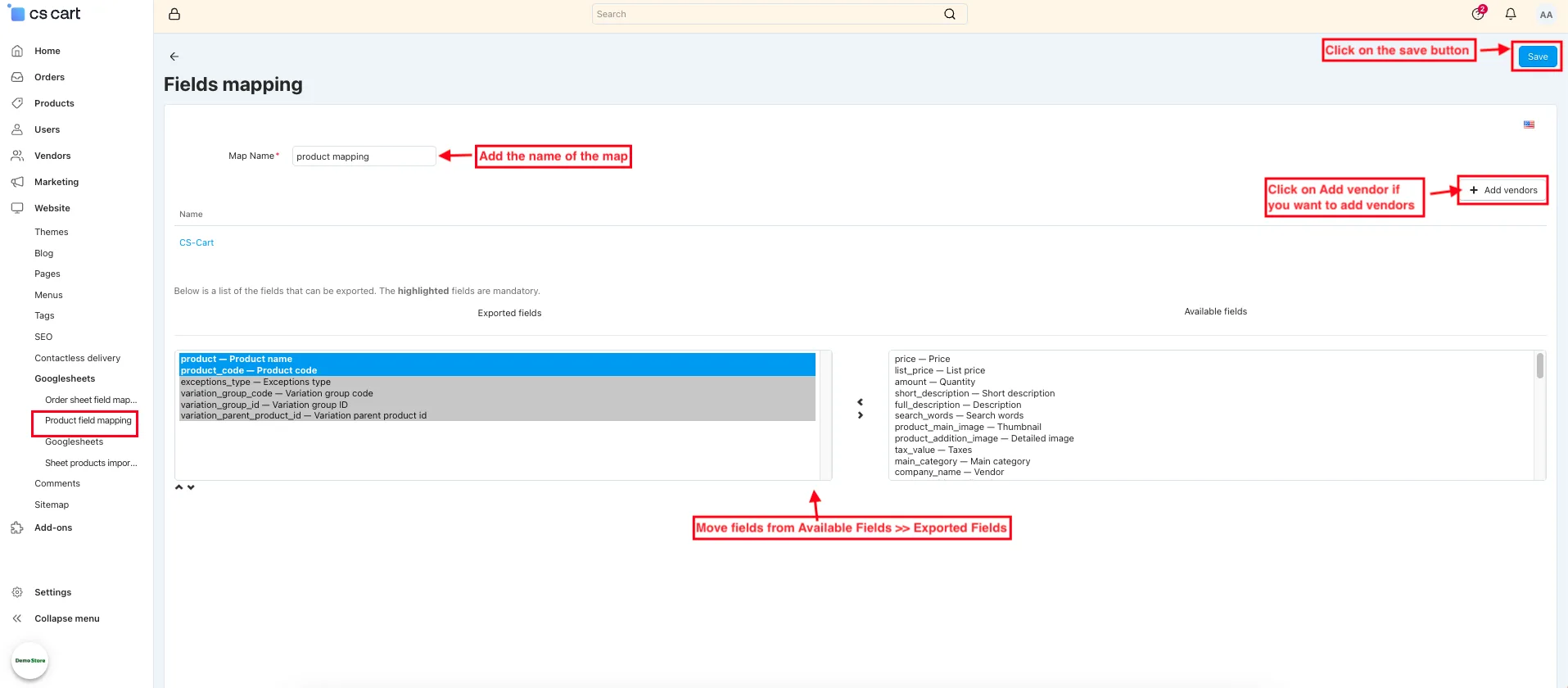
- Switch on the Product Field mapping.
- Click on the (+) icon to create a product field map.
- Add the name of the map.
- Click on Add vendor if you want to add vendors.
- Between the two panels, there are arrow buttons.
- These allow you to move fields from Available Fields >> Exported Fields
- These allow you to move fields from Available Fields >> Exported Fields
- Remove fields if needed.
- Click on the Save button.
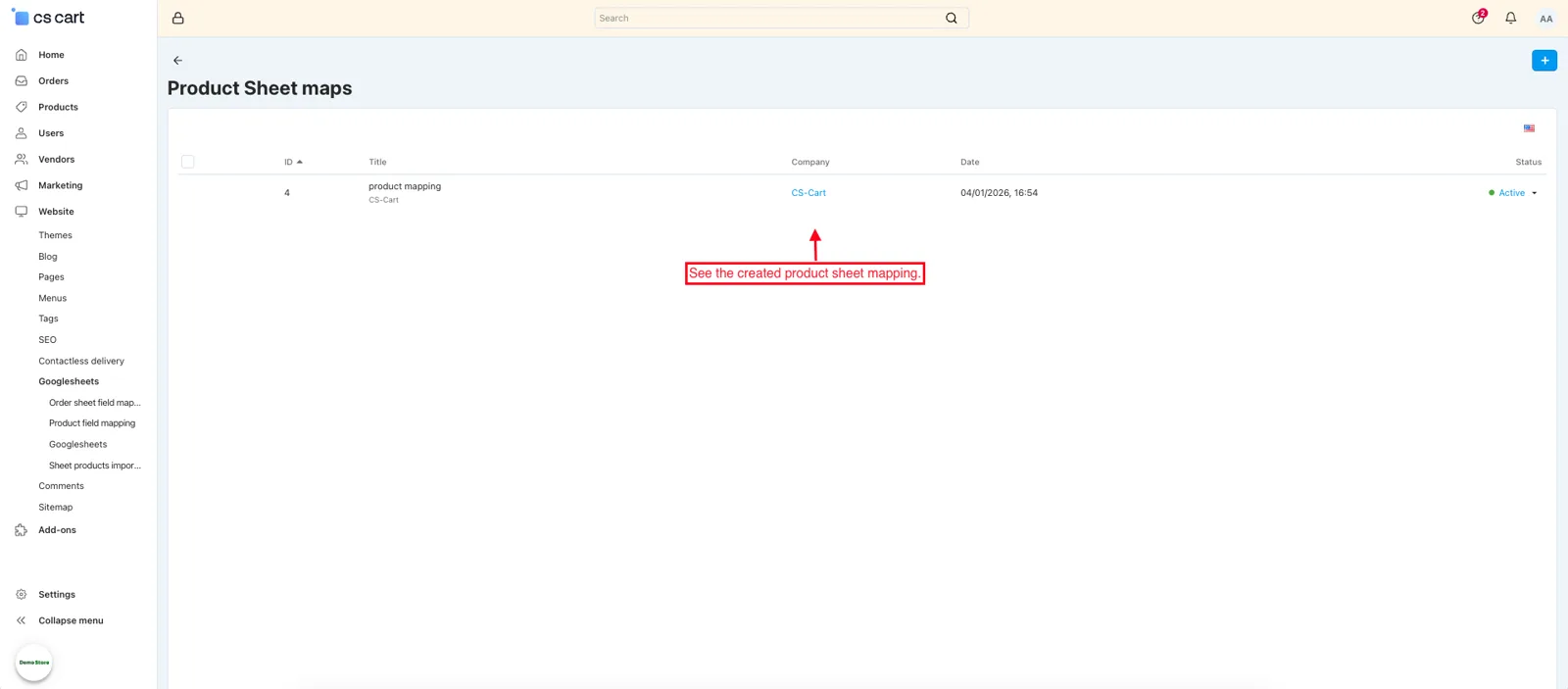
- See the created product sheet mapping.
Generate an Order Google Sheet
Guides you to create a Google Sheet for orders by selecting mapping, vendors, and a date range.
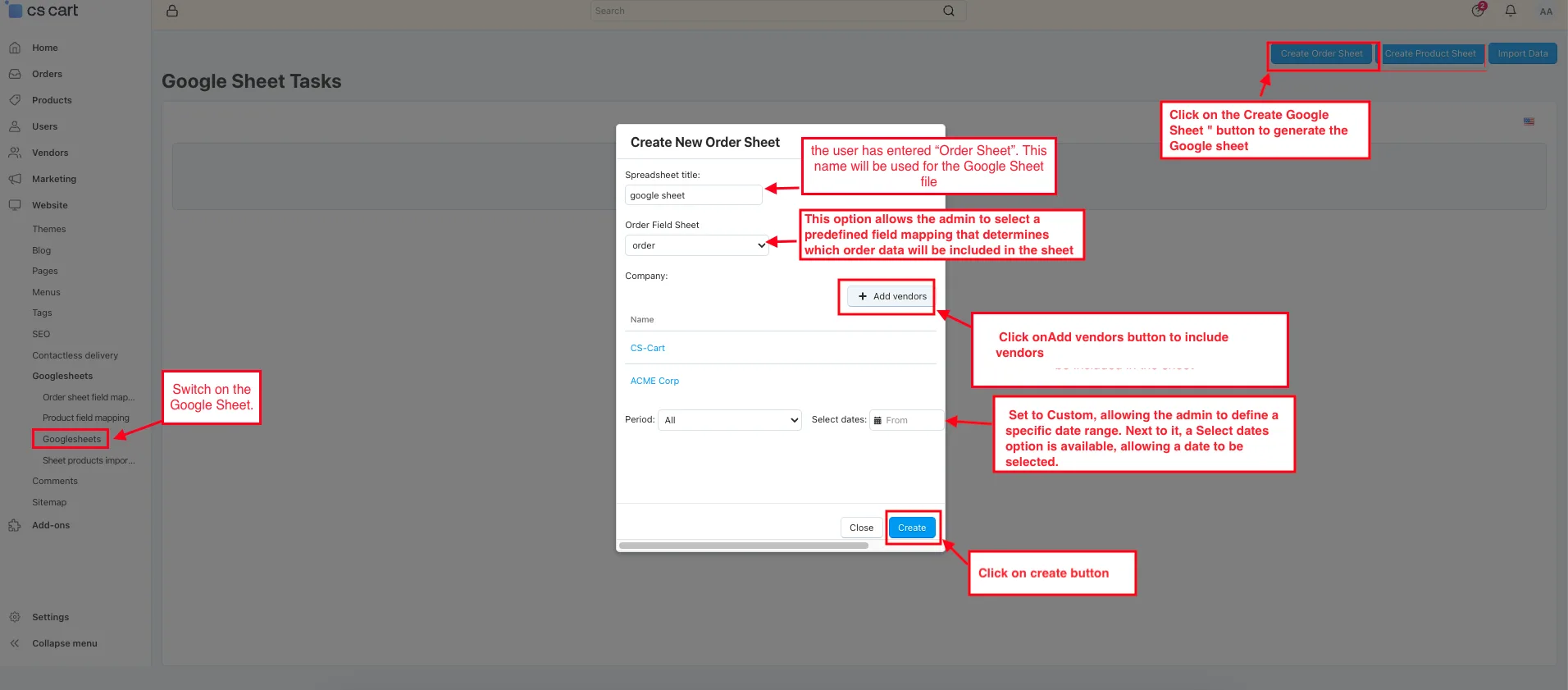
- Switch on the Google Sheet.
- Tap on the Create Google Sheet " button to generate the Google sheet.
- Open the pop-up window.
- Spreadsheet title: Here, the user has entered “Order Sheet”. This name will be used for the Google Sheet file.
- Order: This option allows the admin to select a predefined field mapping that determines which order data will be included in the sheet.
- There is an Add vendors button to include vendors. Currently, no vendors are selected, and the section shows “No items defined”.
- Name Field: A Name field is visible for defining or labeling the selected company/vendor list.
- Period Selection: The Period dropdown is set to Custom, allowing the admin to define a specific date range. Next to it, a Select dates option is available, allowing a date to be selected. This helps in exporting orders within a particular time frame.
- Click on the Create button
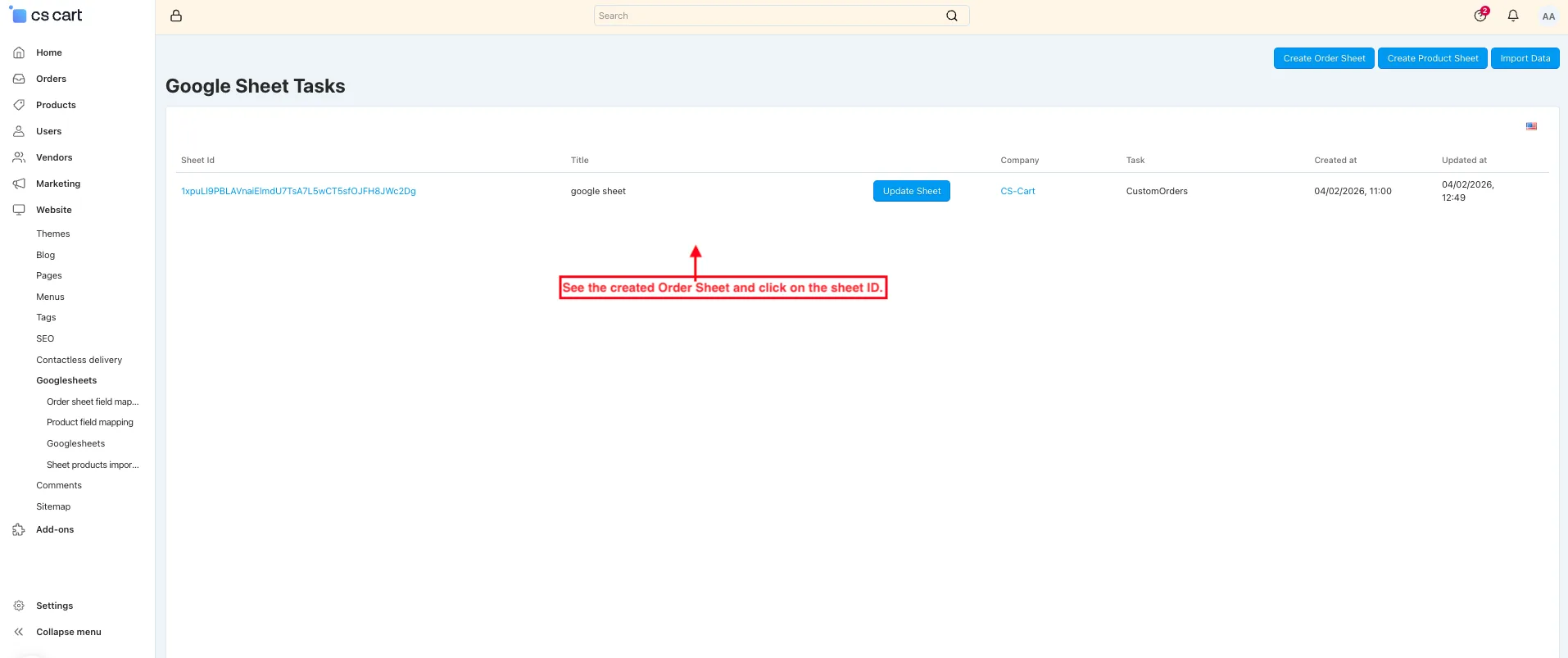
- See the created Order Sheet and click on the sheet ID.
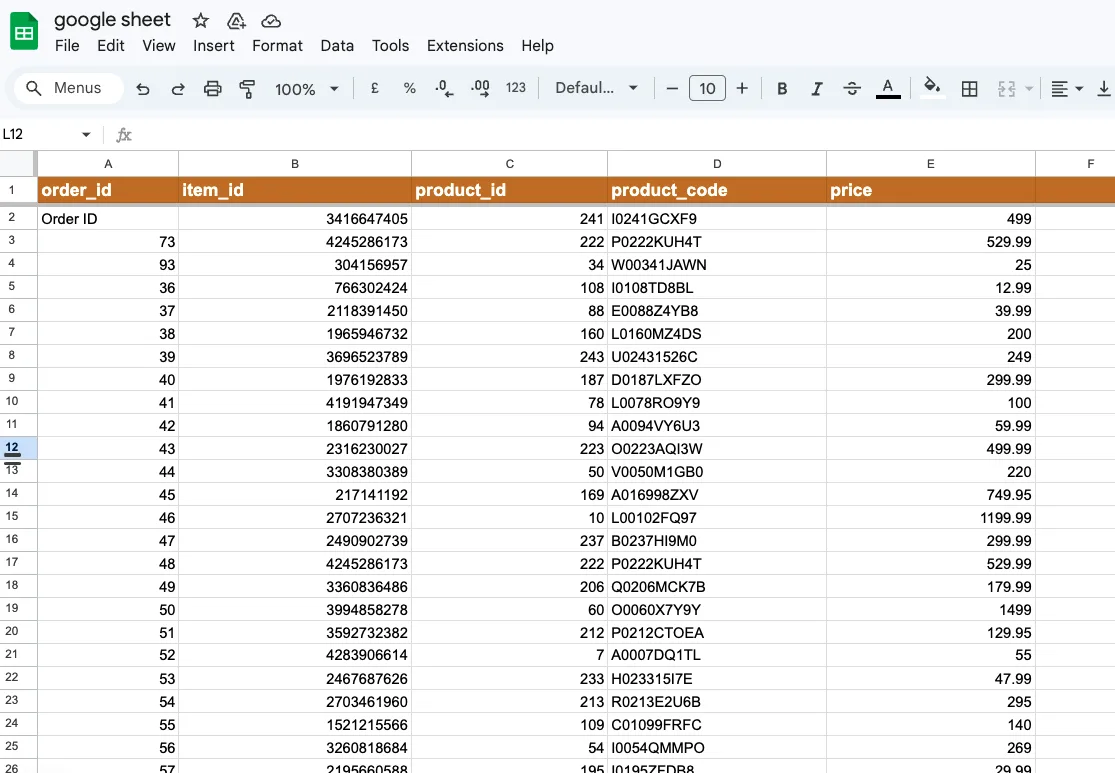
- After clicking the sheet ID, open the Google Sheet.
Generate Product Google Sheet
Explains how to generate a Google Sheet for product data using predefined mappings.
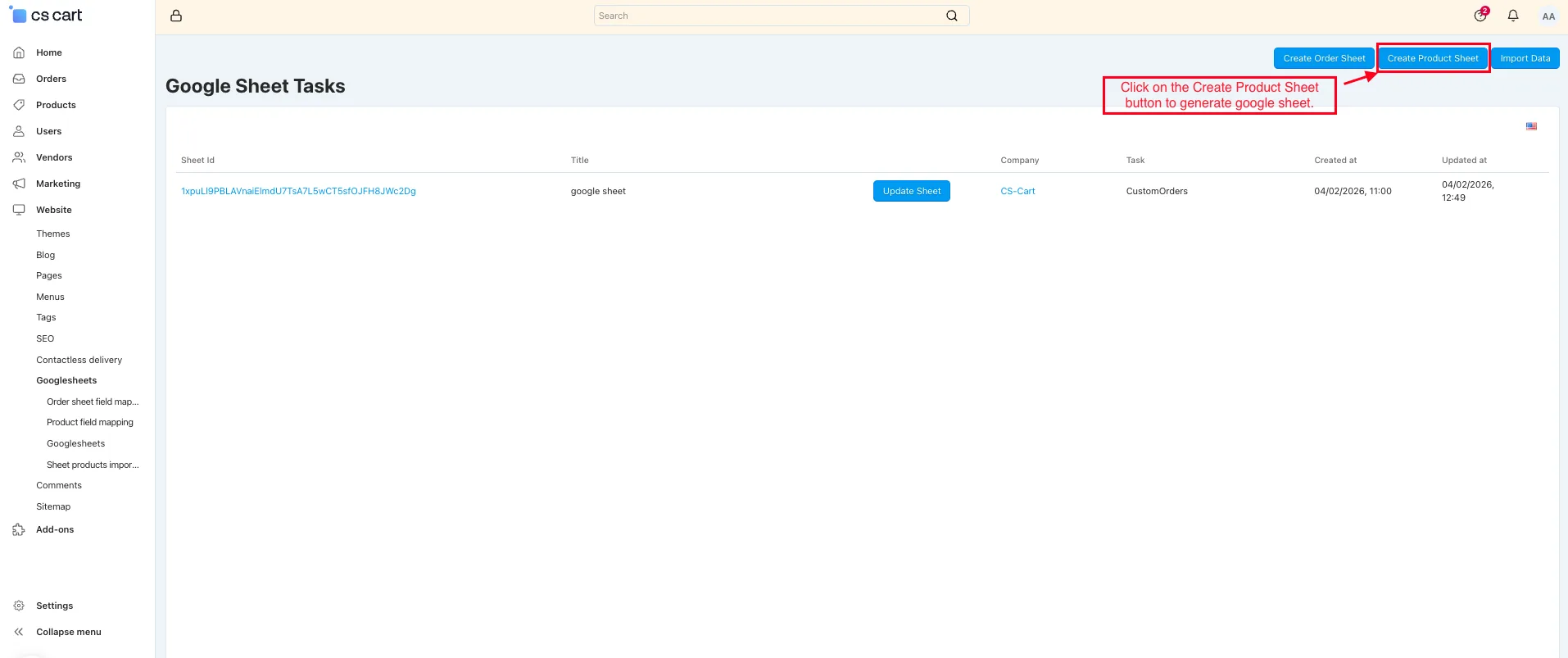
- Click the Create Product Sheet button to generate a Google Sheet.
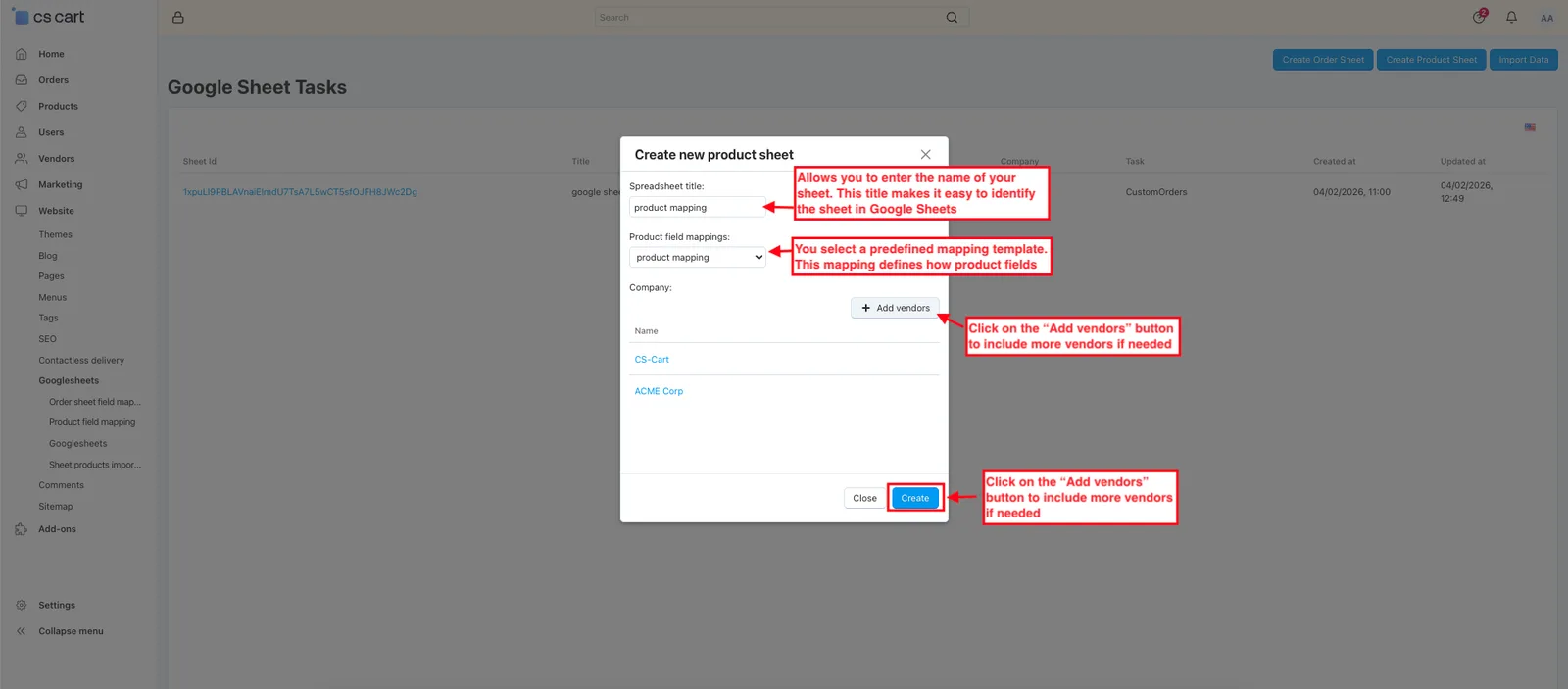
- Spreadsheet title: This field allows you to enter the name of your sheet. This title makes it easy to identify the sheet in Google Sheets.
- Product field mapping: Here, you select a predefined mapping template. This mapping defines how product fields from CS-Cart (such as name, price, SKU, etc.) will be mapped to columns in the Google Sheet.
- Click on the “Add vendors” button to include more vendors if needed.
- Click on the Create button.
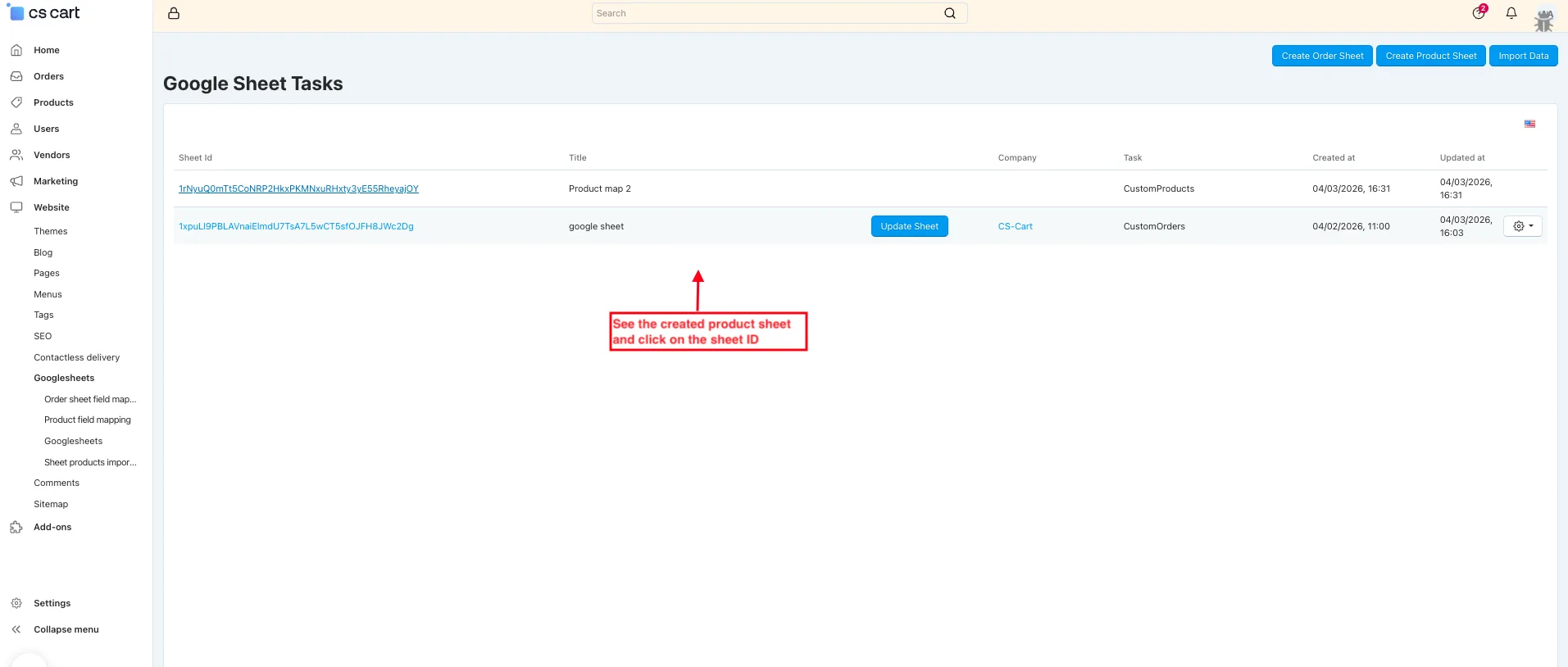
- See the created product sheet and click on the sheet ID.
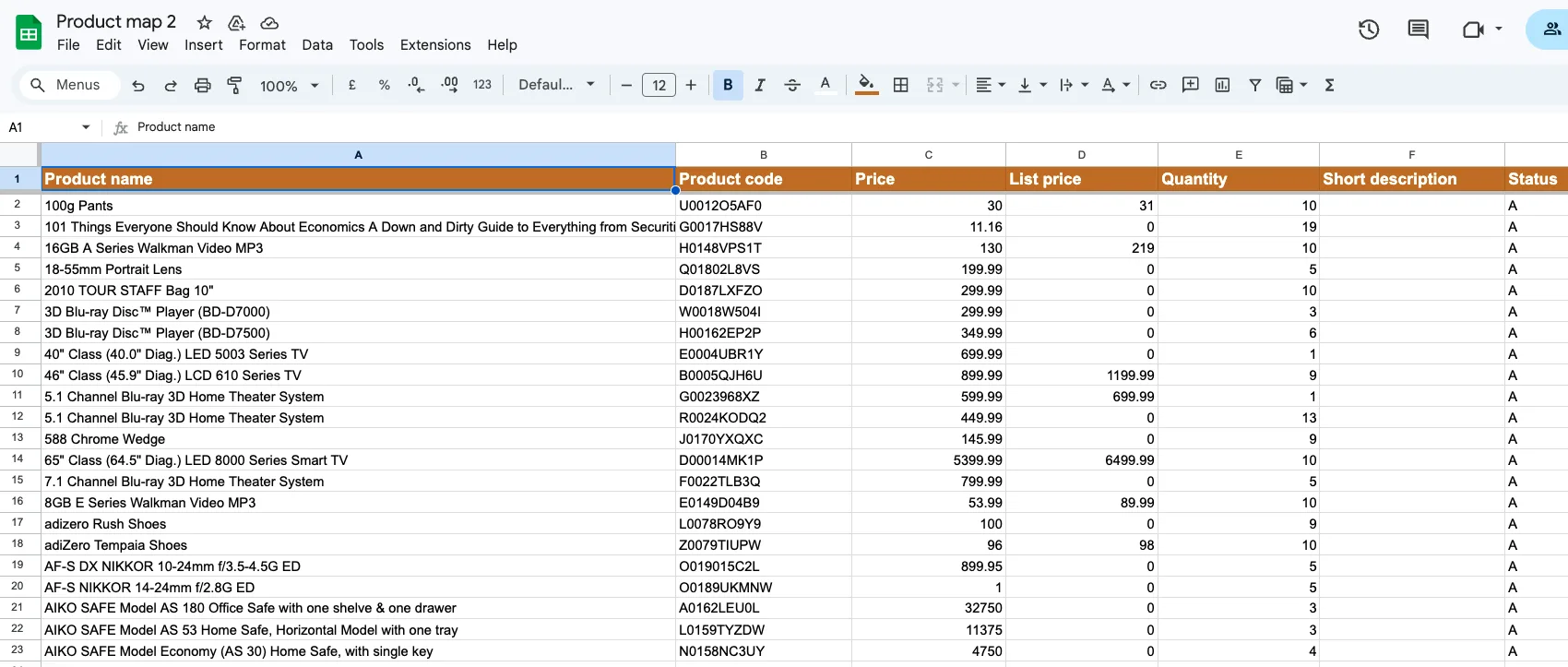
- After clicking the sheet ID, open the product's Google Sheet.
Import Data
Allows you to import data from Google Sheets into your store by matching fields and running the import process.
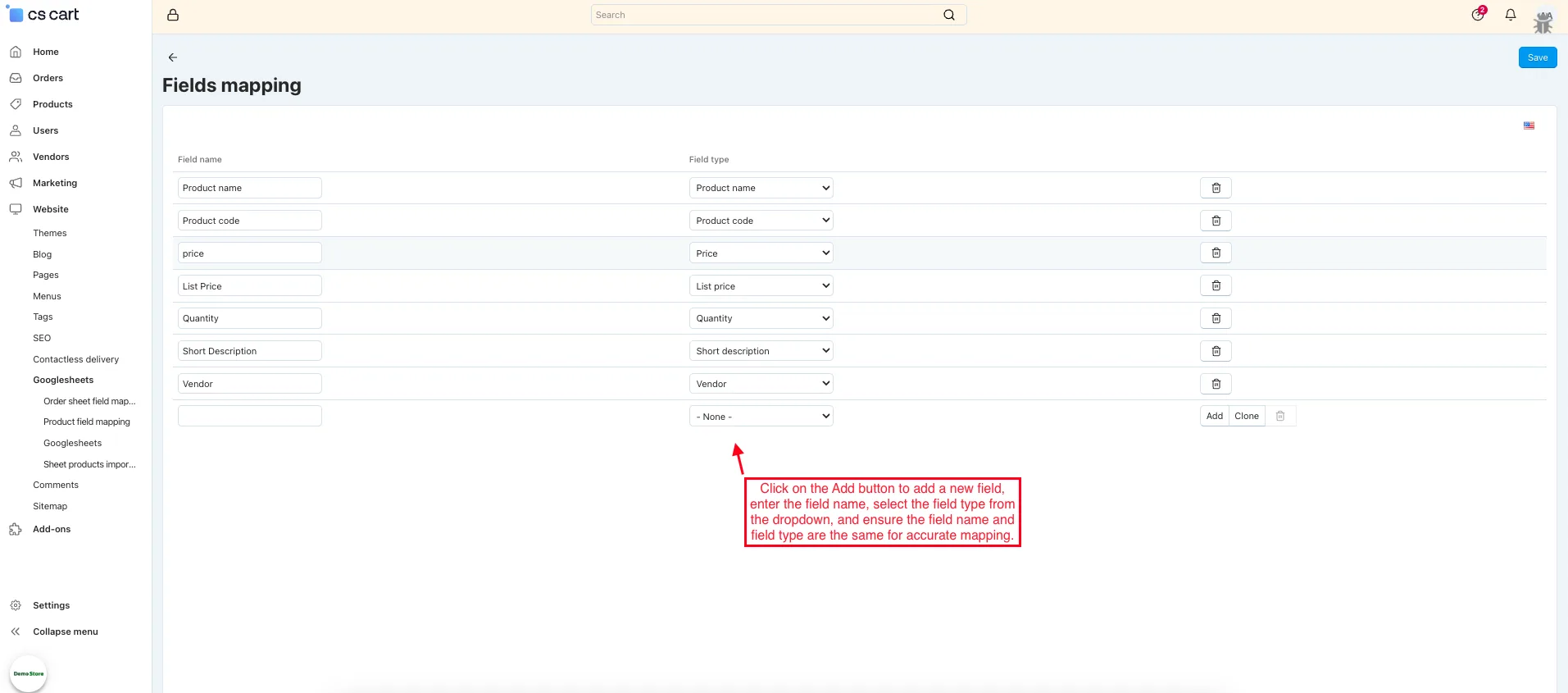
- Click on the Add button to add a new field, enter the field name, select the field type from the dropdown, and ensure the field name and field type are the same for accurate mapping.
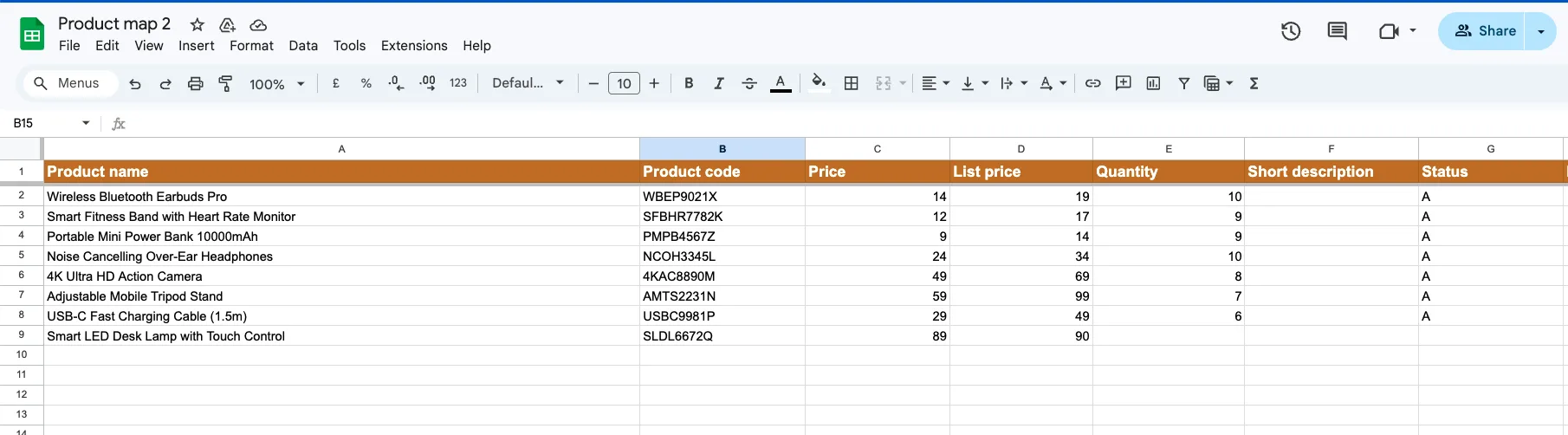
- Add data in the Google Sheet to import it into the store, and make sure the match field mapping added above matches.
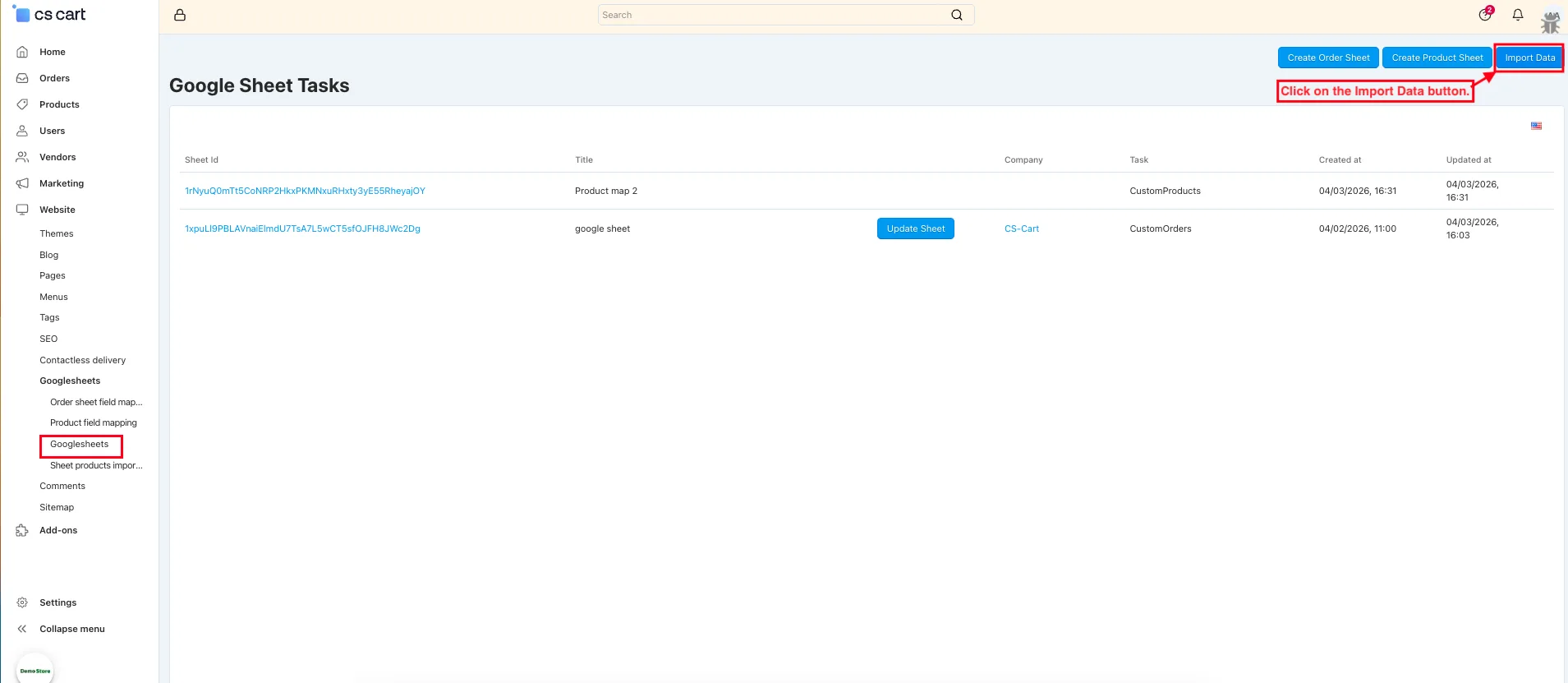
- Go to the Google Sheet page.
- Press the Import Data button.
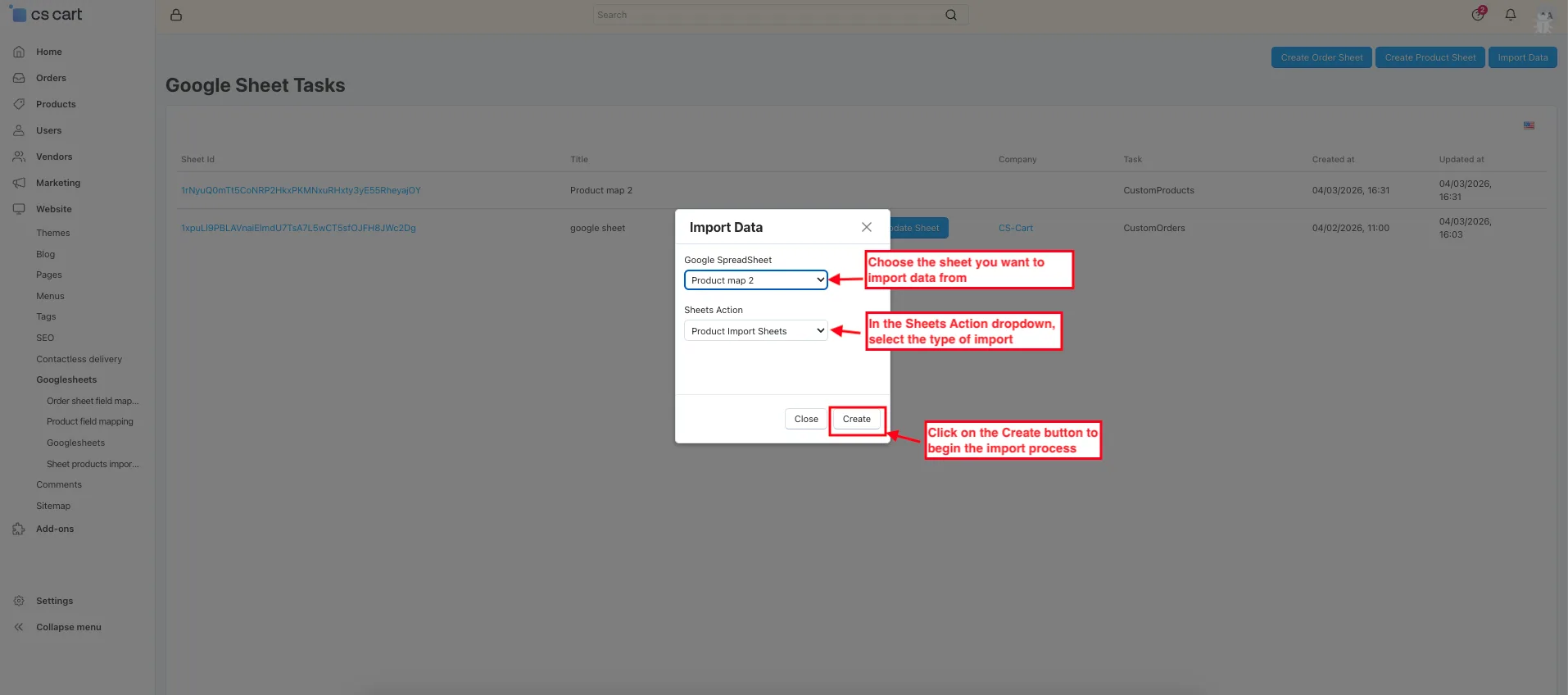
- A pop-up window will appear.
- In the Google Spreadsheet dropdown, choose the sheet you want to import data from.
- In the Sheets Action dropdown, select the type of import.
- Click on the Create button to begin the import process.
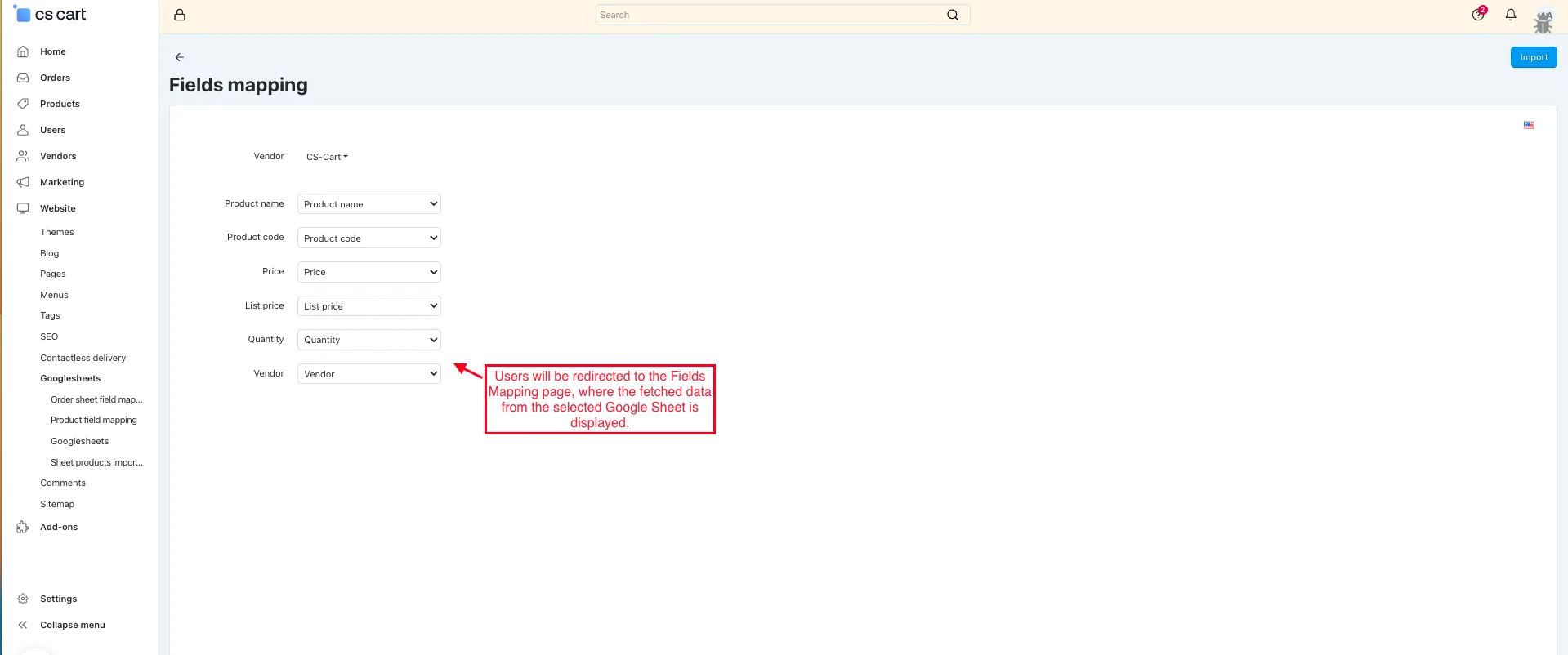
- The system will create a task and start fetching data from the selected sheet.
- After clicking on Create Import, you will be redirected to the Fields Mapping page, where the fetched data from the selected Google Sheet is displayed.
How to work this addon for the Vendor
For vendors, this functionality works the same way as for the admin, as explained above.
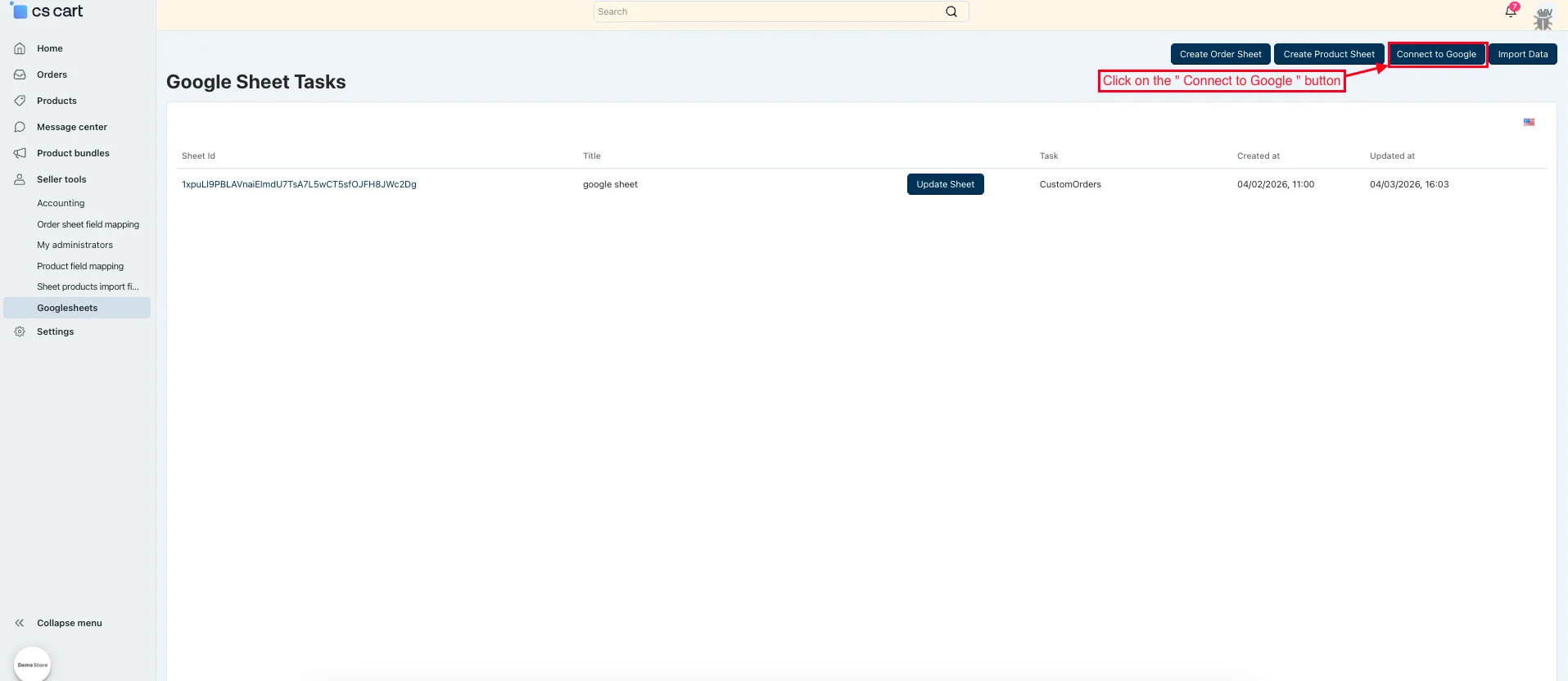
- In the vendor panel, an additional Connect to Google button is available. Clicking this button opens the same authentication steps shown in the admin panel.
Final Thought:
The Google Sheet Import Export Addon makes it easy to manage store data by connecting CS-Cart with Google Sheets. It reduces manual work, improves accuracy, and helps both admins and vendors handle data quickly and efficiently.
Addon-Version
Version-1.0.3
Supported Versions:
CS-Cart, CS-Cart Multivendor 4.8.x, 4.9.x,4.10x,4.11x,4.12,4.13x, 4.14x, 4.15x, 4.16x, 4.17x, 4.18x
Support:
This add-on is developed and published by Ecarter Technologies Pvt.Ltd., a CS-Cart developer. You are guaranteed a quality add-on supported by future versions. If you need help, please contact us via email at support@ecarter.co.
Frequently asked questions
What data can I move between CS-Cart and Google Sheets?
You can export order and product data to Google Sheets and import updated data back into your store. Order details such as the Order ID and product information are covered, and custom field mapping keeps each sheet column matched to the right CS-Cart field.
Does this add-on work with CS-Cart Multi-Vendor?
Yes. Vendors can use the add-on the same way as the admin, so marketplace sellers can export and import their own order and product data through Google Sheets.
How does the connection to Google Sheets work?
The add-on uses a simple, secure Google authentication process to link your store to your Google account. Once connected, it can create separate sheets for orders and products and let you select date ranges when exporting.
Which CS-Cart versions is it compatible with?
It is built for recent CS-Cart and Multi-Vendor releases. Share the exact version you run and we will confirm compatibility before you install.
Kajal is a Technical Content Writer at Ecarter Technologies. She writes technical documentation and in-depth guides on eCommerce platforms, mobile commerce and AI in online retail.